How to Create a No-Code PDF Generation Microservice
Connect a form, CRM, or spreadsheet to a document template, generate a PDF, and deliver it reliably with a no-code workflow.

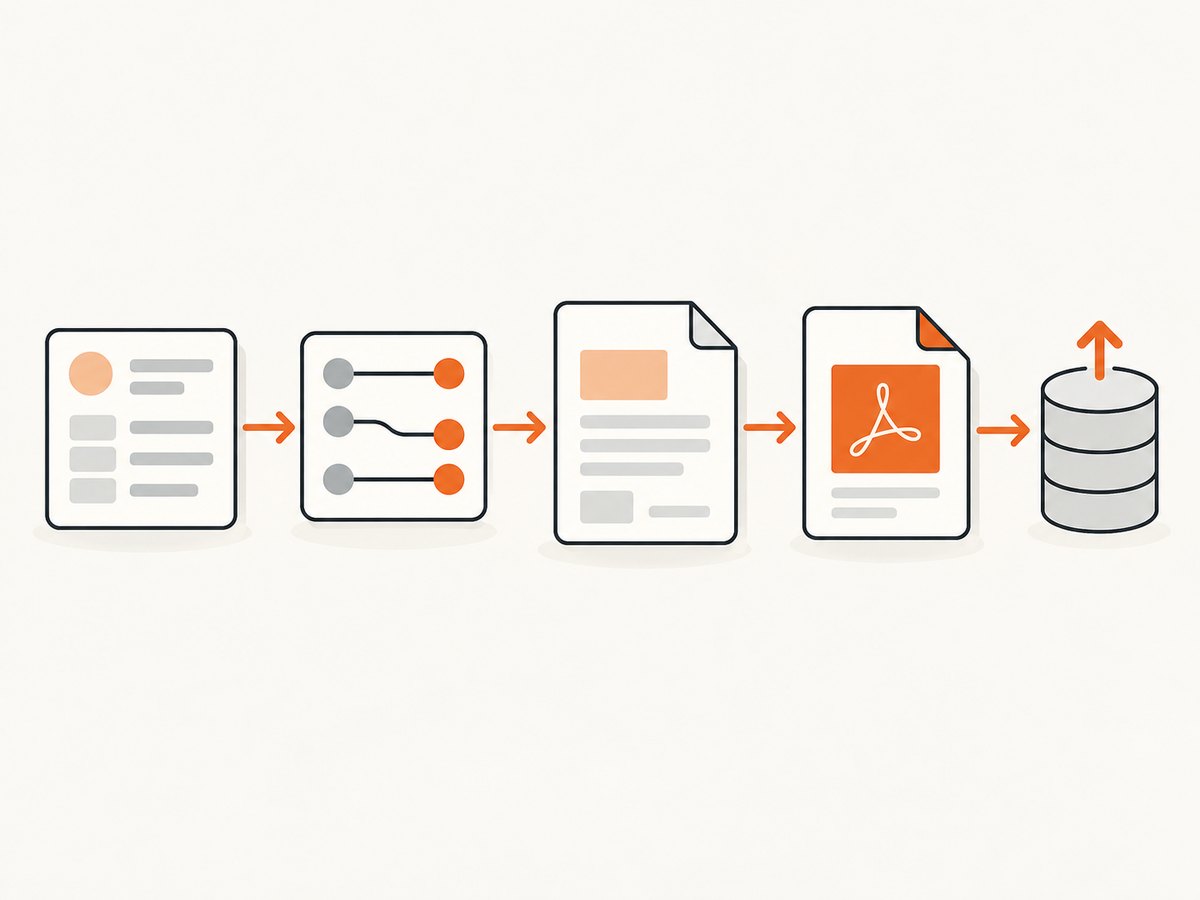
A no-code PDF generation microservice connects a business event to a document template and delivers the rendered file: trigger → mapped data → template render → completion handling → delivery or storage. You can assemble that flow with a form, CRM, spreadsheet, database, or app; a workflow tool such as Zapier, Make, or n8n; and a hosted document-generation service such as PDFMonkey. No custom PDF-rendering server is required.
Despite the title, this is usually a workflow built from hosted services, not a microservice you write and operate yourself. Use a custom backend when you need logic, access controls, or operational guarantees that a no-code platform cannot provide. The API path below is useful when your automation platform supports HTTP calls or when you need to understand what the connector does for you.
1. Decide what the workflow must do
Start from the document and the business event, not from the automation tool. Write down what record triggers a PDF, which fields belong in it, who receives it, and how long the file must remain available. That short requirements list guides the template, integration, and storage choices.
| Question | Example decision |
|---|---|
| What starts a document? | A submitted quote request, a CRM deal marked won, or a new spreadsheet row. |
| Where does the data live? | The system that owns the customer or transaction record. |
| What is the output? | An invoice PDF, confirmation, report, certificate, or shipping label. |
| Who needs it? | A customer by email, an internal team, or a downstream workflow. |
| Must it be retained? | Choose a durable storage destination if the generation service returns a temporary link. |
Keep the source system as the authority for business data. The workflow should map that data into a document; avoid making the PDF template or an automation step an undocumented second database.
2. Choose a template and generation service
A template separates layout from the changing values for each document. PDFMonkey documents both a visual Builder and templates authored with HTML/CSS and Liquid. The visual builder suits ordinary layouts that a non-developer may maintain. HTML/CSS offers more layout control when someone on the team can own the markup. Its documentation lists invoices, receipts, reports, certificates, shipping labels, and other dynamic documents as template examples. Read the PDFMonkey documentation.
Compare providers against the actual workflow requirements rather than a headline feature count:
| Decision area | What to verify |
|---|---|
| Template authoring | Visual editor, HTML/CSS, or reuse of an existing office document. |
| Connections | Native integration for the trigger and destination, or generic HTTP/API support. |
| Completion | Immediate response, status polling, or webhook notification. |
| Delivery and retention | Email, cloud storage, returned link, expiration, and retention settings. |
| PDF operations | Generation alone, or also conversion, form filling, merging, splitting, or protection. |
| Scale and cost | Current quotas, billing unit, plan limits, and treatment of failed jobs. |
PDFMonkey is a direct fit for a template-based generation flow: its official guides cover integrations, API requests, and webhook completion. It lists Zapier, Make, n8n, Workato, Bubble, and Glide as integration routes. See its integration guide. Docupilot is another option for API/webhook document creation and downstream delivery; its help page describes a secure result URL when no delivery destination is configured. Review Docupilot’s API and webhook guidance. Plumsail Documents covers broader PDF operations such as conversion, form handling, splitting, and merging, and its REST API describes asynchronous jobs. Review Plumsail Documents.
Plan and pricing details, connector catalogs, and URL retention behavior can change. Confirm current service documentation and plan limits before building a workflow around them.
3. Build the no-code workflow
- Create the source trigger. In the workflow platform, select the event that should create a document: for example, a new form submission or a CRM status change. Choose the record fields the next step will need.
- Create and test the template. Add placeholders for every dynamic value. Use representative data, including long names, optional fields, and multi-line text, to catch wrapping and missing-value problems before connecting live records.
- Connect the generation service. Authenticate the connector using the account’s API secret. If your platform lacks a native connector but supports HTTP requests, call the provider’s REST API. Keep credentials in the platform’s secret or credential store rather than in a public page or client-side script.
- Map source fields to template variables. Map each value deliberately. Check dates, currency, addresses, booleans, and arrays for differences in formats. A field called
invoice_datein a template does not automatically mean a source field calledcreated_athas the right representation. - Handle generation completion. Connect the service’s completion webhook or status-check step. Do not send an email or mark a record complete merely because the create request was accepted; asynchronous generation can still fail later.
- Deliver and store the file. Email the PDF, upload it to storage, or pass it to another workflow action. If the provider returns a temporary download URL, retrieve the file while it is valid and store it somewhere your organization controls when durable access is needed.
- Run end-to-end cases. Test one ordinary record, one with optional data omitted, and one with unusually long text or a special character. Confirm the PDF content, recipient, filename, storage location, and duplicate behavior.
PDFMonkey describes integrations as a way to generate documents without writing code. Its integration documentation reports 6,000+ Zapier app connectors; this is a vendor-published, time-sensitive figure, so check the current guide if connector count matters to your selection.
4. Understand the API lifecycle
A typical generation API accepts a template identifier and JSON data. The service creates a document job; rendering may finish after the initial request. Production workflows should therefore treat creation and completion as separate events. PDFMonkey documents asynchronous generation with status polling or webhook notification and recommends webhooks for production workloads. It also documents a synchronous endpoint for prototyping or low-volume interactive use. See the API generation guide.
The exact endpoint, field names, authentication scheme, and response format depend on the selected provider and must be copied from its current API documentation. The following is a generic HTTP request shape, not a provider-specific runnable request:
POST /documents
Authorization: Bearer YOUR_API_SECRET
Content-Type: application/json

{
  "template_id": "YOUR_TEMPLATE_ID",
  "payload": {
    "customer_name": "Ada Lovelace",
    "invoice_number": "INV-1042",
    "total": "125.00"
  }
}
In a no-code platform, configure the equivalent request action with the provider’s documented URL and authentication fields. Map the actual template identifier and payload schema; do not assume the example field names are accepted by a particular provider.
5. Make completion and delivery reliable
Design the workflow for delayed, failed, and repeated events. A source system may retry a trigger after a timeout, while the generation request may already have succeeded. Before enabling the flow for live records, decide how you will identify duplicates—for example, by recording the source record ID and generated document ID together in the source system.
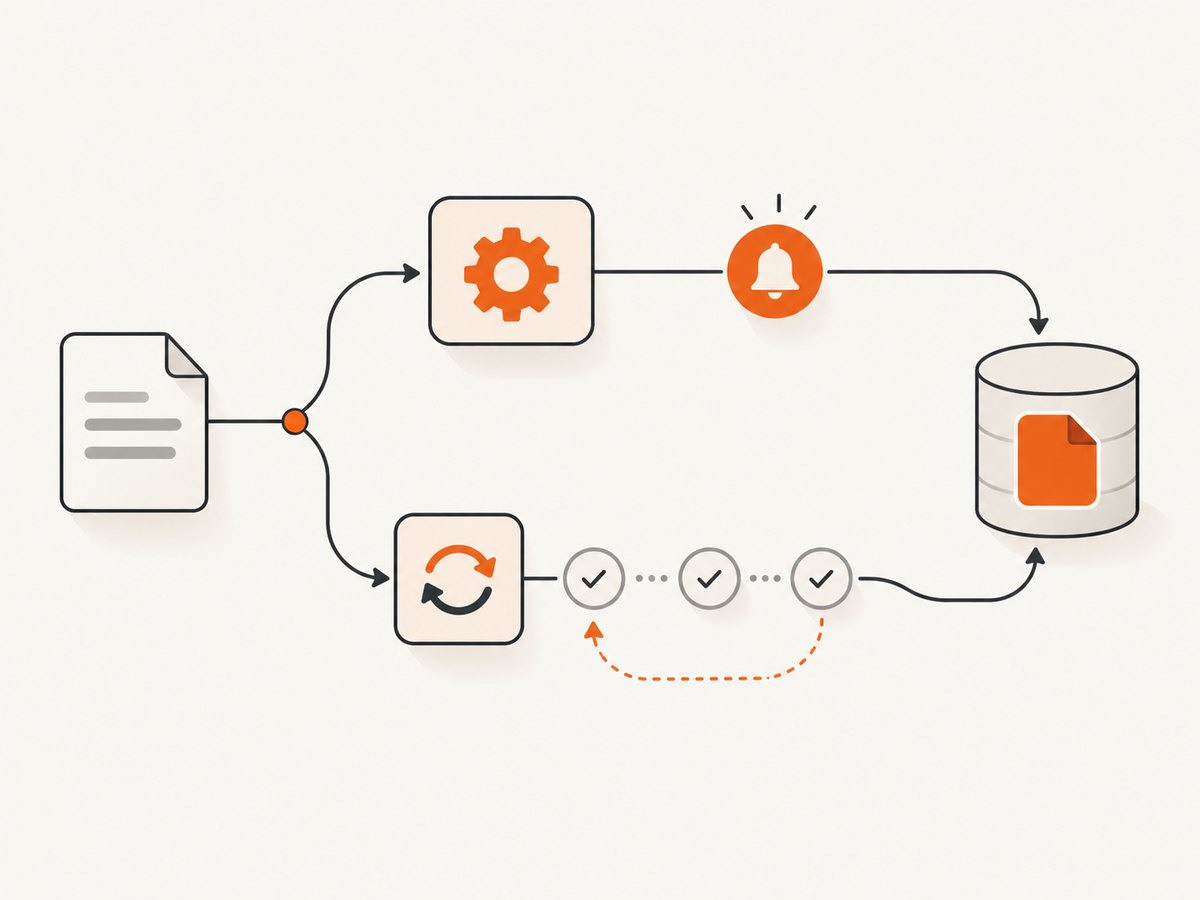
- For asynchronous jobs: use the provider’s webhook if the no-code platform can receive it. Otherwise, poll the documented status endpoint at a controlled interval and stop at a defined deadline.
- For webhook handling: validate requests according to the provider’s current instructions, match the event to the original source record, and make repeated notifications safe to process.
- For delivery: only send the email or continue the workflow after the generation status indicates success and a usable file location exists.
- For temporary links: fetch the PDF and store it in your chosen cloud storage before the provider’s link expires. PDFMonkey says integration download URLs expire after one hour and suggests using a share link or storage under your control for a durable location. Docupilot documents secure URLs valid for 24 hours by default, with retention preferences able to change behavior. These are service-specific defaults; verify current settings.
- For recovery: record failure status and the source record identifier so an operator can retry one document without replaying unrelated workflow actions.
Keep API secrets out of browser code, published templates, and shared logs. Review the selected provider’s current security, privacy, retention, and access-control documentation for the data you plan to send. The source material does not establish a particular compliance status for any provider.
6. Performance, reliability, and cost
Rendering time can vary with the provider, template, and input. No comparative benchmark is established here, so do not design around an assumed number of seconds. For an interactive flow, decide how long a user may wait and whether to return a pending state. For batch workflows, let jobs complete asynchronously and monitor failed or delayed items.
Keep templates lean: avoid unnecessary complexity, oversized embedded assets, or content that is not required in the document. Test the longest expected text and largest realistic payload. For reliable operations, track source record ID, generation job ID, status, completion time, delivery result, and storage location. Set an alert or review step for repeated failures, but ensure retries do not produce duplicate customer emails or records.
Estimate cost using your expected document volume and the provider’s current plan rules. Confirm whether billing is per generated document, API call, or another unit; whether test or failed jobs count; and how quotas reset. Account for the workflow platform and storage service separately. The available research does not provide a normalized current pricing comparison, so compare live plan pages rather than relying on stale figures.
7. Troubleshooting common problems
| Symptom | Likely cause | What to check or fix |
|---|---|---|
| No document is created | The trigger is misconfigured, disconnected, or filtered out. | Inspect the automation’s trigger history, reconnect the source account, and verify the sample record satisfies all filters. |
| Template values are blank | A field was not mapped, the variable name differs, or the payload nesting is wrong. | Compare the template variables with the exact outgoing JSON or connector mapping; test with a minimal known-good record. |
| Dates or amounts look wrong | Source and template use different formats or locale assumptions. | Normalize the value before generation and render a test using the intended locale and currency format. |
| The request succeeds but no PDF arrives | Creation was accepted but asynchronous rendering has not completed or failed. | Check the document status and configure the provider’s webhook or status polling before downstream delivery. |
| A webhook arrives but the workflow cannot match it | The original job or source record identifier was not retained. | Store the generation job ID with the source record when creating the document; use that mapping to route completion. |
| A download link no longer works | The service’s generated URL expired. | Retrieve and store the PDF before expiry, or configure a durable share/storage destination supported by the service. |
| Duplicate PDFs or emails appear | A trigger or retry repeated after a timeout. | Track processed source IDs and generation job IDs, and make retry handling safe to repeat. |
| One unusual record breaks the layout | Long text, missing optional data, or special characters were not covered in template testing. | Add fallback values or conditional sections and test boundary-length values and omitted fields. |
8. When a custom backend is the better fit
A no-code workflow works well when a supported trigger, field mapping, completion step, and delivery action cover the use case. Consider a custom backend when you need application-specific authorization, complex branching, strict idempotency, centralized audit records, or control over the rendering and storage lifecycle. You can still use a hosted generation API behind that backend; “microservice” does not require you to implement PDF rendering from scratch.
Likewise, if the task is capturing a web page as a visual PDF or image rather than filling a business document template, that is a different job. ScreenshotNeo is a website screenshot API and MCP server from Yorker Media. Its screenshot API can return a PDF as well as PNG, JPEG, or WebP, but it is for website capture, not a substitute for mapping invoice or report data into a document template.
9. Or skip the browser setup
If the output you need is a screenshot or PDF capture of a webpage, one GET request can do it. This does not generate a data-filled business document from a template.
curl -G "https://api.screenshotneo.com/v1/shot" -d access_key=YOUR_API_KEY --data-urlencode url=https://stripe.com -o shot.webpSee the ScreenshotNeo API documentation for the other request options. ScreenshotNeo accepts cookie and consent banners like a visitor and removes more than 60 known consent platforms, newsletter popups, and chat widgets before capture; each step can be turned off. Bot checks, blank pages, timeouts, failed loads, and cache hits cost nothing, and response headers report the page verdict and billing status. Its MCP server provides take_screenshot, get_page_info, and capture_pdf tools for Claude, Cursor, and other MCP clients. The free plan includes 1,000 screenshots a month with no card; paid plans start at $5 for 3,000 shots. Sign up for 1,000 free screenshots a month, no card required.
10. FAQ
Does a no-code PDF workflow need a server?
Not necessarily. A workflow platform can connect the source event, hosted template renderer, and delivery action. A backend is useful when the workflow needs controls or logic those services do not provide.
Should I use polling or a webhook?
Use a webhook when your provider and automation platform support it reliably. Polling is a practical fallback when you cannot receive events, but it needs an interval, deadline, and failure path.
Can the generated file be kept permanently?
That depends on the service’s link expiration and retention settings. Store the PDF in a destination you control when the source service’s URL is temporary.
Can the workflow also merge or fill existing PDFs?
Some document platforms provide operations beyond template rendering. Check specifically for the PDF manipulation operation you need; generation APIs do not necessarily include it.
What should I test before publishing the workflow?
Test missing optional values, long text, special characters, duplicate triggers, delayed completion, and the final stored file and recipient. Confirm that a failed generation does not look like a completed delivery.


