How to Capture Website Screenshots with Node.js and Microsoft Edge
Use Playwright to capture a website in Microsoft Edge with Node.js. Choose viewport, full-page, or element screenshots, output formats, and fixes for common issues.
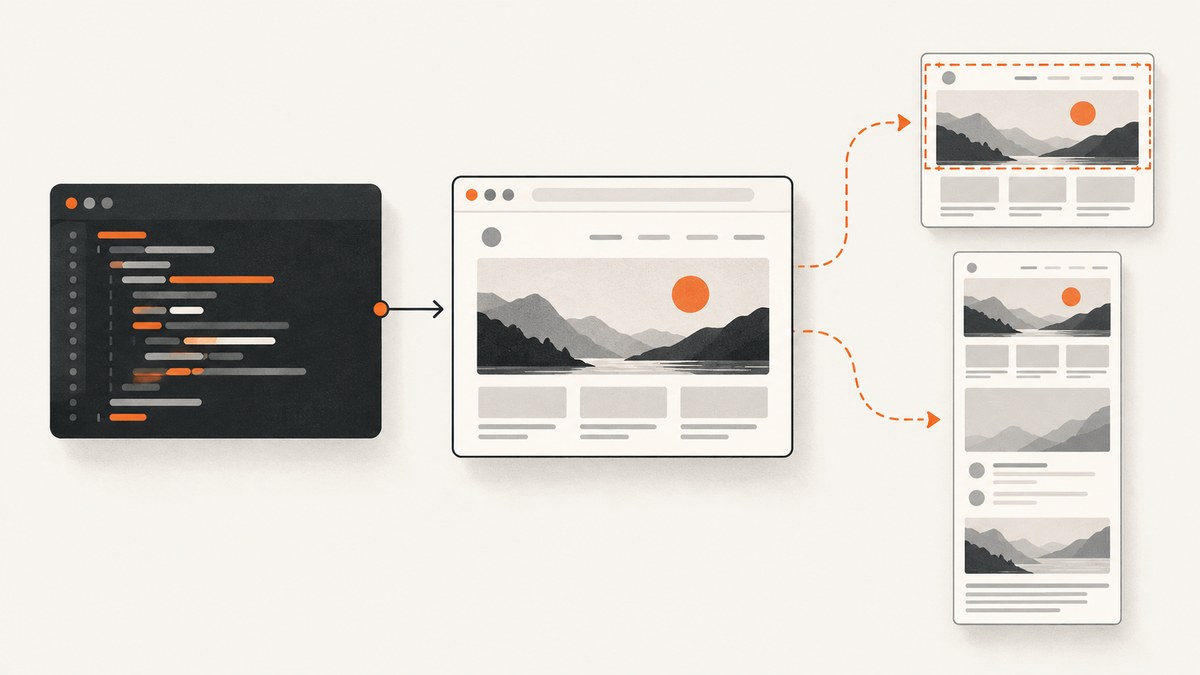
To capture a website screenshot in branded Microsoft Edge from Node.js, use Playwright’s Chromium browser type and set channel: 'msedge'. Install Playwright and Edge, navigate to the target URL, call page.screenshot(), then close the browser. The default screenshot is the visible viewport; set fullPage: true for the full scrollable document.
1. Install Playwright and Microsoft Edge
Start in a Node.js project and install Playwright:
mkdir edge-screenshot
cd edge-screenshot
npm init -y
npm install playwright
Install branded Microsoft Edge through the Playwright CLI if it is not already available to Playwright:
npx playwright install msedgePlaywright does not install branded Edge by default. The CLI’s msedge channel installs Edge at the operating system’s default global location, so account for that behavior on managed machines. Check the Playwright version with npx playwright --version; browser versions and supported behavior track Playwright releases. See the official Playwright browser documentation.
2. Capture a website in Edge
Save the following as screenshot.cjs and run node screenshot.cjs. This CommonJS example captures the entire page and writes a PNG file:
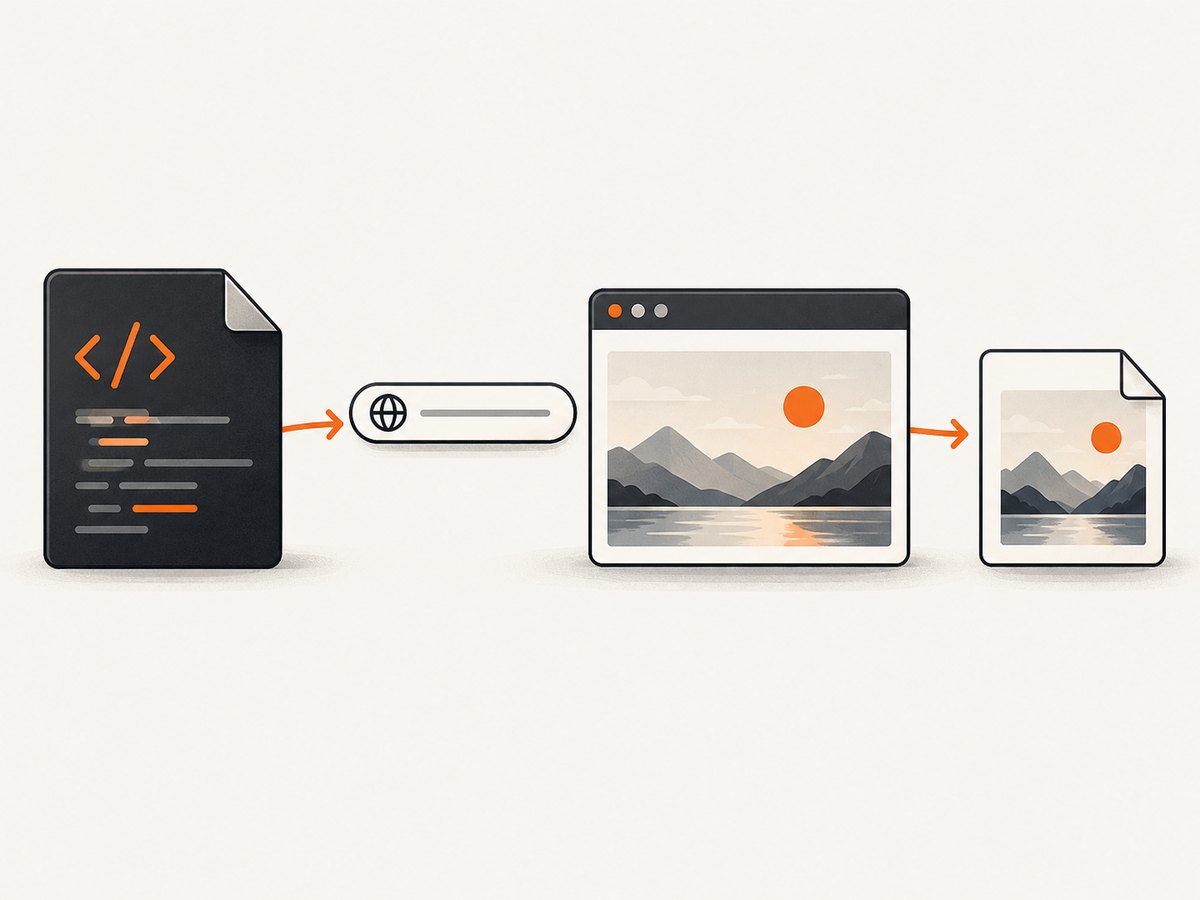
const { chromium } = require('playwright');

(async () => {
  const browser = await chromium.launch({ channel: 'msedge' });
  try {
    const page = await browser.newPage();
    await page.goto('https://example.com', { waitUntil: 'load' });
    await page.screenshot({ path: 'screenshot.png', fullPage: true });
  } finally {
    await browser.close();
  }
})();
The browser type is called chromium because Edge is Chromium-based. channel: 'msedge' selects the branded Edge browser. This matters if the capture must match the current public Edge browser, its media codecs, or an organization’s Edge-specific environment. If you only need Playwright’s bundled Chromium, omit the channel; that is a different browser setup and may render differently.
For an ES module project, use the equivalent import:
import { chromium } from 'playwright';

const browser = await chromium.launch({ channel: 'msedge' });
try {
  const page = await browser.newPage();
  await page.goto('https://example.com', { waitUntil: 'load' });
  await page.screenshot({ path: 'screenshot.png', fullPage: true });
} finally {
  await browser.close();
}
Use .mjs or configure the package as an ES module for top-level await. Otherwise, use the CommonJS example or wrap the code in an async function.
3. Choose what to capture
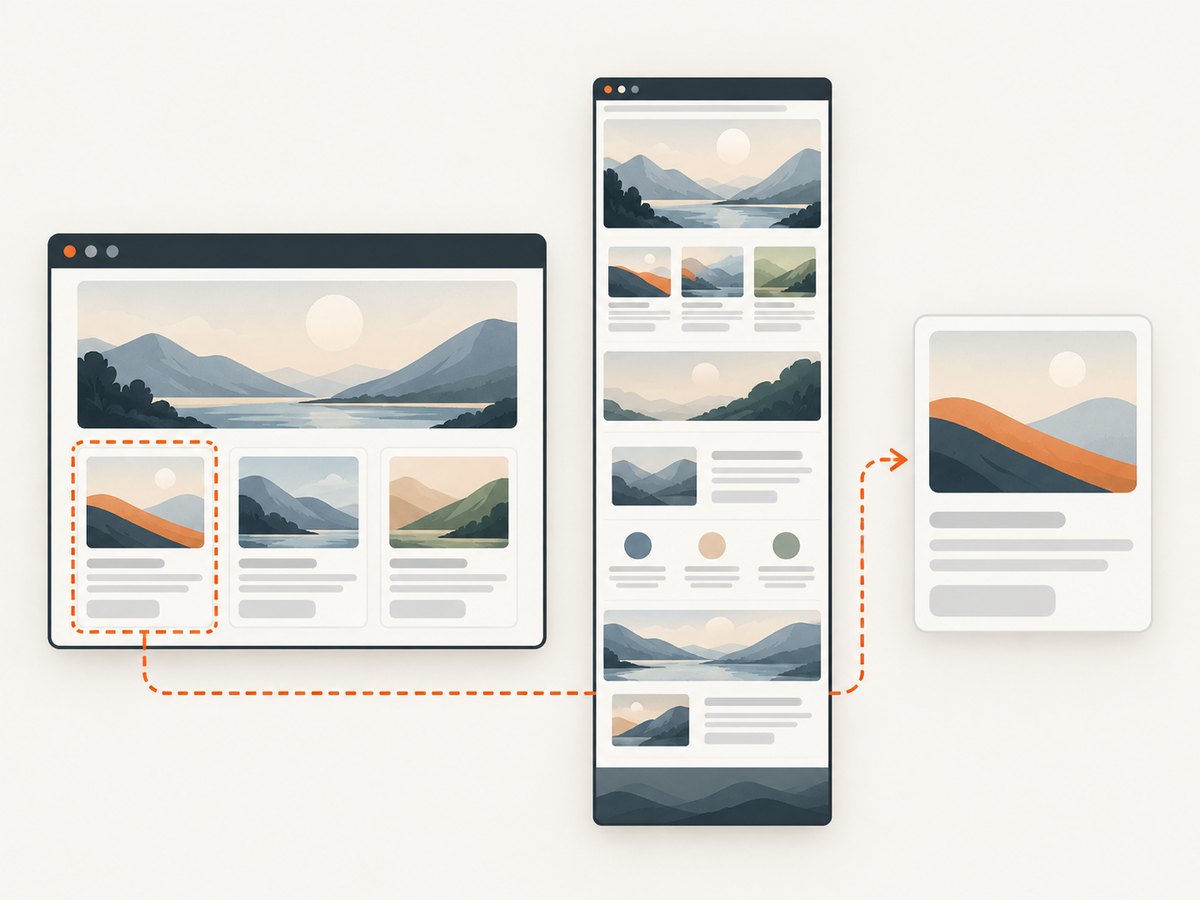
The screenshot method determines whether you get the current visible viewport, a tall image of the whole document, or a crop of a single element.
| Goal | Call | Notes |
|---|---|---|
| Visible viewport | page.screenshot({ path: 'view.png' }) |
Default behavior; captures the current viewport. |
| Full scrollable page | page.screenshot({ path: 'full.png', fullPage: true }) |
Captures as if the whole scrollable document fit on one tall screen. |
| One element | page.locator('header').screenshot({ path: 'header.png' }) |
Captures the element bounds. For a scrollable element, only its currently scrolled content appears. |
| Image bytes | const bytes = await page.screenshot() |
Without path, returns a buffer for later processing or upload. |
Viewport and full-page captures
For an ordinary screenshot, leave out fullPage. Set it to true when you need the full scrollable page:
await page.screenshot({ path: 'viewport.png' });
await page.screenshot({ path: 'whole-page.png', fullPage: true });
Full-page images can be much taller and larger than viewport captures. Pages that continually append content as you scroll may not have a finite final height; consider capturing a specific section or a fixed viewport instead.
Capture one element
Use a locator’s screenshot method to save an element’s bounds. Wait for the element to be visible first so a missing or late-rendering selector does not immediately break the capture:
const card = page.locator('.product-card').first();
await card.waitFor({ state: 'visible' });
await card.screenshot({ path: 'product-card.png' });
Prefer selectors that identify the intended element uniquely. A locator screenshot clips to that element; it does not automatically expand an internally scrollable panel to reveal hidden content. Scroll the panel deliberately if its off-screen content is what you need.
4. Set output format, scale, and repeatability
Playwright supports PNG, JPEG, and WebP screenshots. When saving to a path, the filename extension selects the format. Use PNG for crisp text and UI review, or JPEG/WebP when a smaller lossy image is acceptable. Verify downstream tools accept your chosen format.
await page.screenshot({ path: 'capture.webp' });
await page.screenshot({ path: 'capture.jpg', type: 'jpeg', quality: 82 });
Choose image scale based on how the output will be used. scale: 'css' gives one output pixel per CSS pixel; scale: 'device' uses device pixels and can produce substantially larger high-DPI images.
await page.screenshot({ path: 'standard.png', scale: 'css' });
await page.screenshot({ path: 'high-dpi.png', scale: 'device' });
For visual comparison or repeatable documentation, also consider the screenshot API’s animation control, caret behavior, clipping, masks, background transparency, and image quality settings. Set options to fit the specific use: hiding a caret may reduce incidental differences, for example, while masking a changing region is useful when that region is outside the comparison. Do not assume a default capture is stable across runs; dynamic content, fonts, animation, viewport size, and browser version can change pixels.
See the official Playwright screenshot documentation for current screenshot options and exact option types.
5. Make navigation and capture dependable
A page’s load event means its load event fired; it does not guarantee every application has finished rendering data fetched later. Pick a readiness condition that matches the target site. For a known page, waiting for a meaningful selector is often more precise than adding an arbitrary delay:
await page.goto('https://example.com', { waitUntil: 'domcontentloaded' });
await page.locator('main article').waitFor({ state: 'visible' });
await page.screenshot({ path: 'article.png', fullPage: true });
If the page needs a short settling interval after an application transition, use a bounded delay, but keep it as small as the page requires. A fixed sleep can waste time on fast runs and still be too short on slow ones. For a repeatable capture, explicitly set the viewport before navigation or capture:
const page = await browser.newPage({ viewport: { width: 1440, height: 900 } });When processing screenshot bytes instead of writing directly to disk, the buffer can be saved, uploaded, or passed to an image library:
const bytes = await page.screenshot({ fullPage: false });
require('node:fs').writeFileSync('capture.png', bytes);
6. Or skip the browser setup
If you need a screenshot without installing and operating a browser, ScreenshotNeo is a website screenshot API and MCP server. It returns an image or PDF from one GET request; the complete option list is in the ScreenshotNeo API documentation.
const q = new URLSearchParams({ access_key: 'YOUR_API_KEY', url: 'https://stripe.com' });
const res = await fetch(`https://api.screenshotneo.com/v1/shot?${q}`);
if (!res.ok) throw new Error(`Screenshot request failed: ${res.status}`);
const fs = require('node:fs');
fs.writeFileSync('shot.webp', Buffer.from(await res.arrayBuffer()));
Cookie banners, popups, and chat widgets are removed before the shot. Bot checks, blank pages, and failed loads are never billed. An MCP server lets AI agents take screenshots. The free plan includes 1,000 screenshots a month with no card; paid plans start at $5 for 3,000.
Sign up free for 1,000 screenshots a month, no card required.
7. cURL and Python examples
If a workflow already uses another language to request and store the capture, these examples show the same one-call ScreenshotNeo API pattern. Use your own key and destination URL. See the docs for supported parameters.
cURL
curl -G "https://api.screenshotneo.com/v1/shot" \
  -d access_key=YOUR_API_KEY \
  --data-urlencode url=https://stripe.com \
  -o shot.webp
Python
import requests

r = requests.get(
    "https://api.screenshotneo.com/v1/shot",
    params={"access_key": "YOUR_API_KEY", "url": "https://stripe.com"},
    timeout=90,
)
r.raise_for_status()
open("shot.webp", "wb").write(r.content)
8. Edge cases and trade-offs
- Edge is missing: install the branded browser using
npx playwright install msedge. Re-run the browser install command after changing Playwright versions if the required browser binary is unavailable. - Enterprise policy restrictions: managed browser policies can affect Playwright’s ability to launch or control Edge. Check the machine’s browser policy and try in an approved environment; this is outside Playwright’s project scope.
- Headless rendering differs: branded Edge’s newer headless implementation is closer to headed mode, but can behave differently from Playwright’s default Chromium headless shell. If output must reflect Edge, keep
channel: 'msedge'and compare captures in the actual target environment. - Lazy-loaded content: full-page capture does not itself guarantee every site’s lazy images or scroll-triggered modules have loaded. Wait for relevant content or use a controlled scroll-and-wait strategy suited to that site.
- Authentication or consent: a page may show a login wall, consent dialog, or region-specific content. The screenshot reflects the browser context and page state you create. Handle authorized login and interaction explicitly; do not assume a fresh page has the same state as a human visitor.
- Large documents: full-page screenshots consume more time and memory than viewport captures. For long documents, capture sections or an element when a single giant image is not required.
Playwright recommends bundled Chromium for most general use and branded stable Edge when the target is the current public browser, browser media codecs, or enterprise policies. Edge channels also include msedge-beta and msedge-dev; choose these only when that channel is specifically the target.
9. Troubleshooting
| Symptom | Likely cause | Fix |
|---|---|---|
| “Executable doesn’t exist” or Edge cannot launch | Branded Edge was not installed for the Playwright environment, or the Playwright/browser versions are out of sync. | Run npx playwright install msedge; after upgrading Playwright, install the matching browser again. |
| Launch fails on a managed workstation | Enterprise browser policy blocks automation or control. | Check with the machine administrator and policy configuration; run in an approved environment or use bundled Chromium if branded Edge is not a requirement. |
| Screenshot is blank or incomplete | Capture ran before app content appeared, navigation went to an error or challenge page, or the relevant selector was wrong. | Check page.url() and page state, wait for a meaningful visible locator, and confirm the selector against the rendered page. |
| Full-page image omits content | Content may load only after scrolling or reside in an internal scroll container. | Wait for the site’s lazy content, scroll the relevant container, or capture that element separately. |
| Image dimensions or file size are unexpectedly large | fullPage creates a tall image; scale: 'device' uses device pixels; PNG is lossless. |
Use viewport or element capture, select CSS scale, or use JPEG/WebP where lossy output is acceptable. |
| ES module syntax error | The file runs as CommonJS but uses import or top-level await. |
Use the CommonJS example, rename the file to .mjs, or configure the package for modules. |
10. Performance, reliability, and cost
With a local Playwright script, the main costs are the machine and engineering time to install browsers, keep the runtime and browser compatible, and manage each capture’s storage and retries. Resource use grows with page complexity, image scale, and full-page dimensions. Reuse a browser process for batches and create separate pages or contexts as appropriate instead of repeatedly launching Edge for each URL. Always close the browser in a finally block so an exception does not leave processes running.
For reliability, make waits content-based, bound navigation and operation timeouts for your workload, and record the URL and error when a capture fails. Retry transient network failures selectively; repeating deterministic selector or policy failures adds delay without fixing the cause. Pin and periodically update the Playwright dependency, then install the browsers that version expects. Since branded Edge and Playwright’s default Chromium can differ, keep the browser choice consistent across development and deployment when comparing images.
For a hosted route, ScreenshotNeo offers a free tier of 1,000 shots monthly without a card. Paid plans are Starter $5 for 3,000, Growth $15 for 15,000, Pro $39 for 60,000, Scale $99 for 250,000, and Business $249 for 1,000,000; yearly billing gives two months free. Every feature is on every plan. Its billing model charges only clean shots; response headers identify page verdict and billing status, and cache hits cost nothing. Match the choice to operational needs: local browser control can be useful when Edge itself is required, while a hosted API avoids browser installation and has a usage-based plan structure.
11. Frequently asked questions
Does this use Microsoft Edge or Chromium?
It launches Playwright’s Chromium browser type with the msedge channel, which selects branded Microsoft Edge.
Can I save screenshot bytes without creating a file?
Yes. Call page.screenshot() without a path; it returns a buffer.
Can I capture just a header or card?
Yes. Call screenshot() on a locator, such as page.locator('header').screenshot().
Should I use Edge for every screenshot job?
Use branded Edge when the target browser or its policies matter. For general automation, Playwright’s bundled Chromium is its recommended default.
Checklist
- Install Playwright and the matching branded Edge browser.
- Set
channel: 'msedge'when Edge is required. - Choose viewport, full-page, or locator capture intentionally.
- Set a stable viewport and wait for the content that matters.
- Pick file format and scale based on image quality and size needs.
- Close the browser in cleanup logic and keep Playwright/browser versions aligned.


