Make Playwright Microsoft Edge Screenshots Stable and Platform-Independent
Control Edge, Playwright, fonts, viewport and page state to produce repeatable screenshots across CI platforms, with practical fixes for visual drift.

Direct answer: Playwright screenshots become repeatable when you control every rendering input: pin the Playwright package, install the matching browser, choose either bundled Chromium or branded Microsoft Edge deliberately, keep the CI operating system and fonts fixed, set viewport and device scale factor explicitly, stabilize locale and timezone, seed page data, and capture only after the page reaches a deterministic ready state. These controls reduce visual drift; they cannot promise pixel-identical output between different operating systems. Keep separate baselines for environments that intentionally differ.
Playwright automates Microsoft Edge through the branded msedge channel because Edge is built on Chromium. Microsoft documents this channel for Playwright projects. Playwright also distinguishes its bundled Chromium from branded browser channels: bundled Chromium is useful for a controlled baseline, while msedge tests the browser your users install. See the Microsoft Edge Playwright guide and Playwright’s browser documentation.
1. Choose the rendering target
Decide what the screenshot proves before changing configuration:
| Target | Use it for | Source of variation |
|---|---|---|
| Bundled Chromium | A controlled visual baseline and general browser coverage | It does not prove behavior in the branded Edge build. |
Branded msedge |
Regression testing against publicly available Microsoft Edge | Browser updates, enterprise policies and machine configuration can affect launch and pixels. |
Do not mix screenshots from these targets in one baseline directory. Record the browser channel, Playwright version, browser version, operating-system image and headed/headless mode with every artifact.
2. Pin Playwright and install the matching browser
Pin @playwright/test in your package manifest and commit the lockfile. Install browsers during CI setup rather than relying on whatever is already on the runner. Keep Playwright and browser installations aligned, and review the release notes when upgrading. The exact command can vary by your package manager; this npm example is reproducible:
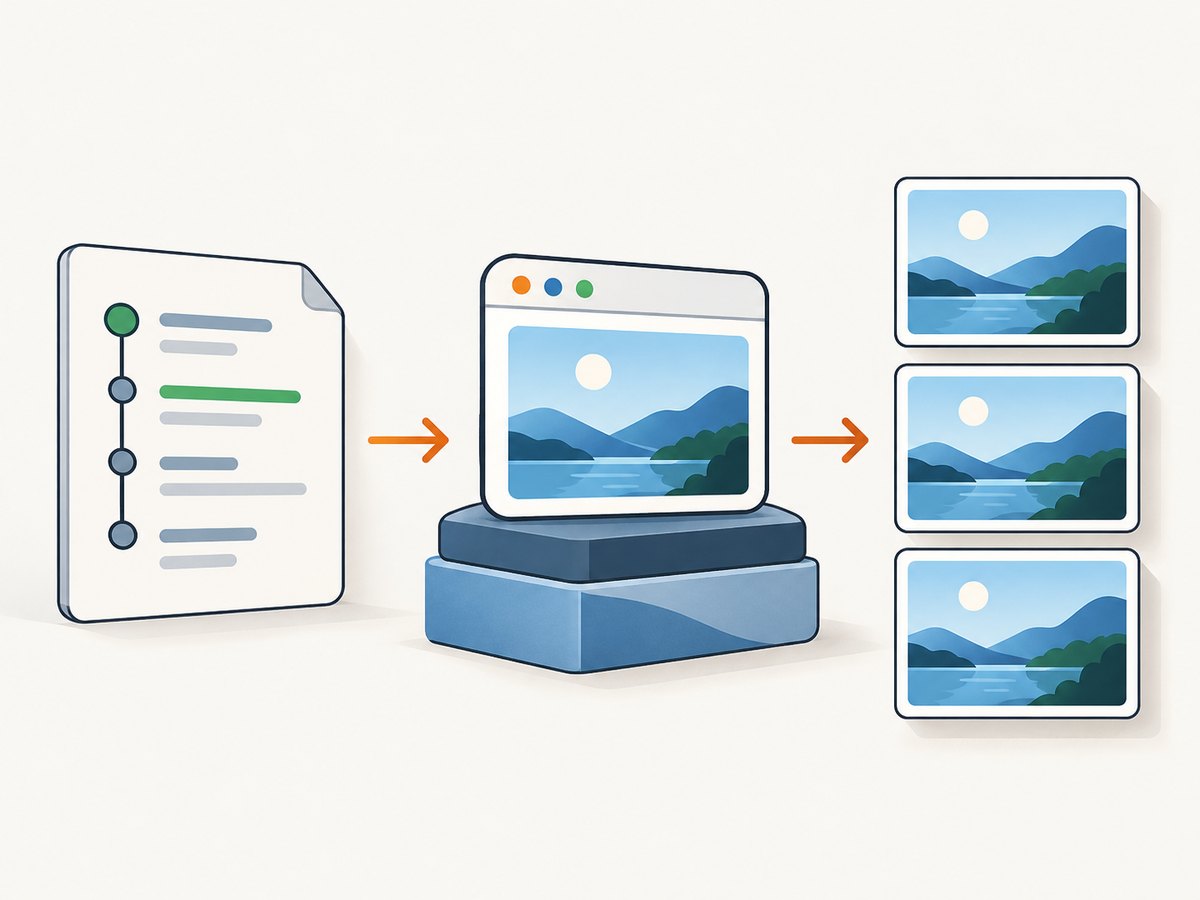
npm install --save-dev @playwright/test@1.52.0
npx playwright install msedge
# Verify the resolved package and browser in your CI logs
npx playwright --version
Use the Playwright version approved by your project, not the example version blindly. The screenshot API and browser revisions are versioned; consult the API reference for the installed release.
3. Configure a deterministic Edge project
A project-level configuration prevents individual tests from silently choosing different rendering inputs. This example uses TypeScript and the branded Edge channel:
import { defineConfig, devices } from '@playwright/test';

export default defineConfig({
  testDir: './tests',
  timeout: 30_000,
  expect: { timeout: 5_000 },
  fullyParallel: true,
  use: {
    channel: 'msedge',
    headless: true,
    viewport: { width: 1440, height: 900 },
    deviceScaleFactor: 1,
    locale: 'en-US',
    timezoneId: 'UTC',
    colorScheme: 'light',
    reducedMotion: 'reduce',
    serviceWorkers: 'block',
    animations: 'disabled',
    screenshot: 'only-on-failure',
    trace: 'retain-on-failure',
  },
  projects: [
    {
      name: 'edge-linux',
      use: { ...devices['Desktop Chrome'], channel: 'msedge' },
    },
  ],
});
serviceWorkers, animation settings and trace retention are choices for test isolation; remove them if your application depends on service workers or motion. Keep the final configuration in source control and print it in CI diagnostics.
4. Make the operating system and fonts part of the baseline
Text is one of the largest causes of cross-platform differences. A different font family, fallback glyph, hinting implementation or font version changes line breaks and element heights. Run visual tests on one pinned OS image, install the same font packages, and avoid “latest” runner labels. If Linux is your baseline, use the same container or managed image for every run. Record:
- OS distribution and image digest
- Installed font packages and versions
- Playwright package and browser versions
- Headless or headed mode
- Viewport and device scale factor
- Locale, timezone and color scheme
When you must compare Linux, Windows and macOS, create a baseline per environment or define a review policy for known differences. Platform-dependent capabilities can vary even with identical test code; a single cross-platform pixel baseline is not a guarantee of compatibility.
5. Stabilize page state before capturing
Waiting for load alone is rarely enough. Applications may fetch data after load, hydrate client components, animate layout, or lazy-load images only when they enter the viewport. Use a fixture or API seed, then wait for an application-specific ready condition.
import { test, expect } from '@playwright/test';

test('stable dashboard screenshot', async ({ page }) => {
  await page.goto('https://example.test/dashboard', { waitUntil: 'domcontentloaded' });

  // Prefer a semantic readiness marker owned by the application.
  await page.locator('[data-testid="dashboard-ready"]').waitFor({ state: 'visible' });
  await page.waitForLoadState('networkidle');

  // Freeze volatile content and remove transitions for this capture.
  await page.addStyleTag({ content: `
    *, *::before, *::after {
      animation: none !important;
      transition: none !important;
      caret-color: transparent !important;
    }
  ` });

  await expect(page).toHaveScreenshot('dashboard.png', {
    fullPage: true,
    animations: 'disabled',
    caret: 'hide',
    scale: 'css',
  });
});
Use a fixed fixture for timestamps, randomized IDs, rotating banners, ads and user-specific data. Mask unavoidable dynamic regions with screenshot assertions where supported, or hide them with a test-only CSS class. Do not replace a readiness signal with an arbitrary long sleep; a sleep can still race a slow request and makes the suite slower.
6. Control viewport, scale and screenshot options
Set width, height and device scale factor explicitly. A retina worker and a standard-density worker can produce different bitmap dimensions and antialiasing. Choose a screenshot scale deliberately: CSS pixels are usually easier to compare across machines than device pixels. Keep the same full-page policy; full-page captures can change when content expands after scrolling.
- Viewport: fixes responsive breakpoints. Include the exact dimensions in the test name.
- Device scale factor: use one value for a baseline; do not inherit it from the host.
- Full page: capture after lazy content is loaded. Scroll or use an application hook if images load on intersection.
- Element capture: prefer a stable component locator when the page shell contains volatile content.
- Format: keep PNG for lossless visual diffs; JPEG introduces encoding differences.
- Animations and caret: disable them or hide the caret to remove frame-to-frame changes.
Check option names against your installed Playwright release. The screenshot API evolves, and some capabilities depend on the platform.
7. A complete runnable Edge example
import { test, expect } from '@playwright/test';

test('product page is visually stable in Edge', async ({ page }) => {
  await page.goto('https://example.test/products/42', {
    waitUntil: 'domcontentloaded',
    timeout: 30_000,
  });

  await page.locator('[data-testid="product-ready"]').waitFor();
  await page.evaluate(() => document.fonts.ready);
  await page.waitForLoadState('networkidle');

  // Make lazy images observable before the capture.
  await page.locator('img[loading="lazy"]').evaluateAll((images) => {
    for (const image of images) image.scrollIntoView({ block: 'center' });
  });
  await page.waitForTimeout(100);

  await expect(page).toHaveScreenshot('product-edge.png', {
    fullPage: true,
    animations: 'disabled',
    caret: 'hide',
    scale: 'css',
    maxDiffPixelRatio: 0.001,
  });
});
A small tolerance can absorb antialiasing noise, but keep it explicit and review failures. Increasing thresholds until failures disappear hides real regressions.
8. Diagnose visual drift systematically
| Symptom | Likely cause | Fix |
|---|---|---|
| Text wraps differently | Different fonts, viewport or scale | Pin the OS image and fonts; set viewport and device scale factor. |
| Only dates or prices differ | Locale, timezone or live fixture data | Set locale/timezoneId; seed deterministic data. |
| Images are blank | Lazy loading, blocked requests or capture too early | Wait for readiness, scroll lazy elements, inspect failed requests. |
| Header shifts between runs | Animation, hydration or late network response | Wait for a ready marker; disable transitions; capture after required requests. |
| Edge fails to launch | Missing browser, enterprise policy or incompatible runner | Run the matching install command, inspect policy logs, and use a pinned image. |
| Headless and headed differ | Different rendering path or GPU behavior | Pin the mode used for baselines and validate that exact mode in CI. |
| Full-page height changes | Content expands while scrolling or fonts finish loading | Await document.fonts.ready, load data, then capture once. |
When a diff appears, compare metadata first, then inspect the image overlay and trace. Re-run the same job on the same worker. If the second run differs again, investigate nondeterministic application state rather than changing the diff threshold.
9. Reliability, performance and cost considerations
Browser startup is expensive. Reuse the Playwright worker and context for related tests, but create a fresh context when cookies or local storage could affect the page. Block analytics and advertising requests only when doing so matches the behavior you intend to test; otherwise you may hide layout caused by those resources. Keep traces and failure screenshots so a flaky capture is diagnosable.
Parallel workers improve throughput but can expose shared test data races. Use isolated accounts or fixture namespaces. Network idle is useful as a secondary signal, not a universal definition of readiness: long polling and analytics can prevent it forever. Prefer a bounded wait for your own marker and set request timeouts.
Visual baselines also have a maintenance cost. Upgrade Playwright, Edge, fonts and OS images in a scheduled change, regenerate baselines deliberately, and record why each update is expected. Never call a baseline “platform-independent” until the target platforms have been reviewed.
10. Or skip the browser setup
If you need a clean image or PDF rather than an in-process Edge regression test, ScreenshotNeo provides a single screenshot API request. Its capture options include full-page pages with lazy images loaded, CSS-selector element capture, dark mode, device presets or custom viewports, retina scale, custom CSS and JavaScript, click and wait controls, request blocking, headers, cookies, user agents, authorization, timezone and geolocation, transparent backgrounds, resizing, caching, signed links, async jobs, webhooks, bulk capture and a usage API. See the ScreenshotNeo API documentation.
curl -G "https://api.screenshotneo.com/v1/shot" -d access_key=YOUR_API_KEY --data-urlencode url=https://stripe.com -o shot.webpimport requests
r = requests.get("https://api.screenshotneo.com/v1/shot", params={"access_key": "YOUR_API_KEY", "url": "https://stripe.com"}, timeout=90)
open("shot.webp", "wb").write(r.content)const q = new URLSearchParams({ access_key: 'YOUR_API_KEY', url: 'https://stripe.com' });
const res = await fetch(`https://api.screenshotneo.com/v1/shot?${q}`);
const body = Buffer.from(await res.arrayBuffer());
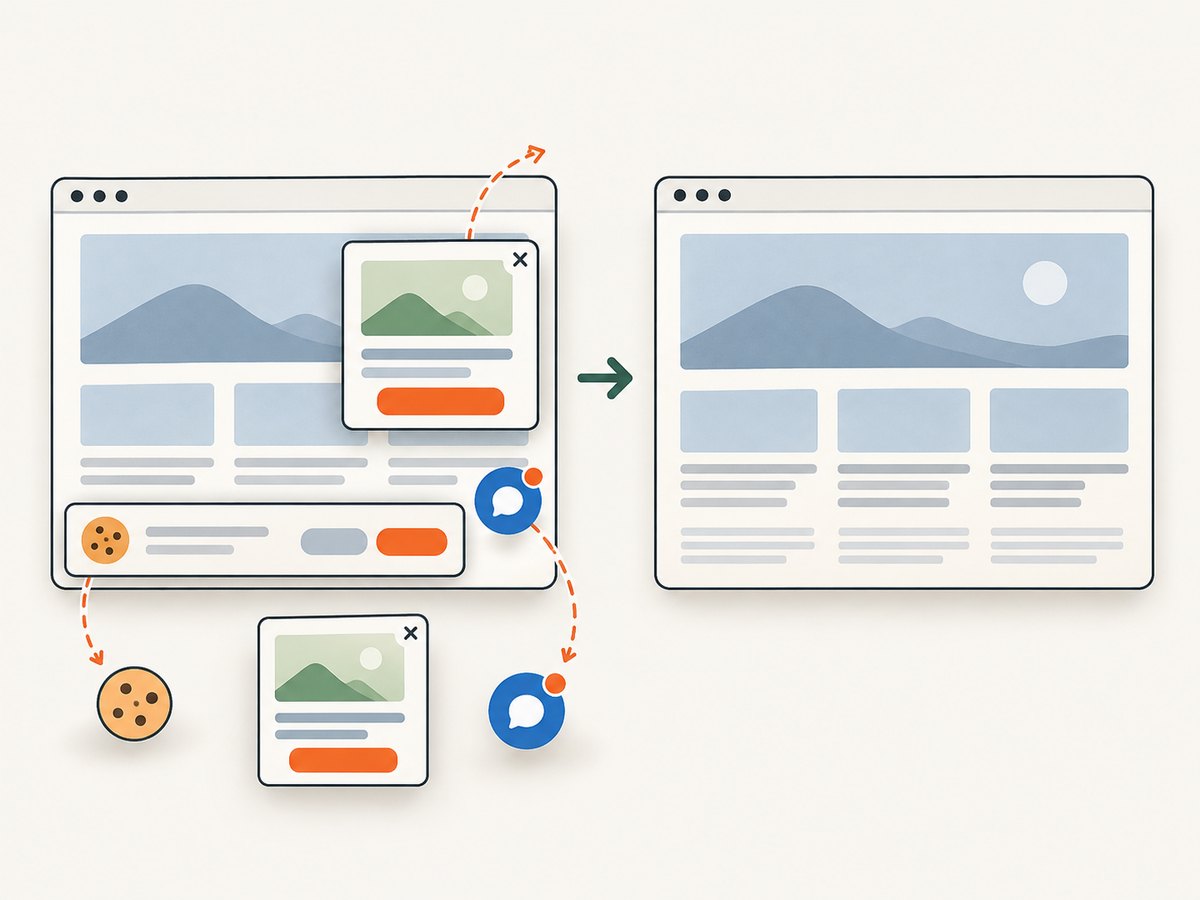
require('fs').writeFileSync('shot.webp', body);Cookie banners, newsletter popups and chat widgets are removed before the shot. Bot checks, blank pages, failed loads and cache hits are not billed, and response headers identify the page verdict and whether it was billed. An MCP server lets Claude, Cursor and other MCP clients call take_screenshot, get_page_info and capture_pdf. The free plan includes 1,000 screenshots per month with no card; paid plans start at $5 for 3,000 shots. Create a free ScreenshotNeo account.
11. FAQ
Should every test use branded Edge?
No. Use bundled Chromium for a controlled baseline and broad automation; add an msedge project when compatibility with the public Edge browser is a requirement.
Can one screenshot baseline work on every OS?
Do not assume so. Keep OS, fonts and browser mode fixed, or maintain separate baselines and review the intentional differences.
Is networkidle always the right wait?
No. Applications with polling or analytics may never become idle. A deterministic application-ready marker is a better primary condition.
Why did an Edge upgrade create hundreds of diffs?
Browser engines, fonts and rasterization can change. Record versions, review the release, and regenerate baselines as a controlled upgrade when the differences are expected.
When is an API preferable to Playwright?
Use Playwright for browser interaction and visual regression assertions. Use an API when you need repeatable captures without maintaining browser workers, especially for production thumbnails, PDFs or agent workflows.


