Screenshot API for Node.js: Quick Start and Examples
Capture webpages in Node.js with Puppeteer or Playwright. Learn viewport, full-page, and element screenshots, options, troubleshooting, and a hosted API alternative.

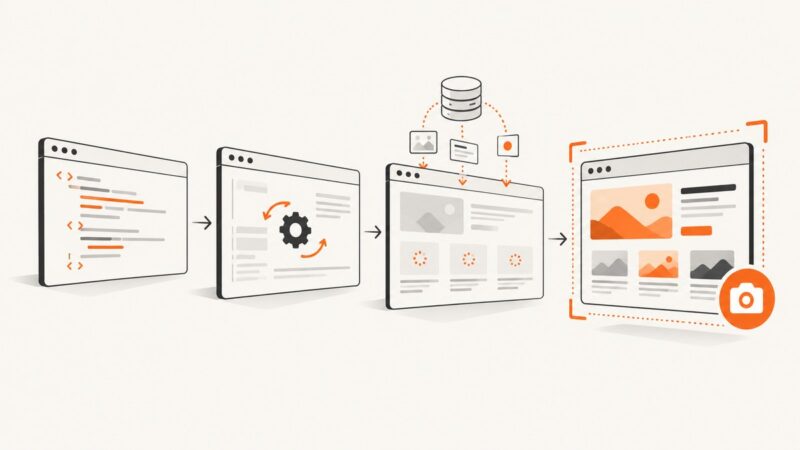
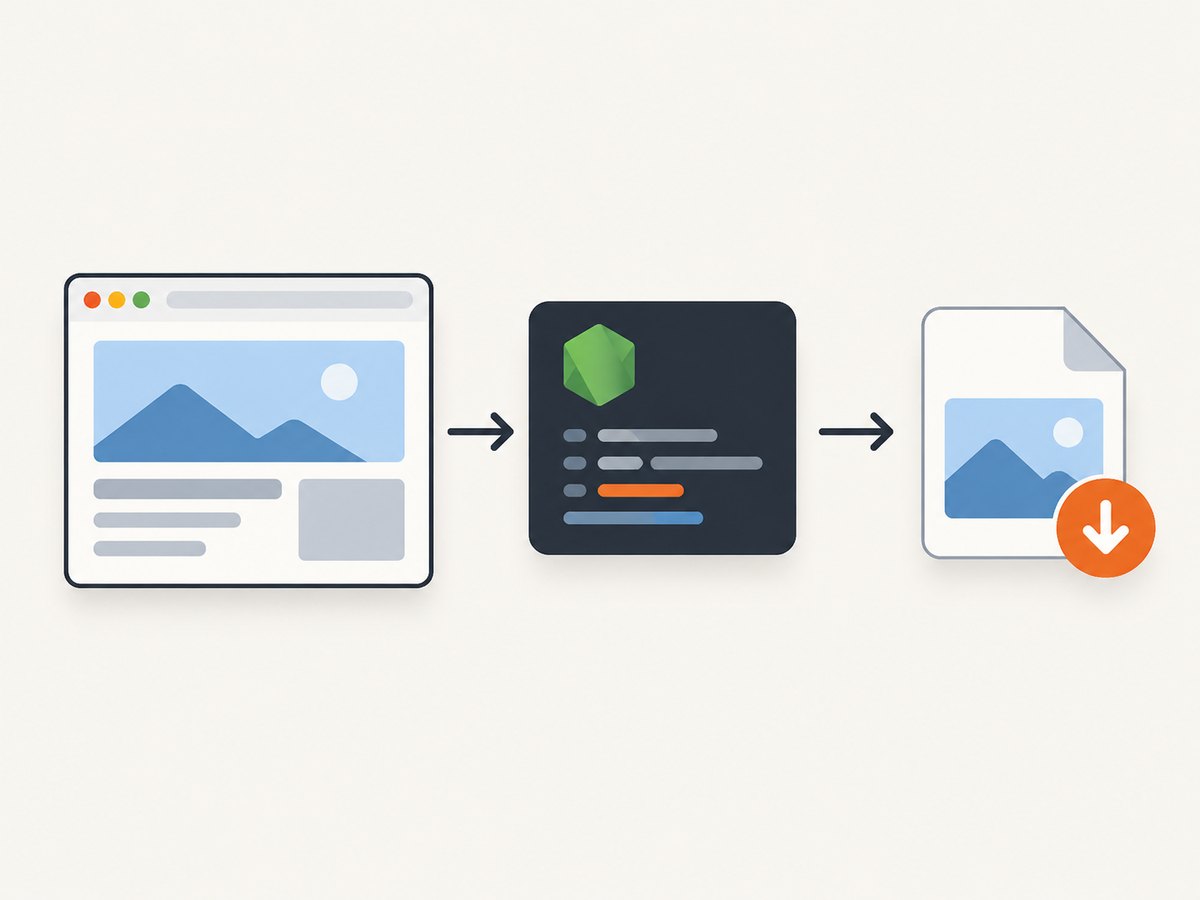
To take a screenshot in Node.js, launch a browser with Puppeteer or Playwright, open a page, navigate to a URL, call page.screenshot(), and close the browser when you are done. A screenshot API in this context is the browser page method your script calls; there is no single universal Node.js endpoint.
This guide uses Puppeteer for the runnable examples, then explains the corresponding Playwright workflow and how to choose. It covers viewport, full-page and element captures, image options, reliability, troubleshooting, and a hosted alternative. Check the current documentation for your installed library version before relying on an option: Puppeteer screenshots, Puppeteer screenshot options, and Playwright page screenshots.
1. Install Puppeteer and capture a page
Puppeteer’s documented flow is to launch a browser, create a page, navigate, save the screenshot, and close the browser. The following ES module is runnable in a project with Puppeteer installed:
npm install puppeteer{
"type": "module",
"scripts": { "screenshot": "node screenshot.js" },
"dependencies": { "puppeteer": "^24.0.0" }
}// screenshot.js
import puppeteer from 'puppeteer';
const url = process.argv[2] ?? 'https://example.com';
const browser = await puppeteer.launch();
try {
const page = await browser.newPage();
await page.goto(url, { waitUntil: 'networkidle2', timeout: 30_000 });
await page.screenshot({ path: 'screenshot.png', type: 'png' });
console.log('Saved screenshot.png');
} finally {
await browser.close();
}Run it with npm run screenshot -- https://example.com. The script uses networkidle2 to wait for a relatively quiet network before capture. Some sites keep analytics, streaming, or polling requests open; if navigation waits too long, use domcontentloaded and wait explicitly for the content your capture needs.
The finally block closes the browser even if navigation or image writing fails. That matters in scripts that run repeatedly: a browser left open after an exception can consume memory and process slots.
2. Choose the capture area
Viewport screenshot
The quick start saves the currently visible viewport. Set the viewport before navigation when layout depends on screen size:
await page.setViewport({ width: 1440, height: 900, deviceScaleFactor: 1 });
await page.goto('https://example.com', { waitUntil: 'domcontentloaded' });
await page.screenshot({ path: 'viewport.png' });
The viewport width and height control the browser’s visible page area. Device scale affects the output pixel density. Avoid assuming a particular output dimension without specifying both viewport and scale.
Full-page screenshot
For a long page, pass fullPage: true. Puppeteer documents this option for a full-page capture:
await page.screenshot({ path: 'full-page.png', fullPage: true });Full-page output can be much taller and larger than a viewport image. Lazy-loaded content may not appear if it is only requested after scrolling. You can scroll through the page first, or use the page’s own loading behavior and wait for the relevant elements before capture. Very long documents may also produce large image files or run into memory limits.
One element
When you need a chart, card, or component rather than the whole document, locate the element and use its screenshot method:
const chart = await page.waitForSelector('.chart', { timeout: 10_000 });
if (!chart) throw new Error('Chart was not found');
await chart.screenshot({ path: 'chart.png' });
Wait for a stable selector rather than assuming it exists immediately after navigation. If the target is inside an iframe, locate it in the appropriate frame first. If the selector matches several elements, make the target specific so the captured region is predictable.
3. Screenshot options that change the output
Puppeteer’s screenshot options include path, type, quality, fullPage, clip, and omitBackground. Use the installed version’s ScreenshotOptions reference for complete syntax and supported values.
| Option | Use | Details |
|---|---|---|
path |
Save to a file | The file extension determines the image type when a path is supplied; specify type when you want the choice to be explicit. |
type |
Select PNG, JPEG, or WebP where supported | Confirm formats against your installed library version and runtime. |
quality |
Adjust lossy image output | Quality applies to JPEG and WebP, not PNG. Pick a value appropriate for your version and format. |
fullPage |
Capture beyond the viewport | Useful for complete documents, but can create very tall images. |
clip |
Capture a rectangular region | Set the region in page coordinates; ensure it lies within the rendered content. |
omitBackground |
Allow transparent background | Hides the default white background; useful when the page content itself has transparency. |
For example, a JPEG with controlled dimensions and lossy quality can be written as follows:
await page.setViewport({ width: 1200, height: 800, deviceScaleFactor: 1 });
await page.screenshot({ path: 'preview.jpg', type: 'jpeg', quality: 82 });
For a transparent PNG, use omitBackground with a format that supports transparency:
await page.screenshot({ path: 'overlay.png', type: 'png', omitBackground: true });Use a page element screenshot when the target is semantic and easy to select; use clip when you need a fixed rectangle independent of an element selector. Neither choice guarantees identical results across different page layouts or viewport settings.
4. Playwright alternative
Playwright also provides a page screenshot method. Its API example demonstrates launching a selected browser engine, navigating, saving a screenshot, and closing the browser. The exact installed package and browser setup should match your project; use the Playwright Page API for current options.
npm install playwright
npx playwright install chromium
// playwright-shot.cjs
const { chromium } = require('playwright');
(async () => {
const browser = await chromium.launch();
try {
const page = await browser.newPage({ viewport: { width: 1440, height: 900 } });
await page.goto('https://example.com', { waitUntil: 'domcontentloaded' });
await page.screenshot({ path: 'playwright.png', fullPage: true });
} finally {
await browser.close();
}
})();Both libraries document this general workflow. Choose based on the browser engines your project needs, the automation dependency already in your codebase, and the screenshot API that fits the surrounding workflow. Playwright’s example includes Chromium, Firefox, and WebKit as browser choices; the sources do not establish a general speed or fidelity winner.
5. Make captures more reliable
- Set the viewport first. Responsive layouts and line wrapping change with viewport size.
- Wait for the right condition. Navigation completion does not always mean a single-page app has finished rendering. Wait for a selector or a known app-ready signal.
- Handle fonts and images. If the page renders before fonts or key images load, wait for the relevant resources or elements before saving.
- Use explicit timeouts. Bound navigation and selector waits so a broken destination does not hang a worker indefinitely.
- Close browser resources. Use
try/finallyaround the browser lifecycle, especially in batch jobs. - Test representative pages. Check long pages, responsive layouts, pages with consent banners, and pages that load content after scrolling.
For a targeted wait, this pattern avoids tying capture timing to every network connection on the page:
await page.goto('https://example.com/dashboard', {
  waitUntil: 'domcontentloaded',
  timeout: 30_000
});
await page.waitForSelector('[data-page-ready="true"]', { timeout: 15_000 });
await page.screenshot({ path: 'dashboard.png' });
The readiness selector is application-specific. A missing selector should be treated as a capture failure or a signal to use a different readiness condition, rather than silently saving a misleading partial page.
6. Troubleshooting
| Symptom | Likely cause | Fix |
|---|---|---|
| Browser executable missing | The required browser was not installed or the runtime cannot locate it. | Follow the library’s install instructions for the browser you selected, and verify the deployment image includes it. |
| Navigation timeout | The page is slow, unreachable, or never becomes network-idle. | Check the URL and network access; use a suitable navigation condition such as domcontentloaded, then wait for a specific page signal. |
| Screenshot is blank or incomplete | Capture ran before app content appeared, the page failed, or content is lazy-loaded. | Wait for a meaningful selector, inspect navigation failures, and scroll to trigger lazy content where needed. |
| Element not found | Selector is wrong, the element appears later, or it lives in a frame. | Verify the selector in the rendered page, wait for it, and query the correct frame. |
| Output is unexpectedly large | Full-page capture includes a long document or high device scale. | Use viewport or element capture, reduce the viewport or scale, or choose a lossy format where appropriate. |
| Transparent output looks white | The page paints an opaque background or the chosen format does not preserve alpha. | Use a transparency-capable format and omitBackground; check the page’s CSS backgrounds. |
| Browser processes accumulate | An exception bypassed cleanup or a worker reuses browsers without lifecycle controls. | Close in finally; monitor worker shutdown and avoid creating an unbounded number of browser instances. |
7. Performance, reliability, and cost
With Puppeteer or Playwright, your application is responsible for browser installation, startup, memory, page navigation, timeouts, and cleanup. Reusing browser processes across jobs can avoid repeated launches, but isolate pages and close them after each capture; design worker limits around the memory and CPU available in your deployment. Do not assume a universal throughput figure: it depends on the pages, browser engine, viewport, output size, and hosting environment.
Set timeouts at navigation and element waits, and decide what your job should do when capture fails: retry transient network failures with a limit, record the URL and error, and avoid retrying indefinitely. Large full-page images take more resources to render and store. JPEG or WebP may reduce output size for photographic or complex pages, while PNG is useful for lossless output and transparency. Quality and format affect bytes and visual artifacts, so choose based on the downstream use.
Browser automation has no per-screenshot API price in these examples, but it does have infrastructure and maintenance costs: compute, memory, browser updates, deployment setup, and operational work. If you prefer a hosted endpoint, ScreenshotNeo accepts a URL in one GET request and returns PNG, JPEG, WebP, or PDF. Its feature set includes full-page capture with lazy images loaded, element selection, custom waits, caching with a chosen TTL, async jobs, and bulk capture of up to 100 URLs per call. See the ScreenshotNeo documentation for request options.
8. Or skip the browser setup
ScreenshotNeo is a website screenshot API and MCP server for developers. Make one request with the target URL; for other request parameters and examples, see the API documentation.

const q = new URLSearchParams({ access_key: 'YOUR_API_KEY', url: 'https://example.com' });
const res = await fetch(`https://api.screenshotneo.com/v1/shot?${q}`);
if (!res.ok) throw new Error(`Screenshot request failed: ${res.status}`);
const bytes = Buffer.from(await res.arrayBuffer());
await import('node:fs/promises').then(fs => fs.writeFile('shot.webp', bytes));
Cookie and consent banners are accepted before capture, and 60+ known consent platforms, newsletter popups, and chat widgets are removed; each step can be turned off. Bot checks and CAPTCHAs, blank pages, timeouts, failed loads, and cache hits cost nothing, with the response identifying the page verdict and billing status in headers. Its MCP server gives AI agents tools to take screenshots, get page information, and capture PDFs. The free plan includes 1,000 screenshots a month with no card; paid plans start at $5 for 3,000 screenshots.
Create a free ScreenshotNeo account to get 1,000 screenshots a month with no card.
9. FAQ
Can I return the screenshot instead of saving it?
Yes. The screenshot method can provide image bytes when you omit a file path; consult the installed library’s API reference for its return type, then send or store those bytes in your application.
Can I capture a page that requires authentication?
Yes, when your script has a legitimate way to access it. Establish the session or authentication state in the browser context before navigation, and keep secrets out of logs and source control.
Which format should I use?
Use PNG when you need lossless output or transparency. JPEG or WebP can be suitable when smaller lossy images are acceptable. Confirm support and options for the library version you deploy.
Does a full-page screenshot include content below the fold?
It captures the document beyond the viewport, but content that only loads after scrolling may need to be triggered before capture.
Can I automate many URLs?
Yes. A browser script can process a URL list with bounded concurrency and per-page cleanup. For a hosted batch workflow, ScreenshotNeo supports up to 100 URLs in one bulk capture call.