What Is a Node.js Screenshot and How to Capture One
A Node.js screenshot is an image of a webpage rendered in a browser. Capture a viewport, full page, or element with runnable Puppeteer and Playwright examples.
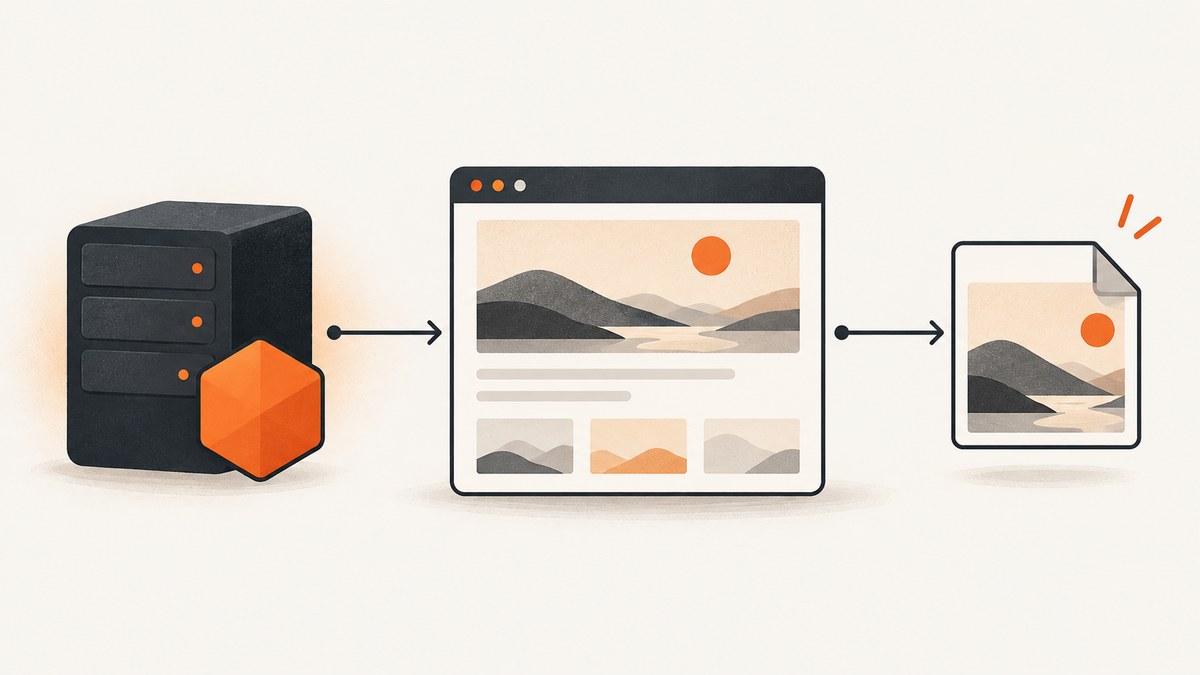
A Node.js screenshot usually means an image of a webpage rendered by a browser that Node.js controls. It is not a Node.js or V8 heap snapshot: those are diagnostic memory data, not pictures of a page. The shortest route is Puppeteer: launch a browser, navigate to a URL, call page.screenshot(), and close the browser.
import puppeteer from 'puppeteer';

const browser = await puppeteer.launch();
try {
  const page = await browser.newPage();
  await page.goto('https://example.com', { waitUntil: 'networkidle2' });
  await page.screenshot({ path: 'screenshot.png' });
} finally {
  await browser.close();
}
Use fullPage: true for the whole scrollable document or capture an element when you need a component. The right readiness condition depends on the site: a navigation event alone does not guarantee that its application has finished rendering. The examples and option names below follow the official Puppeteer screenshot guide, ScreenshotOptions reference, Page.screenshot API, and Playwright screenshots guide. Check the docs for the version installed in your project, since APIs can change.
1. Choose the capture scope and library
| Need | Approach | When it fits |
|---|---|---|
| Visible viewport | page.screenshot({ path: 'shot.png' }) |
A screenshot of the currently visible browser viewport. |
| Whole scrollable page | page.screenshot({ path: 'shot.png', fullPage: true }) |
A tall image covering the document. Large pages can use substantial memory and produce large files. |
| One component | Puppeteer element handle or Playwright locator screenshot | A card, chart, or other specific element, without the surrounding page. |
| Image bytes in memory | Call page.screenshot() without a path |
Send the result to image processing or a storage client without writing a local file first. |
Puppeteer and Playwright both support page, full-page, and element screenshots. Choose the library already used by your application, then confirm the precise options and defaults in that library’s documentation. The cited material does not establish a universal performance winner.
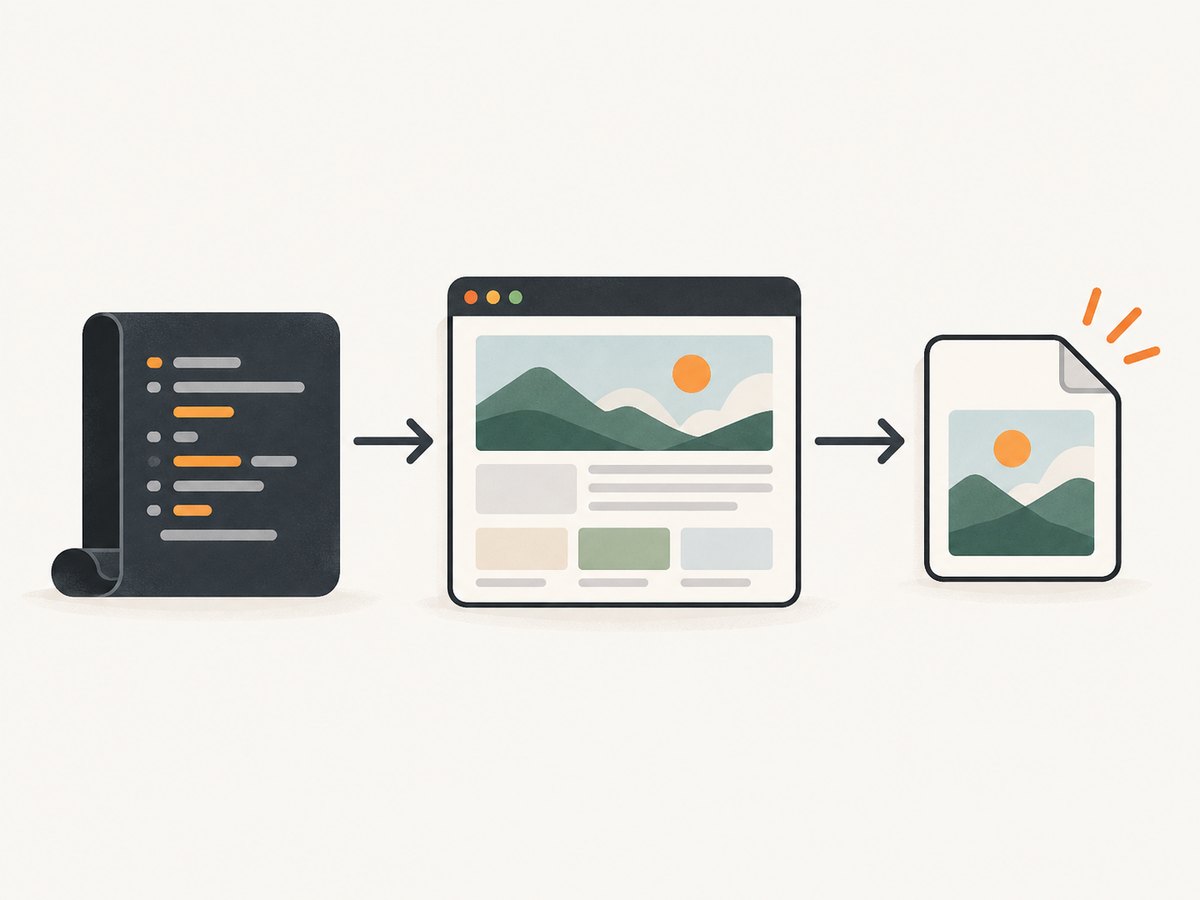
2. Capture a page with Puppeteer
Install Puppeteer in a Node.js project:

npm install puppeteerSave this as screenshot.mjs and run node screenshot.mjs. The browser package is launched by Puppeteer. If your deployment uses a separate browser executable, configure its launch options for that environment and ensure the process has permission to run it.
import puppeteer from 'puppeteer';

const targetUrl = process.argv[2] ?? 'https://example.com';
const browser = await puppeteer.launch();

try {
  const page = await browser.newPage();
  await page.setViewport({ width: 1440, height: 1000 });
  await page.goto(targetUrl, {
    waitUntil: 'networkidle2',
    timeout: 45_000,
  });
  await page.screenshot({ path: 'screenshot.png' });
  console.log('Saved screenshot.png');
} finally {
  await browser.close();
}
Run it against another page with node screenshot.mjs https://example.com. The finally block closes the browser even if navigation or capture throws; skipping cleanup can leave browser processes behind in a long-running service.
Wait for the page state you need
The Puppeteer guide demonstrates networkidle2, which is a useful starting point, not a promise that every page is visually ready. Some applications keep network requests open or render key content after navigation. For those, wait for a selector that marks the content you need:
await page.goto(targetUrl, { waitUntil: 'domcontentloaded', timeout: 45_000 });
await page.waitForSelector('[data-report-ready="true"]', { timeout: 15_000 });
await page.screenshot({ path: 'report.png', fullPage: true });
Use a selector that represents meaningful completion for your page. A fixed delay is simpler, but it can waste time on fast pages and still be too short on slow ones. Avoid waiting for a condition that never occurs; set timeouts and report which step failed.
Capture a full page or a specific element
// Entire scrollable page
await page.screenshot({ path: 'full-page.png', fullPage: true });

// One element
const card = await page.$('.invoice-card');
if (!card) throw new Error('Could not find .invoice-card');
await card.screenshot({ path: 'invoice-card.png' });
Element capture requires the target to exist and be laid out. If the element is below the fold, the library’s capture operation handles the target, but lazy-loaded content may need to be triggered first. For a full-page capture, long pages with lazy images may require scrolling through the page before capture so those images load.
Return image bytes instead of saving a file
const imageBytes = await page.screenshot({ type: 'png' });
// Pass imageBytes to your storage SDK or image-processing function.
With Puppeteer, no path means the screenshot is returned rather than saved to disk; the documented default return is image bytes, and base64 output is also available. This is convenient for a web service, but large full-page buffers consume memory. Persist or stream outputs deliberately, and avoid keeping many captures in memory at once.
3. Capture with Playwright
Install Playwright and its browser binaries as described by its current installation instructions, then use the screenshot API. Save as playwright-shot.mjs:
import { chromium } from 'playwright';

const browser = await chromium.launch();
try {
  const page = await browser.newPage({ viewport: { width: 1440, height: 1000 } });
  await page.goto('https://example.com', { waitUntil: 'domcontentloaded' });
  await page.locator('h1').waitFor();

  // Write directly to a file
  await page.screenshot({ path: 'playwright.png', fullPage: true });

  // Or receive bytes for further processing
  const bytes = await page.screenshot({ type: 'png' });
  console.log(`Captured ${bytes.length} bytes`);
} finally {
  await browser.close();
}
For an element, use a locator:
await page.locator('.invoice-card').screenshot({ path: 'invoice-card.png' });Playwright documents file output, full-page capture, returned image bytes, and element screenshots. Do not assume its option names or defaults match Puppeteer’s; refer to the documentation for the version you install.
4. Screenshot options and configuration
These Puppeteer options cover common choices; verify availability and behavior in your installed version’s ScreenshotOptions documentation.
| Option | What it controls | Practical detail |
|---|---|---|
path |
File destination | Optional. A relative path resolves from the process working directory. When supplied, the extension determines the image type. Without it, no file is saved. |
type |
Output encoding | PNG is the documented default. Use a supported type for your installed version and intended consumer. |
fullPage |
Capture scope | Defaults to false in Puppeteer; set true for the full scrollable page. |
clip |
Rectangular area | Use coordinates and dimensions when a defined region is required; ensure the region is valid for the page. |
omitBackground |
Background rendering | Can enable a transparent background where supported and suitable for the output format. |
quality |
Lossy image quality | Ranges from 0 to 100 and does not apply to PNG. |
Set the viewport before navigating or capturing if you need consistent layout. A different viewport can trigger responsive breakpoints and change the page composition. Specify dimensions explicitly in automation intended for repeatable output; do not rely on ambient defaults.
5. Make captures more reliable
- Use a meaningful readiness check. Wait for a page-specific selector or state when network activity does not indicate completion.
- Set timeouts. Navigation, selector waits, and the overall task should have limits so one stalled page does not occupy a worker forever.
- Close resources in cleanup. Put browser closure in
finally; also handle failures at the job level so one bad URL does not stop a batch. - Account for external variation. Pages may differ by viewport, locale, authentication, time, geolocation, or user-specific content. Control inputs that matter to your use case.
- Plan for lazy content. Full-page geometry does not itself guarantee that images loaded only on scroll are present. Scroll or trigger the relevant region before capture when needed.
- Bound concurrency. Each browser page and full-page image uses resources. Process a controlled number of jobs at a time and monitor memory in your own environment.
For visual checks that need stable comparisons, use the same viewport, browser version, fonts, locale, and readiness signal from run to run. Animation and dynamic data can make otherwise identical captures differ. The supplied documentation describes the APIs but provides no universal timing, throughput, or accuracy benchmark, so measure your own pages and deployment conditions.
6. Troubleshooting common problems
| Symptom | Likely cause | Fix |
|---|---|---|
| Browser fails to launch | Browser binary is absent, incompatible, or blocked by the runtime environment. | Install the browser required by the chosen package, check its launch error, and configure the executable/runtime according to that package’s current deployment documentation. |
| Navigation times out | The site is slow, unreachable, or keeps connections open so the chosen wait condition is not reached. | Check URL reachability and the error details. Use a navigation condition appropriate to the site, then wait for the required content with a bounded selector wait. |
| Screenshot is blank or missing content | The page has not rendered the needed state, a selector was wrong, or lazy content has not loaded. | Wait for a meaningful element or application state; verify the selector and, for lazy content, scroll or trigger the section before capture. |
| Output file cannot be found | A relative path is resolved from the process working directory, which may differ from the script directory. |
Log process.cwd() and use an explicit destination path appropriate to your application. |
| Element screenshot throws | The selector matched no element or the target is not ready. | Wait for the locator/selector, check the match, and handle the absent-target case before capture. |
| PNG ignores quality | The documented quality setting does not apply to PNG. | Use a supported lossy format when quality tuning is needed, or keep PNG for lossless output. |
| Worker memory grows | Pages or browser processes are not closed, or large image buffers accumulate. | Close pages/browsers reliably, release buffers after use, and limit concurrent captures. |
7. Performance, reliability, and cost
A self-hosted browser capture has no per-shot API fee in the code shown, but it is not cost-free to operate: your environment supplies compute, memory, storage, browser maintenance, and engineering time. Full-page images and high concurrency can increase resource use. Test representative pages on the deployment target, record capture duration and failure causes, and tune timeouts and concurrency from observed behavior rather than assumptions.
For repeatable workflows, make each job independent: validate the URL, set its viewport and readiness condition, write to a unique destination, return a clear success or failure, and clean up. A retry can help with transient network failures, but retry only bounded failures and avoid repeatedly hammering a page that consistently rejects or blocks automation. Keep credentials out of logs and pass them only when the target site requires authenticated access.
Or skip the browser setup
ScreenshotNeo is a website screenshot API and MCP server for developers. Its one-call API returns an image or PDF; see the API docs for request options and response details.
const q = new URLSearchParams({ access_key: 'YOUR_API_KEY', url: 'https://stripe.com' });
const res = await fetch(`https://api.screenshotneo.com/v1/shot?${q}`);
if (!res.ok) throw new Error(`Screenshot request failed: ${res.status}`);
await import('node:fs/promises').then(({ writeFile }) => writeFile('shot.webp', Buffer.from(await res.arrayBuffer())));
The call uses the API endpoint; a successful response is written as bytes to shot.webp. ScreenshotNeo removes cookie banners, newsletter popups, and chat widgets before capture. Bot checks, blank pages, and failed loads are never billed. Its MCP server lets AI agents take screenshots. The free plan includes 1,000 screenshots a month with no card; paid plans start at $5 for 3,000. Every feature is on every plan.
Sign up free for 1,000 screenshots a month, with no card required.
Frequently asked questions
Does a Node.js screenshot capture the Node.js process?
Usually no. In this context it means a browser-rendered image of a webpage. A runtime heap snapshot is a different diagnostic artifact.
Can I use the screenshot without writing it to disk?
Yes. Call the screenshot method without a file path and use the returned bytes in memory. This avoids an intermediate file, but the image buffer still uses memory.
Why does the screenshot look different on my machine?
Viewport, browser version, fonts, locale, page data, and timing can affect rendering. Control the inputs that matter and wait for page-specific readiness.
Which library should I pick?
Use Puppeteer or Playwright based on your existing project and requirements. Both document page, full-page, and element capture; compare their current APIs for any extra option you rely on.


