Turn Notion Testimonials Into Shareable Quote Cards
Build a reliable workflow that turns structured Notion testimonials into branded quote cards, with templates, approvals, automation, and export options.
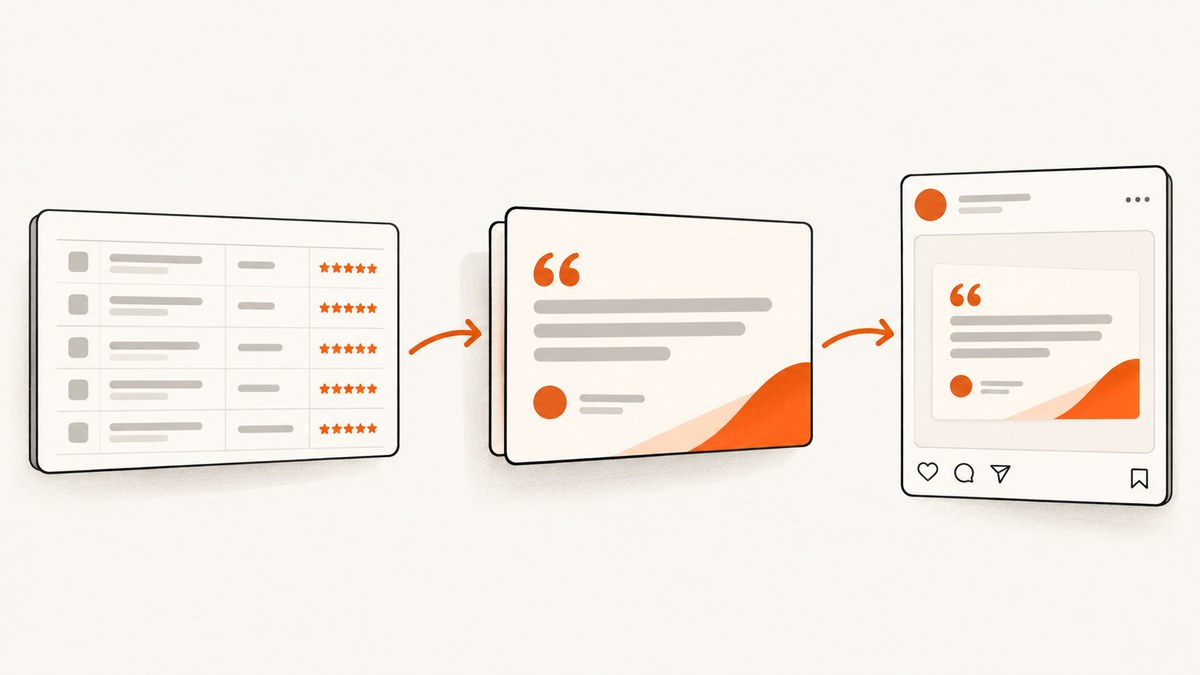
Direct answer: Store one approved testimonial per Notion database row, keep attribution in separate properties, map those properties into one reusable quote-card template, render the card automatically when a row is added or updated, and send the result to a human review channel before publishing. This gives you consistent branding, traceable source material, and a safe approval step.
This guide covers the database design, template, automation logic, long-quote handling, review checks, manual exports, code for capturing finished cards, troubleshooting, and operating costs.
1. Design the Notion database first
Automation is only predictable when every row has the same shape. Create a full-page Notion database with one testimonial per row. A practical schema, based on NotionProof’s documented template, is:
| Property | Type | Required? | Purpose |
|---|---|---|---|
| Name | Title | Yes | Customer name used in attribution |
| Testimonial | Text | Yes | Approved quote text |
| Photo | Files & media | No | Optional customer portrait |
| Rating | Number | No | Optional star or score treatment |
| Company | Text | No | Company, role, or both |
| Date | Date | No | Date received or approved |
| Source URL | URL | No | Original review, case study, or permission record |
Keep the original wording in Testimonial. If marketing needs a shorter version, add a separate Approved excerpt property instead of overwriting the source. That preserves an audit trail and lets a reviewer compare the card with the approved copy.
Recommended operational properties
Add a Status select with values such as Draft, Ready, Rendering, Needs review, Approved, and Published. Add Card URL, Rendered at, and Reviewer properties if your renderer or automation can write back to Notion. These fields prevent duplicate publishing and make failures visible.
- Status: controls which rows can trigger a render.
- Source URL: lets the reviewer verify provenance and permission.
- Approved excerpt: stores a deliberately shortened quote.
- Card URL: points to the rendered image for later reuse.
2. Create one reusable quote-card template
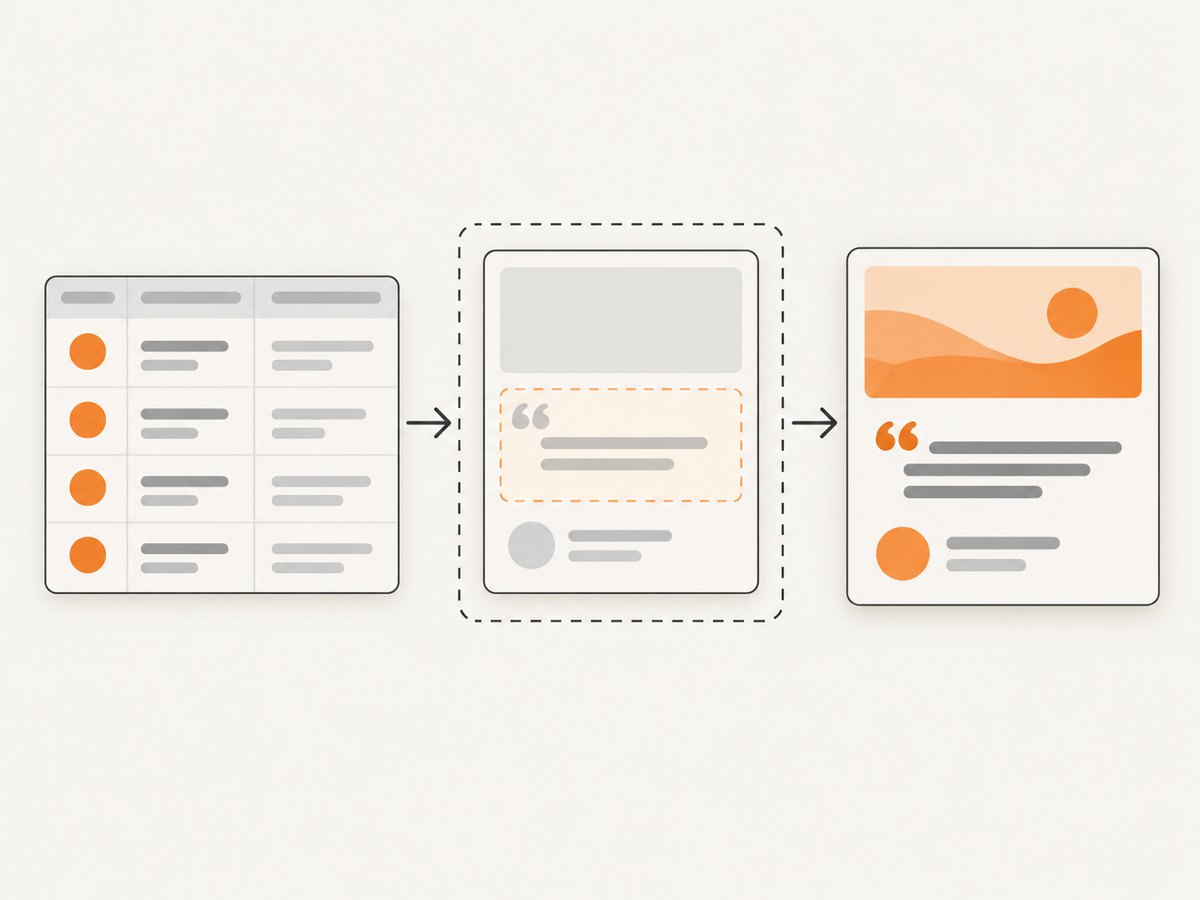
Build the visual once, then map variables into it. Your minimum template needs a quote area and an attribution line. Use placeholders such as {{testimonial}}, {{name}}, and {{company}}. Optional placeholders can control a photo, rating, date, or source label.
Set a fixed canvas for each destination, such as a square card for a social feed or a landscape card for a presentation. Define typography, colors, spacing, logo treatment, and fallback behavior before connecting automation.
Prevent long quotes from breaking the layout
- Use text auto-fit when the renderer supports it; Orshot documents this approach for short and long entries.
- Set a maximum character count and require an approved excerpt above that limit.
- Keep attribution in a separate, non-shrinking text box.
- Test the longest realistic quote, not just a short sample.
- Use line limits and a deliberate ellipsis policy rather than accidental clipping.
Do not silently truncate a customer’s words. If a quote must be shortened, record the approved excerpt and retain the full testimonial in Notion.
3. Connect Notion to a renderer and an approval channel
The dependable sequence is: a Notion page event triggers rendering, database properties are mapped to template placeholders, the rendered image is posted to Slack or another review channel, and a person approves it before publication. Orshot documents this trigger, mapping, rendering, and Slack-review workflow.
- Watch for a new or updated database row.
- Ignore rows whose status is not Ready.
- Read the quote, name, company, photo, rating, and source URL.
- Send those values to the template renderer.
- Post the image and source details to the review channel.
- On approval, publish to the selected social channel, presentation, or investor update.
- Write the card URL, reviewer, timestamp, and Published status back to Notion.
Use an idempotency key made from the Notion page ID and a content revision. If the same event is delivered twice, the automation should update or ignore the existing render instead of producing duplicate cards.
Review checklist
- Is the quote exactly the approved wording?
- Are the customer name, company, and role spelled correctly?
- Do you have permission to publish the quote and photo?
- Is any logo used according to brand guidelines?
- Is text legible at the destination’s displayed size?
- Are punctuation, quotation marks, and line breaks intentional?
- Does the source URL open for the reviewer?
4. Or skip the browser setup
If your renderer produces a public card page, ScreenshotNeo can capture that page with one request. It removes cookie and consent banners, newsletter popups, and chat widgets before capture. Bot checks, blank pages, failed loads, timeouts, and cache hits are not billed, and the response identifies the page verdict and billing result in headers. ScreenshotNeo also provides an MCP server with take_screenshot, get_page_info, and capture_pdf tools for Claude, Cursor, and other MCP clients.

See the ScreenshotNeo API documentation for all options. The following requests use the documented endpoint and can capture your rendered card page by replacing the example URL.
curl -G "https://api.screenshotneo.com/v1/shot" -d access_key=YOUR_API_KEY --data-urlencode url=https://stripe.com -o shot.webpimport requests
r = requests.get("https://api.screenshotneo.com/v1/shot", params={"access_key": "YOUR_API_KEY", "url": "https://stripe.com"}, timeout=90)
open("shot.webp", "wb").write(r.content)const q = new URLSearchParams({ access_key: 'YOUR_API_KEY', url: 'https://stripe.com' });
const res = await fetch(`https://api.screenshotneo.com/v1/shot?${q}`);For quote cards, useful options include full-page capture, a CSS selector for only the card element, custom CSS, JavaScript, a wait-for-selector condition, network-idle waiting, device presets, retina scale, image resizing, transparent backgrounds, caching with a chosen TTL, custom headers or cookies for protected card pages, and signed links for public <img> tags. Bulk capture supports up to 100 URLs per call, which is useful for a batch of approved testimonials. Async jobs with signed webhooks help when a render takes longer than a synchronous request.
ScreenshotNeo is available at screenshotneo.com. The Free plan includes 1,000 shots per month with no card; paid plans start at $5 for 3,000 shots. Every feature is included on every plan, and yearly billing gives two months free. Create a free ScreenshotNeo account.
5. Capture only the card element
A full webpage screenshot often includes navigation, margins, or unrelated content. Give the renderer a stable selector such as #testimonial-card and capture that element. This is especially useful when the card sits inside a preview page.
curl -G "https://api.screenshotneo.com/v1/shot" \
  -d access_key=YOUR_API_KEY \
  --data-urlencode url=https://your-rendered-card-page.example \
  --data-urlencode selector="#testimonial-card" \
  --data-urlencode format=png \
  -o testimonial.png
Use a full-page shot when the card is intentionally part of a longer presentation or when lazy-loaded assets need the page to scroll. Use element capture for a clean social asset.
6. Handle privacy, permissions, and attribution
A testimonial is marketing material only after the customer has granted appropriate permission. Keep the permission evidence or source URL alongside the row. If a photo or company logo is optional, make the template render gracefully when the field is empty. Avoid exposing private Notion pages: use a renderer page with controlled access, then pass custom headers or cookies only when required.
When a customer asks for a correction or removal, change the Notion status, stop future triggers, remove the published asset, and retain an internal record of the request. Do not rely on a visual card alone as the source of truth.
7. Manual fallback and export options
If automation is unavailable, Notion’s official export menu can produce handoff files. From the page’s ••• menu, export a page or database as PDF for visual review, HTML as a ZIP containing HTML and included image assets, or Markdown & CSV. A full-page database can be exported as CSV for batch preparation in spreadsheet software. See Notion’s export documentation.
A manual process still benefits from the same structure: export the rows, paste values into the reusable template, send proofs to a reviewer, and record the final card URL and approval status back in Notion.
8. Troubleshooting
| Symptom | Likely cause | Fix |
|---|---|---|
| Duplicate cards | Webhook retry or repeated update event | Use the page ID plus revision as an idempotency key. |
| Missing company line | Empty property or wrong field mapping | Add a fallback such as role, hide the line when empty, and verify the exact property name. |
| Quote is clipped | Text box has a fixed height | Enable auto-fit, enforce an approved excerpt limit, or increase the card text area. |
| Wrong customer photo | Automation selected the first file or stale URL | Resolve the current file URL at render time and test replacement uploads. |
| Card contains cookie banner | Capture happened before consent handling | Use ScreenshotNeo’s consent cleanup, or wait for the banner to be removed before capture. |
| Blank screenshot | Page failed to load, selector never appeared, or script error | Check the page directly, add a wait-for-selector or delay, and inspect the response verdict headers. |
| Unauthorized request | Missing or invalid API key | Set access_key correctly and keep it server-side. |
| Protected page fails | Authentication is required | Pass the required headers or cookies and confirm the page is reachable in the same session. |
| Social upload rejected | Wrong dimensions, format, or file size | Set the template canvas and output format for the destination, then resize if needed. |
9. Performance, reliability, and cost
Render only when content changes. Cache unchanged card pages and use a chosen cache TTL when the same asset is requested repeatedly. For a campaign, queue approved rows and use bulk capture rather than opening one browser per testimonial. Async jobs and signed webhooks prevent long-running captures from blocking your Notion automation.
Track each render by page ID, revision, status, response verdict, and card URL. Retry transient failures with backoff, but do not retry permanent authentication or validation errors. ScreenshotNeo’s billing model charges only clean shots; bot checks, blank pages, timeouts, failed loads, and cache hits cost nothing, with X-Page-Verdict and X-Billed response headers showing the result.
Budget based on approved renders and any deliberate re-renders. ScreenshotNeo plans are Free: 1,000 shots/month; Starter: $5 for 3,000; Growth: $15 for 15,000; Pro: $39 for 60,000; Scale: $99 for 250,000; Business: $249 for 1,000,000. Every feature is on every plan.
10. FAQ
Can I keep several testimonials in one Notion page?
You can, but one database row per testimonial is easier to validate, trigger, review, and republish.
Should I store the final image in Notion?
Store the card URL and status in Notion. Keep the binary asset in the system that serves or publishes it, with a retention policy that fits your needs.
How do I support different social formats?
Create separate template variants that use the same mapped fields and choose the variant from a Notion property or automation rule.
Can a reviewer approve from Slack?
Yes. Orshot’s documented workflow posts the rendered card to Slack for human approval before publishing.
What if a testimonial changes after publication?
Create a new revision, render it again, require review, and keep the old card unpublished or archived according to your content policy.
11. A production checklist
- One testimonial per Notion row.
- Quote, name, company or role, and source URL are mapped.
- Permission and original wording are preserved.
- Long-quote behavior is tested.
- Automation is idempotent and status-driven.
- Every render reaches a human review channel.
- Approved cards are published only after attribution and legibility checks.
- Card URLs, revisions, and publication status are written back to Notion.
- Failures, retries, and capture verdicts are logged.
With this structure, Notion remains the source of truth while your renderer produces consistent assets and your review channel protects accuracy. ScreenshotNeo can handle the final webpage-to-image step when you want clean captures without maintaining browser infrastructure.


