How to Set a Cover Page with NReco PDF Generator
Add a dedicated first page to an NReco PDF with the `coverHtml` overload, then control its layout, assets, pagination, and output path.

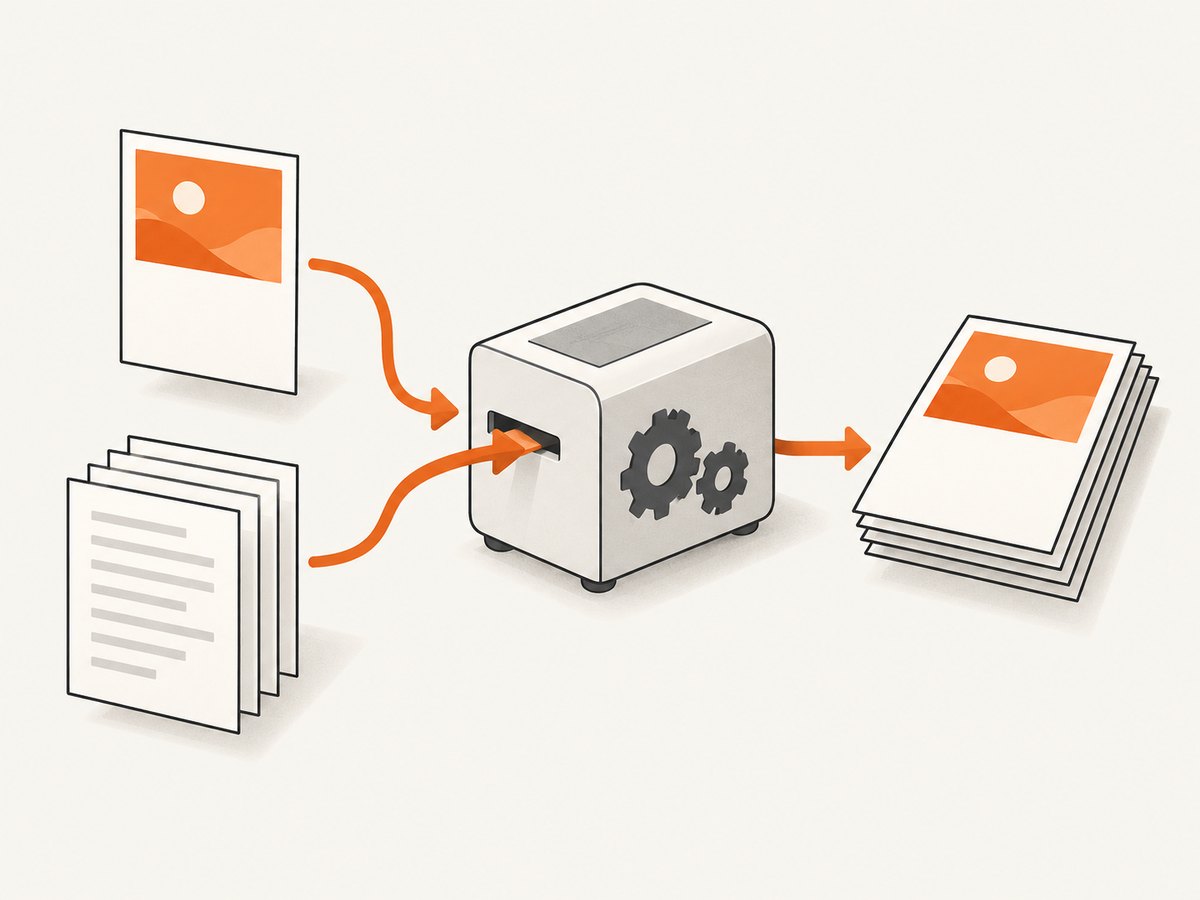
To add a cover page with NReco PDF Generator, pass the cover’s HTML as the second argument to HtmlToPdfConverter.GeneratePdf(documentHtml, coverHtml). NReco treats that argument as optional first-page HTML and returns the finished PDF as a byte array. Pass null when you do not want a cover. [NReco API documentation]
The cover is a separate HTML input, not the first section of your body HTML. That distinction matters for layout and pagination: author the cover as its own document, set its dimensions deliberately, and let NReco prepend it to the main content. This guide shows a runnable C# example, file and URL input, output variants, layout guidance, troubleshooting, and deployment considerations.
1. Install the package and create a PDF with a cover
Install the NuGet package in your project:
dotnet add package NReco.PdfGeneratorHere is a complete console example. It creates a main document, defines a separate cover document, generates PDF bytes, and writes them to report.pdf:
using System;
using System.IO;
using NReco.PdfGenerator;

var documentHtml = @"<!doctype html>
<html>
<head><meta charset='utf-8'><title>Report</title></head>
<body>
  <h1>Main document</h1>
  <p>Body content begins here.</p>
</body>
</html>";

var coverHtml = @"<!doctype html>
<html>
<head>
  <meta charset='utf-8'>
  <style>
    html, body { width: 100%; height: 100%; margin: 0; }
    body { font-family: Arial, sans-serif; }
    .cover {
      box-sizing: border-box;
      min-height: 100vh;
      display: flex;
      flex-direction: column;
      justify-content: center;
      align-items: center;
      padding: 36px;
      text-align: center;
    }
    h1 { margin: 0 0 12px; font-size: 36px; }
  </style>
</head>
<body>
  <section class='cover'>
    <h1>Quarterly Report</h1>
    <p>Prepared for Example Co.</p>
  </section>
</body>
</html>";

var converter = new HtmlToPdfConverter();
byte[] pdfBytes = converter.GeneratePdf(documentHtml, coverHtml);
File.WriteAllBytes("report.pdf", pdfBytes);

Console.WriteLine($"Wrote report.pdf ({pdfBytes.Length} bytes)");
In the call, documentHtml is the regular body and coverHtml is the first page. NReco’s method reference describes the second parameter as first-page HTML; its method index lists overloads that return bytes, write to a stream, or write to a file. [NReco method index]
2. Design a cover that fits the PDF page
Cover markup is HTML and CSS rendered by NReco’s wkhtmltopdf-based pipeline. NReco documents support for HTML layouts, images, SVG, custom fonts, and JavaScript. [NReco product documentation]
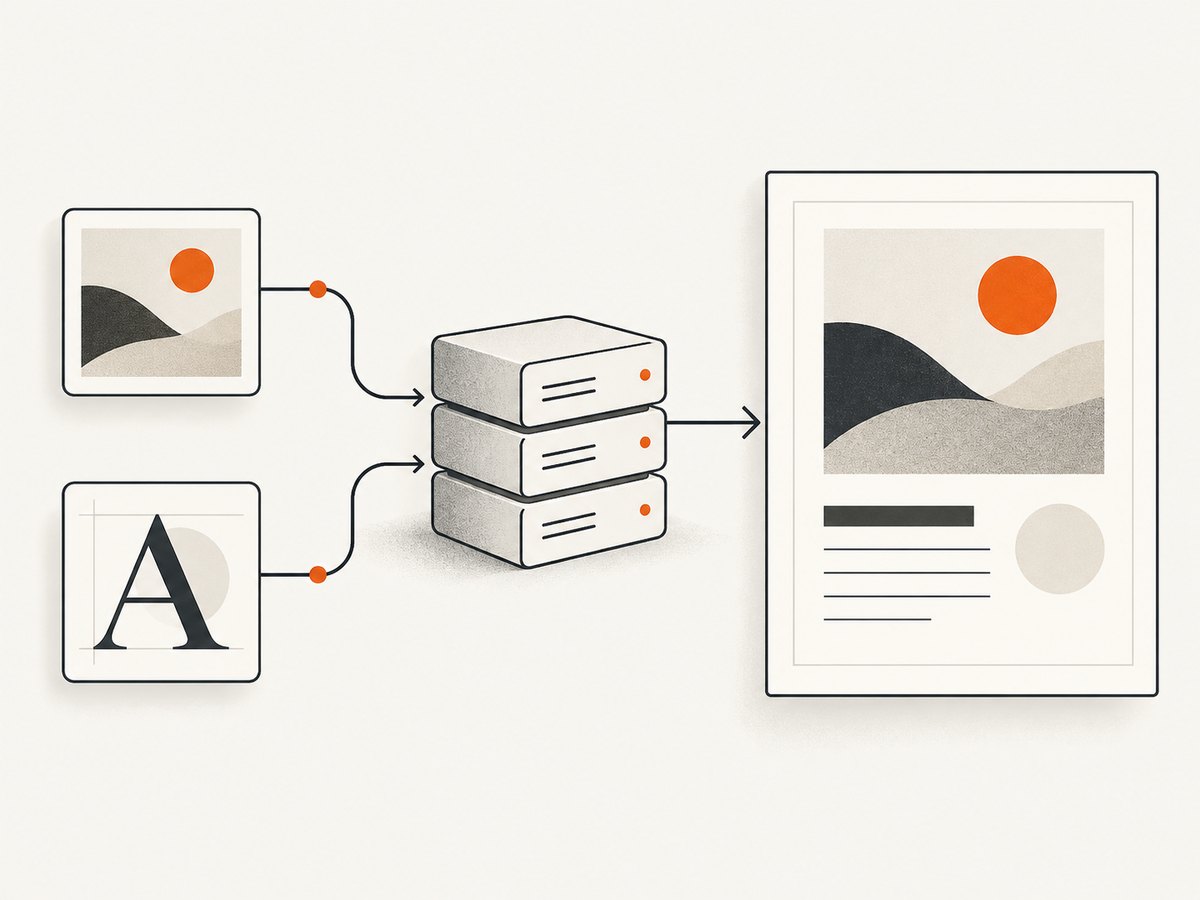
Start with a standalone HTML document and explicit styles. Reset the browser’s default body margin, keep content inside the page’s printable area, and avoid relying on modern browser features without checking them in the renderer version deployed with your application.
Page size, margins, and full-bleed designs
Your cover must fit the page settings used for the PDF. If you need a full-bleed cover, set the page margins appropriately in the converter’s documented page settings and remove the default HTML margins. If the cover should sit within normal margins, use the available content area rather than sizing it to the physical paper dimensions. A 100vh cover can be useful for a one-page design, but test pagination: content slightly taller than the rendered page can spill onto an extra page.
For a predictable layout, use fixed spacing and a clear hierarchy. Avoid long unbroken titles, oversized images, and large margins that together push content past the page boundary. If a title or subtitle comes from user input, encode it for HTML before placing it in a template. Do not concatenate untrusted input into executable script or markup.
Images, fonts, and other external assets
Images and fonts are fetched by the rendering process. A URL that works in your browser may not be accessible from the machine or container generating the PDF. Use a reachable absolute URL or an asset path that the renderer can resolve. For production generation, confirm that credentials, network routing, certificates, and file permissions allow the renderer to read every required asset. This is deployment guidance based on the HTML-rendering model; actual access depends on your environment.
For a dependable cover, keep essential content in HTML and CSS rather than baking the whole page into a background image. If a remote image is decorative, provide a sensible fallback so a failed request does not leave the page looking broken.
3. Use a local HTML file or an absolute URL for the body
When the main input is a local HTML file or an absolute URL, use GeneratePdfFromFile(htmlFilePath, coverHtml). Its first parameter is the file path or URL, the second remains the cover HTML, and the method returns the PDF as bytes. [GeneratePdfFromFile reference]
using System.IO;
using NReco.PdfGenerator;

var coverHtml = @"<!doctype html>
<html><head><meta charset='utf-8'>
<style>html,body{margin:0} .cover{height:95vh;display:flex;
justify-content:center;align-items:center;font-family:Arial,sans-serif}</style>
</head><body><main class='cover'><h1>Annual Report</h1></main></body></html>";

var converter = new HtmlToPdfConverter();
byte[] pdfBytes = converter.GeneratePdfFromFile(
    "/var/www/reports/body.html",
    coverHtml);
File.WriteAllBytes("annual-report.pdf", pdfBytes);
Replace the sample path with a path available to the process running PDF generation, or use an absolute URL accessible to that process. Do not assume a URL that is reachable from a developer laptop is also reachable from a server, private network, or hosted execution environment.
Choose a byte array, stream, or file output
Choose the output overload based on what the calling code needs. A byte array works for small documents you will return from a web endpoint or pass to another method. A stream can fit a pipeline that already writes to a destination stream. A file-output overload writes directly to a path. The API method index lists cover-capable overloads for these output styles; check the overload signature available in the package version you reference. [NReco method index]
| Output | Use when | Watch for |
|---|---|---|
| Byte array | You need to return or further process PDF bytes. | Large results occupy memory while held by your application. |
| Stream | Your application already writes to a stream or storage destination. | Confirm stream lifetime and ownership in your calling code. |
| File | You want the generator to write an output file. | Ensure the target directory exists and the process can write there. |
For every option, handle exceptions at the application boundary and avoid returning partial output as a successful PDF. Consider writing to a temporary file and moving it into place only after generation succeeds when downstream code expects a stable path.
4. Headers, footers, page numbers, and a cover without numbering
NReco documents custom page headers and footers, along with page-number placeholders, as supported features. [NReco product documentation] A cover page is a separate first-page input, but the exact relationship between cover rendering, header/footer settings, and page numbering can depend on the overload and the wkhtmltopdf options in use.
If the cover must not show a page number while body pages do, do not assume that a single global footer configuration will automatically behave as intended. NReco’s advanced multi-input APIs allow separate input configuration, including per-input header/footer settings, according to the method documentation. Review the API and license requirements for the specific overload you plan to use, then verify page labels and numbering in the generated PDF. [NReco method index]
A practical verification checklist:
- Open the generated PDF and confirm the cover is page one.
- Check whether the cover receives the header or footer.
- Confirm body page numbers start at the number you intend.
- Try a short document and a multi-page document; pagination can expose different behavior.
- Check the output after changing paper size or margins.
5. Troubleshooting common cover-page problems
| Symptom | Likely cause | What to do |
|---|---|---|
| The cover content appears in the body instead of on its own first page. | The cover HTML was concatenated into documentHtml or passed as the wrong argument. |
Pass it as the second argument: GeneratePdf(documentHtml, coverHtml). |
| The cover is blank or missing an image. | The renderer cannot reach the asset, or the URL/path is invalid from the server’s environment. | Check the asset URL, file permissions, network access, and any authentication requirements from the PDF process environment. |
| The cover content spills onto a second page. | The layout exceeds the page’s usable area after margins, font rendering, or image dimensions are applied. | Reduce vertical content, use explicit sizing, and inspect paper size and margins together. |
| Styles or scripts behave differently than in a modern browser. | NReco uses a wkhtmltopdf-based renderer; browser engines and feature support differ. | Simplify the CSS or JavaScript, use layout rules supported by the deployed renderer, and verify using the actual deployment. |
| PDF generation fails on the server but works locally. | Runtime binaries, executable paths, architecture, permissions, or required native dependencies differ by environment. | Confirm the correct NReco package/deployment model and that its wkhtmltopdf runtime is available to the application. |
| Generation fails intermittently or reports a renderer error. | The renderer may fail on problematic input, unavailable resources, or environment constraints. | Capture the available renderer logs, reduce the input to isolate the failing markup or asset, and test generation on the target host. |
| The cover has a number or footer that should be omitted. | Header/footer behavior is configured globally or differs across inputs. | Inspect the relevant cover and multi-input APIs; verify the result in the deployed renderer and page settings. |
The NuGet package description identifies the standard package as a wkhtmltopdf wrapper and notes deployment differences: its embedded Windows binaries are extracted on first use, while cross-platform deployments use the LT package and separately deployed wkhtmltopdf binaries. Check the package guidance for the exact target environment. [NReco.PdfGenerator on NuGet]
6. Performance, reliability, and licensing considerations
PDF generation invokes an HTML rendering pipeline, so document complexity and external dependencies affect the work required. Large images, complex layouts, scripts, and remote assets can add rendering time or introduce failure points. Keep a cover lean, avoid unnecessary remote dependencies, and set application-level limits for document size and request duration based on your own workload. No single timing estimate applies across different HTML, machines, and deployments.
For reliability, render in an environment where fonts, images, and required binaries are predictable. Treat successful process completion and a non-empty output as prerequisites before publishing or delivering the PDF. If rendering user-provided HTML, isolate the work and constrain what the renderer can access according to your application’s security model; arbitrary remote resources can make output less predictable and may create server-side access risks.
Review licensing before shipping a product that redistributes the library or offers PDF generation as a SaaS feature. NReco describes commercial licensing and an enterprise source package; the applicable terms depend on deployment and use. [NReco product and licensing information]
7. Or skip the browser setup
If your goal is a screenshot of a web page rather than a custom HTML cover merged into a PDF, ScreenshotNeo provides a website screenshot API and MCP server. One GET request returns an image or PDF, and you can capture a web page without installing and operating a browser renderer yourself. For API parameters and options, see the ScreenshotNeo documentation.
cURL
curl -G "https://api.screenshotneo.com/v1/shot" -d access_key=YOUR_API_KEY --data-urlencode url=https://stripe.com -o shot.webpPython
import requests

r = requests.get(
    "https://api.screenshotneo.com/v1/shot",
    params={"access_key": "YOUR_API_KEY", "url": "https://stripe.com"},
    timeout=90,
)
open("shot.webp", "wb").write(r.content)
Node.js
const q = new URLSearchParams({ access_key: 'YOUR_API_KEY', url: 'https://stripe.com' });
const res = await fetch(`https://api.screenshotneo.com/v1/shot?${q}`);
if (!res.ok) throw new Error(`Screenshot request failed: ${res.status}`);
await Bun.write('shot.webp', res);
ScreenshotNeo removes cookie banners, popups, and chat widgets before the shot. Bot checks, blank pages, and failed loads are never billed. Its MCP server lets AI agents take screenshots. The free plan includes 1,000 screenshots per month with no card; paid plans start at $5 for 3,000. Sign up for free and get 1,000 screenshots a month with no card.
For this specific NReco task, ScreenshotNeo is an alternative for capturing pages as PDFs or images; it does not replace the NReco workflow when you need to programmatically compose a custom first-page HTML cover with a generated document.
8. FAQ
Can I omit the cover page for some documents?
Yes. Pass null as the cover argument for a generation call that should not prepend a cover. [NReco API reference]
Can the cover contain custom fonts or SVG?
NReco documents support for custom fonts and SVG in HTML-to-PDF rendering. Make sure the renderer can access the referenced assets, and confirm the appearance in your deployed environment. [NReco product documentation]
Does the cover parameter accept a PDF file?
The documented parameter is cover-page HTML. The examples here use an HTML string, which the renderer turns into the first page.
Is NReco suitable for every deployment model?
Package and licensing details differ by runtime and use. Check the current NReco package documentation and licensing terms for your operating system, redistribution model, or SaaS deployment before choosing a production configuration.


