How to Make NReco.ImageGenerator Download a Specific Wkhtmltoimage Version
Pin NReco.ImageGenerator to use its bundled wkhtmltoimage build, or use NReco.ImageGenerator.LT and deploy the exact executable you need.
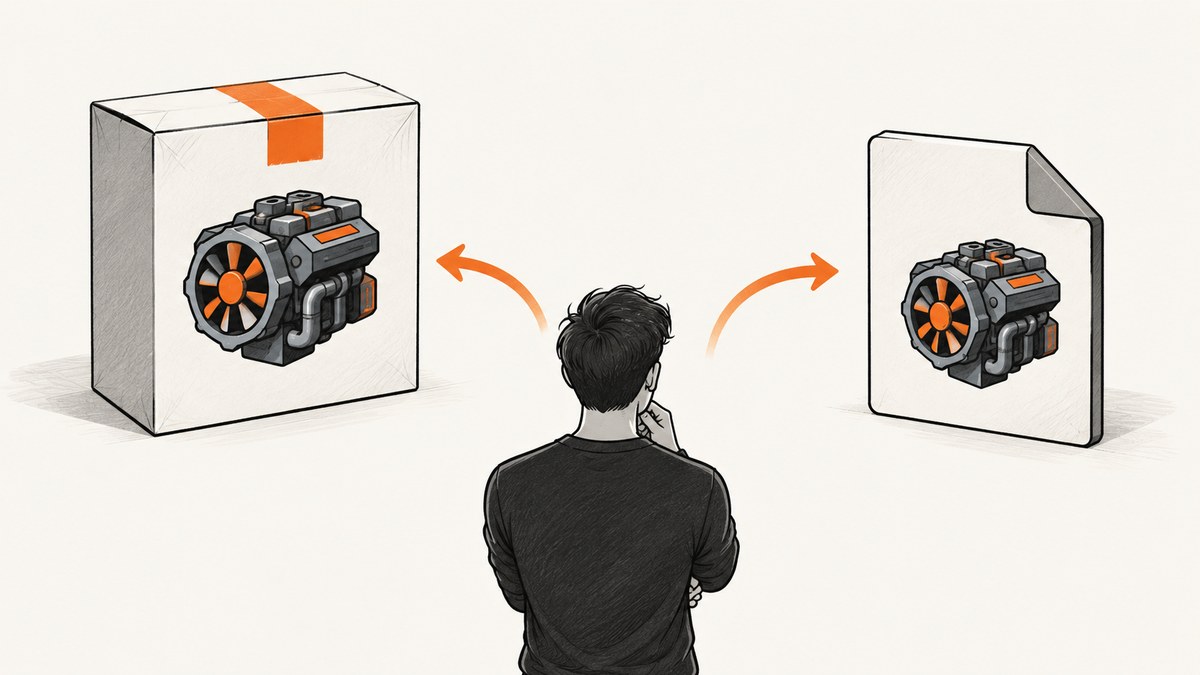
Direct answer: The regular NReco.ImageGenerator package uses the wkhtmltoimage binary bundled with that package. Pin the NuGet package version to pin the renderer version; there is no documented runtime download setting on the package page for selecting an arbitrary wkhtmltoimage release. If you need a different build, use NReco.ImageGenerator.LT, deploy the wkhtmltoimage executable you want, and point NReco at its name and folder.
NReco’s release notes say its 1.1.0 release upgraded WkHtmlToImage to version 0.12.4, released November 22, 2016. The NuGet Gallery documents version 1.2.0 of the full package and its package reference syntax. Those facts establish the central distinction: the full package couples the renderer to the NReco package release, while LT expects your application to provide the renderer. [NReco.ImageGenerator 1.2.0 on NuGet; NReco.ImageGenerator.LT documentation]
1. Choose how you want to manage wkhtmltoimage
| Need | Use | Version control |
|---|---|---|
| Simple Windows setup and the renderer shipped with NReco | NReco.ImageGenerator |
Pin the NuGet package version, then verify which renderer that package provides. |
| A particular renderer build, or a Linux/macOS deployment | NReco.ImageGenerator.LT |
Pin the LT NuGet package and separately pin and deploy the wkhtmltoimage executable. |
The LT documentation says that this build does not embed wkhtmltoimage binaries, can be used in non-Windows environments with Mono or .NET Core, and requires appropriate binaries to be installed or deployed with the application. Its executable configuration points are WkHtmlToImageExeName and PdfToolPath. [NReco.ImageGenerator.LT documentation]
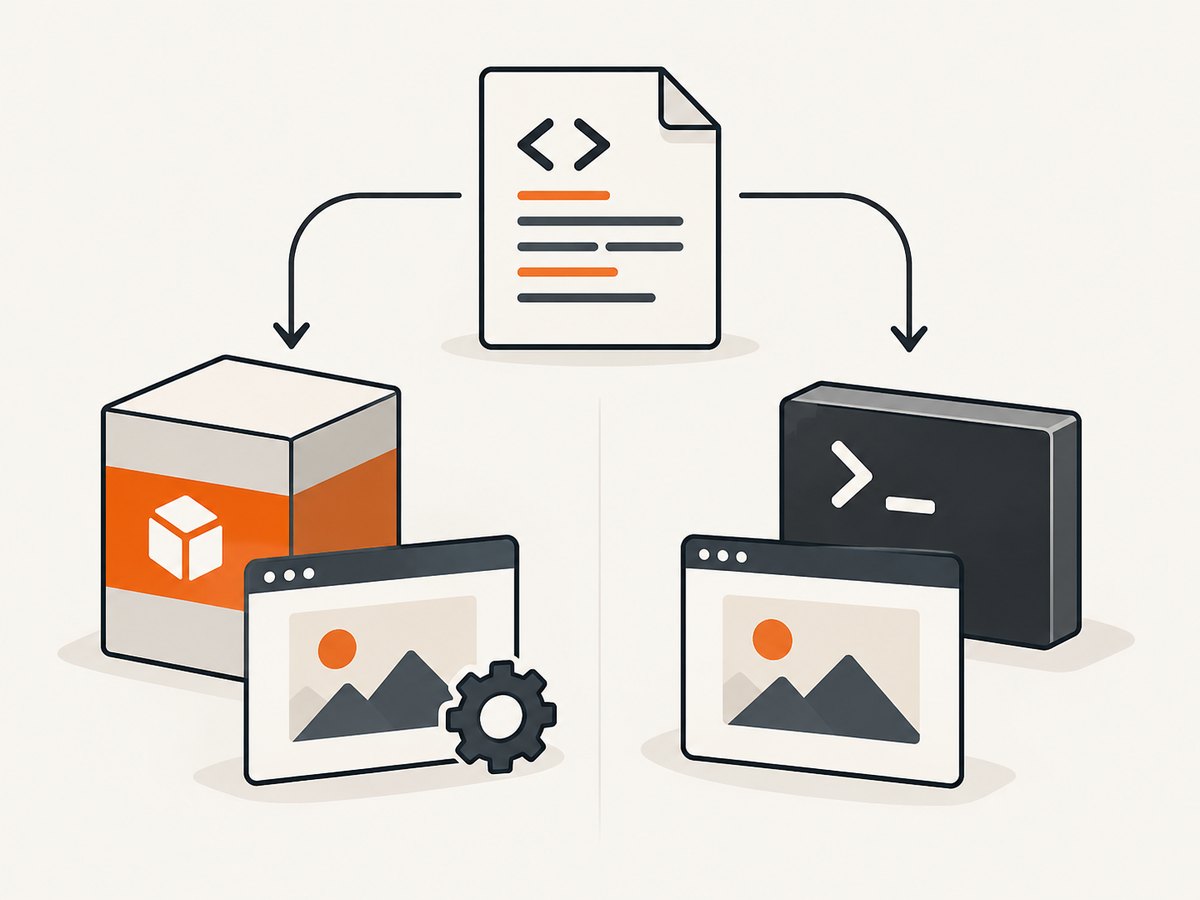
2. Pin the full package when its bundled renderer is suitable
For the regular package, choose a specific NuGet version and keep it fixed in the project. Do not use a floating version such as 1.* if your goal is reproducible output. The package’s renderer comes with the package release, so updating NReco can also change the wkhtmltoimage binary.
Install a fixed version
dotnet add package NReco.ImageGenerator --version 1.2.0Or pin it directly in the project file:
<ItemGroup>
  <PackageReference Include="NReco.ImageGenerator" Version="1.2.0" />
</ItemGroup>
The version shown here follows the package page’s documented 1.2.0 example. Consult the release notes for the particular package version you plan to ship before assuming which renderer it contains; the dossier specifically identifies wkhtmltoimage 0.12.4 as the build introduced with NReco 1.1.0. Do not infer that every later NReco release has a newer renderer without checking its release notes. [NuGet package page]
What if you want 0.12.6 from the full package?
The documented package model does not expose a setting such as WkHtmlToImageVersion = "0.12.6" that downloads a version at runtime. Pinning NReco selects the package contents. If the bundled binary is not the build you require, use LT and manage the executable yourself. This avoids relying on an undocumented setting or modifying package internals.
3. Use LT to select an externally deployed executable
Install a fixed LT package version, then deploy the exact wkhtmltoimage distribution required by your application. The NReco configuration names the executable and the folder used to locate the tool. The folder path must match the target machine, and the executable name must match the operating system.
Install and configure
dotnet add package NReco.ImageGenerator.LT --version YOUR_PINNED_LT_VERSIONReplace the placeholder with the exact LT version you have selected and commit the resulting package lock information where your build process uses it. The following is the documented configuration pattern:
using NReco.ImageGenerator;

var htmlToImage = new HtmlToImageConverter();

// Windows example. Point to the folder containing the deployed executable.
htmlToImage.WkHtmlToImageExeName = "wkhtmltoimage.exe";
htmlToImage.PdfToolPath = @"C:\tools\wkhtmltopdf\bin";

var image = htmlToImage.GenerateImage(
    "<html><body><h1>NReco capture</h1></body></html>",
    "jpg");
On Linux or macOS, use the executable name wkhtmltoimage and set PdfToolPath to the directory where the executable is deployed:
var htmlToImage = new NReco.ImageGenerator.HtmlToImageConverter();
htmlToImage.WkHtmlToImageExeName = "wkhtmltoimage";
htmlToImage.PdfToolPath = "/opt/myapp/tools/wkhtmltoimage";
Keep the binary artifact under deployment control: acquire the intended build from a source you trust, record its version and checksum in your release process, and distribute it with the application or install it in a controlled location. The supplied NReco documentation specifies deployment of appropriate binaries, but does not define your binary download source, package manager, or checksum policy; those should be chosen for your environment.
4. Make renderer selection reproducible
A reproducible deployment requires two pinned inputs when using LT: the NReco.ImageGenerator.LT package and the external wkhtmltoimage artifact. Pinning only the NuGet dependency does not pin the renderer, because LT does not embed it. For the full package, pin the NuGet dependency and verify the tool version that the package supplies.

- Pin the NReco dependency. Use an exact version in the project file and use the same dependency resolution in build and release environments.
- Pin the external binary if using LT. Record its source, version, platform, architecture, and artifact checksum in your deployment manifest.
- Keep paths platform-specific. Windows typically uses the executable filename with
.exe; Linux and macOS usewkhtmltoimage. Deploy the file at the path configured for that environment. - Check the executable itself. During deployment validation, run the deployed executable with
--versionand compare its output to the expected version. - Exercise a representative conversion. Render a small known HTML fixture in the same container or host image used in production. A version string check confirms executable selection; the conversion catches missing runtime libraries, permissions, or path problems.
For example, a deployment check can run a command equivalent to:
/opt/myapp/tools/wkhtmltoimage --versionOn Windows, run wkhtmltoimage.exe --version from the deployed tool directory. Validate the actual deployed path, not a developer workstation’s globally installed copy.
5. Understand path, platform, and deployment edge cases
Relative paths and working directories
A relative executable directory may resolve differently when launched by a service, container entrypoint, scheduled task, or IDE. Prefer a deterministic absolute deployment path, or construct the path from the application’s known deployment directory. Confirm the process identity can read and execute the binary.
File names and permissions
On Unix-like systems, ensure the deployed file has execute permission and that its architecture matches the runtime host. A Windows executable will not become usable on Linux merely by changing WkHtmlToImageExeName; deploy a binary built for the target platform. Likewise, keep the configured executable name and folder synchronized when packaging the application.
Container images and serverless deployments
If you use LT in a container, include the executable in the image or mount it at a stable path. Do not assume a binary present on the build machine will be present in the runtime image. For ephemeral environments, verify that packaging includes the tool and any operating-system dependencies it requires. The supplied NReco materials establish the external-binary requirement, but do not specify a universal container recipe; the correct runtime dependencies depend on your chosen binary and base image.
Different renderer versions across environments
It is easy for local development to use one executable and production another, especially when one environment resolves a system-wide installation. Log or expose the configured executable path at startup, and capture the version output in deployment diagnostics. Avoid changing the binary in place without changing the artifact record; a stable path does not guarantee a stable renderer.
6. Troubleshoot common version-selection problems
| Symptom | Likely cause | Fix |
|---|---|---|
| NReco keeps using an older wkhtmltoimage build | The full package contains the renderer associated with its package release. | Check the exact NReco package version and its release notes. If that bundled renderer is unsuitable, move to LT and configure your own binary. |
| Changing a runtime version option has no effect | The full package does not document an arbitrary runtime binary download setting. | Pin the full NuGet package to select its bundled contents, or use LT for external executable selection. |
| LT reports that the tool cannot be found | PdfToolPath points to the wrong folder, the executable name differs, or deployment omitted the file. |
Check both configuration properties, inspect the target filesystem, and run the executable directly from that path. |
| Works locally, fails in production | The production service has a different working directory, permissions, architecture, or binary deployment. | Use a deterministic path, verify execute permissions and platform compatibility, and run --version as the service identity. |
| LT is configured for Linux but searches for an .exe | The Windows executable name was carried into the Linux configuration. | Set WkHtmlToImageExeName to wkhtmltoimage on Linux/macOS and point to its actual directory. |
| Version check is correct but conversion fails | The executable is found, but required runtime libraries, access permissions, or input resources are unavailable. | Run a minimal conversion in the deployed environment and inspect the renderer’s diagnostic output and host dependencies. |
7. Performance, reliability, and cost considerations
Choosing a renderer version is also a deployment decision. The full package is simpler because the renderer is bundled alongside the wrapper, but its renderer choice follows the package version. LT gives control over the executable and supports non-Windows deployment scenarios described in its documentation, at the cost of maintaining and distributing another artifact. That artifact needs version tracking, platform-specific packaging, and deployment checks.
Neither the supplied dossier nor the package facts provide comparable performance benchmarks, reliability figures, or operating costs for particular wkhtmltoimage versions. Treat claims about speed or output differences as something to establish against your own pages and deployment environment. For a migration, capture representative pages before and after changing binaries and compare the resulting output and conversion behavior.
For operational reliability, keep the package and binary versions visible in build metadata, validate the executable during deployment, and retain a known-good artifact for rollback. Pinning does not guarantee identical rendering across different operating systems or host dependencies, but it removes unplanned renderer upgrades as one source of variation.
8. Screenshot a URL without managing a local renderer
If your task is to capture a public webpage rather than integrate wkhtmltoimage into a .NET application, ScreenshotNeo offers a website screenshot API and MCP server. Its API takes a URL in a GET request and returns an image or PDF. It is a separate route from NReco: the code below calls ScreenshotNeo’s hosted API rather than selecting an NReco binary.
Or skip the browser setup
Make one request with a URL to receive a screenshot. See the ScreenshotNeo API documentation for parameters and response details.
curl -G "https://api.screenshotneo.com/v1/shot" \
  -d access_key=YOUR_API_KEY \
  --data-urlencode url=https://stripe.com \
  -o shot.webp
import requests
r = requests.get(
"https://api.screenshotneo.com/v1/shot",
params={"access_key": "YOUR_API_KEY", "url": "https://stripe.com"},
timeout=90,
)
open("shot.webp", "wb").write(r.content)const q = new URLSearchParams({
access_key: 'YOUR_API_KEY',
url: 'https://stripe.com'
});
const res = await fetch(`https://api.screenshotneo.com/v1/shot?${q}`);
if (!res.ok) throw new Error(`Screenshot request failed: ${res.status}`);
await import('node:fs/promises').then(async fs =>
fs.writeFile('shot.webp', Buffer.from(await res.arrayBuffer()))
);- Cookie and consent banners are accepted like a visitor; more than 60 known consent platforms, newsletter popups, and chat widgets are removed before capture. Each cleanup step can be turned off.
- Bot checks, CAPTCHAs, blank pages, timeouts, failed loads, and cache hits cost nothing. Response headers indicate the page verdict and billing status.
- An MCP server gives AI agents tools for screenshots, page information, and PDF capture.
- The Free plan includes 1,000 screenshots a month with no card. Paid plans start at $5 for 3,000 shots; every feature is available on every plan.
Create a free ScreenshotNeo account for 1,000 screenshots a month with no card.
FAQ
Can NReco download wkhtmltoimage 0.12.6 instead of its bundled version?
The supplied package documentation does not describe a runtime download setting for choosing an arbitrary wkhtmltoimage version. Use LT and deploy the exact executable if you require a different build.
Does pinning NReco.ImageGenerator.LT also pin wkhtmltoimage?
No. LT does not embed the renderer binaries. Pin the LT package and the external executable artifact separately.
Why can two deployments with the same NReco version behave differently?
With LT, they may be using different external executables or host environments. Record and verify the binary version and deploy it consistently alongside the application.
Which property selects the executable folder?
The LT configuration uses WkHtmlToImageExeName for the executable name and PdfToolPath for the tool folder.


