How to Set Page Size Units in NReco WkHtmlToPdf
Set NReco WkHtmlToPdf page sizes precisely in millimeters, configure margins, choose named paper formats, and avoid CSS sizing surprises.

Short answer: NReco.PdfGenerator’s HtmlToPdfConverter.PageWidth and PageHeight values are measured in millimeters. Set both properties when you need a custom physical page, such as 150 × 100 mm. Configure margins separately with millimeter values. Use PageSize for named formats such as A4; use width and height properties for dimensions that do not match a named format.
using NReco.PdfGenerator;

var pdfConverter = new HtmlToPdfConverter
{
    PageWidth = 150,
    PageHeight = 100,
    Margins = new PageMargins
    {
        Left = 0,
        Right = 0,
        Top = 0,
        Bottom = 0
    }
};

var pdfBytes = pdfConverter.GeneratePdf("<html><body>Custom page</body></html>");
File.WriteAllBytes("custom-page.pdf", pdfBytes);
The underlying wkhtmltopdf executable uses the same physical concept. Its custom-size flags accept millimeters when you write the unit explicitly:
wkhtmltopdf --page-width 150mm --page-height 100mm input.html output.pdfWhat units does NReco use?
The NReco API reference describes PageWidth as PDF page width “in mm”; PageHeight follows the same convention. A value of 150 means 150 millimeters, not pixels, points, CSS pixels, or inches. The margin properties are also millimeter-based.
| Requirement | NReco setting | Example |
|---|---|---|
| Named paper format | PageSize |
A4, A3, Letter, Legal |
| Custom width | PageWidth |
150 (150 mm) |
| Custom height | PageHeight |
100 (100 mm) |
| Printable inset | Margins or PageMargins |
Left, Right, Top, Bottom in mm |
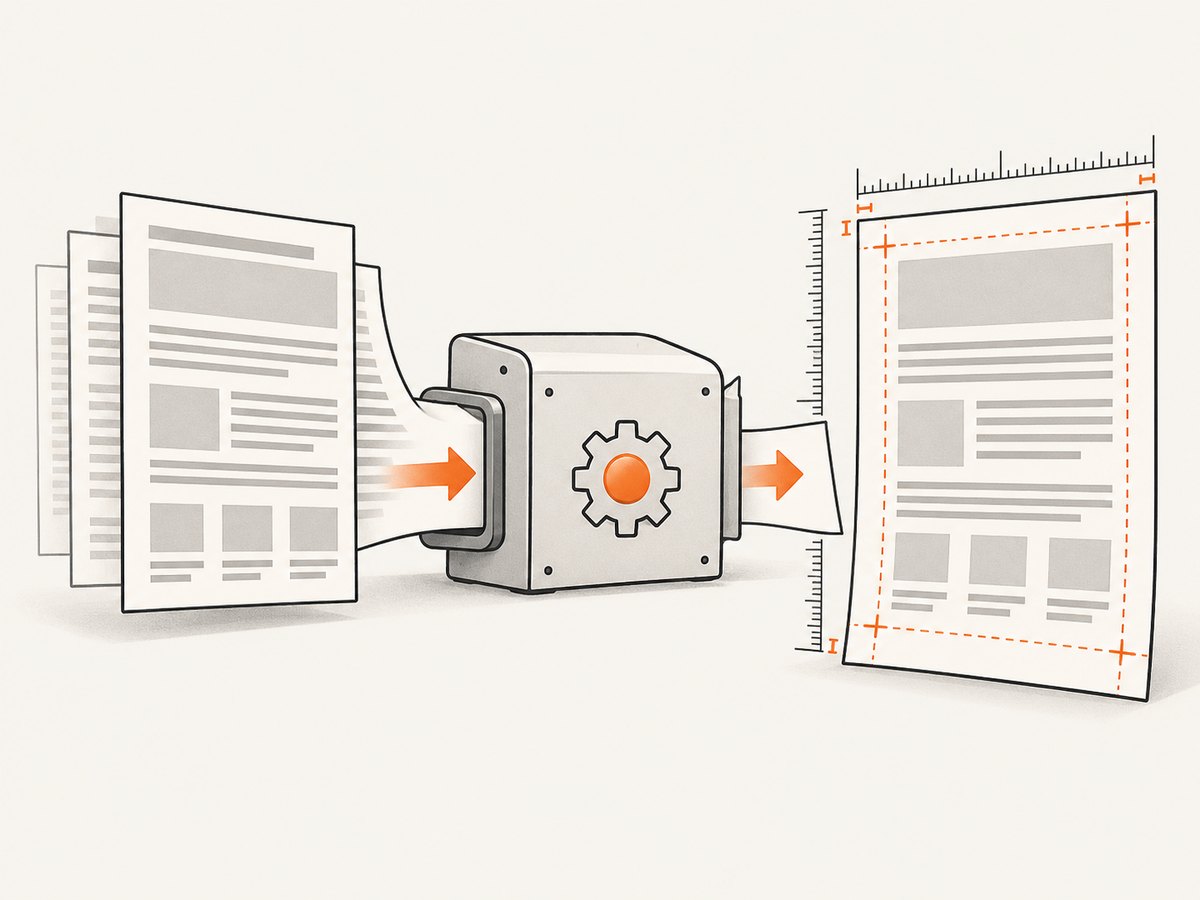
For a deterministic custom page, set width, height, and all four margins in the converter. This makes the physical sheet and the content area independent of defaults.
Set a custom page in C#
Minimal 150 × 100 mm example
var converter = new HtmlToPdfConverter();
converter.PageWidth = 150;
converter.PageHeight = 100;

var html = "<html><body><h1>Label</h1></body></html>";
converter.GeneratePdfFromFile(html, null);
Use the generation method that matches your NReco version and input source. The important unit rule is unchanged: the two dimensions are millimeters.
Custom size with explicit margins
var converter = new HtmlToPdfConverter
{
    PageWidth = 150,
    PageHeight = 100,
    Margins = new PageMargins
    {
        Left = 5,
        Right = 5,
        Top = 8,
        Bottom = 8
    }
};
The outer sheet remains 150 × 100 mm. The margins reduce the rectangle available to your HTML; they do not enlarge the page.
When to use PageMargins
NReco exposes margin settings through Margins and PageMargins APIs, depending on the package version and code path you use. Supply separate left, right, top, and bottom values. For edge-to-edge output, set each to zero and make sure the target printer or downstream PDF workflow supports borderless output.
Named paper sizes versus custom dimensions
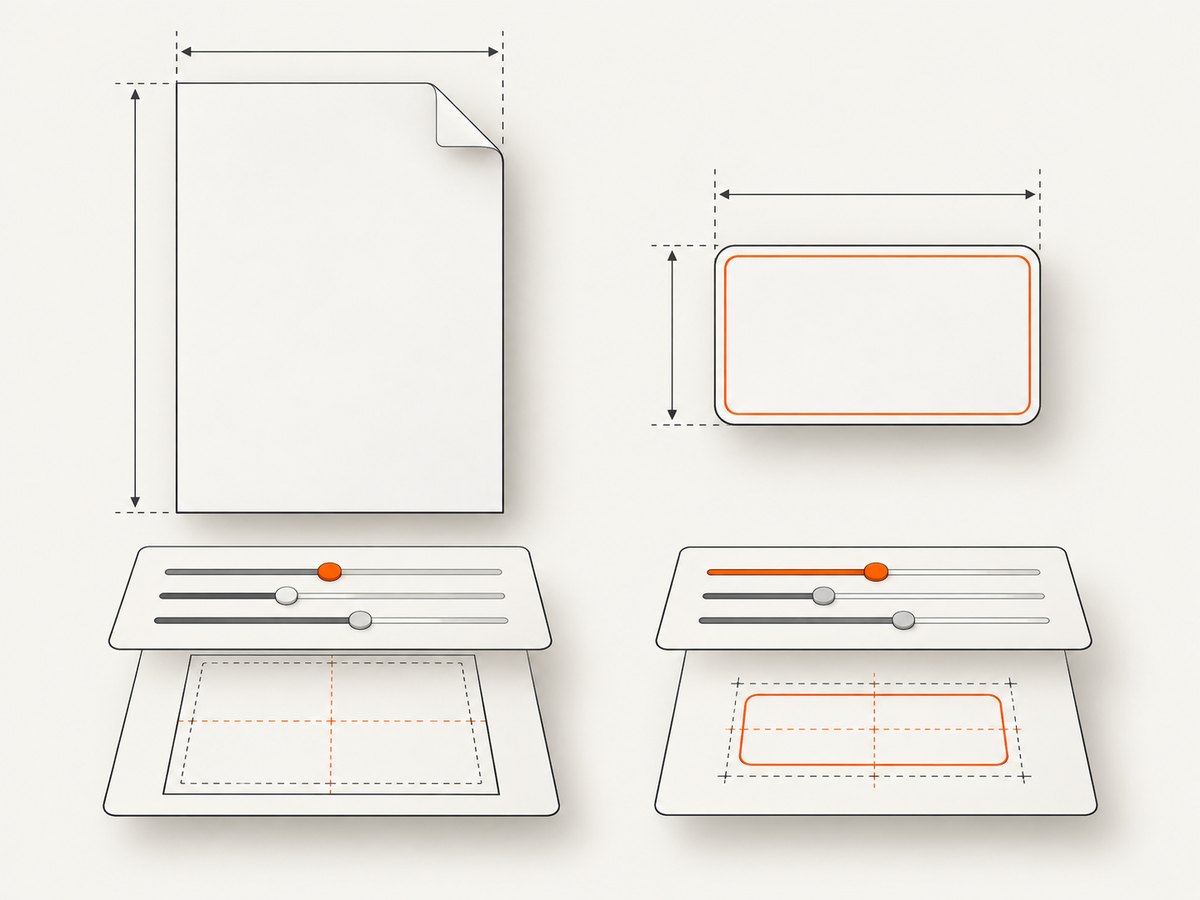
Use a named page size when the required format is a standard such as A4, A3, Letter, or Legal. The equivalent wkhtmltopdf option is --page-size. Use explicit width and height for tickets, labels, cards, receipts, or any other physical dimensions that are not represented by a named format.
# Standard format
wkhtmltopdf --page-size A4 input.html a4.pdf

# Custom format, dimensions written explicitly in millimeters
wkhtmltopdf --page-width 150mm --page-height 100mm input.html label.pdf
Do not set only one custom dimension and assume the other will be inferred. Set both properties so the conversion cannot fall back to a default paper size.
Conversion reference for common units
NReco’s page properties require millimeters, but design specifications often arrive in other units. Convert before assigning the values:
| Source unit | Millimeters | Example |
|---|---|---|
| Centimeters | cm × 10 | 15 cm = 150 mm |
| Inches | in × 25.4 | 4 in = 101.6 mm |
| Points | pt × 25.4 ÷ 72 | 72 pt = 25.4 mm |
double widthCm = 15;
double heightCm = 10;

var converter = new HtmlToPdfConverter
{
    PageWidth = widthCm * 10,
    PageHeight = heightCm * 10
};
Keep the conversion at the boundary of your application. Store the business requirement as centimeters or inches if that is how users think about it, then convert once to millimeters before constructing the converter.
CSS @page and print settings
CSS can express page dimensions, for example @page { size: 4in 3in; }. In practice, CSS page sizing is environment-dependent with NReco and wkhtmltopdf. A documented Stack Overflow case found that an @page rule combined with --print-media-type did not force the converter to use those dimensions.
@page {
  size: 4in 3in;
  margin: 0;
}
Use CSS for layout, typography, colors, and print-specific styling. Use NReco’s PageWidth/PageHeight or explicit wkhtmltopdf flags when the physical PDF dimensions must be reliable. If you do use print CSS, enable the converter’s print-media option where appropriate, then verify the resulting PDF dimensions in your own deployment environment.
Layout details that affect the usable area
- Margins: A 150 × 100 mm sheet with 5 mm left and right margins gives roughly 140 mm of horizontal content space before borders or other layout effects.
- Box sizing: CSS borders and padding can make an element exceed the available content rectangle. Use
box-sizing: border-boxfor fixed-size blocks. - Overflow: Content taller than the page flows to another page or is clipped depending on the HTML and CSS. A custom page size does not automatically shrink every element.
- Images: Constrain image width and height in CSS so intrinsic dimensions do not force unexpected pagination.
- Orientation: For a landscape custom sheet, swap width and height values. For named formats, use the converter’s landscape option or the equivalent wkhtmltopdf flag.
Complete implementation checklist
- Decide whether the requirement is a named paper format or a custom physical rectangle.
- Convert the specification to millimeters.
- Set both
PageWidthandPageHeightfor custom output. - Set all four margins explicitly when edge spacing matters.
- Keep CSS focused on content layout; do not depend on
@pagealone for physical sizing. - Render a representative document containing the longest text, largest image, and expected page breaks.
- Inspect the PDF’s media-box dimensions and print a sample if the file controls a physical device.
Or skip the browser setup
If your actual task is turning a web page into a correctly sized PDF or image, ScreenshotNeo provides a hosted capture API and PDF options without maintaining wkhtmltopdf processes. Its API supports paper size, margins, landscape mode, and page ranges, alongside full-page capture and custom CSS or JavaScript.
One request is enough to start a capture:
curl -G "https://api.screenshotneo.com/v1/shot" -d access_key=YOUR_API_KEY --data-urlencode url=https://stripe.com -o shot.webpimport requests
r = requests.get(
"https://api.screenshotneo.com/v1/shot",
params={"access_key": "YOUR_API_KEY", "url": "https://stripe.com"},
timeout=90,
)
r.raise_for_status()
open("shot.webp", "wb").write(r.content)const q = new URLSearchParams({ access_key: 'YOUR_API_KEY', url: 'https://stripe.com' });
const res = await fetch(`https://api.screenshotneo.com/v1/shot?${q}`);
if (!res.ok) throw new Error(`Screenshot failed: ${res.status}`);
const buffer = Buffer.from(await res.arrayBuffer());See the ScreenshotNeo documentation for the complete parameter list. Cookie banners, newsletter popups, and chat widgets are removed before the shot. Bot checks, blank pages, failed loads, timeouts, and cache hits are not billed, and response headers identify the page verdict and billing result. An MCP server lets Claude, Cursor, and other MCP clients call screenshot, page-info, and PDF tools. The Free plan includes 1,000 screenshots each month with no card; paid plans start at $5 for 3,000 shots.
Create a free ScreenshotNeo account and start with 1,000 screenshots per month at no charge.
Troubleshooting
The output is A4 instead of my custom size
Cause: Only a named page size or CSS rule was supplied, or one custom dimension was omitted. Fix: Set both PageWidth and PageHeight in millimeters on the converter. If invoking wkhtmltopdf directly, pass both --page-width and --page-height, including mm.
The content is clipped at the edge
Cause: Margins, borders, padding, or a fixed-width element exceed the usable rectangle. Fix: Set explicit margins, use box-sizing: border-box, and reduce the content width to fit inside page width minus left and right margins.
There is an unexpected second page
Cause: Content height exceeds the page, often because of an image, long unbroken string, or CSS margin. Fix: Constrain images, allow text wrapping, remove accidental minimum heights, and inspect print-specific styles. A smaller margin does not always solve an element with a fixed height.
Zero margins still leave a border
Cause: The HTML may contain body margins, the PDF viewer may show a page boundary, or the physical printer may be non-borderless. Fix: Reset CSS margins and padding on html and body, confirm converter margins are zero, and distinguish the PDF page edge from the printer’s printable area.
@page has no effect
Cause: wkhtmltopdf’s CSS page-size handling is not deterministic across environments. Fix: Move the physical dimensions to NReco properties or command-line page flags, and use CSS only for layout and print styling.
Different machines produce different pagination
Cause: Font availability, executable versions, default options, and resource loading can differ. Fix: Pin the wkhtmltopdf/NReco versions used by your deployment, install the same fonts, use explicit page and margin settings, and make external assets available consistently.
Performance, reliability, and cost considerations
Custom dimensions do not inherently make conversion slower. Large HTML documents, high-resolution images, web fonts, JavaScript, and remote assets usually dominate runtime. Keep documents focused, resize images before embedding them, and avoid waiting on unnecessary third-party resources.
For batch jobs, reuse a controlled converter configuration and record the input dimensions with each output. Treat conversion failures as retryable only when the underlying cause is transient, such as a temporary asset fetch failure. A retry cannot fix invalid HTML, missing fonts, or a page that is permanently too tall.
Local NReco/wkhtmltopdf processing has infrastructure costs: you maintain the executable, fonts, memory limits, worker concurrency, and security boundaries for untrusted HTML. A hosted capture API shifts that browser setup to a service and can provide caching, async jobs, bulk capture, and usage visibility. Choose based on whether you need local control or a managed capture pipeline.
FAQ
Are NReco page dimensions pixels?
No. PageWidth and PageHeight are millimeters.
Can I set 15 × 10 cm?
Yes. Convert to 150 × 100 mm and assign PageWidth = 150 and PageHeight = 100.
Should I use PageSize for a 150 × 100 mm label?
No. Use the width and height properties because that is a custom size rather than a named paper format.
Are margins included in the page dimensions?
The page dimensions describe the sheet. Margins reserve space inside it and reduce the content area.
What is the safest way to guarantee physical dimensions?
Set both converter dimensions and explicit margins in millimeters, then verify the generated PDF’s page box in the environment where it will be used.


