OG Image Example: HTML, Preview Design, and Testing Guide
See a complete Open Graph image example, add it to HTML, and check the metadata and image URL your page publishes.

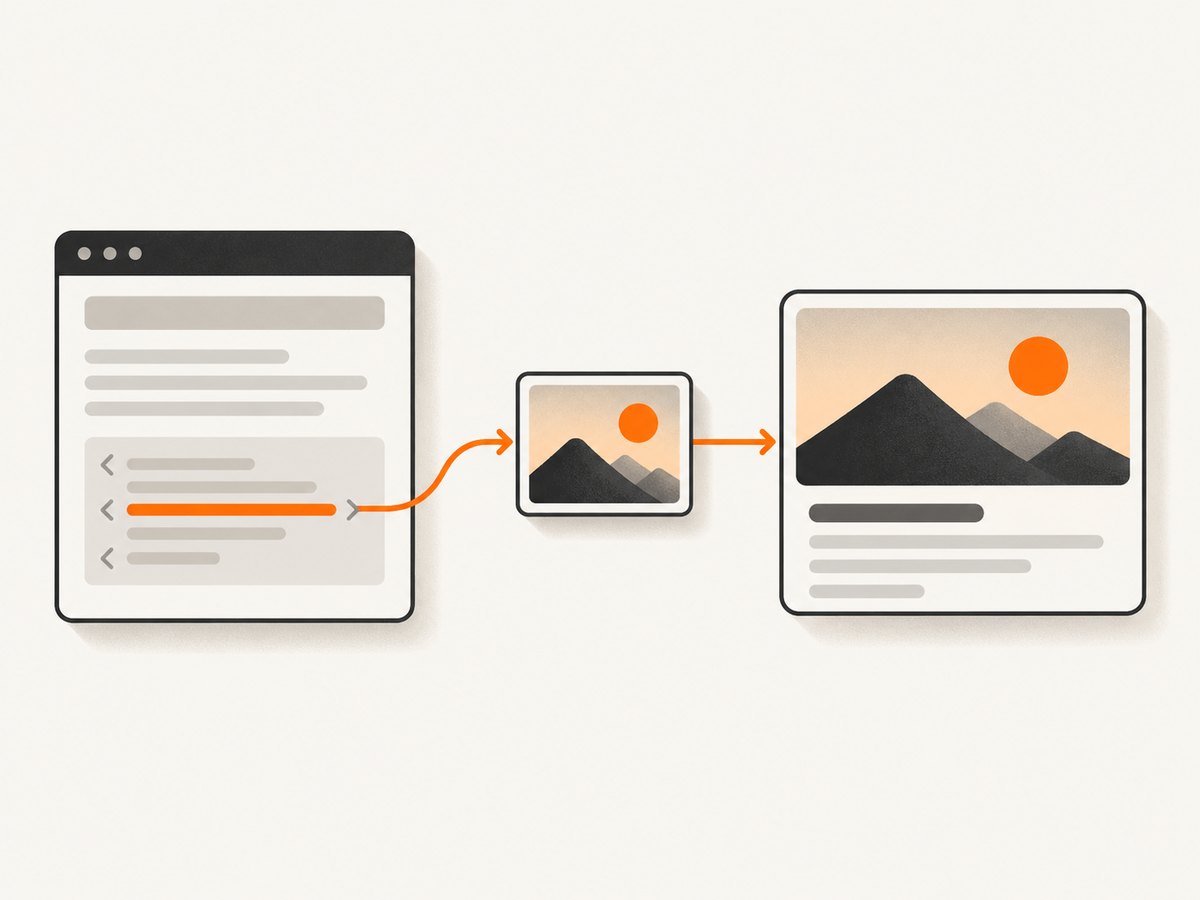
An OG image is the image a page declares in its Open Graph metadata for use as a link preview. Add an absolute image URL in an og:image meta tag in the page’s HTML head. A complete basic example also declares the page title, type, and URL, and should include a concise og:image:alt description. The metadata points to an image; it does not generate or host one. The Open Graph protocol defines these properties.
This guide shows the markup, explains the image-related properties, and gives you a practical way to inspect what a page serves. Platform behavior can differ: Apple documents Open Graph metadata for Messages previews, but that does not establish that every platform renders previews identically.
1. A complete OG image example
Put the metadata inside the document’s <head>. Replace the example title, page URL, image URL, and alt description with values for your page. Both URLs should be absolute so a preview crawler can resolve them without guessing a site-relative path.
<!doctype html>
<html lang="en">
<head>
  <meta charset="utf-8">
  <meta name="viewport" content="width=device-width, initial-scale=1">
  <title>A clear page title</title>

  <meta property="og:title" content="A clear page title">
  <meta property="og:type" content="website">
  <meta property="og:url" content="https://example.com/page">
  <meta property="og:image" content="https://example.com/images/page-preview.jpg">
  <meta property="og:image:alt" content="A concise description of the preview image">
</head>
<body>
  <h1>A clear page title</h1>
  <p>Page content goes here.</p>
</body>
</html>
The four basic properties in the protocol are og:title, og:type, og:image, and og:url. The structured image metadata includes additional properties such as MIME type, width, height, secure URL, and alternative text. The protocol says pages specifying og:image should also specify og:image:alt. Use an alt value that describes the image’s content rather than repeating the page title.
What each property does
| Property | Purpose | Example |
|---|---|---|
og:title |
The title associated with the shared page. | A clear page title |
og:type |
The kind of object represented. The basic example uses website. |
website |
og:url |
The canonical URL associated with the object. | https://example.com/page |
og:image |
The URL of the image representing the page. | https://example.com/images/page-preview.jpg |
og:image:alt |
A textual description of the image, useful to describe its contents. | A concise description of the preview image |
Keep metadata in the HTML response’s head and ensure the image URL is reachable by the services that need to fetch it. The tag alone cannot fix an inaccessible image, a broken URL, or an image that does not match the page.
2. Add OG metadata to your site
- Choose the page’s preview image. Create or select an image that represents that specific page. Store it at a stable, public URL that your server can return.
- Set the four basic properties. Use the page’s intended title, object type, canonical page URL, and image URL. Add
og:image:altwith an image description. - Render tags in the initial HTML when possible. The simplest implementation places the tags in the server-rendered document head. If a framework generates metadata, check its rendered output rather than assuming the source component becomes the expected HTML.
- Publish and inspect the response. Open the page’s source or use a crawler-style fetch to verify the final HTML contains the expected tags, then check that the image URL itself responds with the image.
- Check the preview in the target surface. Apple documents Open Graph image metadata for Messages previews. Other sites and apps can have their own fetch and display behavior, so verify in the specific destination where the link will be shared.
The Open Graph protocol describes the page’s metadata, not a universal visual layout contract for all preview surfaces. Do not infer one required image size or file limit from the protocol’s illustrative examples. The research available for this guide does not establish universal dimensions, crawler rules, or cache behavior across platforms.
3. Make an image that still reads in a preview
The image should communicate the page’s subject quickly. A third-party example recommends using one clear focal point, strong contrast, and avoiding tiny details. Treat these as design recommendations, not protocol requirements or measured guarantees of better engagement.
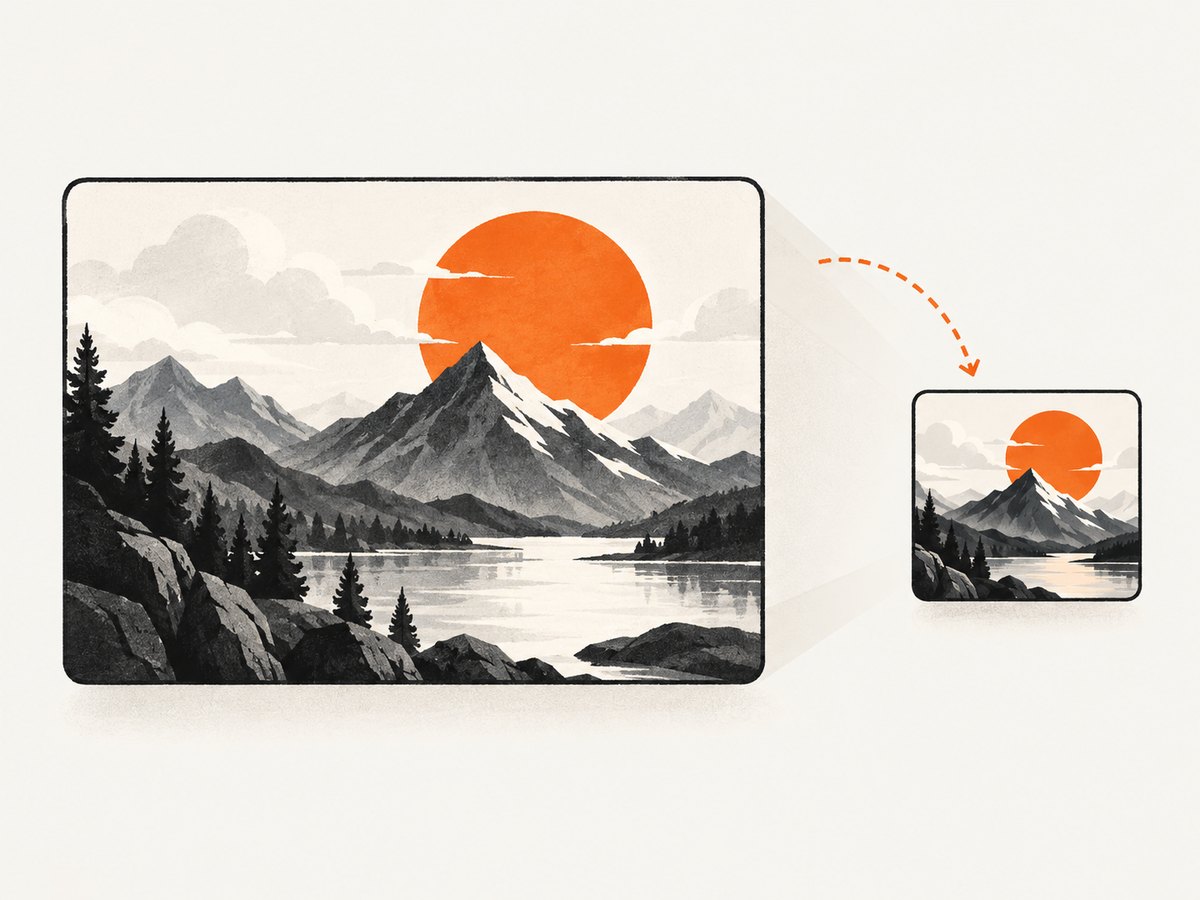
- Use one focal point. A single object or compact composition is easier to recognize when the image is shown small.
- Check contrast. Keep the main subject distinct from its background, including in a reduced preview.
- Remove details that only work at full size. Fine labels, small decorative elements, and dense layouts may disappear when scaled down.
- Match the page. The preview should represent the linked content rather than suggest a different destination.
- Write useful alt text. Describe the image’s meaningful content in a short phrase; do not use it as a list of keywords.
There is no universal image ratio or dimension established by the sources used here. Choose an asset suitable for the publishing surface you care about, then inspect the actual preview. If you publish to several destinations, test each one instead of assuming a single rendering rule.
4. Verify the page and image
A source-level check confirms that the tags exist, but a browser capture can help you inspect the rendered page and identify whether the image URL produces an actual image. For example, you can capture the page with a browser automation library or a screenshot API. A screenshot does not prove how a social platform will compose its preview: it shows the page itself, while the destination app applies its own preview behavior.
When using a local browser workflow, check these points:
- The final HTML contains one intended set of Open Graph values in the document head.
og:urlnames the page you intend to represent.og:imageis a complete URL, not a relative path or a URL that only works while logged in.- The image response contains the expected image and is not an HTML error page.
- The image content matches the alt description and page subject.
- You inspect the link in the specific app or surface where the preview matters.
For a browser screenshot, use a current browser automation package and install its browser runtime according to that package’s official setup instructions. A generic Playwright example is shown below. It navigates to the page and writes a full-page screenshot; it is a visual inspection aid, not a social-preview debugger.
import { chromium } from 'playwright';

const url = 'https://example.com/page';
const browser = await chromium.launch({ headless: true });
const page = await browser.newPage({ viewport: { width: 1280, height: 800 } });
await page.goto(url, { waitUntil: 'networkidle', timeout: 60000 });
await page.screenshot({ path: 'page.png', fullPage: true });
await browser.close();
For a raw HTML check, fetch the page separately and search the returned source for the properties. A browser’s live DOM may differ from the server response if client-side code changes it. Since crawler behavior varies and the cited sources do not define universal crawler requirements, validate the actual published response and target platform.
5. Common problems and fixes
| Symptom | Likely cause | What to check |
|---|---|---|
| No image appears in a preview. | The og:image property is missing, malformed, or points to an unavailable asset. |
Inspect the final HTML, copy the image URL directly into a browser, and confirm it returns the intended image. |
| The preview shows an old or different image. | The page may publish different metadata than expected, or the destination may retain a prior preview. | Check the current page response and the target app’s preview behavior. Cache behavior is not universal, so do not assume one refresh method works everywhere. |
| The image URL works for you but not for a preview fetch. | The asset may depend on authentication, a local network, or a temporary URL. | Use a stable public URL and verify access without a logged-in browser session. |
| The image is present but the composition looks poor. | Important details may be too small or contrast may be weak at preview scale. | Reduce the image and inspect it; simplify around one focal point and increase subject/background separation. |
| The page title or image differs between source and browser. | Framework metadata generation or client-side rendering may be producing a different final document. | Inspect the published HTML response and the rendered page. Fix the metadata source so the expected values reach the document head. |
| A screenshot looks correct, but the shared link does not. | A browser screenshot is not the same as the destination’s link-preview rendering. | Test the link in the target app. A screenshot verifies page appearance, not the destination’s preview implementation. |
6. Or skip the browser setup
ScreenshotNeo is a website screenshot API and MCP server. One GET request can return a PNG, JPEG, WebP, or PDF. For this example, capture the page that contains the metadata and inspect its visible rendering; separately verify the og:image URL itself and test the destination preview.
See the ScreenshotNeo API documentation for request options. This cURL call saves a WebP screenshot of the example page:
curl -G "https://api.screenshotneo.com/v1/shot" -d access_key=YOUR_API_KEY --data-urlencode url=https://example.com/page -o shot.webpScreenshotNeo accepts cookie and consent banners and removes more than 60 known consent platforms, newsletter popups, and chat widgets before capture; each of those steps can be turned off. Bot checks or CAPTCHAs, blank pages, timeouts, failed loads, and cache hits are not billed, and response headers report the page verdict and billing status. Its MCP server provides take_screenshot, get_page_info, and capture_pdf tools for Claude, Cursor, and other MCP clients. The Free plan includes 1,000 shots a month with no card; paid plans start at $5 for 3,000 shots.
Sign up free for 1,000 screenshots a month, with no card required.
7. Performance, reliability, and cost
Open Graph tags are small pieces of HTML, but preview generation also depends on fetching the page and image and on the destination’s own processing. The sources used here do not provide universal latency targets, file-size limits, cache durations, or rendering guarantees. Keep the image URL stable, ensure the page returns consistent metadata, and check the result in the destination you care about.
For a recurring verification workflow, avoid capturing the same page on every request unless you need a fresh visual. Cache your own inspection output when appropriate, and distinguish page rendering checks from preview checks. With ScreenshotNeo, caching is configurable by TTL, bulk capture supports up to 100 URLs per call, async jobs support signed webhooks, and a usage API is available. Pricing is $5 for 3,000 shots on Starter, $15 for 15,000 on Growth, $39 for 60,000 on Pro, $99 for 250,000 on Scale, and $249 for 1,000,000 on Business; yearly billing gives two months free. Every feature is on every plan. Match usage to the work you actually need, and consult the docs for the current request configuration.
FAQ
Does an OG image tag create the image?
No. It declares the URL of an image that represents the page. You must create and host the asset separately.
Is an OG image the same thing as a screenshot?
No. An OG image is a chosen page-preview asset. A screenshot is a rendered capture of a page or element. A screenshot can be used as an asset if that suits the page, but the metadata does not automatically take a screenshot.
Will every app show the same preview?
The evidence here does not establish that. Apple documents Open Graph images in Messages previews, while other destinations may render previews differently. Test the app where you intend to share the link.
What exact dimensions should I use?
This research does not establish one universal size or ratio. Follow the destination’s current guidance when available and inspect the actual preview at its rendered scale.
Sources
- Open Graph protocol: basic metadata and structured image properties.
- Apple Developer Documentation: Create rich previews for Messages.
- OG Image example design breakdown: source of the attributed focal-point, contrast, and small-detail recommendations.


