OG Image Size: Dimensions, Aspect Ratio, and HTML Setup
Use 1200 × 630 pixels as a practical default for an Open Graph image. Learn what the protocol specifies, how LinkedIn differs, and how to set the metadata correctly.
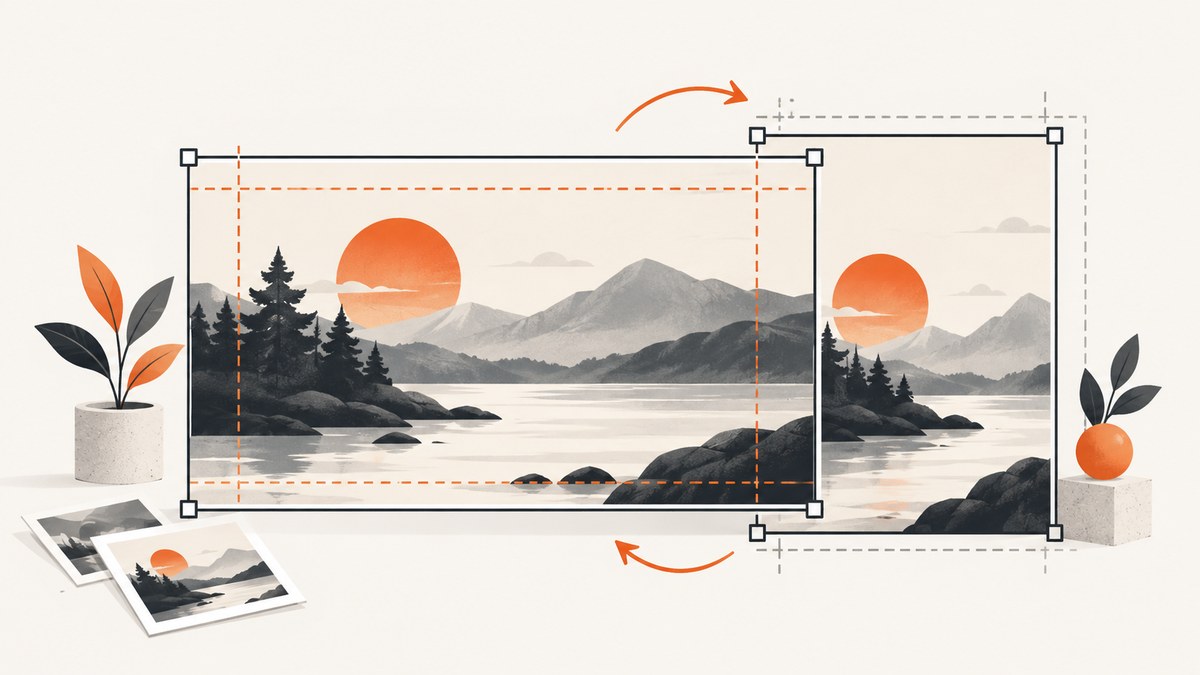
Use 1200 × 630 pixels (about 1.91:1) as a practical general-purpose Open Graph image size. It is a broadly useful recommendation, not a size required by the Open Graph protocol. If LinkedIn is a priority, its help guidance specifies a 1200 × 627 pixel preview frame, also at a 1.91:1 ratio. When exact platform behavior matters, check that platform’s current documentation.
The image is only one part of a share preview. Your page also needs a reachable image URL in og:image, and the page should return valid metadata to crawlers. This guide explains the dimensions, protocol fields, HTML setup, validation, edge cases, and a practical way to capture a clean preview of the finished page.
1. What size should an OG image be?
For a single image intended to work across several sharing destinations, create a 1200 × 630 pixel canvas. That is approximately a 1.91:1 aspect ratio. A secondary design guide recommends those dimensions as a practical default; the Open Graph protocol itself defines metadata properties and does not prescribe one universal canvas size for every social platform. OG Image Design’s size guide and the Open Graph protocol reference support that distinction.
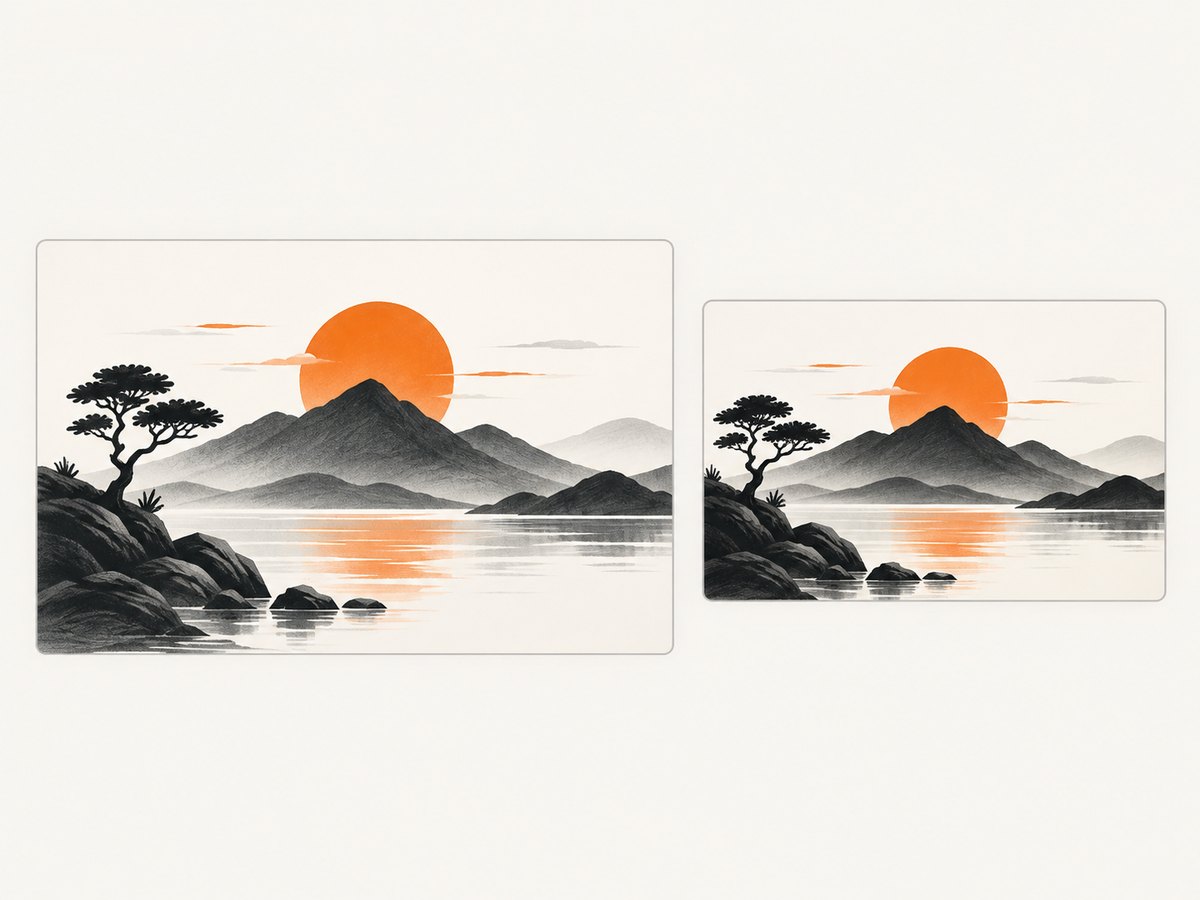
Do not describe 1200 × 630 as “required by Open Graph.” That confuses a useful design convention with a protocol rule. Actual display and cropping are controlled by each platform, which may have its own preferred frame, file limits, or rendering behavior.
| Use case | Image dimensions | How to interpret it |
|---|---|---|
| General-purpose social preview | 1200 × 630 px | Practical default, approximately 1.91:1 |
| LinkedIn sharing frame | 1200 × 627 px | LinkedIn’s cited guidance, approximately 1.91:1 |
The two canvases differ by only three vertical pixels. For most designs, making a 1200 × 630 source image and keeping important content away from the edges is a reasonable workflow. If a publishing process requires exact LinkedIn dimensions, export or resize to 1200 × 627 and verify against LinkedIn’s website sharing guidance.
2. What the Open Graph protocol specifies
Open Graph metadata describes a page when it is shared. The protocol includes og:image for the image URL and optional image metadata such as og:image:width and og:image:height. Those width and height values should describe the actual image file. They do not establish a universal social preview size or guarantee a platform’s crop and display choices. See the protocol reference.
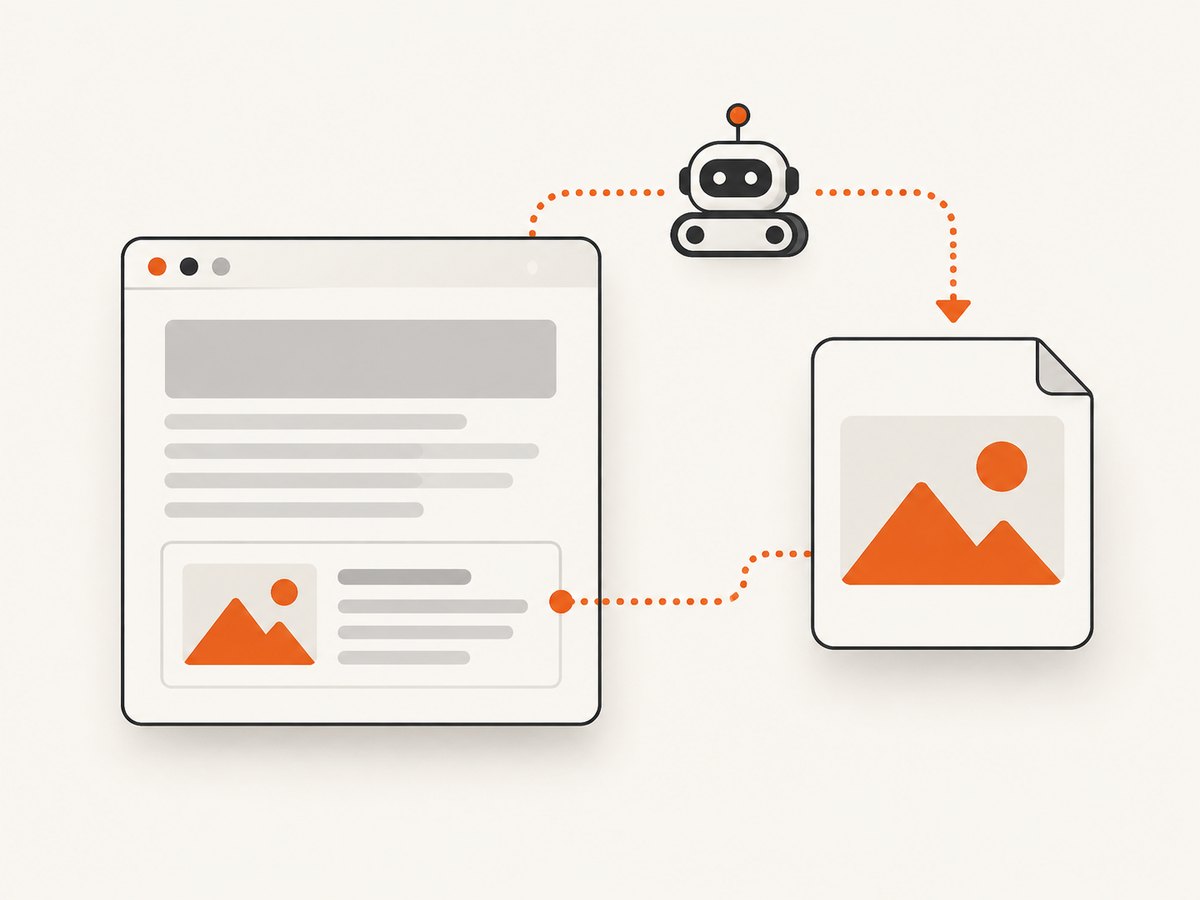
The key implementation questions are therefore separate:
- What file did you create? Know its actual pixel dimensions and aspect ratio.
- What did you declare? Ensure the page points to the correct image and that optional dimensions match the file.
- What does the target platform support? Follow its own current constraints and preview behavior.
For a 1200 × 630 image, the optional metadata values would be 1200 for width and 630 for height. If the file is 1200 × 627, declare those actual values instead. Do not leave stale dimensions after replacing or resizing an image.
3. Add OG image metadata to a page
Put the Open Graph properties in the document’s <head>. Replace the sample URL and text with values for the page being shared. The image URL should identify the actual image file and be fetchable by the platform’s crawler.
<!doctype html>
<html lang="en">
<head>
  <meta charset="utf-8">
  <meta property="og:title" content="A useful page title">
  <meta property="og:type" content="website">
  <meta property="og:url" content="https://example.com/guides/og-images">
  <meta property="og:image" content="https://example.com/images/og-images.png">
  <meta property="og:image:width" content="1200">
  <meta property="og:image:height" content="630">
  <meta property="og:description" content="A concise description of this page.">
</head>
<body>
  <h1>A useful page title</h1>
</body>
</html>
This example uses a PNG, but the important part for this article is the image’s dimensions and reachable URL. Keep the declared width and height in sync with the file if you include those optional properties. Avoid relying on a relative path unless you have confirmed how it resolves for the page and crawler.
Set the right image for each page
A site-wide default is useful as a fallback, but a page-specific image makes shared links more descriptive. Keep the title and image aligned with the page’s subject. Do not point every page at a URL that returns a different image depending on cookies, a logged-in session, or browser-side JavaScript. A crawler should be able to request the image directly.
4. Design for the frame and the crop
Start with a 1200 × 630 canvas and arrange the main subject, logo if applicable, and any essential visual detail inside a comfortable inner area. Platform preview cards can be rendered differently across placements and devices. The sources cited here establish dimensions, not a universal safe-area measurement, so treat the margin as a design precaution rather than a protocol specification.
- Use a clear visual hierarchy that remains understandable when the image is displayed smaller.
- Keep critical content away from the extreme edges in case a surface crops or scales the image.
- Check that contrast and subject placement still work when the image is reduced.
- Use the exact image dimensions in optional width and height metadata.
If a design needs to fit a platform-specific frame exactly, export a platform-specific variant. A 1200 × 627 LinkedIn variant and a 1200 × 630 general-purpose image have almost the same ratio, but the exact pixel values are not identical.
5. LinkedIn-specific image details
LinkedIn’s cited help page gives a 1200 × 627 pixel preview frame at a 1.91:1 ratio. It also lists a 5 MB maximum file size for website-sharing images and says images narrower than 401 pixels display as thumbnails. These are LinkedIn-specific figures; do not apply them as general Open Graph rules. Consult the LinkedIn Help page when implementing for LinkedIn.
That distinction matters in practice. A 1200 × 630 image follows the common general recommendation, but if you need to follow LinkedIn’s stated frame exactly, create a 1200 × 627 version and keep the file below its documented limit. A width threshold or file-size limit cited for LinkedIn should not be presented as a rule for other services.
6. Check the image and metadata
- Inspect the source file. Confirm its real width and height in your image editor or build pipeline.
- Calculate the ratio. Divide width by height. For 1200 × 630, the result is about 1.905:1, commonly rounded to 1.91:1.
- Inspect the rendered page head. Confirm
og:imagepoints to the intended absolute image URL and optional dimensions match the file. - Request the image URL directly. Make sure it loads without a session cookie or interactive browser action.
- Preview on the target platform. Use its current sharing workflow or debugging tool if available; a correct HTML tag alone does not promise a specific crop or refresh time.
When inspecting a page in a browser, distinguish the website itself from the share image. A screenshot of the page can help review the visual design, but it does not prove that a social crawler can access the image URL or read the intended head metadata.
7. Troubleshooting common OG image problems
| Symptom | Likely cause | What to check or fix |
|---|---|---|
| No image in the share preview | Missing or incorrect og:image, or image URL inaccessible to the crawler |
Inspect the page head and request the image URL directly without a logged-in session. |
| Image looks cropped | The platform’s display frame differs from the source canvas, or the design places key details at the edges | Keep essential content inside the composition and verify on the target platform. Use its documented frame where exact compliance matters. |
| Declared dimensions do not match the file | Metadata was copied from an earlier image or export | Measure the current file and update og:image:width and og:image:height. |
| Preview is too small or shown as a thumbnail on LinkedIn | LinkedIn’s cited guidance says images narrower than 401 px display as thumbnails | Provide a sufficiently wide image and follow LinkedIn’s current requirements. |
| LinkedIn does not accept the image | The file may exceed LinkedIn’s cited 5 MB website-sharing maximum, or another delivery issue may apply | Check the file size and the live LinkedIn guidance; confirm the URL returns the intended image. |
| Updated artwork does not appear | The previewing service may still have older page or image data | Confirm the page now emits the new URL and test with the platform’s own current refresh or preview process. |
The cited sources do not establish universal crawler cache durations, accepted formats, or identical refresh tools across platforms. Avoid assuming that one platform’s troubleshooting behavior applies everywhere.
8. Performance, reliability, and image delivery
Image dimensions affect both visual quality and the bytes a crawler must fetch. Keep the exported file within the destination’s documented size limits, and avoid making the social image depend on a browser-only process. A direct, stable image URL is easier for a crawler to retrieve than an image that appears only after client-side code runs or a user signs in.
Use a predictable publishing step: export the image, record its actual dimensions, update the page metadata, and then inspect both the document and image response. If you replace a file in place, a platform may temporarily show an older preview; the available sources do not promise a cache lifetime. A versioned image URL can make a changed asset explicit, provided the page’s metadata is updated to point at it.
There is no need to scale a small image upward and claim it meets a size threshold: upscaling does not add detail. If a source is smaller than the intended canvas, create or export a higher-resolution design rather than relying on enlargement. For LinkedIn, the cited 401 px note is a thumbnail behavior threshold, not a recommendation to make the image only 401 pixels wide.
9. Capture a page preview while reviewing the result
A screenshot can help you review what a human visitor sees on the published page, including whether a consent dialog, newsletter popup, or chat widget obscures important content. It is a visual QA aid; it does not replace checking the OG tags and direct image URL. For a one-off local capture, a browser automation setup can take a screenshot after the page loads, but rendering can vary with timing, viewport, and page behavior.
For an API-based capture workflow, ScreenshotNeo is a website screenshot API and MCP server. Its documented options include full-page and element capture, device and viewport settings, waiting for a selector, delay or network idle, custom CSS and JavaScript, and PDF output. The request below captures the example page as WebP; see the ScreenshotNeo API documentation for options and parameters.
curl -G "https://api.screenshotneo.com/v1/shot" \
  -d access_key=YOUR_API_KEY \
  --data-urlencode url=https://example.com/guides/og-images \
  -o shot.webp
import requests
r = requests.get(
"https://api.screenshotneo.com/v1/shot",
params={
"access_key": "YOUR_API_KEY",
"url": "https://example.com/guides/og-images",
},
timeout=90,
)
open("shot.webp", "wb").write(r.content)const q = new URLSearchParams({
access_key: 'YOUR_API_KEY',
url: 'https://example.com/guides/og-images'
});
const res = await fetch(`https://api.screenshotneo.com/v1/shot?${q}`);
if (!res.ok) throw new Error(`Screenshot request failed: ${res.status}`);
const bytes = Buffer.from(await res.arrayBuffer());
await import('node:fs/promises').then(fs => fs.writeFile('shot.webp', bytes));Keep API keys out of public frontend code. For repeated captures, choose a wait condition that matches the page instead of adding an unnecessarily long fixed delay. Screenshot capture renders a page; to validate an OG image, separately inspect the HTML metadata and fetch the image file.
10. Or skip the browser setup
ScreenshotNeo takes a screenshot with one GET request. Its clean-shot flow accepts the cookie or consent banner like a visitor and removes more than 60 known consent platforms, newsletter popups, and chat widgets before capture; each step can be turned off. Bot checks and CAPTCHAs, blank pages, timeouts, failed loads, and cache hits cost nothing, and response headers report the page verdict and billing status. Its MCP server offers take_screenshot, get_page_info, and capture_pdf for Claude, Cursor, and other MCP clients.
curl -G "https://api.screenshotneo.com/v1/shot" \
  -d access_key=YOUR_API_KEY \
  --data-urlencode url=https://example.com/guides/og-images \
  -o shot.webp
There are 1,000 screenshots per month free with no card; paid plans start at $5 for 3,000. Sign up for 1,000 free screenshots a month, with no card required.
11. Cost and workflow choices
For a small site, generating one OG image per page may be a design and build step rather than a service cost. Keep the original creative asset and derive the correctly sized export as part of publishing. The cost of an incorrectly sized or inaccessible image is often a poor preview and time spent diagnosing it, rather than a protocol fee.
If page screenshots are also part of QA or automation, ScreenshotNeo plans are Free with 1,000 shots per month, Starter at $5 for 3,000, Growth at $15 for 15,000, Pro at $39 for 60,000, Scale at $99 for 250,000, and Business at $249 for 1,000,000; yearly billing gives two months free. Every feature is on every plan. These are ScreenshotNeo plan facts, not costs associated with Open Graph metadata or image hosting.
12. Frequently asked questions
Does the Open Graph protocol require 1200 × 630?
No. The protocol defines metadata such as og:image and optional image dimensions. The 1200 × 630 canvas is a practical recommendation, not a universal protocol requirement. Open Graph protocol reference.
Is 1200 × 630 the same as 1200 × 627?
No. They are close in shape but have different heights. The former is a broad recommendation; LinkedIn’s cited preview frame is 1200 × 627 pixels.
Should I include og:image:width and og:image:height?
They are optional protocol metadata. If you include them, make the values match the actual image file.
Can I use a screenshot as the OG image?
Yes, if the resulting image suits the page and meets the target platform’s requirements. A screenshot of the page is separate from the act of declaring and serving that image through og:image.


