How to Omit the Last Page When Printing a PDF With Puppeteer
Use Puppeteer’s pageRanges option to print every page except the last. Here’s how to choose the right range and handle changing page counts.

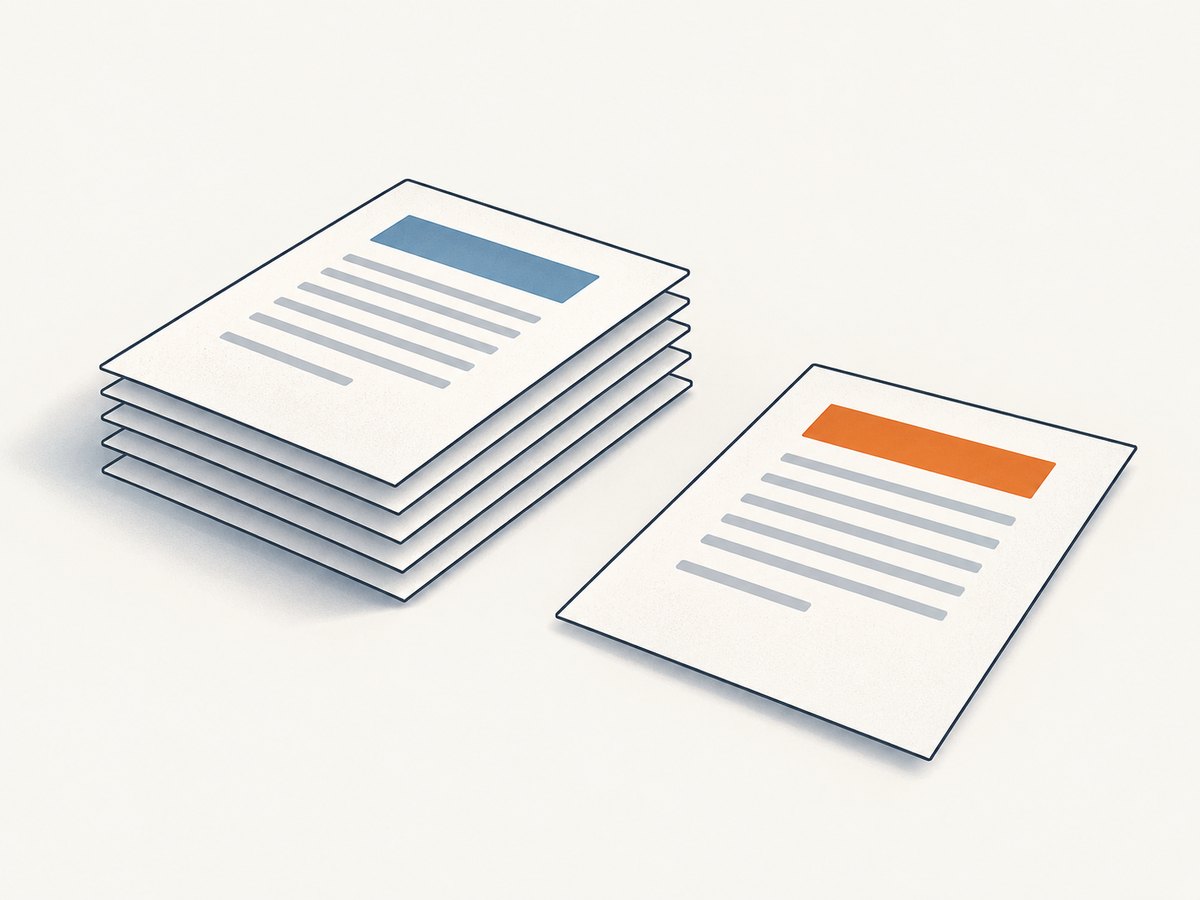
Use Puppeteer’s pageRanges option to tell page.pdf() which numbered PDF pages to include. If the print-layout PDF has N pages and you want to keep all but the last, set pageRanges to 1-(N - 1). For example, for a six-page layout, use pageRanges: '1-5'.
Puppeteer does not document a special “omit the last page” flag or a built-in page-count option for this purpose. You need to know the page count for the layout you intend to print, then calculate the range. The method below shows the fixed-count case, the dynamic-count decision, and how print CSS and page sizing affect the result. See Puppeteer’s PDFOptions API for the documented PDF settings and Page.pdf() API for PDF generation.
1. Set a page range that ends before the last page
For a document with a known page count, subtract one from the count and use that as the end of the range. Page ranges are one-based: 1-5 includes pages one through five. Puppeteer also accepts comma-separated ranges such as 1-5, 8, 11-13. An empty string, which is the default, prints all pages.
const pageCount = 6;

if (!Number.isInteger(pageCount) || pageCount < 2) {
  throw new Error('Expected at least two pages to omit the last page.');
}

const pdf = await page.pdf({
  pageRanges: `1-${pageCount - 1}`,
});
This retains pages 1–5 and excludes page 6. Keep the page count and the page range connected: if content, fonts, print styles, or paper sizing changes pagination, the old range might omit a page the reader intended to keep or include the page they meant to remove.
2. Complete runnable example
The following Node.js example launches Chromium with Puppeteer, loads a page, and prints pages 1 through N - 1. Set PAGE_COUNT to the count for your intended print layout and TARGET_URL to the page you control. Save it as omit-last-page.mjs, install Puppeteer in the project, then run it with Node.js.
import puppeteer from 'puppeteer';

const targetUrl = process.env.TARGET_URL ?? 'https://example.com';
const pageCount = Number(process.env.PAGE_COUNT ?? 2);

if (!Number.isInteger(pageCount) || pageCount < 2) {
  throw new Error('PAGE_COUNT must be an integer of at least 2.');
}

const browser = await puppeteer.launch({ headless: true });

try {
  const page = await browser.newPage();
  await page.goto(targetUrl, { waitUntil: 'networkidle0' });

  const output = await page.pdf({
    format: 'A4',
    printBackground: true,
    pageRanges: `1-${pageCount - 1}`,
  });

  await import('node:fs/promises').then(({ writeFile }) =>
    writeFile('without-last-page.pdf', output),
  );
} finally {
  await browser.close();
}
Install the dependency with npm install puppeteer. The example assumes the page count is already known. It does not discover N automatically. Puppeteer’s official API documents page-range selection, but does not prescribe a page-counting method before PDF generation; choose a counting strategy that fits your PDF pipeline.
3. Make the count match the print layout
page.pdf() generates a PDF using the print CSS media type. A page can therefore paginate differently from its screen display. Print styles may hide or show content, change dimensions, or insert page breaks. Establish the layout that you intend to deliver before calculating the range. Puppeteer’s Page.pdf() documentation describes the print-media behavior.
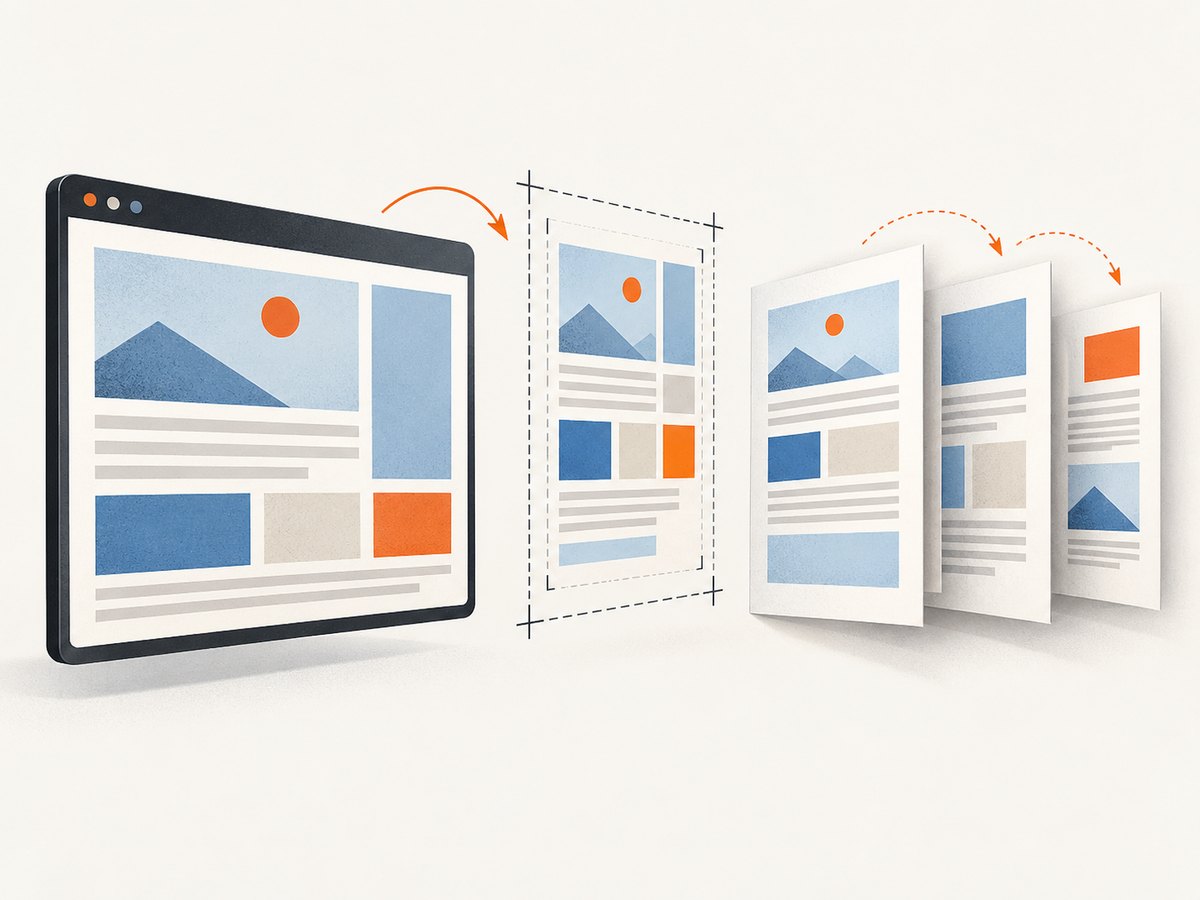
Page size affects pagination too. With preferCSSPageSize: true, CSS @page sizing takes priority over PDF width, height, or format settings. If that option is false or omitted, the PDF options determine paper size. Pick one sizing approach deliberately, and use the same one when determining the page count and when generating the final PDF.
const pdf = await page.pdf({
  format: 'A4',
  printBackground: true,
  preferCSSPageSize: true,
  pageRanges: '1-5',
});
Only set preferCSSPageSize: true when your document’s CSS @page rule should govern the output size. Otherwise, omit it or set the paper dimensions explicitly through the PDF options. The relevant options and defaults are documented in Puppeteer’s PDFOptions reference.
Print CSS can change which page is last
Review the page’s print styles before settling on N. For example, @media print rules can change margins, visibility, or layout; break-before and break-after can move content onto additional pages. If a trailing element creates an unwanted page, decide whether the requirement is to exclude the final page in the PDF or to correct the content/layout that creates it. A page range excludes numbered pages after rendering; changing print CSS changes the rendered pagination itself.
If you need screen styling in the PDF, Puppeteer documents calling page.emulateMediaType('screen') before page.pdf(). That changes the media type used for the output, so use it only when screen styling is actually the intended PDF design. Recalculate the page count for that media type.
4. Choosing a page-count strategy
The range is straightforward once the intended page count is known. The harder part is keeping that count accurate when the source content is dynamic. Pick a strategy based on how predictable your document is:
| Situation | Practical approach | Watch for |
|---|---|---|
| Stable report or fixed template | Use a known count and calculate 1-(N-1). |
Template, data, print CSS, fonts, or paper size changes can alter pagination. |
| Content changes but the output pipeline knows the count | Pass the count from the component that lays out or prepares the document. | Make sure it represents the final print layout, not a screen estimate. |
| Page count is not known ahead of time | Use a project-appropriate PDF pipeline or revise the output requirement to avoid depending on a guessed count. | Puppeteer’s cited PDF API documents range selection, not a built-in count-before-print feature. |
| The last page is blank or caused by a layout defect | Inspect content and print CSS, correct the cause, then generate the intended pages. | Removing a page by range can conceal an upstream layout issue or cut off content if pagination changes. |
For a dynamic document, don’t use an arbitrary large upper bound such as 1-999 as a substitute for “all but the last.” If the document is shorter, behavior may depend on PDF range handling, and if it grows, the final page may be included. The requirement is to end at the actual page before the last one.
Handle zero-, one-, and two-page documents
- Zero pages: A page range cannot retain pages from a document that has no printable pages. Check that content loaded and that print styles did not hide it all.
- One page: Omitting the last page means retaining nothing. Decide whether to produce an empty result, skip PDF generation, or treat this as an input error. The example throws when
N < 2. - Two pages: Use
1-1; the output is just the first page. - Three or more pages: Use
1-(N-1); for ten pages, the range is1-9.
5. Relevant PDF options
Keep the configuration focused on the layout and output you need. These options can affect the generated PDF or its pagination:
| Option | Use | Pagination consideration |
|---|---|---|
pageRanges |
Selects which pages to print, such as 1-5 or 1-5, 8. |
This is the option that omits the final page when you supply the correct end page. |
format, width, height |
Set paper size through PDF options. | Changing the page dimensions can change line wrapping and page count. |
preferCSSPageSize |
When enabled, gives CSS @page size priority. |
Use the same CSS sizing behavior when determining the count. |
printBackground |
Includes background graphics in the PDF. | Usually affects appearance rather than page count, but verify the intended output. |
landscape |
Requests landscape output. | Orientation may affect layout and page count. |
margin |
Sets PDF margins. | More or less printable area can move content between pages. |
For exact accepted values, defaults, and other options, use the version of Puppeteer installed in your project and its PDFOptions reference. Do not infer a page count from a different combination of media type, size, orientation, margins, or styles.
6. Troubleshooting
| Symptom | Likely cause | Fix |
|---|---|---|
| The last page still appears. | The supplied range ends at the actual last page, or the count used for the range is stale. | Confirm the print-layout count and set the end to N - 1. For six pages, use 1-5. |
| The last desired page is missing. | The assumed count is smaller than the actual count, or the layout differs from the one used to choose the range. | Check print CSS, page size, margins, orientation, and font loading; recalculate N for the final setup. |
| The PDF has unexpected blank pages. | Print styles, explicit page breaks, or content dimensions may be creating extra pages. | Inspect the printed layout and adjust the content or print CSS if the blank page is a layout defect. Then regenerate and recalculate the range. |
| Output differs from the browser’s screen view. | page.pdf() uses print media by default. |
Review @media print styles. Use page.emulateMediaType('screen') before printing only if screen media is intended. |
| The PDF uses an unexpected paper size. | CSS @page sizing and PDF sizing options may not be aligned. |
Choose whether CSS or the PDF options should control size; set preferCSSPageSize accordingly and count pages with that setup. |
| Text wraps differently or content moves between pages. | Fonts may not be ready or differ from the expected print layout. | Allow the page to finish loading and use the intended fonts. Puppeteer’s PDF guide says Page.pdf() waits for fonts by default; see the PDF generation guide. |
| One-page input throws in the example. | There is no page to retain after excluding the only page. | Handle N < 2 as a deliberate product decision instead of constructing an invalid range. |
| The range is rejected or produces unexpected output. | The range string may be malformed, or the count may not match the document. | Use one-based integer page numbers and a range such as 1-5. Check the installed Puppeteer version’s API reference. |
7. Performance, reliability, and cost
Page-range selection specifies which pages appear in the PDF; it is not a documented shortcut for avoiding the work needed to render the page and lay out the document. The source still needs to load, fonts and print styles need to settle, and Chromium still generates the requested PDF. For reliable output, wait for the content your page depends on before calling page.pdf(), use consistent paper and media settings, and avoid assuming a page count from a different render configuration.
For repeatable document generation, keep the range calculation next to the source of the count, validate that the count is an integer of at least two, and record the selected page size and print mode in the job’s configuration. If the source is dynamic, a changed record set or template can change pagination even when the Puppeteer code stays the same.
Cost depends on how you run Chromium and the infrastructure around it; the Puppeteer references cited here provide no universal per-PDF cost or performance benchmark. Account for browser process time, memory, page loading, and any hosted rendering service you use. Measure your own workload before sizing production capacity.
8. Or skip the browser setup
If your task is to capture a website rather than control Chromium’s print pipeline, ScreenshotNeo provides a screenshot API and MCP server. A single GET request returns a screenshot or PDF. The PDF options include paper size, margins, landscape, and page ranges. For Puppeteer-specific printing and the page-count logic above, use Puppeteer; ScreenshotNeo is an alternative when you want a hosted capture call.
See the ScreenshotNeo documentation for API details. Example API call:
curl -G "https://api.screenshotneo.com/v1/shot" -d access_key=YOUR_API_KEY --data-urlencode url=https://stripe.com -o shot.webpScreenshotNeo removes cookie banners, popups, and chat widgets before the shot. Bot checks, blank pages, and failed loads are never billed. Its MCP server lets AI agents take screenshots. The free plan includes 1,000 screenshots a month with no card; paid plans start at $5 for 3,000. Sign up for free and get 1,000 screenshots a month with no card.
9. FAQ
Does Puppeteer have an omit-last-page option?
The documented option is pageRanges. Calculate the ending page from the actual page count; there is no special omit-last-page flag in the cited API.
Are PDF page numbers zero-based?
The page-range examples use one-based page numbers: page one is written as 1, and a six-page document’s first five pages are 1-5.
Will this remove a trailing blank page?
Yes, if it is the final page and your count is accurate. If the blank page comes from an unwanted break or print-layout issue, fixing that cause may be more robust than relying on a range.
Does pageRanges change the webpage?
No. It selects pages in the generated PDF. It does not edit the source HTML or CSS.


