Online Compiler: Run Code in 20+ Languages
Learn how online compilers run code in your browser, choose the right service, avoid limits, and test programs in 20+ languages.
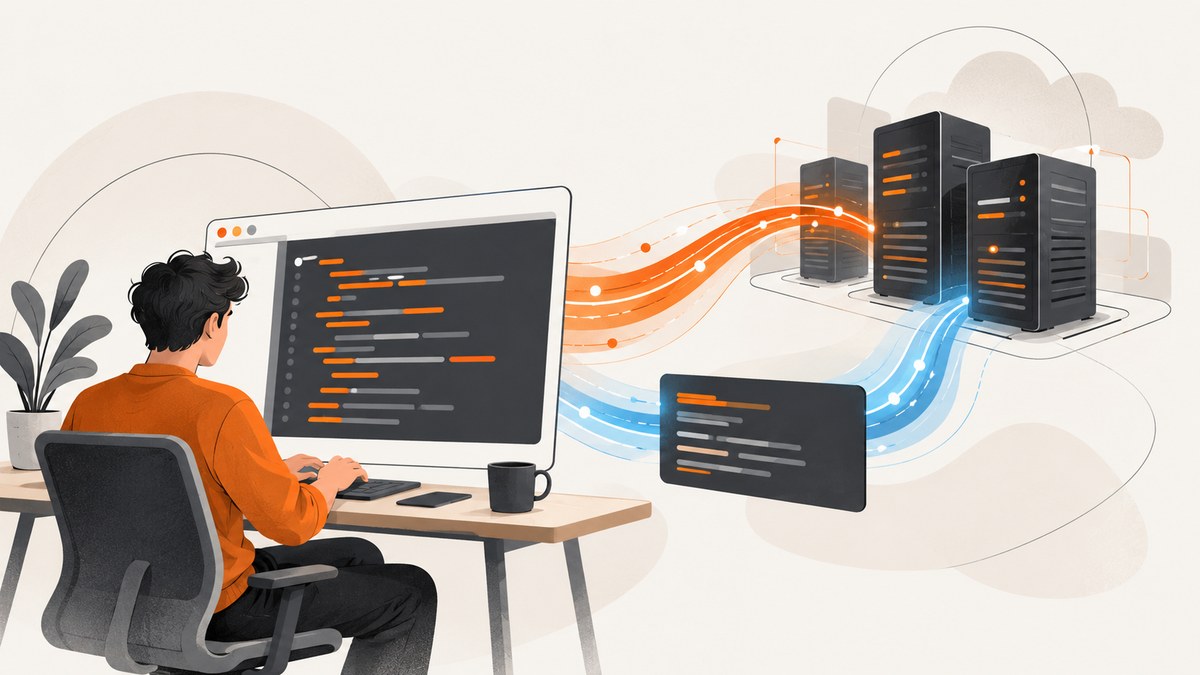
Short answer: an online compiler lets you write code in a browser, sends it to a remote machine, runs or compiles it there, and returns the output. It is useful for short experiments, learning exercises, interview questions and quick bug checks because you do not need to install a local toolchain. The label “online compiler” is broad: some services run interpreted scripts, some compile native programs, and others provide project files, debugging or compiler-output inspection.
This guide explains how to run code online, how to select a service for a particular language and project, what limits to expect, and when a browser runner is the wrong tool.
How an online compiler works
A typical runner has four stages:
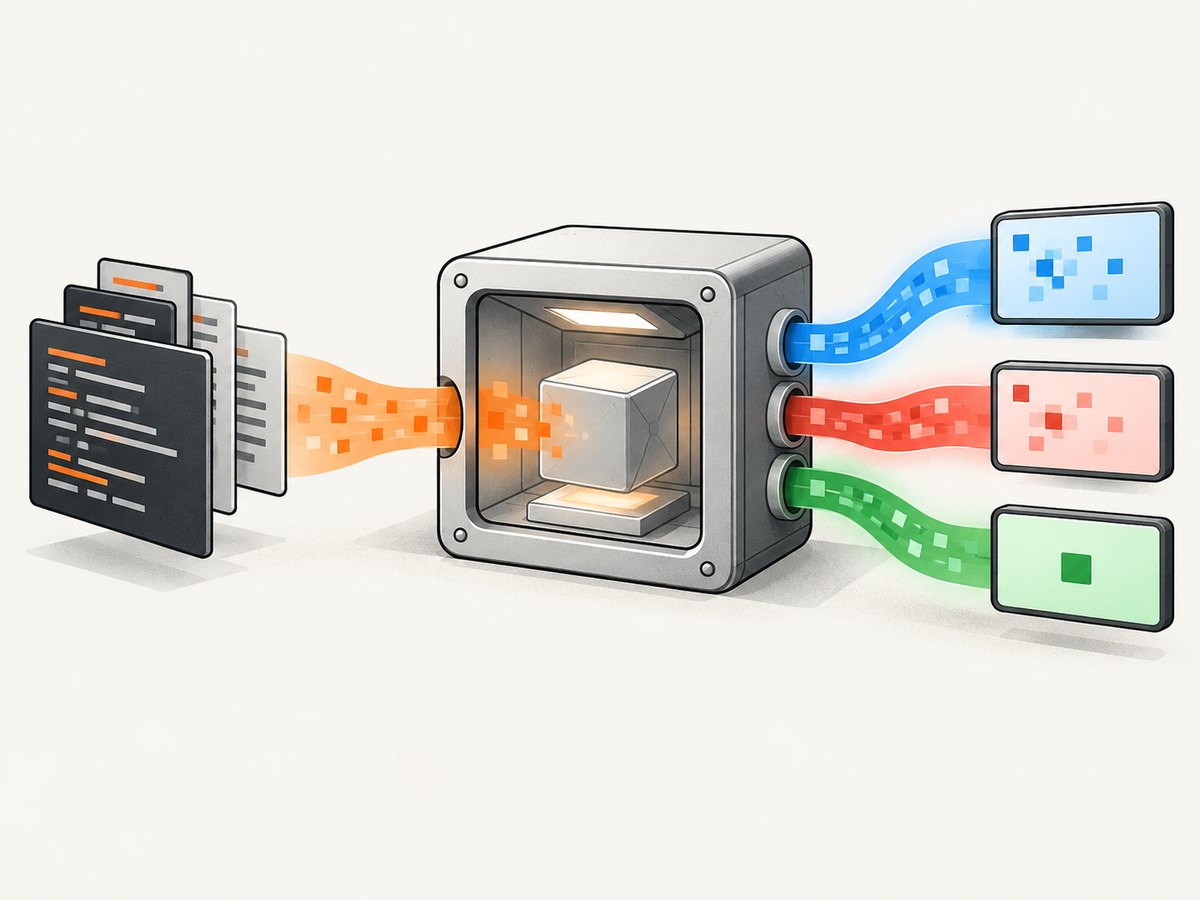
- You enter source code in an in-browser editor.
- The service sends the source, language selection and input data to its infrastructure.
- A sandbox selects a compiler or runtime and executes the program under time, memory and output limits.
- The result—standard output, standard error, exit status and sometimes compiler diagnostics—is displayed in the browser.
Some products also support multiple files, saved projects, databases, frameworks, breakpoints or generated assembly. Those capabilities are separate from the basic “paste code and run” workflow.
Run your first program online
- Open the provider’s online IDE or compiler page.
- Select the exact language and compiler/runtime version.
- Paste a small program.
- Add standard input if the program reads from stdin.
- Run it and inspect both output and diagnostics.
- Save or share the project if you will need it again.
Start with a deterministic example so you can distinguish a tool problem from a program problem.
Python
name = input("Name: ")
print(f"Hello, {name}!")
Enter Ada in the input panel. The expected output is Hello, Ada!.
C++
#include <iostream>
using namespace std;

int main() {
    cout << "Hello from C++" << endl;
    return 0;
}
JavaScript (Node.js)
const values = [2, 4, 6, 8];
const total = values.reduce((sum, value) => sum + value, 0);
console.log(total);
Java
public class Main {
    public static void main(String[] args) {
        System.out.println("Hello from Java");
    }
}
Java runners commonly require the public class name and file name to match the service’s convention, often Main.
Go
package main

import "fmt"

func main() {
    fmt.Println("Hello from Go")
}
Rust
fn main() {
    println!("Hello from Rust");
}
Which languages can you run?
“20+ languages” is a discovery promise, not a common technical standard. Programiz advertises online compilers in more than 20 programming languages, Compiler Explorer describes support for more than 30 languages, and JDoodle documents a much broader catalog that includes languages, frameworks and databases. These counts are provider-defined and are not directly comparable. Check the language, version, standard library and project support before moving code.
| Question | Why it matters |
|---|---|
| Which version? | Syntax, standard-library APIs and compiler behavior can change between versions. |
| Compiled or interpreted? | Compiled languages have a build step and compiler diagnostics; interpreted languages may fail only at runtime. |
| One file or many? | A snippet runner may not support modules, package manifests or generated files. |
| Libraries available? | Common packages may be preinstalled, unavailable or restricted to a plan. |
| Interactive input? | Some consoles buffer stdin and cannot support terminal features such as curses. |
JDoodle documents single-file and multi-file modes, selected framework/database environments and a debugger for 23 languages and versions in its IDE documentation (JDoodle IDE documentation). Compiler Explorer focuses on inspecting generated assembly and comparing compiler behavior; its project overview describes more than 30 languages and multiple compilers (Compiler Explorer project).
Online compiler versus a full development environment
Use a browser runner for a short example, a lesson, a coding challenge or a reproducible bug report. A local IDE or cloud workspace is usually better for a long-lived application with dependency installation, private files, background processes, tests and version control.
- Choose an online runner when avoiding installation is the main benefit.
- Choose a multi-file workspace when modules, assets or configuration files matter.
- Choose Compiler Explorer when your question is “what assembly does this compiler produce?” rather than “where should I develop this application?”
- Choose a local toolchain when you need unrestricted network access, custom native libraries or production-like services.
Limits you should check before depending on a runner
Execution is sandboxed. Services can impose compilation and runtime ceilings, memory limits, output-size limits, file-size limits, daily quotas and plan-specific restrictions. OnlineGDB’s FAQ, for example, documents a 10-second compilation limit, a 10-second text-mode runtime, 256 MB memory usage and limits for files and streams (OnlineGDB FAQ). Treat those values as that service’s published rules, not a universal limit.
JDoodle publishes plan-specific allowances. Its documented free row includes 1,000 executions per day, latest language versions, five-minute debugger sessions, one GUI window at a time for five minutes and no program internet access (JDoodle limits). Limits and versions can change, so verify the current documentation before designing a workflow around them.
Network access and packages
Never assume code running in a browser service can call an API or download a package. JDoodle says internet access is off by default and depends on the plan; OnlineGDB states that programs cannot access the internet. If your example needs a dependency, look for a documented package list, upload mechanism or project environment. Otherwise reproduce it locally or in a controlled build environment.
Input, output and files
For stdin programs, paste all input before running unless the service explicitly supports an interactive terminal. Keep test output small while debugging. Large logs can hit output caps even when the computation itself is correct. Confirm how the service handles relative paths, generated files, binary output and newline conventions.
A repeatable workflow for reliable experiments
- Record the environment. Note language, compiler/runtime version and enabled flags.
- Minimize the case. Remove unrelated code until the failure is reproducible in one file.
- Make input explicit. Store a small stdin fixture with the snippet.
- Separate diagnostics. Read compiler errors, stderr and stdout independently.
- Test boundaries. Try empty input, the smallest valid value, a large value and malformed input.
- Save a shareable artifact. Copy the source and environment details; browser sessions may expire.
For performance experiments, run several times and treat the result as directional. Shared machines, cold starts, queueing and sandbox overhead make browser timings unsuitable as production benchmarks.
Common errors and fixes
| Error | Likely cause | Fix |
|---|---|---|
| “Command not found” or missing module | The selected runtime does not include the tool or package. | Select the correct environment, use a documented package, or remove the dependency. |
| Version-specific syntax error | The runner uses an older compiler/runtime. | Change the version selector or rewrite for the documented version. |
| Program waits forever | It is waiting for stdin or a network response that the sandbox blocks. | Provide all input, add a timeout, and remove network calls. |
| Output is truncated | You exceeded the console output limit. | Print summaries, write smaller fixtures and inspect one record at a time. |
| Works locally, fails online | Different OS, flags, files, environment variables or resource limits. | Print the version, avoid absolute paths, include files and compare compiler flags. |
| Build times out | Compilation exceeded the service ceiling or dependency setup is too large. | Reduce the example, remove generated code and use a local or full workspace. |
| Debugger cannot start | Debugging is limited to selected languages, versions or plan allowances. | Check the provider’s debugger matrix and session limits. |
When an online compiler is a poor fit
Do not place secrets in a public snippet. Avoid uploading proprietary source unless the provider’s retention and privacy terms meet your requirements. A browser runner is also a poor fit for GPU workloads, long-running servers, privileged system calls, large repositories and tests that require several services. Use a local or managed environment for those cases.
Or skip the browser setup
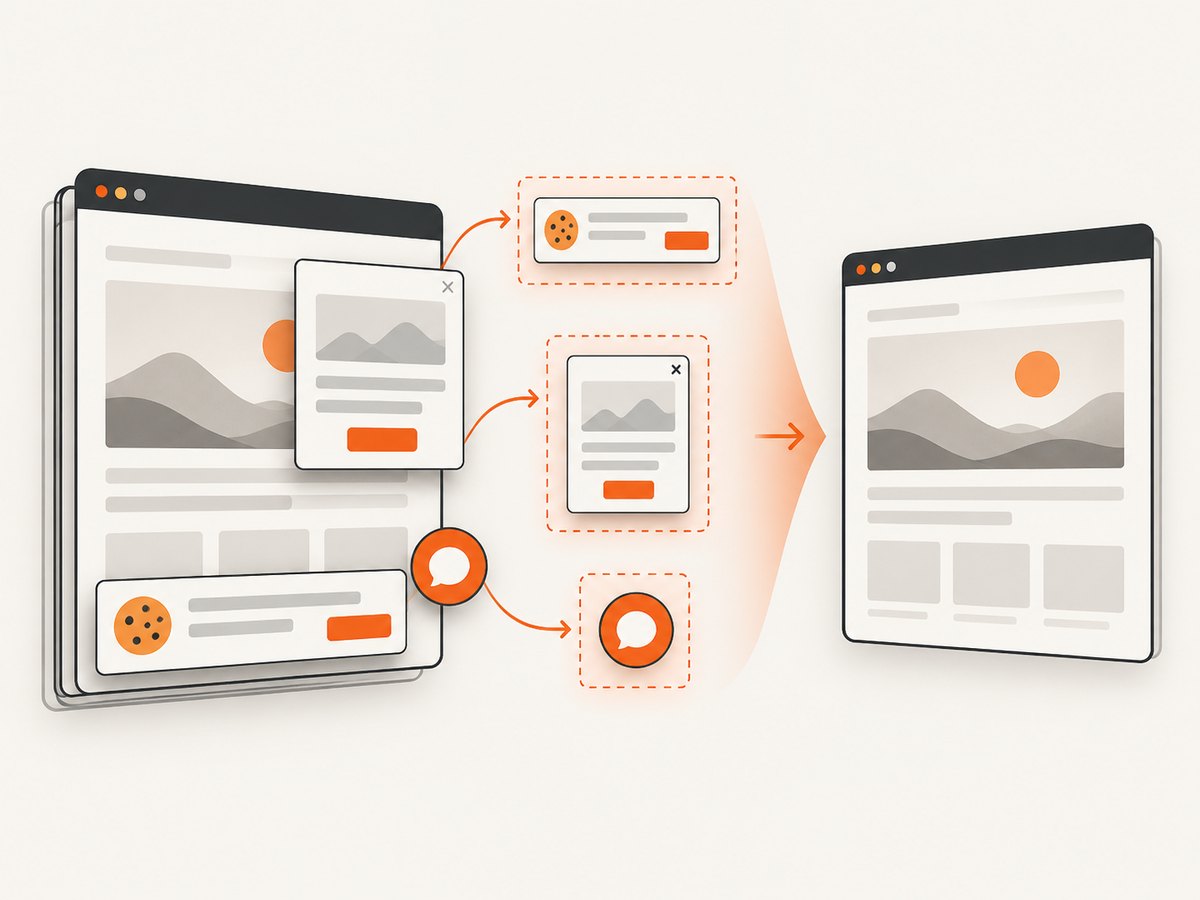
If your goal is to capture the result of a web page, documentation example or online IDE, ScreenshotNeo returns a screenshot or PDF with one GET request. It accepts PNG, JPEG or WebP output and can capture a full page, a CSS-selected element or a chosen device viewport. Options include dark mode, retina scale, custom CSS and JavaScript, selector or network-idle waits, hidden selectors, cookies, headers, user agents, timezone, geolocation, request blocking, resizing, caching, signed links, asynchronous jobs, bulk capture and PDF settings. See the ScreenshotNeo documentation for parameter details.
curl -G "https://api.screenshotneo.com/v1/shot" -d access_key=YOUR_API_KEY --data-urlencode url=https://stripe.com -o shot.webpimport requests
r = requests.get("https://api.screenshotneo.com/v1/shot", params={"access_key": "YOUR_API_KEY", "url": "https://stripe.com"}, timeout=90)
open("shot.webp", "wb").write(r.content)const q = new URLSearchParams({ access_key: 'YOUR_API_KEY', url: 'https://stripe.com' });
const res = await fetch(`https://api.screenshotneo.com/v1/shot?${q}`);Cookie banners, newsletter popups and chat widgets are removed before the shot. Bot checks, blank pages and failed loads are never billed, and response headers identify the page verdict and whether it was billed. An MCP server provides take_screenshot, get_page_info and capture_pdf tools for Claude, Cursor and other MCP clients. The free plan includes 1,000 screenshots a month with no card; paid plans start at $5 for 3,000. Create a free ScreenshotNeo account.
Cost and reliability planning
Online compiler pricing often combines a free quota with paid execution, debugger or project allowances. JDoodle documents credit-based Compiler API charges and daily resets; consult its current API documentation before quoting a budget (JDoodle Compiler API). For dependable automation, pin versions, keep source fixtures, retry transient transport failures and record compiler diagnostics. A successful HTTP response does not prove that the program succeeded—check its exit status and stderr.
FAQ
Is an online compiler safe for passwords or API keys?
No. Treat snippets as potentially retained or visible. Use placeholders and rotate any credential that was accidentally pasted.
Can I compile any language online?
Only if the selected service provides that language and version. “20+” or “30+” is a provider claim; it does not guarantee identical libraries or project support.
Can online runners access the internet?
Often they cannot. Check the service rules; JDoodle describes plan-dependent access, while OnlineGDB says program internet access is unavailable.
Why is my online result slower than my laptop?
Shared infrastructure, queueing, cold starts and sandbox limits add overhead. Use repeated runs and a local benchmark for performance decisions.
When should I use Compiler Explorer?
Use it when you need to inspect generated assembly or compare compilers. Use a general IDE when you need an ongoing project workspace.


