Online Ping Test: Analyze Network Latency for a Host or IP
Learn what online ping tests measure, how to check latency and packet loss, and why a timeout does not always mean a website is down.
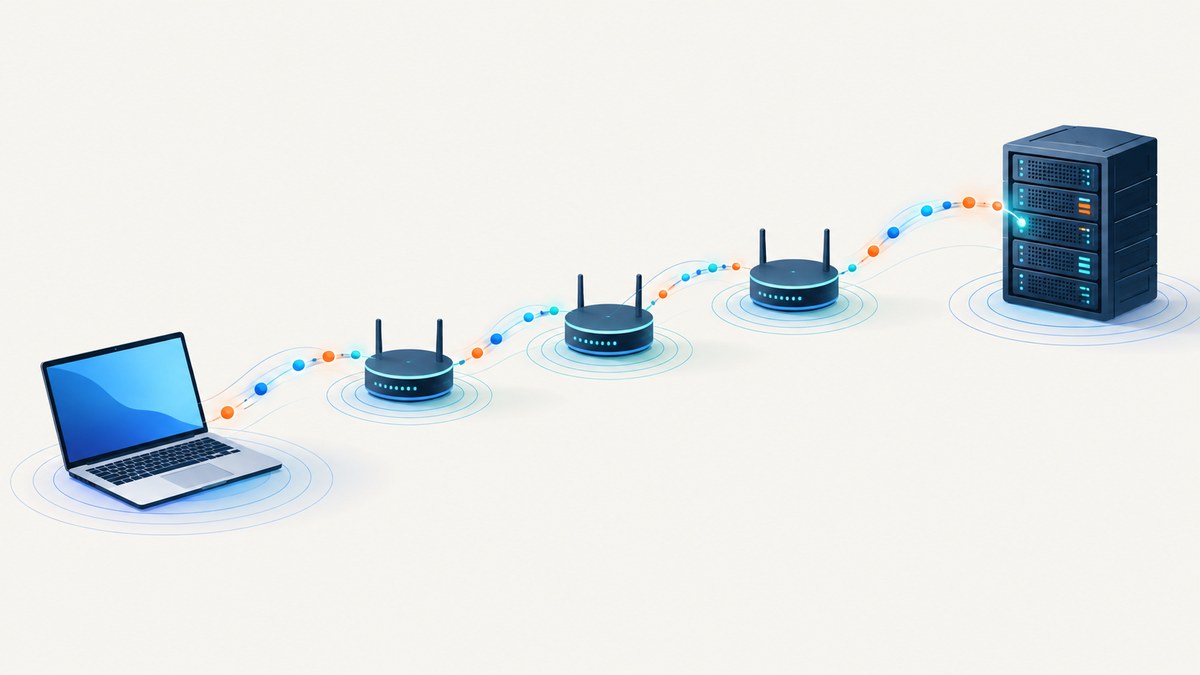
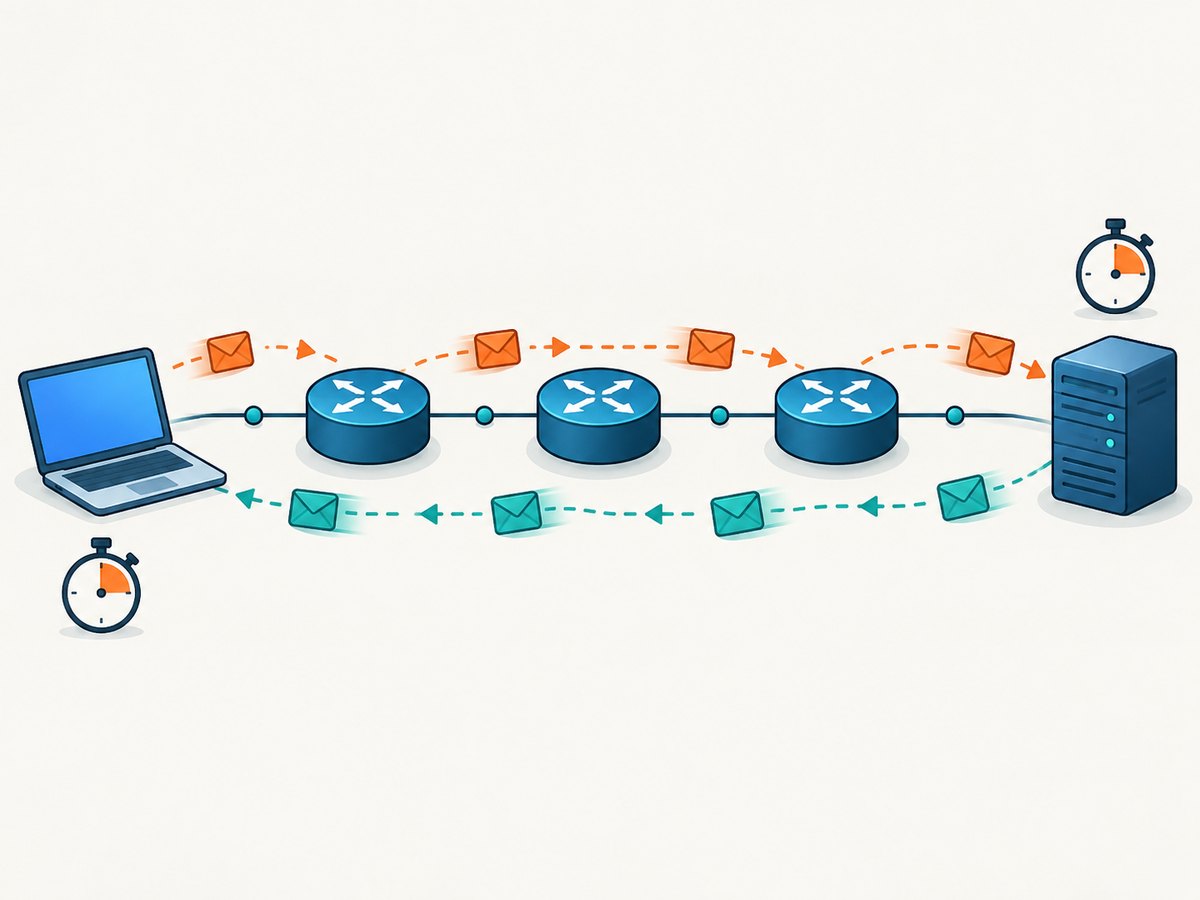
An online ping test sends ICMP Echo Request packets to a hostname or IP address and measures how long matching Echo Reply packets take to return. That time is the round-trip time (RTT), usually shown in milliseconds. The test can also report packet loss, minimum latency, maximum latency, and average latency.
Ping answers one narrow question: can this test location exchange ICMP packets with the destination, and how long does that exchange take? It does not measure download speed, prove that a web server is healthy, or guarantee that TCP port 443 and an HTTP application work.
What an online ping test measures
The traditional ping utility verifies IP-level connectivity by sending Internet Control Message Protocol (ICMP) Echo Requests. Microsoft describes it as a way to verify IP-level connectivity and display round-trip times (Microsoft Learn ping documentation). Each probe has a sequence number. If the destination returns an Echo Reply, the sender calculates the elapsed time.
| Output | Meaning |
|---|---|
| Minimum RTT | Fastest successful round trip in the sample. |
| Maximum RTT | Slowest successful round trip; spikes can reveal congestion or queueing. |
| Average RTT | Mean latency for replies received. |
| Packet loss | Percentage of probes that received no matching reply. |
| TTL | Remaining time-to-live value in a reply. Routers decrement TTL as packets cross hops (Cloudflare’s ping explanation). |
Latency is directional and location-dependent. A test from a server in Frankfurt can differ substantially from one run from your laptop in Sydney. Record the test location, timestamp, hostname or IP, packet count, and whether a VPN or corporate network was in use.
How to run an online ping test
- Choose the hostname, such as
example.com, or a literal IPv4/IPv6 address. - Run at least 10 probes. A single result cannot show variation or loss.
- Record minimum, maximum, average RTT and packet loss.
- Repeat from another network or region if the result matters to users in different locations.
- Compare the hostname with its resolved IP address to separate DNS problems from ICMP reachability.
Web-based testers are useful when ICMP is unavailable on your device or when you need measurements from a remote region. Enter the host, select a probe location if offered, and save the complete result rather than only the average number. Public testers may rate-limit requests, use different packet sizes, or run from infrastructure that is not representative of your users.
Command-line baseline
Run these commands locally to establish a baseline. Replace example.com with your target.
# Linux and macOS
ping -c 10 example.com

# Windows PowerShell
ping.exe -n 10 example.com

# IPv6 (where supported)
ping6 -c 10 example.com
Typical output includes one line per reply and a summary. On Unix systems, the summary normally reports packets transmitted, packets received, loss percentage, and min/average/max values. Windows reports similar statistics with different labels.
Python: repeated ICMP probes
Python’s standard library does not provide a portable ICMP client. The following script calls the platform utility, which avoids requiring raw-socket privileges:
import platform
import subprocess
import sys

host = sys.argv[1] if len(sys.argv) > 1 else "example.com"
count_flag = "-n" if platform.system() == "Windows" else "-c"
result = subprocess.run(
    ["ping", count_flag, "10", host],
    text=True,
    capture_output=True,
    timeout=30,
)
print(result.stdout)
if result.returncode != 0:
    print(result.stderr, file=sys.stderr)
    raise SystemExit(result.returncode)
Save as ping_test.py and run python ping_test.py example.com. The exact wording and decimal separator vary by operating system, so parse output only when you control the platform.
Node.js: invoke the system ping command
import { execFile } from "node:child_process";

const host = process.argv[2] || "example.com";
const args = process.platform === "win32"
  ? ["-n", "10", host]
  : ["-c", "10", host];

execFile("ping", args, { timeout: 30_000 }, (error, stdout, stderr) => {
  process.stdout.write(stdout);
  if (stderr) process.stderr.write(stderr);
  if (error) process.exitCode = error.code || 1;
});
This is appropriate for a diagnostic script on a machine that has the operating system utility installed. A serverless runtime may block ICMP or omit the binary; use an HTTP or TCP probe there instead.
cURL: test the application layer
cURL does not send ICMP Echo Requests. Use it to measure DNS, TCP, TLS, and HTTP timing, which answers a different question:
curl -sS -o /dev/null \
  -w 'dns=%{time_namelookup}s connect=%{time_connect}s tls=%{time_appconnect}s first_byte=%{time_starttransfer}s total=%{time_total}s http=%{http_code}\n' \
  https://example.com/
A fast ICMP reply with a slow HTTP response indicates an application, TLS, proxy, or server processing issue. A failed ICMP reply with a successful HTTP request often means the provider filters or rate-limits ICMP.
How to interpret latency, jitter and packet loss
Round-trip time
RTT includes the path to the destination, destination processing, and the return path. It is not the same as one-way delay. Compare tests taken from the same location and under similar load. There is no universal “good ping” threshold: an interactive application, a database in another region, and a monitoring probe have different requirements.
Variation (jitter)
Jitter is the change between successive latency samples. For example, results of 24, 25, 26, 80, and 27 ms have a reasonable average but a large spike. Report the minimum, median or average, maximum, and preferably the distribution over time. Spikes under load can indicate queueing even when packet loss is zero.
Packet loss
Loss is the fraction of probes with no reply. Distinguish isolated loss from sustained loss by increasing the sample count and repeating later. ICMP may be deprioritized or rate-limited, so loss in ping does not automatically mean application packets are lost. Conversely, loss on an overloaded link can affect TCP and voice traffic even if occasional pings succeed.
TTL and hop count
TTL is a loop-prevention field. Every router decrements it; the returned value can provide a rough clue about path length, but operating systems choose different initial TTLs. Do not use TTL alone to identify an operating system or diagnose performance.
Why ping times out while the website loads
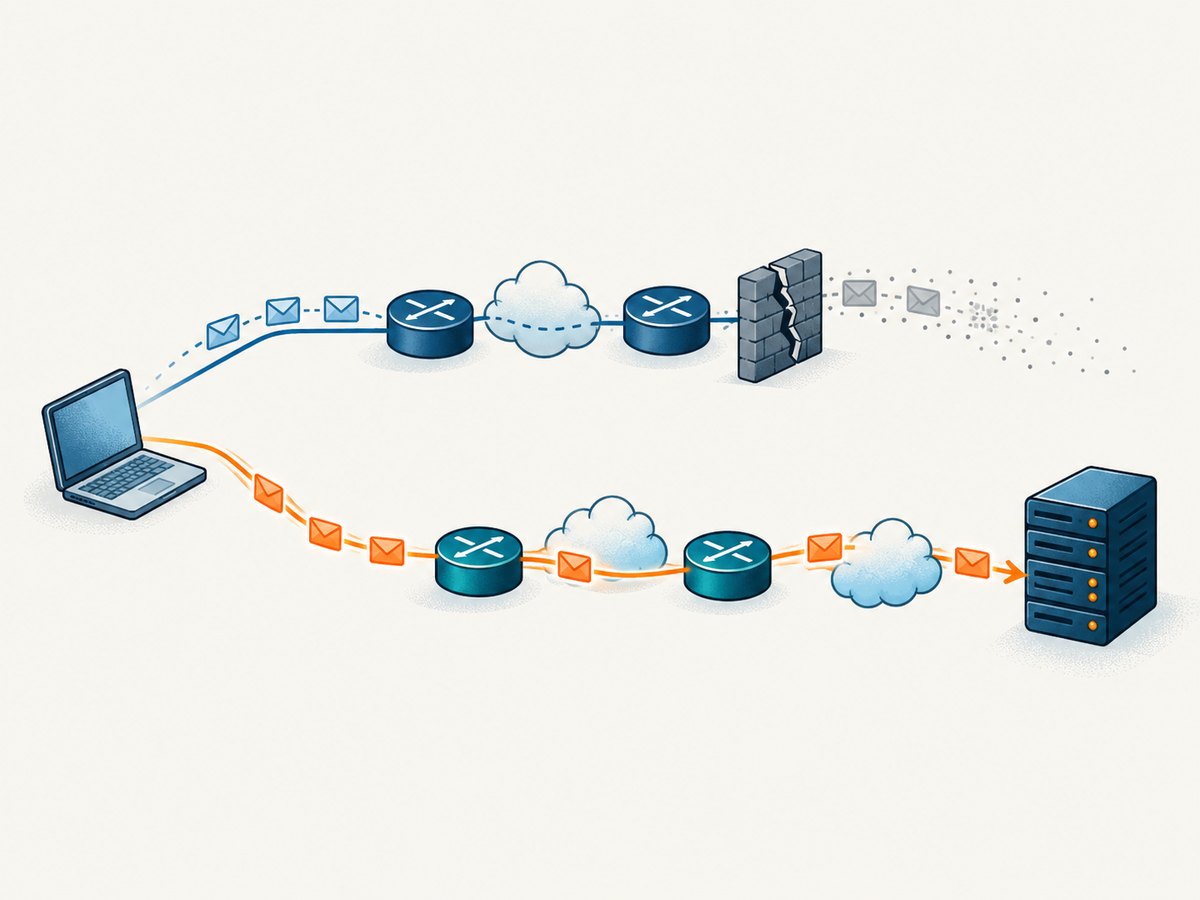
A timeout means your probe did not receive a matching ICMP reply before the utility’s deadline. It can result from a firewall, NAT, provider policy, ICMP rate limiting, routing trouble, congestion, or a host that simply does not answer ICMP. ICMP is part of IP and includes control messages such as destination-unreachable and time-exceeded; the protocol itself does not make the Internet absolutely reliable (RFC 792).
Web traffic can still work because HTTP uses TCP (or QUIC over UDP), often through a CDN or reverse proxy with separate firewall rules. The reverse situation is also possible: a host may answer ping while its web service is stopped. The .NET documentation explicitly notes that a successful ping does not guarantee that a higher-level service such as a web server is present or functioning (.NET Ping documentation).
Separate DNS, routing and service problems
- Resolve the name. Use
dig example.com A,dig example.com AAAA, ornslookup example.com. Check whether different resolvers return different addresses. - Ping each address. Test the literal IPv4 and IPv6 addresses when available. If the IP works but the name fails, investigate DNS, search suffixes, split-horizon DNS, or an incorrect record.
- Check the route. On Windows run
tracert example.com; on Linux and macOS runtraceroute example.com. Traceroute sends probes with increasing TTL values to expose each hop and its timing (Microsoft tracert documentation). - Measure intermittent paths. MTR combines repeated ping probes with traceroute-style hop reporting. It can show where latency and loss appear over time (MTR project documentation).
- Test the service port. Use
curlfor HTTP,nc -vz host 443for TCP connectivity, or an application-specific health check.
Do not assume that loss at one intermediate traceroute hop proves a fault there. Routers may rate-limit diagnostic replies while forwarding later packets normally. Loss that continues through subsequent hops and reaches the destination is more significant.
Common errors and fixes
| Error or symptom | Likely cause | What to do |
|---|---|---|
| “Unknown host” or name-resolution failure | DNS failure, typo, or local resolver issue. | Check spelling, query a known resolver, flush or replace the resolver, and test the literal IP. |
| 100% timeout | ICMP blocked, wrong route, offline host, or address-family problem. | Try IPv4 and IPv6 separately, run traceroute, and test HTTPS or TCP. |
| High average with occasional spikes | Congestion, Wi-Fi interference, VPN overhead, or queueing. | Repeat on wired and alternate networks; compare the distribution and run MTR. |
| Packet loss only from one region | Regional routing, peering, filtering, or a remote probe limit. | Run tests from several locations and compare routes. |
| Ping works but HTTPS fails | Port 443 filtering, TLS, certificate, proxy, CDN, or application failure. | Use cURL timing, inspect certificates and HTTP status, and check server logs. |
| IPv6 fails while IPv4 works | Broken IPv6 route, firewall, or DNS AAAA record. | Use ping6, traceroute6, and an IPv6 HTTP request to isolate the path. |
| Permission error from a custom ping library | Raw ICMP sockets require elevated privileges on many systems. | Use the system utility, grant the narrowly required capability, or use TCP/HTTP probes. |
Performance, reliability and cost considerations
Increase the probe count for confidence, but avoid generating unnecessary traffic. Ten probes are a useful quick check; long-running monitoring should use a controlled interval, retention policy, and alert thresholds based on your service. Keep payload size consistent when comparing results because larger packets expose MTU and fragmentation problems.
Run measurements from the same regions as your users. A single online test is a snapshot, not a service-level guarantee. Store raw samples so you can distinguish a short spike from a trend. For incident response, correlate ping, MTR, TCP connect time, TLS time, HTTP status, and application logs.
Ping itself has no per-request Internet charge, but hosted testing services may impose quotas or paid tiers. Confirm the provider’s probe locations, packet count, retention, and whether failed or filtered probes count toward usage before building automation.
Or skip the browser setup
If your real goal is to capture what a web page looks like after connectivity checks, ScreenshotNeo provides a website screenshot API and MCP server. It is separate from ICMP ping: the request loads a page and returns PNG, JPEG, WebP, or PDF. Before capture, it accepts cookie or consent banners and removes more than 60 known consent platforms, newsletter popups, and chat widgets; each step can be disabled.
Only clean shots are billed. Bot checks or CAPTCHAs, blank pages, timeouts, failed loads, and cache hits cost nothing, and response headers identify the page verdict and billing result. An MCP server gives Claude, Cursor, and other MCP clients take_screenshot, get_page_info, and capture_pdf tools.
See the ScreenshotNeo API documentation for all options. A one-call capture looks like this:
curl -G "https://api.screenshotneo.com/v1/shot" -d access_key=YOUR_API_KEY --data-urlencode url=https://example.com -o shot.webpimport requests
r = requests.get("https://api.screenshotneo.com/v1/shot", params={"access_key": "YOUR_API_KEY", "url": "https://example.com"}, timeout=90)
open("shot.webp", "wb").write(r.content)const q = new URLSearchParams({ access_key: 'YOUR_API_KEY', url: 'https://example.com' });
const res = await fetch(`https://api.screenshotneo.com/v1/shot?${q}`);ScreenshotNeo also supports full-page capture with lazy images loaded, CSS element capture, device presets and custom viewports, dark mode, retina scale, PDF paper and page options, custom CSS and JavaScript, clicks, selector waits, delays, network-idle waits, request blocking, headers, cookies, user agents, authorization, timezone, geolocation, transparent backgrounds, resizing, chosen cache TTLs, signed links, asynchronous jobs with signed webhooks, bulk capture for 100 URLs per call, usage reporting, and an OpenAPI specification.
The Free plan includes 1,000 screenshots per month with no card. Paid plans start at $5 for 3,000 shots; yearly billing provides two months free. Create a free ScreenshotNeo account to get started.
FAQ
Can I ping a URL containing a path?
No. Ping targets a hostname or IP, not an HTTP path. Use the hostname for ICMP and cURL or an HTTP monitor for the URL.
Does a lower ping always mean a faster website?
No. Web performance also depends on DNS, connection setup, TLS, server processing, redirects, content size, and browser rendering.
Should I ping a CDN hostname or origin IP?
Test both when you have permission and know what each represents. A public hostname may resolve to a nearby CDN edge, while the origin can be intentionally firewalled.
How often should I run an online test?
For troubleshooting, collect repeated samples across several minutes and locations. For monitoring, choose an interval and alert policy that match the service’s operational requirements.
Can ping reveal the exact failing router?
Traceroute or MTR can show where diagnostic responses change, but rate limiting and asymmetric routing mean a hop that does not answer is not automatically forwarding traffic incorrectly.


