Online Tool to Reduce Image Size
Reduce image bytes with the right format, dimensions and quality settings, then verify the result against your upload or website limits.
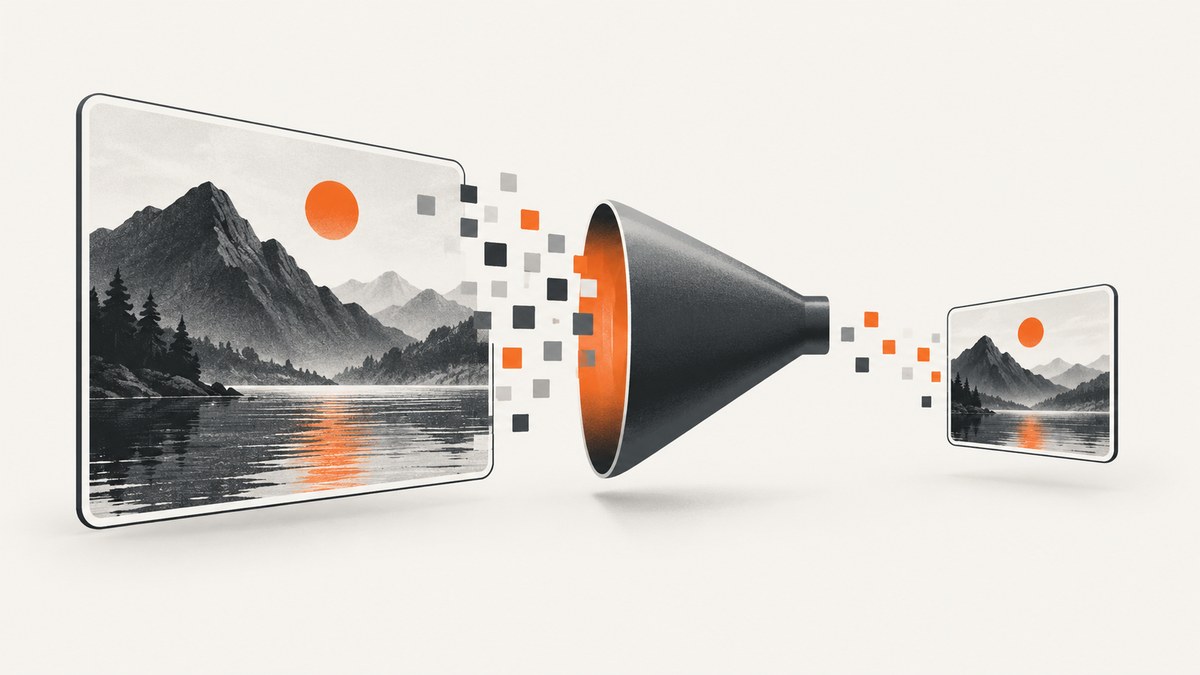
To reduce an image online, resize it to the dimensions you actually need, choose an appropriate format, lower quality gradually, and download the result only after checking visual quality, transparency and byte size. There is no universal quality setting or target file size. The correct result depends on the source image and the destination’s format, dimension and file-size limits.
What an online image-size reducer does
An image tool can reduce bytes in four ways:
- Resize: reduce pixel width and height when the source is larger than its display or upload dimensions.
- Compress: use lossy compression to discard detail or lossless compression to preserve pixels.
- Convert: switch to a format with a better size-to-quality trade-off for your image.
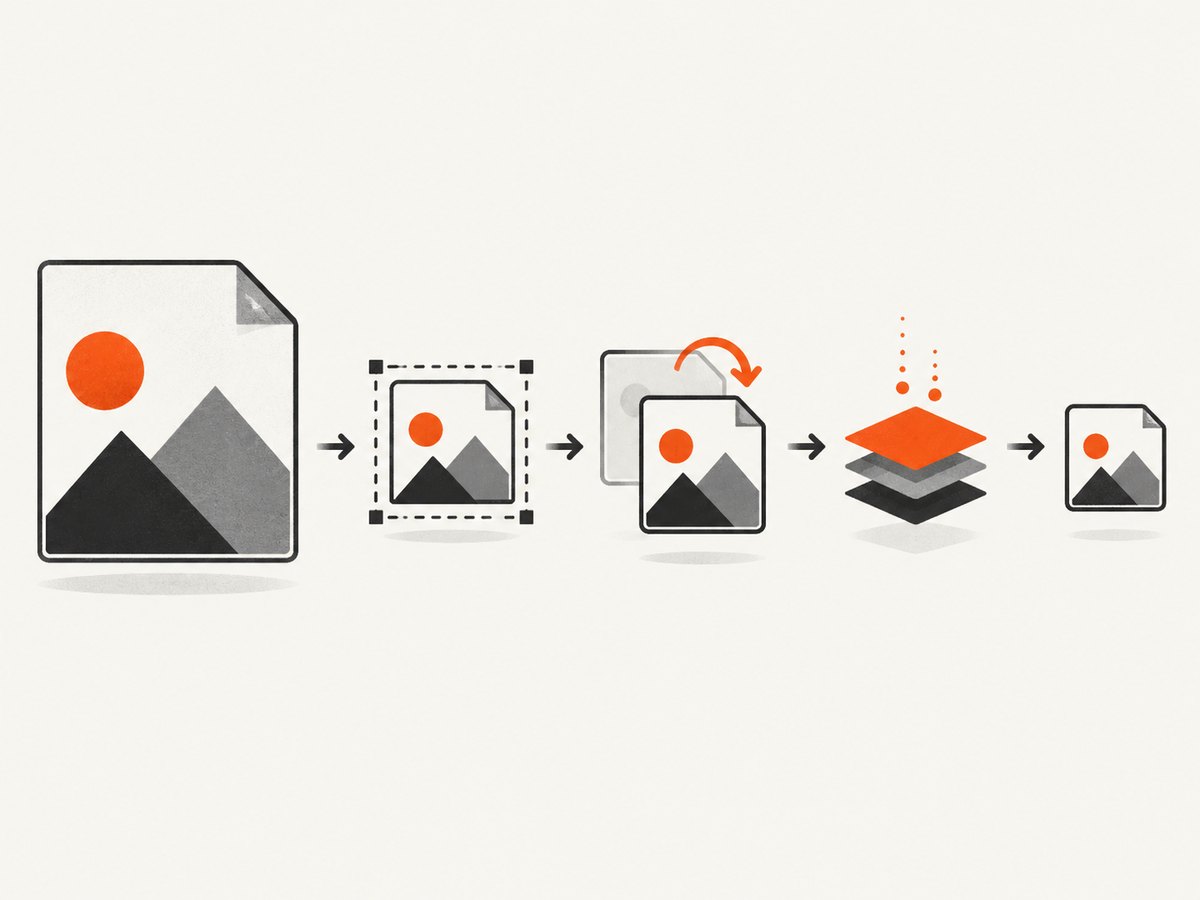
- Combine the steps: resize first, then export at a suitable quality and format.
Keep the original file. Export a copy, compare the byte size, and inspect edges, text, gradients and transparency at the size where people will see the image.
Choose the output format
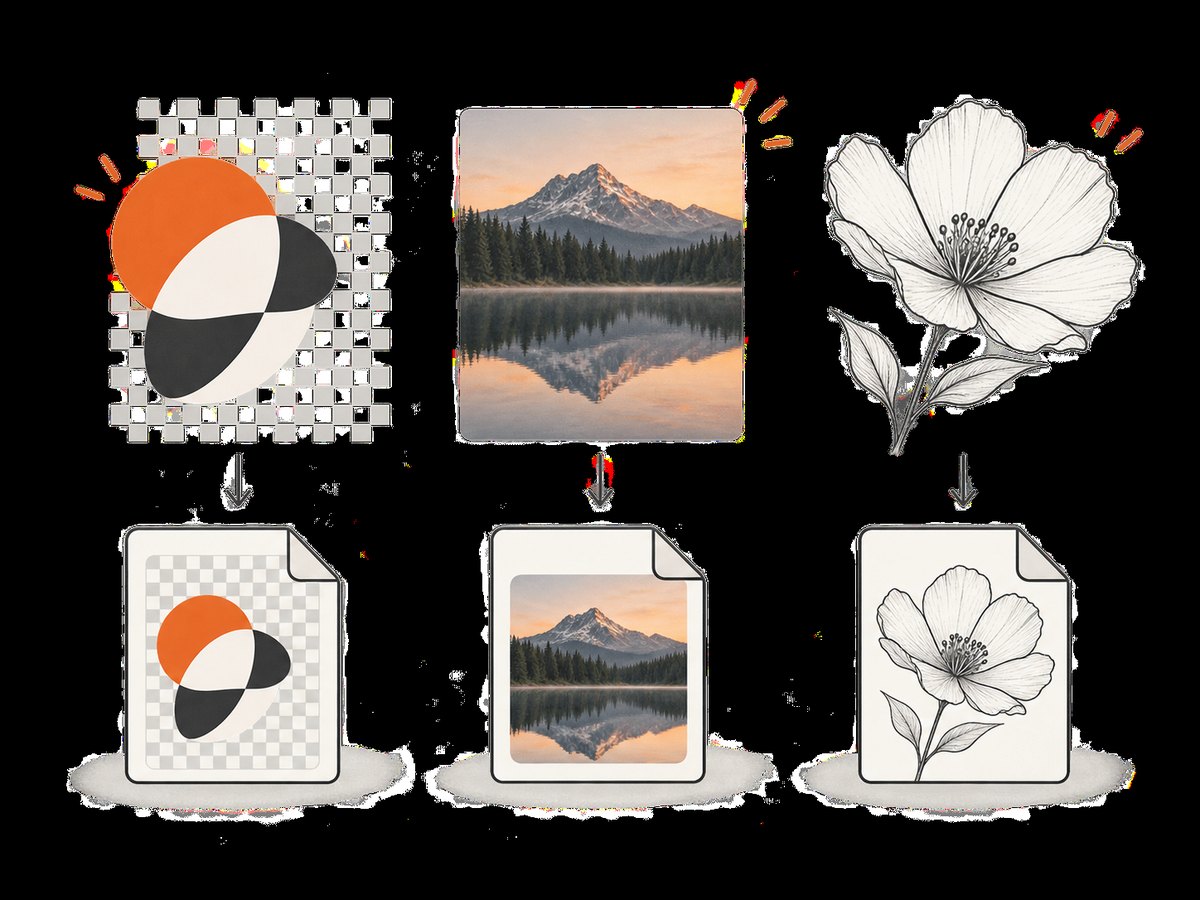
Format choice affects compression, reproduction quality, browser support, transparency and animation. MDN’s image format guide recommends choosing according to those needs rather than using one format for every file.
| Format | Use it when | Watch for |
|---|---|---|
| JPEG | Photographs and other opaque, continuous-tone images need broad compatibility. | It is lossy; repeated exports and aggressive quality settings can create blocks, halos and ringing. |
| PNG | You need precise reproduction, sharp interface artwork, line art or an alpha channel. | Large photographs often remain much bigger than a suitable lossy export. |
| WebP | You want lossy or lossless compression and may need transparency. | Check the destination’s browser or application support. Results vary with the source and encoder settings. |
| AVIF | The destination supports it and you want to evaluate a newer high-compression format. | Compatibility and encoding time can matter; verify the actual upload requirements. |
Google documents that WebP supports both lossy and lossless compression plus an alpha channel. Its documentation states that WebP images are about 30% smaller than PNG and JPEG at equivalent visual quality, but that is a format-level comparison, not a promise for your file. Google also reports 26% smaller lossless WebP files than PNGs and 25–34% smaller lossy WebP files than comparable JPEGs at equivalent SSIM quality. See WebP compression techniques and the WebP overview.
A reliable workflow for reducing image size
- Find the real limit. Read the target site’s maximum bytes, accepted formats and maximum dimensions. There is no universal upload limit.
- Save an untouched original. Work from a copy so you can change format or quality later.
- Resize only when needed. If the source is 4,000 pixels wide but the page displays it at 1,200 pixels, exporting near the required display width usually removes more bytes than quality changes alone.
- Pick a format. Use JPEG or WebP for most photographs, PNG for precise graphics or required transparency, and AVIF only when the destination supports it.
- Adjust quality gradually. Start with a moderate setting, preview the result at actual display size, then lower quality until artifacts become visible. Back off one step.
- Check transparency and metadata needs. A conversion can remove alpha transparency or metadata your workflow relies on.
- Compare the exported bytes. Confirm the file remains below the actual limit after download; the number shown by a tool can differ from the final file.
- Test the destination. Upload the file or load it in the target browser and check dimensions, sharpness, color and transparency.
Browser-only reducer (HTML and JavaScript)
This self-contained page reads a local image, scales it to a maximum width, exports JPEG, WebP or PNG, and reports the resulting byte size. Processing occurs in the browser tab; inspect the chosen tool’s privacy behavior before uploading sensitive files to any online service.
<!doctype html>
<meta charset="utf-8">
<title>Reduce image size</title>
<input id="file" type="file" accept="image/*">
<label>Max width <input id="maxWidth" type="number" value="1600" min="1"></label>
<label>Format
  <select id="format">
    <option value="image/webp">WebP</option>
    <option value="image/jpeg">JPEG</option>
    <option value="image/png">PNG</option>
  </select>
</label>
<label>Quality (JPEG/WebP) <input id="quality" type="number" value="0.82" min="0.1" max="1" step="0.01"></label>
<button id="run">Reduce</button>
<p id="status"></p>
<a id="download" hidden>Download reduced image</a>
<script>
const file = document.querySelector('#file');
const status = document.querySelector('#status');
const download = document.querySelector('#download');
document.querySelector('#run').onclick = async () => {
  if (!file.files[0]) return status.textContent = 'Choose an image first.';
  const input = file.files[0];
  const bitmap = await createImageBitmap(input);
  const maxWidth = Math.max(1, Number(document.querySelector('#maxWidth').value));
  const scale = Math.min(1, maxWidth / bitmap.width);
  const canvas = document.createElement('canvas');
  canvas.width = Math.max(1, Math.round(bitmap.width * scale));
  canvas.height = Math.max(1, Math.round(bitmap.height * scale));
  canvas.getContext('2d').drawImage(bitmap, 0, 0, canvas.width, canvas.height);
  const type = document.querySelector('#format').value;
  const quality = Number(document.querySelector('#quality').value);
  const blob = await new Promise(resolve => canvas.toBlob(resolve, type, quality));
  if (!blob) return status.textContent = 'This browser could not export that format.';
  const url = URL.createObjectURL(blob);
  download.href = url;
  download.download = `reduced.${type === 'image/png' ? 'png' : type === 'image/jpeg' ? 'jpg' : 'webp'}`;
  download.hidden = false;
  status.textContent = `${canvas.width}×${canvas.height}, ${blob.size.toLocaleString()} bytes (original ${input.size.toLocaleString()} bytes)`;
};
</script>
Python example with Pillow
Install Pillow with python -m pip install Pillow, then save this as reduce_image.py. The script preserves aspect ratio, avoids enlarging a small source, and lets you choose output format and quality.
from pathlib import Path
from PIL import Image

source = Path("input.jpg")
out = Path("output.webp")
max_width = 1600
quality = 82

with Image.open(source) as image:
    image.load()
    if image.width > max_width:
        height = round(image.height * max_width / image.width)
        image = image.resize((max_width, height), Image.Resampling.LANCZOS)

    # WebP and PNG can retain transparency; JPEG cannot.
    if out.suffix.lower() in {".jpg", ".jpeg"}:
        if image.mode in {"RGBA", "LA"}:
            background = Image.new("RGB", image.size, "white")
            background.paste(image, mask=image.getchannel("A"))
            image = background
        else:
            image = image.convert("RGB")
        image.save(out, "JPEG", quality=quality, optimize=True, progressive=True)
    elif out.suffix.lower() == ".png":
        image.save(out, "PNG", optimize=True)
    else:
        image.save(out, "WEBP", quality=quality, method=6)

print(f"wrote {out} ({out.stat().st_size:,} bytes)")
Node.js example with Sharp
Install the image library with npm install sharp. This example writes WebP, but you can change the output extension and encoder options for JPEG or PNG.
import sharp from 'sharp';

const input = process.argv[2] ?? 'input.jpg';
const output = process.argv[3] ?? 'output.webp';

await sharp(input)
  .rotate()                         // respect camera orientation metadata
  .resize({ width: 1600, withoutEnlargement: true })
  .webp({ quality: 82 })
  .toFile(output);

console.log(`wrote ${output}`);
How small should the image be?
Use the destination’s actual rule. If a form says “maximum 500 KB,” export, inspect the downloaded file’s byte count, and repeat with a smaller dimension, a different format or slightly lower quality if necessary. Do not assume a particular quality value always produces a particular size: image content, dimensions, source format and encoder all change the result.
| Symptom | Likely adjustment |
|---|---|
| Photograph is still huge | Reduce pixel dimensions first, then try WebP or JPEG and lower quality gradually. |
| Text or line art looks fuzzy | Use PNG or lossless WebP, keep more pixels, or raise quality. |
| Transparent areas became solid | Use PNG or WebP with alpha; JPEG cannot store transparency. |
| File is smaller but rejected | Check the required extension, MIME type, dimensions and exact byte limit. |
| Colors changed | Check the destination’s color handling and compare the exported file in the target application. |
Privacy and online tools
An online reducer may process a file in the browser or upload it to a server. “Browser-local” is a vendor claim to verify, not a universal privacy guarantee. For confidential documents or personal photographs, read the service’s privacy information and determine whether files leave your device. If local handling is required, use the browser page or a local command-line/library workflow.
Performance, reliability and cost
- Resize before compression: fewer pixels reduce encoding work and usually produce a larger byte saving than quality changes alone.
- Keep originals: lossy exports are not a reliable source for later editing.
- Batch carefully: apply the same dimensions and format only to images with similar use cases; logos, screenshots and photographs need different settings.
- Verify every output: check that the file opens, has the intended dimensions, retains transparency when needed and meets the destination limit.
- Measure the actual file: conversion does not guarantee a smaller result. A PNG, WebP or AVIF export can be larger when the source, content or settings do not suit it.
Or skip the browser setup
If what you need is a correctly sized screenshot of a web page rather than compression of an existing photograph, ScreenshotNeo returns a PNG, JPEG, WebP or PDF from one request. See the ScreenshotNeo API documentation.
curl -G "https://api.screenshotneo.com/v1/shot" -d access_key=YOUR_API_KEY --data-urlencode url=https://stripe.com -o shot.webpimport requests
r = requests.get("https://api.screenshotneo.com/v1/shot", params={"access_key": "YOUR_API_KEY", "url": "https://stripe.com"}, timeout=90)
open("shot.webp", "wb").write(r.content)const q = new URLSearchParams({ access_key: 'YOUR_API_KEY', url: 'https://stripe.com' }); const res = await fetch(`https://api.screenshotneo.com/v1/shot?${q}`);ScreenshotNeo removes cookie banners, newsletter popups and chat widgets before capture. Bot checks, blank pages and failed loads are never billed, and the response identifies the verdict and billing status. Its MCP server lets AI agents take screenshots. The Free plan includes 1,000 screenshots a month with no card; paid plans start at $5 for 3,000 shots. Sign up free.
Troubleshooting
The output is larger than the original
Some source files are already highly optimized, or the chosen encoder settings are inefficient for that image. Compare dimensions, try another format supported by the destination, and inspect the byte count after export.
The image has visible blocks or halos
Quality is too low for the image’s detail. Increase quality, keep more pixels, or use PNG/lossless WebP for sharp graphics.
Transparent pixels are black or white
You exported to JPEG or flattened the alpha channel. Export to PNG or WebP, or deliberately choose a background color before using JPEG.
The upload says “unsupported format”
The destination may accept only particular extensions or MIME types. Follow its documented list even if another format is smaller.
The image has the wrong orientation
Camera files can store orientation in metadata. Apply the orientation during processing, as the Pillow and Sharp examples do, then verify the exported dimensions.
The online tool will not accept the file
Check its maximum input bytes, supported formats and filename rules. For sensitive or unusually large files, use a local workflow instead.
FAQ
Does reducing dimensions always reduce file size?
No, but fewer pixels usually give the encoder less data. The final result still depends on format, content and settings.
Is WebP always smaller than JPEG or PNG?
No. WebP supports lossy and lossless modes and can be smaller at comparable quality, but the result varies by source and encoder. Measure your exported file.
Should I choose quality 80?
Use it as a starting point, not a guarantee. Preview detail and compare bytes for the particular image and destination.
Can I reduce an image to an exact number of kilobytes?
You can iterate toward a limit by changing dimensions, format and quality, but no single setting guarantees an exact size without possible visual trade-offs.
Will compression remove metadata?
It may. If metadata matters, check the tool’s export behavior and preserve required fields deliberately.


