Open Graph Default Image: What It Is and How to Set It Up
An Open Graph default image fills in when a page has no specific preview image. Learn how to choose one, add the metadata, and check what your page serves.

An Open Graph default image is the fallback image a site supplies through og:image for link previews when a page has no more specific image. “Default” is a site or CMS convention, not a separate Open Graph property. The protocol identifies og:image as the image URL representing a page or object; it does not define one universal default-image size.
Choose an image that represents the page, use a page-specific image when available, and put the fallback in the shared metadata template for pages without one. The Open Graph protocol defines og:title, og:type, og:image, and og:url as its basic metadata. [Open Graph Protocol]
1. What “default image” means
Open Graph metadata describes a web page as an object that can appear in a social graph. A page can declare an image that represents it with a tag like this:
<meta property="og:image" content="https://example.com/ogp.jpg" />A site may use a shared fallback image when an individual page has no better candidate. For example, a CMS template might prefer a post’s featured image, then use a site-wide editorial image if that field is empty. That selection logic belongs to the site; Open Graph does not define a property called og:default_image.
A fallback should still fit the range of pages that might use it. A generic logo may identify the publisher but say little about the content of a shared article or product page. Google recommends choosing an image relevant to the page, avoiding generic images such as logos, avoiding extreme aspect ratios, and using a higher-resolution image where possible. It does not give a universal numeric size in the cited guidance. [Google Search Central: Image SEO best practices]
2. Choose a useful fallback
Start with page-specific imagery, then use a suitable shared fallback only when the page lacks an image of its own. This keeps the preview relevant while giving incomplete content records a graceful result.
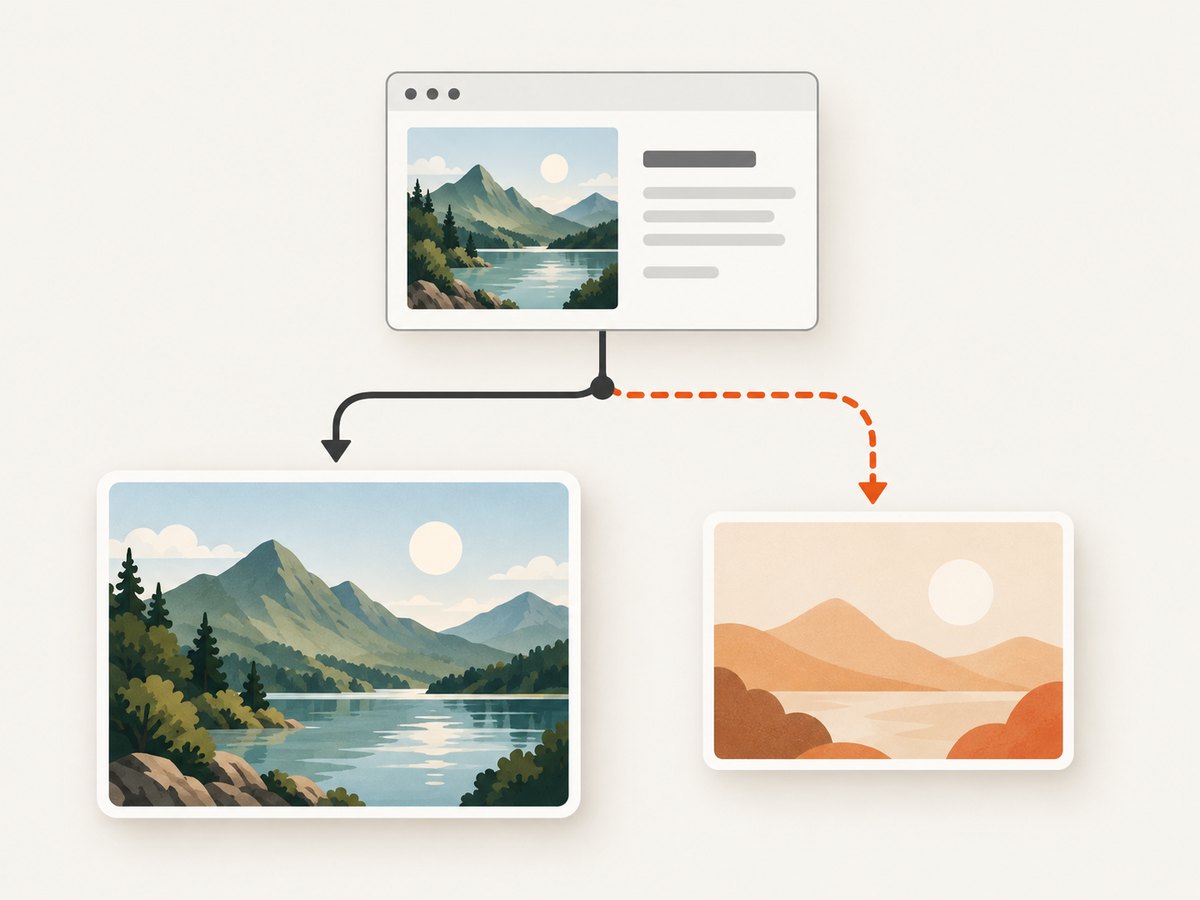
Selection checklist
- Represent the page. The image should make sense for the content, not just repeat the company name.
- Prefer page-specific imagery. Use the article’s own illustration, product image, or other representative visual when it exists.
- Keep the fallback broadly relevant. If several kinds of pages use the same default, choose an image that still represents the site’s subject matter without claiming to depict a particular page.
- Avoid extreme aspect ratios. Google recommends avoiding an image whose shape is unusually wide or tall, but the cited guidance does not set a numeric cutoff.
- Use good resolution where possible. Keep a suitably clear source image so it remains useful when displayed at different sizes.
- Write descriptive alt text when supplied. Describe the image’s content rather than using the alt field as a caption. [Open Graph Protocol]
Do not treat a familiar pixel dimension as a protocol requirement. The official sources used here establish no universal dimensions or file-size cap. Image crops, accepted formats, platform limits, crawler behavior, and cache-refresh procedures can differ by service; check current primary documentation for the platform you care about before relying on a specific value.
3. Add the Open Graph metadata
Put the metadata in the HTML document’s <head>. The essential implementation choice is the resolved image URL: it should be an absolute URL that points to the intended image. Include the other basic Open Graph fields so the page has a coherent title, type, image, and canonical object URL.
<!doctype html>
<html lang="en">
<head>
  <meta charset="utf-8">
  <title>Example article</title>
  <meta property="og:title" content="Example article">
  <meta property="og:type" content="article">
  <meta property="og:url" content="https://example.com/articles/example">
  <meta property="og:image" content="https://example.com/images/example-social.jpg">
  <meta property="og:image:alt" content="A desk with an open notebook and a camera">
</head>
<body>
  <h1>Example article</h1>
</body>
</html>
The alt text above describes the image’s content. It is not a substitute for a caption shown on the page. The protocol also defines optional structured image properties, including MIME type, width, height, and secure URL. These provide metadata about the image; their existence does not establish recommended dimensions.
Optional structured image properties
Place structured properties after their root og:image declaration so they describe that image:
<meta property="og:image" content="https://example.com/images/example-social.jpg">
<meta property="og:image:secure_url" content="https://example.com/images/example-social.jpg">
<meta property="og:image:type" content="image/jpeg">
<meta property="og:image:width" content="1200">
<meta property="og:image:height" content="630">
<meta property="og:image:alt" content="A desk with an open notebook and a camera">
The sample numbers illustrate how width and height fields are written; they are not a recommendation or guarantee that every platform will display the image in a particular way. Include values that accurately describe the actual asset. The protocol describes these fields and their association with the root image. [Open Graph Protocol]
4. Set a fallback in a template
In an application or CMS, resolve the page-specific image first, then fall back to a site default. Keep the metadata rendering in the server-rendered document head where possible, and inspect the resulting HTML rather than assuming a browser-only script will be observed by every crawler.
<!-- Template pseudocode: adapt variable syntax to your CMS -->
<head>
  <meta property="og:title" content="{{ page.title }}">
  <meta property="og:type" content="article">
  <meta property="og:url" content="{{ page.canonical_url }}">
  <meta property="og:image"
        content="{{ page.social_image | default: site.default_social_image }}">
</head>
The syntax above is illustrative pseudocode, not a drop-in template for a named CMS. In production, use that system’s escaping and URL helpers. Ensure the selected value is an absolute URL and that an empty or invalid page-specific field actually falls through to the default.
Implementation steps
- Choose a page that has a specific representative image and one that should use the fallback.
- Resolve the image according to page-specific-first, fallback-second logic.
- Render
og:title,og:type,og:url, and exactly the intended firstog:imagein the document head. - If adding image properties, put them after their root image and ensure dimensions and MIME type match the asset.
- Fetch the page HTML and inspect the emitted tags and image URL. Confirm the image URL itself resolves to the intended asset.
- Use the sharing platform’s current preview or debugging workflow to inspect its interpretation. Platform-specific cache refresh behavior is outside what the Open Graph protocol alone guarantees.
5. Multiple images and ordering
A page may provide more than one value for a property. The Open Graph protocol says that when values conflict, the first is preferred. If multiple og:image values are present, ordering is therefore meaningful: put the image you want preferred first, then its structured properties, then another root image and its properties if needed.
<meta property="og:image" content="https://example.com/images/article.jpg">
<meta property="og:image:width" content="1200">
<meta property="og:image:height" content="630">
<meta property="og:image:alt" content="Illustration accompanying the article">
<meta property="og:image" content="https://example.com/images/site-fallback.jpg">
<meta property="og:image:alt" content="Abstract image representing the site">
For ordinary pages, avoid emitting both a page-specific image and a fallback as competing candidates unless that is intentional. A simpler template selects one image before output. If multiple candidates are required, test their ordering with the target platform’s current tools.
6. Inspect the rendered page and image
Open Graph correctness has two parts: the page must expose the intended metadata, and the referenced asset must be the image you expect. Check both the raw response and the rendered result when the page is generated dynamically.

curl -L --max-time 30 https://example.com/articles/example -o page.html
rg -n 'og:(title|type|url|image)' page.html
This fetches the page HTML and searches it for the core tags. It does not validate a social platform’s cache, image acceptance rules, or eventual preview. Inspect the image URL separately in a browser or with an HTTP client, and confirm the response is the actual image rather than an error page or redirect to an unrelated destination.
A visual capture can help you inspect what a browser displays after the page loads, including whether a banner or overlay obscures content. It does not replace checking the metadata in the HTML head: an Open Graph image is declared by metadata and is not necessarily visible in the page body.
7. Why the wrong image may appear
If a shared link shows an unexpected image, first compare the intended page URL and metadata with the HTML actually returned for that URL. Then check image selection and ordering. The dossier’s official sources do not establish the cache behavior or crawler rules of any particular platform, so avoid assuming a single cause or universal refresh procedure.
- The page-specific field is empty or stale: inspect the data record and the final resolved template value.
- The fallback wins unexpectedly: check whether the page-specific image is actually rendered and whether another
og:imageappears first. - The wrong page was fetched: verify
og:url, redirects, and the exact shared URL against the returned HTML. - The image URL points elsewhere: open the URL and check the returned asset, redirects, and access behavior.
- The page is correct but the preview is old: consult the platform’s current official debugging or cache guidance. The Open Graph protocol does not define a universal cache refresh process.
8. Troubleshooting
| Symptom | Likely cause to check | Fix |
|---|---|---|
| No image tag in the fetched HTML | The template omits metadata for that route, or only adds it after client-side JavaScript. | Render the Open Graph tags in the returned document head and inspect the raw response again. |
| A site logo appears on every page | The fallback is a generic logo, or page-specific data is not reaching the template. | Use a representative fallback and repair the page-specific image lookup. Google advises against generic images such as logos for this use. |
| An older or alternate image appears | Multiple og:image values are emitted, and another value appears first. |
Reorder the intended image first, or emit only the resolved image. The protocol prefers the first conflicting value. |
| The image URL is present but the asset is wrong | The metadata URL resolves through a redirect or points to the wrong file. | Open the exact URL, inspect the response, and correct the asset path or redirect. |
| The preview is cropped differently than expected | The target platform applies its own presentation behavior. | Choose a representative image without an extreme aspect ratio, and check that platform’s current official guidance. No universal crop is promised by the protocol. |
| A social preview remains stale after a fix | The platform may be showing an existing cached interpretation. | Verify the live HTML first, then follow the platform’s current official cache or preview debugging instructions. |
| Width, height, or alt data appears associated with the wrong image | Structured properties were placed after a different root image. | Group each image’s structured properties directly after its og:image declaration. |
9. Performance, reliability, and cost
Open Graph metadata is a small addition to the document head. The main operational concern is maintaining a correct image URL and a dependable template fallback. A broken or misleading default can affect every page that relies on it, so keep the asset under a stable URL and include a representative default in content publishing checks.
Do not infer a universal maximum file size, supported format, or image dimension from the protocol fields. Those details depend on the platform consuming the URL and may change. If sharing compatibility matters, consult the target platform’s current primary documentation and validate representative URLs with its official preview tools.
You can inspect what a browser sees with a screenshot when debugging overlays or page rendering. ScreenshotNeo is a website screenshot API and MCP server by Yorker Media; its API can return an image or PDF from one GET request. It is useful for checking the visual page, while metadata validation still requires reading the returned HTML.
Or skip the browser setup
To capture the page visually, use ScreenshotNeo’s one-call API. See the ScreenshotNeo documentation for request options.
curl -G "https://api.screenshotneo.com/v1/shot" -d access_key=YOUR_API_KEY --data-urlencode url=https://example.com/articles/example -o shot.webpScreenshotNeo removes cookie banners, newsletter popups, and chat widgets before the shot, and each step can be turned off. Bot checks, blank pages, timeouts, failed loads, and cache hits cost nothing; response headers report the page verdict and billing status. Its MCP server lets AI agents take screenshots. The free plan includes 1,000 screenshots a month with no card; paid plans start at $5 for 3,000. Learn about ScreenshotNeo.
Sign up for 1,000 free screenshots a month, with no card required.
FAQ
Is there an og:default_image property?
No. “Default image” describes a site’s fallback logic. The Open Graph image property is og:image.
Should every page use the same image?
Use page-specific imagery where available. A shared fallback is for pages that lack a more representative image, and should still make sense for the site’s content.
What image size is guaranteed to work everywhere?
The official sources cited here establish no universal pixel dimensions or file-size cap. Check the current requirements of the platform where the link will appear.
Does a screenshot prove the Open Graph tags are correct?
No. A screenshot shows visual rendering. Inspect the HTML head to verify metadata and its ordering.


