Open Graph Image Debugger: Find and Fix the Wrong Link Preview
Find out why a shared link shows the wrong, missing, or stale image. Inspect Open Graph tags, check image delivery, and verify the result with a platform debugger.

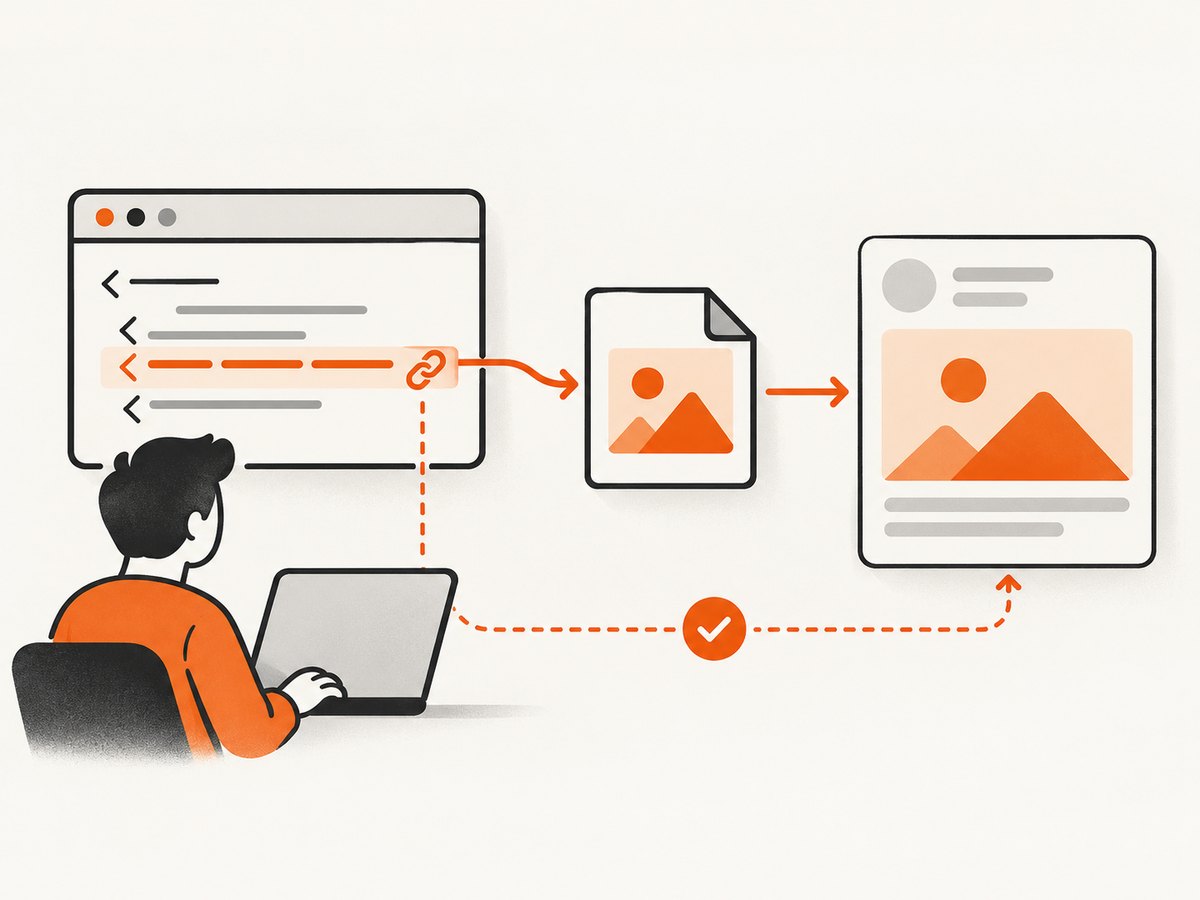
A shared link’s image is controlled by the page’s Open Graph metadata and by what the platform crawler can retrieve when it reads the page. An Open Graph image debugger fetches a page, inspects its metadata, and shows a preview or warnings. To find the cause of a wrong, missing, or old image, check the page’s actual tags, verify that the image URL is reachable, and then inspect the page with the relevant platform debugger.
The protocol’s four basic properties are og:title, og:type, og:image, and og:url. The og:image tag points to the image representing the page; it is metadata in the document head, not a setting inside the debugger. [Open Graph protocol]
1. Understand what the debugger checks
An Open Graph debugger is an inspection tool. It requests a page as a crawler, parses its Open Graph metadata, and presents some combination of parsed fields, warnings, and a link preview. It helps you separate several different problems:
- Metadata problem: the page emits no
og:image, or it names an unintended image. - Delivery problem: the tag is present, but the image cannot be retrieved by the crawler.
- Selection problem: multiple image tags exist and the platform selects a different candidate than expected.
- Stale preview: the page or image has changed, but the platform is showing previously fetched information.
A debugger reports what it could read at the time of its request. It does not edit your page, change an image attached to an already-published post, or guarantee that every downstream cache will refresh immediately.
Facebook’s Object Debugger is listed by the Open Graph protocol as Facebook’s parser and debugger. Use the relevant platform’s own tool where one is available, since a third-party preview cannot establish exactly how every platform will parse or cache a page. The protocol resource confirms Facebook’s official debugger designation; current interface details and access conditions can change. [Open Graph protocol resources]
2. Check the page’s Open Graph tags
Start by inspecting the HTML source served for the exact URL you are sharing. The tags belong in the document’s <head>. A minimal example is:
<!doctype html>
<html lang="en">
<head>
  <meta charset="utf-8">
  <title>Release notes: version 2.4</title>
  <meta property="og:title" content="Release notes: version 2.4">
  <meta property="og:type" content="article">
  <meta property="og:image" content="https://example.com/images/release-2-4.png">
  <meta property="og:url" content="https://example.com/releases/2-4">
  <meta property="og:image:type" content="image/png">
  <meta property="og:image:width" content="1200">
  <meta property="og:image:height" content="630">
  <meta property="og:image:alt" content="A preview of the version 2.4 release notes">
</head>
<body>...</body>
</html>
The example dimensions are descriptive metadata for this example, not a guarantee of platform acceptance or a recommendation of current platform-specific image requirements. The research available for this guide does not establish current Meta image dimensions, file-size limits, or format thresholds. Check the platform’s current documentation before treating any particular threshold as a requirement.
The four basic properties identify the title, object type, representative image, and canonical object URL. Open Graph also defines structured image properties for MIME type, pixel width and height, and alternative text. The protocol says that if a page specifies og:image, it should specify og:image:alt; describe what is in the image rather than writing a caption. [Open Graph protocol: basic and structured properties]
Inspect the raw response, not only your browser’s rendered page
For a quick check, fetch the public HTML response with cURL:
curl -L -sS https://example.com/releases/2-4 -o page.html
rg -n 'og:(title|type|image|url|image:)' page.html
Replace the URL with the exact page you share. The -L flag follows redirects. This is a useful first check, but it does not reproduce every platform crawler’s request headers, rendering behavior, or cache. If your site creates metadata with client-side JavaScript, compare the initial HTML response with the browser’s rendered DOM. Prefer making essential social metadata available in the server response so a crawler that does not execute page scripts can see it.
Check duplicates and order
Search for every og:image declaration, including tags added by a theme, CMS plugin, template, or SEO module. If a property has multiple values, the protocol gives the first tag in document order preference during conflicts. Consumers may still have their own selection behavior, so remove accidental duplicates and put the intended primary image first. [Open Graph arrays]
3. Verify the image URL and crawler access
Copy the complete value from og:image and inspect it as a separate resource. It should resolve to the intended image and be accessible from the public internet. Check for a typo, an incorrect environment or hostname, an expired signed URL, a redirect to an HTML page, or access controls that allow you but deny automated fetches.
Use a request to see the response headers and follow redirects:
curl -L -I 'https://example.com/images/release-2-4.png'Confirm that the final response is successful and identifies an image content type. A successful browser display alone does not prove that an external crawler can fetch the same resource: the browser may have cookies, a logged-in session, or network access unavailable to the crawler. Conversely, do not infer a platform’s exact image acceptance threshold from this simple request; those current limits were not verified in the research for this article.
For pages behind authentication, staging restrictions, IP allowlists, or bot protection, make sure the intended public page and its image can be fetched by the platform. Avoid weakening protections site-wide just to make a preview work; identify the specific resource and access rule involved, then use the platform’s current crawler guidance to make a narrow correction.
4. Use a platform debugger to inspect the scrape
- Open the official debugger for the platform where the link is shared, if that platform provides one. Facebook’s Object Debugger is identified as Facebook’s parser and debugger in the protocol’s resource list.
- Submit the canonical page URL that you intend to share. A redirecting variant can lead to a different canonical URL or cached object.
- Review the parsed title, type, image, and URL. Compare each value with the actual HTML source, rather than guessing from the card preview alone.
- Look for warnings or fetch failures. If the tool offers a re-scrape or refresh action, request one after you have corrected the page or image.
- Inspect the resulting preview again. If it still differs, record the URL, time, parsed fields, and exact image URL so you can distinguish a page-level issue from a platform cache issue.
Debugger labels and workflows can change. Re-scraping asks the platform to fetch again; it does not promise an instant change to every already-shared post or any caches beyond that debugger’s view. The reviewed research does not verify current interface details, cache lifetimes, or access conditions, so treat these as workflow guidance rather than fixed platform guarantees.
5. Common failures and fixes
| What you see | Likely cause | What to check or fix |
|---|---|---|
| No image in preview | Missing or malformed og:image; crawler cannot retrieve the image; metadata is absent from the response it reads. |
Inspect the raw HTML for the exact URL, check the tag syntax, and request the image URL separately. Make essential tags available in initial HTML. |
| The wrong image appears | The tag points to an unintended image, or duplicate image tags compete. | Search the full document for og:image, remove accidental duplicates, and make the intended candidate first. |
| The old image remains | A debugger or platform may be showing a previous scrape or cached preview. | Confirm that the page now returns the corrected tag and the image URL serves the new file. Use the platform debugger’s refresh or re-scrape action if available, then inspect again. |
| The browser shows the image, debugger does not | Your browser may have credentials, cookies, or network access the crawler lacks. | Check redirects and access restrictions on both the page and image. Test a public request without relying on your logged-in browser session. |
| Debugger shows a different page URL | Redirects, canonicalization, or URL variants may cause the platform to inspect another address. | Submit the intended canonical URL and inspect its redirect chain and og:url. |
| Metadata is correct in developer tools, absent in source | A client-side script may add tags after the initial document response. | Inspect the HTTP response itself. Render essential social tags server-side or otherwise ensure they are present when the crawler fetches the page. |
| Image details look wrong | Structured metadata may describe the wrong asset or stale dimensions. | Check og:image:type, og:image:width, og:image:height, and og:image:alt against the actual image. |
These causes are practical debugging checks, not a statement of a platform’s unpublished parser or cache rules. The protocol is the source for the property names and ordering behavior; consult the relevant platform’s current documentation for its crawler requirements.
6. A repeatable debugging checklist
- Use the exact URL from the shared post, including path and query string where relevant.
- Read the HTML response and confirm all four basic Open Graph properties are present.
- Confirm
og:imagenames the intended absolute image URL. - Check for duplicate image tags and put the desired image first.
- Check structured image values, especially alternative text, when present.
- Fetch the image URL independently and inspect the final response after redirects.
- Check whether authentication, bot rules, or client-side rendering change what a crawler can access.
- Run the page through the relevant platform debugger and compare its parsed values with the source.
- After a correction, request a fresh scrape where available and verify the outcome rather than assuming propagation.
7. Inspect crawler-visible pages with ScreenshotNeo
A platform debugger answers what that platform parsed. A browser screenshot can help you inspect the rendered page itself and determine whether the page has visibly loaded the content and image you expect. ScreenshotNeo is a website screenshot API and MCP server for developers. It can return a PNG, JPEG, WebP, or PDF from one request. It does not replace Open Graph validation or tell you a platform’s private cache state.

For example, capture the public page after correcting its metadata to see its rendered state:
curl -G "https://api.screenshotneo.com/v1/shot" \
  -d access_key=YOUR_API_KEY \
  --data-urlencode url=https://example.com/releases/2-4 \
  -o page.webp
See the ScreenshotNeo API documentation for request options. The product accepts common screenshot API parameter names, which can make switching easier. Its before-capture cleanup can accept cookie and consent banners and remove 60+ known consent platforms, newsletter popups, and chat widgets; each cleanup step can be turned off. Responses identify outcomes with X-Page-Verdict and X-Billed headers. Bot checks or CAPTCHAs, blank pages, timeouts, failed loads, and cache hits cost nothing. The MCP server offers take_screenshot, get_page_info, and capture_pdf for Claude, Cursor, and other MCP clients.
Or skip the browser setup
Use ScreenshotNeo’s API when you need a rendered page capture without installing or maintaining a browser:
curl -G "https://api.screenshotneo.com/v1/shot" \
  -d access_key=YOUR_API_KEY \
  --data-urlencode url=https://example.com/releases/2-4 \
  -o page.webp
Cookie banners, popups, and chat widgets are removed before the shot. Bot checks, blank pages, and failed loads are never billed. An MCP server lets AI agents take screenshots. The free plan includes 1,000 screenshots a month with no card; paid plans start at $5 for 3,000. Every feature is on every plan. Learn more at ScreenshotNeo, then sign up free for 1,000 screenshots a month with no card.
8. Performance, reliability, and cost
For repeated debugging, inspect only the pages and image assets relevant to the failing preview. A full rendered screenshot is useful for checking visible page state, while reading the HTML and fetching the image directly are often faster first checks. If you automate checks across many URLs, keep page retrieval and screenshot capture separate in logs so you can identify which stage failed.
Third-party debuggers depend on their own fetch, parsing, and refresh behavior. Keep a record of the URL checked and the fields returned; after editing tags, verify the page response before making another debugger request. Do not assume that every consumer uses the same ordering, rendering, or cache behavior.
ScreenshotNeo pricing is Free for 1,000 shots per month with no card, Starter $5 for 3,000, Growth $15 for 15,000, Pro $39 for 60,000, Scale $99 for 250,000, and Business $249 for 1,000,000; yearly billing gives two months free. Each response indicates whether a shot was billed. For the preview-debugging use case, this makes it possible to distinguish a successful capture from a blocked or failed page in your own workflow.
FAQ
Does an Open Graph debugger change my page’s image?
No. It fetches and inspects metadata. Change the og:image value or image delivery on your site, then inspect again.
How do I clear Facebook OG cache?
Correct the page first, then use Facebook’s official Object Debugger to request a fresh scrape if its current workflow offers that action. The research does not verify a guaranteed cache-clear time, so check the resulting parsed fields and preview.
Is the Twitter Card Validator still working?
The reviewed research does not establish the current availability or behavior of Twitter/X’s validator. Check the platform’s current official developer resources rather than relying on an old tutorial or assuming a third-party preview is authoritative.
Which image dimensions should I use?
This guide does not give a platform-specific threshold because the current Meta requirements were not verified in the available sources. Consult the current requirements for the platform where the link will appear.
Can a screenshot prove the social preview is correct?
No. A screenshot shows rendered browser output. Use the social platform’s debugger to inspect its scrape and preview; use a screenshot to investigate visible page behavior.


