Why Your Open Graph Image Is Not Showing on Social Media
Fix missing Open Graph previews by checking metadata, image access, platform limits, crawler rules, and cache refreshes.

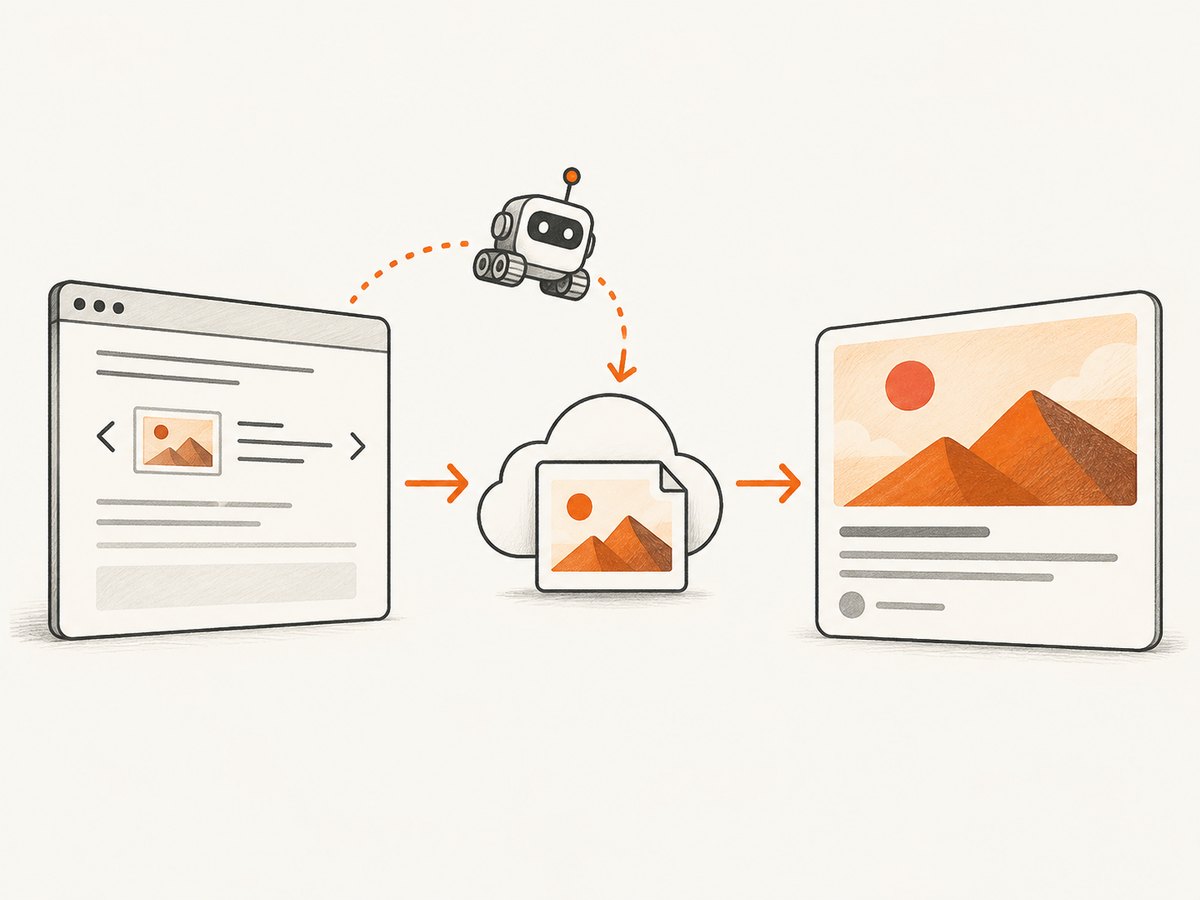
Check the published HTML, fetch the exact image URL as a crawler would, compare the image with the destination platform’s requirements, verify that security rules do not block retrieval, then refresh that platform’s preview cache. A valid og:image tag alone does not guarantee that an image will appear. The social platform must be able to retrieve both the page and the image, and it may still show an older cached version.
This guide explains a repeatable diagnosis for LinkedIn and other social networks. Requirements, crawler behavior, cache duration, and inspection tools differ by platform, so a preview working on one service does not prove that another service will accept the same page.
1. Confirm the metadata that is actually published
Start with the URL people share, including its final redirected and canonical destination. An editor’s featured image, CMS setting, or page-builder preview is not evidence that the delivered HTML contains the required tags.
LinkedIn’s sharing guidance lists these core fields:
og:titleog:imageog:descriptionog:url
Inspect the raw response rather than only the browser’s rendered DOM. Server-side rendering, redirects, consent systems, and JavaScript can change what a crawler receives.
curl -L -s https://example.com/article \\
  | grep -iE 'og:(title|image|description|url)|canonical'
In a browser, use View Source and search for og:image. A minimal declaration looks like this:
<head>
  <meta property="og:title" content="Why Your Open Graph Image Is Not Showing">
  <meta property="og:description" content="A practical checklist for fixing social previews.">
  <meta property="og:url" content="https://example.com/article">
  <meta property="og:image" content="https://cdn.example.com/social/article-cover.jpg">
</head>
Check for common markup mistakes:
- The property is misspelled, such as
og:imginstead ofog:image. - The tag is placed outside
<head>or is generated only after client-side JavaScript runs. - The value is a relative path, an expiring signed URL, a localhost address, or a URL that redirects to a login page.
- Multiple
og:imagetags are present and the platform chooses a different one than expected. - The shared URL redirects to another page whose metadata does not contain the intended image.
- The page declares a different canonical URL from the one you are testing.
2. Fetch the exact image URL
Copy the value from the published og:image tag and request it directly. The URL must be public, stable, and usable without cookies, authentication, or browser-only JavaScript.
curl -I -L https://cdn.example.com/social/article-cover.jpgLook for a successful status, a final URL you recognize, and an image content type such as image/jpeg, image/png, or image/webp. A page that displays correctly in your browser can still fail for a social crawler if the image endpoint blocks its request.
LinkedIn specifically notes that an otherwise valid image may be omitted when the website blocks retrieval or the image is in a protected directory. Check authentication middleware, signed-link expiration, hotlink protection, IP allowlists, bot challenges, and CDN rules.
Download the response to confirm that it is an image rather than an HTML error document:
curl -L https://cdn.example.com/social/article-cover.jpg -o /tmp/og-image
file /tmp/og-image
Also test the final URL after every redirect. A redirect from HTTPS to an internal hostname, a region-restricted endpoint, or a URL requiring a session cookie will produce a missing preview even when the first request appears healthy.
3. Match the destination platform’s image rules
Image requirements are platform-specific. LinkedIn’s published sharing guidance gives a minimum of 1200 × 627 pixels, a recommended 1.91:1 ratio, and a maximum file size of 5 MB. These figures are LinkedIn requirements, not universal limits for every service. Consult the current documentation for the platform where the failure occurs.
| Check | Why it matters | How to verify |
|---|---|---|
| Dimensions | Small images may be rejected or enlarged poorly. | identify image.jpg or your image editor |
| Aspect ratio | The platform may crop the image in a way that removes the subject. | Compare width ÷ height with the destination guidance. |
| File size | Oversized assets can be rejected or time out during retrieval. | ls -lh image.jpg |
| Content type | An incorrect MIME type can make a valid file look like a download or HTML page. | curl -I -L URL |
| Format | Support differs by crawler and platform. | Use a broadly supported format when documentation is unclear. |
For LinkedIn, create a 1200 × 627 pixel image under 5 MB, then verify that your server returns it directly. Keep important text and faces away from edges because platform crops can vary.
4. Check crawler access and security controls
When markup and dimensions are correct, investigate the path between the social platform and your server. Possible blockers include:
robots.txtrules or firewall policies that disallow the destination crawler.- WAF or bot-management challenges that require JavaScript, cookies, or CAPTCHA completion.
- Basic authentication or an application login around the page or image directory.
- Referrer checks, hotlink protection, or an allowlist that rejects requests without a browser referrer.
- Rate limits, geo restrictions, or an origin that is unavailable from the public internet.
- TLS certificate, DNS, IPv6, or redirect problems visible only from external networks.
Use your access logs while running a platform inspector. A request that never reaches your origin points to DNS, firewall, or an upstream cache issue. A request that returns 403, 401, 429, or 5xx identifies a server-side response to fix. Do not assume that changing a user-agent string locally reproduces the platform exactly; use the platform’s own diagnostic tool when available.
5. Refresh the platform’s cached preview
Social services cache page metadata and images. Correcting the HTML does not necessarily update an existing post or a preview generated earlier.
- Deploy the corrected metadata and image.
- Request the page and image yourself to confirm the new response.
- Open the destination platform’s current URL inspection, debugger, or post-inspector workflow.
- Submit the exact URL, including query parameters if those change the page.
- Publish a new test share after the inspector reports the updated image.
LinkedIn’s help guidance says outdated content requires a cache refresh and advises allowing up to 48 hours after a URL is shared or its tags are updated before retrying. Platform interfaces and cache behavior can change, so verify the current workflow in that platform’s documentation. Refreshing Facebook’s cache does not refresh LinkedIn’s cache, and neither action guarantees an update on another service.
6. Use a controlled diagnostic checklist
Record the result of each check so you can identify where the failure occurs:
- Published HTML: the shared URL returns the intended
og:image. - Redirect chain: HTTP redirects end at the expected canonical page.
- Image response: the exact image URL returns 200 and an image MIME type.
- Public access: no login, cookie, CAPTCHA, or expiring signature is required.
- Dimensions and size: the file meets the destination’s current guidance.
- Crawler path: firewall and WAF logs show an allowed retrieval.
- Cache: the destination inspector sees the new metadata.
- Reproduction: the test is performed on the platform where the failure occurs.
7. Generate and verify social images programmatically
If your site creates images dynamically, make the generation step deterministic. Store the final asset at a stable public URL, set the correct content type, and avoid URLs that expire before a crawler fetches them.
import requests

page = "https://example.com/article"
r = requests.get(page, timeout=30, allow_redirects=True)
r.raise_for_status()

html = r.text.lower()
if 'property="og:image"' not in html:
    raise RuntimeError("og:image is missing from the published HTML")

image_url = "https://cdn.example.com/social/article-cover.jpg"
image = requests.get(image_url, timeout=30, allow_redirects=True)
image.raise_for_status()
if not image.headers.get("content-type", "").startswith("image/"):
    raise RuntimeError("og:image URL did not return an image")

with open("social-image.jpg", "wb") as f:
    f.write(image.content)
For a production check, parse the HTML with an HTML parser instead of searching text, validate that the URL is absolute, and alert on changes to the image’s status, MIME type, dimensions, or file size.
8. Troubleshooting common failures
The tag exists, but no image appears
Cause: the image URL returns an error, redirects to a protected location, or is blocked by a security layer. Fix: run curl -I -L against the exact value in the tag and inspect server logs during a platform refresh.
The old image keeps appearing
Cause: destination-side caching. Fix: refresh the platform’s inspector after deployment, then wait for its documented cache window. Changing the filename or URL can help future shares but does not rewrite an already published post.
The preview works on one network but not another
Cause: platform-specific retrieval, cache, or security behavior. Fix: test on the failing platform and check its own diagnostics. A successful preview on Slack, X, Facebook, or another service does not establish LinkedIn compatibility.
The image is cropped badly
Cause: aspect-ratio differences or platform-specific crop rules. Fix: follow the destination’s recommended ratio and keep the visual subject inside a safe central area.
The crawler receives a 403 or 429
Cause: firewall rules, bot protection, authentication, or rate limiting. Fix: permit legitimate preview retrieval while preserving application security, or host the social image at a public endpoint designed for cacheable delivery.
The image URL returns HTML
Cause: an error handler, login page, or redirect is serving HTML with a 200 response. Fix: inspect the body with curl -L, correct the route, and return the actual image with the correct MIME type.
The page is rendered entirely by JavaScript
Cause: metadata is injected after the initial response, while many crawlers inspect the server response. Fix: emit Open Graph tags in the initial HTML response or use server-side rendering.
9. Performance, reliability, and cost considerations
Keep social images on a fast, cacheable origin. A smaller file reduces crawler latency, but compression must preserve legibility and the focal subject. Use long cache headers for immutable, fingerprinted files; when the image changes at the same URL, purge the CDN and refresh the destination inspector.
Monitor image availability separately from page availability. A healthy article page can still produce a missing preview when the image CDN, storage bucket, or transformation service fails. Synthetic checks should follow redirects, validate status and content type, and test from outside your corporate network.
Cache refreshes and crawler requests generally do not create application-user sessions. Avoid making image delivery depend on analytics cookies, personalization, or a consent decision. If a WAF must challenge unknown bots, provide a controlled public route for social assets.
Or skip the browser setup
ScreenshotNeo provides a website screenshot API when you need a reliable image of a page for social cards, documentation, or previews. The endpoint returns PNG, JPEG, WebP, or PDF from one request. Read the complete option reference in the ScreenshotNeo documentation.
cURL:
curl -G "https://api.screenshotneo.com/v1/shot" -d access_key=YOUR_API_KEY --data-urlencode url=https://stripe.com -o shot.webpPython:
import requests; r = requests.get("https://api.screenshotneo.com/v1/shot", params={"access_key": "YOUR_API_KEY", "url": "https://stripe.com"}, timeout=90); open("shot.webp", "wb").write(r.content)Node.js:
const q = new URLSearchParams({ access_key: 'YOUR_API_KEY', url: 'https://stripe.com' }); const res = await fetch(`https://api.screenshotneo.com/v1/shot?${q}`);Before capture, ScreenshotNeo can accept cookie and consent banners and remove more than 60 known consent platforms, newsletter popups, and chat widgets; each cleanup step can be turned off. Bot checks or CAPTCHAs, blank pages, timeouts, failed loads, and cache hits are not billed, and response headers identify the page verdict and whether the request was billed. An MCP server lets Claude, Cursor, and other MCP clients use take_screenshot, get_page_info, and capture_pdf. The free plan includes 1,000 screenshots each month with no card; paid plans start at $5 for 3,000.
Create a free ScreenshotNeo account and start with 1,000 screenshots a month at no charge.
FAQ
Does adding og:image guarantee a preview image?
No. The platform must retrieve the page and image, accept the file, and use current metadata rather than a cached copy.
Should I use the same image URL for every platform?
You can, but verify that its dimensions, file size, format, and access rules satisfy each destination’s current guidance.
Why does a browser show the image while a social crawler cannot?
Your browser may have cookies, authentication, JavaScript, or a trusted IP address. A crawler may receive a challenge, redirect, or protected response instead.
Will changing the image filename update an existing post?
It gives future crawls a new resource URL, but an already published post may retain its cached preview permanently. Use the destination’s refresh or inspector workflow.
Where should I look first when debugging?
Inspect the published HTML, then fetch the exact og:image URL with redirects enabled. Those two checks expose most metadata and access failures before you investigate platform caches.


