Open Graph Image Parameters Explained
Learn the correct Open Graph image size, metadata, formats, debugging steps, and fixes for previews that crop or fail to appear.
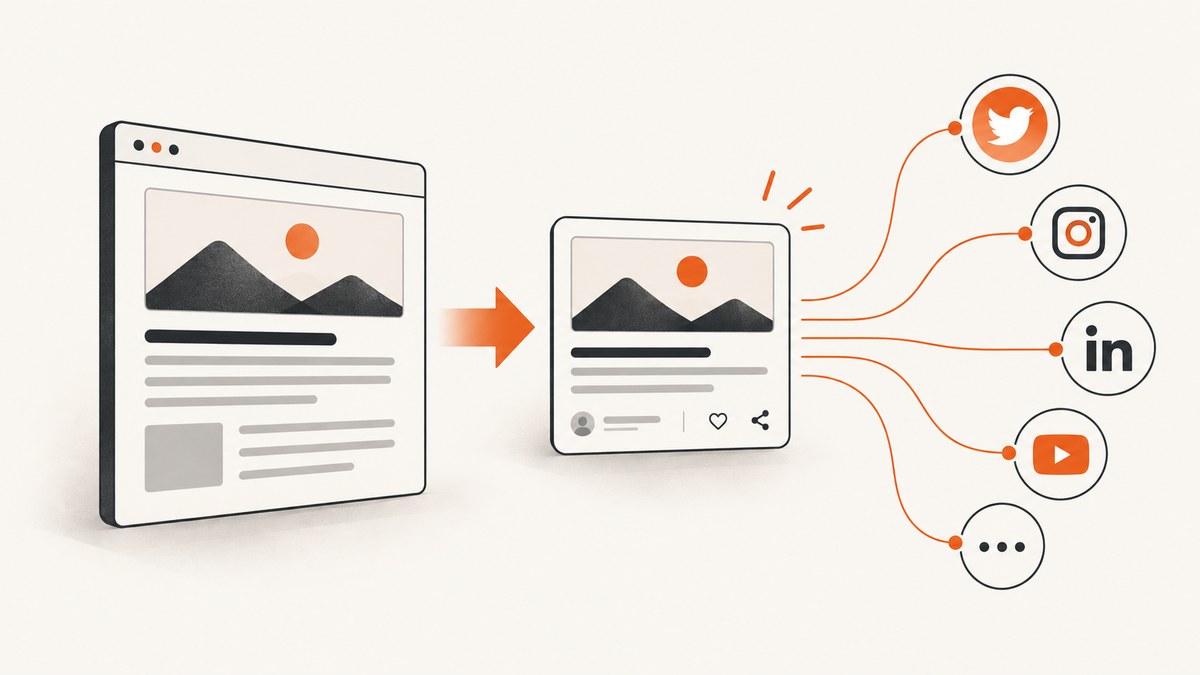
Direct answer: Use a 1200 × 630 pixel image as a practical default for Open Graph previews. That is approximately a 1.91:1 aspect ratio. Add the required og:title, og:type, og:image, and og:url properties, keep the image publicly fetchable, and verify the result with the destination platform’s inspector after publishing. This size is a cross-platform starting point, not a universal rule: LinkedIn specifies a 1200 × 627 pixel minimum and 5 MB maximum, while Wix recommends 1200 × 630 pixels and an 8 MB maximum.
What Open Graph image parameters control
The Open Graph Protocol lets a web page become a rich object in a social graph. Its metadata tells a sharing service which title, type, image, and canonical URL to use when someone shares a page.
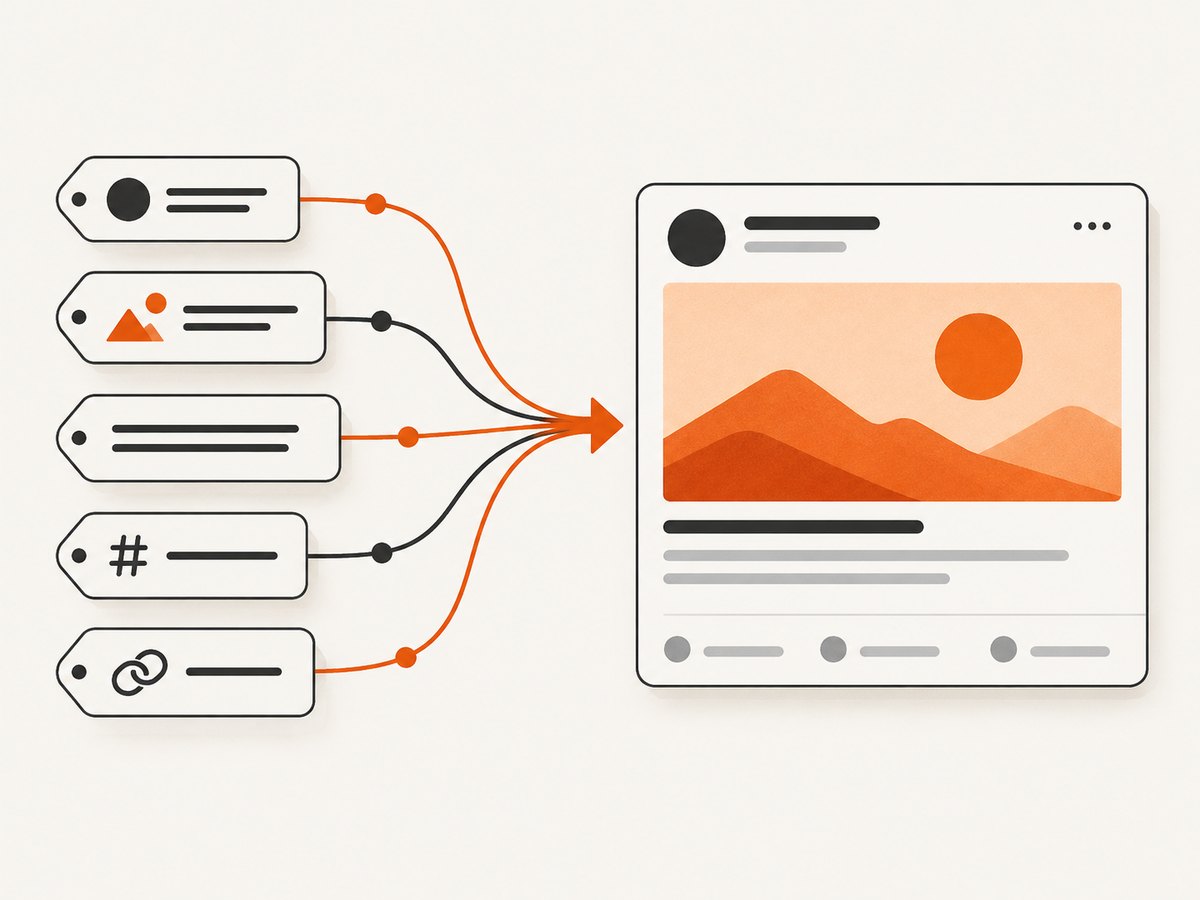
The four basic properties are:
og:title: the title shown in the preview.og:type: the object type, commonlywebsiteorarticle.og:image: an absolute URL to the preview image.og:url: the canonical URL of the page being shared.
The image itself is described with optional structured properties. og:image:url is equivalent to og:image; og:image:secure_url supplies an HTTPS version; og:image:type identifies the MIME type; og:image:width and og:image:height declare pixel dimensions; and og:image:alt describes what is in the image. The protocol says the alt value should describe the image, rather than act as a caption. See the Open Graph Protocol documentation.
The recommended size and aspect ratio
A 1200 × 630 image has a 1.9048:1 ratio, usually rounded to 1.91:1. It gives sharing services enough pixels for a large preview while matching the layout expected by many platforms.
| Source or platform | Guidance | Limit |
|---|---|---|
| General starting point | 1200 × 630 pixels, about 1.91:1 | Confirm the target platform before publishing |
| 1200 × 627 pixels minimum; 1.91:1 recommended | 5 MB maximum; images under 401 pixels wide display as a thumbnail | |
| Wix | 1200 × 630 pixels | 8 MB maximum; images below 600 × 315 may display as a small preview |
These are platform specifications or vendor recommendations, not a guarantee that every service will display the same crop. If one network is your primary destination, use its current documentation as the final authority. The OG Image Design size guide is useful for cross-platform comparison, but platform-specific requirements can change.
Designing inside a safe area
Keep logos, headings, faces, and other essential details away from the outer edges. A service may crop the image differently on mobile, in a feed, or in a message composer. Test the important content at the intended preview size rather than assuming the complete 1200 × 630 canvas will always be visible.
Complete HTML metadata example
Place the tags in the document’s <head>. Use an absolute HTTPS image URL and the canonical page URL, not the image URL, for og:url.
<!doctype html>
<html lang="en">
<head>
  <meta charset="utf-8">
  <title>Open Graph Image Parameters Explained</title>
  <link rel="canonical" href="https://example.com/open-graph-parameters">

  <meta property="og:title" content="Open Graph Image Parameters Explained">
  <meta property="og:type" content="article">
  <meta property="og:image" content="https://example.com/images/og-parameters.webp">
  <meta property="og:url" content="https://example.com/open-graph-parameters">
  <meta property="og:image:secure_url" content="https://example.com/images/og-parameters.webp">
  <meta property="og:image:type" content="image/webp">
  <meta property="og:image:width" content="1200">
  <meta property="og:image:height" content="630">
  <meta property="og:image:alt" content="Diagram showing Open Graph metadata becoming a social preview">

  <meta name="description" content="Open Graph image sizes, parameters, and debugging steps.">
</head>
</html>
When declaring multiple images, provide each image with its own og:image value and place its structured properties immediately after that declaration. The first image is preferred when there is a conflict.
Formats, accessibility, and URL requirements
Choose a format the crawler can fetch
Use a normal web image URL with the declared MIME type. WebP, JPEG, and PNG are common choices; the practical requirement is that the target service can retrieve and decode the resource within its limits. Keep the file below the destination service’s maximum size, and avoid an image endpoint that requires a login, a short-lived browser session, or an authorization header.
Declare dimensions
Width and height metadata helps consumers understand the resource before downloading it. It does not resize the image; the actual pixel dimensions still need to match your intended ratio.
Write useful alternative text
og:image:alt should describe the visual content, such as “Illustration of a browser request returning a social preview card.” Do not use it as a second headline or a marketing slogan.
Platform-specific behavior
Platforms differ in the tags they read, the crop they apply, their file-size limits, and how they cache previews. LinkedIn says its sharing module expects Open Graph properties and a 1.91:1 image ratio. Secondary platform documentation describes X as reading twitter:card, twitter:title, twitter:description, and twitter:image, with Open Graph fallbacks; summary_large_image is the full-width card option. Confirm current behavior in the target platform’s own developer guidance before relying on a disputed or changing detail.
Do not assume that changing the image file alone will immediately change a preview. A platform may retain the old page or image in its cache. Use its URL inspector or debugger after the new response is live.
Implementation and verification checklist
- Create the image at 1200 × 630 pixels unless the destination has a more specific requirement.
- Export a web-friendly file within the platform’s size limit.
- Add
og:title,og:type,og:image, andog:url. - Add
og:image:width,og:image:height,og:image:type, andog:image:altwhen applicable. - Make sure the image and HTML page are reachable by an unauthenticated crawler over HTTPS.
- View the raw page source, not only a client-rendered DOM inspector, to confirm the tags are present in the response.
- Run the URL through the relevant inspector after deployment.
- Repeat the check for each important destination because limits and cache behavior differ.
Generating and checking previews with ScreenshotNeo
If you need a repeatable capture of the rendered page while reviewing an Open Graph implementation, ScreenshotNeo can return a PNG, JPEG, WebP, or PDF from one GET request. It accepts options for full-page capture, a CSS-selected element, custom CSS and JavaScript, headers, cookies, user agents, waits, blocked resources, caching, and more. Its capture can remove consent banners, newsletter popups, and chat widgets before the shot.
Here is a direct request for a rendered preview:
curl -G "https://api.screenshotneo.com/v1/shot" -d access_key=YOUR_API_KEY --data-urlencode url=https://example.com/open-graph-parameters -o shot.webpPython:
import requests
r = requests.get("https://api.screenshotneo.com/v1/shot", params={"access_key": "YOUR_API_KEY", "url": "https://example.com/open-graph-parameters"}, timeout=90)
open("shot.webp", "wb").write(r.content)
Node.js:
const q = new URLSearchParams({ access_key: 'YOUR_API_KEY', url: 'https://example.com/open-graph-parameters' });
const res = await fetch(`https://api.screenshotneo.com/v1/shot?${q}`);
See the ScreenshotNeo documentation for the complete option list and response details.
Or skip the browser setup
Use the same ScreenshotNeo call when you want a clean visual check without maintaining browser automation. Cookie banners, newsletter popups, and chat widgets are removed before the shot. Bot checks, blank pages, timeouts, failed loads, and cache hits are not billed; response headers identify the page verdict and billing result. An MCP server provides take_screenshot, get_page_info, and capture_pdf tools for Claude, Cursor, and other MCP clients. The Free plan includes 1,000 screenshots each month with no card, and paid plans start at $5 for 3,000 shots.
Create a free ScreenshotNeo account and use the result while checking your social previews.
Troubleshooting common failures
| Symptom | Likely cause | Fix |
|---|---|---|
| No image appears | The crawler cannot fetch the image, or the image is protected | Open the absolute image URL without a login, remove access restrictions, and check robots, firewall, and CDN rules. LinkedIn specifically notes that crawler blocking or protected storage can prevent an image from appearing. |
| Old image remains | Cached page or image data | Use the destination platform’s debugger or inspector to request a fresh fetch, then verify the response again. |
| Image is cropped | Aspect ratio differs from the target card | Start with 1200 × 630 or the platform’s stated ratio, and keep key content in a central safe area. |
| Preview is tiny | Image is below the platform’s minimum width | Use a larger source. LinkedIn says images under 401 pixels wide display as a thumbnail; Wix says images below 600 × 315 may display as a small preview. |
| Wrong page title or URL | Incorrect or duplicated metadata, or a mismatch between canonical and shared URLs | Inspect the raw HTML, keep one intended value for each basic property, and point og:url at the canonical page. |
| Tags exist in browser tools but not to crawlers | Metadata is injected only after JavaScript runs | Render the tags in the server response or static HTML, then confirm with an HTTP fetch and the platform inspector. |
| File rejected | Unsupported format, excessive size, or invalid MIME declaration | Use a standard image format, declare the matching MIME type, and stay below the service’s current size limit. |

Performance, reliability, and cost considerations
Keep the asset fast to retrieve
Social crawlers have finite fetch time. Serve the image from a stable HTTPS endpoint, avoid unnecessary redirects, and return the correct Content-Type. A compact file reduces transfer time and helps stay under size limits. If you generate images dynamically, cache the final asset at a stable URL.
Make previews deterministic
Use a versioned image URL when you need to replace an asset, then refresh the platform cache through its inspector. Keep the page’s canonical URL stable so analytics, search engines, and social shares refer to the same object.
Budget for the actual service
Open Graph metadata itself has no protocol fee. Costs come from image generation, storage, bandwidth, or optional rendered-page capture. ScreenshotNeo bills only clean shots; failed loads, bot checks, blank pages, timeouts, and cache hits are free, and its plans include every feature: Free 1,000 shots/month, Starter $5 for 3,000, Growth $15 for 15,000, Pro $39 for 60,000, Scale $99 for 250,000, and Business $249 for 1,000,000. Yearly billing gives two months free.
FAQ
Is 1200 × 630 mandatory?
No. It is a practical general default. Use the current specification of the platform that matters most to your audience.
Should og:url contain the image URL?
No. og:url identifies the canonical web page. Put the image URL in og:image.
Do I need both og:image and og:image:url?
og:image:url is equivalent to og:image. A normal implementation can use og:image and the optional structured properties.
Why does a valid image still fail in a preview?
The crawler may be blocked, the file may be protected, the platform may have stale cache data, or the response may violate a size or format limit. Use the platform inspector and check the image URL directly.
Can one image work everywhere?
Often, but not always. A 1200 × 630 file is close to LinkedIn’s 1.91:1 recommendation and Wix’s recommendation. Test important destinations individually.
How do I inspect a page without building browser automation?
Use ScreenshotNeo’s API or MCP server to capture the rendered page, with consent banners and distracting widgets removed before capture. Start with the free account.


