Open Graph Image Requirements for Social Platforms
Use a 1200×630 image as a practical social-sharing default, then check each platform’s documented limits, metadata, and crawler access.
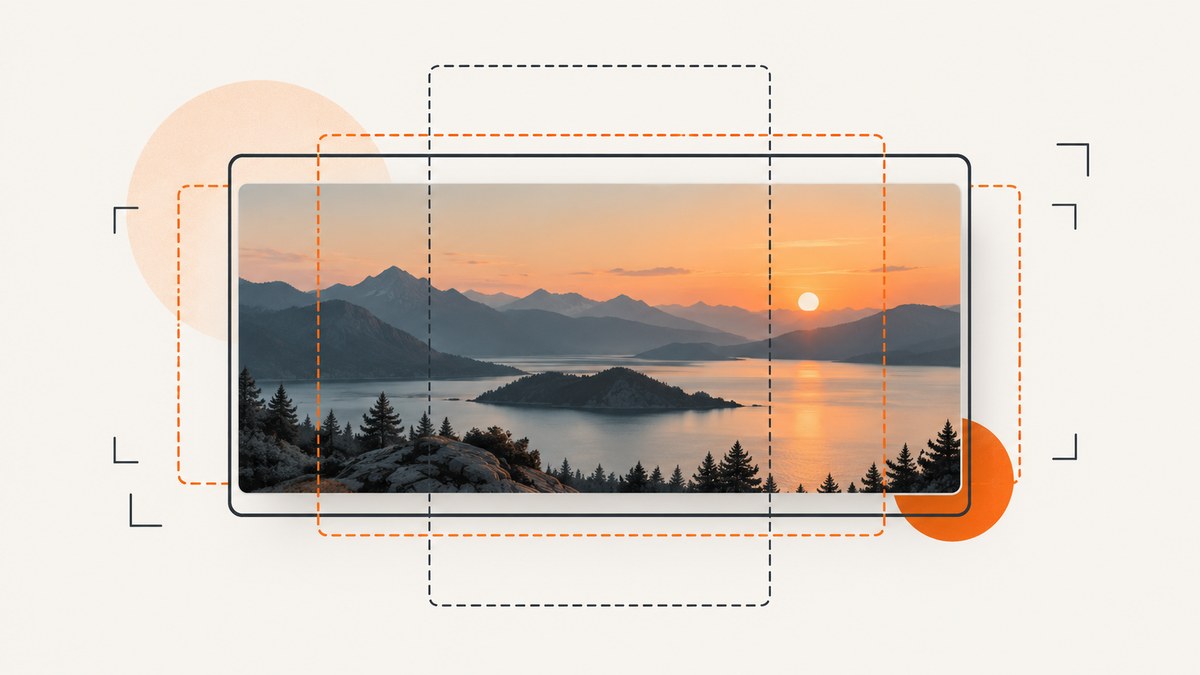
A practical starting point for social link previews is a high-resolution landscape image around 1200×630 pixels (about 1.91:1). Add the required Open Graph tags in the page’s <head>, serve the image at an absolute HTTPS URL that crawlers can fetch, and keep the subject clear of the edges in case a platform crops it.
There is no single Open Graph image size or file-size limit that applies to every platform. Treat 1200×630 as a broadly compatible working canvas, then check specific requirements: LinkedIn documents a 1200×627 minimum and a 5 MB limit for organic link previews. Google Discover has separate large-image guidance: at least 1200 pixels wide, more than 300,000 total pixels, a 16:9 presentation, and max-image-preview:large.
1. What Open Graph image tags do you need?
The Open Graph protocol requires og:title, og:type, og:image, and og:url. The og:image value points to the image representing the page. If you provide multiple og:image values, the first one takes precedence, so put the preferred image first.
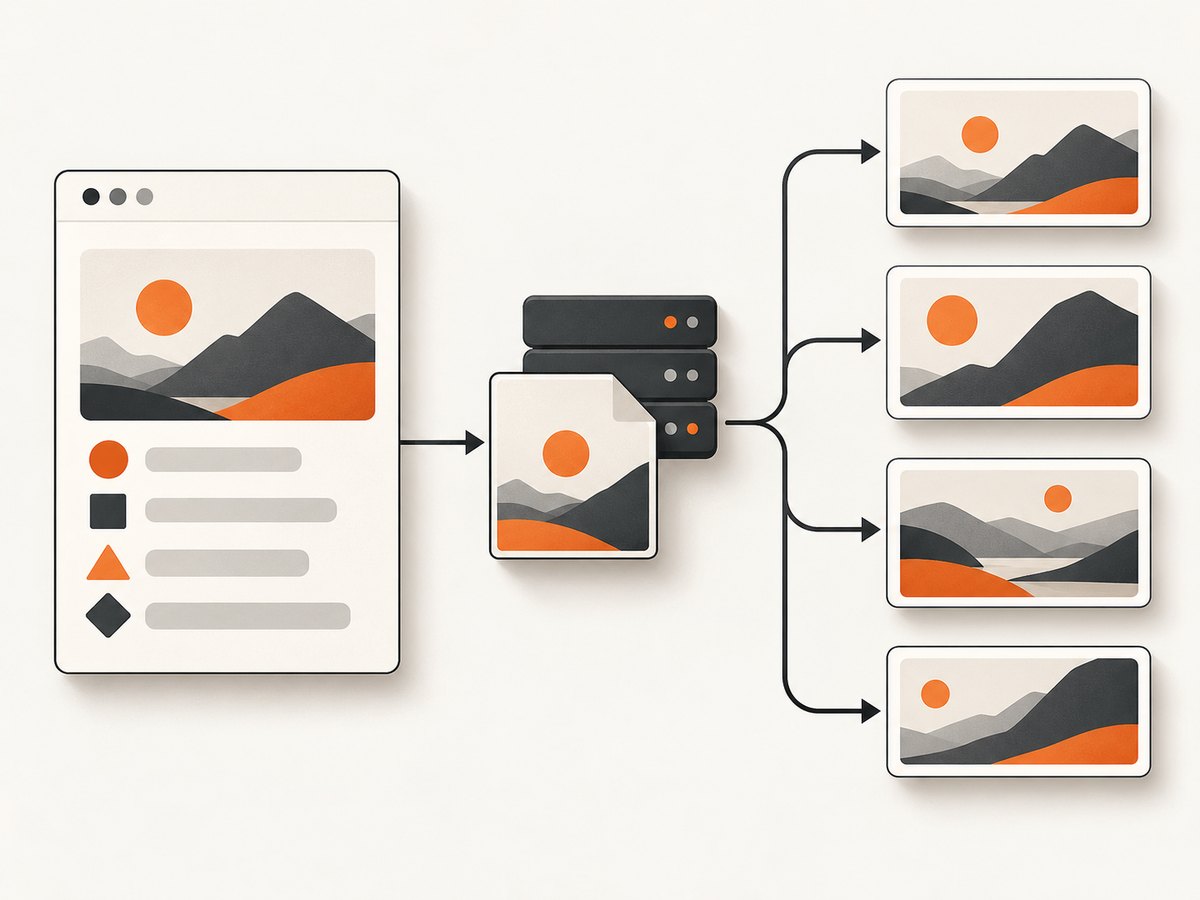
Place the tags in the document head. Use an absolute URL for the image, including the scheme and host. Add width and height metadata to describe the image you intend crawlers to use.
<!doctype html>
<html lang="en">
<head>
  <meta charset="utf-8">
  <title>Page title</title>
  <meta property="og:title" content="Page title">
  <meta property="og:type" content="website">
  <meta property="og:url" content="https://example.com/page">
  <meta property="og:image" content="https://cdn.example.com/images/page-og.jpg">
  <meta property="og:image:width" content="1200">
  <meta property="og:image:height" content="630">
</head>
<body>...</body>
</html>
Replace the example title, canonical page URL, and image URL with values for the page being shared. The image URL should return the image itself, not an HTML page, an authenticated download page, or a redirect that requires a browser session.
Choosing the image
Choose an image that represents the page’s actual subject. Google recommends a relevant, representative, high-resolution image and advises against using a generic logo or an extreme aspect ratio. A logo can identify a brand, but on its own it may tell a reader little about the linked page.
Use a landscape crop close to 1.91:1 for the practical cross-platform canvas. Keep faces, product details, and any essential visual information away from the outer edges. A platform may display a crop or thumbnail rather than the full source rectangle. If text is essential to understanding the image, make sure it remains legible after a tighter crop; for search-oriented imagery, Google advises against text-heavy or generic-logo images.
2. Platform-specific image guidance
Do not turn a working default into a universal specification. The Open Graph protocol defines metadata fields; individual services decide how they fetch and render previews. The concrete figures below are platform-specific guidance from the cited sources.
| Context | Documented guidance | Practical response |
|---|---|---|
| Open Graph protocol | Requires og:title, og:type, og:image, and og:url. It does not set one universal image size or file ceiling. |
Supply the required tags and use a clear, fetchable image URL. |
| LinkedIn organic sharing | Minimum 1200×627 pixels; maximum 5 MB; JPG, PNG, or GIF accepted. | Use an image at least 1200×627 and keep the file below 5 MB when LinkedIn compatibility matters. |
| Google Discover | At least 1200 pixels wide, over 300,000 total pixels, 16:9 presentation, and max-image-preview:large. |
Provide a sufficiently large representative image and enable the large image preview directive. |
| Facebook and X previews | These sources do not establish current numeric limits for these services. | Use the broad 1200×630 starting point, inspect the resulting preview, and verify current platform-specific rules before relying on a narrower limit. |
A 1200×630 image is 1.91:1 when rounded and is close to LinkedIn’s documented 1200×627 dimensions. It is not an assurance that every network will display identical crops or accept identical file formats and file sizes. For Discover, use a 16:9 image that also meets its width and total-pixel guidance; 1200×675 meets those pixel thresholds.
Google’s Discover guidance is separate from social link-preview requirements. If Discover is a goal, add this directive in the page head:
<meta name="robots" content="max-image-preview:large">If the page already has a robots meta tag, include the directive in that existing tag rather than creating conflicting directives.
3. Generate the image and wire it into a page
- Choose a representative visual. Match the page’s subject and select a crop that still makes sense at landscape preview proportions.
- Export a large source image. For a broad social default, create a 1200×630 image. If targeting Discover, provide a 16:9 image at least 1200 pixels wide and above 300,000 pixels total.
- Check platform constraints. For LinkedIn organic link previews, use JPG, PNG, or GIF and keep the file under 5 MB.
- Publish at a stable HTTPS URL. The image must be accessible to the platform’s crawler without an interactive login or browser-only state.
- Add metadata in the rendered head. Include the four required Open Graph fields and the image dimensions. Make sure the URL in
og:urlidentifies the page being shared. - Inspect what a crawler receives. Check the final rendered HTML and request the image URL externally. Confirm the response is the intended image and that the host does not deny crawler access. These are implementation checks; they do not imply that a particular platform debugger has been tested.
- Review the preview and adjust the composition. If the subject is clipped, revise the source crop or move important details inward. If a platform has cached an earlier image, changing the page HTML alone may not immediately change the displayed preview.
For generated pages, place metadata in the server-rendered HTML head whenever possible. A crawler that reads the initial response may not execute the same client-side JavaScript as a normal browser, so do not assume that tags inserted only after hydration will be visible to every preview crawler.
4. Why a preview image is missing or cropped
| Symptom | Likely cause | What to check or change |
|---|---|---|
| No image appears | The og:image tag is missing, malformed, or absent from the HTML the crawler fetched. |
Inspect the rendered source and confirm the property name and content URL are present in the head. |
| The wrong image appears | Several image tags exist and the preferred image is not first, or a cached preview still shows an older value. | Put the desired image first, inspect all emitted tags, and allow for platform cache behavior. |
| The image works in a browser but not in a preview | The URL may require a session, block crawler requests, return an error, or lead through an unsupported redirect. | Request the absolute URL without a logged-in browser and verify it serves the image successfully. |
| The image is visibly clipped | The displayed preview uses a crop or a different aspect ratio than the source. | Keep the subject and important details away from the image edges; revise the crop if needed. |
| The image looks soft | The source may be too small for the rendered preview or has been enlarged. | Export a high-resolution landscape source at the intended dimensions or larger. |
| LinkedIn omits or rejects the image | The image may be below 1200×627, over 5 MB, or outside JPG, PNG, or GIF. | Meet LinkedIn’s documented minimum, size ceiling, and accepted formats. |
| Tags look right in a template but not on the live page | Deployment, caching, or client-side rendering may serve different HTML from the template. | Fetch the published page and inspect its actual response, then check the image URL from an unauthenticated request. |
Do not treat every failed preview as an image-dimension problem. First distinguish metadata issues from image delivery issues: verify the exact HTML response, then fetch the exact image URL, then assess the crop and platform limits.
5. Capture and inspect social preview images
A screenshot can help document how a page or preview appears while you inspect layout changes. A browser automation setup gives you control over the viewport and browser state, but it adds browser installation, page-load handling, and output management. The example below uses Playwright’s documented Node.js library to open a page and save a screenshot.
import { chromium } from 'playwright';

const browser = await chromium.launch({ headless: true });
const page = await browser.newPage({ viewport: { width: 1200, height: 630 } });
await page.goto('https://example.com/article', { waitUntil: 'networkidle' });
await page.screenshot({ path: 'preview-check.png' });
await browser.close();
Install Playwright and its browser binary according to its official setup guide before running this script. For a page that continues making network requests, networkidle may not be reached promptly; choose a suitable page-ready condition or wait for a selector that identifies the content you need. A browser screenshot shows the rendered page, not necessarily the image a social platform has fetched. To verify the latter, inspect the metadata and request the image URL directly.
Or skip the browser setup
ScreenshotNeo provides a single-call website screenshot API. The same API can return a clean PNG, JPEG, WebP, or PDF. For example, capture a page for visual inspection with cURL:
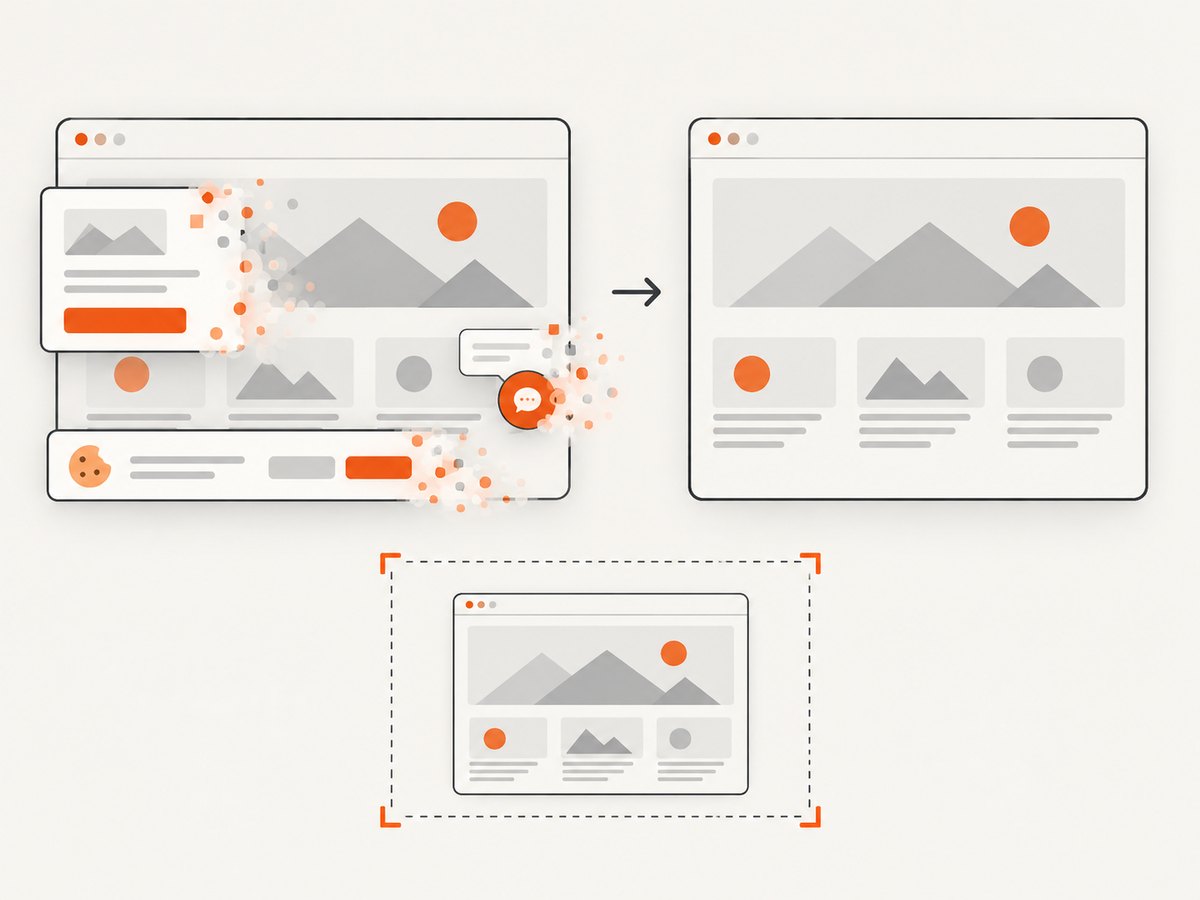
curl -G "https://api.screenshotneo.com/v1/shot" -d access_key=YOUR_API_KEY --data-urlencode url=https://example.com/article -o shot.webpSee the ScreenshotNeo API documentation for request options. ScreenshotNeo accepts cookie and consent banners like a visitor and removes more than 60 known consent platforms, newsletter popups, and chat widgets before capture; each cleanup step can be turned off. Bot checks and CAPTCHAs, blank pages, failed loads, timeouts, and cache hits are not billed, and response headers identify the page verdict and billing status. Its MCP server gives Claude, Cursor, and other MCP clients screenshot, page-info, and PDF tools. The free plan includes 1,000 screenshots each month with no card; paid plans start at $5 for 3,000 screenshots. See ScreenshotNeo and sign up for 1,000 free screenshots a month with no card.
6. Performance, reliability, and cost considerations
Choose image dimensions large enough for the intended use, but avoid exporting an unnecessarily huge file. The sources here give LinkedIn’s 5 MB maximum, not a universal optimal file size or a performance benchmark. Compress the image while preserving clear details, and verify that the resulting file remains within the relevant platform limit.
For reliability, use a stable, public HTTPS image location, keep the file URL consistent with the metadata, and check that publishing or CDN rules do not require cookies. After updating an image, remember that platforms may reuse a cached preview; the research does not specify a universal cache duration or refresh mechanism. Verify the actual preview on the target service and consult its current guidance if a refresh control is needed.
For routine site operation, generate the social asset as part of the page publishing workflow and validate the final URL and tags before publishing. If you capture pages for review, account for browser startup, load waits, and output storage in your own setup. With a screenshot service, check which page outcomes are billed and whether returned headers distinguish a successful capture from a blank or blocked page; ScreenshotNeo exposes verdict and billing headers and states that unsuccessful or cached outcomes listed above cost nothing.
7. Final publishing checklist
- Required Open Graph fields are present in the published document head:
og:title,og:type,og:image, andog:url. - The image URL is absolute, HTTPS, publicly fetchable, and returns the intended image.
- The preferred image is the first
og:imageif multiple values are supplied. - The image is representative, high-resolution, landscape, and composed with crop safety in mind.
- The broad working canvas is near 1200×630; LinkedIn-specific checks meet 1200×627 minimum, 5 MB maximum, and JPG, PNG, or GIF format.
- For Discover, the image is at least 1200 pixels wide, exceeds 300,000 pixels, presents at 16:9, and the page enables
max-image-preview:large. - The rendered page and image have been checked as an external crawler would receive them.
8. Frequently asked questions
Is 1200×630 an official universal Open Graph requirement?
No. It is a practical cross-platform target. The Open Graph protocol does not set one universal image dimension for all platforms.
Should I use a different image for Discover?
You can use a suitable 16:9 version that meets Google’s Discover size guidance. A 1200×675 image satisfies the stated width and total-pixel thresholds.
Can I put more than one og:image tag on a page?
Yes. When multiple values are present, the first image wins, so put the preferred image first.
Does a successful browser load prove that a platform can fetch the image?
No. A normal browser may have cookies or access unavailable to a crawler. Check the exact public image URL without a logged-in session.
Do screenshot previews replace social preview validation?
No. A screenshot records a browser rendering; it does not prove which metadata or cached image a social platform uses for its link preview.


