Open Graph Image File Size Limits and Optimization
Use 1200 × 630 pixels as a practical Open Graph image starting point, then check each platform’s file-size and format requirements. Here’s how to optimize and troubleshoot previews.

Quick answer: Start with a 1200 × 630 pixel image (about 1.91:1) for broad Open Graph sharing compatibility. Treat that as a practical canvas recommendation, not a universal protocol rule or a guarantee that every platform accepts the same dimensions, file size, or format. Check the current requirements for each destination. LinkedIn, for example, specifies a 1200 × 627 pixel minimum, a 1.91:1 ratio, JPG, PNG, or GIF, and a 5 MB maximum for its sharing module.
Optimize the image for its content: use a lossy format such as JPEG, WebP, or AVIF for photographic artwork when the destination supports it; inspect sharp graphics and text carefully for compression artifacts. The goal is the smallest file that still looks right in the preview and meets the destination’s rules.
1. What Open Graph requires—and what it leaves to platforms
The Open Graph Protocol defines og:image as a URL for an image that represents an object in the social graph. It does not define one universal pixel size or byte limit for every service that consumes the metadata. The protocol property and a platform’s sharing-preview policy are separate layers. See the Open Graph Protocol.
That distinction matters when a preview is missing or cropped. Valid Open Graph metadata does not guarantee that a destination will fetch, accept, or display the image as expected. Platforms can set their own minimum dimensions, aspect-ratio preferences, maximum file sizes, and accepted formats; those requirements can also change.
Practical starting dimensions
A 1200 × 630 canvas is a useful general starting point for one image intended for multiple destinations. It is approximately 1.91:1. This is a cross-platform recommendation, not an official shared limit. Keep essential artwork, text, and logos comfortably away from the outer edges because preview layouts can crop the image differently. A current secondary guide recommends this canvas; verify specific platform rules against their own documentation.
LinkedIn’s published sharing guidance gives a 1200 × 627 pixel minimum and recommends a 1.91:1 ratio. The slight difference from 1200 × 630 illustrates why a general canvas is a starting point rather than an exact universal specification. LinkedIn’s sharing module accepts JPG, PNG, and GIF images up to 5 MB. These are sharing-module requirements, distinct from its ad specifications. See LinkedIn’s sharing help.
2. Check the requirements for each destination
Before exporting, record the platforms that matter to your site. Compare their documented minimum dimensions, preferred aspect ratio, maximum file size, and supported formats. Use first-party documentation for platform-specific limits whenever available.
| Source or destination | What is documented | How to use it |
|---|---|---|
| Open Graph Protocol | og:image is an image URL representing the object. The protocol page does not give one universal dimension or byte cap. |
Implement the metadata property; separately check each destination’s preview rules. |
| LinkedIn sharing module | Minimum 1200 × 627 pixels; recommended 1.91:1 ratio; JPG, PNG, or GIF; maximum 5 MB. | Keep a compliant LinkedIn asset, and check the current help page before relying on these limits. |
| General cross-platform guidance | A secondary guide recommends 1200 × 630 pixels. It reports differing platform ceilings, but those should not be treated as authoritative current limits. | Use the canvas as a starting point, then confirm requirements with platform owners. |
| X | Current first-party file-size, dimension, and format limits were not verified for this article. | Do not rely on unverified secondary numbers as current official requirements. |
Requirements can vary between a service’s sharing preview and its advertising products. Check that you are reading the specification for the feature you actually use. For example, LinkedIn’s sharing-module guidance should not be confused with its separate ad image requirements.
3. Build and export an image that survives previews
- Choose a canvas. For one broadly reusable image, begin at 1200 × 630 pixels. If a target platform publishes a different minimum or aspect ratio, decide whether it needs its own version.
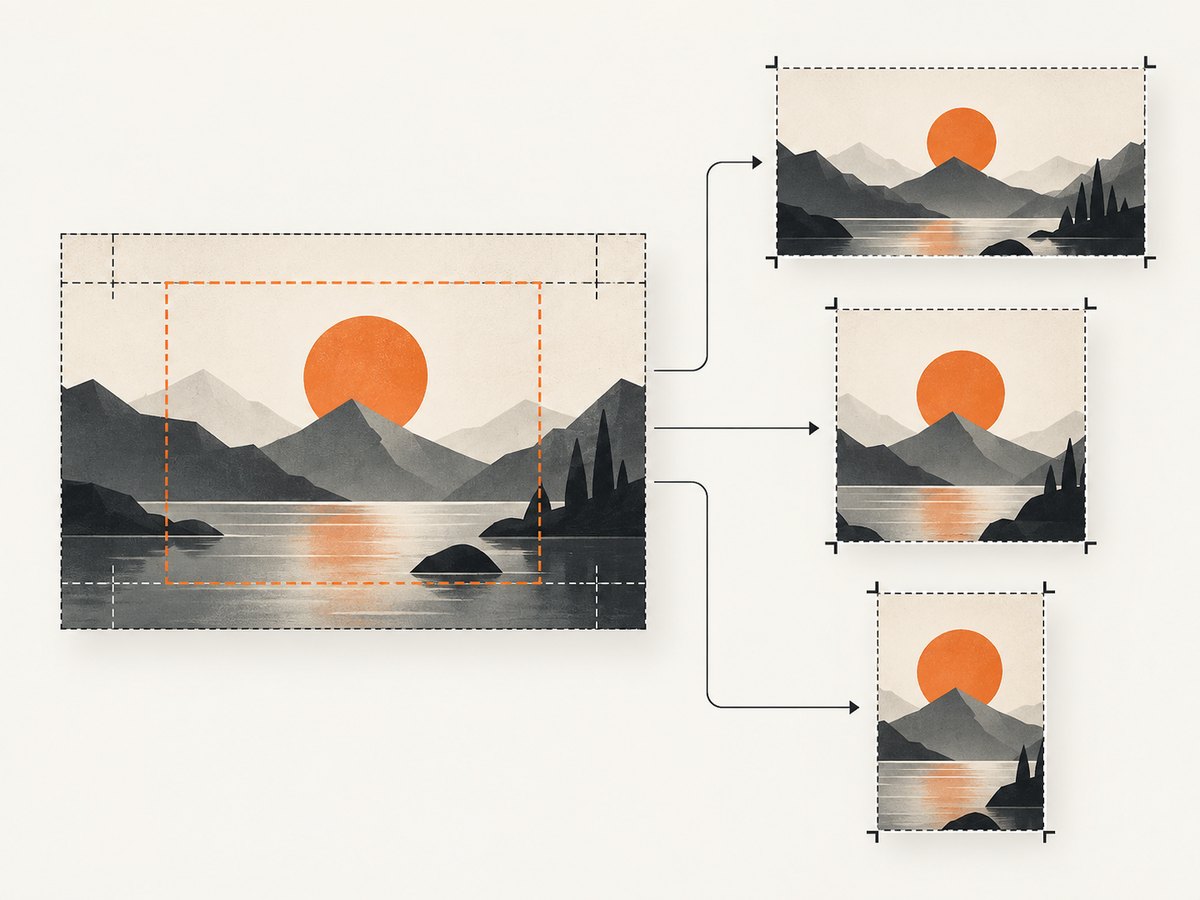
- Protect the composition. Keep any important title, logo, or focal detail in a central safe area. Preview cards may crop edges or display the image at small sizes. Avoid placing critical content right against the canvas boundary.
- Select a format based on the artwork and destination. For photographs, lossy JPEG, WebP, or AVIF may reduce file size while retaining acceptable appearance. Graphics with sharp edges, flat colors, or small text need careful inspection; try a suitable lossless option when lossy compression damages detail. LinkedIn specifically lists JPG, PNG, or GIF for its sharing module.
- Export and inspect. View the result at the small size where a share preview is likely to appear. Look for blockiness, halos, blurred text, banding, and color shifts. Compare the export with the source rather than assuming a particular quality setting will work for every image.
- Check dimensions and bytes. Confirm the exported file’s actual pixel dimensions and file size, not just the design document’s settings. For LinkedIn sharing, keep the image at or below its documented 5 MB maximum and at least 1200 × 627 pixels.
- Check delivery and metadata. Make sure the page includes an absolute
og:imageURL and that the image is reachable by the service fetching the share preview. If the image or metadata changes, recheck the destination’s current preview and refresh behavior.
Lossy versus lossless in practice
There is no single encoding or quality value that works for every image. Web.dev’s guidance is to weigh visual quality against functional requirements. Lossy JPEG, WebP, or AVIF can be suitable for photographic content; sharp graphics or text may need a different compression balance. Compare the rendered output with the original and select the smallest file that still meets visual and platform requirements. See web.dev’s image performance guidance.

AVIF can be much smaller than JPEG, PNG, GIF, or WebP at comparable quality, but a smaller file is useful only if the preview-fetching service can read the format. Support is a compatibility decision, not something to assume. Where support is uncertain, use a broadly supported fallback or provide a platform-specific asset. See the web.dev AVIF material.
4. Add Open Graph metadata to a page
Set the metadata in the page’s HTML head. The following is a minimal example; replace the domain, title, description, and image URL with values for your page. The image URL should point to the actual exported asset.
<head>
  <meta property="og:title" content="A useful page title">
  <meta property="og:description" content="A concise description of the page.">
  <meta property="og:type" content="website">
  <meta property="og:url" content="https://example.com/guides/example">
  <meta property="og:image" content="https://example.com/images/example-share.jpg">
</head>
Metadata alone cannot fix an image that is oversized, unsupported, unreachable, or composed in a way that gets cropped badly. Confirm both the page tags and the asset served at the declared image URL.
5. Optimize and inspect the asset from the command line
Image tooling differs, so treat these commands as examples of a repeatable workflow rather than universal quality prescriptions. Install the relevant utility using its official instructions first. Use a copy of the source image, inspect output, and adjust quality for your artwork.
JPEG with ImageMagick
# Resize to a 1200 × 630 canvas, then inspect the result visually.
magick source.jpg -resize 1200x630^ -gravity center -extent 1200x630 -quality 82 og-image.jpg

# Check the resulting dimensions and file size.
magick identify og-image.jpg
ls -lh og-image.jpg
The resize-and-extent example crops to fill the target canvas. If cropping would remove important content, use a contain fit or revise the composition instead. The quality value is only an initial trial; compare outputs at preview size.
WebP with cwebp
# Encode a WebP candidate. Adjust quality and inspect before using it.
cwebp -q 82 source.png -o og-image.webp

# Inspect dimensions and bytes with available system tools.
file og-image.webp
ls -lh og-image.webp
Do not assume a destination accepts WebP just because it supports the image elsewhere. Check that destination’s current sharing specification. If support is not established, serve a compatible format for that destination.
AVIF with avifenc
# Create an AVIF candidate; options vary by encoder version.
avifenc --help
avifenc source.png og-image.avif

file og-image.avif
ls -lh og-image.avif
Encoder defaults and available quality controls vary by version. Consult the installed encoder’s help, make a candidate, and compare it visually. Confirm that the platform fetching the preview supports AVIF before using it as the only image.
6. Troubleshooting missing, oversized, or poor previews
| Symptom | Likely cause | What to check or change |
|---|---|---|
| Image does not appear | The image URL is wrong, inaccessible to the preview fetcher, or not the value being read from the page metadata. | Inspect the rendered page head and request the exact absolute image URL. Check the response and ensure the image is served as an image. |
| Platform rejects or omits the image | Dimensions, byte size, or format may fall outside that platform’s rules. | Use the destination’s current official sharing requirements. For LinkedIn sharing, check the 1200 × 627 minimum, JPG/PNG/GIF formats, and 5 MB ceiling. |
| Preview is cropped awkwardly | The platform’s preview presentation differs from the original canvas or uses a different crop. | Move key content inward, make a platform-specific crop where needed, and inspect the actual preview. |
| Image looks muddy or text is hard to read | Lossy compression is too aggressive, or the artwork is being viewed at a small preview size. | Raise quality, use a lossless export for sensitive edges where appropriate, simplify small text, and inspect at preview scale. |
| AVIF or WebP preview fails | The destination’s fetcher may not support the chosen format, or support was assumed without verification. | Check current first-party format guidance. Use a broadly supported fallback or a separate image for that destination. |
| Updated image does not show | The destination may still display a previously fetched preview, or the page may still declare an old image URL. | Check the page’s current og:image value and asset response. Use the destination’s official refresh or inspection tool if available. |
| One destination works and another does not | Destinations have different size, format, and preview rules. | Compare each platform’s first-party specification; keep destination-specific assets if one shared file cannot satisfy them. |
7. Performance, reliability, and cost considerations
Keep the image only as large as needed to render crisply in its intended preview. Oversized assets take longer to transfer, but over-compression can make the card look broken. Compare a few encodings at the actual preview size and check both visual quality and file bytes. The right result depends on the artwork and destination, so avoid treating any one quality number as a universal optimum.
Reliability depends on delivery as well as encoding. A valid asset must remain available at the URL in the page metadata and be readable by the platform’s fetcher. If you change the asset, check that the page points to the intended version and that the destination has picked it up. For destinations whose format support is uncertain, a compatible fallback reduces the chance that an efficient but unsupported format produces no preview.
Compression trades image bytes and visual fidelity; it does not require a particular paid tool. The sources for this guide do not establish a universal optimization service, cost, or savings percentage. Measure the resulting file and evaluate it against your own visual and platform constraints.
8. Capture a page preview without setting up a browser
If you also need a screenshot of the rendered page to review a preview or capture a page for documentation, ScreenshotNeo is a website screenshot API and MCP server for developers. A single GET request can return a PNG, JPEG, WebP, or PDF. ScreenshotNeo is made by Yorker Media. Its API documentation is at ScreenshotNeo docs.
Or skip the browser setup:
curl -G "https://api.screenshotneo.com/v1/shot" -d access_key=YOUR_API_KEY --data-urlencode url=https://example.com -o shot.webpCookie banners, newsletter popups, and chat widgets are removed before the shot; each cleanup step can be turned off. Bot checks, blank pages, and failed loads are never billed, and response headers say which page verdict applied and whether the request was billed. An MCP server gives AI agents such as Claude and Cursor tools to take screenshots, get page information, and capture PDFs. The free plan includes 1,000 screenshots a month with no card; paid plans start at $5 for 3,000. See the API docs for options and setup.
Sign up for 1,000 free screenshots a month, with no card required.
9. Frequently asked questions
Is 1200 × 630 an official Open Graph requirement?
No. It is a practical cross-platform recommendation. The protocol defines the image URL property, while individual destinations set their own preview requirements.
Can I use one image for every social platform?
Often you can start with one image, but confirm each destination’s current minimum dimensions, aspect ratio, file cap, and accepted formats. Use separate assets if one export does not meet all the relevant needs.
Should I always use AVIF because it can be smaller?
No. Smaller bytes do not help if a preview fetcher cannot decode the format. Use AVIF when destination compatibility is established; otherwise choose a known-supported format or fallback.
What is the maximum Open Graph image file size?
There is no single universal cap in the Open Graph Protocol. LinkedIn documents a 5 MB maximum for its sharing module; check other destinations’ current first-party documentation.
Does changing the image guarantee that an old share preview updates?
No. Confirm the page metadata and asset first, then follow the destination’s current preview refresh guidance if its displayed image has not changed.


