Open Graph Image Testers: How to Check and Fix Social Previews
Learn how OG image testers inspect tags, image files, and platform previews—and how to fix stale, missing, or inaccessible social cards.

An Open Graph (OG) image tester checks what social platforms can read from a public web page and what image they are likely to show when someone shares its URL. Paste in the page URL; the tester fetches its HTML, reads metadata such as og:image, tries to retrieve the image, checks properties such as dimensions and accessibility, and displays a preview. When a card is missing or stale, the useful question is not just “Is the tag present?” but “Can the platform’s crawler fetch the page and image, and has the platform refreshed its cached copy?”
This guide shows how to inspect a page manually, use a tester, diagnose common failures, and refresh previews. It also covers platform differences and a browser-based screenshot option for checking how a page itself renders.
1. What an Open Graph image tester checks
Open Graph is a set of metadata properties commonly placed in a page’s HTML head. A tester requests the URL as a crawler might, extracts the metadata, resolves the image URL, and may fetch that image to measure or validate it. More capable testers also report crawler-access problems and render sample link cards.
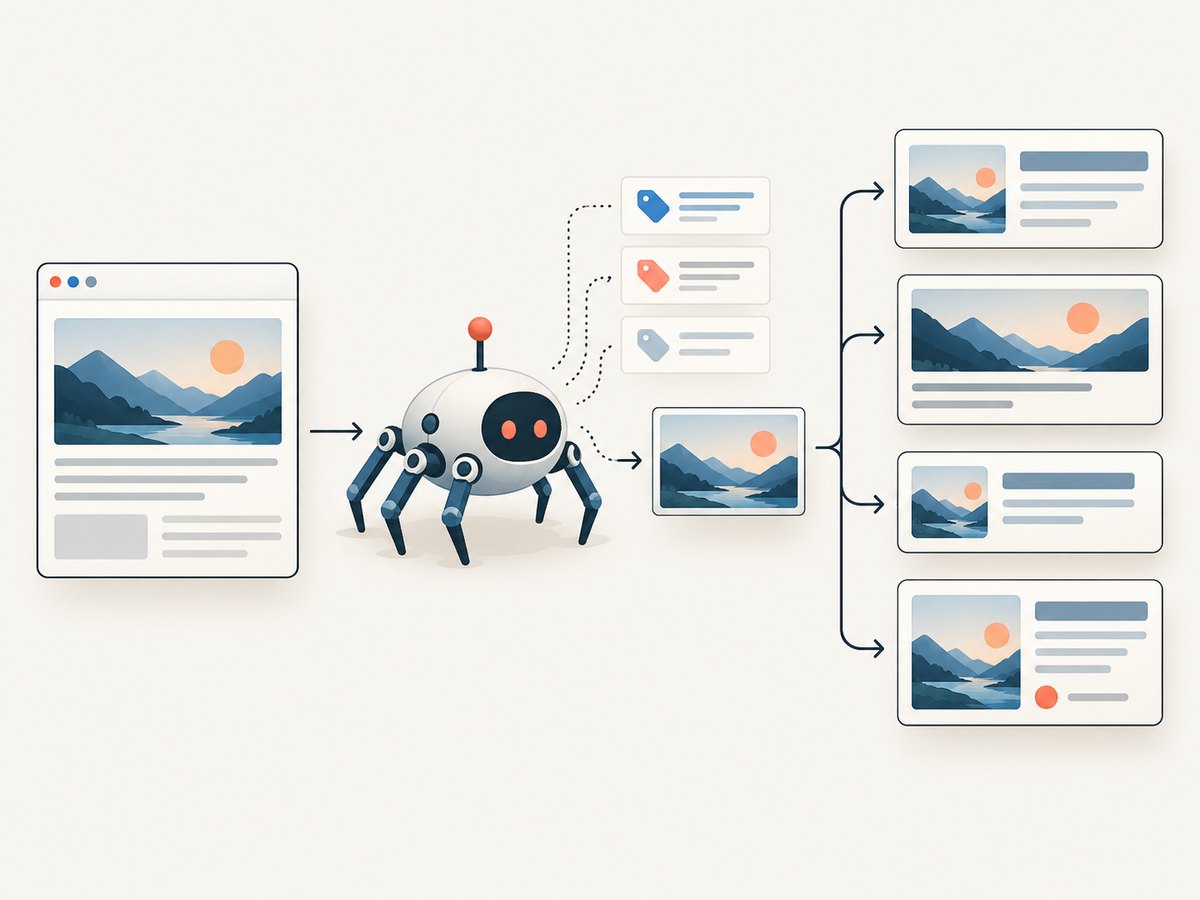
For example, OpenGraph.to documents checks for title, description, image, dimensions, HTTPS and alt text, with previews for several social and messaging platforms. MyOG.social reports the resolved image URL, dimensions, file size, Twitter/X fallback and crawler-blocking problems. These are examples of tester capabilities, not guarantees that every platform will render exactly as shown.
| Check | What it tells you |
|---|---|
| Metadata extraction | Whether the crawler-visible HTML contains the expected OG and, where relevant, Twitter Card tags. |
| Resolved image URL | Which image address the tester found, including whether it is absolute and points to the intended asset. |
| Image fetch and properties | Whether the image can be retrieved and its dimensions and sometimes file size. |
| Crawler access | Whether the page or image request appears blocked or otherwise inaccessible to a crawler. |
| Card preview | A visual approximation of how a particular platform may lay out the metadata and image. |
| Cache refresh guidance | Whether a platform-specific inspector can request a new crawl after a change. |
A preview is diagnostic, not a promise: platforms can cache prior crawls and apply their own fallback, crop, and rendering behavior.
2. Add the metadata a tester needs
Put the tags in the document head returned for the share URL. Use an absolute HTTPS URL for the image. The following is a practical baseline based on the common set documented by OpenGraphImage in the research dossier:
<!doctype html>
<html lang="en">
<head>
  <meta charset="utf-8">
  <title>Release notes | Example</title>
  <meta property="og:title" content="Release notes">
  <meta property="og:description" content="What changed in this release.">
  <meta property="og:image" content="https://example.com/images/release-card.png">
  <meta property="og:image:width" content="1200">
  <meta property="og:image:height" content="630">
  <meta property="og:url" content="https://example.com/releases/latest">
  <meta property="og:type" content="website">
  <meta property="og:site_name" content="Example">
  <meta name="twitter:card" content="summary_large_image">
</head>
<body>...</body>
</html>
Replace the example domain, copy and image dimensions with values for your page and asset. The declared width and height should describe the actual file; metadata cannot fix an incorrectly sized image. Add og:site_name when the site name is useful in platform interpretation. The Twitter Card value explicitly requests a large image layout on X; without it, fallback behavior may result in a smaller presentation.
3. Test a URL step by step
- Publish the page first. Test the public canonical URL users will share, not a local preview or an authenticated staging route.
- Run a multi-platform tester. Record the exact title, description, image URL, measured pixel dimensions, file size if available, and any access warning. A tester such as OpenGraph.to or MyOG.social can expose different subsets of these checks.
- Confirm the image asset directly. Open the resolved image address in a private browser window or request it independently. Verify it is the intended image and does not require a login, cookie, or special browser state.
- Inspect the composition at 1200×630. That 1.91:1 size is a practical cross-platform starting point cited in current guidance in the dossier. Check the edges and keep essential visual content away from crop-prone areas; layouts can differ by platform.
- Check each target platform. A multi-platform preview helps compare likely results, but use native inspectors when you need to refresh a platform cache.
- Refresh and retest after edits. If you changed metadata or image content, request a new crawl in the relevant platform inspector and run the tester again.
4. Choose an OG tester for the job
Testers overlap, but they do not all inspect the same things. Compare their documented behavior against the failure you are investigating rather than choosing by the number of preview logos.
| Capability | Why it matters | Question to ask |
|---|---|---|
| Platform coverage | Card layouts and fallback rules vary. | Does it preview the platforms where your links are shared? |
| Image retrieval | A present tag can still point to an inaccessible or wrong asset. | Does the report resolve and download the actual image? |
| Dimensions and file size | These help catch unexpected exports and oversized assets. | Does it measure the file, or merely repeat declared metadata? |
| HTTPS and crawler checks | Secure URLs and crawler access affect whether assets can be read. | Does it identify blocked page or image requests? |
| Twitter Card handling | The explicit card value influences X layout. | Does the tool report the Twitter fallback and card setting? |
| Cache instructions | A correct page can still show an earlier crawl. | Does it explain how to request a fresh platform crawl? |
| Reports and previews | Useful when sharing findings with a teammate. | Can you retain or share the diagnostic result? |
OpenGraph.to, MyOG.social and OGFrame document overlapping but different subsets of these features. Check their current pages for present coverage before depending on a specific report. No single tester controls the caches or final rendering of every social and messaging platform.
5. Why an OG image is missing or wrong
The tag is absent or malformed
Check the raw HTML response for property="og:image" and a nonempty content value. Confirm that the page’s server-rendered response includes the tag; a value inserted only after client-side JavaScript runs may not be visible to every crawler. Use a tester to see what it actually extracted.
The image URL is relative or points somewhere unexpected
Use a fully qualified HTTPS URL such as https://example.com/images/card.png. Inspect the resolved URL in the report rather than assuming the browser resolved a relative path the same way as the platform crawler.
The crawler cannot fetch the image
Check whether the URL opens without authentication and whether your access controls, robots or firewall rules block the crawler. A browser rendering the page successfully does not prove that a separate crawler can retrieve the image file.
The dimensions or crop do not suit the card
Use 1200×630 pixels (1.91:1) as a practical starting point, then inspect previews at the target platforms. If the image is correct but important content is clipped, revise the composition and update the asset reference or cache as needed.
The page looks correct but the shared card is old
Social platforms can cache earlier crawls. Submit the URL to Facebook’s Sharing Debugger or LinkedIn’s Post Inspector to trigger a re-scrape, then test again. If you replaced the image while keeping its URL, a cache may still serve the older content; changing the asset URL can make the new reference explicit, though the platform may still need a refresh.
X shows a smaller card
Check for <meta name="twitter:card" content="summary_large_image">. X can use Twitter Card metadata and fall back to OG properties; an explicit card value is the controlled way to request the large-image layout described in the dossier.
6. Refresh platform caches
Make the page and image fetchable before requesting a refresh. Then submit the exact URL you intend to share to the relevant native tool: Facebook/Meta’s Sharing Debugger or LinkedIn’s Post Inspector. These tools trigger a re-scrape; they do not guarantee that every other platform or messaging app updates at the same time.

- Fix and publish the HTML or image.
- Confirm the tester now extracts the intended metadata and can resolve the image.
- Submit the URL to the platform inspector for a fresh crawl.
- Reopen the inspector or tester and verify the refreshed result.
- Check other target platforms separately because Discord, Slack, WhatsApp and Telegram may have their own fallback and cache behavior.
Cache lifetimes are platform-specific and can change. The practical workflow is to use the platform’s current native refresh tool where available and retest, rather than rely on a universal cache duration.
7. Troubleshooting checklist
| Symptom | Likely cause | Fix |
|---|---|---|
| Tester finds no OG fields | Tags missing, malformed, or absent from crawler-visible HTML. | Inspect the returned HTML head and ensure the server returns valid OG meta tags. |
| Image field is empty | og:image missing or has an empty value. |
Add the property with a complete HTTPS image URL. |
| Wrong image is previewed | Wrong tag, relative URL resolution, or cached earlier asset. | Use the report’s resolved URL, correct the tag, then request a re-scrape. |
| Image fetch fails | Access restriction, crawler block, broken URL, or unavailable asset. | Test the image URL without a logged-in session and review server or CDN access rules. |
| Card uses an unexpected crop | Platform-specific rendering or image composition. | Preview the target platform and revise the image with important content away from edges. |
| Only X uses a small card | Large card value is missing or fallback differs. | Set twitter:card to summary_large_image and re-scrape. |
| Debugger still shows an old card | Platform cache has not refreshed or the wrong URL was submitted. | Submit the exact share URL again and verify the page’s current tags in a tester. |
| Tester and platform disagree | They may crawl differently, use different caches, or apply different layout rules. | Treat the native platform inspector and actual platform behavior as the final check. |
8. Capture the rendered page when metadata is not enough
An OG tester inspects the link-card inputs. A screenshot is useful for a different question: what does the page visibly render after loading? For example, a generated page may have correct tags but a broken hero image or a consent overlay obscuring the content. A website screenshot API can capture that rendered state. It does not replace an OG crawler check or tell you what a social platform has cached.
You can capture a page locally with a browser automation tool such as Playwright. Install it in a Node.js project with npm install playwright, install the browser with npx playwright install chromium, then save this as capture.mjs and run node capture.mjs:
import { chromium } from 'playwright';

const url = process.argv[2] ?? 'https://example.com';
const browser = await chromium.launch({ headless: true });
try {
  const page = await browser.newPage({ viewport: { width: 1200, height: 630 }, deviceScaleFactor: 1 });
  await page.goto(url, { waitUntil: 'networkidle', timeout: 45000 });
  await page.screenshot({ path: 'page.png', fullPage: true });
  console.log(`Saved page.png for ${url}`);
} finally {
  await browser.close();
}
Pass your own public page URL as the first argument. This captures the rendered page, not a 1200×630 OG asset; the viewport is set to that size for inspection, while fullPage saves the entire page. For a share-card image, inspect the actual file referenced by og:image.
9. Or skip the browser setup
ScreenshotNeo is a website screenshot API and MCP server. One GET request can return a PNG, JPEG, WebP or PDF capture; it can help inspect the rendered page alongside a separate OG metadata test. See the API documentation for request details.
curl -G "https://api.screenshotneo.com/v1/shot" \
  -d access_key=YOUR_API_KEY \
  --data-urlencode url=https://example.com \
  -o shot.webp
Cookie banners are accepted and removed before capture, along with 60+ known consent platforms, newsletter popups and chat widgets; each step can be turned off. Bot checks, blank pages, timeouts, failed loads and cache hits cost nothing, and the response identifies the page verdict and billing status in headers. Its MCP server provides screenshot tools for Claude, Cursor and other MCP clients. The free plan includes 1,000 screenshots a month with no card; paid plans start at $5 for 3,000 shots. Every feature is on every plan.
Sign up for ScreenshotNeo’s free plan and get 1,000 screenshots a month with no card.
10. Performance, reliability and cost notes
For the metadata check itself, start with the smallest diagnostic that answers the question: inspect the tags and image retrieval, then use platform previews only for the destinations that matter. This keeps your debugging loop focused. Re-run checks after publishing changes because old test output is not evidence of the current page state.
For local browser captures, browser startup and page loading are the main operational costs; a network-idle wait can take longer or time out on pages with persistent network activity. Use a bounded timeout, close the browser in a finally block as shown, and capture a representative URL before automating a large set. A screenshot verifies visible rendering at the chosen viewport, not crawler access, metadata correctness, or platform cache freshness.
Testers’ pricing, limits, retention and current platform coverage are not established by the research facts here; check each provider’s current documentation before adopting it in a production workflow. For ScreenshotNeo, the stated monthly plans are Free (1,000), Starter ($5 for 3,000), Growth ($15 for 15,000), Pro ($39 for 60,000), Scale ($99 for 250,000) and Business ($249 for 1,000,000); yearly billing gives two months free. The product states that only clean shots are billed and lists its usage API, configurable caching, async jobs with signed webhooks and bulk capture up to 100 URLs per call. Select a plan based on capture volume and confirm current details in its docs.
11. Frequently asked questions
Can an OG tester tell me exactly what every platform will show?
No. It can report extracted metadata and offer platform previews, but platforms may apply different caches, fallbacks and rendering rules.
Is an OG image tester the same as a screenshot tool?
No. The tester checks metadata and the referenced card image. A screenshot tool captures the page’s rendered appearance in a browser.
Should I include both OG and Twitter Card tags?
For a controlled large-image layout on X, include twitter:card=summary_large_image as well as the core OG properties.
Why does a new image still look old after I upload it?
The platform may have cached the earlier crawl or asset. Verify the current image URL and use the platform’s inspector to request a re-scrape.
What dimensions should I start with?
Use 1200×630 pixels (1.91:1) as a practical starting point, then inspect the target platform previews and actual composition.
12. Final pre-share checklist
og:title,og:description,og:imageandog:urlare present in crawler-visible HTML.- The image URL is absolute, HTTPS, publicly fetchable and points to the intended asset.
- Declared image dimensions match the file; the composition works at 1200×630 as a starting point.
twitter:cardis set when you want X’s large-image card layout.- The target platform’s native inspector has re-scraped the exact URL after changes.
- You have checked the rendered page separately if visual page behavior matters.


