How Open Graph Images Affect SEO and Social Sharing
Learn what og:image changes in Google and social previews, how to implement it correctly, and how to debug stale or missing link images.
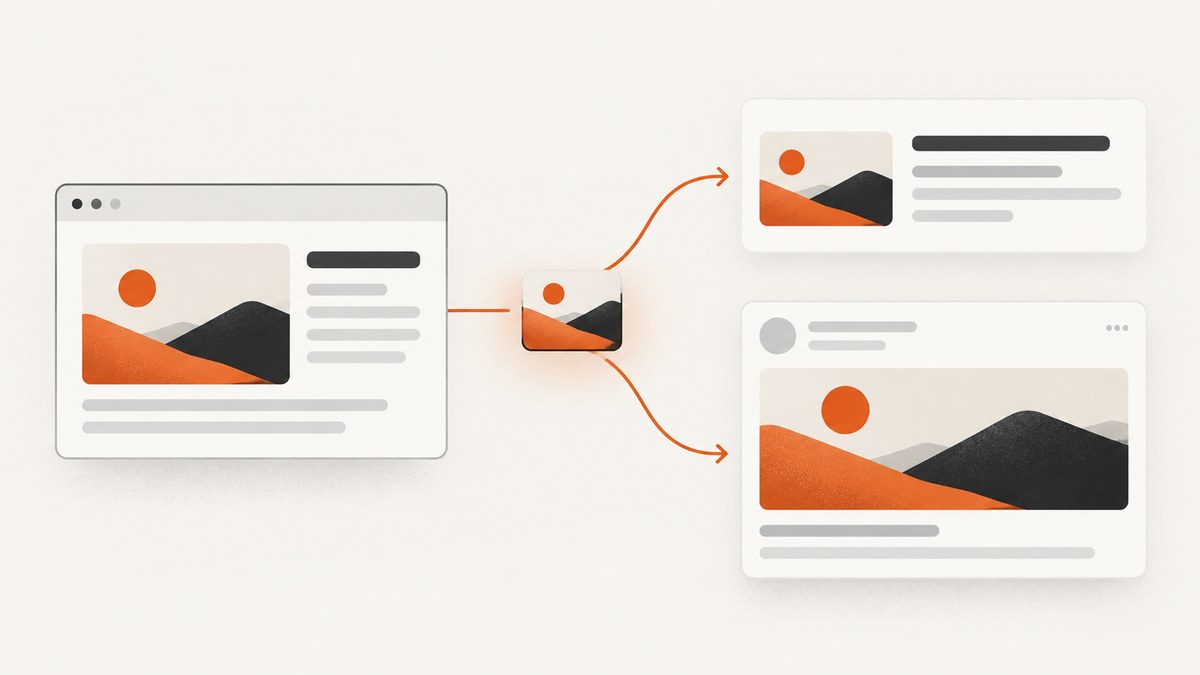
Short answer: An Open Graph image (og:image) can control the image used in social link previews and can influence which image Google selects for some search features. It is a presentation and selection signal, not a documented Google ranking boost. Social networks retrieve your page metadata, while Google chooses images automatically using metadata, page content and context.
That distinction explains most confusion. A correctly configured og:image can make a LinkedIn share card show the intended artwork, yet Google may still choose another image. Conversely, a page can appear in Google with a useful image even when its social metadata is incomplete.
What Open Graph images do
Open Graph Protocol metadata describes a page when another service fetches its URL. The core tags for a share preview are:
og:title: the title shown in the card.og:description: a short description.og:url: the canonical page URL.og:image: an absolute URL to the preferred preview image.
LinkedIn says its share box relies on oEmbeds and/or Open Graph Protocol to display the most accurate title, description and image. If these tags are missing, LinkedIn may fail to retrieve the intended content or show other page content. See LinkedIn’s Open Graph guidance and its sharing troubleshooting documentation.
For Google, metadata can influence image selection, but it does not dictate the result. Google Search Central states that image-preview selection is completely automated and considers multiple sources. Google may use og:image or Schema.org image metadata together with the visible page and surrounding context. Google does not document a ranking improvement caused by adding this tag.
SEO impact: influence image selection, not rankings
Adding an Open Graph image is useful for SEO work because it gives crawlers another clear, page-specific image candidate. It should not be described as a direct ranking factor. Google can select a different image, crop it, or show no image at all, and following image best practices does not guarantee crawling, indexing, ranking or serving.
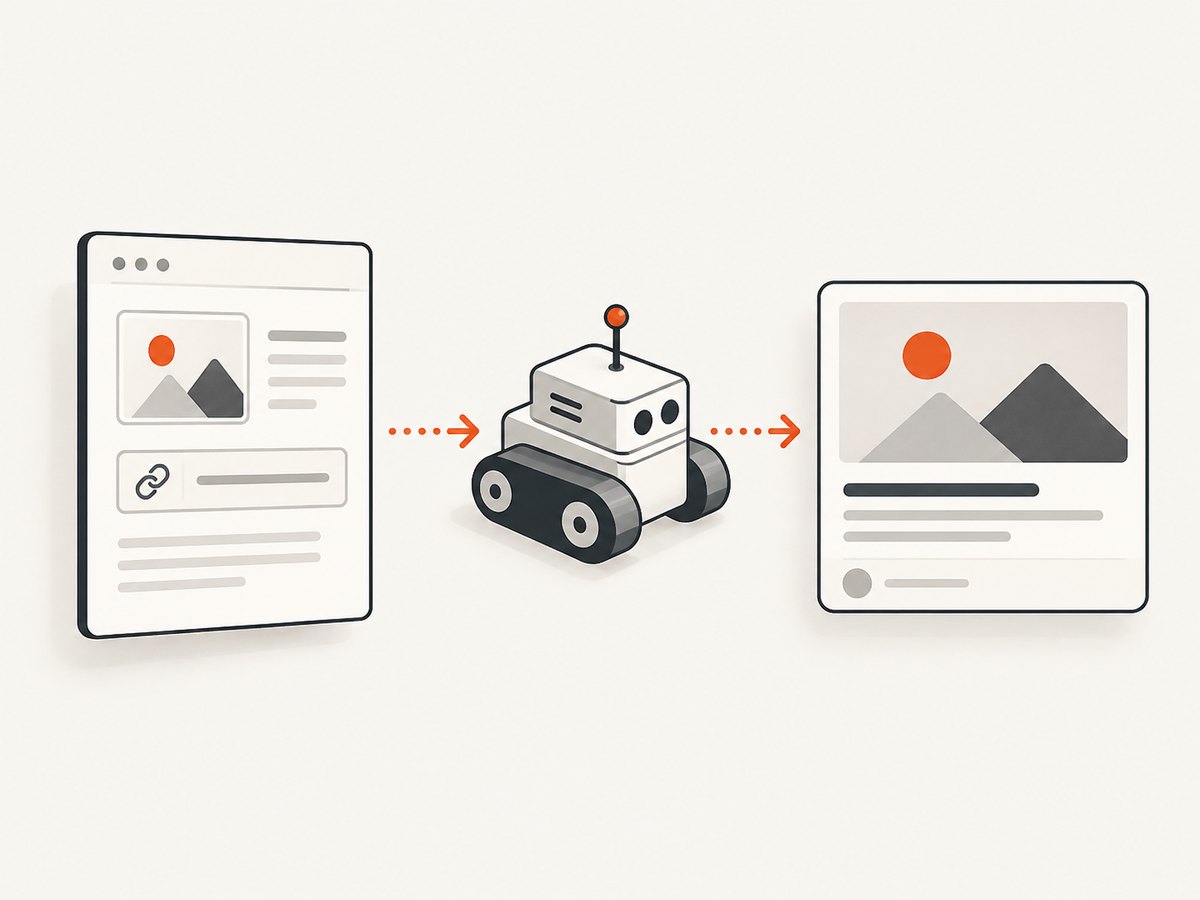
Use a relevant image that represents the page. Google advises avoiding a generic logo as the preferred image for every URL, choosing high-resolution assets where possible, and avoiding extreme aspect ratios. Keep the important subject away from edges because preview systems can crop automatically.
Google Search and Google Discover are separate cases
Google Search may select an image for a result or other search feature from metadata, HTML images and page context. Google Discover has additional presentation guidance: use a relevant, high-quality image at least 1200 pixels wide, with 16:9 being a suitable format. The max-image-preview:large directive (or AMP, where applicable) enables large image previews under Google’s documented guidance. Read Google’s image SEO documentation and Google Discover guidance.
These recommendations describe eligibility and selection signals, not outcome statistics. The official sources reviewed do not publish a reliable percentage increase in rankings, clicks or shares from og:image.
Choose dimensions that survive different previews
There is no universal Open Graph image size for every network. LinkedIn’s sharing module specifies a minimum of 1200 × 627 pixels, recommends a 1.91:1 ratio and lists a 5 MB maximum. Treat those as LinkedIn-specific requirements, not rules for Facebook, X, messaging applications or every crawler.
| Use case | Practical choice | Reason |
|---|---|---|
| General social card | 1200–1600 px wide, around 1.91:1 | Matches LinkedIn’s documented share-module shape while leaving room for other crops. |
| Google Discover | At least 1200 px wide, often 16:9 | Follows Google’s published Discover recommendation. |
| Article hero | Page-specific, high-resolution image | Gives Google visible context in addition to metadata. |
Export a compressed JPEG, PNG or WebP that remains below the platform’s documented limit. Use a stable HTTPS URL, return the correct Content-Type, and do not require a login, cookie or JavaScript challenge to download the file.
Implement Open Graph metadata
Put the tags in the document’s <head>. Use an absolute URL and make the image specific to the page:
<head>
  <title>How Open Graph Images Affect SEO and Social Sharing</title>
  <meta property="og:title" content="How Open Graph Images Affect SEO and Social Sharing">
  <meta property="og:description" content="Understand image selection in Google and social previews, with implementation and troubleshooting steps.">
  <meta property="og:url" content="https://example.com/guides/open-graph-images">
  <meta property="og:type" content="article">
  <meta property="og:image" content="https://example.com/images/open-graph-images-1200x630.jpg">
  <meta property="og:image:alt" content="A webpage preview branching to search and social cards">
  <meta property="og:image:type" content="image/jpeg">
  <meta property="og:image:width" content="1200">
  <meta property="og:image:height" content="630">
</head>
The width and height properties help consumers understand the asset before downloading it. They do not override the actual file dimensions. Keep the canonical URL and og:url consistent, and generate metadata from the page record rather than copying one default image to every URL.
Add the Google preview directive when appropriate
<meta name="robots" content="max-image-preview:large">This directive is relevant to Google’s large image previews. It does not force a particular image, and it does not replace a relevant og:image or visible HTML image.
Make the image discoverable in HTML
Google’s image guidance also recommends normal HTML image elements, descriptive alternative text, relevant surrounding text and accessible image URLs. CSS background images are not indexed in the same way as HTML <img> elements. A page hero can therefore complement, rather than replace, the Open Graph tag:
<figure>
  <img src="/images/open-graph-images-1200x630.jpg"
       width="1200" height="630"
       alt="A webpage preview branching to search and social cards"
       loading="eager">
  <figcaption>The same page-specific image used for the article preview.</figcaption>
</figure>
Generate and validate images programmatically
A build step prevents broken metadata from reaching production. This Node.js example creates a page head from data and checks the image URL before deployment:
import fs from 'node:fs/promises';

const page = {
  url: 'https://example.com/guides/open-graph-images',
  title: 'How Open Graph Images Affect SEO and Social Sharing',
  description: 'Understand image selection in Google and social previews.',
  image: 'https://example.com/images/open-graph-images-1200x630.jpg'
};

const imageResponse = await fetch(page.image, { method: 'HEAD' });
if (!imageResponse.ok) throw new Error(`Image returned ${imageResponse.status}`);
const type = imageResponse.headers.get('content-type') || '';
if (!type.startsWith('image/')) throw new Error(`Not an image: ${type}`);

const escaped = value => value.replaceAll('&', '&').replaceAll('"', '"');
const head = `\n` +
  `\n` +
  `\n` +
  `\n` +
  `\n`;
await fs.writeFile('generated-og-head.html', head);
Run this check in CI with a public staging origin. A successful HEAD request from your build machine does not prove that LinkedIn or Google can retrieve the asset; also test from an unauthenticated network.
Inspect what a crawler receives
Use cURL to inspect response headers and the rendered head:
curl -I https://example.com/images/open-graph-images-1200x630.jpg
curl -L https://example.com/guides/open-graph-images | sed -n '/<head>/,/<\/head>/p'
Confirm that redirects end at HTTPS, the image responds with an image MIME type, and the HTML is available without a session. If your framework inserts tags only after client-side JavaScript runs, a crawler may never see them. Prefer server-rendered metadata or an HTML response that contains the complete head.
Why the wrong image appears
- Another image is a stronger candidate. Google selection is automated and considers page content. Add a relevant, high-resolution HTML image and remove misleading decorative images near the top of the page.
- The tag is absent from the fetched HTML. View the raw response with cURL, not only the browser DOM inspector. Move metadata into server-rendered HTML.
- The URL is inaccessible. Remove authentication, hotlink protection, robots restrictions that block retrieval, expired signatures and JavaScript challenges from the image path.
- The asset is too large or malformed. Re-export it, verify dimensions and MIME type, and stay within LinkedIn’s 5 MB share-module limit when LinkedIn is a target.
- A cache contains the previous image. LinkedIn says cache refresh after changes can take up to 48 hours. Keep the URL stable while waiting, or use a versioned image URL for a deliberate change.
- Important artwork is cropped. Reposition faces, product screenshots and headings toward the center-safe area. Test both wide and 16:9 crops.
DIY visual verification with a browser
To inspect the final page as a browser would, use Playwright. This script captures the head and a full-page screenshot so you can compare the declared image with the visible page:
import { chromium } from 'playwright';

const browser = await chromium.launch();
const page = await browser.newPage({ viewport: { width: 1440, height: 900 } });
await page.goto('https://example.com/guides/open-graph-images', { waitUntil: 'networkidle' });
console.log(await page.locator('meta[property="og:image"]').getAttribute('content'));
await page.screenshot({ path: 'open-graph-page.png', fullPage: true });
await browser.close();
For production checks, repeat at a mobile viewport and with JavaScript disabled if your stack supports it. This catches responsive crops, lazy-loading mistakes and metadata that exists only after hydration.
Or skip the browser setup
ScreenshotNeo provides a website screenshot API and MCP server when you need a rendered reference image for Open Graph QA, documentation or publishing workflows. One GET request returns PNG, JPEG, WebP or PDF. See the ScreenshotNeo API documentation.
curl -G "https://api.screenshotneo.com/v1/shot" -d access_key=YOUR_API_KEY --data-urlencode url=https://stripe.com -o shot.webpimport requests
r = requests.get("https://api.screenshotneo.com/v1/shot", params={"access_key": "YOUR_API_KEY", "url": "https://stripe.com"}, timeout=90)
open("shot.webp", "wb").write(r.content)const q = new URLSearchParams({ access_key: 'YOUR_API_KEY', url: 'https://stripe.com' });
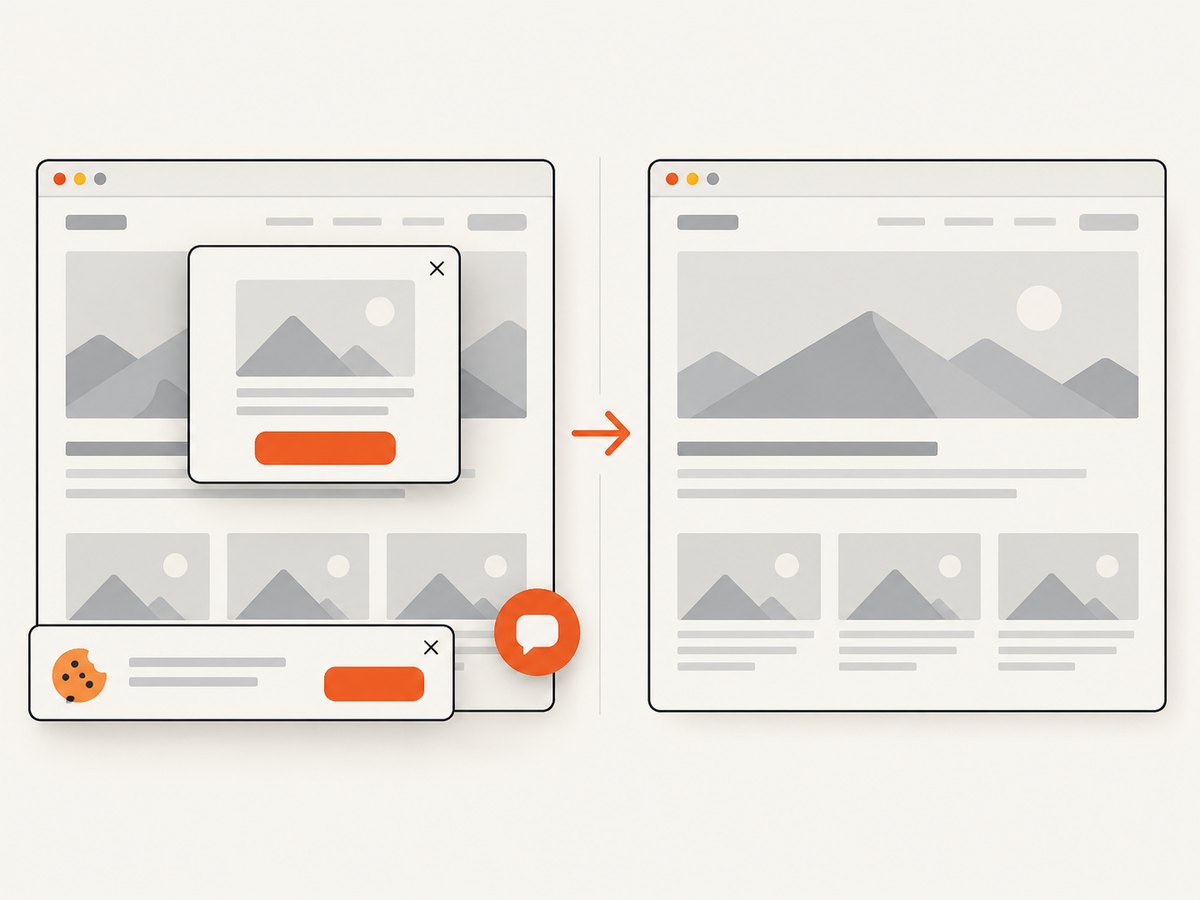
const res = await fetch(`https://api.screenshotneo.com/v1/shot?${q}`);Cookie banners, newsletter popups and chat widgets are removed before the shot; bot checks, blank pages and failed loads are never billed. Each response reports its page verdict and billing status in X-Page-Verdict and X-Billed headers. An MCP server exposes take_screenshot, get_page_info and capture_pdf to Claude, Cursor and other MCP clients. The Free plan includes 1,000 screenshots per month with no card; paid plans start at $5 for 3,000 shots. Create a free ScreenshotNeo account.
Reliability, performance and cost considerations
Reliability
- Serve metadata and images from stable HTTPS URLs.
- Keep image URLs public and avoid expiring query signatures for long-lived pages.
- Do not assume one crawler’s result predicts another’s. Test LinkedIn separately from Google.
- After changing a LinkedIn image, allow its documented 48-hour cache window.
Performance
- Compress the Open Graph asset and select dimensions that meet the target platform without shipping unnecessary pixels.
- Use a CDN or edge cache for repeated retrievals.
- Keep the page’s primary HTML response fast enough that crawlers do not time out before receiving the head.
- Lazy-load below-the-fold images, but keep the representative page image discoverable in HTML.
Cost
Static metadata has no API cost, but generated images and screenshot checks consume build or service resources. Cache generated assets by content hash and regenerate only when the page title, artwork or layout changes. If using ScreenshotNeo, cache hits are not billed, and failed loads, blank pages, bot checks and CAPTCHAs are not billed; inspect the response headers when reconciling usage.
Deployment checklist
- Use one page-specific absolute
og:imageURL. - Set
og:title,og:descriptionandog:urlconsistently. - Return a public image with the correct MIME type and stable HTTPS URL.
- Meet LinkedIn’s 1200 × 627 minimum and 5 MB maximum if LinkedIn sharing matters.
- Use at least 1200 px width and a suitable 16:9 image for Discover-oriented pages.
- Add
max-image-preview:largewhen large Google previews are desired. - Include a relevant HTML
<img>with descriptive alt text. - Inspect raw HTML and image headers from an unauthenticated request.
- Allow up to 48 hours for LinkedIn cache changes.
- Document that Google may choose a different image.
FAQ
Does og:image improve Google rankings?
There is no official documentation establishing a direct ranking boost. It can influence image selection for some Google previews.
Can I use the same image on every page?
You can, but a page-specific image better represents each URL and follows Google’s guidance to avoid generic imagery.
Why does LinkedIn still show my old image?
LinkedIn documents a cache refresh period of up to 48 hours after changes. Verify the new URL is public and correctly returned before waiting.
Are LinkedIn’s dimensions universal?
No. The 1200 × 627 minimum, 1.91:1 recommendation and 5 MB maximum are LinkedIn share-module guidance.
Will Google always use my Open Graph image?
No. Google’s image selection is automated and can use other metadata, visible images and page context.


