Open Graph Images for Websites: Metadata, Crawlers, and Debugging
Set up reliable Open Graph images, make metadata available to link-preview crawlers, and troubleshoot missing or stale previews.
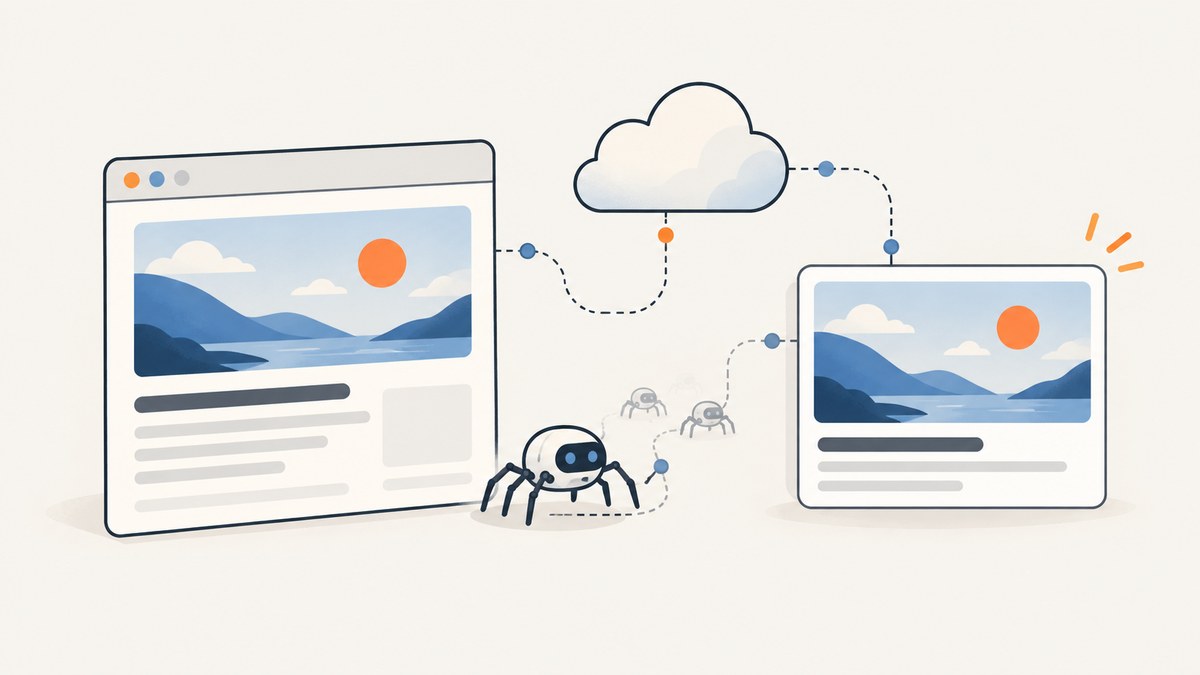
An Open Graph image is the preview image a service may show when someone shares a web page. To provide one, put an absolute, publicly fetchable image URL in og:image and make the page’s Open Graph metadata available in the HTML a crawler can fetch. Set the core properties—og:title, og:type, og:image, and og:url—and check the actual page response and image URL when a preview fails.
The Open Graph protocol defines those four as the basic properties. It also supports optional image metadata, including MIME type, dimensions, a secure URL, and alt text. There is no single image size or format that this protocol guarantees will work identically on every platform.
1. What an Open Graph image does
Open Graph (OG) is a protocol for describing a page as an object that other services can use when presenting it. Its metadata identifies the page’s title, type, canonical URL, and representative image. The sharing service decides how and whether to display that information; publishing tags does not guarantee a particular preview design.
The protocol’s core properties are:
og:title: the title of the page or object.og:type: the type of object, such aswebsiteorarticle.og:image: the URL of the representative image.og:url: the canonical URL for the object.
Use a distinct title, canonical page URL, and representative image for each page when the page has meaningful share content. A site-wide default image is useful as a fallback, but it may be a poor fit for an individual article or product page.
2. Add the metadata to the page
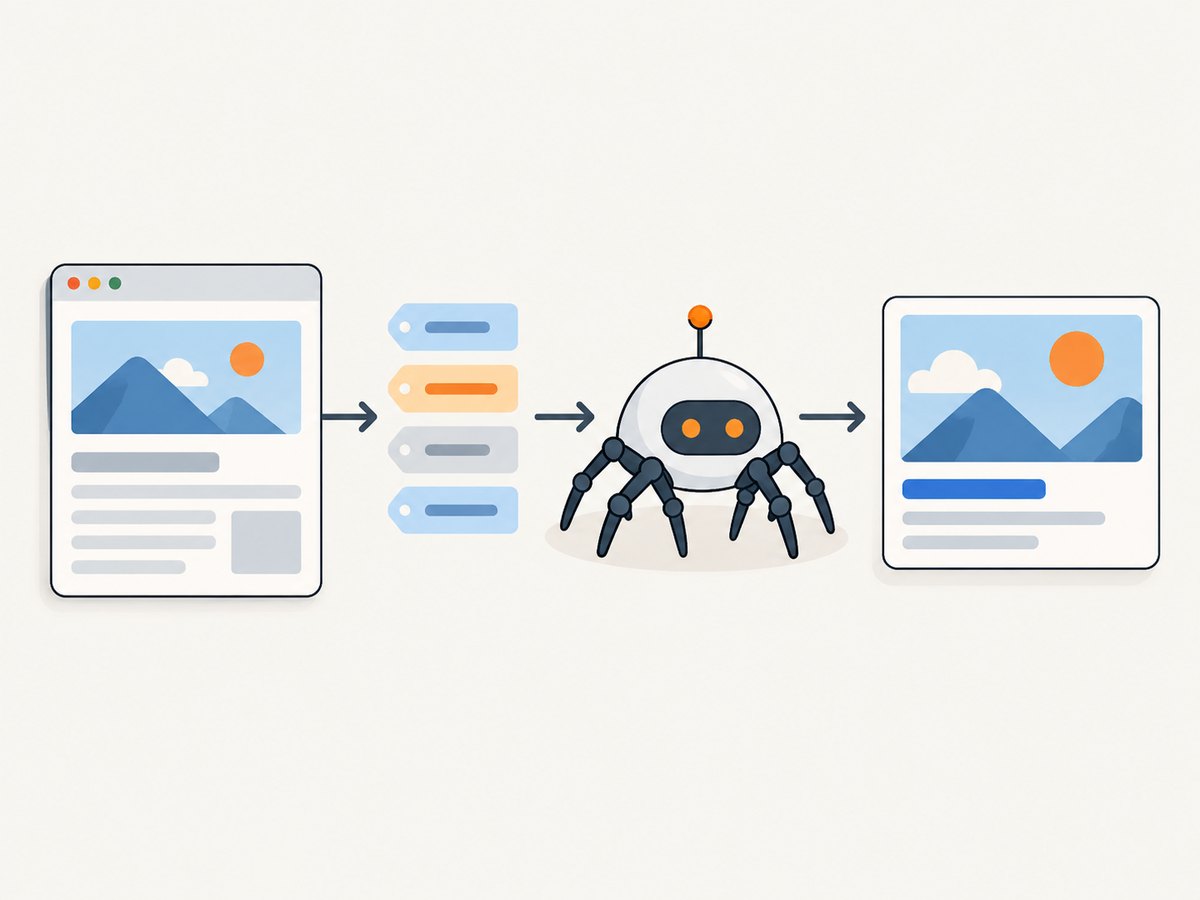
For a static page, put the tags in the document’s <head>. Replace the example host, page path, and image path with URLs that actually resolve on your site. The image should be reachable by the crawler without a login or an interaction that only runs in the browser.
<!doctype html>
<html lang="en">
  <head>
    <meta charset="utf-8">
    <title>Practical Guide to OG Images</title>
    <meta property="og:title" content="Practical Guide to OG Images">
    <meta property="og:type" content="article">
    <meta property="og:url" content="https://www.example.com/guides/og-images">
    <meta property="og:image" content="https://www.example.com/images/og-images-guide.png">
    <meta property="og:image:secure_url" content="https://www.example.com/images/og-images-guide.png">
    <meta property="og:image:type" content="image/png">
    <meta property="og:image:width" content="1200">
    <meta property="og:image:height" content="630">
    <meta property="og:image:alt" content="A guide to setting up Open Graph images">
  </head>
  <body>
    <h1>Practical Guide to OG Images</h1>
  </body>
</html>
The optional properties describe the image identified by og:image. The secure URL is an HTTPS alternative; MIME type and dimensions describe the file. The protocol defines og:image:alt as a description of the image, not a caption. Write alt text that conveys what the image depicts, and do not use it as a second headline.
The example’s 1200 × 630 dimensions and PNG format are practical starting values, not universal platform requirements. A third-party 2026 guide recommends them broadly, but platform rules and preview layouts can differ. Check the current documentation of the service where the link will be shared, and keep important visual content away from edges that could be cropped.
3. Make metadata work with your rendering setup
Static pages and server-rendered pages
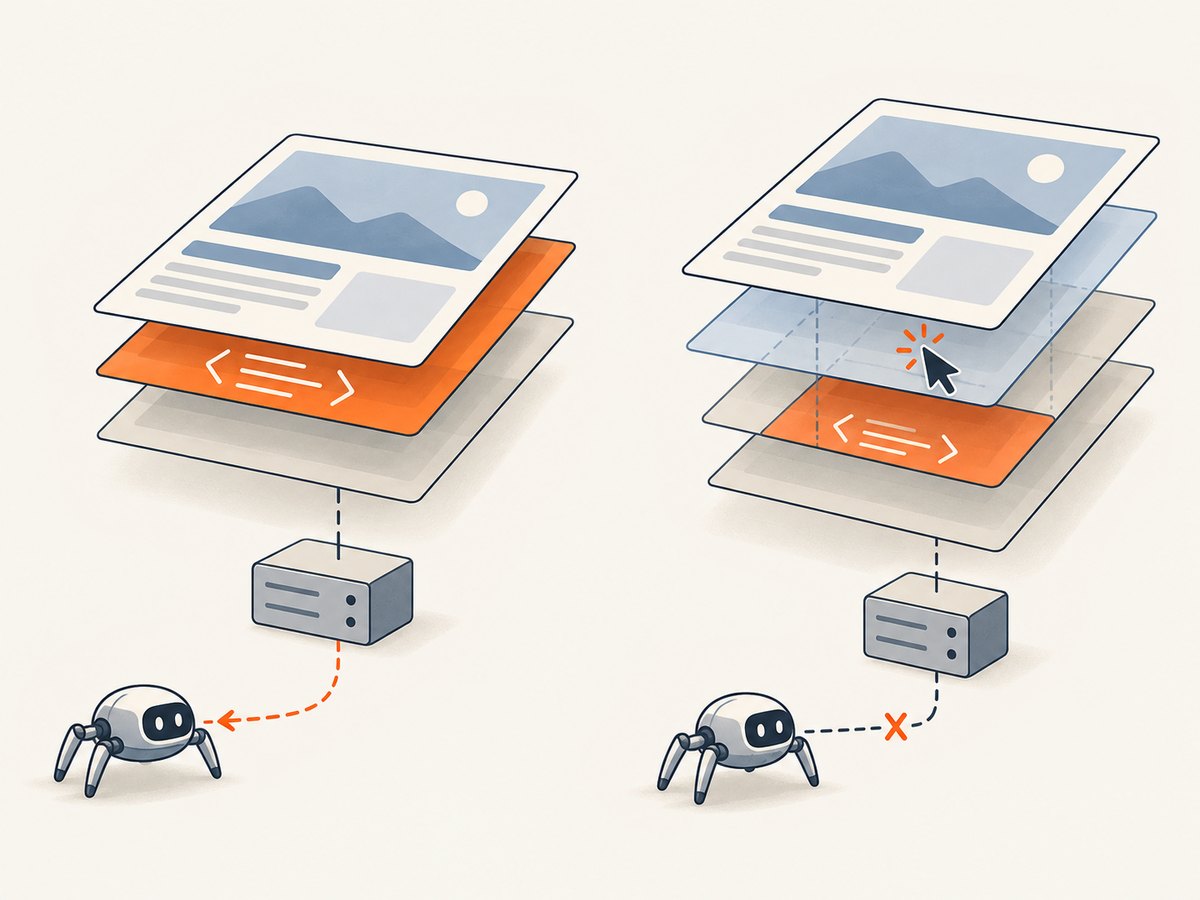
Render page-specific tags into the HTML response for the URL being shared. Check the raw response, not only what appears after your own browser runs JavaScript. Crawlers vary in what they fetch and execute, and social preview behavior is controlled by each service.
Single-page applications
A client-side application may initially return a generic HTML shell and add route-specific metadata after JavaScript runs. That can leave a crawler with no page-specific title or image. Apple’s developer note for Messages says link previews do not follow meta redirects or run JavaScript, so the needed metadata must be directly available on the linked page. For pages intended to work in Messages, ensure the linked URL serves its metadata directly rather than depending on a redirect or client-side update.
Use server rendering, static generation, or another route-aware HTML response where crawler compatibility requires it. Test representative routes from the response a crawler can fetch. Do not assume that because the browser’s Elements panel shows the right tags, every preview crawler will see them.
Next.js
Next.js documents the opengraph-image and twitter-image file conventions for route segments. These let a Next.js application provide images and corresponding metadata by route. Follow the framework’s current instructions for the version and routing mode in your project; this is a Next.js option, not a requirement of the Open Graph protocol.
4. Choose and publish the image
- Match the page. Choose an image that represents the specific page, rather than an unrelated site logo or generic banner.
- Use a public absolute URL. An absolute HTTPS URL avoids ambiguity about which host serves the image. Verify the URL from outside an authenticated session.
- Choose a sensible format and dimensions. PNG or JPG at 1200 × 630 is a practical broad starting point, not a guarantee. Check platform-specific requirements and preview crops.
- Set descriptive alt text. Add
og:image:altwhen useful; describe the image itself. - Keep image metadata together. If you publish multiple
og:imageproperties, follow the protocol’s array ordering rules so the structured properties describe the intended image. - Verify each route. Confirm that the fetched HTML has the right page metadata and that each image URL returns the intended file.
For dynamic pages, generate metadata from the same page data used to render the route. This helps avoid mismatches such as a correct page title paired with another article’s image. Treat the canonical og:url as the intended public page URL, and make sure it is consistent with the URL you expect people to share.
5. Inspect the rendered page and image
Start with the page response and image response. A preview inspector can then help show how a particular service currently interprets the page, but it is not a substitute for checking the HTML and image at their source.
# Inspect response headers and HTML from the page
curl -L -sS -D page-headers.txt \
  https://www.example.com/guides/og-images \
  -o page.html

# Search the saved HTML for the Open Graph tags
rg -n 'og:(title|type|url|image)' page.html

# Inspect the image response headers
curl -L -sS -I \
  https://www.example.com/images/og-images-guide.png
Review the output for the intended title and canonical URL, an absolute image URL, a successful image response, and a content type appropriate for the file. The first command follows HTTP redirects to retrieve the page, but that does not mean every preview crawler follows the same redirects. In particular, Apple says Messages previews do not follow meta redirects; serve metadata directly at the linked page URL.
Then use the target service’s own preview or re-scrape mechanism if one is available. Preview tools can help inspect the rendered result, but platform cache controls and refresh behavior vary. Confirm them in current platform documentation rather than assuming that one service’s refresh action updates another service’s cache.
6. Troubleshooting missing or stale previews
| Symptom | Likely cause | What to check or fix |
|---|---|---|
| No image appears | The fetched HTML lacks og:image, or its value is wrong. |
Inspect the response HTML for the shared URL. Add the tag to the response the crawler fetches and use the intended absolute image URL. |
| The tag is present in your browser, but not in the preview | Metadata may be added only after JavaScript runs. | Inspect the initial HTML response. Serve route-specific metadata in HTML when the target crawler needs it; Apple Messages does not run JavaScript to obtain preview metadata. |
| The image URL works while logged in, but the crawler cannot fetch it | The image may require authentication, cookies, or a browser-only interaction. | Make the intended image publicly fetchable, and test its URL without your logged-in browser session. |
| The wrong image appears | The page may publish a stale or shared default URL, or several image entries may be ordered incorrectly. | Check the actual og:image value and the protocol’s ordering rules for multiple images and their structured properties. |
| The preview shows an old image | The sharing service may have cached previously fetched metadata or image content. | Use the relevant service’s current preview or re-scrape tools where available. Verify platform-specific cache behavior; do not assume changing the file refreshes every preview. |
| Image fetch fails or returns an unexpected file | The URL may redirect, return an error, serve HTML, or have a mismatched content type. | Inspect the image response and headers. Serve the intended image at a publicly accessible URL and declare accurate optional type and dimension metadata. |
| A page works in one messaging app but not another | Services can fetch, cache, crop, and render previews differently. | Check the target service’s current requirements and preview tool. Avoid treating one service’s successful result as a universal guarantee. |
| A route in an SPA shares the home page preview | The server may return generic shell metadata for every route. | Make metadata route-aware in the fetched HTML. Verify the exact route response, not only the app after client navigation. |
7. Performance, reliability, and maintenance
Open Graph tags are small, but reliable previews depend on the entire fetch path: the shared URL must return usable metadata, and the image URL must return the intended image to the crawler. Avoid requiring a user session or browser interaction to reach either resource. Keep canonical URLs and image URLs stable enough for the way your site and target platforms cache previews.
For a large site, generate metadata from route data and validate it as part of publishing. A useful checklist is:
- Every shareable route has a title, type, canonical URL, and representative image.
- The tags appear in the HTML returned for that route.
- The image URL is absolute, public, and serves the intended image.
- Optional dimensions, MIME type, and alt text match the image.
- Changes to images and metadata are checked with the target platform’s tools where available.
When replacing an image, consider whether the platform may still have the old preview cached. A new URL can make a changed asset distinguishable, but do not assume a particular platform’s cache behavior without checking its current documentation.
8. Or skip the browser setup
If you need to inspect how a URL renders, ScreenshotNeo is a website screenshot API and MCP server for developers. Its GET API can return an image or PDF, and the docs describe the parameters and options. A screenshot can help you inspect a rendered page, but it does not replace checking the response HTML and metadata that a link-preview crawler receives.
curl -G "https://api.screenshotneo.com/v1/shot" \
  -d access_key=YOUR_API_KEY \
  --data-urlencode url=https://www.example.com/guides/og-images \
  -o page.webp
See the ScreenshotNeo API documentation for request options. Cookie banners, popups, and chat widgets are removed before the shot; each step can be turned off. Bot checks, blank pages, timeouts, failed loads, and cache hits are never billed, and response headers indicate the page verdict and billing status. Its MCP server lets AI agents using Claude, Cursor, or another MCP client take screenshots. The free plan includes 1,000 screenshots a month with no card; paid plans start at $5 for 3,000.
Sign up for ScreenshotNeo’s free plan: 1,000 screenshots a month, no card required.
9. Frequently asked questions
Is og:image the same as a favicon?
No. A favicon identifies a site or page in browser interfaces. og:image identifies the representative image for a shared page preview.
Does adding Open Graph tags force every platform to show an image?
No. The tags provide metadata for services to use. Each service controls whether and how it presents a preview.
Should og:image:alt repeat the page title?
Usually not. The protocol describes it as an image description. Explain what the image depicts rather than using it as a caption or second title.
Do I need separate Open Graph and Twitter image files?
The sources covered here establish Open Graph properties and Next.js’s separate file conventions; they do not establish one universal requirement for separate files. Check the current documentation for the sharing services and framework you use.


