How to Open a New Tab with Puppeteer
Open a tab with Puppeteer using `browser.newPage()`. Learn when to use an isolated browser context, how to handle popups, and how to troubleshoot navigation.
To open a new tab in Puppeteer, call await browser.newPage(). It creates a page in the browser’s default context. Navigate it with page.goto(), then close the page or browser when you are finished.
import puppeteer from 'puppeteer';

const browser = await puppeteer.launch();
try {
  const page = await browser.newPage();
  await page.goto('https://example.com');
  console.log(await page.title());
} finally {
  await browser.close();
}
This guide covers the standard new-tab flow, session isolation, site-opened popups, waiting for navigation, cleanup, and common errors. For the API details, see Puppeteer’s Browser.newPage() reference and the browser management guide.
1. Create a new tab in the default context
A Puppeteer Page is the object you use to interact with a single browser tab. A browser can have multiple pages. The simplest way to create another is browser.newPage():
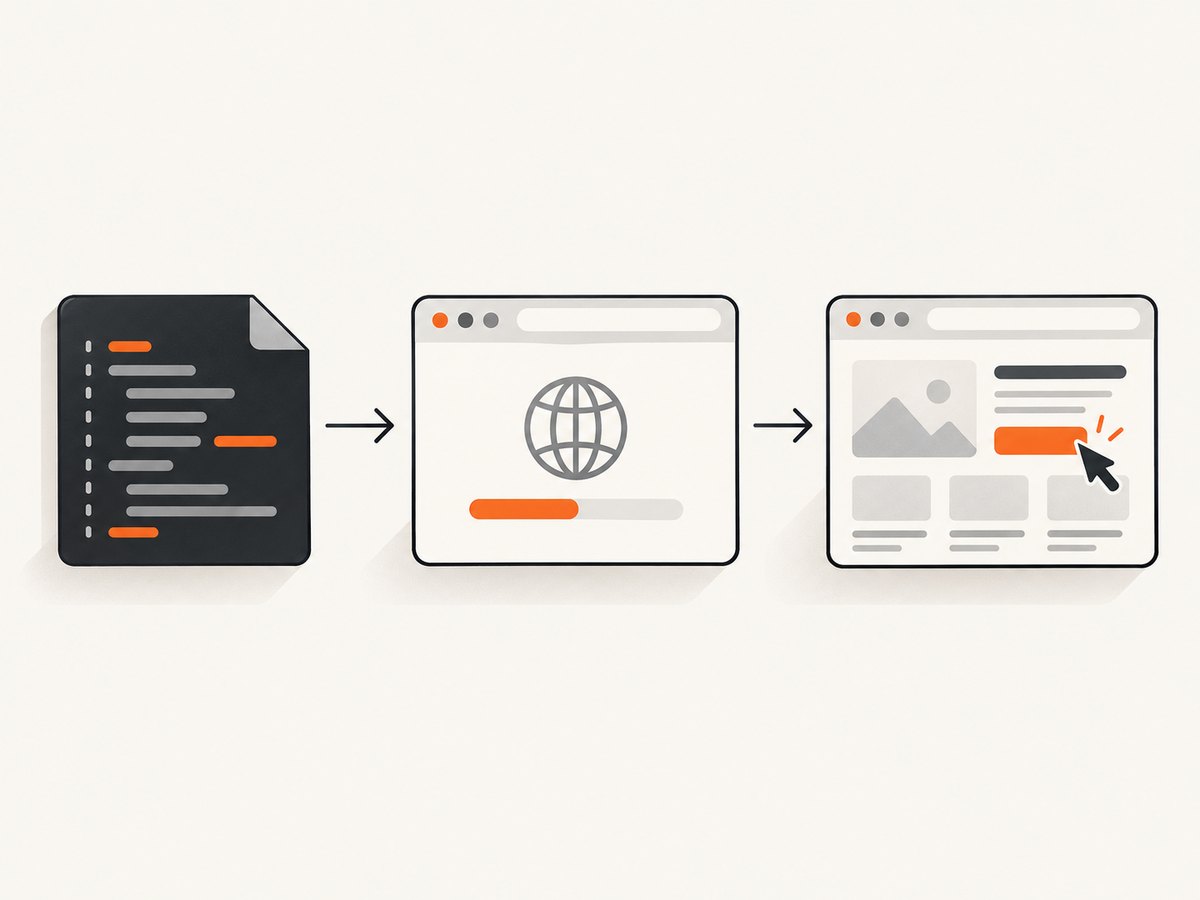
const page = await browser.newPage();The method creates the page in the browser’s default browser context. That is normally what you want when a script needs another tab that shares the default context’s session. In a standalone script, a complete example looks like this:
import puppeteer from 'puppeteer';

const browser = await puppeteer.launch({ headless: true });
try {
  const page = await browser.newPage();
  await page.goto('https://example.com', { waitUntil: 'domcontentloaded' });
  console.log('Title:', await page.title());
} finally {
  await browser.close();
}
Save this as an ES module, for example open-tab.mjs, in a project with Puppeteer installed, then run it with Node.js. The finally block closes the browser even if navigation or page interaction throws an error. For a longer-running program that keeps the browser alive, close just the page with await page.close() when that tab is no longer needed.
What does “new tab” mean in Puppeteer?
In browser automation code, you usually work with a Page object rather than manipulating the browser’s tab strip directly. Creating a page gives you an object for navigation, evaluation, screenshots, and other page operations. The browser can host several such pages at once.
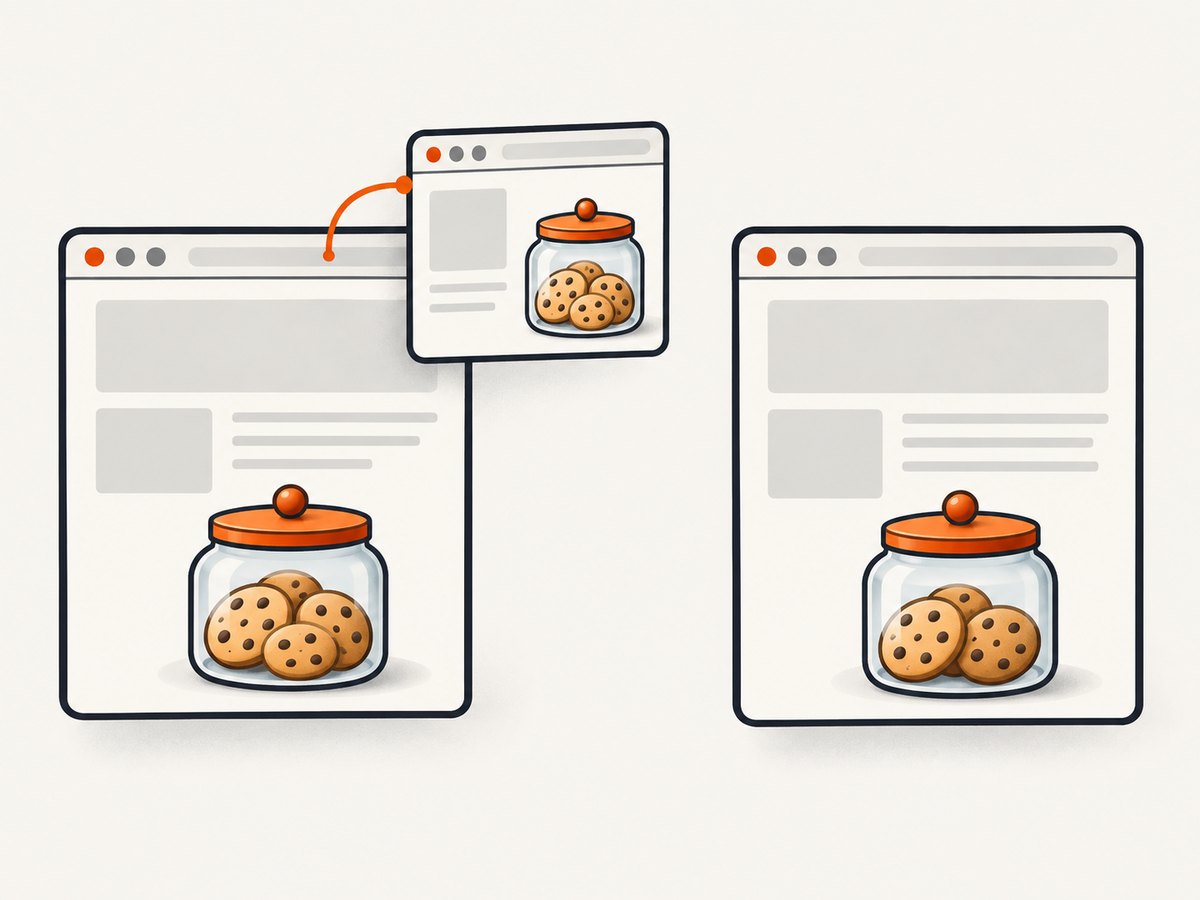
browser.newPage() does not create a separate cookie jar. It creates the page in the default context. Choose a separate browser context when the new page needs isolated cookies or cache.
2. Open a page with separate cookies and cache
Use a new browser context when you need a separate session, such as testing a logged-out flow alongside a logged-in one. Contexts do not share cookies or cache. Create the context first, then create its page:
import puppeteer from 'puppeteer';

const browser = await puppeteer.launch();
const context = await browser.createBrowserContext();
try {
  const page = await context.newPage();
  await page.goto('https://example.com');
  console.log(await page.url());
} finally {
  await context.close();
  await browser.close();
}
Closing the context closes the pages it owns and releases its session state. If your script owns the browser too, close both as shown. If a browser is shared by other work, close only the context you created; closing the browser would also end that other work.
| Need | Use | Session behavior |
|---|---|---|
| Another page in the default context | await browser.newPage() |
Uses the default context |
| A separate session | await browser.createBrowserContext(), then await context.newPage() |
Cookies and cache are isolated from other contexts |
| A tab opened by the site | Listen for a popup on its parent page | Popup stays in its parent page’s context |
For multiple accounts or independent test cases, give each session its own context. That makes the isolation explicit and avoids accidentally carrying cookies from one flow into another.
3. Handle a tab opened by the website
A site may open a popup through a link or window.open(). That page is different from one you create yourself with browser.newPage(): the popup belongs to the parent page’s browser context. Listen for the popup before triggering the action so you do not miss the event.
import puppeteer from 'puppeteer';

const browser = await puppeteer.launch();
try {
  const page = await browser.newPage();
  await page.goto('https://example.com');

  const popupPromise = new Promise(resolve => page.once('popup', resolve));
  await page.click('a[target="_blank"]');
  const popup = await popupPromise;

  await popup.waitForLoadState?.('domcontentloaded');
  console.log('Popup URL:', popup.url());
} finally {
  await browser.close();
}
Puppeteer’s Page API reports popups through the parent page’s popup event. To avoid depending on a particular link selector, trigger the user action your test cares about and listen for that event first. For navigation waiting, use Puppeteer’s navigation APIs as described below. The optional call above is deliberately not needed for Puppeteer’s standard Page navigation flow; a straightforward version is:
const popupPromise = new Promise(resolve => page.once('popup', resolve));
await page.click('a[target="_blank"]');
const popup = await popupPromise;
await popup.waitForNavigation({ waitUntil: 'domcontentloaded' });
If the click is blocked by a popup policy, check that it happens as a page action rather than from unrelated script timing. Also verify that the selector matches the intended element and that the page actually attempts to open another tab.
4. Wait for the new page to load
Creating the page and loading a URL are separate steps. browser.newPage() resolves with a page; it does not navigate it. Call page.goto() to load a URL and choose a completion condition that matches what your script needs.
await page.goto('https://example.com', {
  waitUntil: 'domcontentloaded',
  timeout: 30_000
});
Use domcontentloaded when you need the initial document parsed and want to avoid waiting for every image or background request. Use load when the page’s load event matters. For highly dynamic sites, wait for a specific element that signals the content you need is ready:
await page.goto('https://example.com');
await page.waitForSelector('[data-testid="results"]', { timeout: 15_000 });
Do not treat “navigation finished” as proof that an application’s asynchronous data has rendered. Wait for the element, text, or application state your next step depends on. Conversely, waiting indefinitely for all network activity can hang on pages that keep connections open; prefer a relevant selector or a bounded timeout.
5. Open several tabs and clean them up
Each page is independent for page-level actions. You can create several pages and navigate them concurrently when the browser and target sites can handle the load:
const urls = ['https://example.com', 'https://example.org'];
const pages = await Promise.all(urls.map(async url => {
  const page = await browser.newPage();
  await page.goto(url, { waitUntil: 'domcontentloaded' });
  return page;
}));

for (const page of pages) {
  console.log(page.url(), await page.title());
  await page.close();
}
For large batches, avoid creating an unbounded number of pages at once. Each page consumes browser resources, and concurrent navigation can increase memory use, network contention, and the chance of timeouts. Use a small work queue or process a limited number concurrently. Close pages as soon as their work is complete.
Follow these cleanup rules:
- Use
try/finallyaround browser work so exceptions do not leave a browser process running. - Close an individual page with
page.close()when you want to keep the browser open. - Close a context with
context.close()when its isolated session is finished. - Close the browser with
browser.close()when the script owns the browser and all its work is done.
6. Common errors and fixes
| Symptom | Likely cause | Fix |
|---|---|---|
browser.newPage is not a function |
The value in browser is not a Puppeteer Browser, or a launch/import step did not produce the expected object. |
Check the import and confirm const browser = await puppeteer.launch() completed before calling newPage(). |
Target closed or protocol errors |
The browser or context was closed while the page was being used. | Check cleanup order. Finish page operations before closing the owning context or browser. |
Navigation timeout |
The page did not reach the chosen readiness condition within the timeout; a slow site or persistent requests may be involved. | Set a suitable timeout, use domcontentloaded if full load is unnecessary, and wait for the specific content needed. |
| Popup event never arrives | The event listener was attached after the click, the click did not open a page, or the selector/action is wrong. | Register page.once('popup', ...) before triggering the action and verify the page actually opens a popup. |
| Cookies appear to be missing | The page was created in a different browser context from the one where cookies were set. | Use the same context for pages that must share a session; use a separate context only when isolation is intended. |
| Module import or syntax error | The project’s module format does not match the example. | Use an ES module file such as .mjs, configure the project for modules, or adapt imports to the project’s CommonJS convention. |
When debugging, log the page URL after navigation, catch and print the thrown error, and make sure every asynchronous Puppeteer call is awaited. Unawaited navigation can race with page closure or later page actions.
7. Performance, reliability, and cost
Opening a tab is a small part of a browser automation job. Navigation, JavaScript execution, remote assets, and waiting for the right state usually dominate its runtime. Reuse a browser for related work rather than launching one for every URL, but keep page and context lifetimes bounded. Isolate sessions when correctness requires separate cookies or cache; use the default context when the pages are meant to share its session.
For reliability, set finite navigation and selector timeouts, choose a readiness condition that reflects your actual goal, and close resources in a predictable order. A full-page load wait may be less reliable on pages with long-running requests. A selector wait can be more targeted, but it will fail if the selector changes or the page never renders the expected state, so report that failure clearly.
Cost depends on where Puppeteer runs: the browser process, compute, memory, network transfer, and any infrastructure or proxy services you use. Puppeteer itself does not make the remote website load faster. Keep concurrency within the capacity of your host and the target site, and avoid retry loops without limits, which can multiply resource use and load.
8. Or skip the browser setup
If you need a screenshot rather than interactive browser control, ScreenshotNeo provides a website screenshot API and MCP server. One GET request returns an image or PDF. Its clean capture flow accepts cookie and consent banners like a visitor and removes 60+ known consent platforms, newsletter popups, and chat widgets; each step can be turned off.
Example using cURL:
curl -G "https://api.screenshotneo.com/v1/shot" -d access_key=YOUR_API_KEY --data-urlencode url=https://stripe.com -o shot.webpPython:
import requests

r = requests.get(
    "https://api.screenshotneo.com/v1/shot",
    params={"access_key": "YOUR_API_KEY", "url": "https://stripe.com"},
    timeout=90,
)
open("shot.webp", "wb").write(r.content)
Node.js:
const q = new URLSearchParams({ access_key: 'YOUR_API_KEY', url: 'https://stripe.com' });
const res = await fetch(`https://api.screenshotneo.com/v1/shot?${q}`);
if (!res.ok) throw new Error(`Screenshot request failed: ${res.status}`);
await import('node:fs/promises').then(fs => fs.writeFile('shot.webp', Buffer.from(await res.arrayBuffer())));
See the ScreenshotNeo API documentation for request options. Bot checks and CAPTCHAs, blank pages, timeouts, failed loads, and cache hits cost nothing; responses identify the page verdict and billing status in headers. An MCP server exposes take_screenshot, get_page_info, and capture_pdf to Claude, Cursor, and other MCP clients.
ScreenshotNeo includes full-page capture with lazy images loaded, CSS selector capture, dark mode, device presets, custom viewport and retina scale, PDF options, HTML/CSS rendering, custom CSS and JavaScript, click-before-capture, hidden selectors, wait conditions, request blocking, headers, cookies, user agent, authorization, timezone, geolocation, transparent backgrounds, resizing, configurable cache TTL, signed links, async jobs with signed webhooks, bulk requests for up to 100 URLs, a usage API, and an OpenAPI spec. Its parameter names used by other screenshot APIs also work, which can simplify switching.
Plans include 1,000 screenshots a month free with no card; Starter is $5 for 3,000, Growth $15 for 15,000, Pro $39 for 60,000, Scale $99 for 250,000, and Business $249 for 1,000,000. Yearly billing gives two months free, and every feature is on every plan. Create a free account and get 1,000 screenshots a month with no card.
9. FAQ
Does browser.newPage() open a visible tab on my desktop?
It creates a page in the browser instance Puppeteer launched or connected to. Whether that browser is visible depends on how you launched it, including whether it is headless.
Can pages in the same context share login state?
The default context is shared by pages created with browser.newPage(). Use the same context when pages need that session; use separate contexts when cookies and cache must be isolated.
Should I use browser.newPage() or context.newPage()?
Use browser.newPage() for a page in the default context. Use context.newPage() after creating a browser context when you want an isolated session.
Can Puppeteer capture a screenshot after opening the tab?
Yes. Navigate the page, wait until the content you need is ready, then call a page screenshot method such as await page.screenshot({ path: 'page.png' }). For a screenshot-only workflow, the API option above avoids managing a browser process.


