How to Open the Playwright HTML Report in Docker
Serve Playwright’s complete HTML report from Docker by binding `show-report` to `0.0.0.0` and publishing its port. Here are the Docker, CI, and troubleshooting steps.
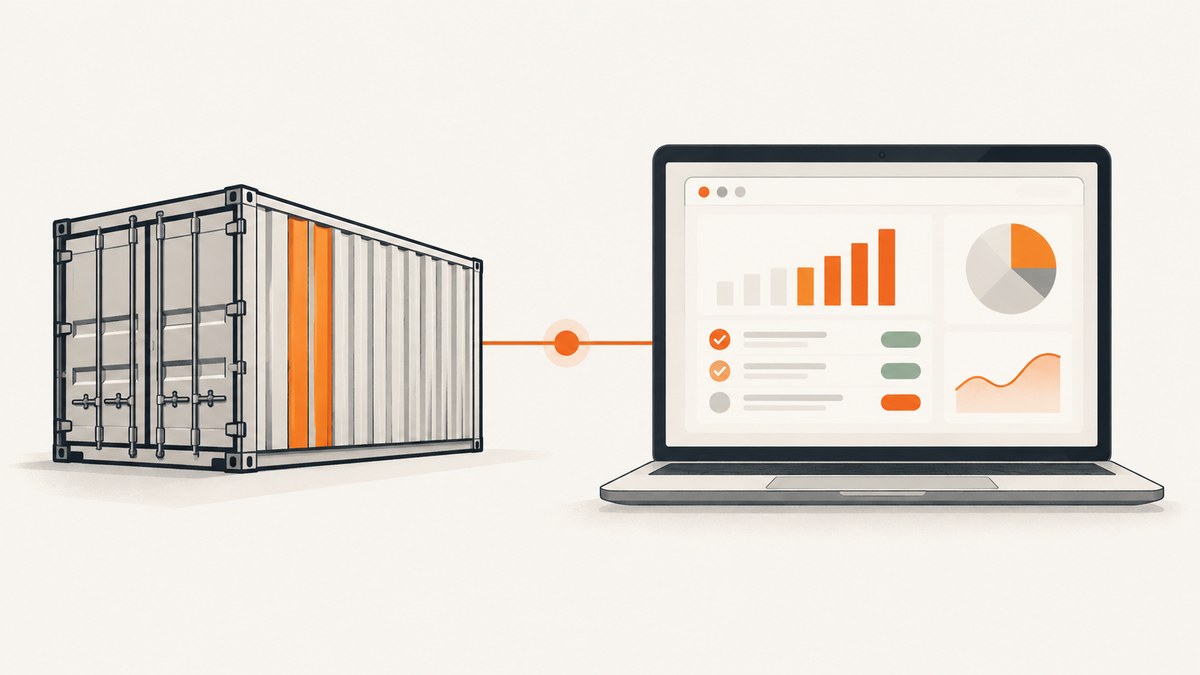
To open a Playwright HTML report in Docker, run Playwright’s report server inside the container on 0.0.0.0, publish the server port, then open that port on your host. The default port is 9323. For example:
npx playwright show-report playwright-report --host 0.0.0.0 --port 9323Start the container with -p 9323:9323, then visit http://localhost:9323. Serve the entire report directory, not just index.html: attachments such as screenshots, videos, and traces are part of the report. Playwright documents show-report, localhost as its default host, and 9323 as its default port in its command line reference. The HTML reporter documentation explains the report folder and its configuration.
1. Generate the HTML report
Playwright’s HTML reporter writes a self-contained report folder, normally named playwright-report. Generate it by specifying the reporter on the command line:
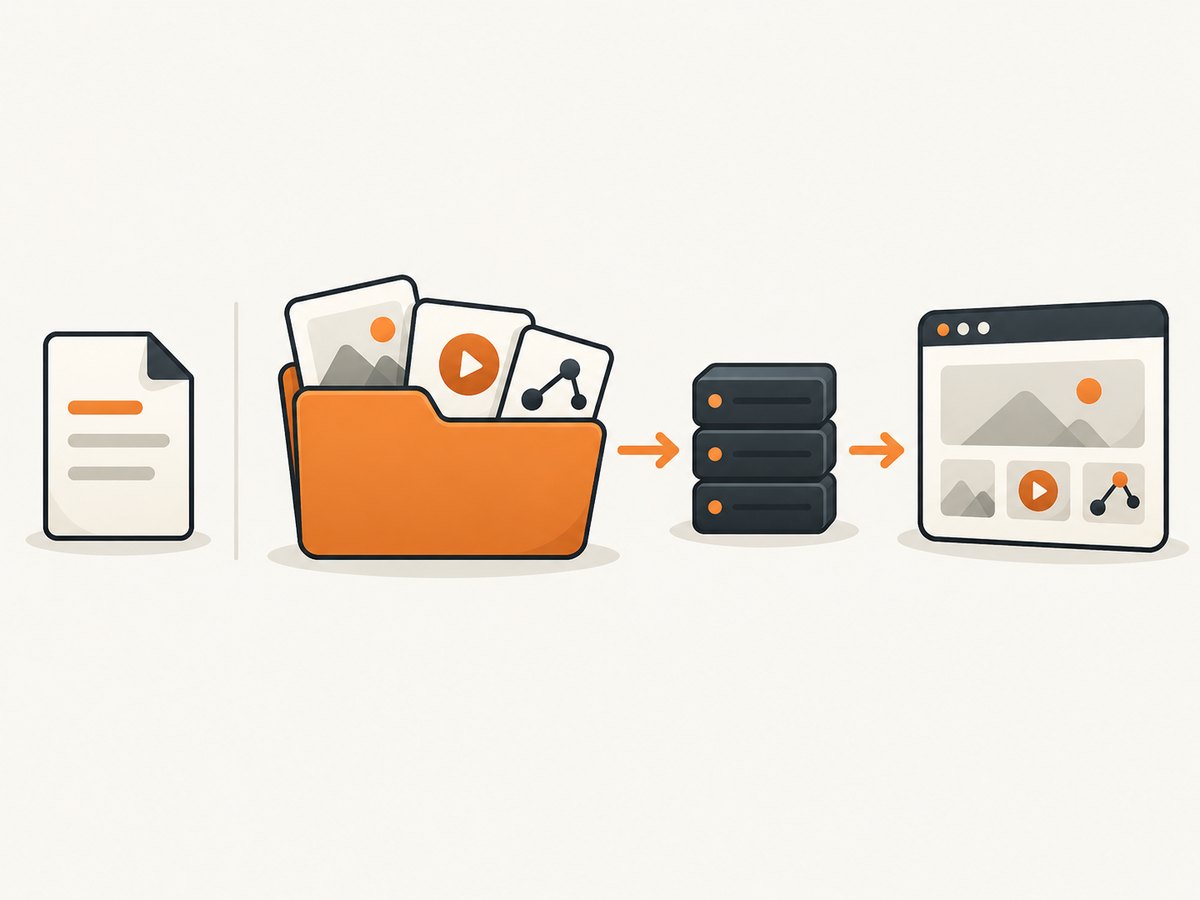
npx playwright test --reporter=htmlOr configure it in playwright.config.ts. Setting open: 'never' prevents the test process from trying to open a browser inside a headless container after the run:
import { defineConfig } from '@playwright/test';

export default defineConfig({
  reporter: [['html', { open: 'never' }]],
});
The reporter can be configured with a different output directory, title, host, port, and behavior for automatically opening the report. These environment variables and their corresponding reporter options are documented by Playwright:
| Setting | Reporter option | Default or purpose |
|---|---|---|
PLAYWRIGHT_HTML_OUTPUT_DIR |
outputFolder |
playwright-report, the generated folder |
PLAYWRIGHT_HTML_OPEN |
open |
on-failure; use never for Docker |
PLAYWRIGHT_HTML_TITLE |
title |
Optional report title |
PLAYWRIGHT_HTML_HOST |
host |
localhost for automatic report serving |
PLAYWRIGHT_HTML_PORT |
port |
9323 or an available port |
PLAYWRIGHT_HTML_ATTACHMENTS_BASE_URL |
attachmentsBaseURL |
Optional base URL for attachments stored elsewhere |
For a custom folder, set outputFolder and pass that folder to show-report:
import { defineConfig } from '@playwright/test';

export default defineConfig({
  reporter: [['html', { outputFolder: 'artifacts/report', open: 'never' }]],
});
npx playwright show-report artifacts/report --host 0.0.0.0 --port 9323Alternatively, set PLAYWRIGHT_HTML_OUTPUT_DIR=artifacts/report when generating the report. Keep generation and serving paths consistent: show-report needs to receive the actual report folder.
2. Serve the report on the container network
Run the server in the foreground so the container stays alive:
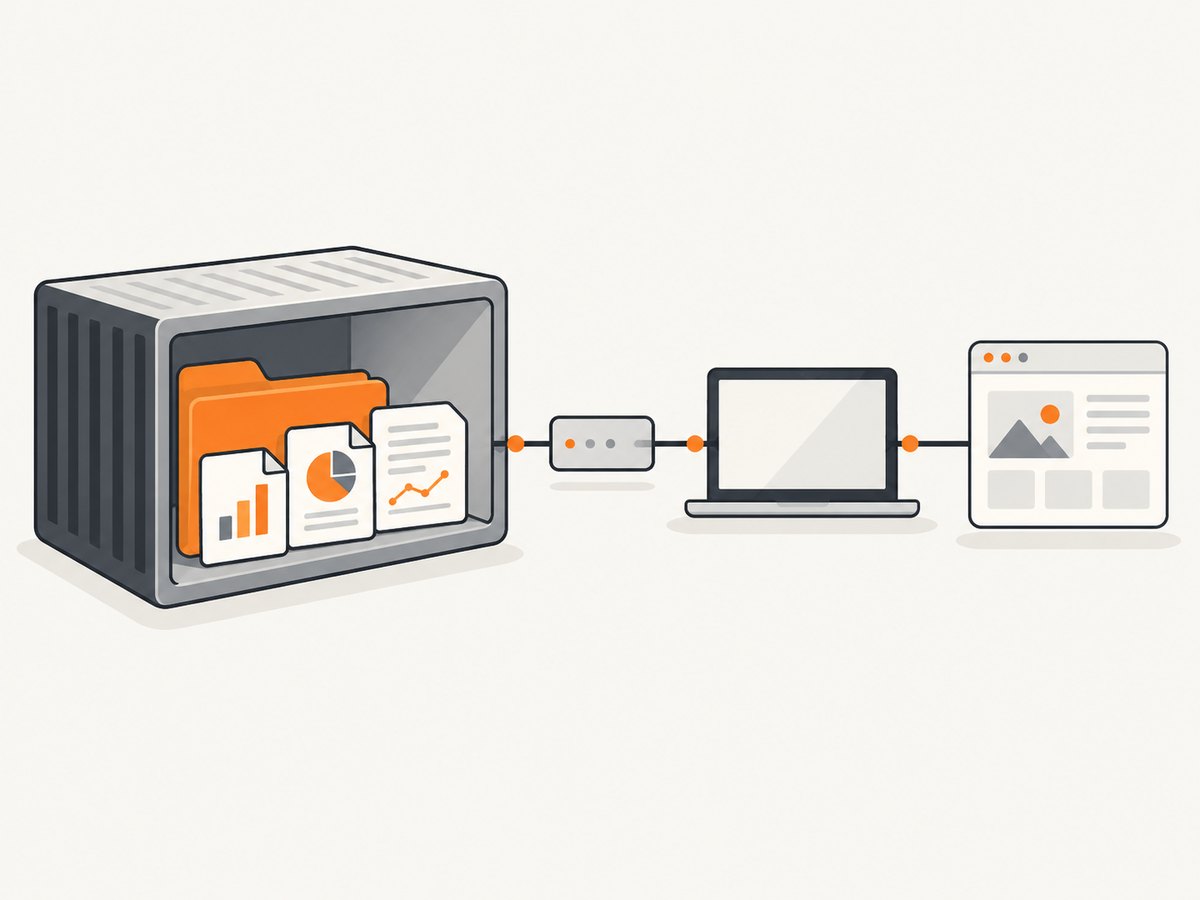
npx playwright show-report playwright-report --host 0.0.0.0 --port 9323The two flags solve separate problems:
--host 0.0.0.0listens on the container’s network interfaces. The default islocalhost, which is local to the container and generally cannot be reached through a Docker port mapping from the host.--port 9323fixes the port so the Docker mapping and browser address are predictable. It is Playwright’s documented default; you can choose another port if it is already occupied.
Playwright’s command accepts a report directory or a zip archive. A zip downloaded from CI can be opened directly if it contains index.html at its top level:
npx playwright show-report playwright-report.zip --host 0.0.0.0 --port 9323For a report already on disk, keep all its files together. The HTML page loads report data and attachments from the generated structure. Opening index.html with a file:// URL can therefore leave parts of the report broken. Playwright says a web server is needed for the report to work correctly in its CI introduction.
3. Publish the Docker port
Map the host’s port to the same port inside the container:
docker run --rm -p 9323:9323 your-playwright-imageThen open http://localhost:9323 on the machine running Docker. If host port 9323 is already in use, map a different host port to the container’s 9323:
docker run --rm -p 8080:9323 your-playwright-imageIn that case, the address is http://localhost:8080. The left side of -p HOST_PORT:CONTAINER_PORT is the browser-facing host port; the right side must match the port used by show-report.
4. Build and run a minimal Docker image
This example installs project dependencies, runs tests to create the report, and starts the report server. Use the Playwright image tag that matches the Playwright version in your project. Playwright’s Docker guidance cautions that the project and image versions should match.
FROM mcr.microsoft.com/playwright:v1.63.0-noble
WORKDIR /work

COPY package*.json ./
RUN npm ci
COPY . .

EXPOSE 9323
CMD ["sh", "-c", "npx playwright test --reporter=html; status=$?; npx playwright show-report playwright-report --host 0.0.0.0 --port 9323; exit $status"]
Build and start it:
docker build -t pw-report .
docker run --rm --init --ipc=host -p 9323:9323 pw-report
The command saves the test exit status before starting the report server. That way a failed test run can still leave its report available for inspection. The server remains in the foreground, so the container stays running until you stop it. If you prefer to run tests and report serving as separate steps, use a persistent volume or copy the report between containers; the serving container must have the complete generated folder.
EXPOSE documents the container port in the image. It does not publish the port by itself; you still need -p when starting the container. The --init and --ipc=host flags in this example are recommended in Playwright’s Docker guidance for containerized test runs: --init helps with process handling, and --ipc=host is recommended when Chromium tests might otherwise run out of memory. They are most relevant when the container runs browsers and tests, rather than only serving an already-generated report.
5. Choose how to share the report
The local port method is convenient for one developer, but the URL is available only while the container is running and reachable. For a team, choose a delivery method that fits the review workflow:
| Method | Good fit | What to account for |
|---|---|---|
| Docker port | Inspecting a report locally or during development | Keep the server running and the port reachable; access ends when the container stops |
| CI artifact | Retaining a report with its build or pull request | Upload the entire playwright-report/ directory; reviewers may download and extract it |
| Static hosting | Giving reviewers a stable browser URL | Configure hosting and permissions; avoid public access to sensitive test data |
Playwright’s CI documentation includes examples that upload playwright-report/ as an artifact. Its CI introduction also describes publishing reports using static website hosting. Reports and traces can contain URLs, screenshots, test data, and other sensitive information. Apply the same access controls you would use for the underlying test data.
6. Troubleshoot common Docker report problems
| Symptom | Likely cause | Fix |
|---|---|---|
Browser cannot connect to localhost:9323 |
The report server is bound to container-local localhost, the port is not published, or the server exited. |
Run show-report --host 0.0.0.0 --port 9323, start with -p 9323:9323, and check container logs. |
| Connection refused immediately after starting | The report server may not have started, the report folder may be missing, or another process may have taken the port. | Check that tests created the expected directory, confirm the server’s startup output, and choose a free container port while updating both the server flag and port mapping. |
| The report page is blank or files are missing | Only index.html was copied, or it was opened directly from the filesystem. |
Copy and serve the complete report directory. For a zip, verify that index.html is at the archive root, then use show-report. |
| Report server says the folder does not exist | The reporter wrote to a custom output folder, or the server is running from a different working directory. | Check outputFolder or PLAYWRIGHT_HTML_OUTPUT_DIR and pass the correct path to show-report. |
| Host port is already allocated | Another process or container uses the chosen host port. | Use another host-side port, such as -p 8080:9323, and open that host port in the browser. |
| Report opens but attachments do not load | The attachment files were omitted, moved, or stored separately without a matching base URL. | Retain the report’s data and attachment files, or configure attachmentsBaseURL when attachments are hosted separately. |
| Chromium crashes while generating the report | The failure happened during browser tests, before serving the report; container shared memory or process handling can contribute. | Use the matching Playwright image and package version. For browser runs, try Docker’s recommended --init and --ipc=host settings. |
7. Performance, reliability, and cost
Serving an existing report is a small web-serving task; the heavier work is usually running the browser tests and retaining their artifacts. Report size depends on the results and attached material, such as screenshots, video, and traces. Keep only the artifacts your debugging and review process needs, and ensure artifact storage has enough room for the complete report.
For reliable access, generate the report even when tests fail, preserve the test command’s exit status, and make the report directory available to the serving process. If you need an external URL, upload the report to a controlled artifact store or static host rather than relying on a developer’s local container. When reports are stored separately from attachments, configure the attachment base URL so the report can resolve them.
There is no Playwright fee for running show-report; Docker, CI minutes, and artifact or hosting storage may have costs set by the infrastructure provider. The dossier does not specify provider prices, so check your provider’s current billing terms. Restrict access to report files when they contain private application data or credentials.
8. Or skip the browser setup
If the job is to capture a webpage as an image or PDF, rather than inspect a Playwright test report, ScreenshotNeo provides a website screenshot API and MCP server. It does not replace Playwright’s report viewer; it is an option for capturing web pages without setting up a browser container. Its API documentation has the request options.
curl -G "https://api.screenshotneo.com/v1/shot" -d access_key=YOUR_API_KEY --data-urlencode url=https://stripe.com -o shot.webpCookie banners, popups, and chat widgets are removed before the shot. Bot checks, blank pages, and failed loads are never billed. An MCP server lets AI agents take screenshots. The free plan includes 1,000 screenshots a month with no card; paid plans start at $5 for 3,000. Sign up for free and get 1,000 screenshots a month with no card.
Frequently asked questions
Can I use a different port?
Yes. Set the port in show-report and publish that same container port. For example, --port 8080 with -p 8080:8080.
Can I serve a report downloaded from CI?
Yes. Extract the complete artifact and run npx playwright show-report path-to-report, or pass a zip with index.html at its top level.
Does the report server need a browser installed?
Opening a generated report uses the report server and a browser on the viewing machine. The Playwright Docker image is useful when the same image also needs to execute browser tests.
Why does Docker Desktop work but another machine cannot connect?
localhost refers to the machine making the request. For another machine to access a published service, the Docker host must be reachable over the network and its firewall and access policy must allow the connection.


