16 Open-Source Browser Automation Tools for Developers
Compare 16 open-source browser automation tools by job, language, browser support, and operating model, then choose a practical starting point.
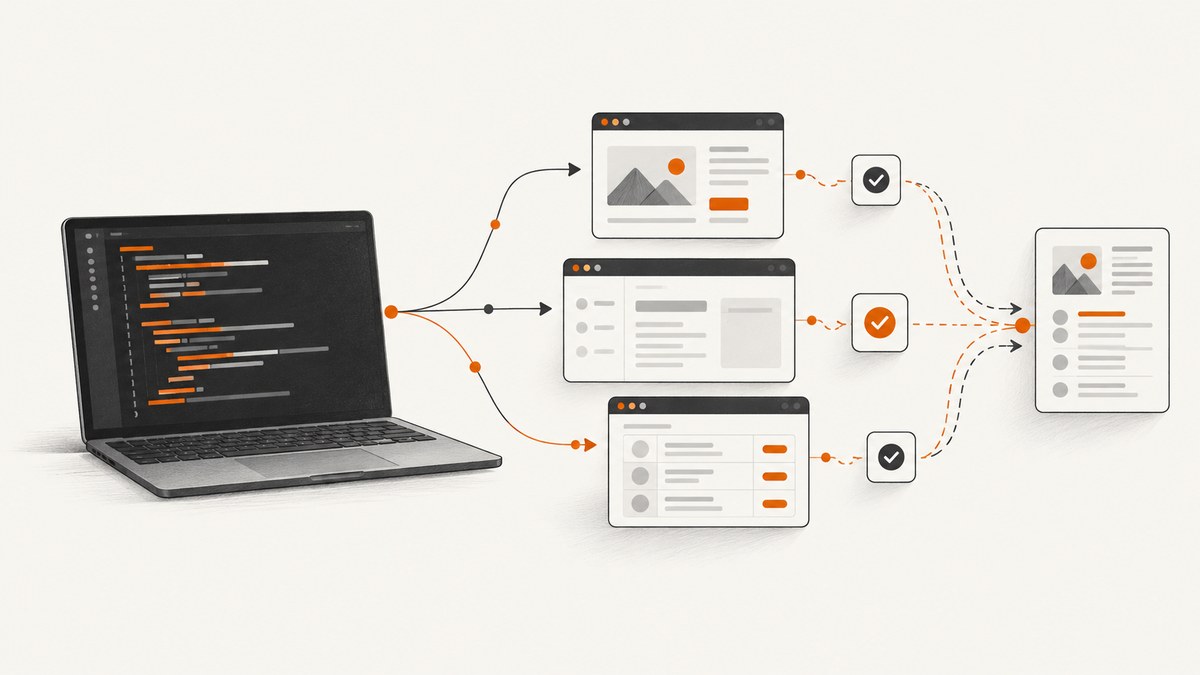
There is no single best open-source browser automation tool for every job. For scripted browser tests, start by comparing Playwright, Selenium, Puppeteer, and Cypress. For keyword-driven tests, consider Robot Framework. For a higher-level authoring style, look at CodeceptJS or Taiko. Browser Use and Skyvern target AI-directed workflows; Steel provides browser-session infrastructure; Firecrawl is a web-data API. Those categories solve different problems, so a list of tools is useful only when it helps you match the tool to the work.
This guide includes 16 projects: four widely used scripted frameworks or libraries, four Selenium ecosystem projects, Robot Framework, CodeceptJS, Taiko, two AI-directed projects, browser infrastructure, and a data API. SeleniumLibrary is discussed as a Robot Framework library rather than counted separately. Check each project’s current repository, license, release activity, and supported browsers before adopting it; those details can change.
1. Choose by the job you need done
Write down the intended outcome before comparing APIs. A stable path with known actions and expected results points toward scripted automation. A workflow whose steps change with page content may benefit from an AI agent, but it still needs a verifiable success condition. If your need is to provide remote browser sessions, choose infrastructure. If you need page content or structured records, a data API may be a better fit than a test framework.
| Need | Starting category | What to evaluate |
|---|---|---|
| Repeatable UI tests | Scripted frameworks and libraries | Language, browsers, debugging, test runner, and CI support |
| Tests expressed as readable steps | Keyword-driven or higher-level authoring | Who maintains the steps, how reusable they are, and what browser engine runs them |
| Tasks with changing page structure | AI-directed browser workflows | How you verify outcomes, handle ambiguity, and account for model use |
| Remote browser sessions | Browser infrastructure | Where sessions run and what you must operate yourself |
| Content or structured data | Web-data API | Available endpoints and the difference between self-hosted and hosted features |
Also record browser engines and versions, programming language, existing test code, WebDriver or CDP requirements, mobile-device needs, parallelism, deployment limits, and budget. Existing tests and a working CI pipeline are real assets: migration effort belongs in the comparison.
2. Scripted tools for known flows
1. Playwright
A scripted browser automation choice when you want to define actions and assertions in code. Compare its current language bindings, browser engines, debugging, and CI setup against your requirements. For Chrome, the documented ecosystem includes version-pinned Chrome for Testing and headless execution.
2. Selenium
A broad WebDriver ecosystem suited to teams that need the W3C WebDriver model or already operate Selenium-based tests and grids. ChromeDriver implements W3C WebDriver and WebDriver BiDi. Selenium’s ecosystem includes independently maintained projects; the Selenium project says those listings are not necessarily supported or endorsed by it.
3. Puppeteer
A JavaScript library for controlling Chrome. Chrome’s documentation describes Puppeteer as using CDP or WebDriver BiDi and downloading a compatible Chrome for Testing build by default. Consider it when a Chrome-centered workflow fits; verify current browser and language needs before choosing it for a multi-engine test suite.
4. Cypress
A scripted testing framework to evaluate when its authoring and debugging workflow fits your team. Compare the current browser support and test execution model in its documentation with the browser matrix, CI environment, and existing suite you actually have. Do not assume that similarly named test features imply identical protocols or engines across tools.
3. Selenium ecosystem projects
These projects are useful options, but the Selenium directory is a discovery list, not proof of support, current maintenance, or a shared license. Review each project’s own repository and license file.
5. WebdriverIO
A JavaScript project in the WebDriver ecosystem. Consider it when a JavaScript interface and WebDriver-oriented integration match your existing stack; verify current browser support and runner capabilities in its own documentation.
6. Nightwatch.js
A JavaScript browser automation project listed in Selenium’s ecosystem. Evaluate its current test authoring, browser support, and CI integration against your requirements instead of inferring fit from the directory listing.
7. Selenide
A Selenium ecosystem project to consider if your team wants its own higher-level interface around browser testing. Check the project’s current language, supported browsers, dependencies, and maintenance status before committing.
8. SeleniumBase
A separate project in the Selenium ecosystem. It may be worth evaluating when its project-specific authoring features fit your suite; verify what is available in the open-source project and inspect its current license and release history.
4. Keyword-driven and higher-level test authoring
9. Robot Framework
Robot Framework describes itself as an open-source automation framework for test automation and RPA. It provides a test-data and keyword authoring model; browser control comes through libraries. Its official project site lists SeleniumLibrary and Browser Library, the latter powered by Playwright. Pick the library based on the underlying browser stack and your existing tests, not just the shared Robot syntax.
10. CodeceptJS
CodeceptJS documents integrations with Playwright, WebDriver, Puppeteer, and Appium. That makes it an authoring layer to evaluate, not a browser engine or protocol equivalent to each integration. Check which helper and browser combination your project will use.
11. Taiko
Taiko describes itself as a free and open-source Node.js browser test automation library. It is a candidate for JavaScript teams comparing test authoring approaches. Confirm current browser support and project activity in Taiko’s own materials.
5. AI-directed workflows, infrastructure, and data
12. Browser Use
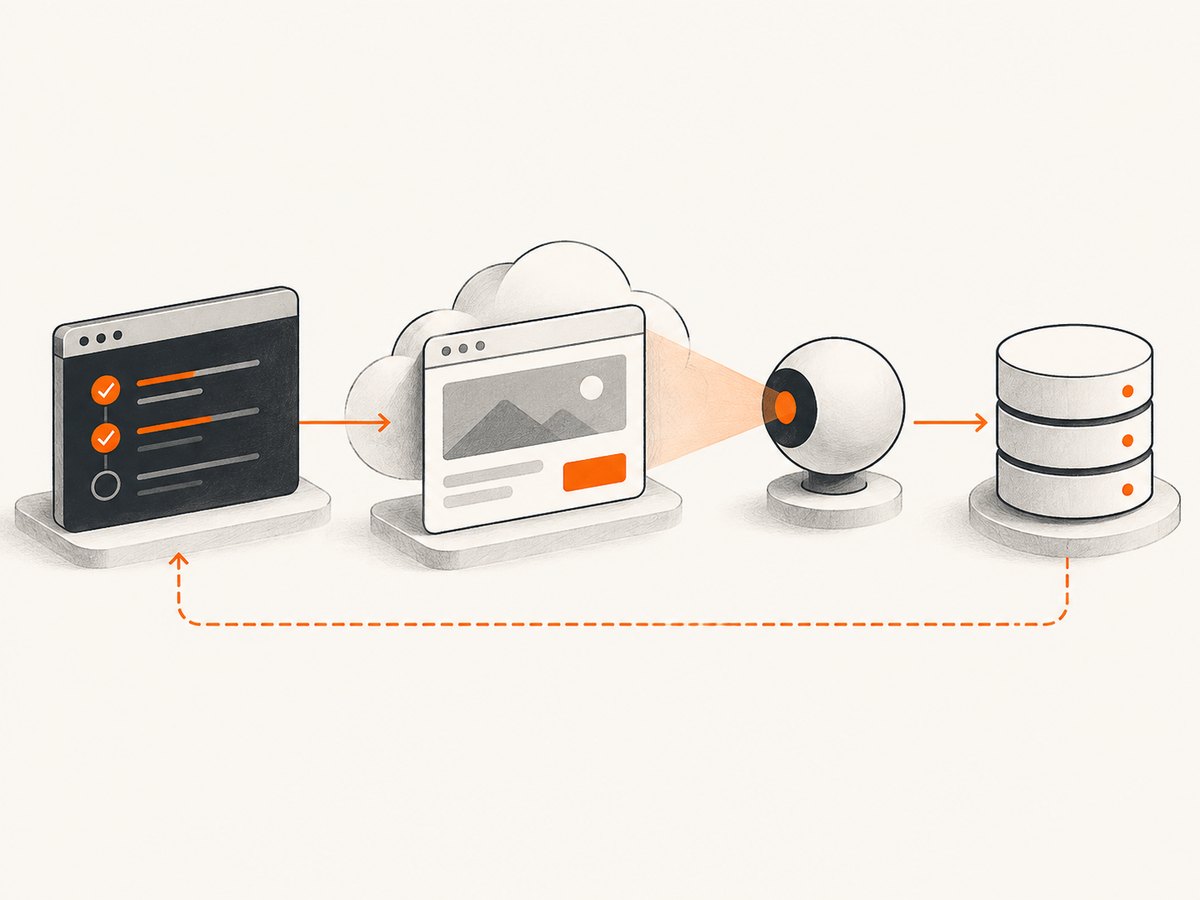
An AI-driven browser approach for workflows where the next action may depend on what the page presents. Define a success condition and validate the result: an agent completing a sequence is not itself proof that the task succeeded. Separate the local open-source code from any hosted service features and account for model usage.
13. Skyvern
Another AI-directed approach for conditional browser tasks or changing forms. Apply the same controls as for any agent: constrain the task, detect unexpected states, and verify the result independently. Check which capabilities belong to the repository and which, if any, depend on a hosted service.
14. Steel
Steel is browser-session infrastructure for scripts or agents to control. Infrastructure answers where or how a browser session is provided; your script or agent still determines what the browser should do. Compare the self-hosted and managed operating requirements that apply to your deployment.
15. Firecrawl
Firecrawl is presented as a web-data API for collecting content and structured data, with additional browser interaction in its hosted offering. It is an adjacent option when the actual goal is data extraction rather than asserting UI behavior. Confirm which endpoints are available in the self-hosted version before depending on them.
16. Chrome for Testing and Chrome Headless
This entry is a runtime workflow rather than a test-authoring framework. Chrome for Testing provides versioned Chrome binaries paired with corresponding ChromeDriver releases, and headless mode runs without a visible interface for unattended environments. Chrome’s documentation recommends pinned versions for repeatable CI workflows. Pair the browser runtime with a control library such as Puppeteer or a WebDriver framework.
Chrome’s official overview covers [Chrome for Testing, ChromeDriver, Puppeteer, and headless execution](https://developer.chrome.com/docs/automation-and-testing). Chrome for Testing helps pin the browser version; it does not replace your test runner or decide what to assert.
6. Runnable example: a deterministic Playwright test
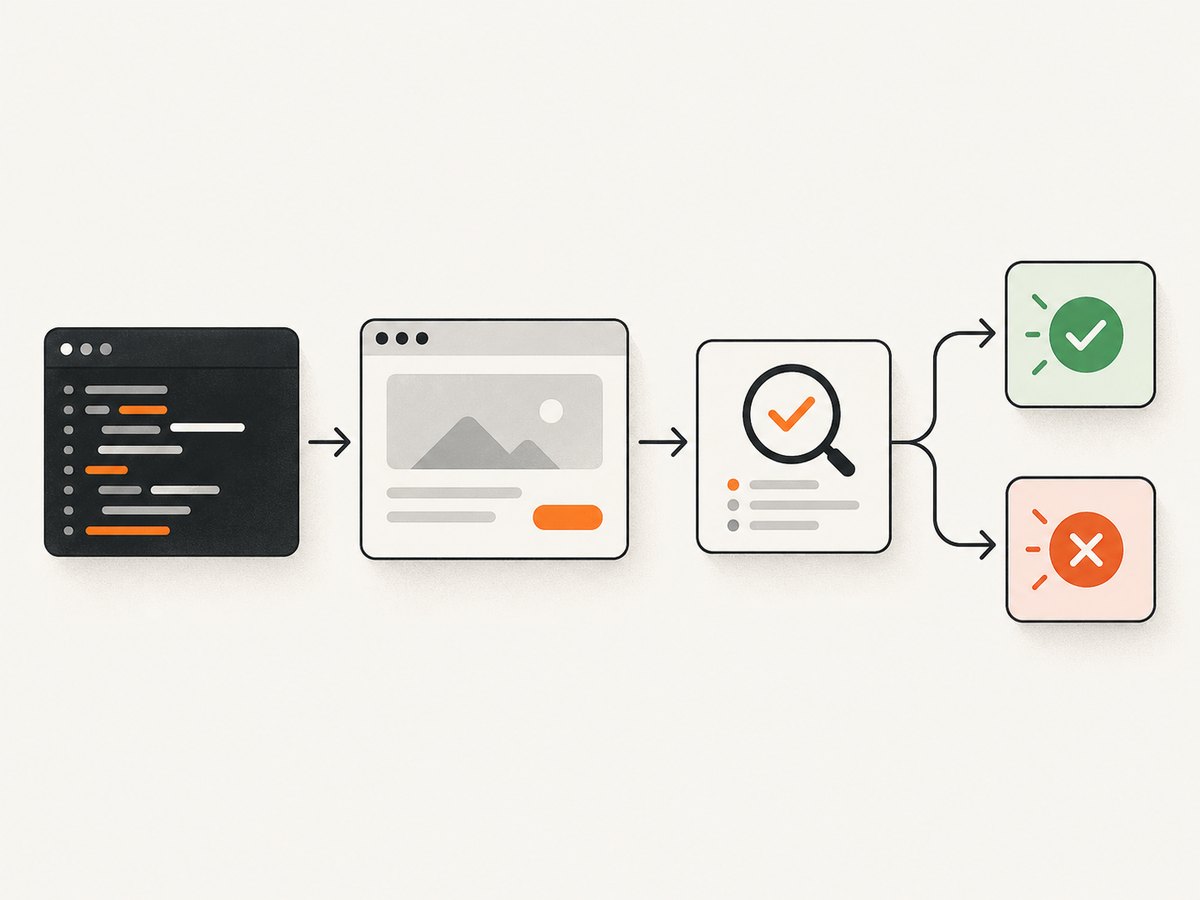
For a known sequence and expected result, a short scripted test is a useful baseline. This JavaScript example creates a page, checks a title, and closes the browser. It targets a stable public page; for production tests, use an application environment you control and assert behavior your team owns.
npm init -y
npm install --save-dev playwright
npx playwright install chromium
// test.mjs
import { chromium } from 'playwright';
const browser = await chromium.launch({ headless: true });
try {
const page = await browser.newPage({ viewport: { width: 1280, height: 800 } });
await page.goto('https://example.com', { waitUntil: 'domcontentloaded', timeout: 30000 });
const title = await page.title();
if (!title.includes('Example Domain')) {
throw new Error(`Unexpected page title: ${title}`);
}
console.log({ url: page.url(), title });
} finally {
await browser.close();
}node test.mjsUse explicit waits for the condition that matters, such as a visible confirmation element, rather than adding a fixed delay after every action. Keep browser cleanup in a finally block so failures do not leave processes running. Install the browser binaries in the same build environment used by CI, and pin project dependencies and browser versions where repeatability matters.
7. Configure the workflow for repeatability
- Choose one representative flow. Pick a user-visible path with a clear pass/fail result, such as a form submission followed by a confirmation.
- Choose the browser matrix. Decide whether Chromium is enough or whether the product requirement calls for multiple engines or specific versions.
- Pin the runtime. Use versioned browser binaries where repeatability matters. Chrome for Testing provides versioned downloads and matching ChromeDriver releases.
- Run headless in CI. Chrome headless mode supports unattended server, container, and CI workflows. Reproduce CI’s browser version and launch configuration locally when diagnosing a failure.
- Make assertions observable. Assert a visible state or data value that demonstrates success. Capture useful logs, traces, or screenshots through the chosen project’s documented facilities.
- Parallelize with isolation. Parallel workers should not share mutable accounts, records, or browser profiles unless the test deliberately coordinates them.
8. Comparison checklist
- Browser engines: Which engines and versions are required? Do not equate browser emulation with real-device coverage.
- Language and suite: Does the tool fit the team’s language, runner, and existing tests?
- Protocol: Do you need W3C WebDriver, WebDriver BiDi, CDP, or a specific integration?
- Debugging: Can engineers inspect failures and reproduce them in local or CI environments?
- Parallel execution: Does the project provide the needed execution model, or will you add a grid or hosted sessions?
- Mobile: Is browser emulation sufficient, or do you need real devices or native-app automation? Treat Appium/device coverage as a separate requirement and verify the exact matrix.
- Deployment and licensing: What must you run, what is managed, and what does the project’s current license permit?
- Total cost: Open-source code can still require compute, storage, hosted sessions, proxy use, or model inference. Count the full workflow.
9. Troubleshooting common failures
| Symptom | Likely cause | What to try |
|---|---|---|
| Browser or driver will not start | Missing binary, incompatible versions, or CI image mismatch | Install the browser in the execution environment; pin and pair browser and driver versions. For Chrome, use Chrome for Testing’s matching binaries. |
| Test passes locally but fails in CI | Different browser version, viewport, timing, environment variables, or network access | Align runtime versions and viewport, log the failing URL and state, and wait for a meaningful condition rather than a guessed delay. |
| Element lookup times out | Wrong locator, late rendering, hidden element, or a frame/window context change | Inspect the current DOM and frame, prefer stable attributes, and wait for the target to become visible or actionable. |
| Click appears to do nothing | Overlay, disabled control, stale element, or navigation not awaited | Check visibility and enabled state, identify overlays, and wait for the expected navigation or confirmation. |
| Intermittent failures under parallel runs | Workers share state, accounts, or test data | Give each worker isolated records and credentials, and clean up after each run. |
| Agent reports success but task is wrong | Completion was inferred from actions rather than an observed result | Require a concrete postcondition and independently verify it; handle ambiguous or unexpected pages explicitly. |
| Self-hosted data workflow lacks an endpoint | A relied-on feature may exist only in the hosted offering | Check the self-hosted documentation and API surface before designing around the endpoint. |
10. Performance, reliability, and cost
There is no generally applicable benchmark in the reviewed evidence that makes one of these tools fastest for every suite. Browser startup, page weight, network latency, test design, and parallelism all affect elapsed time. Measure a representative workload in your own environment, and record the browser version and execution setup when comparing changes.
Reliability depends on stable assertions, isolated test data, explicit waits, and reproducible browser versions as much as on the project choice. Fixed sleeps often make a suite both slower and more timing-sensitive. Keep failures diagnosable by saving the relevant logs and state, while taking care not to expose credentials or personal data in artifacts.
“Open source” describes code availability, not the total operating bill. Self-hosted runs consume compute and engineering time; hosted sessions, proxies, storage, and AI model inference can add separate charges. Verify the project license, hosted service terms, and current pricing directly before planning a production workflow.
11. Or skip the browser setup
If the task is to produce a website screenshot rather than test a sequence of interactions, ScreenshotNeo is a website screenshot API and MCP server from Yorker Media. One GET request returns a PNG, JPEG, WebP, or PDF. The API accepts parameter names used by other screenshot APIs, which can make switching easier. See the ScreenshotNeo API documentation.
curl -G "https://api.screenshotneo.com/v1/shot" -d access_key=YOUR_API_KEY --data-urlencode url=https://stripe.com -o shot.webpimport requests
r = requests.get(
"https://api.screenshotneo.com/v1/shot",
params={"access_key": "YOUR_API_KEY", "url": "https://stripe.com"},
timeout=90,
)
r.raise_for_status()
open("shot.webp", "wb").write(r.content)const q = new URLSearchParams({ access_key: 'YOUR_API_KEY', url: 'https://stripe.com' });
const res = await fetch(`https://api.screenshotneo.com/v1/shot?${q}`);
if (!res.ok) throw new Error(`Screenshot request failed: ${res.status}`);
await Bun.write('shot.webp', res);ScreenshotNeo accepts cookie or consent banners like a visitor and removes more than 60 known consent platforms, newsletter popups, and chat widgets before capture; each step can be turned off. Bot checks or CAPTCHAs, blank pages, timeouts, failed loads, and cache hits cost nothing, and response headers report the page verdict and billing status. Its MCP server gives AI clients including Claude, Cursor, and other MCP clients the tools take_screenshot, get_page_info, and capture_pdf. The free plan includes 1,000 shots per month with no card; paid plans start at $5 for 3,000 shots. Plans include all features, and yearly billing gives two months free.
Create a free ScreenshotNeo account for 1,000 screenshots a month with no card.
12. Frequently asked questions
What is the best open-source browser automation tool for my project?
For a known sequence of browser actions and assertions, begin with a scripted framework that fits your language, browser matrix, and existing test stack. There is no universal winner across the categories in this guide.
Which tools support multiple browser engines?
Support differs by project and can change. Check the current official documentation for the exact engines and versions your tests require; do not infer coverage from a project’s general category.
Do I need an AI agent to automate a website?
No. A deterministic flow is usually easier to specify with scripted actions and assertions. Consider an agent when the steps vary with page content, and define a separate way to verify successful completion.
Is browser automation free because the project is open source?
The source may be open, but running browsers, maintaining CI, operating a grid, paying for hosted sessions, or using models can still cost money and engineering time.
Is a screenshot API a replacement for browser tests?
No. A screenshot API produces an image or document; a test framework drives actions and checks behavior. Choose based on the deliverable your workflow needs.
Sources and currency
Project capabilities, licenses, and maintenance can change. Review the primary project sources before adoption: Chrome automation documentation, Selenium ecosystem, Robot Framework, Robot Framework Browser Library, SeleniumLibrary, CodeceptJS, and Taiko. For every other project above, check its own repository and documentation for current status, supported versions, license, and hosted-service boundaries.


