Open-Source HTML-to-PDF APIs: Gotenberg, Playwright, and Puppeteer
Compare open-source HTML-to-PDF APIs and browser libraries, with runnable Gotenberg, Playwright, Puppeteer, cURL, Python, and Node.js examples.

Short answer: choose Gotenberg when you want a Dockerized HTTP service that your applications can call. Choose Playwright or Puppeteer when browser lifecycle and page automation belong inside your application. Gotenberg accepts a URL or uploaded HTML and assets; Playwright and Puppeteer expose the browser page’s PDF method directly. Rendering quality depends on print CSS, fonts, page-break rules, readiness waits, and the exact browser version, so validate representative documents before production.
This guide shows the three approaches with runnable code, explains their configuration and security boundaries, and gives a practical decision framework. If you need screenshots or PDFs without operating a browser service, ScreenshotNeo is a hosted option with a single HTTP request.
1. Decide which integration shape fits
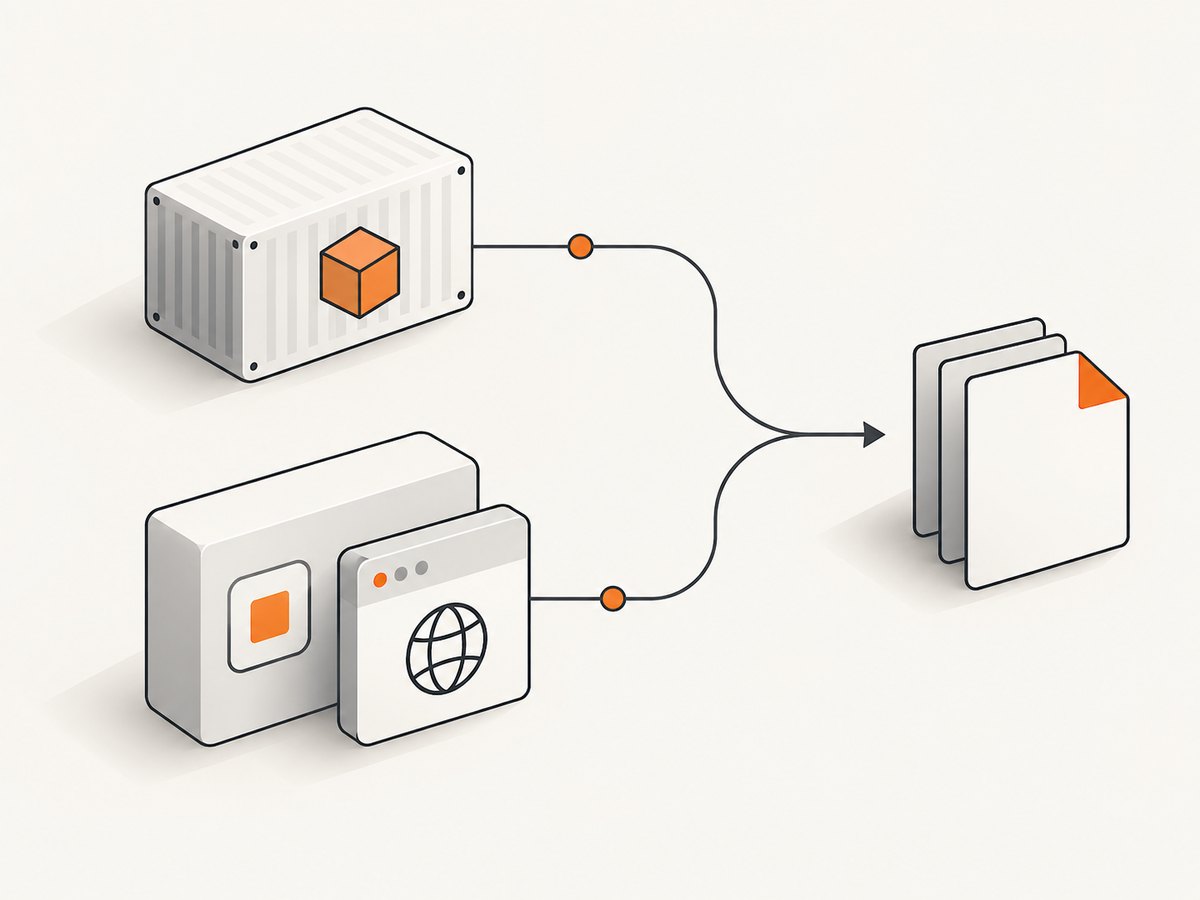
| Approach | Best fit | You operate | Input model |
|---|---|---|---|
| Gotenberg | A shared internal conversion service | Container capacity, updates, network policy, browser resources | URL or multipart HTML and assets |
| Playwright | Applications that already automate Chromium | Browser processes, contexts, queues, and cleanup | A page you build and control in code |
| Puppeteer | Node.js applications using Puppeteer | Browser processes, contexts, queues, and cleanup | A page you build and control in code |
There is no benchmark in the available research that establishes a universal speed or fidelity winner. Measure your own templates, concurrency, memory use, and failure behavior. A service boundary can simplify application code, while direct automation gives finer control over navigation, authentication, and page state.
2. Run Gotenberg with Docker
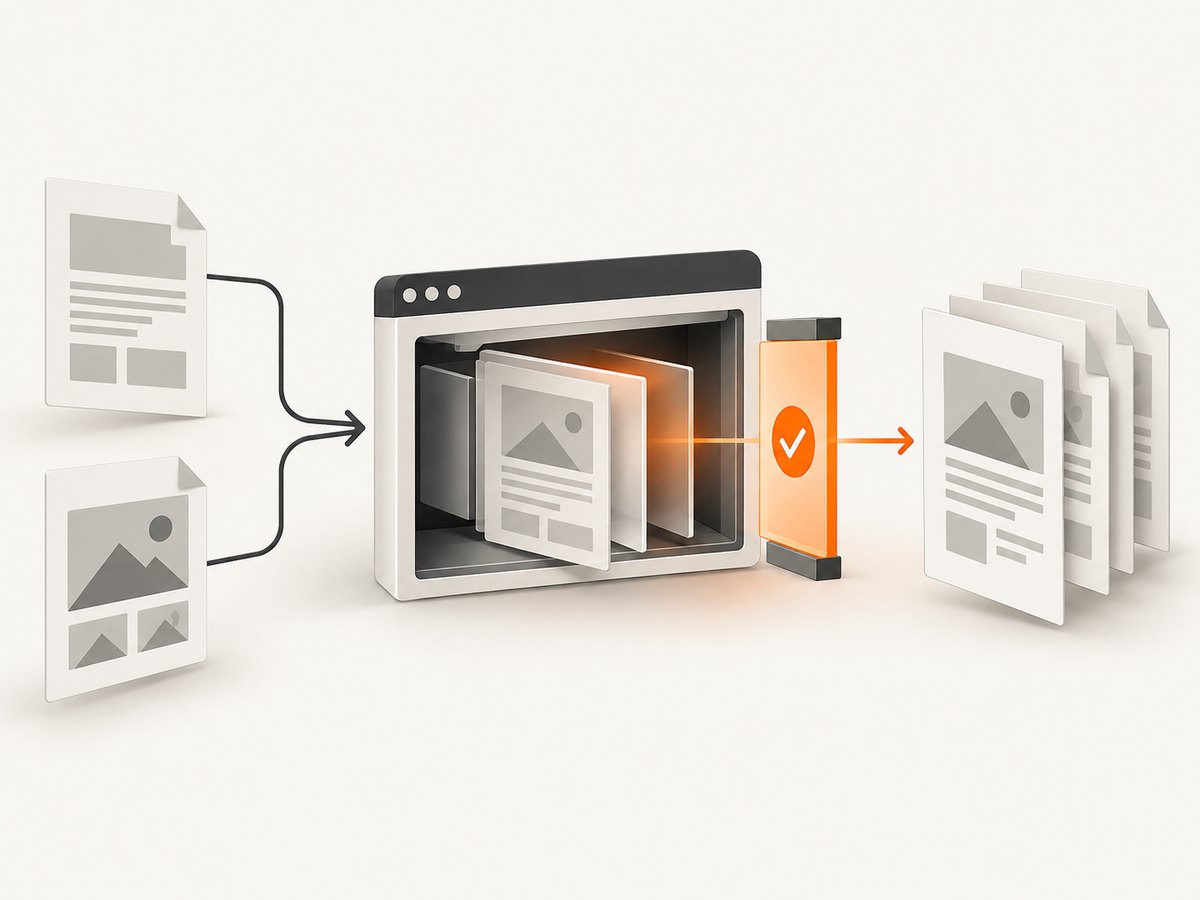
Gotenberg documents a Docker deployment and Chromium conversion routes. The homepage example starts the gotenberg/gotenberg:8 image and posts a URL to /forms/chromium/convert/url. Pin and verify the release used by your deployment; the :8 tag in the documentation is not evidence that it is the newest release.
docker run --rm --name gotenberg \
  -p 3000:3000 \
  gotenberg/gotenberg:8
Convert a public URL with cURL:
curl --request POST \
  --form-urlencode url=https://example.com \
  http://localhost:3000/forms/chromium/convert/url \
  --output example.pdf
For an HTML document and local assets, send a multipart form. The HTML route requires a file named index.html; relative CSS, fonts, and images can be referenced from that document.
curl --request POST \
  --form index.html=@index.html \
  --form styles.css=@styles.css \
  http://localhost:3000/forms/chromium/convert/html \
  --output document.pdf
Keep the asset paths relative to index.html, or include each required file in the multipart request using the names expected by the document. Confirm the current route options in the deployed version’s documentation before relying on defaults.
3. Gotenberg request options that affect output
PDF output is controlled by both the HTML and the Chromium route’s form fields. Review these categories for every production template:
- Page geometry: paper size, width and height, margins, and landscape orientation.
- CSS pagination:
@pagerules,break-before,break-after, andbreak-inside. - Backgrounds: enable background graphics when the design depends on colored sections or images.
- Readiness: wait for a selector or expression that proves the application has finished rendering. A fixed delay is simpler but less precise.
- Navigation: URL conversion must be able to reach the page and all of its required assets.
A dependable template uses explicit print CSS:
@page {
  size: A4;
  margin: 16mm 14mm 18mm;
}

@media print {
  .screen-only { display: none; }
  .avoid-split { break-inside: avoid; }
  thead { display: table-header-group; }
}
Check long tables, web fonts, SVGs, charts, image loading, and page breaks with realistic data. Browser and operating-system changes can alter pagination, so pin the renderer image and review upgrades.
4. Upload generated HTML safely
Generate a complete document before submitting it. Include a character set, explicit font fallbacks, and all assets needed for an offline render. A minimal index.html might look like this:
<!doctype html>
<html>
<head>
  <meta charset="utf-8">
  <link rel="stylesheet" href="styles.css">
</head>
<body>
  <main>
    <h1>Invoice 1042</h1>
    <p>Generated at 2026-09-30T12:00:00Z</p>
  </main>
</body>
</html>
Do not assume that a browser can fetch a private asset from your workstation or application network. Put required files in the multipart request, host them on an explicitly allowed origin, or build the page in the same browser context when using Playwright or Puppeteer.
5. Use Playwright directly
Playwright’s page.pdf() returns a PDF buffer and uses print CSS media by default. If the page is designed for screens, call page.emulateMedia({ media: 'screen' }) before generating the PDF. Wait for an application-specific readiness signal rather than guessing with a long timeout.
import { chromium } from 'playwright';
import fs from 'node:fs/promises';

const browser = await chromium.launch();
try {
  const page = await browser.newPage({ viewport: { width: 1440, height: 900 } });
  await page.goto('https://example.com/report', { waitUntil: 'domcontentloaded' });
  await page.waitForSelector('[data-report-ready="true"]');
  await page.emulateMedia({ media: 'print' });
  const pdf = await page.pdf({
    format: 'A4',
    printBackground: true,
    preferCSSPageSize: true,
    margin: { top: '16mm', right: '14mm', bottom: '18mm', left: '14mm' },
    tagged: true
  });
  await fs.writeFile('report.pdf', pdf);
} finally {
  await browser.close();
}
Useful Playwright options include page ranges, CSS page-size priority, backgrounds, scale, margins, and tagged output. If you want screen styles, emulate screen media immediately before page.pdf(); otherwise keep print media and maintain print-specific CSS.
6. Use Puppeteer in Node.js
Puppeteer exposes the same basic flow through page.pdf(). Its API documents emulating screen media before PDF generation when screen styling is required.
import puppeteer from 'puppeteer';
import fs from 'node:fs/promises';

const browser = await puppeteer.launch({ headless: true });
try {
  const page = await browser.newPage();
  await page.goto('https://example.com/report', { waitUntil: 'networkidle0' });
  await page.waitForSelector('[data-report-ready="true"]');
  await page.emulateMediaType('print');
  await page.pdf({
    path: 'report.pdf',
    format: 'A4',
    printBackground: true,
    preferCSSPageSize: true,
    margin: { top: '16mm', right: '14mm', bottom: '18mm', left: '14mm' }
  });
} finally {
  await browser.close();
}
For either library, reuse a browser process and create isolated pages or contexts for jobs. Starting a new browser for every request adds latency and increases resource pressure. Always close pages, contexts, and the browser on success and failure.
7. Calling Gotenberg from Python and Node.js
These examples keep the conversion service separate from your application.
import requests

with open('index.html', 'rb') as html_file, open('styles.css', 'rb') as css_file:
    response = requests.post(
        'http://localhost:3000/forms/chromium/convert/html',
        files={
            'index.html': ('index.html', html_file, 'text/html'),
            'styles.css': ('styles.css', css_file, 'text/css'),
        },
        timeout=90,
    )
response.raise_for_status()
with open('document.pdf', 'wb') as output:
    output.write(response.content)
import fs from 'node:fs';
import FormData from 'form-data';
import fetch from 'node-fetch';
const form = new FormData();
form.append('index.html', fs.createReadStream('index.html'));
form.append('styles.css', fs.createReadStream('styles.css'));
const response = await fetch(
'http://localhost:3000/forms/chromium/convert/html',
{ method: 'POST', body: form, headers: form.getHeaders() }
);
if (!response.ok) throw new Error(`Gotenberg returned ${response.status}`);
fs.writeFileSync('document.pdf', Buffer.from(await response.arrayBuffer()));8. Security boundaries for URL conversion
Rendering an arbitrary URL or untrusted HTML is a security-sensitive capability. Decide which outbound hosts the renderer may contact, whether credentials or cookies can be sent, and how jobs are isolated. Gotenberg documents outbound URL filtering, including a pinning proxy in its filtering description, and a configuration that clears cookies after each request for stricter isolation. These controls depend on the exact version and deployment configuration; verify them in your environment.
- Allowlist destination hosts and schemes where possible.
- Do not pass end-user cookies or authorization headers into a shared renderer without an explicit design.
- Run the container with restricted network and filesystem access.
- Set request, navigation, and total job timeouts.
- Remove temporary HTML and asset files after conversion.
9. Troubleshooting checklist
| Symptom | Likely cause | Fix |
|---|---|---|
| Blank or incomplete PDF | Client-side rendering had not finished | Wait for a readiness selector or expression; inspect browser logs. |
| Missing images or fonts | Relative paths, blocked origin, or inaccessible private assets | Include assets in the HTML upload, allow the origin, or load them in the browser context. |
| Unexpected page breaks | Implicit paper size, margins, or split elements | Set @page, route margins, and break-inside: avoid; test long content. |
| Colors or backgrounds absent | Print media or background printing disabled | Use print CSS deliberately and enable background graphics. |
| Request times out | Slow navigation, blocked third-party request, or overloaded browser | Set a bounded timeout, remove unnecessary resources, and limit concurrency. |
| Authentication page appears | Renderer lacks the required session | Use an authenticated browser context or a controlled service-side credential flow; never expose credentials in public URLs. |
| Intermittent conversion failures | Shared browser state, leaked pages, or resource exhaustion | Isolate contexts, close resources in finally blocks, and monitor memory and queue depth. |
10. Performance, reliability, and cost planning
Capacity depends on your templates, asset sizes, JavaScript work, browser version, and concurrency. Establish a representative test set and record render duration, memory, PDF size, error rate, and output differences across upgrades. Keep a queue in front of a bounded number of browser workers; unlimited parallel Chromium jobs usually turns contention into timeouts.
Cache deterministic documents by a content hash when business rules allow it. Reuse browser processes, but create a fresh page or context per job. Set maximum HTML size, navigation time, PDF size, and total job duration. Return a clear error to callers and make retries idempotent. A containerized service still has operating costs: image updates, capacity planning, observability, and security maintenance. Direct browser automation moves those responsibilities into your application.
11. Or skip the browser setup
ScreenshotNeo provides a hosted screenshot and PDF API at https://api.screenshotneo.com/v1/shot. One request returns a PNG, JPEG, WebP, or PDF. See the ScreenshotNeo documentation for parameters and response details.
curl -G "https://api.screenshotneo.com/v1/shot" -d access_key=YOUR_API_KEY --data-urlencode url=https://stripe.com -o shot.webpimport requests; r = requests.get("https://api.screenshotneo.com/v1/shot", params={"access_key": "YOUR_API_KEY", "url": "https://stripe.com"}, timeout=90); open("shot.webp", "wb").write(r.content)const q = new URLSearchParams({ access_key: 'YOUR_API_KEY', url: 'https://stripe.com' }); const res = await fetch(`https://api.screenshotneo.com/v1/shot?${q}`);Before capture, ScreenshotNeo accepts cookie and consent banners and removes more than 60 known consent platforms, newsletter popups, and chat widgets; each step can be disabled. Bot checks, blank pages, timeouts, failed loads, and cache hits are not billed, and response headers identify the page verdict and billing result. It also provides an MCP server for Claude, Cursor, and other MCP clients, with take_screenshot, get_page_info, and capture_pdf tools. The Free plan includes 1,000 shots per month without a card; paid plans start at $5 for 3,000 shots. Create a free ScreenshotNeo account.
12. FAQ
Can Gotenberg render JavaScript?
Yes. Its Chromium module renders JavaScript-driven pages. You still need a readiness strategy so conversion does not begin before the application finishes.
Should I upload HTML or convert a URL?
Upload HTML when you control the document and want reproducible assets. Use URL conversion when the renderer can securely reach the page and its dependencies.
How do I force screen CSS?
In Playwright, call page.emulateMedia({ media: 'screen' }). In Puppeteer, call page.emulateMediaType('screen') before page.pdf(). With Gotenberg, design and verify the route’s print behavior and CSS.
Is Gotenberg self-hosted?
Yes. It is documented as a Docker-based service. You remain responsible for deployment, updates, capacity, network controls, and isolation.
Which option should I start with?
Start with Gotenberg for a shared HTTP boundary, Playwright or Puppeteer when browser control is already part of your codebase, and ScreenshotNeo when you want a hosted API without browser operations.


