Open-Source Website Screenshot Tools
Compare Playwright and Puppeteer for website screenshots, with runnable code, setup guidance, troubleshooting, and a hosted API option.
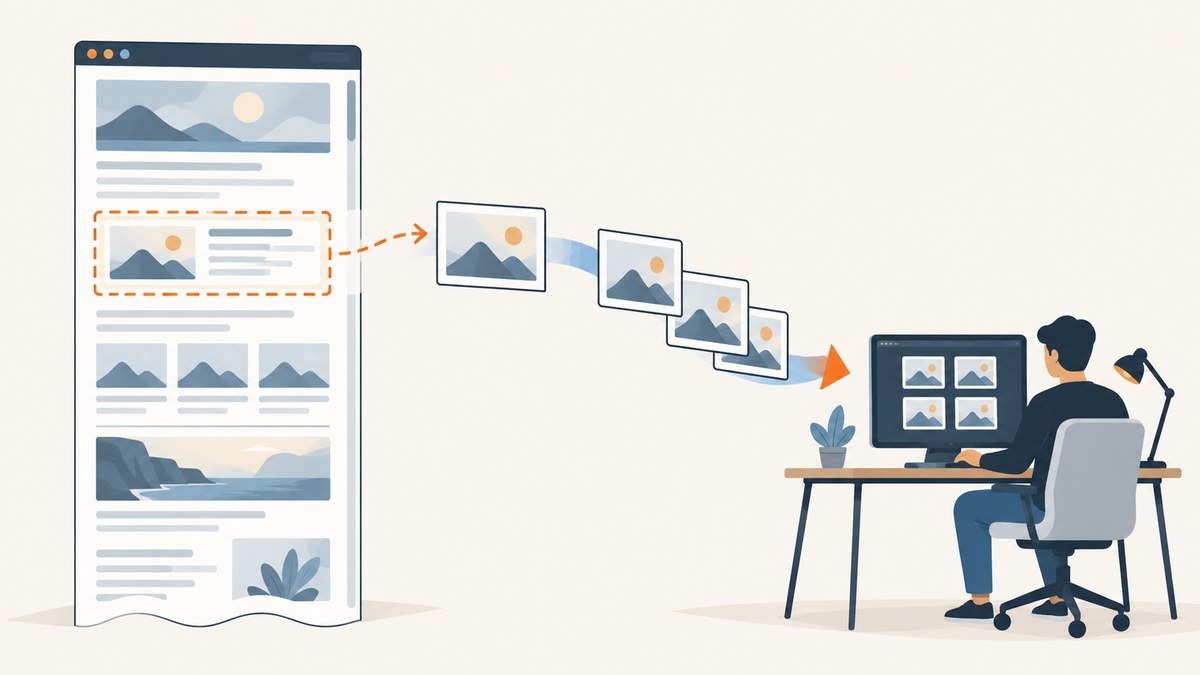
For open-source website screenshots, start with Playwright if you need full-page, element, or in-memory captures across its documented browser options. Choose Puppeteer when a Chromium-oriented Node.js workflow and straightforward page or element screenshots fit your project. Both let you run the browser yourself; the right choice depends on your language, browser needs, capture controls, and willingness to maintain browser binaries.
This guide shows runnable examples for each, explains how to make captures repeatable, and covers the operational trade-offs of self-hosting. If you would rather send a URL and receive an image, ScreenshotNeo is a managed screenshot API and MCP server. Its clean shots remove known consent banners, newsletter popups, and chat widgets before capture, and only clean shots are billed.
1. What counts as an open-source screenshot tool?
Playwright and Puppeteer are browser automation libraries that can render a page and save its screenshot. They are building blocks rather than complete hosted screenshot services: your application launches and controls a browser, chooses when the page is ready, and decides where the output goes. You also operate the runtime and keep its browser installation compatible with the library.
Playwright is a strong fit when the workflow needs its documented viewport, full-page, element, and buffer capture modes. Puppeteer suits a Chromium-focused Node.js service or script and offers page and element screenshot methods. Both can capture authenticated pages when you configure the browser context or page with the needed state; treat credentials and resulting screenshots as sensitive data.
| Decision | Playwright | Puppeteer |
|---|---|---|
| Typical fit | Projects needing documented capture modes and browser automation. | Chromium-centered Node.js capture workflows. |
| Full-page / element capture | Documented for page and locator captures. | Page and ElementHandle screenshot methods are documented. |
| In-memory output | Screenshot API can return a buffer. | Returns binary bytes by default; base64 can be requested. |
| Operational burden | Install and maintain the library’s browser binaries and runtime. | Install and maintain compatible Chromium/browser binaries and runtime. |
The documentation describes capabilities, not a controlled comparison of speed or visual fidelity. For a fair internal evaluation, hold the URL, viewport, browser version, wait condition, authentication state, fonts, animations, and image settings constant.
2. Take screenshots with Playwright
Install and capture a page
For a Node project, install Playwright and its browser. The following example navigates to a URL, waits for the page load event, and writes a viewport screenshot:
npm install playwright
npx playwright install chromium
// screenshot.mjs
import { chromium } from 'playwright';
const browser = await chromium.launch({ headless: true });
try {
const page = await browser.newPage({ viewport: { width: 1440, height: 900 } });
await page.goto('https://example.com', { waitUntil: 'load', timeout: 30000 });
await page.screenshot({ path: 'screenshot.png' });
} finally {
await browser.close();
}Run it with node screenshot.mjs. The documented basic API is page.screenshot({ path: 'screenshot.png' }). Browser installation is part of setup; in a clean CI image, install the browser version expected by the Playwright package before launching.
Choose the capture area and output
Use fullPage to capture the entire scrollable page, or take a locator screenshot when only one component matters. Screenshot options also include image format, clip area, quality, and other settings. Here are complete alternatives to put in the capture section of the script:
// Full scrollable page
await page.screenshot({ path: 'full-page.png', fullPage: true });

// A single element, scrolled into view if needed
await page.locator('[data-testid="invoice-summary"]').screenshot({
  path: 'summary.png'
});

// In-memory bytes for post-processing or a pixel-diff workflow
const bytes = await page.screenshot({ type: 'png' });
For JPEG, specify type: 'jpeg' and a quality value where supported. PNG is useful when lossless output matters; JPEG can be smaller for photographic pages. Check the current Playwright API documentation for the full option set and constraints for your installed version: Playwright screenshots.
Python example
Playwright also supports Python. Install the package and browser, then use the synchronous API:
python -m pip install playwright
python -m playwright install chromium
# screenshot.py
from playwright.sync_api import sync_playwright
with sync_playwright() as p:
browser = p.chromium.launch(headless=True)
try:
page = browser.new_page(viewport={"width": 1440, "height": 900})
page.goto("https://example.com", wait_until="load", timeout=30_000)
page.screenshot(path="screenshot.png", full_page=True)
finally:
browser.close()3. Take screenshots with Puppeteer
Puppeteer provides a page screenshot API in Node.js. This example launches the browser, navigates using the documented networkidle2 wait condition, writes an image, and closes the browser even if capture fails:
npm install puppeteer// puppeteer-shot.mjs
import puppeteer from 'puppeteer';
const browser = await puppeteer.launch({ headless: true });
try {
const page = await browser.newPage();
await page.setViewport({ width: 1440, height: 900 });
await page.goto('https://example.com', {
waitUntil: 'networkidle2',
timeout: 30000
});
await page.screenshot({ path: 'screenshot.png', fullPage: true });
} finally {
await browser.close();
}Run with node puppeteer-shot.mjs. Puppeteer’s guide demonstrates launching a browser and navigating before capture. For a particular element, use its handle’s screenshot method. If the element is hidden outside the viewport, Puppeteer scrolls it into view before capture.
const card = await page.$('.pricing-card');
if (!card) throw new Error('Could not find .pricing-card');
await card.screenshot({ path: 'pricing-card.png' });
page.screenshot() returns a Uint8Array by default; requesting base64 encoding returns a string. A binary result can be written or passed to an image-processing library. See the Puppeteer Page.screenshot API reference for the current options.
4. Make captures repeatable
A screenshot records a rendered state, so the same URL can produce different output when the environment or timing changes. Decide and record the following settings for each workflow:
- Viewport and scale: Fix viewport width and height. Responsive breakpoints change layout; device-pixel scale affects output dimensions.
- Browser version: Pin library and browser versions in CI. Browser updates can change rendering.
- Readiness condition: Choose a navigation event or wait for a page-specific selector. Network-idle conditions can be unreliable on pages with analytics, polling, or long-lived connections.
- Fonts and images: Make sure web fonts and important assets have loaded before capture. For lazy-loaded content, scroll or otherwise trigger the content before taking a full-page shot.
- Animations and dynamic data: Freeze test data where possible and account for animations, rotating banners, timestamps, and personalized content.
- Authentication: Establish the intended login state explicitly, and avoid logging credentials or storing sensitive screenshots in public artifacts.
- Output: Select file path or bytes, image format, quality, and full-page or element scope based on downstream use.
For visual regression, capture with identical settings and compare output in the same pipeline. A passing screenshot call only means the browser produced bytes; it does not prove the page displayed all expected content.
5. Wait for the right page state
Navigation completion and application readiness are different. A page may finish its load event before client-rendered content appears, or remain network-active after the visible content is ready. Prefer waiting for a stable, meaningful selector when the page has one:
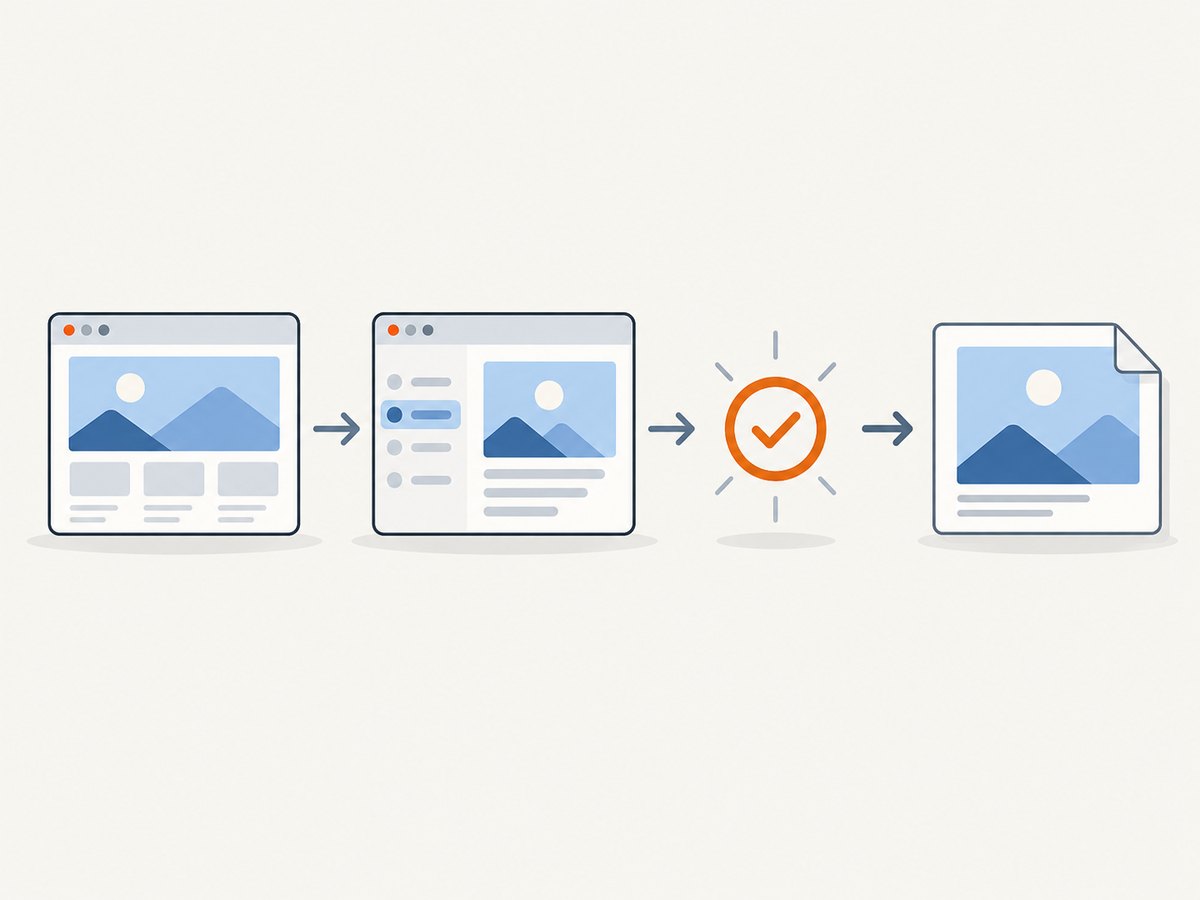
await page.goto('https://example.com/dashboard', { waitUntil: 'domcontentloaded' });
await page.locator('[data-testid="dashboard-ready"]').waitFor({ state: 'visible' });
await page.screenshot({ path: 'dashboard.png', fullPage: true });
Use fixed delays only when the page offers no reliable readiness signal; delays add latency and still do not guarantee readiness. If content is lazy-loaded as the user scrolls, trigger scrolls through the document and wait for images or section markers to appear before capturing. For a page with continuous network activity, a network-idle wait can time out even though the target content is usable.
6. When a hosted screenshot API makes sense
Self-hosting gives you control over browser execution and capture integration, but it means maintaining browser installs, execution limits, cleanup, and concurrency. A hosted API is worth considering when your application needs URL-to-image or URL-to-PDF output and you do not want browser infrastructure in your service.
Or skip the browser setup
ScreenshotNeo takes a URL in one GET request and returns a PNG, JPEG, WebP, or PDF. Its API documentation covers the request parameters. This runnable cURL example saves a WebP capture:
curl -G "https://api.screenshotneo.com/v1/shot" \
  -d access_key=YOUR_API_KEY \
  --data-urlencode url=https://stripe.com \
  -o shot.webp
Python and Node.js work with the same endpoint:
import requests

r = requests.get(
    "https://api.screenshotneo.com/v1/shot",
    params={"access_key": "YOUR_API_KEY", "url": "https://stripe.com"},
    timeout=90,
)
r.raise_for_status()
with open("shot.webp", "wb") as image:
    image.write(r.content)
const q = new URLSearchParams({
access_key: 'YOUR_API_KEY',
url: 'https://stripe.com'
});
const res = await fetch(`https://api.screenshotneo.com/v1/shot?${q}`);
if (!res.ok) throw new Error(`Screenshot request failed: ${res.status}`);
await import('node:fs/promises').then(({ writeFile }) =>
writeFile('shot.webp', new Uint8Array(await res.arrayBuffer()))
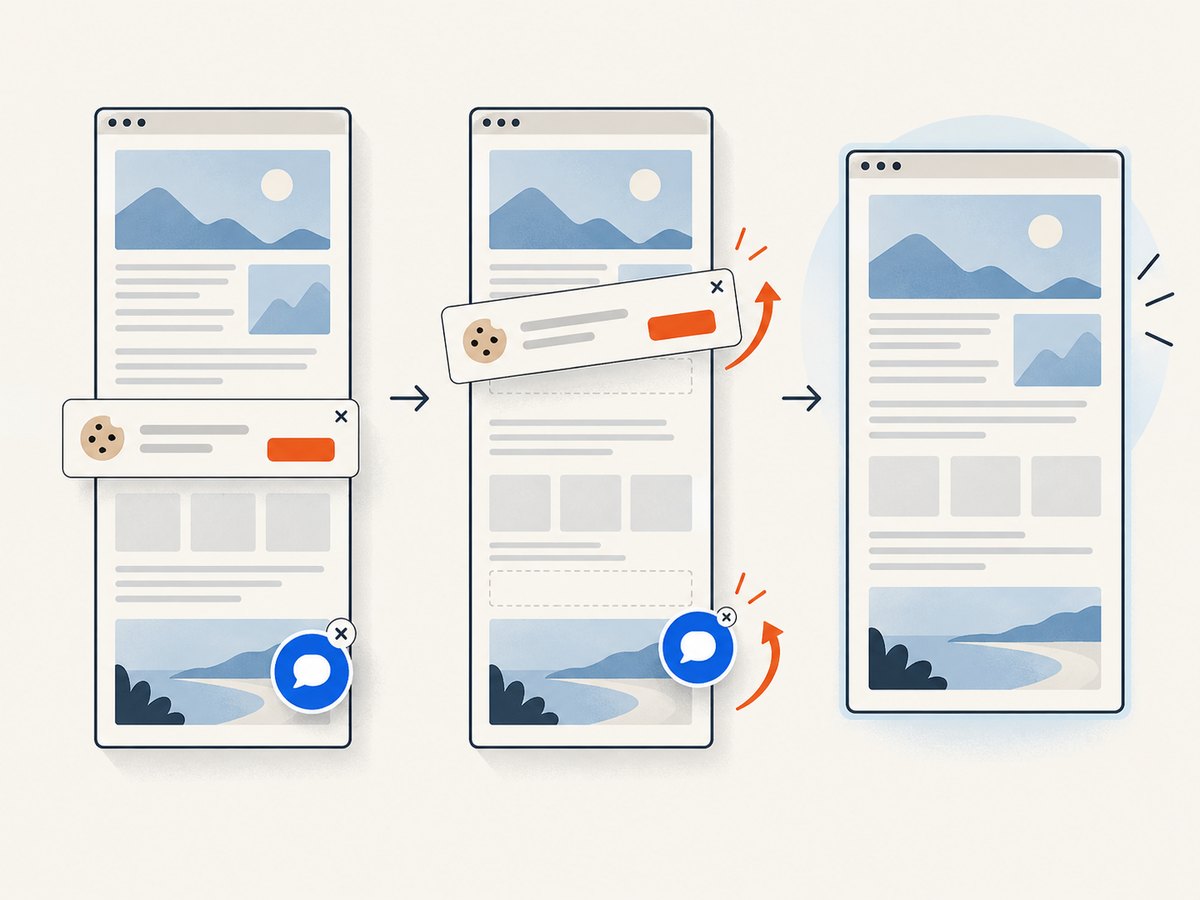
);Cookie banners, newsletter popups, and chat widgets from more than 60 known platforms are removed before the shot, and each step can be disabled. Bot checks, blank pages, timeouts, failed loads, and cache hits cost nothing; response headers report the page verdict and billing status. An MCP server exposes take_screenshot, get_page_info, and capture_pdf to Claude, Cursor, and other MCP clients. The API also supports element capture, full-page capture, dark mode, custom CSS and JavaScript, device presets, headers and cookies, caching, bulk requests, async jobs, and more.
There are 1,000 screenshots per month on the free plan with no card. Paid plans start at $5 for 3,000 shots, and every feature is available on every plan. Sign up free for 1,000 screenshots a month, no card required.
7. Reliability, performance, and cost
For self-hosted tools, your costs include compute, browser startup and execution time, storage or transfer of output, and engineering time spent maintaining browser versions and diagnosing failures. Browser jobs can consume substantial memory, especially when many pages run concurrently or capture very long documents. Measure your own workload before choosing concurrency limits; the cited documentation does not provide controlled speed or fidelity benchmarks.
Use a bounded worker pool instead of launching unlimited pages. Close pages and browsers in cleanup paths, impose navigation and job timeouts, and retry only transient failures with a limit and backoff. Save enough context to diagnose a bad capture: URL, browser version, viewport, wait condition, and error category. Avoid retrying a deterministic missing-selector error as if it were a network interruption.
For hosted services, compare plan limits, billing behavior, request options, data handling, and the failure signals exposed in responses. ScreenshotNeo’s billing headers help distinguish billable clean captures from the no-charge outcomes listed above. A hosted service reduces the browser operations your team owns, while API use introduces a network dependency and service-specific limits. Review the relevant terms and data handling for your workload.
8. Troubleshooting common failures
| Symptom | Likely cause | Fix |
|---|---|---|
| Browser executable missing | The library is installed but its browser binary is not installed in this environment. | Run the relevant Playwright browser install command or ensure Puppeteer’s expected browser is available in the runtime image. |
| Navigation timeout | The server is slow, the page keeps network activity open, or the selected wait condition is too strict. | Set a justified timeout, use a less restrictive navigation event, then wait for the content selector needed for the screenshot. |
| Screenshot is blank or incomplete | Capture ran before client rendering, fonts, images, or lazy content were ready. | Wait for a page-specific readiness marker and trigger lazy-loaded sections before capture. |
| Element selector not found | The selector is wrong, the UI has not rendered, or the element is inside a frame or shadow boundary. | Confirm the selector against the loaded page, wait for it, and use the relevant frame or locator context. |
| Full-page image misses lower content | Content loads only after scrolling or the page uses unusual virtualized layout. | Scroll through the page to trigger loading; for virtualized lists, capture the intended state or use a page-specific export path. |
| Visual diffs vary between runs | Viewport, browser version, fonts, animations, dynamic content, or authentication differs. | Pin and record those inputs; use stable fixture data and wait for the same readiness condition. |
| Memory pressure or stalled jobs | Too many browsers/pages run at once, or full-page captures are large. | Limit concurrency, close resources promptly, and split large capture workloads into bounded jobs. |
| Screenshot file is not an image | An error page or other response was saved as if it were an image. | Check the request status and response content before writing bytes; surface failures rather than silently storing them. |
9. Choosing between Playwright, Puppeteer, and an API
- Choose Playwright when full-page and locator captures, in-memory screenshot bytes, or a broader browser automation workflow are central.
- Choose Puppeteer when Chromium and Node.js meet the need and its page and element screenshot methods fit your implementation.
- Choose a hosted API when you want a URL or HTML request to produce an image or PDF without operating the browser fleet. ScreenshotNeo is the first option to try for that use case: it removes known consent banners, popups, and chat widgets, bills only clean shots, and has a $5 paid plan for 3,000 captures.
Before adopting any tool, run a representative set of pages that includes long pages, authenticated views, client-rendered content, and pages with consent banners. Verify output correctness and operational behavior under your own conditions; the official capability documentation is not a benchmark.
10. Frequently asked questions
Can I capture screenshots without saving a file?
Yes. Playwright can return screenshot bytes for further processing. Puppeteer returns binary bytes by default, and its API also supports a base64 string result.
Can these tools capture one component instead of a whole page?
Yes. Playwright supports locator screenshots, and Puppeteer provides an element handle screenshot method. Make sure the element exists and is in the state you want captured.
Which option is best for CI?
Either can run in a CI job that can install and launch the required browser. Pin versions, install browser dependencies in the job image, bound concurrency, and retain useful error logs.
Is one faster or more accurate?
The cited first-party documentation does not provide a controlled speed or fidelity comparison. Benchmark both against your URLs with the same browser version, viewport, waits, and output settings if that decision matters.


