Open-Source Windows Screen Capture Tools
Compare ShareX, Greenshot, Flameshot and OBS for Windows screenshots, annotation, automation and recording, with setup and troubleshooting advice.

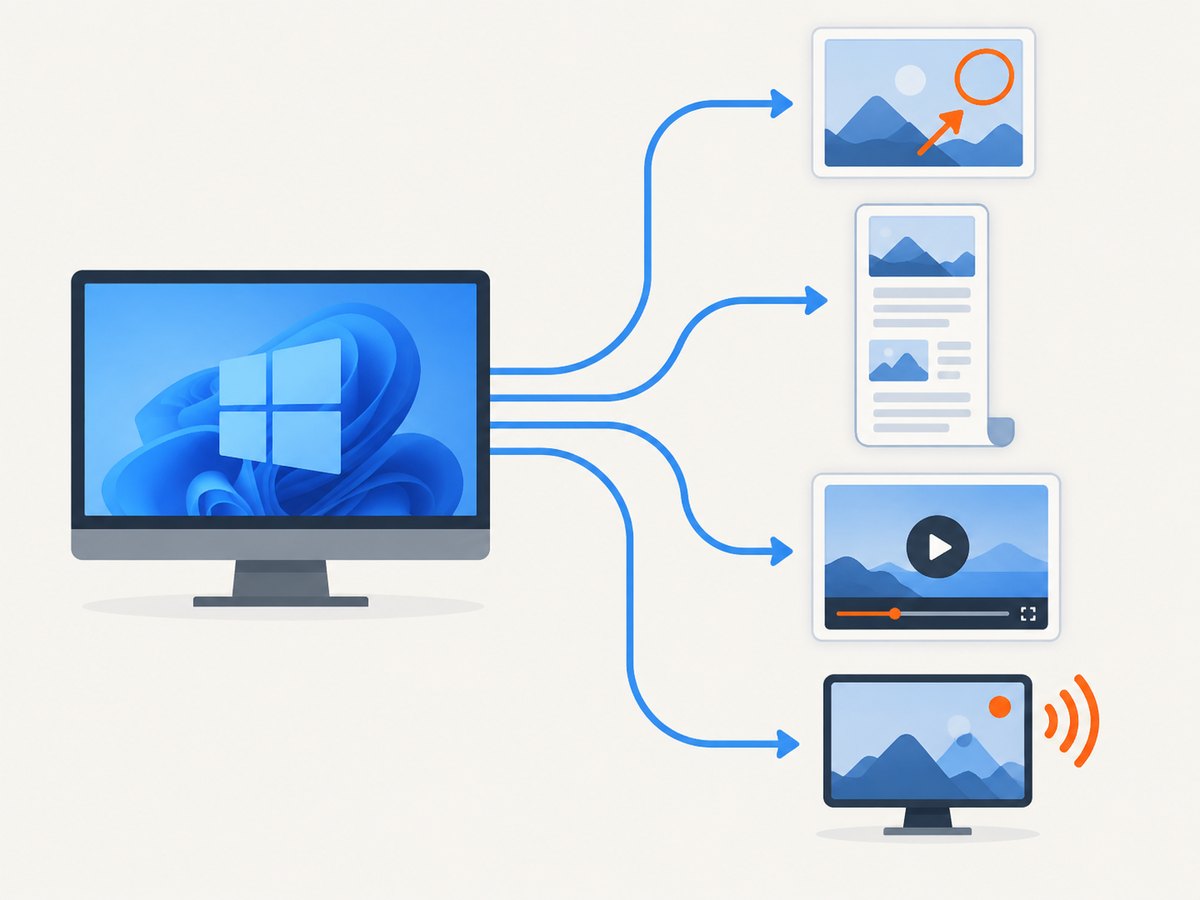
Short answer: Choose ShareX when you want the broadest mix of screenshots, scrolling capture, annotation, OCR, automation, recording and optional sharing. Choose Greenshot for straightforward still screenshots with annotation and many export targets. Choose Flameshot when you want to mark up an image during capture. Choose OBS Studio for recording, streaming and multi-source productions rather than quick annotated stills.
“Screen capture” can mean a still image, a scrolling page, a short recording or a live production. Decide which output you need before installing a tool.
Quick comparison
| Tool | Best fit | Documented strengths | Watch for |
|---|---|---|---|
| ShareX | Power users and repeatable workflows | Fullscreen, active window, monitor, region and scrolling capture; GIF/video recording; OCR; annotation and redaction; custom upload destinations; after-capture actions | Its breadth and configuration can be more than a simple screenshot requires. Review upload destinations before sending sensitive images. |
| Greenshot | Still screenshots that need explanation | Region, window and fullscreen capture; annotation, highlighting and obfuscation; file, printer, clipboard, email, Office and photo-site exports | The project describes it as lightweight and configurable, but the cited material does not establish an independent speed or resource ranking. |
| Flameshot | Marking up an image while selecting it | Arrows, text, highlights, blur or pixelation, shapes, counters, shortcuts and CLI scripting; Windows installer and portable ZIP | The Windows downloads are documented as 64-bit. Check current requirements before deployment. |
| OBS Studio | Recording, streaming and multi-source scenes | Window capture, browser, images, webcams and capture cards; audio mixer, hotkeys, transitions, plugins and scripts | It is a production recorder rather than a lightweight screenshot annotator. |
How to choose
Choose by output
- One still image: Greenshot, Flameshot or ShareX.
- A long web page: ShareX’s scrolling capture.
- Short clips or GIFs: ShareX.
- Live video, audio or several sources: OBS Studio.
Choose by workflow
- Fast markup during selection: Flameshot.
- Obfuscating private details: Greenshot or Flameshot; ShareX also documents editing and redaction tools.
- Repeatable actions and destinations: ShareX after-capture tasks and upload destinations.
- External HDMI/video input: OBS with a capture card. A capture card is unnecessary for ordinary desktop screenshots.
Install and configure each tool
ShareX
Use the official ShareX site to choose an installer, portable build, Microsoft Store package or Steam distribution. After installation, configure capture hotkeys, the image editor and any after-capture actions. Leave uploading disabled or pointed at an approved destination when captures may contain confidential data.
Greenshot
Install from the project’s official repository. Its repository identifies the project as GPL-3.0 and documents region, window and fullscreen capture plus export targets. Set the default save folder and decide whether clipboard, printer, Office, email or a photo-site destination should be offered after capture.
Flameshot
Follow the official Windows instructions. They document WinGet, Scoop, Chocolatey and manual installation. The manual path distinguishes an MSI installer from a portable ZIP; the ZIP can be useful when you cannot install system-wide software. Confirm that the current download matches your 64-bit Windows environment.
OBS Studio
Use the official OBS site and its Windows installation guide. The guide documents WinGet, Chocolatey, Scoop and the official downloads. Create a scene, add a Window Capture or Display Capture source, add audio only if needed, then set recording format and output folder. If you use a ZIP installation outside Program Files, the guide says some features, especially UWP game capture, may require the ALL APPLICATION PACKAGES security group to have full control of the OBS directory.
Practical capture recipes
Capture and annotate a region
- Start a region capture in ShareX, Greenshot or Flameshot.
- Drag around the content you need.
- Add arrows, labels or highlights.
- Use blur or pixelation for secrets, tokens and personal data.
- Save locally, then verify the file before sharing.
Capture a scrolling page
In ShareX, select its scrolling-capture workflow, choose the target window or page and let the tool assemble the image. Check the resulting file for repeated sections, sticky headers and content that loads only after scrolling.
Record a window in OBS
- Create a scene for the recording.
- Add Window Capture for one application or Display Capture for the whole desktop.
- Add a microphone or other audio source only when required.
- Set the recording path and format.
- Start a short test recording, inspect the file, then record the full session.
Script Flameshot from the command line
Flameshot documents CLI scripting. Use the command and options shown by the current project documentation for your installed release; option names can change between versions.
Privacy, destinations and sensitive data
Local saving and remote uploading are separate decisions. ShareX documents custom upload destinations and after-capture workflows, while Greenshot documents cloud and application export options. Before enabling one, check the destination, retention policy and access controls. Blur or pixelate secrets before upload, and inspect the final image for browser tabs, notifications and hidden overlays.

Performance and reliability considerations
- The supplied project pages do not provide an independent benchmark for capture speed, memory use or image quality. Do not select a tool on an unverified performance ranking.
- Scrolling capture depends on the target application’s scroll behavior. Fixed headers, lazy content and animations can produce seams or missing sections.
- Recording reliability depends on the selected source, encoder, storage speed and scene complexity. A short test catches missing audio or the wrong window.
- Keep output folders on storage with enough free space, especially for long recordings and high-resolution displays.
- Use one capture profile per job: a still-image profile for documentation and an OBS scene collection for recordings. This reduces accidental changes to audio, sources and destinations.
Troubleshooting
| Symptom | Likely cause | Fix |
|---|---|---|
| Hotkey does nothing | Another application owns the shortcut or the capture app is not running | Choose a unique shortcut, confirm the app is running, and retry outside the conflicting application. |
| Capture is black in OBS | Source or permission mismatch, especially with some UWP applications | Try Window Capture versus Display Capture. For ZIP installs outside Program Files, review the ALL APPLICATIONS PACKAGES permission requirement in the official guide. |
| Scrolling image has gaps or repeats | Sticky elements, animation or lazy loading changed between scroll steps | Pause moving content, hide sticky elements when possible, capture shorter sections, or use a normal viewport capture. |
| Text or secrets remain visible | Annotation was applied to the wrong layer or area | Zoom in, cover the complete region, save a new file and inspect it at 100 percent before sharing. |
| Flameshot will not install | Architecture or installation method mismatch | Confirm 64-bit Windows and use the MSI or portable ZIP documented by the project. |
| OBS recording has no sound | No audio source, muted mixer channel or wrong device | Check the scene’s audio sources, mixer meters and selected input device with a short test recording. |
| Upload went to the wrong place | An after-capture destination was enabled | Disable the destination, change the workflow to local save, and review existing shared links or uploads. |
Or skip the browser setup
If you need website screenshots from code or automation, ScreenshotNeo is the alternative to try first: it removes cookie banners, newsletter popups and chat widgets before capture, bills only clean shots, and provides an MCP server for AI agents.
One GET request returns PNG, JPEG, WebP or PDF. The free plan includes 1,000 screenshots a month with no card; paid plans start at $5 for 3,000 shots. See the ScreenshotNeo API documentation for all options.
curl -G "https://api.screenshotneo.com/v1/shot" -d access_key=YOUR_API_KEY --data-urlencode url=https://stripe.com -o shot.webpimport requests
r = requests.get("https://api.screenshotneo.com/v1/shot", params={"access_key": "YOUR_API_KEY", "url": "https://stripe.com"}, timeout=90)
open("shot.webp", "wb").write(r.content)const q = new URLSearchParams({ access_key: 'YOUR_API_KEY', url: 'https://stripe.com' });
const res = await fetch(`https://api.screenshotneo.com/v1/shot?${q}`);Sign up for 1,000 free screenshots a month with no card.
FAQ
Which tool is best for annotating a single screenshot?
Flameshot focuses on marking up during capture. Greenshot is a strong fit when you also want several export destinations.
Is OBS required for a desktop screenshot?
No. OBS is aimed at recording, streaming and multi-source scenes. Use ShareX, Greenshot or Flameshot for still images.
Do I need a capture card?
Only when OBS must receive an external video source such as HDMI. It is not required for ordinary desktop screenshots or window recording.
Can these tools hide private information?
Greenshot and Flameshot document obfuscation, blur or pixelation workflows, and ShareX documents annotation and redaction tools. Always inspect the saved image before sending it.
Are these tools faster than one another?
The supplied official pages do not provide an independent speed comparison, so choose by workflow and verify performance on your own hardware.


