How to Open a URL in a New Pyppeteer Tab
Create and navigate a new Pyppeteer tab with browser.newPage() and page.goto(), including incognito contexts, wait conditions, timeouts, cleanup, and troubleshooting.

In Pyppeteer, a Chrome tab is represented by a Page object. Create one with await browser.newPage(), then navigate it with await page.goto("https://example.com").
import asyncio
from pyppeteer import launch

async def main():
    browser = await launch()
    page = await browser.newPage()
    await page.goto("https://example.com")
    print(await page.title())
    await browser.close()

asyncio.get_event_loop().run_until_complete(main())
browser.newPage() starts the page at about:blank. page.goto() performs the navigation, so include a URL scheme such as https://. The Pyppeteer API reference documents both methods.
Install Pyppeteer
python -m pip install pyppeteerPyppeteer controls Chromium through an asynchronous API. Your functions must therefore be async, and every browser operation must be awaited.
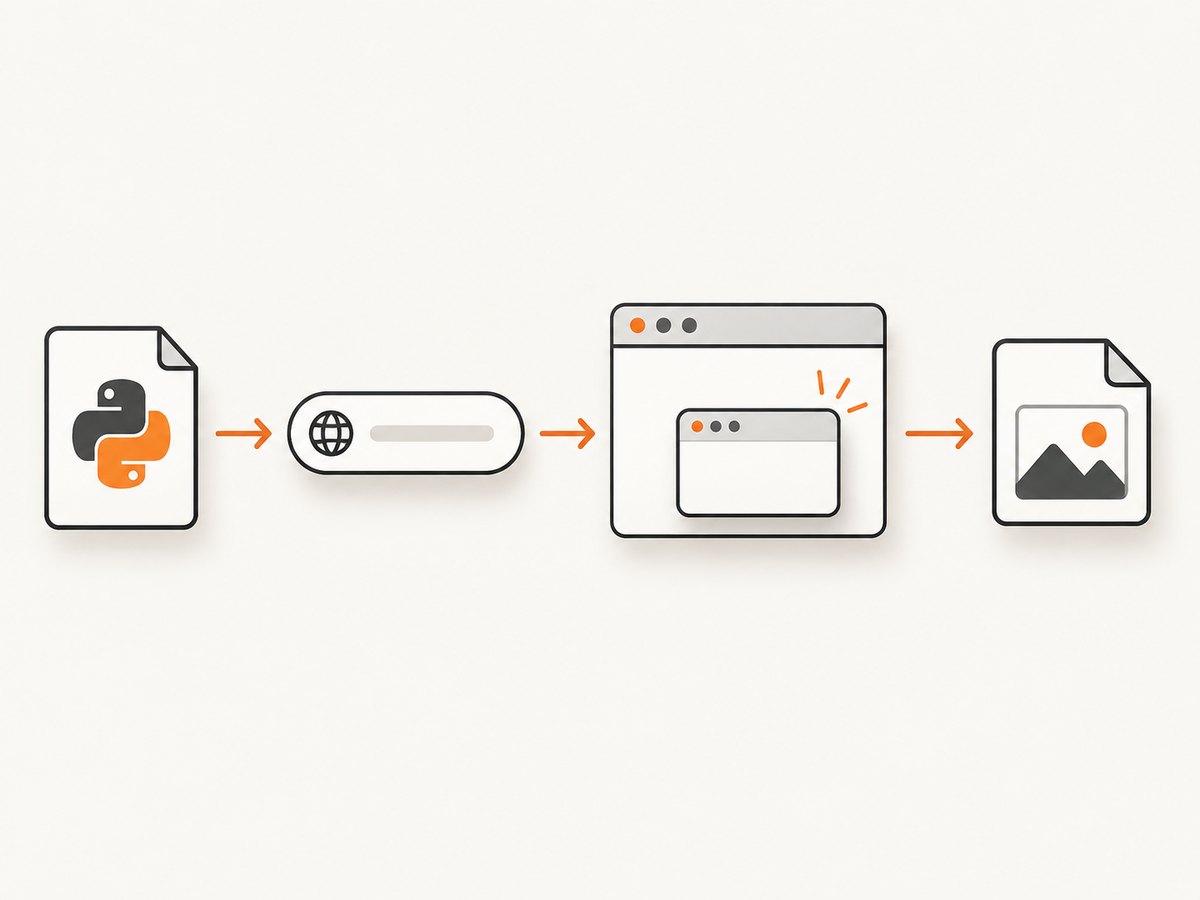
Open and use a new tab step by step
- Launch a browser with
launch(). - Create a tab with
browser.newPage(). - Navigate with
page.goto(url). - Interact with the page, extract data, or capture a screenshot.
- Close the browser in a
finallyblock so Chromium does not remain running after an error.
import asyncio
from pyppeteer import launch

async def open_url(url: str) -> str:
    browser = await launch()
    try:
        page = await browser.newPage()
        response = await page.goto(
            url,
            {
                "waitUntil": "domcontentloaded",
                "timeout": 30_000,
            },
        )
        if response is None:
            return f"Loaded {page.url} without a navigation response"
        return f"Loaded {page.url} with HTTP {response.status}"
    finally:
        await browser.close()

async def main():
    print(await open_url("https://example.com"))

asyncio.get_event_loop().run_until_complete(main())
Choose when navigation is considered complete
The second argument to goto() accepts navigation options. The documented waitUntil values are:
| Value | When Pyppeteer continues | Typical use |
|---|---|---|
load |
After the load event. This is the default. | Pages whose important resources load with the document. |
domcontentloaded |
When the initial HTML has been parsed. | Fast extraction when images and other resources are not required. |
networkidle0 |
After there are no active network connections for the required idle period. | Pages that finish all network work before you continue. |
networkidle2 |
After there are no more than two active network connections for the required idle period. | Applications with a small amount of continuing background traffic. |
await page.goto(
    "https://example.com",
    {
        "waitUntil": "networkidle2",
        "timeout": 60_000,
    },
)
Use domcontentloaded when you only need the document structure. Use an idle condition when JavaScript renders content after the initial response. Analytics, polling, advertisements, and sockets can prevent an idle condition from being reached, so set a finite timeout and choose the least strict condition that meets your requirement.
Open an isolated incognito tab
A normal page belongs to the browser’s default context. For separate cookies and cache, create an incognito browser context and then create the page from that context.

import asyncio
from pyppeteer import launch

async def main():
    browser = await launch()
    context = await browser.createIncognitoBrowserContext()
    try:
        page = await context.newPage()
        await page.goto(
            "https://example.com",
            {
                "waitUntil": "networkidle2",
                "timeout": 60_000,
            },
        )
        print(page.url)
    finally:
        await context.close()
        await browser.close()

asyncio.get_event_loop().run_until_complete(main())
An incognito context does not share cookies or cache with other contexts. Close it when finished. The default browser context cannot be closed through the context API; close the browser instead.
Open multiple tabs
One browser can own multiple Page objects. Keep references to the pages you create and close the browser after all work completes.
import asyncio
from pyppeteer import launch

async def main():
    browser = await launch()
    try:
        first = await browser.newPage()
        second = await browser.newPage()
        await asyncio.gather(
            first.goto("https://example.com", {"waitUntil": "domcontentloaded"}),
            second.goto("https://www.python.org", {"waitUntil": "domcontentloaded"}),
        )
        print(await first.title())
        print(await second.title())
    finally:
        await browser.close()

asyncio.get_event_loop().run_until_complete(main())
For independent sessions, create a separate incognito context for each workflow. For related pages that should share login state, use pages in the same context.
Capture a screenshot after opening the tab
import asyncio
from pyppeteer import launch

async def main():
    browser = await launch()
    try:
        page = await browser.newPage()
        await page.setViewport({"width": 1440, "height": 900})
        await page.goto("https://example.com", {"waitUntil": "networkidle2"})
        await page.screenshot({"path": "example.png", "fullPage": True})
    finally:
        await browser.close()

asyncio.get_event_loop().run_until_complete(main())
Common errors and fixes
| Error or symptom | Cause | Fix |
|---|---|---|
Invalid URL |
The URL has no scheme or is malformed. | Pass a complete URL such as https://example.com. |
| Navigation timeout | The selected wait condition was not reached before timeout. |
Increase the timeout, use domcontentloaded, or investigate resources that keep loading. |
| SSL error | The target certificate or TLS setup is invalid. | Fix the target certificate. Do not disable certificate checks unless you control the environment and understand the security impact. |
| Failed main resource | The server, DNS, connection, or redirect failed while loading the document. | Check the URL from the same runtime, verify DNS and outbound access, and retry transient failures. |
| Page appears blank | The script continued before client-side rendering finished. | Wait for a selector, a suitable idle condition, or an application-specific readiness signal after goto(). |
| Cookies unexpectedly persist | Pages share the default browser context. | Create an incognito context with createIncognitoBrowserContext(). |
| Chromium processes remain | An exception skipped cleanup. | Put context and browser cleanup in finally blocks. |
Reliability and performance practices
- Set an explicit navigation timeout. A finite timeout prevents a stuck page from occupying a worker forever.
- Choose
waitUntilbased on the content you need.networkidle2is more complete for many applications but can wait longer thandomcontentloaded. - Reuse one browser process for a batch of URLs, while creating a fresh page for each URL. Launching Chromium for every URL adds startup cost.
- Limit concurrent pages to the CPU and memory available to your worker. Too many tabs can cause timeouts and resource contention.
- Close pages, contexts, and browsers deterministically. This matters especially in long-running services and job workers.
- Record the final URL and response status when navigation succeeds. Redirects can move the page away from the requested address.
- Retry only failures that are likely transient, and use a backoff. Repeating an invalid URL or certificate failure will not help.
Or skip the browser setup
If your goal is a clean screenshot rather than browser automation, ScreenshotNeo provides a single HTTP request for a PNG, JPEG, WebP, or PDF. It accepts cookie and consent banners as a visitor and removes more than 60 known consent platforms, newsletter popups, and chat widgets before capture. Bot checks, blank pages, timeouts, failed loads, and cache hits are not billed, and response headers identify the page verdict and whether the request was billed.
See the ScreenshotNeo API documentation for all options.
cURL
curl -G "https://api.screenshotneo.com/v1/shot" -d access_key=YOUR_API_KEY --data-urlencode url=https://stripe.com -o shot.webpPython
import requests

r = requests.get(
    "https://api.screenshotneo.com/v1/shot",
    params={"access_key": "YOUR_API_KEY", "url": "https://stripe.com"},
    timeout=90,
)
r.raise_for_status()
open("shot.webp", "wb").write(r.content)
Node.js
const q = new URLSearchParams({ access_key: 'YOUR_API_KEY', url: 'https://stripe.com' });
const res = await fetch(`https://api.screenshotneo.com/v1/shot?${q}`);
if (!res.ok) throw new Error(`HTTP ${res.status}`);
const body = Buffer.from(await res.arrayBuffer());
await import('node:fs/promises').then(fs => fs.writeFile('shot.webp', body));
ScreenshotNeo also provides an MCP server with take_screenshot, get_page_info, and capture_pdf tools for Claude, Cursor, and other MCP clients. It supports full-page and element captures, device presets, custom viewports, JavaScript and CSS, waits, headers, cookies, geolocation, caching, signed links, async jobs, bulk capture, and PDF options.
Create a free ScreenshotNeo account for 1,000 screenshots per month with no card. Paid plans start at $5 for 3,000 screenshots.
FAQ
Does browser.newPage() open a visible tab?
It creates a new Chromium page. Whether you see a window depends on the browser launch mode and runtime environment.
Can I call goto() before newPage()?
No. You need a Page object first, so create the page and then navigate it.
When should I use an incognito context?
Use one when cookies and cache must be isolated from other pages or from previous work.
Why does goto() return None sometimes?
A navigation can complete without a standard navigation response, such as certain about:blank or download scenarios. Treat the page state separately from the optional response object.
What is the cleanup order?
Close the incognito context first, then close the browser. For default-context pages, closing the browser is sufficient.


