How to Open a Web Page and Capture a Screenshot After 10 Seconds
Use Playwright, Selenium, or Puppeteer to open a URL, wait exactly 10 seconds, and save a full-page screenshot reliably.
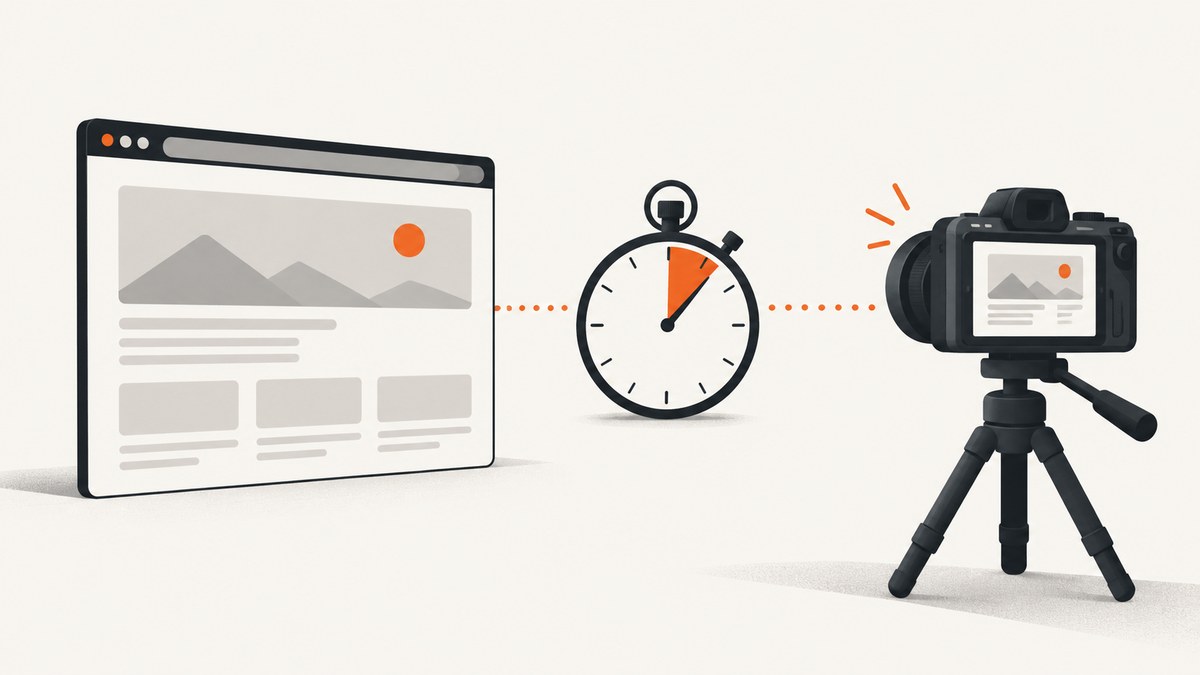
To open a page and capture it after exactly 10 seconds, navigate with a browser automation library, wait 10,000 milliseconds, take the screenshot, then close the browser. In Playwright:
const { chromium } = require('playwright');

(async () => {
  const browser = await chromium.launch();
  const page = await browser.newPage();
  await page.goto('https://example.com', { waitUntil: 'load' });
  await page.waitForTimeout(10000);
  await page.screenshot({ path: 'screenshot.png', fullPage: true });
  await browser.close();
})();
Install Playwright with npm install playwright. The delay value is in milliseconds, so 10 seconds is 10000. Playwright documents the same navigation and screenshot sequence in its Page.goto API and Page.screenshot API.
1. Build the basic Playwright capture
- Install the package and browser binaries:
npm install playwright, thennpx playwright install chromium. - Launch Chromium.
- Create a page and navigate to the target URL.
- Wait 10,000 milliseconds.
- Capture the viewport or the complete document.
- Close the browser in a
finallyblock when running production jobs.
const { chromium } = require('playwright');

async function captureAfterTenSeconds(url, outputPath) {
  const browser = await chromium.launch();
  try {
    const page = await browser.newPage({
      viewport: { width: 1440, height: 900 },
      deviceScaleFactor: 1
    });

    await page.goto(url, {
      waitUntil: 'load',
      timeout: 30_000
    });

    // Ten seconds, expressed in milliseconds.
    await page.waitForTimeout(10_000);

    await page.screenshot({
      path: outputPath,
      fullPage: true,
      type: 'png'
    });
  } finally {
    await browser.close();
  }
}

captureAfterTenSeconds('https://example.com', 'screenshot.png')
  .catch(error => {
    console.error(error);
    process.exitCode = 1;
  });
fullPage: true captures the document from top to bottom. Set it to false (the default) for only the current viewport. Playwright can write PNG, JPEG, or WebP output; JPEG and WebP accept a quality option.
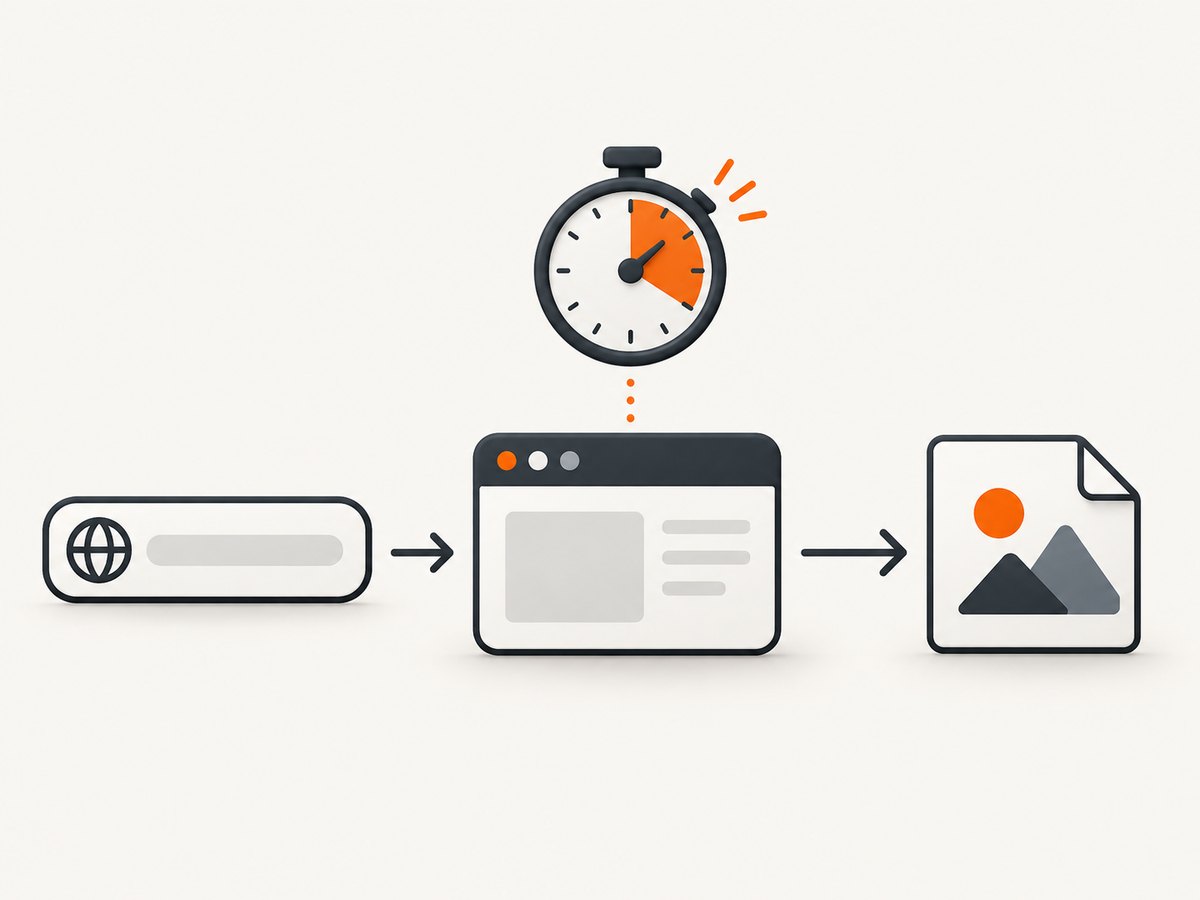
2. Choose the right wait strategy
A fixed ten-second delay is correct when the requirement is literally “ten seconds after navigation.” It is often the wrong readiness signal for a test or a capture pipeline. Playwright’s documentation warns that fixed timeout waits can be flaky and recommends waiting for a meaningful condition instead. Selenium describes the same race: a page can reach a ready state while JavaScript continues changing it.
Wait for a selector after navigation
await page.goto('https://example.com', { waitUntil: 'domcontentloaded' });
await page.locator('[data-testid="report"]').waitFor({ state: 'visible' });
await page.waitForTimeout(10_000);
await page.screenshot({ path: 'report.png', fullPage: true });
Wait for network activity to settle
await page.goto('https://example.com', { waitUntil: 'networkidle' });
await page.screenshot({ path: 'after-network-idle.png', fullPage: true });load, domcontentloaded, networkidle, and commit are navigation readiness choices. Long-polling, analytics, advertisements, and chat connections can prevent a useful network-idle condition, so use a selector or application-specific signal when possible. Keep the literal ten-second sleep only when elapsed time itself matters.
Wait for an animation or delayed widget
await page.goto('https://example.com', { waitUntil: 'load' });
await page.locator('.hero').waitFor({ state: 'visible' });
await page.waitForTimeout(10_000);
await page.screenshot({ path: 'hero.png' });
Do not combine several arbitrary sleeps unless the page has a documented sequence that requires them. Every extra sleep increases capture latency and can still miss a late asynchronous update.
3. Capture a full page, viewport, or element
| Need | Playwright call | Notes |
|---|---|---|
| Visible viewport | page.screenshot({ path: 'view.png' }) |
Captures only the current viewport. |
| Entire document | page.screenshot({ path: 'full.png', fullPage: true }) |
Scrolls through the document and stitches the result. |
| One element | page.locator('.card').screenshot({ path: 'card.png' }) |
Waits for the locator to be actionable and scrolls it into view. |
Element screenshots are preferable for cards, charts, invoices, and other components whose bounds are known. Use a stable CSS selector, test ID, or accessible role instead of a generated class name.
await page.goto('https://example.com', { waitUntil: 'load' });
await page.waitForTimeout(10_000);
await page.locator('main article').screenshot({
  path: 'article.webp',
  type: 'webp',
  quality: 85
});
4. Control viewport, device scale, and output
const context = await browser.newContext({
  viewport: { width: 1280, height: 800 },
  deviceScaleFactor: 2,
  colorScheme: 'dark'
});
const page = await context.newPage();
await page.goto('https://example.com', { waitUntil: 'load' });
await page.waitForTimeout(10_000);
await page.screenshot({
  path: 'dark-retina.png',
  fullPage: true,
  animations: 'disabled'
});
await context.close();viewportcontrols CSS pixel dimensions.deviceScaleFactor: 2produces a retina-sized bitmap and increases file size.colorScheme: 'dark'lets sites that support prefers-color-scheme render dark mode.animations: 'disabled'reduces motion during capture; it does not replace a required ten-second wait.- Use PNG for lossless UI text, JPEG for photographs, and WebP when smaller files are useful.
5. Python with Selenium
Selenium’s explicit waits are better for conditions; use time.sleep(10) only when the ten-second interval is the requirement.
from pathlib import Path
import time
from selenium import webdriver
from selenium.webdriver.chrome.options import Options

options = Options()
options.add_argument('--headless=new')
options.add_argument('--window-size=1440,900')

driver = webdriver.Chrome(options=options)
try:
    driver.get('https://example.com')
    time.sleep(10)
    driver.save_screenshot(str(Path('screenshot.png').resolve()))
finally:
    driver.quit()
For a condition-based capture, replace the sleep with WebDriverWait:
from selenium.webdriver.common.by import By
from selenium.webdriver.support.ui import WebDriverWait
from selenium.webdriver.support import expected_conditions as EC

driver.get('https://example.com')
WebDriverWait(driver, 30).until(
    EC.visibility_of_element_located((By.CSS_SELECTOR, '[data-testid="report"]'))
)
driver.save_screenshot('report.png')
6. Puppeteer alternative
const puppeteer = require('puppeteer');

(async () => {
  const browser = await puppeteer.launch({ headless: 'new' });
  try {
    const page = await browser.newPage();
    await page.setViewport({ width: 1440, height: 900, deviceScaleFactor: 1 });
    await page.goto('https://example.com', {
      waitUntil: 'load',
      timeout: 30_000
    });
    await new Promise(resolve => setTimeout(resolve, 10_000));
    await page.screenshot({ path: 'screenshot.png', fullPage: true });
  } finally {
    await browser.close();
  }
})();
Puppeteer’s page.screenshot() can save a file or return image bytes. Its navigation and waiting controls differ in names from Playwright, but the order remains navigate, wait, capture, close.
7. Common failures and fixes
| Symptom | Likely cause | Fix |
|---|---|---|
| Navigation timeout | The server or a third-party request did not finish. | Set a realistic navigation timeout, use domcontentloaded, and wait for the specific content you need. |
| Blank or partial screenshot | The page is still rendering, blocked, or the selector matched nothing. | Check the response and console logs, wait for a visible selector, and verify the URL from inside the browser. |
| Cookie banner covers content | A consent dialog is present in the captured viewport. | Accept or hide it before capture, or use a service that handles consent automatically. |
| Lazy images are missing | Images load only after scrolling. | Use fullPage: true or scroll the page before the final screenshot, then wait for image completion. |
| Screenshot is clipped | The target is outside the viewport or an element has a constrained container. | Use a locator screenshot, scroll the locator into view, or capture the full page. |
| Fonts differ in CI | Fonts are unavailable in the container. | Install the required fonts or use a known browser image and wait for document.fonts.ready. |
| Flaky visual tests | A fixed sleep does not guarantee application state. | Wait for a selector, a completed request, or an application-defined ready flag. |
| Browser will not start | Browser binaries or sandbox dependencies are missing. | Run the library’s browser install step and install the Linux dependencies required by your runtime. |
8. Reliability, performance, and cost
Reliability checklist
- Give navigation and selectors separate timeouts so a slow server is distinguishable from missing content.
- Always close pages, contexts, and browsers in cleanup code.
- Record the URL, timestamp, viewport, browser version, and wait strategy with each artifact.
- Retry transient navigation failures with a small limit and a fresh page; do not retry deterministic selector failures indefinitely.
- Redact credentials and private query parameters from logs.
Performance considerations
A mandatory ten-second delay sets a lower bound of roughly ten seconds per page, before navigation and screenshot encoding. Full-page and retina captures consume more memory and produce larger files. Reuse a browser process for a batch, create isolated contexts per job, and limit concurrency to the CPU and memory available to your runner.
Cost considerations
Self-hosted Playwright, Selenium, or Puppeteer has no per-shot API fee, but you pay for compute, browser maintenance, storage, bandwidth, and engineering time. A hosted API can remove that operational work. Cache identical captures when the page and required freshness window are unchanged.
9. Or skip the browser setup
ScreenshotNeo provides a website screenshot API and MCP server. Its API can handle the capture workflow while you send one request; see the ScreenshotNeo documentation for the available wait, viewport, format, and capture options.
cURL
curl -G "https://api.screenshotneo.com/v1/shot" -d access_key=YOUR_API_KEY --data-urlencode url=https://example.com -o shot.webpPython
import requests

r = requests.get(
    "https://api.screenshotneo.com/v1/shot",
    params={"access_key": "YOUR_API_KEY", "url": "https://example.com"},
    timeout=90,
)
r.raise_for_status()
open("shot.webp", "wb").write(r.content)
Node.js
const q = new URLSearchParams({ access_key: 'YOUR_API_KEY', url: 'https://example.com' });
const res = await fetch(`https://api.screenshotneo.com/v1/shot?${q}`);
if (!res.ok) throw new Error(`Screenshot failed: ${res.status}`);
require('fs').writeFileSync('shot.webp', Buffer.from(await res.arrayBuffer()));
Configure the ten-second delay with ScreenshotNeo’s delay option described in the docs. The service also supports selector, network-idle, and other wait controls when a fixed sleep is not the right readiness rule.
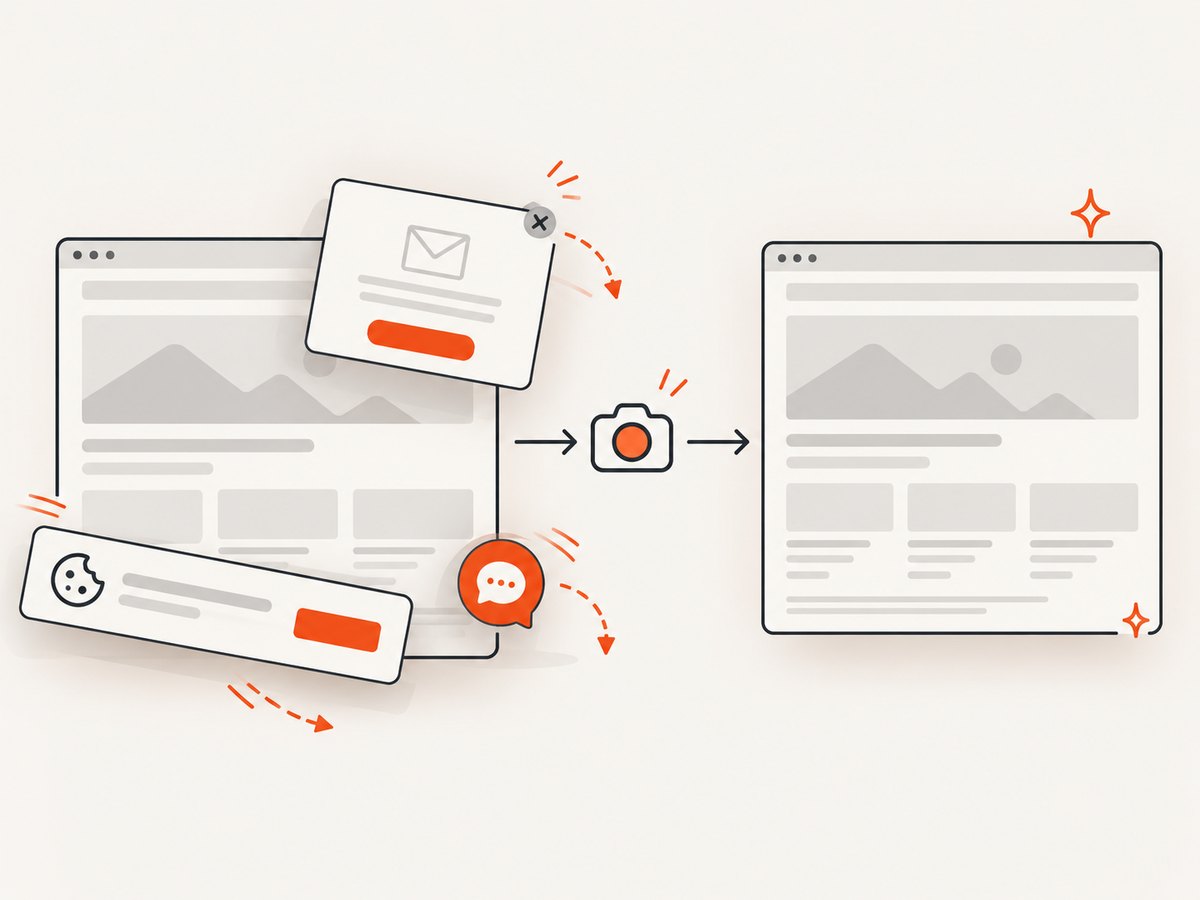
- Cookie banners, newsletter popups, and chat widgets are removed before the shot.
- Bot checks or CAPTCHAs, blank pages, timeouts, failed loads, and cache hits are not billed; response headers report the page verdict and whether the shot was billed.
- An MCP server lets Claude, Cursor, and other MCP clients call
take_screenshot,get_page_info, andcapture_pdf. - The Free plan includes 1,000 shots per month with no card. Paid plans start at $5 for 3,000 shots, and every feature is included on every plan.
Create a free ScreenshotNeo account to start capturing pages.
10. FAQ
Is 10 seconds the same as 10,000 seconds in Playwright?
No. Playwright timeout values are milliseconds: 10 seconds is 10_000 milliseconds.
Does fullPage wait for lazy-loaded content?
It scrolls and captures the document, but pages implement lazy loading differently. Wait for the images or content your page requires before saving the final file.
Should I use a fixed delay in automated tests?
Only when elapsed time is the behavior under test. For visual or end-to-end tests, wait for a deterministic selector or application state.
Can I capture just one component?
Yes. Playwright’s locator screenshot captures the matched element after it is actionable and in view.
Which format should I choose?
PNG preserves crisp text, JPEG is suited to photographs, and WebP usually offers a smaller modern image. Match the format to your downstream consumer.


