How to Overlay an HTML-Generated PDF onto an Existing PDF
Learn how to render HTML to PDF and place it over existing pages with PyMuPDF, including geometry, layering, limitations, troubleshooting, and automation.
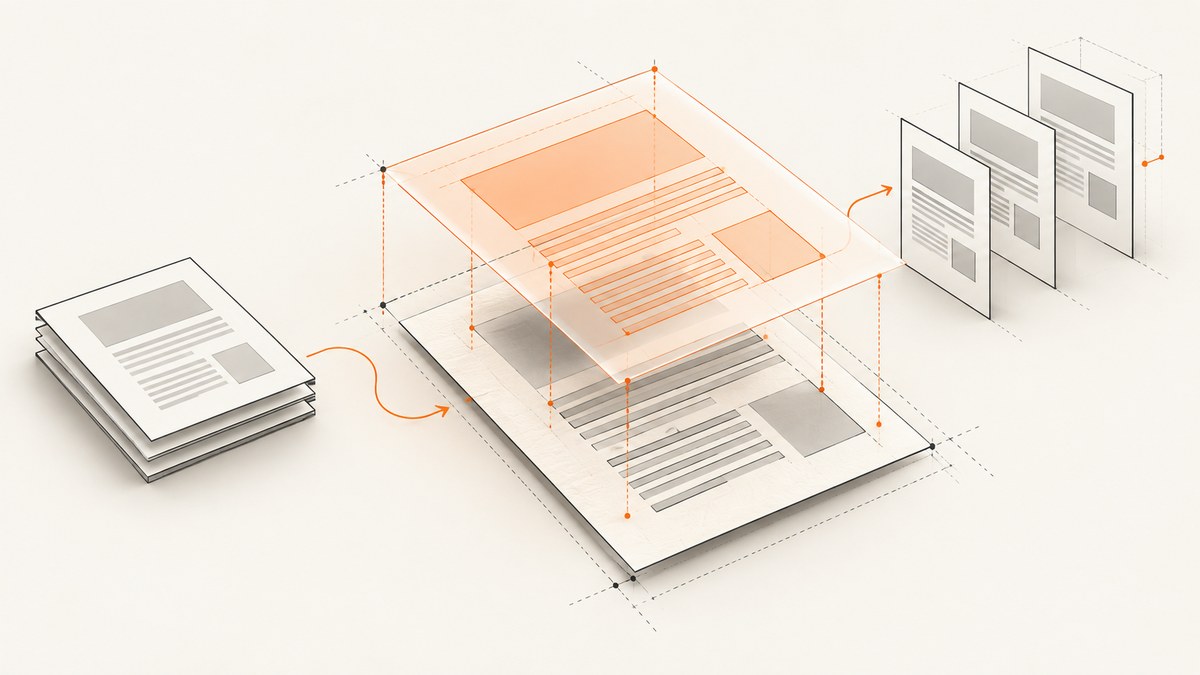
Direct answer: render the HTML as its own PDF, open that PDF and the existing PDF, then place each generated page onto the matching destination page with an overlay operation. In Python, PyMuPDF’s Page.show_pdf_page() is designed for this job. It composes page content in place; it does not append new pages. Use a target rectangle that matches the intended position and size, save to a new file, and inspect representative pages for alignment, clipping, and layer order.
This distinction matters. show_pdf_page() overlays source content on an existing page, while insert_pdf() adds pages to a document. The latter changes the page sequence and cannot create a same-page composition. The official PyMuPDF FAQ states: “insert_pdf() adds new pages. show_pdf_page() overlays content onto an existing page.” See the PyMuPDF FAQ and show_pdf_page API documentation.
What overlaying means
An overlay places the visual contents of one PDF page inside a rectangle on another page. Typical uses include adding a generated letterhead, a report section, a watermark, a signature background, or HTML-rendered labels to an existing document. The destination page remains the page users see; the generated PDF supplies an additional content layer.
Overlaying is different from:
- Appending: adding generated pages after the original pages.
- Inserting: placing generated pages at a position in the page sequence.
- Merging form fields: combining interactive AcroForm data.
- Drawing text directly: writing strings onto a page instead of importing a rendered page.
Recommended workflow
- Render the HTML into a PDF with the page size and margins you need.
- Open the generated PDF as the source and the existing PDF as the destination.
- For every destination page that needs an overlay, select the corresponding source page.
- Pass a deliberate target rectangle to
show_pdf_page(). - Choose foreground or background ordering with the
overlayargument. - Save to a new output file and inspect sample pages.
PyMuPDF documents HTML-to-PDF generation with its Story and DocumentWriter classes. The story is laid out inside a page rectangle and written to the output document; see the Story and DocumentWriter examples.
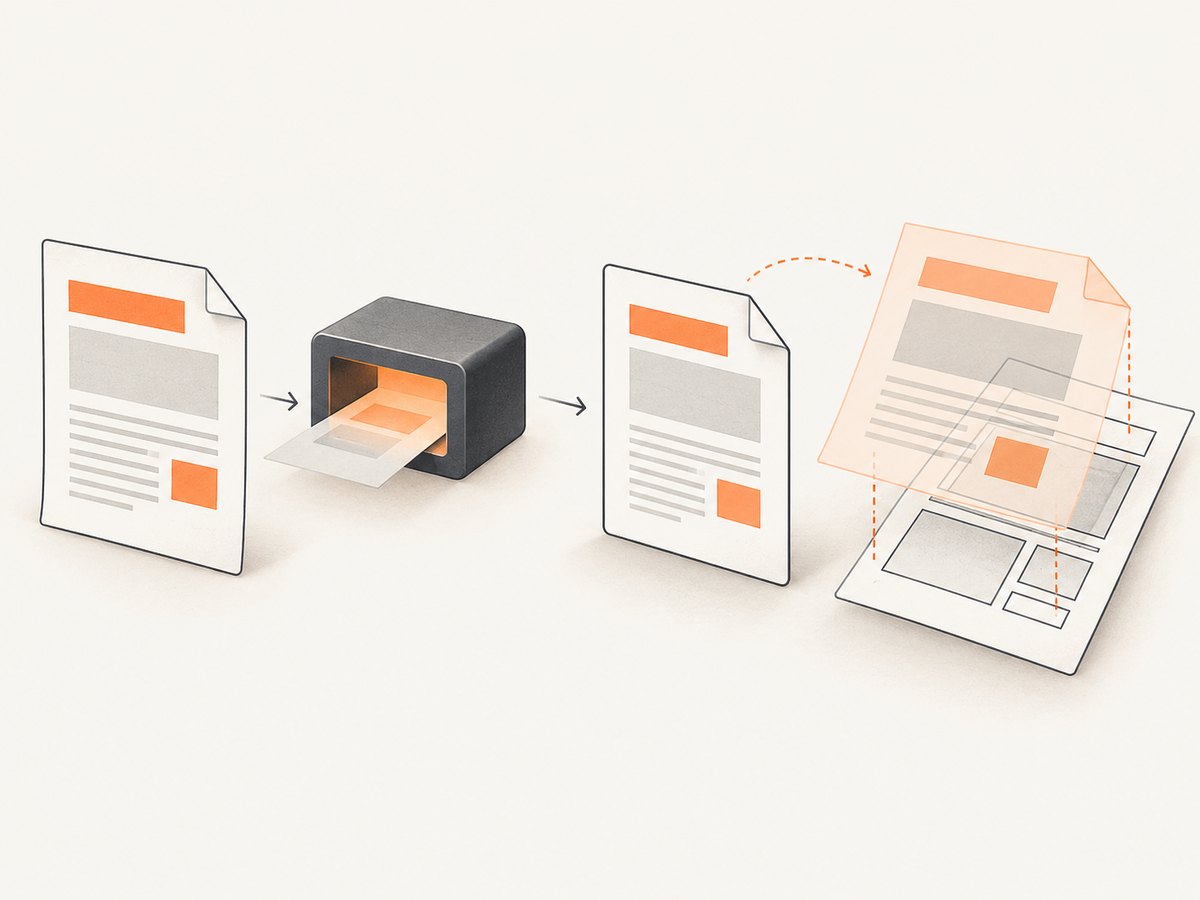
Complete Python example with PyMuPDF
Install PyMuPDF in the environment that will run the job:
python -m pip install pymupdfThe following script creates a small HTML-generated PDF, overlays corresponding pages onto an existing PDF, and writes a separate result. Replace the input paths and HTML with your own content.
from pathlib import Path
import pymupdf

HTML = '''
<html>
<body style="font-family: sans-serif; margin: 48px;">
  <h1>Generated report layer</h1>
  <p>This page was rendered from HTML and placed over an existing PDF page.</p>
</body>
</html>
'''

source_path = Path("html-generated.pdf")
destination_path = Path("existing.pdf")
output_path = Path("overlaid.pdf")

# Render HTML to a PDF using PyMuPDF's Story and DocumentWriter APIs.
story = pymupdf.Story(html=HTML)
writer = pymupdf.DocumentWriter(str(source_path))
page_rect = pymupdf.Rect(0, 0, 595, 842)  # A4 points

while True:
    device = writer.begin_page(page_rect)
    more = story.place(page_rect)
    story.draw(device)
    writer.end_page()
    if not more:
        break
writer.close()

source = pymupdf.open(str(source_path))
destination = pymupdf.open(str(destination_path))

try:
    for index, page in enumerate(destination):
        if index >= source.page_count:
            break

        # Full-page placement. Use another Rect for a smaller region.
        target = page.rect
        page.show_pdf_page(target, source, index, overlay=True)

    destination.save(str(output_path))
finally:
    source.close()
    destination.close()

print(f"Wrote {output_path}")
The minimal overlay portion is:
import pymupdf

source = pymupdf.open("html-generated.pdf")
destination = pymupdf.open("existing.pdf")

for index, page in enumerate(destination):
    if index < source.page_count:
        page.show_pdf_page(page.rect, source, index, overlay=True)

destination.save("overlaid.pdf")
This assumes page correspondence by index and full-page placement. If the generated document has one page that should appear on every destination page, always use source page 0:
for page in destination:
    page.show_pdf_page(page.rect, source, 0, overlay=True)
Control size, position, clipping, and order
The first argument to show_pdf_page() is the destination rectangle. It controls where the source page appears. Use the destination page’s full rectangle for a full-page overlay, or construct a smaller rectangle for a header, footer, stamp, or side panel.
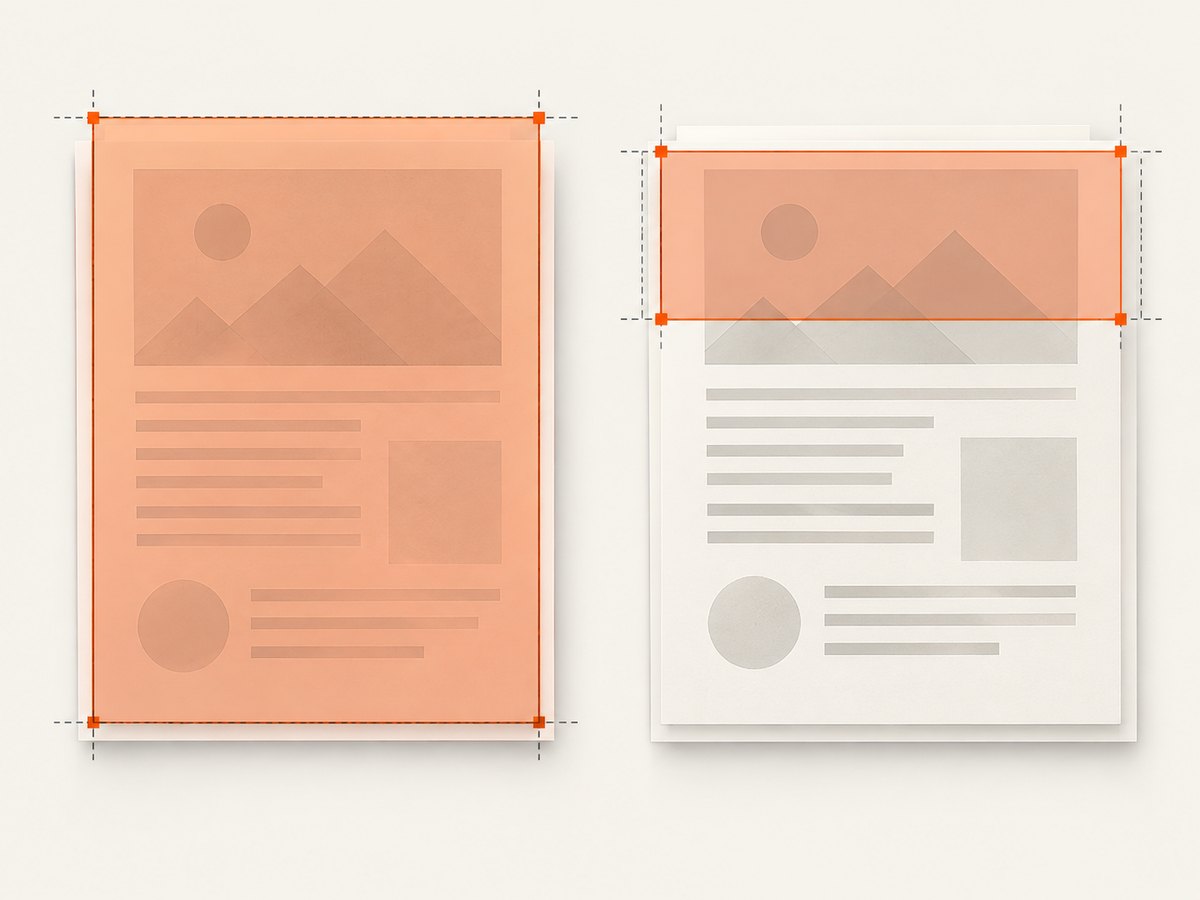
page_rect = page.rect
header = pymupdf.Rect(
    page_rect.x0,
    page_rect.y0,
    page_rect.x1,
    page_rect.y0 + 120,
)
page.show_pdf_page(header, source, 0, overlay=True)
When source and destination pages have different aspect ratios, decide whether you want proportional fitting, cropping, or distortion. The API supports proportional placement, clipping, and rotation options; consult the API reference for the exact parameters in your installed version. A full-page rectangle is safe only when the page geometries correspond to the design you intended.
Foreground versus background
overlay=True places the imported content in the foreground, so it is painted after existing page content. Use overlay=False when the generated layer should sit behind existing text or artwork:
page.show_pdf_page(page.rect, source, 0, overlay=False)Foreground order is useful for labels and watermarks that must remain visible. Background order is useful for stationery or a template behind existing text. If the result looks hidden, check this flag before changing coordinates.
HTML page geometry and CSS details
PDF coordinates are measured in points, with 72 points per inch. Define the same physical page size in the HTML-to-PDF step and in the target PDF whenever possible. A4 is approximately 595 by 842 points; US Letter is 612 by 792 points. Account for:
- CSS margins and padding, which reduce the usable content area.
- Headers and footers that change the vertical origin.
- Font availability in the rendering environment.
- Images whose intrinsic dimensions or missing files alter layout.
- Different page boxes in the destination PDF, such as crop and media boxes.
For a predictable result, keep a known page size, embed or install required fonts, use absolute or well-defined CSS dimensions for critical elements, and compare the generated page rectangle with page.rect before choosing the target rectangle.
Selective page mapping
Do not assume every source and destination page should be paired. Define an explicit mapping when pages differ:
# Put source page 0 on destination pages 0 and 2.
mapping = {0: 0, 2: 0}

for destination_index, source_index in mapping.items():
    if destination_index < destination.page_count and source_index < source.page_count:
        page = destination[destination_index]
        page.show_pdf_page(page.rect, source, source_index, overlay=True)
You can also apply an overlay only when a page meets a condition, such as a known page number or a page range. Keep the mapping in data rather than relying on loop position when documents can be missing pages.
Interactive elements and other limitations
show_pdf_page() imports page appearance. It does not copy annotations, widgets, or links from the source page. If the HTML-generated PDF contains clickable links or interactive form fields that must remain interactive, inspect the result and plan to recreate those objects separately. A visual overlay can look correct while its source interactions are absent.
Similarly, overlaying does not automatically reconcile form fields with identical names, bookmarks, document metadata, or JavaScript actions. Treat those as separate document-processing tasks. Preserve the original input by saving to a new file so you can compare and recover.
JavaScript option with pdf-lib
If your application runs in Node.js or a browser, pdf-lib can modify existing PDFs, draw text and images, and embed pages from another PDF. The exact placement calls depend on the installed version, so use its current API documentation for page embedding and drawing. A typical workflow is:
- Generate the HTML PDF with your chosen renderer.
- Load both byte arrays with
PDFDocument.load(). - Embed the source page into the destination document.
- Draw the embedded page inside a destination rectangle.
- Save the resulting bytes to a new file.
Choose this path when a JavaScript runtime, browser execution, or an existing pdf-lib pipeline is more important than using one Python library for both rendering and composition.
When pypdf is the better fit
pypdf’s merging documentation covers appending and inserting page sequences. Use it when your requirement is to combine documents by page order. For same-page composition, use a page-overlay API such as PyMuPDF’s show_pdf_page() or an equivalent operation in your chosen library.
Troubleshooting checklist
| Symptom | Likely cause | Fix |
|---|---|---|
| Pages appear after the original document | Pages were appended or inserted. | Use show_pdf_page() on each destination page. |
| Overlay is invisible | It was placed behind opaque content. | Set overlay=True or place it in a region without covering artwork. |
| Content is shifted or clipped | Source and destination rectangles differ. | Measure both geometries, choose a deliberate target rectangle, and use clipping or proportional placement as needed. |
| Only some pages are overlaid | The source has fewer pages or the loop stopped at a page-count boundary. | Define an explicit page mapping and validate both indices. |
| Links or form fields do not work | Page appearance was imported without source annotations and widgets. | Recreate interactive objects separately or use a workflow that preserves them. |
| Fonts or images change between machines | The renderer cannot find the same resources. | Install or embed required fonts, use stable asset paths, and package image dependencies. |
| Output cannot be opened | The destination was overwritten during processing or a file handle remained open. | Save to a new path and close source and destination documents before reopening. |
| HTML spans an unexpected number of pages | CSS dimensions, margins, or content length changed pagination. | Set page CSS explicitly, inspect the generated PDF page count, and map only valid pages. |
Performance, reliability, and cost
Overlaying is usually cheaper than re-rendering the existing document because it imports an already-rendered source page. The expensive step is often HTML layout, font loading, image decoding, and creation of large PDF resources. For batch jobs:
- Render once and reuse the source PDF when the same HTML layer applies to many destination files.
- Open each source document once rather than reopening it for every page.
- Use smaller target regions when a full-page source is unnecessary.
- Keep temporary files on fast local storage and remove them after successful output validation.
- Save to a new path, then reopen the result in a separate validation step.
- For large files, process predictable page ranges and record page counts and mappings in logs.
There is no universal runtime or memory figure for this workflow: results depend on page count, embedded images, fonts, and the rendering environment. Measure with your own representative documents before setting worker limits or timeouts.
Or skip the browser setup
If your HTML is hosted at a URL and you need a rendered PDF or screenshot as an input to a document workflow, ScreenshotNeo provides a single HTTP request. Its clean capture process accepts cookie and consent banners like a visitor, then removes more than 60 known consent platforms, newsletter popups, and chat widgets before capture; each step can be turned off. Bot checks, CAPTCHAs, blank pages, timeouts, failed loads, and cache hits are not billed, and the response identifies the result with X-Page-Verdict and X-Billed headers.
curl -G "https://api.screenshotneo.com/v1/shot" -d access_key=YOUR_API_KEY --data-urlencode url=https://stripe.com -o shot.webpimport requests
r = requests.get("https://api.screenshotneo.com/v1/shot", params={"access_key": "YOUR_API_KEY", "url": "https://stripe.com"}, timeout=90)
open("shot.webp", "wb").write(r.content)const q = new URLSearchParams({ access_key: 'YOUR_API_KEY', url: 'https://stripe.com' });
const res = await fetch(`https://api.screenshotneo.com/v1/shot?${q}`);See the ScreenshotNeo API documentation for PDF output and the other capture options. An MCP server provides take_screenshot, get_page_info, and capture_pdf tools for Claude, Cursor, and other MCP clients. The service also supports full-page capture with lazy images loaded, CSS element capture, device presets, custom CSS and JavaScript, waits, request blocking, authentication headers and cookies, caching, signed links, asynchronous jobs, bulk capture, and a usage API.
Free accounts include 1,000 screenshots per month with no card. Paid plans start at $5 for 3,000 shots, and every feature is available on every plan. Create a free ScreenshotNeo account.
FAQ
Can I overlay one source page on every destination page?
Yes. Open the source once and pass source index 0 for each destination page.
Does overlaying preserve clickable links?
Not automatically. The operation imports page appearance, while annotations, widgets, and links need separate handling.
Should I overwrite the existing PDF?
Save to a new output file first. This preserves the original for comparison, retries, and recovery.
What if the PDFs use different page sizes?
Choose a target rectangle deliberately and decide whether to preserve proportions, crop, rotate, or fit the source. Do not assume full-page rectangles will align.
Is pypdf a replacement for PyMuPDF overlaying?
pypdf is well suited to appending and inserting page sequences. For same-page composition, use an API that explicitly displays or embeds one page on another.
Final checklist
- Render the HTML with an explicit page size and stable assets.
- Confirm source and destination page counts.
- Define page correspondence or an explicit mapping.
- Choose the target rectangle and overlay order.
- Remember that annotations, widgets, and links are not copied by the visual overlay.
- Save to a new file and inspect representative pages.


