How to Support page-break-after: Avoid and target-counter in CSS PDFs
Keep headings with their content and add destination page numbers to a CSS-generated PDF table of contents. Learn the CSS, renderer requirements, and common fixes.

page-break-after: avoid asks a paged-media renderer to avoid placing a page break after an element, which is useful for keeping a heading with the paragraph that follows. Pair it with the modern break-after: avoid declaration. For a generated table of contents (TOC), use target-counter(attr(href), page) to print the page number of an in-document link target. These rules depend on the PDF renderer: CSS behavior in ordinary browser layout does not guarantee paged-media cross-references or identical pagination.
For heading control, start with:
h1, h2, h3 {
  page-break-after: avoid; /* legacy paged-media property */
  break-after: avoid;      /* modern fragmentation property */
}
For TOC page references, give each destination heading a unique id and link to it from the TOC:
<nav class="toc">
  <a href="#chapter-1">Chapter 1</a>
</nav>

<h1 id="chapter-1">Chapter 1</h1>
.toc a::after {
content: leader(dotted) target-counter(attr(href), page);
}The href must resolve to an element in the same document, and the rendering engine must support paged-media cross-references. WeasyPrint documents support for page counters, target counters, and dotted leaders. Prince documents pagination controls and heading break avoidance. Paged.js can help produce paginated browser output, but its documentation notes differences among browser implementations and operating systems.
1. Understand what “avoid” means
page-break-after is a legacy paged-media property. CSS 2.2 defines it for block-level elements and includes the values auto, always, avoid, left, and right. The avoid value expresses a preference: avoid a page break after the element’s generated box. It does not promise that content will fit together or that the renderer can disregard a forced break elsewhere.

The property participates in break decisions alongside page-break-before and page-break-inside. Modern CSS Fragmentation uses break-after, break-before, and break-inside. Supplying both the legacy and modern declaration is a practical compatibility pair:
h1, h2, h3, h4 {
page-break-after: avoid;
break-after: avoid;
}Apply the rule to the element after which you want to discourage a break. For a heading followed by a paragraph, that generally means the heading. A forced break, such as break-before: page on the next block, can take precedence. And if the heading plus its next block cannot fit in the remaining page space, the renderer still has to paginate; “avoid” is not an instruction to overflow the page.
2. Keep headings with the next block
Use a narrow selector if only particular heading levels or sections need the rule. Applying it to every heading may cause larger-than-expected whitespace, especially when a heading sits near the bottom of a page and its following content is long.
/* Keep section headings with the next content when possible. */
article h1,
article h2,
article h3 {
page-break-after: avoid;
break-after: avoid;
}
/* Optional: prevent a short paragraph from splitting internally. */
article .intro {
page-break-inside: avoid;
break-inside: avoid;
}page-break-inside: avoid and break-inside: avoid address breaks inside an element, while the after declarations address the boundary following an element. They solve different layout problems. Avoid applying inside-avoid to long content blocks: an element taller than a page cannot be kept intact, and such a rule can produce awkward gaps in some layouts.
Before adding more rules, inspect nearby declarations. A forced break on a child or sibling, an ancestor’s break-avoid rule, or a page-specific layout can affect the outcome. Keep styles for normal screen layout and print layout separate where that makes the intent clearer:
@media print {
h1, h2, h3 {
page-break-after: avoid;
break-after: avoid;
}
}3. Generate page numbers in a CSS table of contents
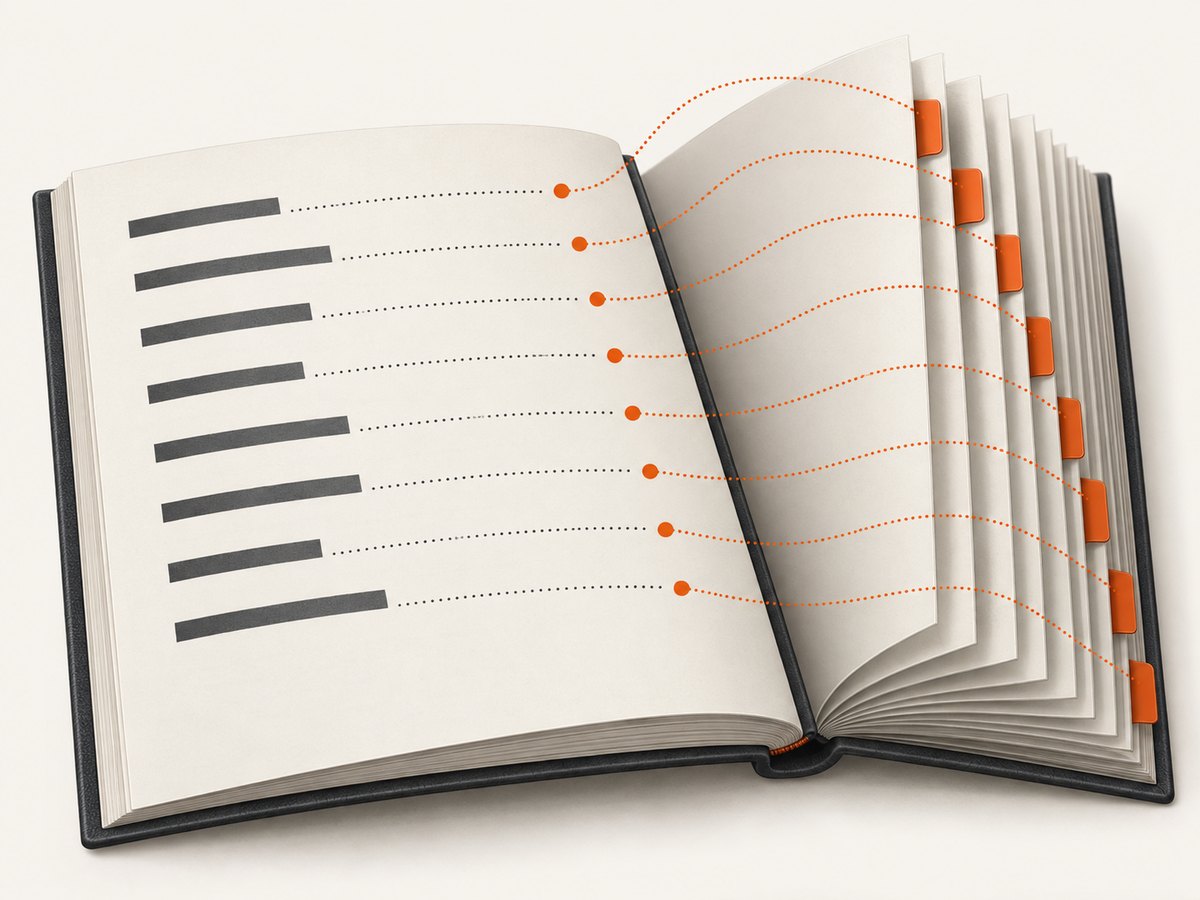
A normal web browser can render the link and its text without calculating printed page numbers. In paged media, target-counter() can look up a counter on the element linked to by a URL fragment. The page counter is commonly named page. leader(dotted) creates the dotted leader between the entry and its reference.
<nav class="toc" aria-label="Contents">
<p><a href="#setup">Setup</a></p>
<p><a href="#troubleshooting">Troubleshooting</a></p>
</nav>
<h1 id="setup">Setup</h1>
<p>...</p>
<h2 id="troubleshooting">Troubleshooting</h2>
<p>...</p>.toc a {
display: block;
text-decoration: none;
}
.toc a::after {
  content: leader(dotted) target-counter(attr(href), page);
}
The link target needs a matching, unique id. If the target is absent, misspelled, or duplicated, the cross-reference cannot reliably identify the intended heading. Use fragment-only links such as #setup for destinations in the same document. If you generate the HTML, validate IDs and hrefs as part of document generation rather than fixing page references manually.
WeasyPrint’s API reference documents cross-references with target-counter(attr(href), page), along with target-text() and dotted leaders. Its documentation makes it a practical option for Python pipelines that need a generated TOC. See the WeasyPrint API reference. Prince’s paged-media documentation covers pagination, page numbering, and page styling; check its commercial licensing and availability for your project.
4. Choose a rendering workflow
WeasyPrint
WeasyPrint is a Python library for generating PDFs from HTML and CSS. Its documentation describes page-break creation and avoidance, page counters, page size and margins, and cross-reference functions. A minimal Python pipeline looks like this:
from weasyprint import HTML

HTML(filename="document.html").write_pdf("document.pdf")
Put the CSS in the HTML file or load it through the document’s stylesheets. Pin the WeasyPrint version and its runtime dependencies in your deployment environment. Fonts and layout can vary when those dependencies or installed fonts change.
Prince
Prince is a commercial paged-media renderer. Its documentation includes a default stylesheet rule using break-after: avoid on headings, intended to prevent an awkward page break between a heading and the start of its section. Evaluate its license and program availability for your environment, then verify the features your documents rely on against its current documentation.
Paged.js and browser printing
Paged.js implements parts of CSS Paged Media, CSS Generated Content for Paged Media, and CSS Fragmentation for browser workflows. Its documentation describes differences in specification maturity and browser behavior. Its workflow identifies Chromium-family support for @page { size }; Firefox may require manual PDF-size adjustment. Its feature matrix lists page counters and PDF output, but the documentation cautions that implementations can differ. Keep the browser and operating system consistent when reproducibility matters.
Do not assume that a browser’s print-to-PDF output supports target-counter() merely because it supports printing or CSS page size. Test the specific engine and version that will generate the PDF. For stable automated output, pin the renderer, browser engine, operating system, fonts, page dimensions, and relevant CSS.
5. A repeatable implementation checklist
- Choose the renderer first. Confirm that it supports the paged-media features required by the document, including target counters if the TOC needs page numbers.
- Add the compatibility pair. Put
page-break-after: avoidfirst andbreak-after: avoidafter it on the headings or blocks that need to stay with following content. - Build real fragment links. Give destination headings unique IDs and make every TOC href point to the matching fragment.
- Set page geometry explicitly. Define page size and margins in the renderer’s supported print CSS. Those choices affect pagination and therefore every generated page number.
- Inspect neighboring break rules. Check
break-before,page-break-before, and inside-break declarations on the next element and its ancestors. - Render and inspect several cases. Include short and long sections, a heading near the bottom of a page, and a TOC entry whose destination is on a later page.
- Freeze the environment. Pin versions, operating system, fonts, and page dimensions before comparing output or deploying a document pipeline.
6. Troubleshooting
| Symptom | Likely cause | What to check or change |
|---|---|---|
| A heading is still stranded at the bottom of a page. | The renderer does not apply the rule as expected, a forced break conflicts, or the next block cannot fit. | Put both declarations on the heading; inspect the next element’s break-before rule and ancestor break-inside rules. Check whether the heading and first following block can physically fit together. |
| The legacy property seems ignored. | The renderer may rely on newer fragmentation behavior, or may implement paged media differently. | Add break-after: avoid after the legacy property and verify support in the exact rendering engine and version. |
| The TOC has no page numbers. | The engine may not support target counters, may not resolve the fragment, or may not perform the pagination work required for cross-references. | Confirm the renderer’s paged-media support. Check that href="#chapter-1" matches exactly one element with id="chapter-1". Test in a supported paged-media engine. |
| TOC page numbers are wrong after an edit. | Pagination changed because text, fonts, page size, margins, or styling changed; output may also depend on renderer versions. | Regenerate the PDF after content and style changes. Pin the environment and inspect the final rendered file rather than assuming old page references still apply. |
| Avoidance creates a large blank area. | The heading and following content do not fit in the remaining space, so the renderer moves the heading. | Check how much content must stay together. Restrict the rule to relevant headings and avoid combining it with overly broad inside-avoid rules. |
| Output differs across machines. | Different browser engines, operating systems, fonts, or renderer versions affect layout and pagination. | Use the same environment for generation and comparison. Record renderer version, OS, fonts, page size, and margins. |
7. Performance, reliability, and cost
Page-break avoidance is a layout preference, not a guarantee of identical pagination. Cross-reference page numbers depend on the final paginated layout, so changes to content, fonts, or page geometry can move targets. Treat PDF generation as a reproducible build step: fix the renderer environment, generate the complete document, and validate the final PDF’s page references and section starts.
For a batch workflow, choose a renderer based on the CSS features your documents require and how it fits your deployment. WeasyPrint is documented for Python pipelines; Prince is commercial; Paged.js supports a browser-based paginated workflow with documented implementation differences. Check current license, runtime, and deployment requirements directly with the project documentation before committing to a production setup. Avoid relying on undocumented cross-reference behavior in a generic browser print path.
8. Capture a PDF page or document preview with ScreenshotNeo
If the job is to capture a web page as an image or PDF, ScreenshotNeo provides a website screenshot API and MCP server. It is a separate option from building a CSS-to-PDF publishing pipeline: it captures a URL, while the CSS guidance above controls pagination in a document renderer.
For a rendered page preview, request a screenshot with one GET call. See the ScreenshotNeo API documentation for parameters and output options.
curl -G "https://api.screenshotneo.com/v1/shot" -d access_key=YOUR_API_KEY --data-urlencode url=https://stripe.com -o shot.webpimport requests
r = requests.get(
"https://api.screenshotneo.com/v1/shot",
params={"access_key": "YOUR_API_KEY", "url": "https://stripe.com"},
timeout=90,
)
open("shot.webp", "wb").write(r.content)const q = new URLSearchParams({ access_key: 'YOUR_API_KEY', url: 'https://stripe.com' });
const res = await fetch(`https://api.screenshotneo.com/v1/shot?${q}`);
if (!res.ok) throw new Error(`Screenshot request failed: ${res.status}`);
await import('node:fs/promises').then(fs => fs.writeFile('shot.webp', Buffer.from(await res.arrayBuffer())));These examples capture a URL as an image. ScreenshotNeo also supports PDF output, full-page capture, custom viewport and device presets, waiting for a selector or network idle, and custom CSS and JavaScript. Its MCP server exposes take_screenshot, get_page_info, and capture_pdf to Claude, Cursor, and other MCP clients. Cookie banners, newsletter popups, and chat widgets can be removed before capture, and each step can be turned off. Bot checks, blank pages, timeouts, failed loads, and cache hits cost nothing; response headers report the page verdict and billing status. Plans include 1,000 free shots per month with no card and paid plans starting at $5 for 3,000 shots.
Create a free ScreenshotNeo account for 1,000 screenshots a month with no card.
9. FAQ
Does page-break-after: avoid keep a heading and an entire section together?
No. It expresses a preference about the break after the heading. The following content can continue onto another page; use inside-break controls selectively for short blocks that should remain intact.
Can I use target-counter() for page numbers in normal screen CSS?
It is a paged-media cross-reference feature. Screen rendering alone does not establish that an engine will calculate PDF page numbers.
Does Puppeteer or Chromium support target-counter()?
The research references browser workflow differences and Paged.js support, but does not establish native Chromium support for this cross-reference function. Verify the exact browser workflow and version you plan to use; consider a renderer that documents target-counter support when it is a requirement.
Should I use the old property or the new one?
For compatibility, include both, with break-after: avoid after page-break-after: avoid. Then validate the output in your chosen renderer.


