Using Paged.js with Laravel
Use Blade and Vite to serve HTML, Paged.js to paginate it, and a browser to print it to PDF. Here’s the workflow, code, and production tradeoffs.

To use Paged.js with Laravel, render your document as a Blade view, load its CSS and JavaScript through Laravel Vite, and let Paged.js paginate the document in the browser. A person can inspect the paginated preview and save it through the browser’s print-to-PDF dialog. For unattended generation, the Paged.js project also documents a CLI workflow using a headless browser.
This is an integration architecture assembled from the projects’ documented capabilities. The cited sources do not establish a first-party Laravel adapter, guarantee compatibility for every Laravel setup, or verify the example below end to end. Paged.js is the pagination layer; Laravel provides the route, data, template, and assets. Paged.js project · Laravel Blade docs · Laravel Vite docs
1. Understand the rendering flow
Paged.js is an open-source JavaScript library for paginating HTML for browser preview and print-oriented PDF workflows. Laravel’s Blade views provide the document markup and dynamic data. The browser loads the page and its assets, Paged.js applies print pagination, and the resulting pages can be inspected and printed.
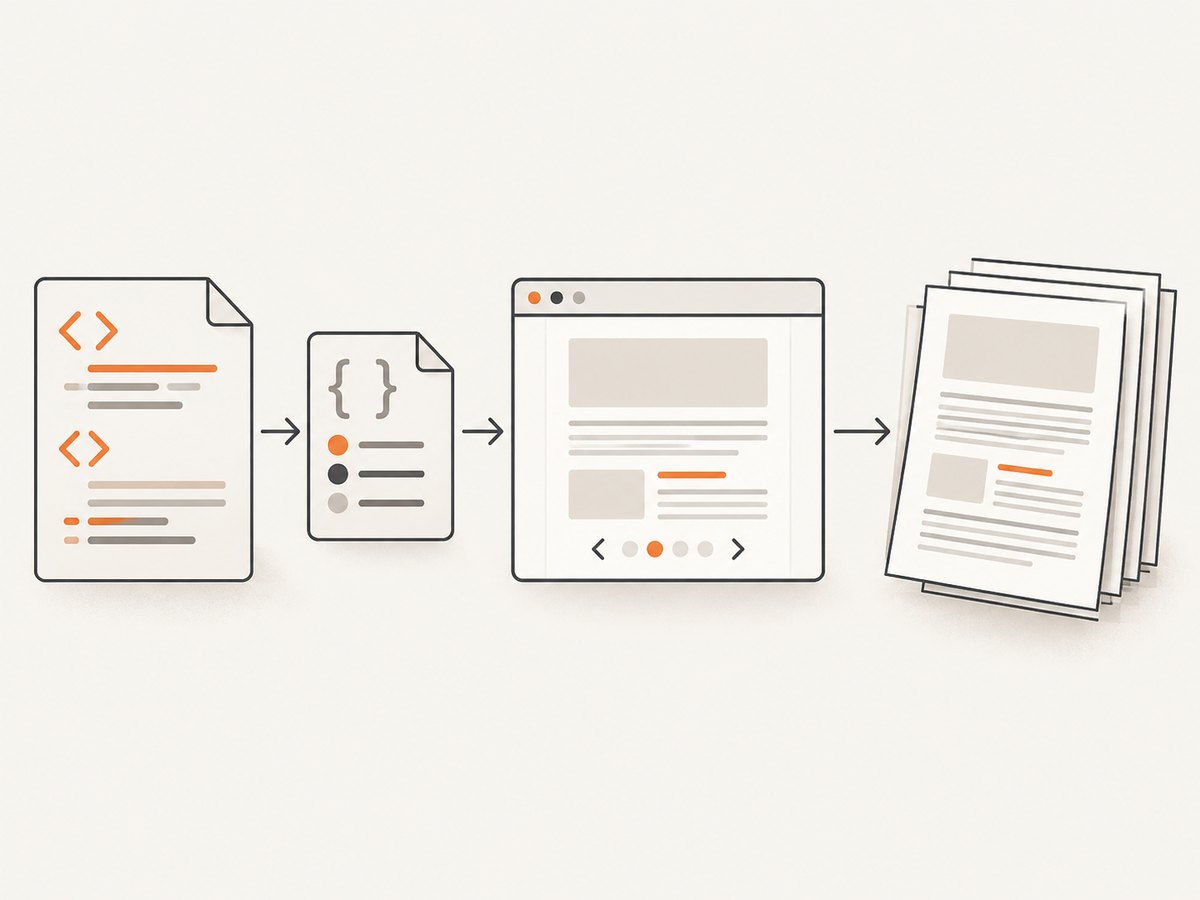
- Laravel responds with HTML. A route or controller supplies data to a Blade view.
- The browser loads assets. Laravel Vite includes the CSS and JavaScript entry points, along with document fonts and images.
- Paged.js paginates the document. Print rules such as
@page, page breaks, and print media styles define the intended page layout. - The output becomes a PDF. For manual use, print the preview from the browser. For automation, investigate the Paged.js CLI and its headless-browser workflow.
Pagination depends on the browser’s layout engine and on when assets finish loading. Treat PDF generation as browser rendering, not as a simple conversion of Blade strings. Paged.js documentation warns that browsers and operating systems can render differently; validate in the environment that will produce the final PDF. Paged.js documentation
2. Install and wire Paged.js into a Laravel page
The Paged.js README documents installing the npm package and using its ES module Previewer. Laravel Vite can load the application’s JavaScript and CSS entry points. The following sketch shows where those parts fit; it is not an official Laravel adapter recipe. Check current package exports and your Laravel/Vite setup if an import does not resolve. Paged.js repository · Laravel Vite docs
Step 1: Add the package and Vite entries
npm install pagedjsUse your project’s existing Vite configuration and entry files. A typical Blade layout references them with @vite:
<!doctype html>
<html lang="en">
<head>
    <meta charset="utf-8">
    <meta name="viewport" content="width=device-width, initial-scale=1">
    <title>{{ $document->title }}</title>
    @vite(['resources/css/app.css', 'resources/js/app.js'])
</head>
<body>
    @yield('content')
</body>
</html>
Step 2: Create the document route and Blade view
For a real application, put authorization and data retrieval in a controller. This compact route illustrates the view handoff; replace sample data with your application’s model and access checks.
// routes/web.php
use Illuminate\Support\Facades\Route;

Route::get('/documents/{id}/print', function (string $id) {
    // Load and authorize the real document here.
    $document = (object) [
        'title' => 'Example report',
        'sections' => [
            ['heading' => 'Summary', 'body' => 'A paragraph of report content.'],
            ['heading' => 'Details', 'body' => 'Additional report content.'],
        ],
    ];

    return view('documents.print', compact('document'));
});
<!-- resources/views/documents/print.blade.php -->
@extends('layouts.app')
@section('content')
<main class="document">
<h1>{{ $document->title }}</h1>
@foreach ($document->sections as $section)
<section>
<h2>{{ $section['heading'] }}</h2>
<p>{{ $section['body'] }}</p>
</section>
@endforeach
</main>
<div id="pagination-status" aria-live="polite">Preparing pages…</div>
@endsectionBlade’s escaped output syntax, {{ ... }}, is appropriate for ordinary text. Avoid rendering untrusted HTML without an explicit sanitization policy. Document authorization matters just as much on a print route as on the normal document page.
Step 3: Start pagination after the page loads
Import the documented module API in your Vite JavaScript entry. The example waits for the browser’s load event so ordinary stylesheets and page resources have a chance to load before pagination. If your content adds images or fonts asynchronously, explicitly wait for those too before creating the preview.
// resources/js/app.js
import { Previewer } from 'pagedjs';

window.addEventListener('load', async () => {
    const status = document.querySelector('#pagination-status');
    try {
        const previewer = new Previewer();
        await previewer.preview();
        if (status) status.textContent = 'Pages ready to print.';
    } catch (error) {
        console.error('Paged.js pagination failed', error);
        if (status) status.textContent = 'Could not prepare the paginated preview.';
    }
});
The module import and preview call follow the Paged.js README’s Previewer approach. Its polyfill-script option is another documented inclusion path. If you choose that route, follow the project’s current README and avoid loading both the polyfill and module integration on the same page unless you have a deliberate reason.
3. Define print layout with CSS
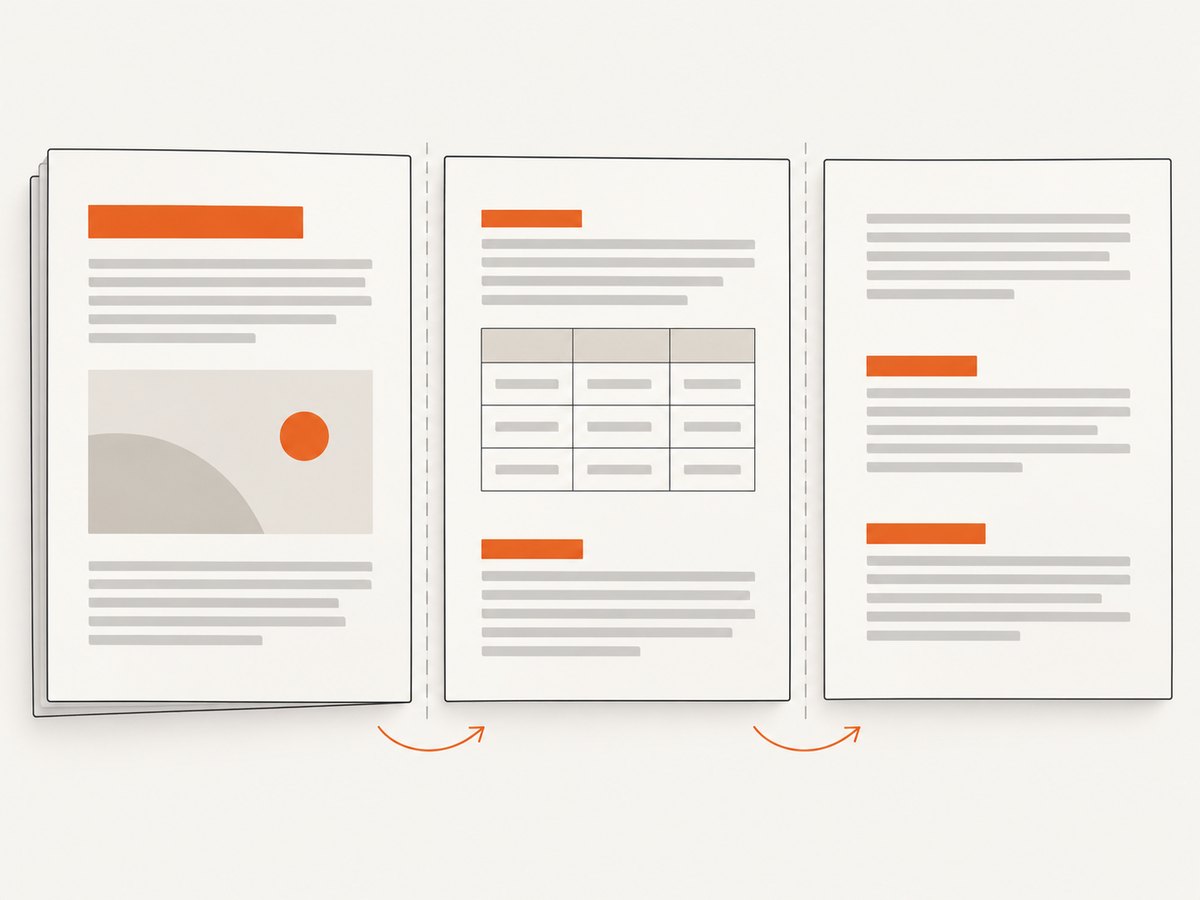
Screen layout alone does not define a reliable printed document. Use @page for page size and margins, print media rules for print-only styling, and break rules for sections that should begin or remain together. Paged.js processes print-oriented CSS; the exact appearance still depends on content, fonts, browser, and operating system. Paged.js documentation
/* resources/css/app.css */
.document {
    max-width: 52rem;
    margin: 2rem auto;
    color: #202124;
    font: 11pt/1.5 Georgia, serif;
}

@page {
    size: A4;
    margin: 18mm 16mm 20mm;
}

@media print {
    body { background: white; }
    .document { max-width: none; margin: 0; }
    #pagination-status { display: none; }
    h1, h2 { break-after: avoid; }
    figure, table, blockquote { break-inside: avoid; }
    section.new-page { break-before: page; }
    a { color: inherit; text-decoration: none; }
}
Choose the page size and margins to suit the actual document. Avoid forcing every heading to a new page: short sections can leave large blank areas. Conversely, use an explicit break for chapters or appendices where a new page is required. Test long tables, code blocks, footnotes, images, and headings near page bottoms, because they expose pagination problems quickly.
4. Export a PDF: manual and automated paths
Manual preview and print
- Run the Laravel application and open the print route in the target browser.
- Wait until Paged.js finishes and inspect the paginated pages, including the last page and any sections with large tables or images.
- Open the browser’s print dialog and choose Save as PDF.
- Follow the Paged.js guide’s print settings: set margins to none, disable browser headers and footers, and enable background graphics. Your CSS
@pagerules should supply the intended page margins. Paged.js getting-started guide - Open the resulting PDF and check page count, clipping, line wraps, fonts, backgrounds, and page breaks.
Browser print settings can affect the result independently of Laravel and Paged.js. Give users a brief instruction near the print action so they do not accidentally add browser headers or omit background fills.
Automated generation
The Paged.js project describes a CLI path that uses a headless browser and can generate PDFs in automated workflows. This is the natural direction when a job, rather than a person, must produce files. The dossier’s official sources do not establish current exact CLI installation commands or deployment requirements, so consult the project’s current CLI documentation and release instructions before choosing package versions or writing a production command. Paged.js repository · Paged.js guide
Plan for the rendering worker to reach the Laravel page and load all required assets. Decide how it receives authenticated document data, how failed jobs are retried, where PDFs are stored, and how long generated files remain accessible. Pin the browser and operating system image used for production output, then validate after upgrades; browser or OS changes can alter line wrapping and pagination. Do not assume the interactive print-dialog settings automatically apply to a headless run.
5. Assets, data, and implementation choices
Vite assets and self-contained pages
Laravel Vite’s @vite directive loads configured CSS and JavaScript entries. The Laravel docs also describe Vite::content for embedding raw asset content in a page when a PDF generator needs inlined assets. That is a Laravel asset capability, not a Paged.js requirement; use it only if your rendering environment needs inlining. Laravel Vite docs
For either path, verify that CSS, web fonts, images, and scripts resolve from the environment doing the rendering. A page that works on a developer laptop can fail in a worker if an asset URL is private, a relative path resolves differently, or the worker lacks access to the app. Prefer predictable asset URLs and avoid content that depends on a user’s local browser state.
Choose the right output path
| Need | Suitable path | Things to validate |
|---|---|---|
| User reviews and exports | Browser preview, then print dialog | Print settings, loaded assets, target browser and OS |
| Repeatable server-side files | Paged.js CLI/headless-browser workflow | Current CLI requirements, runtime image, data access, retries, storage |
| Laravel-managed page assets | Vite entries via @vite |
Built asset availability to the rendering browser |
| Renderer requiring inline assets | Investigate Laravel’s Vite::content |
Whether inlining is needed for this renderer and document |
6. Troubleshooting
| Symptom | Likely cause | Fix |
|---|---|---|
Previewer import fails |
The installed package or bundler setup does not expose the expected module entry. | Check the current Paged.js README and installed package version. Confirm Vite is building the entry containing the import. The project also documents a polyfill-script inclusion option. |
| The page stays unpaginated | The script did not run, threw before preview, or ran before required content existed. | Check the browser console and network panel. Ensure the Vite entry loads, wait for the application to render its document, and surface pagination failures in the page status. |
| Styles or fonts are missing in PDF | Assets failed to load or were inaccessible to the browser doing the render. | Inspect asset requests in that browser. Fix paths, permissions, build output, or network reachability; wait for fonts and images before previewing. |
| Pages differ between machines | Browser and OS rendering differences change metrics and line wrapping. | Design and generate with the same browser and OS where possible. Validate on the production rendering environment and recheck after upgrades. Paged.js documentation |
| PDF has unexpected margins or browser text | Print-dialog margins or headers and footers conflict with the CSS layout. | Use the guide’s settings: no margins, browser headers and footers off, background graphics on. Define document margins in @page. |
| A heading is stranded at the bottom of a page | The heading and following content are allowed to break apart. | Apply break-after: avoid to headings and check that the next block is not too large to fit. |
| A table or image splits awkwardly | Content exceeds page space or has no suitable break behavior. | Try break-inside: avoid for compact blocks. For large tables, allow sensible row/page breaks rather than forcing the entire table onto one page. |
| Automated render cannot open the document | The headless browser cannot reach the Laravel route or authenticate to it. | Provide a deliberate worker-to-app access path and document authorization strategy. Test the exact URL and assets from the worker environment. |
7. Performance, reliability, and cost
Rendering cost and latency depend on the size and complexity of the document, its assets, and the browser environment; the sources reviewed provide no benchmark to quote. Large images, many web fonts, long tables, and scripts that delay page readiness all add work. Keep print views focused, avoid unnecessary interactive application code, and load only the assets the document needs.
For manual output, reliability is mainly about clear preview readiness and checking the PDF after print. For automated output, make rendering an explicit job with a defined failure path, retries for transient infrastructure issues, and logs that distinguish page-load failures from pagination or file-storage failures. Keep the browser and OS consistent and validate a representative document set after changing them. Store PDFs with access controls appropriate to their contents.
Paged.js is described by its project as free and open source. That does not mean a hosted rendering workflow has no operating cost: a server or worker, browser runtime, storage, and operational maintenance may be involved. The dossier contains no performance, hosting-price, or cost comparison figures, so estimate those from your own deployment requirements rather than assuming a per-page rate.
8. Or skip the browser setup
If your goal is to capture a website screenshot rather than paginate a Laravel document into a print-ready PDF, ScreenshotNeo provides a website screenshot API and MCP server. One GET request returns PNG, JPEG, WebP, or PDF. See the ScreenshotNeo API documentation.
curl -G "https://api.screenshotneo.com/v1/shot" -d access_key=YOUR_API_KEY --data-urlencode url=https://stripe.com -o shot.webpimport requests
r = requests.get(
"https://api.screenshotneo.com/v1/shot",
params={"access_key": "YOUR_API_KEY", "url": "https://stripe.com"},
timeout=90,
)
open("shot.webp", "wb").write(r.content)const q = new URLSearchParams({ access_key: 'YOUR_API_KEY', url: 'https://stripe.com' });
const res = await fetch(`https://api.screenshotneo.com/v1/shot?${q}`);Cookie banners, newsletter popups, and chat widgets are removed before the shot. Bot checks, blank pages, and failed loads are never billed. An MCP server lets AI agents use take_screenshot, get_page_info, and capture_pdf. The free plan includes 1,000 screenshots a month with no card; paid plans start at $5 for 3,000. Create a free ScreenshotNeo account.
9. Frequently asked questions
Does Paged.js have an official Laravel package?
The sources used for this guide establish Paged.js browser and CLI workflows and Laravel Blade/Vite capabilities, but they do not establish an official Laravel-specific bridge. The integration shown here connects those documented pieces.
Can I generate a PDF without a user opening the print dialog?
The Paged.js project documents a CLI route that uses a headless browser for automated PDF generation. Check the current project instructions for exact installation and runtime requirements before deploying it.
Why does my PDF differ from the browser preview?
The browser’s print settings affect manual output, and browser/OS differences can affect layout. Use the documented print settings and validate with the same browser and operating system used for final generation.
Should I inline CSS and other assets?
Only if the rendering setup requires it. Laravel documents Vite::content for raw asset inclusion, but Paged.js does not thereby require inlining. First confirm that the rendering browser can load the normal asset URLs.
Is this flow for capturing arbitrary websites?
No. It is for rendering a Laravel-served HTML document through Paged.js and printing it. For a website screenshot API or MCP-based capture, use the ScreenshotNeo option above.


