Paged.js: Essential Tips for Creating Precision PDFs
Learn how to use Paged.js, print CSS, generated content, and browser automation to create accurate, repeatable PDFs from HTML.
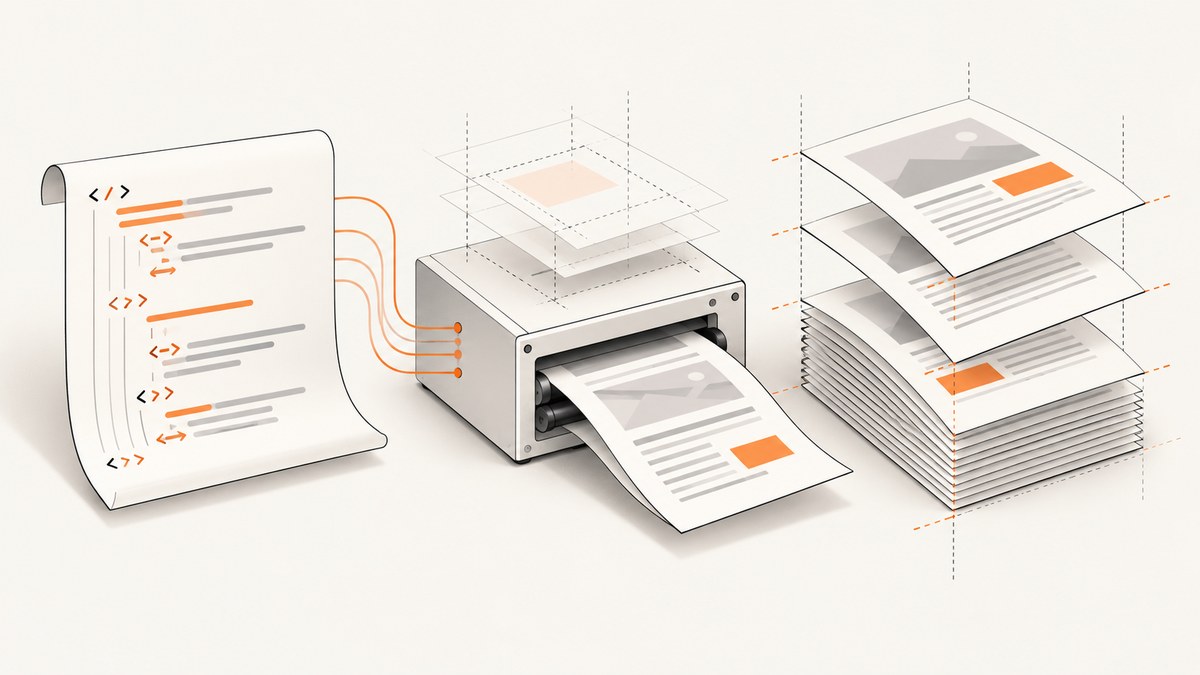
Direct answer: Create a precision PDF with Paged.js by combining semantic HTML, a deliberate print stylesheet, and a controlled browser environment. Paged.js applies print declarations, lays the content out as pages, and provides a browser preview. After you inspect the preview, export with the browser’s Save as PDF dialog or automate the same process with a headless browser. Keep the browser and operating system consistent between design and generation, because font metrics, hyphenation, and pagination can change between environments.
Paged.js is a free and open-source JavaScript library for paginating HTML into print-ready pages. It is useful for books, reports, catalogs, invoices, documentation, and any document where page geometry, running furniture, page numbers, tables of contents, and cross-references matter. The workflow below follows the concepts in the official Paged.js documentation.
1. Start with semantic HTML and a print stylesheet
Use headings, paragraphs, lists, figures, tables, and sections that describe the document structure. Avoid using visual line breaks or absolute coordinates to force a layout. Paged.js needs content that can reflow when a page break moves.
Keep screen styling separate from print styling where that makes maintenance easier. A print stylesheet should define the page box, margins, typography, colors, and break behavior. Load Paged.js after the document’s stylesheets.
<!doctype html>
<html lang="en">
<head>
  <meta charset="utf-8">
  <meta name="viewport" content="width=device-width, initial-scale=1">
  <title>Quarterly Research Report</title>
  <link rel="stylesheet" href="screen.css">
  <link rel="stylesheet" href="print.css">
  <script src="https://unpkg.com/pagedjs/dist/paged.polyfill.js"></script>
</head>
<body>
  <main class="report">
    <h1>Quarterly Research Report</h1>
    <p class="summary">A short executive summary goes here.</p>

    <section>
      <h2>Introduction</h2>
      <p>Use real paragraphs and meaningful sections. Add enough content to expose page-break behavior.</p>
    </section>

    <section>
      <h2>Methods</h2>
      <figure>
        <img src="chart.png" alt="Monthly results">
        <figcaption>Figure 1. Monthly results.</figcaption>
      </figure>
    </section>
  </main>
</body>
</html>
A minimal print stylesheet might look like this:
@page {
  size: A4;
  margin: 22mm 18mm 24mm;
}

@media print {
  body {
    margin: 0;
    color: #111;
    background: white;
    font-family: Georgia, serif;
    font-size: 10.5pt;
    line-height: 1.45;
  }

  h1, h2, h3 {
    font-family: Arial, sans-serif;
    break-after: avoid;
  }

  h1 {
    page-break-before: always;
  }

  h1:first-child {
    page-break-before: auto;
  }

  figure, table, pre {
    break-inside: avoid;
  }

  img {
    max-width: 100%;
    height: auto;
  }
}
The @page rule controls the page size and margins. Define one document page size deliberately: the Paged.js documentation cautions that a browser can understand only one page size for a document. If you need sections with different physical sizes, split them into separate documents or validate the result carefully rather than assuming mixed sizes will export correctly.
2. Use the browser preview as your layout workbench
Open the HTML in a browser with Paged.js loaded. The library transforms the continuous document into a paginated preview. Inspect every page before exporting. Look for headings stranded at the bottom of a page, captions separated from figures, table rows split unexpectedly, widows and orphans, oversized code blocks, and images that load after pagination.
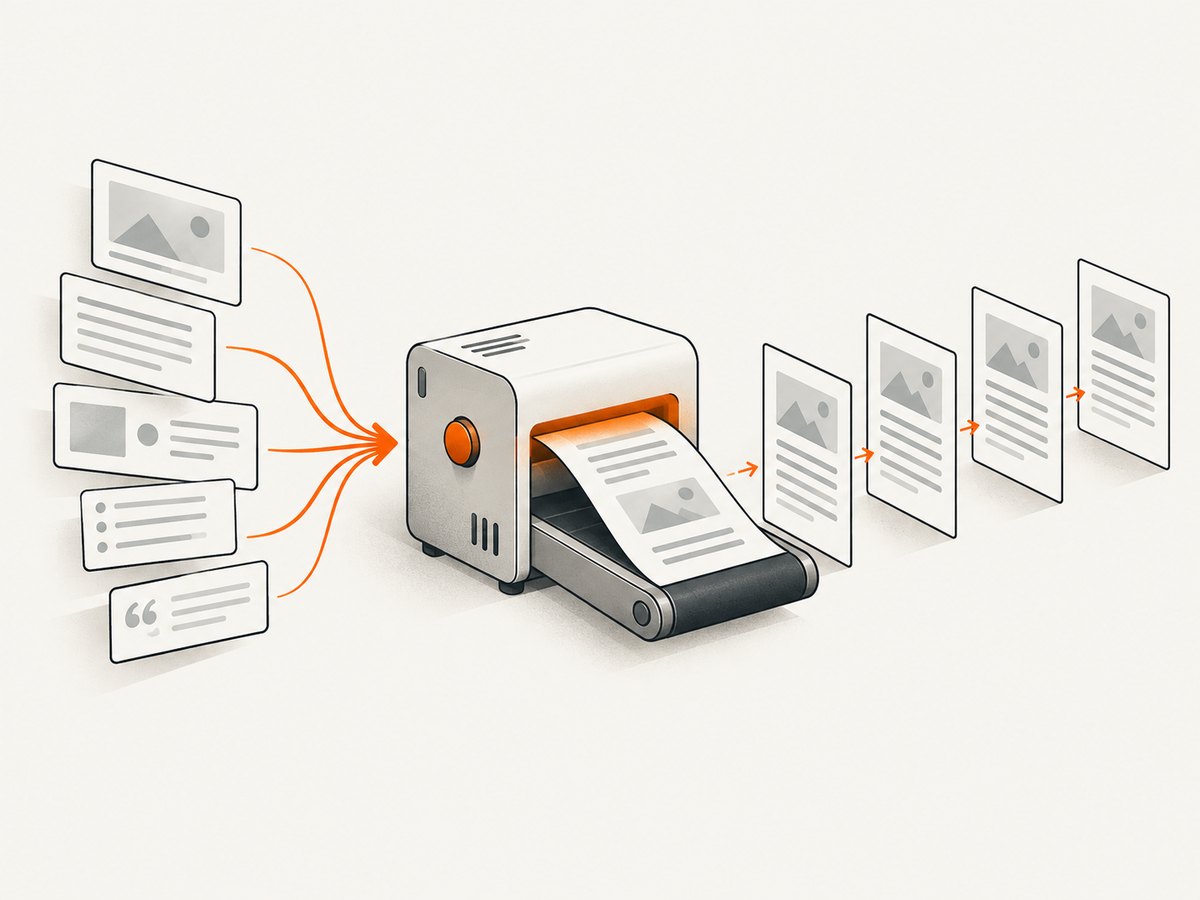
Change CSS, reload, and inspect again. This loop is faster than repeatedly opening exported PDFs because the preview shows where each page starts and ends. Add temporary outlines while debugging:
@media screen {
  .pagedjs_page {
    outline: 1px solid #bbb;
    margin: 12px auto;
    box-shadow: 0 2px 12px rgb(0 0 0 / 12%);
  }

  .pagedjs_page_content * {
    outline: 1px dashed rgb(0 100 200 / 12%);
  }
}
Remove diagnostic outlines for the final export. Keep a representative fixture document containing the longest heading, a long table, a multi-page list, a code block, a figure, and a footnote. It will reveal regressions when you change fonts or page geometry.
3. Define page geometry and reliable break rules
Page rules are the foundation of repeatable output. Set the paper size and margins in @page, then use break properties on semantic elements.
@page {
  size: Letter;
  margin: 0.8in 0.7in 0.9in;
}

.chapter {
  break-before: page;
}

.keep-with-next {
  break-after: avoid;
}

.callout, .figure, .table-wrap {
  break-inside: avoid;
}

thead {
  display: table-header-group;
}

tfoot {
  display: table-footer-group;
}
Use break-before, break-after, and break-inside as the modern names. Older page-break-* aliases remain useful when a browser or existing stylesheet expects them. Do not apply break-inside: avoid to huge containers: if an element is taller than a page, the browser must still split it or produce an awkward result.
For tables, repeat the header row and allow body rows to break only when the content permits it. For long code listings, choose readable wrapping or deliberately allow a listing to continue over several pages. A single unbreakable line can expand beyond the printable area.
4. Add running headers, footers, page numbers, and navigation
Paged.js supports generated content for page furniture and navigation. Running heads and footers can identify the current chapter, while generated page numbers make printed references useful. Tables of contents, indexes, and cross-references also belong in this layer.
@page {
  @top-left {
    content: "Quarterly Research Report";
    font: 8pt Arial, sans-serif;
    color: #666;
  }

  @top-right {
    content: string(chapter);
    font: 8pt Arial, sans-serif;
    color: #666;
  }

  @bottom-right {
    content: "Page " counter(page) " of " counter(pages);
    font: 8pt Arial, sans-serif;
    color: #666;
  }
}

h2 {
  string-set: chapter content(text);
}
Keep generated content short. A long running header can collide with the margin box or wrap unexpectedly. Test the first page, a chapter-opening page, a page after a chapter break, and the final page. If your document has a cover, define its header and footer behavior separately.
5. Handle fonts, images, and asynchronous content
Pagination depends on measured dimensions. A fallback font can change line wrapping and shift every later page. Host the intended web fonts, wait for them to load, and avoid silently substituting a local font. Use explicit image dimensions when possible so the layout does not change after an image request completes.
document.fonts.ready.then(() => {
  // Start or refresh pagination after the intended fonts are available.
  window.dispatchEvent(new Event('pagedjs:content'));
});
For images, provide meaningful alt text and constrain their size in print CSS. Verify that the headless browser can access every image URL. Authenticated, cross-origin, or dynamically generated images need a deliberate loading strategy. A missing image can collapse a figure, while a late-loading image can move a page break.
6. Export from the browser
Once the preview is correct, use the browser’s Save as PDF command. The Paged.js getting-started guide recommends these settings:
- Set margins to None or None/custom with the document’s margins handled by CSS.
- Turn off browser-added headers and footers.
- Turn on background graphics.
- Keep the paper size aligned with
@page. - Open the resulting PDF and inspect page count, dimensions, links, images, and breaks.
Browser-added headers and footers are outside Paged.js and can create an extra margin or duplicate page number. Background graphics are required when the design uses colored panels, rules, or shaded callouts.
7. Automate PDF generation with a headless browser
For repeatable builds, run the same HTML through a headless browser in CI or a document service. The exact API depends on the browser automation library, but the sequence is consistent: open the document, wait for Paged.js to finish pagination, wait for fonts and images, then print to PDF with CSS page sizing enabled.
import { chromium } from 'playwright';

const browser = await chromium.launch();
const page = await browser.newPage();

await page.goto('file:///absolute/path/report.html', { waitUntil: 'networkidle' });
await page.evaluate(async () => {
  if (document.fonts) await document.fonts.ready;
  if (window.PagedPolyfill?.preview) await window.PagedPolyfill.preview();
});

await page.pdf({
  path: 'report.pdf',
  format: 'A4',
  printBackground: true,
  preferCSSPageSize: true,
  displayHeaderFooter: false,
  margin: { top: '0', right: '0', bottom: '0', left: '0' }
});

await browser.close();
Use a fixed browser image in CI when the output must be byte-for-byte stable. The official Paged.js documentation reports differences across browsers and operating systems and recommends staying on the same browser and OS for design and generation. Hyphenation is one area that can vary. Treat a browser or operating-system upgrade as a layout change: regenerate a fixture PDF and review it.
8. Diagnose common precision problems
| Symptom | Likely cause | Fix |
|---|---|---|
| Everything shifted after a font change | Different font metrics or a font loaded too late | Bundle or pin the intended font, wait for document.fonts.ready, and regenerate in the same environment. |
| Content is cut off at the edge | Browser dialog margins, oversized unbreakable content, or a mismatched page size | Set dialog margins to none, use preferCSSPageSize, and allow long code or tables to break. |
| Headers or footers appear twice | Browser-added print headers and footers are enabled | Disable them in Save as PDF and in headless browser options. |
| Background colors disappear | Background graphics are disabled | Enable background graphics and use printBackground: true in automation. |
| A heading is alone at the bottom | No keep-with-next rule | Apply break-after: avoid to headings or a heading-plus-introduction wrapper. |
| A figure moves away from its caption | The figure is allowed to split | Apply break-inside: avoid to the figure and caption container. |
| Images are blank in CI | Network access, authentication, or image readiness | Make assets available to the browser, wait for image completion, and check failed requests. |
| Different machines produce different page counts | Browser, OS, font, or hyphenation differences | Pin the rendering environment and compare fixture PDFs after any upgrade. |
When debugging, reduce the document to the first page where the output diverges. Check computed font family, font size, line height, element width, and the actual page box. Then add content back until the break changes. This isolates layout causes faster than editing many rules at once.
9. Performance, reliability, and cost considerations
Paged.js work is mostly layout work. Large DOM trees, high-resolution images, web-font downloads, and complex tables increase pagination time and memory use. Keep assets local or on a fast, reliable origin, resize images to their printed dimensions, and remove screen-only components from the print tree.
For batch generation, reuse a browser process when the automation library supports it, but create a fresh page for each document. Set a navigation timeout and a separate rendering timeout. Log the document URL, browser version, page count, and failed network requests. Save a diagnostic HTML snapshot when a build fails.
There is no universal performance benchmark in the Paged.js documentation. Measure your own documents with representative fixtures. Reliability improves when the HTML, CSS, fonts, browser version, and operating system are all versioned or pinned.
10. Or skip the browser setup
If your goal is a clean screenshot or PDF of a web page rather than a custom paginated book layout, ScreenshotNeo provides a single API request. See the ScreenshotNeo documentation for the complete option list.

curl -G "https://api.screenshotneo.com/v1/shot" -d access_key=YOUR_API_KEY --data-urlencode url=https://stripe.com -o shot.webpimport requests
r = requests.get("https://api.screenshotneo.com/v1/shot", params={"access_key": "YOUR_API_KEY", "url": "https://stripe.com"}, timeout=90)
open("shot.webp", "wb").write(r.content)const q = new URLSearchParams({ access_key: 'YOUR_API_KEY', url: 'https://stripe.com' });
const res = await fetch(`https://api.screenshotneo.com/v1/shot?${q}`);ScreenshotNeo removes cookie banners, newsletter popups, and chat widgets before the shot. Bot checks, blank pages, failed loads, timeouts, and cache hits are not billed, and the response identifies the page verdict and billing status in X-Page-Verdict and X-Billed headers. It also offers full-page capture, PDF options, custom CSS and JavaScript, waiting rules, request blocking, device presets, signed links, asynchronous jobs, bulk capture, and an MCP server for AI agents.
The free plan includes 1,000 screenshots each month with no card. Paid plans start at $5 for 3,000 shots. Create a free ScreenshotNeo account.
11. Precision PDF checklist
- Semantic HTML describes the document structure.
@pagedefines one deliberate paper size and margin system.- Print CSS controls breaks, tables, figures, code, and colors.
- Fonts and images are loaded before pagination is finalized.
- The Paged.js browser preview has been inspected page by page.
- Save as PDF uses no browser headers or footers and has background graphics enabled.
- Automated output waits for fonts, images, and pagination.
- The browser and operating system are consistent between design and generation.
- A fixture document is regenerated after dependency or environment changes.
12. FAQ
Can Paged.js convert any HTML into a book?
It can paginate HTML content into a print-oriented layout, but the quality depends on the HTML structure, CSS, fonts, assets, and rendering environment. Plan the document structure and print rules instead of treating pagination as a final conversion step.
Should I use browser export or headless automation?
Use browser export while designing because interactive inspection is convenient. Use a headless browser when you need repeatable builds, CI integration, or batch generation. Keep the rendering environment consistent for either route.
Why does the PDF have a different page count after deployment?
Usually a font, browser, operating system, image, or hyphenation behavior changed. Compare the computed styles and asset loading in the deployment environment, then pin the environment or update the CSS for the new metrics.
Can I mix Letter and A4 pages in one Paged.js document?
The documentation warns that a browser can understand only one page size for a document. Use one page size per document unless you have verified a specific advanced workflow in your target browser.
How should I test a long report?
Keep a fixture that includes long headings, tables, figures, code, lists, and page furniture. Review the first divergent page after every browser, font, or stylesheet change.


