How to Capture a Full-Page Website Screenshot with PageSpeed API and Google Apps Script
PageSpeed Insights v5 does not document a screenshot response. Learn what the legacy v4 API supports, how to call both versions from Apps Script, and how to save returned image data to Drive.
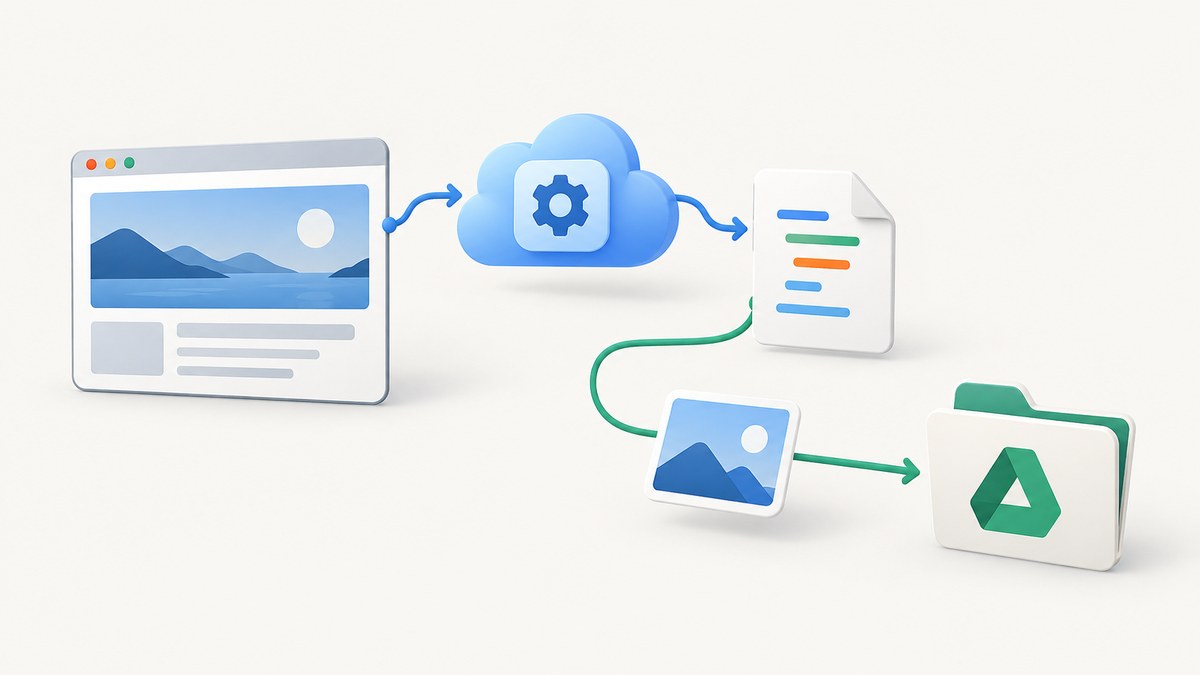
Short answer: You cannot rely on the current PageSpeed Insights API v5 to return a full-page screenshot. Its documented runPagespeed response is JSON with Lighthouse results and other fields, but the v5 response schema does not document a screenshot field. The older v4 reference does document an optional screenshot parameter and a base64-encoded screenshot object. Apps Script can fetch and save image bytes when an endpoint actually returns them; it cannot add screenshot support to v5.
This guide shows how to call v5 for PageSpeed data, how to request the legacy v4 screenshot where that API is available to you, and how to save returned image data in Google Drive. If you need a reliable screenshot endpoint today, see the ScreenshotNeo option below.
1. Know which PageSpeed API version you are calling
| API | Documented output | Screenshot implications |
|---|---|---|
v5: pagespeedonline/v5/runPagespeed |
JSON including fields such as lighthouseResult, loadingExperience, and version and timestamp information |
The current v5 reference does not document a screenshot field. Do not treat Lighthouse result data as a screenshot. |
v4: pagespeedonline/v4/runPagespeed |
The legacy reference documents PageSpeed results and an optional screenshot object | The screenshot option is specific to the v4 reference. The returned image data is base64 encoded and includes MIME type and dimensions. |
Google describes v5 as running PageSpeed analysis and returning scores, suggestions, and related information. Its documented method is GET https://pagespeedonline.googleapis.com/pagespeedonline/v5/runPagespeed, with a required url and an optional strategy of desktop or mobile (default: desktop). See the v5 method reference and the v5 response reference.
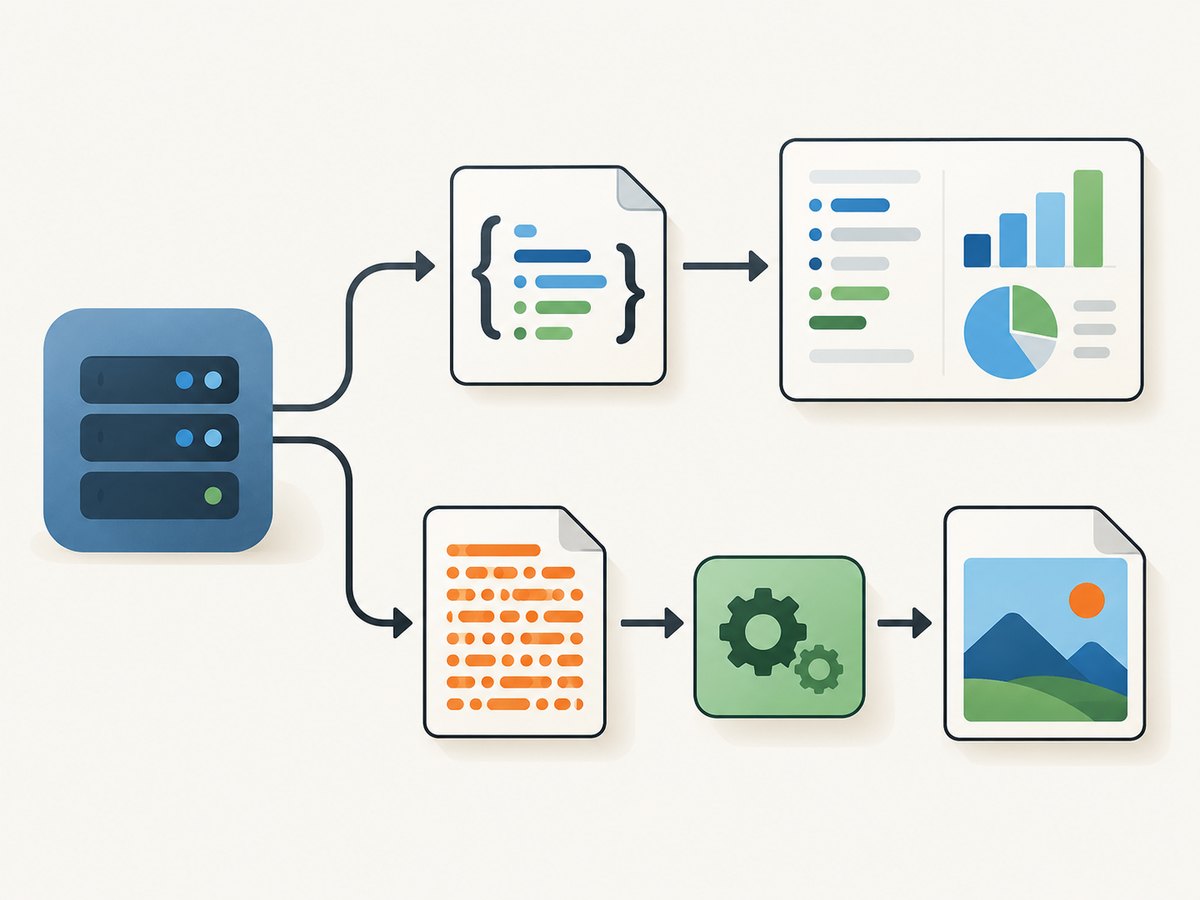
The separate v4 method reference lists screenshot as an optional boolean parameter, defaulting to false. The v4 documentation is not evidence that v5 returns a screenshot. If you choose to use v4, verify that the endpoint and access you need remain available; the cited reference is legacy documentation.
2. Set up Apps Script authorization
- Open Google Apps Script and create a project.
- For a Drive-saving script, run the function once from the editor and grant the requested external-request and Drive permissions.
- If the project declares explicit OAuth scopes in its manifest, include
https://www.googleapis.com/auth/script.external_requestfor URL Fetch. Drive file creation also requires Drive authorization. Consult the UrlFetchApp reference and DriveApp reference.
The examples use UrlFetchApp to make HTTPS requests. An Apps Script HTTP response can be read as text, raw bytes, or a Blob. A Blob can be given a content type and filename before saving.
3. Call current PageSpeed Insights v5 from Apps Script
This runnable function calls v5 and logs the Lighthouse result. It deliberately does not try to save a screenshot, because the current v5 response schema does not document one.
function getPageSpeedV5() {
  const targetUrl = 'https://example.com/';
  const endpoint = 'https://pagespeedonline.googleapis.com/pagespeedonline/v5/runPagespeed';
  const query = [
    'url=' + encodeURIComponent(targetUrl),
    'strategy=' + encodeURIComponent('mobile')
  ].join('&');

  const response = UrlFetchApp.fetch(endpoint + '?' + query, {
    method: 'get',
    muteHttpExceptions: true
  });
  const status = response.getResponseCode();
  const body = response.getContentText();

  if (status < 200 || status >= 300) {
    throw new Error('PageSpeed v5 returned HTTP ' + status + ': ' + body);
  }

  const result = JSON.parse(body);
  if (!result.lighthouseResult) {
    throw new Error('Response did not include lighthouseResult.');
  }

  Logger.log(JSON.stringify({
    requestedUrl: targetUrl,
    strategy: 'mobile',
    finalUrl: result.lighthouseResult.finalDisplayedUrl || result.lighthouseResult.requestedUrl,
    lighthouseVersion: result.lighthouseResult.lighthouseVersion,
    categories: result.lighthouseResult.categories
  }, null, 2));

  return result;
}
Change targetUrl to the page you want to analyze. Set strategy to desktop or mobile; omit it if you want the documented default, desktop. This function is for PageSpeed analysis, not image capture.
4. Request the documented legacy v4 screenshot and save it to Drive
The v4 response represents its screenshot as base64 data inside a screenshot object. The following example asks the legacy endpoint for that field, validates the response, decodes the data, and writes an image file to Drive. The documented v4 response includes a MIME type; the code uses it and falls back to PNG if it is absent.
function captureWithLegacyPageSpeedV4() {
  const targetUrl = 'https://example.com/';
  const endpoint = 'https://www.googleapis.com/pagespeedonline/v4/runPagespeed';
  const query = [
    'url=' + encodeURIComponent(targetUrl),
    'screenshot=true'
  ].join('&');

  const response = UrlFetchApp.fetch(endpoint + '?' + query, {
    method: 'get',
    muteHttpExceptions: true
  });
  const status = response.getResponseCode();
  const body = response.getContentText();

  if (status < 200 || status >= 300) {
    throw new Error('PageSpeed v4 returned HTTP ' + status + ': ' + body);
  }

  const result = JSON.parse(body);
  const screenshot = result.screenshot;
  if (!screenshot || !screenshot.data) {
    throw new Error('No screenshot data was returned. Check v4 availability and response.');
  }

  // The API documents base64 image data. Remove any data-URI prefix if present.
  const base64 = screenshot.data.replace(/^data:[^,]*,/, '').replace(/\\s/g, '');
  const bytes = Utilities.base64Decode(base64);
  const mimeType = screenshot.mime_type || 'image/png';
  const extension = mimeType === 'image/jpeg' ? 'jpg' :
                    mimeType === 'image/webp' ? 'webp' : 'png';
  const safeHost = targetUrl.replace(/^https?:\\/\\//, '').replace(/[^a-zA-Z0-9.-]/g, '_');
  const blob = Utilities.newBlob(bytes, mimeType, 'pagespeed-v4-' + safeHost + '.' + extension);
  const file = DriveApp.createFile(blob);

  Logger.log('Saved screenshot: ' + file.getUrl());
  Logger.log('Image dimensions reported by API: ' + screenshot.width + ' x ' + screenshot.height);
  return file.getUrl();
}
Use a URL you are authorized to access. The v4 method documentation calls the screenshot parameter optional and says it defaults to false, so set screenshot=true explicitly. A successful HTTP response alone is not enough: confirm the parsed JSON contains screenshot.data before trying to decode it.
5. Save image data from any response that really contains an image
The Drive step is independent of PageSpeed. If a different endpoint returns the image body directly, use getBlob(); if an API embeds the image as base64 in JSON, decode that field first as in the v4 example. This generic helper saves a direct image response:
function saveDirectImageResponse_(response, filename) {
  const status = response.getResponseCode();
  if (status < 200 || status >= 300) {
    throw new Error('Image request returned HTTP ' + status);
  }

  const blob = response.getBlob().setName(filename);
  if (!blob.getContentType() || !blob.getContentType().startsWith('image/')) {
    throw new Error('Response body is not identified as an image.');
  }
  const file = DriveApp.createFile(blob);
  return file.getUrl();
}
HTTPResponse.getBlob() does not turn JSON or HTML into an image. Check the content type and payload format before saving. See the HTTPResponse reference.
6. cURL, Python, and Node.js equivalents
These requests help inspect the API response outside Apps Script. They demonstrate the same version distinction: the v5 call retrieves JSON PageSpeed data; the legacy v4 call requests its documented screenshot field. They do not change what either API version supports.
Current v5: PageSpeed JSON
curl --get 'https://pagespeedonline.googleapis.com/pagespeedonline/v5/runPagespeed' \
  --data-urlencode 'url=https://example.com/' \
  --data-urlencode 'strategy=mobile' \
  --output pagespeed-v5.json
import json
import requests
endpoint = 'https://pagespeedonline.googleapis.com/pagespeedonline/v5/runPagespeed'
response = requests.get(endpoint, params={
'url': 'https://example.com/',
'strategy': 'mobile',
}, timeout=90)
response.raise_for_status()
data = response.json()
print(json.dumps(data.get('lighthouseResult', {}).get('categories', {}), indent=2))const endpoint = 'https://pagespeedonline.googleapis.com/pagespeedonline/v5/runPagespeed';
const query = new URLSearchParams({ url: 'https://example.com/', strategy: 'mobile' });
const response = await fetch(`${endpoint}?${query}`);
if (!response.ok) throw new Error(`PageSpeed v5 returned HTTP ${response.status}: ${await response.text()}`);
const data = await response.json();
console.log(data.lighthouseResult?.categories);Legacy v4: request screenshot data
curl --get 'https://www.googleapis.com/pagespeedonline/v4/runPagespeed' \
  --data-urlencode 'url=https://example.com/' \
  --data-urlencode 'screenshot=true' \
  --output pagespeed-v4.json
The response is JSON, so the screenshot is embedded as base64 rather than downloaded as a PNG file. Decode the documented screenshot.data field after inspecting the response. Python example:
import base64
import json
import re
import requests

endpoint = 'https://www.googleapis.com/pagespeedonline/v4/runPagespeed'
response = requests.get(endpoint, params={
    'url': 'https://example.com/',
    'screenshot': 'true',
}, timeout=90)
response.raise_for_status()
data = response.json()
screenshot = data.get('screenshot')
if not screenshot or not screenshot.get('data'):
    raise RuntimeError('No screenshot data in the legacy v4 response')
encoded = re.sub(r'^data:[^,]*,', '', screenshot['data'])
image_bytes = base64.b64decode(re.sub(r'\\s', '', encoded))
mime = screenshot.get('mime_type', 'image/png')
extension = 'jpg' if mime == 'image/jpeg' else 'png'
with open(f'pagespeed-v4-screenshot.{extension}', 'wb') as image_file:
    image_file.write(image_bytes)
print('Image dimensions:', screenshot.get('width'), 'x', screenshot.get('height'))
Node.js example:
const endpoint = 'https://www.googleapis.com/pagespeedonline/v4/runPagespeed';
const query = new URLSearchParams({ url: 'https://example.com/', screenshot: 'true' });
const response = await fetch(`${endpoint}?${query}`);
if (!response.ok) throw new Error(`PageSpeed v4 returned HTTP ${response.status}: ${await response.text()}`);
const data = await response.json();
if (!data.screenshot?.data) throw new Error('No screenshot data in the legacy v4 response');
const encoded = data.screenshot.data.replace(/^data:[^,]*,/, '').replace(/\\s/g, '');
const image = Buffer.from(encoded, 'base64');
const extension = data.screenshot.mime_type === 'image/jpeg' ? 'jpg' : 'png';
const { writeFile } = await import('node:fs/promises');
await writeFile(`pagespeed-v4-screenshot.${extension}`, image);
console.log('Image dimensions:', data.screenshot.width, 'x', data.screenshot.height);
7. Options, output handling, and practical limits
- Target URL: Required by v5 and required for the v4 request. URL-encode it as a query parameter; the examples use
encodeURIComponentor a parameter encoder. - Strategy: v5 supports
desktopandmobile, with desktop as the default. This selects the analysis strategy; it is not a full-page screenshot dimension control. - Screenshot flag: The cited v4 method reference documents the optional boolean
screenshot, default false. It is not a documented v5 option. - Response parsing: v5 returns JSON for analysis. v4 screenshot data must be extracted and base64-decoded. Direct image endpoints instead need raw bytes or a Blob.
- Drive filename and type: Set a meaningful filename and use the MIME type reported by the response where available. Do not label JSON bytes as PNG.
- Sharing:
DriveApp.createFile(blob)creates a Drive file. The example logs its URL; it does not change the file’s sharing permissions.
The referenced PageSpeed material documents the API response, not a separate full-page capture configuration such as CSS selector capture, custom viewport sizing, or lazy-image loading controls. Do not infer those controls from the existence of a screenshot field.
8. Troubleshooting
| Symptom | Likely cause | Fix |
|---|---|---|
v5 response has no screenshot |
The documented v5 response schema does not include that field. | Use v5 for Lighthouse analysis. For a screenshot workflow, use a screenshot service or investigate the explicitly legacy v4 reference; do not parse a nonexistent v5 field. |
v4 returns JSON but no screenshot.data |
The response may not match the documented shape, screenshot data may be absent, or the legacy endpoint behavior/access may differ. | Log the HTTP status and a limited response excerpt, check that screenshot=true was sent, and inspect the actual JSON before decoding. Avoid logging sensitive request data. |
| HTTP error or quota message | Invalid/malformed URL, API-side rejection, or service quota limits. | Check the encoded URL and error body. Reduce request volume and consult the applicable Google API quota information for the project. |
Unexpected token while parsing JSON |
The body may be an HTML error page, empty, or otherwise not JSON. | Check status and content before calling JSON.parse; use muteHttpExceptions: true to inspect non-2xx bodies in Apps Script. |
| Base64 decode error or corrupt image | The wrong field was decoded, the response has a data-URI prefix/whitespace, or the payload is not valid base64. | Confirm the field path, strip a data-URI prefix and whitespace, then verify the resulting bytes and MIME type. |
| Drive authorization or creation failure | The script lacks Drive consent or the active account cannot create files in the destination context. | Run interactively to grant Drive access and check the account and applicable Drive access controls. |
| Saved file will not open as an image | JSON, an error body, or a mislabeled Blob was saved as an image. | Check the HTTP status, response content type, and decoded byte source. Name the file using the actual MIME type. |
| Script exceeds execution or service limits | Large or slow remote responses and Apps Script quotas can stop runs. | Reduce call frequency, avoid repeated analysis of the same URL, and check current Apps Script quotas before scaling. |
9. Performance, reliability, and cost
PageSpeed analysis involves a remote request whose latency depends on the endpoint and target page; do not assume it is suitable for a tight synchronous workflow without measuring it in your own environment. Use explicit error handling, check the status before parsing, and store only the response fields you need. For repeated work, avoid unnecessary duplicate requests and record when a result was obtained.
Apps Script quotas are account-dependent and may change. Google’s quota reference snapshot accessed in 2026 lists 20,000 URL Fetch calls per day for consumer accounts and 100,000 per day for Google Workspace accounts. Google warns that quotas can change and execution stops when a limit is exceeded. Check the current Apps Script quotas page before planning volume. These are Apps Script URL Fetch limits, not a promise about PageSpeed API quotas or availability.
Cost depends on the Google API and account quotas that apply to your project, plus any separate storage or service terms. The cited references do not establish a universal price for a PageSpeed screenshot workflow, so check the applicable Google terms and quota pages for your use case. A legacy response’s presence also does not guarantee a stable long-term screenshot endpoint.
Or skip the browser setup
If your goal is a screenshot file rather than a Lighthouse report, ScreenshotNeo is a website screenshot API and MCP server for developers. One GET request takes a URL and returns PNG, JPEG, WebP, or PDF. See the ScreenshotNeo API documentation.
curl -G "https://api.screenshotneo.com/v1/shot" -d access_key=YOUR_API_KEY --data-urlencode url=https://example.com -o shot.webpimport requests
r = requests.get("https://api.screenshotneo.com/v1/shot", params={"access_key": "YOUR_API_KEY", "url": "https://example.com"}, timeout=90)
r.raise_for_status()
open("shot.webp", "wb").write(r.content)const q = new URLSearchParams({ access_key: 'YOUR_API_KEY', url: 'https://example.com' });
const res = await fetch(`https://api.screenshotneo.com/v1/shot?${q}`);
if (!res.ok) throw new Error(`ScreenshotNeo returned HTTP ${res.status}`);
const fs = await import('node:fs/promises');
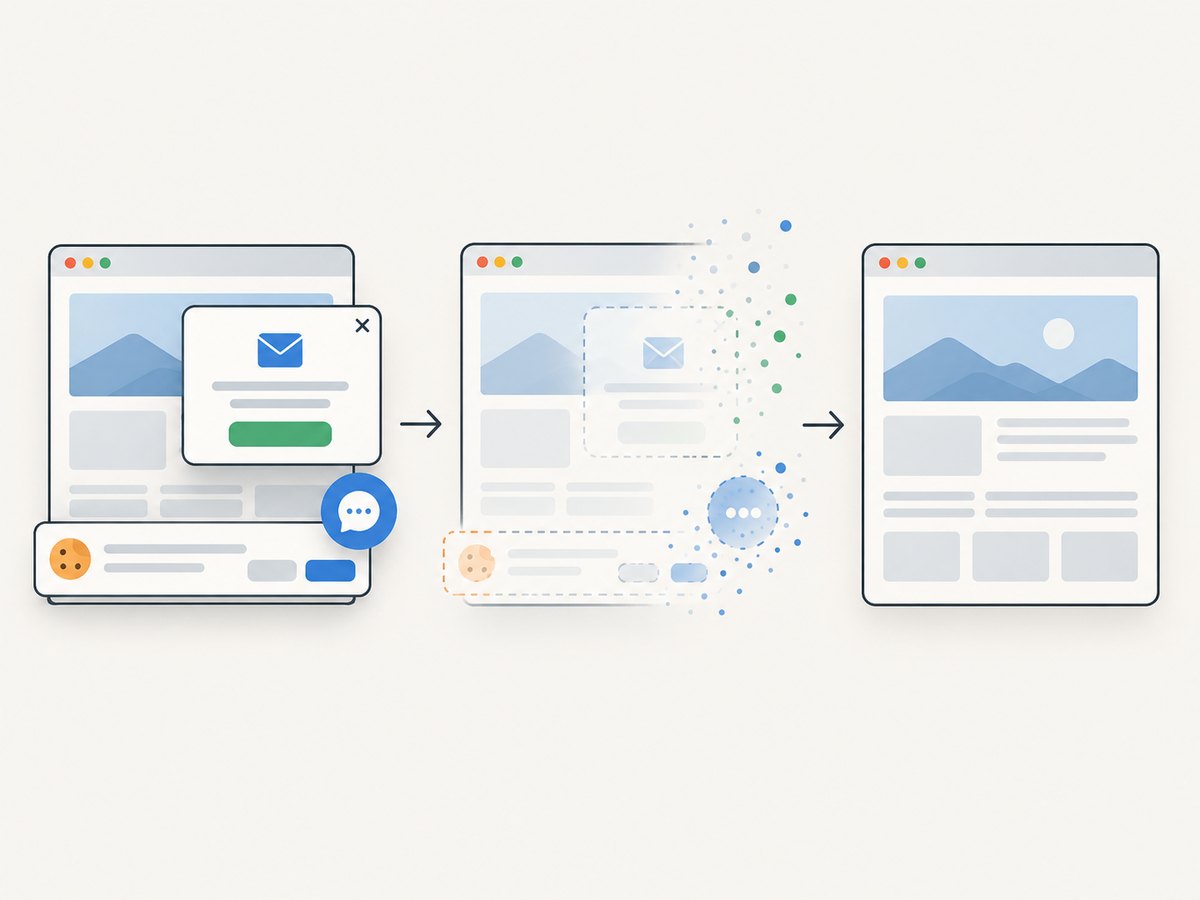
await fs.writeFile('shot.webp', Buffer.from(await res.arrayBuffer()));ScreenshotNeo accepts cookie and consent banners and removes more than 60 known consent platforms, newsletter popups, and chat widgets before capture; each of those steps can be turned off. Bot checks, blank pages, timeouts, failed loads, and cache hits are not billed, and response headers say the page verdict and billing status. Its MCP server gives AI agents the take_screenshot, get_page_info, and capture_pdf tools. The free plan includes 1,000 screenshots a month with no card; paid plans start at $5 for 3,000 screenshots.
Sign up for 1,000 free screenshots a month, with no card required.
FAQ
Does PageSpeed Insights v5 return a full-page screenshot?
The current v5 reference does not document a screenshot field in its response schema. Use it for PageSpeed analysis, not as a documented full-page screenshot API.
Can Apps Script save an image to Google Drive?
Yes. If you have image bytes or a Blob, DriveApp.createFile(blob) can create a Drive file, subject to Drive authorization. It cannot create image data that the HTTP response did not return.
Is the v4 screenshot option the same as a v5 feature?
No. The optional screenshot parameter and base64 screenshot object are documented in the legacy v4 reference. Keep that behavior separate from the current v5 documentation.
Does PageSpeed’s mobile strategy set the screenshot’s device dimensions?
The v5 reference describes strategy as desktop or mobile analysis. It does not document it as a screenshot viewport-size control.


