How to Parse and Display HTML Strings with ReactPDF
Parse HTML strings into React-PDF documents with react-pdf-html, handle CSS limits, sanitize input, and render reliable PDFs.
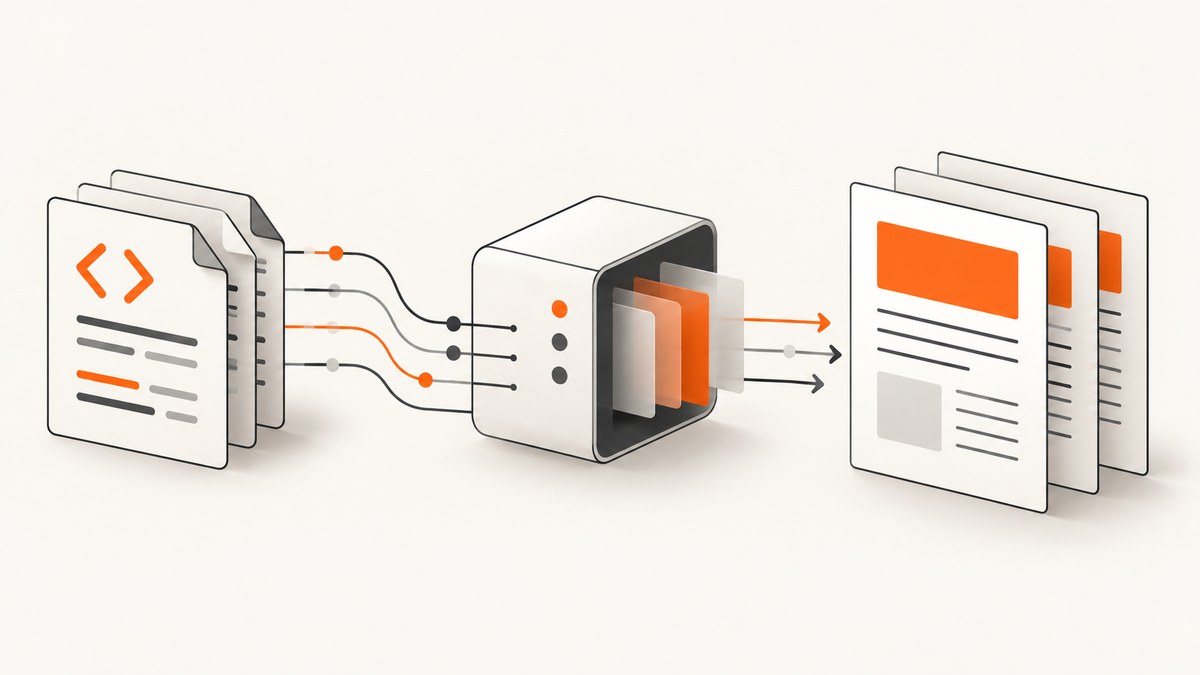
Short answer: @react-pdf/renderer does not natively turn an arbitrary HTML string into a PDF. It renders its own React component tree. To parse existing HTML, use the separate react-pdf-html adapter, then place its <Html> component inside a React-PDF <Page>. Treat the result as a supported HTML/CSS subset rather than browser-perfect rendering.
This guide shows the direct integration, server and browser rendering, sanitization, stylesheets, images, page breaks, common failures, and when direct React-PDF components are a better fit.
1. Install the renderer and HTML adapter
The renderer needs React. For client-side document generation, React-DOM is also required according to the React-PDF quick start.
npm install @react-pdf/renderer react-pdf-html
npm install react react-dom
Use versions compatible with your application. The v4 compatibility guidance lists Node.js 18, 20 and 21 latest minors, React 16.8 or later, and notes a Next.js App Router issue in versions earlier than 14.1.1; verify the current compatibility page and your installed versions before deployment.
2. Parse an HTML string into a PDF document
The adapter’s documented shape is an Html component inside a React-PDF Page and Document.

import React from 'react';
import { Document, Page, StyleSheet } from '@react-pdf/renderer';
import Html from 'react-pdf-html';

const html = `
  <h1>Quarterly report</h1>
  <p>Generated from an HTML string.</p>
  <ul>
    <li>Revenue increased</li>
    <li>Support volume decreased</li>
  </ul>
`;

const styles = StyleSheet.create({
  page: { padding: 40, fontSize: 11, lineHeight: 1.4 }
});

export function ReportDocument() {
  return (
    <Document title="Quarterly report">
      <Page size="A4" style={styles.page}>
        <Html>{html}</Html>
      </Page>
    </Document>
  );
}
Use ScreenshotNeo’s documentation when you need to capture the resulting page or PDF through an API instead of maintaining browser infrastructure.
3. Render in the browser
For a download link or an embedded preview, use the browser APIs documented by React-PDF.
import { PDFDownloadLink, PDFViewer } from '@react-pdf/renderer';
import { ReportDocument } from './ReportDocument';

export function ReportActions() {
  return (
    <>
      <PDFDownloadLink document={<ReportDocument />} fileName="report.pdf">
        {({ loading }) => (loading ? 'Preparing…' : 'Download PDF')}
      </PDFDownloadLink>
      <PDFViewer width="100%" height={700}>
        <ReportDocument />
      </PDFViewer>
    </>
  );
}
In a Next.js App Router application, keep PDF components in a client boundary where required and check the renderer’s compatibility notes for your exact Next.js version.
4. Render on the server
For Node.js, render to a file or stream. The exact API depends on your installed renderer version; the quick-start examples use the renderer’s server helpers.
import React from 'react';
import { renderToFile } from '@react-pdf/renderer';
import { ReportDocument } from './ReportDocument.js';

await renderToFile(<ReportDocument />, './report.pdf');
For HTTP responses, use the stream form exposed by your installed version and pipe it to the response. Do not perform asynchronous stylesheet fetching from inside the React render tree: react-pdf-html documents that remote stylesheets must be resolved before rendering because React-PDF rendering is synchronous.
5. What HTML and CSS are supported?
react-pdf-html parses HTML into a node tree and maps common elements to React-PDF primitives:
| HTML | Mapped behavior | Practical limit |
|---|---|---|
| Block and container elements | View |
Only layout properties supported by React-PDF apply. |
| Text and inline elements | Text |
Nested formatting is a subset of browser behavior. |
img |
Image |
Images must be reachable and supported by the renderer. |
a |
Link |
Validate URLs and decide whether external links are allowed. |
| Lists and tables | Basic adapter support | Complex table layout is not equivalent to browser layout. |
style and inline styles |
Parsed by the adapter | Only React-PDF-supported CSS properties are useful. |
The README describes headings, paragraphs, emphasis, links, images, lists, tables and preformatted code, but labels table support as basic and CSS support as limited. Test representative production HTML, especially nested tables, unusual whitespace, custom fonts, images and page breaks.
6. Adapter options for real content
Whitespace and line breaks
The adapter’s collapse prop defaults to true. Set it to false when source newlines should become rendered breaks.
<Html collapse={false}>{html}</Html>Root styles and stylesheet mappings
Use the adapter’s root style and stylesheet-related props to provide predictable defaults. Keep the style object to properties supported by React-PDF; browser-only rules such as grid, fixed positioning and complex selectors will not become browser layout.
const rootStyle = {
  fontFamily: 'Helvetica',
  fontSize: 10,
  color: '#222'
};

<Html style={rootStyle}>{html}</Html>
Custom tag renderers
When your source contains a semantic or proprietary tag, provide a custom renderer instead of expecting the adapter to infer its layout. This is also useful for enforcing a controlled representation of embeds, callouts or code blocks.
Remote stylesheets
Fetch and resolve remote stylesheets before creating the React-PDF tree, then pass the resulting stylesheet mapping to the adapter. Account for authentication, timeouts, redirects and an allowlist of hosts. Never let arbitrary user HTML fetch internal network addresses.
7. Sanitize untrusted HTML before parsing
Parsing and rendering are separate from input safety. For user-authored markup, OWASP recommends a sanitizer such as DOMPurify and warns that modifying sanitized output later, or allowing a downstream library to mutate it, can invalidate the protection. Define an allowlist for tags, attributes, links, images and stylesheets.
import DOMPurify from 'dompurify';

const dirty = getUserHtml();
const clean = DOMPurify.sanitize(dirty, {
  USE_PROFILES: { html: true },
  ALLOWED_TAGS: ['h1', 'h2', 'h3', 'p', 'strong', 'em', 'ul', 'ol', 'li', 'a', 'img', 'table', 'thead', 'tbody', 'tr', 'th', 'td', 'pre', 'code', 'br'],
  ALLOWED_ATTR: ['href', 'src', 'alt', 'title']
});

// Pass `clean` to <Html> only after applying your URL and host policy.
Check URL attributes separately. A sanitizer configuration is not a substitute for blocking unwanted external image or stylesheet hosts, and server-side sanitization should use a server-compatible DOMPurify setup.
8. Direct components versus an HTML adapter
| Choose direct React-PDF components when… | Choose react-pdf-html when… |
|---|---|
| You control the content model and need exact pagination. | You already receive reasonably simple HTML strings. |
| Complex tables, repeated headers or strict typography matter. | Common headings, paragraphs, lists and links are sufficient. |
| You want compile-time structure and explicit styles. | You need a migration path from stored HTML. |
The official renderer is component-first, while the adapter explicitly documents a limited subset. If fidelity requirements approach browser printing, evaluate a browser-based PDF workflow instead of expanding an adapter with unsupported CSS.
9. Troubleshooting
| Symptom | Likely cause | Fix |
|---|---|---|
| HTML appears as plain text | The string was placed in a normal React text node. | Put it inside <Html>{html}</Html> within <Page>. |
| Styles are missing | The CSS property is not supported by React-PDF, or a remote stylesheet was not resolved. | Reduce styles to supported properties and resolve stylesheets before rendering. |
| Tables overlap or split badly | Adapter table support is basic and does not reproduce browser table layout. | Simplify the table or build rows and cells with explicit View and Text components. |
| Images are blank | URL, format, CORS, authentication or server reachability issue. | Use a reachable supported source, prefetch it when needed, and log the resolved URL without exposing secrets. |
| Newlines disappear | collapse defaults to true. |
Set collapse={false} or add explicit <br> elements. |
| Next.js App Router crashes | Version-specific renderer and Next.js compatibility issue. | Check the v4 compatibility page; versions before Next.js 14.1.1 are called out there. |
| PDF generation hangs | Unbounded remote resources, very large HTML or an unsupported asset. | Set fetch timeouts, cap input size, prefetch resources, and isolate the smallest failing fragment. |
| User content creates unsafe links or fetches | HTML was trusted without a URL and host policy. | Sanitize, validate schemes and hosts, and block private network destinations. |
10. Performance, reliability and cost
- Keep the HTML tree and embedded images as small as practical; large raster images increase memory and render time.
- Cache sanitized HTML and resolved assets when the source is immutable.
- Use deterministic fonts and explicit dimensions for repeatable pagination.
- Render representative samples in CI or a staging job, including long paragraphs, tables, missing images and page boundaries.
- Apply timeouts and cancellation around remote asset fetching. A PDF render should fail clearly when a dependency cannot be reached.
- There is no browser-level HTML/CSS compatibility guarantee. Treat adapter upgrades as rendering changes and review output after dependency updates.
11. Or skip the browser setup
If your goal is a screenshot or PDF of a live URL rather than a React-PDF document generated from data, ScreenshotNeo provides a single GET request:
curl -G "https://api.screenshotneo.com/v1/shot" -d access_key=YOUR_API_KEY --data-urlencode url=https://stripe.com -o shot.webpimport requests
r = requests.get("https://api.screenshotneo.com/v1/shot", params={"access_key": "YOUR_API_KEY", "url": "https://stripe.com"}, timeout=90)
open("shot.webp", "wb").write(r.content)const q = new URLSearchParams({ access_key: 'YOUR_API_KEY', url: 'https://stripe.com' });
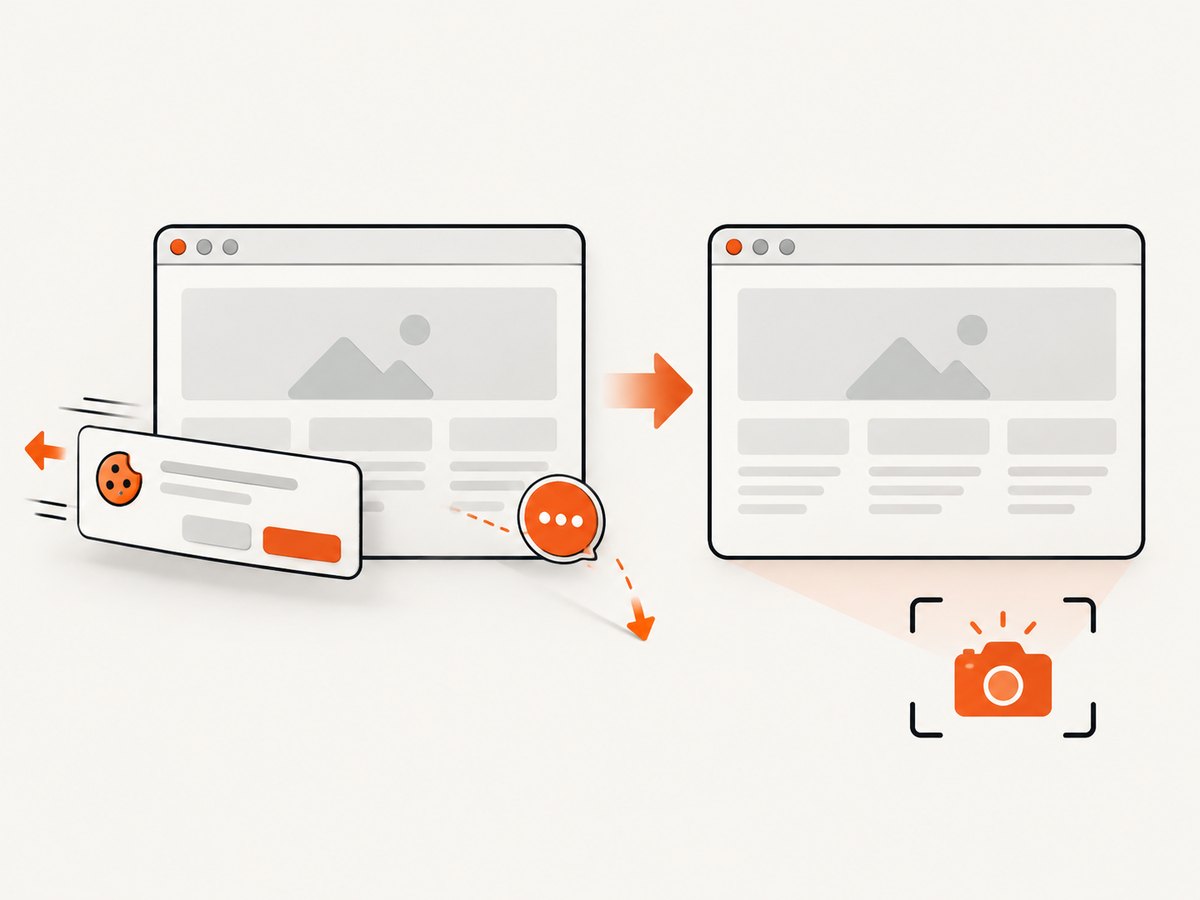
const res = await fetch(`https://api.screenshotneo.com/v1/shot?${q}`);Cookie banners, newsletter popups and chat widgets are removed before the shot. Bot checks, blank pages and failed loads are never billed, and the response reports the page verdict and billing status in headers. ScreenshotNeo also has an MCP server so AI agents can take screenshots, inspect pages and capture PDFs. The Free plan includes 1,000 screenshots a month with no card; paid plans start at $5 for 3,000. See the API documentation for options such as full-page capture, CSS selectors, custom CSS and JavaScript, PDF settings, caching, async jobs and bulk capture. Create a free ScreenshotNeo account.
12. FAQ
Can @react-pdf/renderer parse HTML by itself?
No. Its documented API renders React-PDF primitives. Use an adapter such as react-pdf-html or construct the component tree directly.
Does this provide full browser CSS support?
No. The adapter supports a limited set of React-PDF style properties, with basic tables and lists.
Should I sanitize HTML produced by my own editor?
Yes, if any part can be influenced by users or external content. Keep sanitization and URL policies explicit and do not mutate the sanitized string afterward.
How do I preserve exact web-page appearance?
React-PDF is a document renderer, not a browser. For exact live-page appearance, use a browser capture workflow and validate the page’s loading state and assets.
Can I load a remote CSS file during React-PDF rendering?
Resolve it asynchronously before rendering, then pass the resolved styles to the adapter.


