How to Parse a JSON File in JavaScript
Learn how to parse JSON text, fetch a JSON file in the browser, and read one from Node.js—with runnable examples, error handling, and practical debugging tips.

Use JSON.parse(text) when you already have JSON text. In a browser, load a URL with fetch() and parse the response with await response.json(). In Node.js, read a local file with node:fs/promises, then pass its text to JSON.parse().
These are three separate jobs: getting the bytes, turning them into text, and parsing that text into a JavaScript value. Keeping those steps clear makes errors much easier to diagnose.
1. What JSON.parse does
JSON.parse() converts a string containing valid JSON into a JavaScript value: an object, array, string, number, boolean, or null. It does not read files, make network requests, or accept a JavaScript object literal as input. Its input must be JSON text. Invalid JSON causes a SyntaxError. See [MDN’s JSON.parse reference](https://developer.mozilla.org/en-US/docs/Web/JavaScript/Reference/Global_Objects/JSON/parse).
const text = '{"name":"Ada","active":true,"tags":["js","data"]}';
const data = JSON.parse(text);

console.log(data.name);       // "Ada"
console.log(data.tags[0]);    // "js"
console.log(typeof data);     // "object"
JSON syntax is stricter than JavaScript object syntax. Keys and string values use double quotes; comments, trailing commas, functions, and undefined are not valid JSON.
// Valid JSON text
const valid = '{"count":3,"enabled":false}';

// These are JavaScript syntax, but not valid JSON:
// {count: 3}
// {'count': 3}
// {"count": 3,}
For data already represented as a JavaScript value, do not parse it again. For example, JSON.parse({"x":1}) is a type mistake; parsing expects a string. To convert a JavaScript value to JSON text, use JSON.stringify(value).
2. Parse JSON text you already have
Catch parse errors at the boundary where untrusted or externally supplied text enters your program. That lets you include useful context without hiding the original exception.
function parseJson(text) {
  try {
    return JSON.parse(text);
  } catch (error) {
    if (error instanceof SyntaxError) {
      throw new Error(`Could not parse JSON: ${error.message}`, { cause: error });
    }
    throw error;
  }
}

const settings = parseJson('{"theme":"dark"}');
console.log(settings.theme);
In a command-line script, you can also handle the error at the top level and exit with a useful message:
try {
  const value = JSON.parse(inputText);
  console.log(value);
} catch (error) {
  console.error('Input is not valid JSON:', error.message);
  process.exitCode = 1;
}
Use a reviver when values need transformation
The optional second argument is a reviver function called for parsed properties. Return a replacement value to transform a property, or return undefined to remove it. A common example is converting a known ISO date field into a Date. JSON itself has no date type, so choose fields deliberately rather than converting every string that resembles a date.
const json = '{"name":"Ada","createdAt":"2026-09-30T12:00:00.000Z"}';
const record = JSON.parse(json, (key, value) => {
  if (key === 'createdAt' && typeof value === 'string') {
    return new Date(value);
  }
  return value;
});

console.log(record.createdAt instanceof Date); // true
Revivers are also useful for narrowly scoped normalization. They are not a schema validator: check required fields, types, ranges, and application rules after parsing.
3. Read a JSON file in the browser
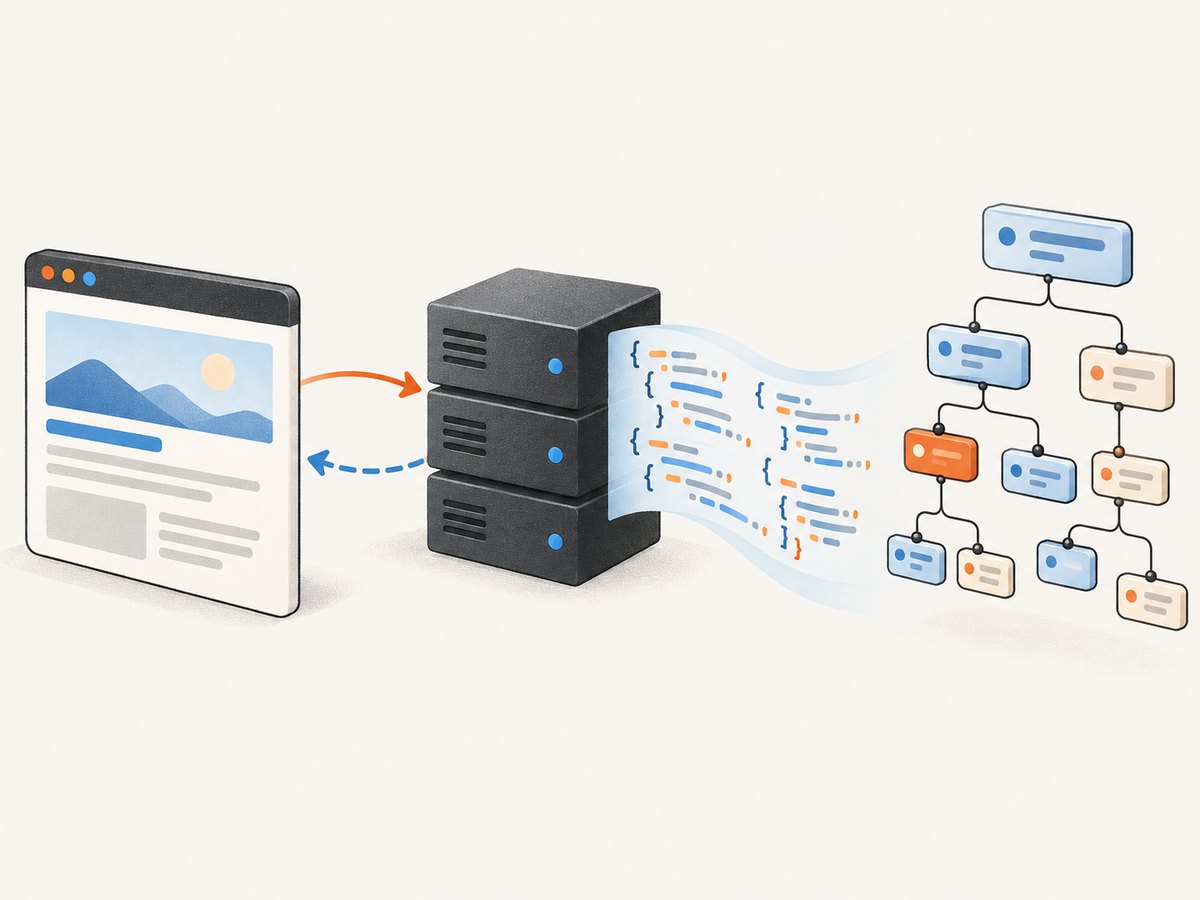
A web page normally loads a JSON file from a URL served by the same site or a server that allows cross-origin requests. Use fetch(), check the HTTP status, then call response.json(). Fetch is asynchronous, and an HTTP 404 or 500 does not by itself make the fetch promise reject; inspect response.ok. See [MDN’s Fetch guide](https://developer.mozilla.org/en-US/docs/Web/API/Fetch_API/Using_Fetch) and [Response.json() reference](https://developer.mozilla.org/en-US/docs/Web/API/Response/json).
async function loadJson(url) {
  const response = await fetch(url);
  if (!response.ok) {
    throw new Error(`HTTP ${response.status} while loading ${url}`);
  }
  return response.json();
}

async function main() {
  const data = await loadJson('/data/example.json');
  console.log(data);
}

main().catch((error) => {
  console.error('Could not load data:', error);
});
Save that code in a script running on a page served by a development server, and place example.json at the corresponding public URL. A path beginning with / is resolved from the site root. A relative path such as data/example.json is resolved relative to the current page URL.
You can use top-level await in an environment that supports it, such as a JavaScript module. Otherwise, call fetch() inside an async function as above. Both fetch() and reading/parsing the response body are asynchronous.
Read text first for better diagnostics
Use response.text() followed by JSON.parse() if you need to log a short raw response, apply a reviver, or distinguish a response problem from a syntax problem. Avoid logging sensitive payloads.
async function loadJsonWithDiagnostics(url) {
  const response = await fetch(url);
  if (!response.ok) {
    throw new Error(`HTTP ${response.status} while loading ${url}`);
  }

  const text = await response.text();
  try {
    return JSON.parse(text);
  } catch (error) {
    if (error instanceof SyntaxError) {
      console.error('Response was not valid JSON. Content-Type:',
        response.headers.get('content-type'));
    }
    throw error;
  }
}
response.json() is the concise choice when the endpoint is expected to return JSON. The text-first form gives you the body as a string before parsing. Either way, the body is consumed when read; do not try to call both response.text() and response.json() on the same response unless you first clone it.
Browser details that often matter
- Serve the file over HTTP. Fetching a local file by opening an HTML document as
file://commonly runs into browser security restrictions. Start a local web server and use anhttp://localhostpage instead. - Cross-origin access needs server permission. If the JSON URL is on another origin, the server must allow your page’s origin through CORS. Changing JavaScript code cannot bypass that server policy.
- Check the actual response. A server may return an HTML error page, login page, or proxy response where JSON was expected. Check status, content type, and the response body in developer tools.
- JSON files are text. A typical JSON file uses a
.jsonextension and anapplication/jsoncontent type. Correct MIME configuration helps clients and intermediaries handle it as intended.
4. Read a local JSON file in Node.js
For a local file in Node.js, use the promise-based file system API to read UTF-8 text and then parse it. The path is resolved from the process’s current working directory in this example, so run the program from the project directory containing data.json.

import { readFile } from 'node:fs/promises';

async function loadJson(path) {
  const text = await readFile(path, 'utf8');
  return JSON.parse(text);
}

try {
  const data = await loadJson('./data.json');
  console.log(data);
} catch (error) {
  console.error(`Could not load ./data.json: ${error.message}`);
  process.exitCode = 1;
}
This ES module example works in a project configured for modules or in a Node.js environment that treats the file as an ES module. If your project uses CommonJS, use require() and an async function:
const { readFile } = require('node:fs/promises');

async function loadJson(path) {
  const text = await readFile(path, 'utf8');
  return JSON.parse(text);
}

loadJson('./data.json')
  .then((data) => console.log(data))
  .catch((error) => {
    console.error(`Could not load JSON: ${error.message}`);
    process.exitCode = 1;
  });
The promise-based API separates file errors from parse errors naturally: readFile() can reject because a file is missing or inaccessible, while JSON.parse() can throw because its contents are malformed. Node also offers callback and synchronous file APIs; synchronous file reads block the event loop until complete. See the [Node.js file system documentation](https://nodejs.org/api/fs.html).
Resolve paths reliably
A path such as ./data.json is relative to the process working directory, which can differ depending on how a script is launched. To resolve relative to the module file in modern Node.js ES modules, construct a URL from import.meta.url:
import { readFile } from 'node:fs/promises';

const dataUrl = new URL('./data.json', import.meta.url);
const text = await readFile(dataUrl, 'utf8');
const data = JSON.parse(text);
console.log(data);
That is useful for packaged scripts and tools. If the file path comes from user input, validate the intended directory and access policy; do not assume a path is safe merely because it ends in .json.
When a synchronous read is acceptable
readFileSync() is straightforward for a tiny configuration file read once during startup in a short-lived script. It blocks all JavaScript execution on that thread while the file is read, so prefer asynchronous APIs in servers, command handlers, and applications that need to remain responsive.
import { readFileSync } from 'node:fs';

const text = readFileSync('./data.json', 'utf8');
const data = JSON.parse(text);
5. Pick the right approach
| Situation | Recommended approach | Why |
|---|---|---|
| You have a JSON string already | JSON.parse(text) |
Parsing is the only remaining step. |
| A browser page needs a served JSON resource | fetch(url), check ok, then response.json() |
Fetch handles the network request asynchronously. |
| You need to inspect the raw HTTP body | response.text(), then JSON.parse(text) |
Separates body retrieval from parsing. |
| Node.js needs a local file | readFile(path, 'utf8'), then JSON.parse(text) |
Reads local file content asynchronously. |
| A small script needs a one-time startup read | Optionally readFileSync() |
Simple, but blocks the event loop during the read. |
| A very large network body cannot fit comfortably in memory | Consider streaming and incremental processing | response.text() buffers the complete body before parsing. |
6. Validate the shape after parsing
Successful parsing proves that the text follows JSON grammar. It does not prove the value has the properties your application expects. The top-level value may be an array, number, string, boolean, or null, not necessarily an object.
function parseConfig(text) {
  const value = JSON.parse(text);

  if (value === null || typeof value !== 'object' || Array.isArray(value)) {
    throw new TypeError('Config must be a JSON object');
  }
  if (typeof value.apiBase !== 'string') {
    throw new TypeError('Config apiBase must be a string');
  }

  return value;
}
For external APIs, validate fields your code relies on before using them. A missing field can cause a later error far from the parsing boundary, while a focused validation message points directly to the bad input. JSON numbers also become JavaScript numbers; integers larger than JavaScript’s safe integer range can lose precision, so represent large identifiers as strings when the data contract permits it.
7. Troubleshooting common errors
| Symptom | Likely cause | Fix |
|---|---|---|
Unexpected token '<' |
The response begins with HTML, often an error, redirect destination, or fallback page. | Inspect status, final URL, content type, and a safe excerpt of the body. Fix the requested path or server response. |
Unexpected token near a property |
Single quotes, unquoted keys, comments, or another JavaScript-only construct. | Make the file valid JSON: double-quote keys and strings, remove comments and trailing commas. |
Unexpected end of JSON input |
The body is empty or truncated, or the file ends before a complete value. | Check whether the server returned an empty body, whether the file was fully written, and whether a request failed mid-response. |
| Fetch returns data on a 404 | Fetch fulfilled with an HTTP error response; fulfillment is not the same as success. | Check response.ok and report response.status before parsing. |
| Browser reports a CORS error | The remote server did not permit the page’s origin. | Configure CORS on the server or retrieve the data through an authorized same-origin backend. |
ENOENT in Node.js |
The resolved local path does not point to an existing file. | Check the working directory, use an absolute path or module-relative URL, and verify spelling. |
EACCES or a permission error |
The process cannot read the file. | Check file permissions and run the program with the intended access, without broadening access unnecessarily. |
Cannot use import statement |
The file is running as CommonJS while using ES module syntax, or vice versa. | Match the example to the project module mode: ES modules or CommonJS. |
| Parsed value has unexpected type | Valid JSON can have any JSON top-level value, including null or an array. |
Check the type and validate the expected schema after parsing. |
When a parse error occurs, inspect the first few characters and the exact source file or URL. Do not “fix” malformed input by blindly stripping characters; that can hide upstream bugs and alter valid data.
8. Performance, reliability, and cost
Parsing is synchronous CPU work once the text is available. Browser response.json() and Node’s read-then-parse pattern both require the complete JSON value to be parsed as a whole. For ordinary configuration files and API responses, this is usually the simplest approach. For a very large network response, Fetch exposes a readable stream so an application can process chunks incrementally with a streaming parser; calling response.text() waits for and buffers the complete body. The built-in JSON.parse() API is not itself a streaming parser.
Keep reliability checks at both boundaries: confirm that file/network access succeeded, then handle invalid JSON, then validate the resulting shape. For network requests, also account for timeouts or cancellation in the surrounding application and avoid retrying a permanent 404 or malformed response as if it were transient. For files, ensure the producer writes complete JSON before the reader opens it.
The browser and Node.js APIs used here are built in, so there is no parser package cost. Operational costs may still include network transfer and server work when fetching remote JSON. Avoid repeatedly downloading unchanged data when caching is appropriate, and do not parse the same unchanged text more times than needed.
9. Or skip the browser setup
If the reason you are loading a page is to capture how it looks, JSON parsing is a separate task; use a screenshot endpoint for the visual output. ScreenshotNeo is a website screenshot API and MCP server from [Yorker Media](https://screenshotneo.com). Its API returns a screenshot or PDF from one GET request. See the [ScreenshotNeo API docs](https://screenshotneo.com/docs/) for parameters and configuration.
curl -G "https://api.screenshotneo.com/v1/shot" -d access_key=YOUR_API_KEY --data-urlencode url=https://stripe.com -o shot.webpimport requests
r = requests.get(
"https://api.screenshotneo.com/v1/shot",
params={"access_key": "YOUR_API_KEY", "url": "https://stripe.com"},
timeout=90,
)
open("shot.webp", "wb").write(r.content)const q = new URLSearchParams({ access_key: 'YOUR_API_KEY', url: 'https://stripe.com' });
const res = await fetch(`https://api.screenshotneo.com/v1/shot?${q}`);Cookie and consent banners, newsletter popups, and chat widgets are removed before capture. Bot checks, blank pages, and failed loads are never billed; responses identify the page verdict and billing status. Its MCP server lets Claude, Cursor, and other MCP clients use screenshot tools. The free plan includes 1,000 screenshots a month with no card; paid plans start at $5 for 3,000. Every feature is on every plan.
Create a free ScreenshotNeo account to get 1,000 screenshots a month with no card.
10. FAQ
Can I parse a JSON file with require?
Node.js projects commonly use require() for JavaScript modules, but the explicit file-reading approach above makes the text and parse error steps visible and works consistently with asynchronous file handling. Choose the module style your project uses.
Does JSON.parse validate my API response?
It validates JSON syntax only. Validate the expected fields and types separately before relying on them.
Can JSON contain comments?
No. Standard JSON does not allow comments. Keep explanatory comments in the code or documentation around the data.
Why is my JSON number different after parsing?
JavaScript numbers use floating-point representation, which cannot precisely represent every very large integer. Use strings for identifiers or values that must preserve arbitrary integer precision.
Quick checklist
- Identify whether the input is already text, a browser URL, or a Node.js file.
- Retrieve the body using Fetch or
node:fs/promisesas appropriate. - Check HTTP status before parsing a network response.
- Parse with
response.json()orJSON.parse(text). - Catch syntax and I/O failures, then validate the resulting value’s shape.


