How to Take a Partial Screenshot of a Frame with Selenium WebDriver
Switch into an iframe, locate the element you need, and capture it directly with Selenium WebDriver. Includes nested frames, cropping, and troubleshooting.
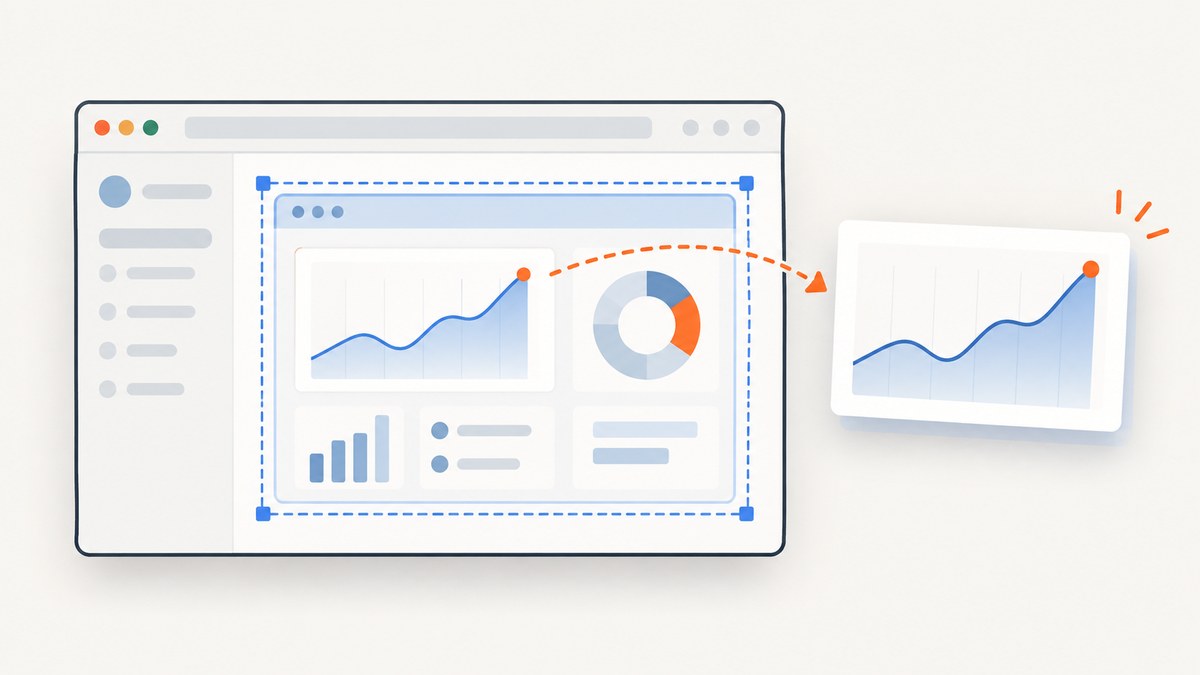
To take a partial screenshot of an iframe with Selenium WebDriver, switch into the iframe, find the element you want, and call the element’s screenshot method. Selenium searches in the current browsing context, so a locator for content inside a frame will not work until you have switched into that frame.
This Python example captures one element inside an iframe as a PNG file:
from selenium import webdriver
from selenium.webdriver.common.by import By
from selenium.webdriver.support.ui import WebDriverWait
from selenium.webdriver.support import expected_conditions as EC

 driver = webdriver.Chrome()
try:
    driver.get("https://example.test/page")

    wait = WebDriverWait(driver, 15)
    frame = wait.until(
        EC.presence_of_element_located((By.CSS_SELECTOR, "iframe#report"))
    )
    driver.switch_to.frame(frame)

    chart = wait.until(
        EC.visibility_of_element_located((By.CSS_SELECTOR, "#chart"))
    )
    chart.screenshot("chart.png")
finally:
    driver.switch_to.default_content()
    driver.quit()
Replace the example URL and selectors with those from your page. The frame can be selected using a name or numeric index too, but locating the iframe element by a stable selector is usually easier to maintain. Selenium documents the frame-switching methods in the Python SwitchTo API.
1. Understand iframe browsing contexts
An iframe contains a separate document. WebDriver acts on the current browsing context: at first that is the top-level page. Finding the iframe element does not move WebDriver into its document. You must explicitly switch to the frame before locating its inner content.
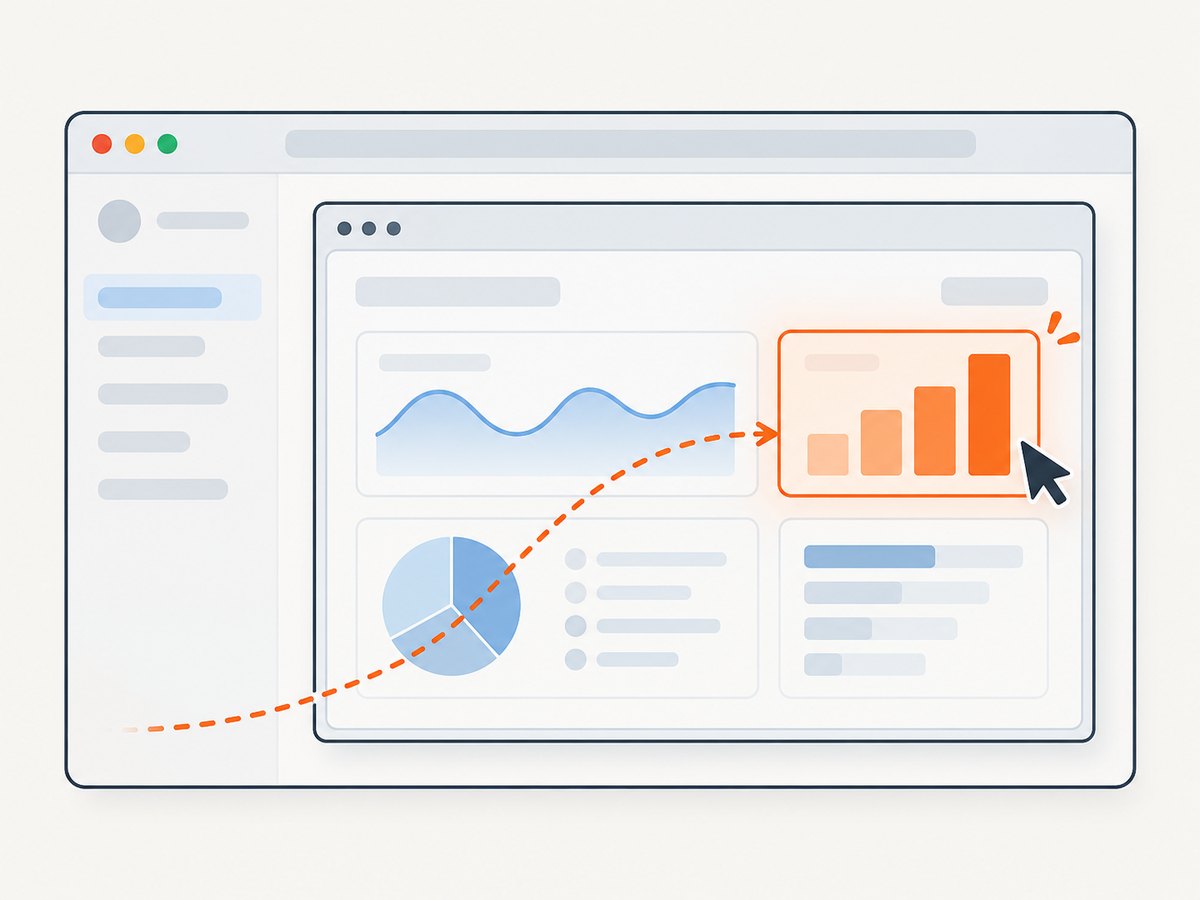
- Load the top-level page.
- Find the iframe element in that page.
- Call
driver.switch_to.frame(frame). - Find the target element inside the frame.
- Capture the target and restore the browsing context.
Use default_content() to return directly to the top-level page. Use parent_frame() to move up exactly one level, which is useful when frames are nested.
2. Capture the element directly in Python
A Selenium WebElement can save a screenshot of its own bounds. This is the direct way to capture one chart, card, panel, or other element rather than the entire browser window.
from selenium import webdriver
from selenium.webdriver.common.by import By
from selenium.webdriver.support.ui import WebDriverWait
from selenium.webdriver.support import expected_conditions as EC

 driver = webdriver.Chrome()
try:
    driver.get("https://example.test/page")
    wait = WebDriverWait(driver, 15)

    frame = wait.until(
        EC.presence_of_element_located((By.CSS_SELECTOR, "iframe#report"))
    )
    driver.switch_to.frame(frame)

    target = wait.until(
        EC.visibility_of_element_located((By.CSS_SELECTOR, "#chart"))
    )
    target.screenshot("chart.png")
finally:
    driver.switch_to.default_content()
    driver.quit()
The screenshot is based on the element’s rendered bounds. Selenium implementations may capture the visible portion or the element’s full content; behavior can depend on the browser driver and the element. If you need to guarantee a particular crop, inspect the resulting dimensions and use a full-window capture and explicit crop as a fallback.
Wait for the frame and target
Use explicit waits when the iframe or its content loads asynchronously. Waiting for presence of the iframe is enough to switch into it, while waiting for visibility of the target helps ensure it has rendered before the screenshot.
Do not locate the target before switching. Also avoid assuming that a fixed sleep solves timing issues: it may be unnecessarily slow on fast runs and still too short on slow ones.
3. Capture an element with Selenium Java
Java provides the same workflow. The element screenshot API is exposed through TakesScreenshot on WebElement, with output type chosen through OutputType.
import java.io.File;
import org.openqa.selenium.By;
import org.openqa.selenium.OutputType;
import org.openqa.selenium.WebDriver;
import org.openqa.selenium.WebElement;
import org.openqa.selenium.chrome.ChromeDriver;
import org.openqa.selenium.support.ui.ExpectedConditions;
import org.openqa.selenium.support.ui.WebDriverWait;
import java.time.Duration;

WebDriver driver = new ChromeDriver();
try {
    driver.get("https://example.test/page");
    WebDriverWait wait = new WebDriverWait(driver, Duration.ofSeconds(15));

    WebElement frame = wait.until(
        ExpectedConditions.presenceOfElementLocated(By.cssSelector("iframe#report"))
    );
    driver.switchTo().frame(frame);

    WebElement chart = wait.until(
        ExpectedConditions.visibilityOfElementLocated(By.cssSelector("#chart"))
    );
    File screenshot = chart.getScreenshotAs(OutputType.FILE);
    // Move or copy screenshot to the desired destination here.
} finally {
    driver.switchTo().defaultContent();
    driver.quit();
}
The Selenium Java TakesScreenshot API describes screenshot capture for WebDriver and WebElement implementations. The element capability can capture its content or visible portion depending on the implementation.
4. Handle nested iframes
For nested frames, switch into each iframe in order. Locate the inner frame from the current frame, switch into it, then find the final element. To unwind, call parent_frame() once per level or reset all the way to the top with default_content().
from selenium import webdriver
from selenium.webdriver.common.by import By

 driver = webdriver.Chrome()
try:
    driver.get("https://example.test/page")

    outer = driver.find_element(By.CSS_SELECTOR, "iframe#outer")
    driver.switch_to.frame(outer)

    inner = driver.find_element(By.CSS_SELECTOR, "iframe#inner")
    driver.switch_to.frame(inner)

    target = driver.find_element(By.CSS_SELECTOR, ".report-summary")
    target.screenshot("summary.png")

    driver.switch_to.parent_frame()  # back inside outer
    driver.switch_to.parent_frame()  # back to the top-level page
finally:
    driver.switch_to.default_content()
    driver.quit()
The finally block makes cleanup happen if locating or capturing fails. Resetting to the top-level document is a reliable starting point for subsequent operations, including when the operation failed at an unknown nesting depth.
5. Capture the whole window and crop it
If a browser driver does not support element screenshots as needed, capture the current window and crop the image. The screenshot is taken from the current browser window; crop coordinates must refer to that same screenshot’s pixel space.
from io import BytesIO
from PIL import Image
from selenium import webdriver
from selenium.webdriver.common.by import By

 driver = webdriver.Chrome()
try:
    driver.get("https://example.test/page")
    frame = driver.find_element(By.CSS_SELECTOR, "iframe#report")

    # Read the iframe rectangle while still in the top-level document.
    rect = driver.execute_script(
        "const r = arguments[0].getBoundingClientRect();"
        "return {x:r.x, y:r.y, width:r.width, height:r.height};",
        frame,
    )

    png_bytes = driver.get_screenshot_as_png()
    image = Image.open(BytesIO(png_bytes))

    # CSS coordinates and screenshot pixels can differ with display scaling.
    # Confirm the scale in your browser environment before using this crop.
    scale_x = image.width / driver.execute_script("return window.innerWidth")
    scale_y = image.height / driver.execute_script("return window.innerHeight")
    box = (
        round(rect["x"] * scale_x),
        round(rect["y"] * scale_y),
        round((rect["x"] + rect["width"]) * scale_x),
        round((rect["y"] + rect["height"]) * scale_y),
    )
    image.crop(box).save("frame-area.png")
finally:
    driver.quit()
This example crops the iframe’s rectangle as seen in the top-level page, not an element inside the iframe. To crop an inner element, switch into the iframe and obtain its rectangle there, then account for the iframe’s position in the outer page as well. That coordinate mapping is more complex; when available, a direct element screenshot avoids manual coordinate conversion.
Selenium also offers save_screenshot(path) to write a PNG and get_screenshot_as_base64() to return a base64 representation. get_screenshot_as_png() returns current-window PNG bytes, which is convenient when an image library will perform the crop. See the Python WebDriver API.
6. Choose between element capture and cropping
| Method | Use it when | Trade-off |
|---|---|---|
element.screenshot() |
You need one element and the browser driver supports the result you need. | Simple and avoids manual coordinate arithmetic; verify visible-versus-full-content behavior. |
| Window screenshot then crop | Element capture is unavailable, or you need explicit crop coordinates. | Requires matching viewport, scroll position, and pixel scale; iframe coordinates need careful mapping. |
| Whole-window screenshot | You need surrounding context or want a debugging artifact. | Includes everything visible in the browser viewport rather than only the target. |
7. Troubleshooting
| Symptom | Likely cause | Fix |
|---|---|---|
NoSuchElementException for content inside the iframe |
WebDriver is still in the top-level document, or the selector is wrong. | Find the iframe in the current context, switch into it, then locate the inner element. Check the selector in the frame document. |
NoSuchFrameException |
The frame index, name, or element is stale or not yet present. | Wait for the iframe element, use a stable selector, and switch using the located WebElement. |
| Element screenshot fails or produces an unexpected region | The element is not visible, outside the viewport, or driver behavior differs. | Wait for visibility, scroll it into view if necessary, and inspect the output. Use window capture plus crop when you need explicit bounds. |
| Screenshot is blank or incomplete | The page or target has not finished rendering, or content is lazy-loaded. | Wait for a meaningful target state, trigger scrolling if the page loads content on scroll, then capture. Use an application-specific readiness condition when available. |
| Crop is shifted or scaled incorrectly | CSS pixels do not match PNG pixels, or coordinates came from a different viewport/scroll state. | Derive scale from screenshot dimensions and viewport dimensions. Keep viewport and scroll position fixed between measuring and capture. |
| Later locators fail after screenshot | WebDriver remains inside an iframe. | Call parent_frame() to move up one level or default_content() to reset completely. |
| Frame content cannot be accessed as expected | The wrong frame was selected, or the page has multiple/nested frames. | Inspect the frame hierarchy and switch one level at a time. Cross-origin content still requires selecting the iframe through WebDriver; do not try to query its document from top-level JavaScript. |
8. Performance, reliability, and cost
Element capture usually requires less image handling than taking a window screenshot and cropping it. The dominant work is often starting or reusing the browser, loading the page, waiting for the frame, and allowing the target to render. Reuse a WebDriver session for related captures when test isolation requirements permit, and use explicit waits tied to page state instead of long fixed sleeps.
For reliable output, keep the viewport consistent, use stable selectors, wait for the target to be visible, and clean up the frame context in a finally block. If the screenshot is used in a test, compare a known region or expected dimensions and account for browser and display scaling. Dynamic content, animations, fonts, and delayed images can change pixels between runs.
Selenium itself is an open-source browser automation project; your operational cost depends on where browsers run and how you host them. Capturing a full window and cropping adds image-processing work and may require an image library such as Pillow. A hosted screenshot API can remove browser setup and operational work, but compare its behavior and pricing to your capture volume and requirements.
9. Or skip the browser setup
ScreenshotNeo is a website screenshot API and MCP server. One GET request with a URL returns a PNG, JPEG, WebP, or PDF. For an ordinary page capture, use this cURL call; the API reference documents its parameters and response details: ScreenshotNeo docs.
curl -G "https://api.screenshotneo.com/v1/shot" \
  -d access_key=YOUR_API_KEY \
  --data-urlencode url=https://stripe.com \
  -o shot.webp
Python equivalent:
import requests

r = requests.get(
    "https://api.screenshotneo.com/v1/shot",
    params={"access_key": "YOUR_API_KEY", "url": "https://stripe.com"},
    timeout=90,
)
open("shot.webp", "wb").write(r.content)
Node.js equivalent:
const q = new URLSearchParams({
  access_key: 'YOUR_API_KEY',
  url: 'https://stripe.com'
});
const res = await fetch(`https://api.screenshotneo.com/v1/shot?${q}`);
if (!res.ok) throw new Error(`Screenshot request failed: ${res.status}`);
await import('node:fs/promises').then(fs => fs.writeFile('shot.webp', Buffer.from(await res.arrayBuffer())));
For this iframe-specific Selenium task, WebDriver remains useful when your test must interact with the frame or run in a particular browser context. ScreenshotNeo is useful when the input is a URL and you want a hosted capture without setting up a browser. Its capture flow accepts cookie and consent banners like a visitor and removes 60+ known consent platforms, newsletter popups, and chat widgets before the shot; each step can be turned off. Bot checks and CAPTCHAs, blank pages, timeouts, failed loads, and cache hits cost nothing, and response headers report the page verdict and billing status. It also provides an MCP server with take_screenshot, get_page_info, and capture_pdf for AI agents.
The free plan includes 1,000 screenshots per month with no card. Paid plans start at $5 for 3,000; all features are on every plan. Sign up for ScreenshotNeo and get 1,000 free screenshots a month with no card.
10. Frequently asked questions
Can I screenshot only the iframe itself?
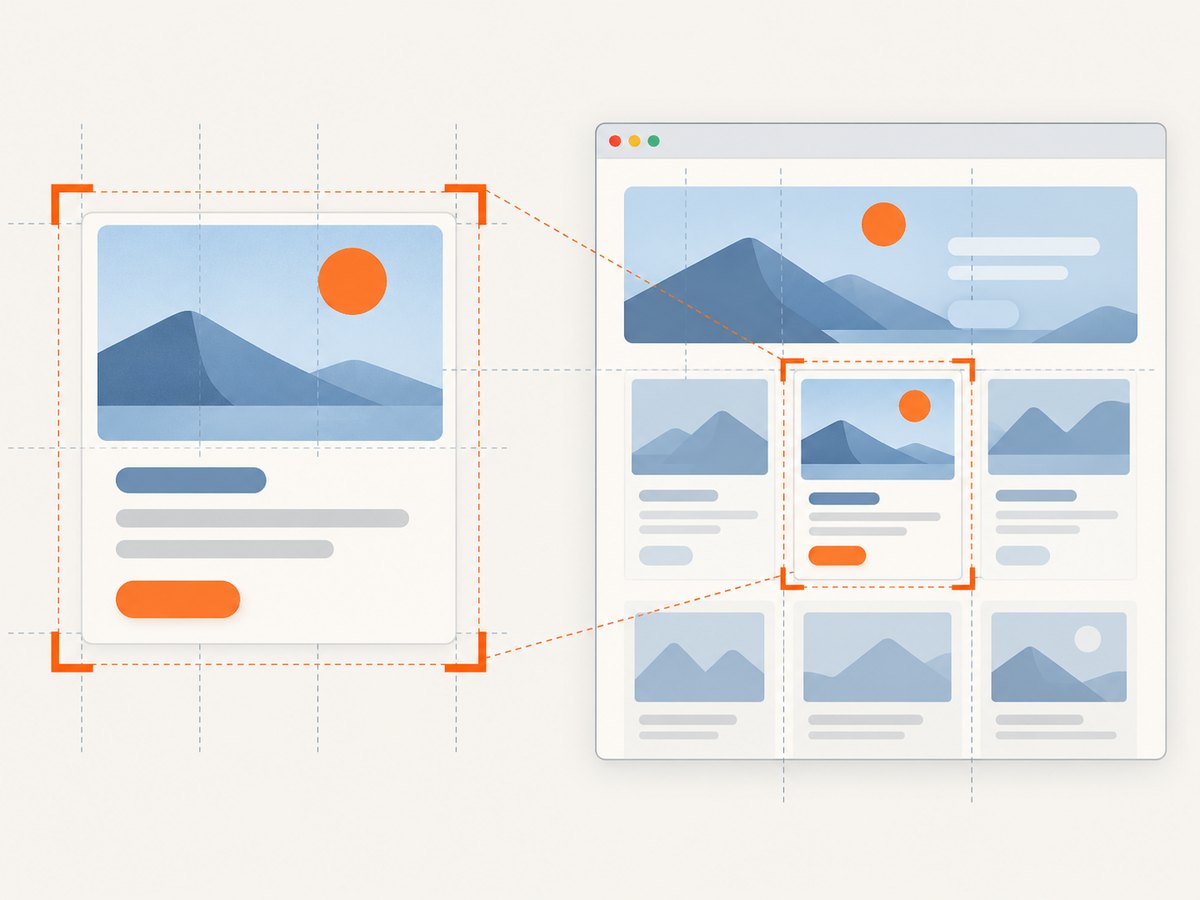
Yes. Locate the iframe element from its parent document and call its element screenshot method. This captures the iframe element’s rendered area; switch into the frame when you instead need a particular child element.
Can I use an iframe index?
Yes. switch_to.frame() accepts a frame index, name, or iframe WebElement. A WebElement locator is generally clearer when page markup may change.
Does switching into a frame change the URL?
No. It changes WebDriver’s current browsing context so subsequent element operations apply inside that frame. Use default_content() to return to the top-level document.
Can Selenium capture a full page?
The methods described here capture a WebElement or the current window screenshot. Full-page behavior is browser and driver dependent; for a defined partial screenshot, capture the target element or explicitly crop a window image.


