How to Capture Partial Webpage Screenshots with PhantomJS and Python
Capture a precise webpage region with PhantomJS clipRect, automate it from Python, troubleshoot failures, and compare a modern hosted option.

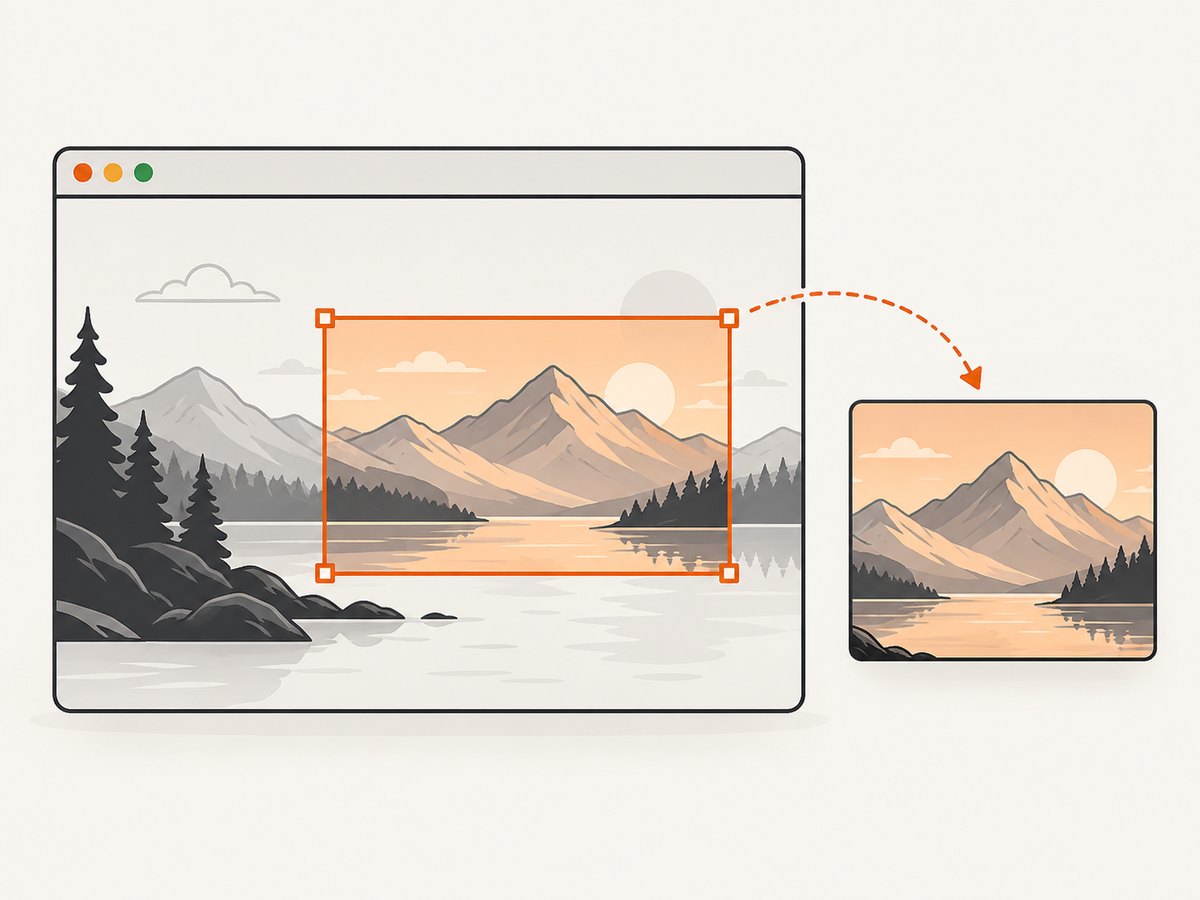
To capture only part of a webpage with PhantomJS, set the browser viewport with page.viewportSize, define the rectangle to rasterize with page.clipRect, open the URL, check the load status, and call page.render(). Python is the process orchestrator: it writes or invokes the PhantomJS JavaScript file and checks its exit status. PhantomJS does not provide a maintained official Python API.
This method is useful for maintaining an existing PhantomJS script or reproducing an old capture pipeline. PhantomJS development is suspended, and its GitHub repository is archived read-only, so evaluate a maintained browser automation tool for new production work. The official project still documents the capture workflow and the meaning of clipRect.
What viewportSize and clipRect control
These two properties solve different problems:
| Property | Purpose | Example |
|---|---|---|
page.viewportSize |
Sets the width and height of the headless browser’s visible viewport. Responsive CSS and media queries use these dimensions. | { width: 1024, height: 768 } |
page.clipRect |
Selects the screen rectangle that PhantomJS sends to the output file. | { top: 0, left: 0, width: 400, height: 300 } |
left and top are the rectangle’s coordinates in the page viewport. width and height are the output dimensions in CSS pixels. A rectangle that starts at left: 200 captures content beginning 200 pixels from the viewport’s left edge; it does not select an element by CSS selector and it does not automatically scroll the page.
Choose the viewport first. A viewport that is too narrow can trigger a mobile layout, while a viewport that is too short can place the target below the initial screen. Then choose a clip rectangle that fits inside the viewport and covers the region you need.
Prerequisites and file layout
Install a PhantomJS executable that is compatible with your operating system, and make sure the phantomjs command is on your PATH. The official screen-capture documentation demonstrates running a JavaScript file from the command line. Confirm the installation before adding Python:
phantomjs --versionCreate two files in one directory:
partial_capture.js
run_capture.py
The JavaScript file owns browser actions. The Python file supplies the URL and output path, starts PhantomJS, and reports errors.
Basic PhantomJS partial capture
Save this as partial_capture.js:
var system = require('system');
var webpage = require('webpage');

if (system.args.length < 3) {
  console.log('Usage: phantomjs partial_capture.js URL OUTPUT');
  phantom.exit(2);
}

var url = system.args[1];
var output = system.args[2];
var page = webpage.create();

page.viewportSize = {
  width: 1024,
  height: 768
};

page.clipRect = {
  top: 0,
  left: 0,
  width: 400,
  height: 300
};

page.open(url, function (status) {
  if (status !== 'success') {
    console.log('Unable to load ' + url + ': ' + status);
    phantom.exit(1);
    return;
  }

  var rendered = page.render(output);
  if (!rendered) {
    console.log('Render failed for ' + output);
    phantom.exit(1);
    return;
  }

  console.log('Saved ' + output);
  phantom.exit(0);
});
Run it directly:
phantomjs partial_capture.js https://example.com capture.pngThe documented output formats include PNG, JPEG, GIF, and PDF. Use a matching extension, such as capture.jpg or capture.pdf. The rectangle remains the same conceptually, but PDF rendering follows PhantomJS’s PDF behavior rather than behaving like a normal raster image.
Waiting for dynamic content
page.open() calls its callback when the navigation reports success or fail. A successful navigation does not guarantee that a JavaScript application has finished rendering. For a page that fills its content after load, poll for a known condition or wait a bounded amount of time before rendering:
var deadline = new Date().getTime() + 5000;

function waitForReady() {
  var ready = page.evaluate(function () {
    return document.querySelector('.report-card') !== null;
  });

  if (ready || new Date().getTime() > deadline) {
    page.render(output);
    phantom.exit(ready ? 0 : 1);
    return;
  }

  window.setTimeout(waitForReady, 100);
}

page.open(url, function (status) {
  if (status !== 'success') {
    console.log('Load failed: ' + status);
    phantom.exit(1);
    return;
  }
  waitForReady();
});
Replace .report-card with a selector that is present only when the target region exists. Keep the timeout finite so a broken page cannot leave a worker running forever.
Running PhantomJS from Python
Python can invoke the official command-line workflow with subprocess.run. This is orchestration, not a PhantomJS Python binding:
from pathlib import Path
import subprocess
import sys

URL = "https://example.com"
SCRIPT = Path("partial_capture.js")
OUTPUT = Path("capture.png")

command = [
    "phantomjs",
    str(SCRIPT),
    URL,
    str(OUTPUT),
]

result = subprocess.run(
    command,
    text=True,
    capture_output=True,
    timeout=30,
)

if result.stdout:
    print(result.stdout, end="")
if result.stderr:
    print(result.stderr, file=sys.stderr, end="")

if result.returncode != 0:
    raise SystemExit(f"PhantomJS failed with exit code {result.returncode}")

if not OUTPUT.exists() or OUTPUT.stat().st_size == 0:
    raise SystemExit("PhantomJS reported success but produced no image")

print(f"Wrote {OUTPUT}")
For untrusted URLs, pass arguments as a list, as shown, instead of building a shell command string. Set a subprocess timeout, retain stdout and stderr for diagnosis, and verify that the output file exists and is non-empty. In a service, run each capture in an isolated worker and limit concurrent PhantomJS processes because each process consumes browser memory.
Choosing coordinates for a useful partial shot
- Measure the target in CSS pixels. Browser developer tools can show an element’s box. Copy its approximate left, top, width, and height into
clipRect. - Account for the viewport. Coordinates are relative to the current viewport, not the full document. Scroll the page before rendering if the target is below the fold.
- Leave a small margin. A few extra pixels prevent borders or shadows from being cut off.
- Keep the rectangle inside the viewport. If the right or bottom edge exceeds the viewport, resize the viewport or reduce the rectangle.
- Check responsive breakpoints. A different viewport can change the layout and move the target.
To scroll before capture, run code in the page context and then wait briefly for the browser to repaint:
page.evaluate(function () {
  window.scrollTo(0, 900);
});

window.setTimeout(function () {
  page.clipRect = { top: 0, left: 0, width: 600, height: 400 };
  page.render('scrolled-region.png');
  phantom.exit();
}, 250);
This captures the rectangle at the new scroll position. It does not create a full-page screenshot; the output is still limited to the clip rectangle.
Element-sized clipping
PhantomJS’s documented API exposes a rectangle, not a “capture this selector” command. You can measure an element in the page, convert its bounding box to viewport coordinates, and assign those values to clipRect:
var box = page.evaluate(function () {
  var element = document.querySelector('#invoice');
  if (!element) return null;
  var rect = element.getBoundingClientRect();
  return {
    top: Math.round(rect.top),
    left: Math.round(rect.left),
    width: Math.round(rect.width),
    height: Math.round(rect.height)
  };
});

if (!box || box.width <= 0 || box.height <= 0) {
  console.log('Target element is missing or has no size');
  phantom.exit(1);
} else {
  page.clipRect = box;
  page.render('invoice.png');
  phantom.exit(0);
}
A bounding rectangle can be partly outside the viewport when an element is scrolled. Scroll it into view first, then measure again:
page.evaluate(function () {
  var element = document.querySelector('#invoice');
  if (element) element.scrollIntoView();
});
Fixed headers, sticky navigation, transforms, and browser zoom can make a measured box differ from what you expect. Inspect several captures and adjust the rectangle deliberately.
Common errors and fixes
| Symptom | Likely cause | Fix |
|---|---|---|
phantomjs: command not found |
The executable is not installed or is not on PATH. |
Install PhantomJS for the host, use an absolute executable path, and run phantomjs --version. |
| Blank or nearly blank image | Rendering occurred before the application inserted content, or the page failed to load. | Check the page.open status, wait for a selector, and log page errors. |
| Unexpected mobile layout | The viewport width crosses a responsive breakpoint. | Set an explicit page.viewportSize wide enough for the intended layout. |
| Region is shifted | The page was scrolled, a sticky header changed the visual position, or coordinates were measured in document space. | Measure with getBoundingClientRect() after scrolling and use viewport coordinates. |
| Right or bottom edge is missing | clipRect extends beyond the viewport. |
Increase viewport dimensions or reduce width/height. |
| Fonts or images differ between runs | Remote resources loaded slowly or were unavailable. | Wait for a visible readiness condition, keep the environment consistent, and record failures instead of treating every output as valid. |
| HTTPS or certificate failure | The legacy engine cannot negotiate a site’s current TLS configuration. | Confirm the URL works in a current browser. Do not weaken certificate checks for untrusted targets; migrate the capture to maintained tooling. |
| Process hangs | A navigation or page script never settles. | Use the Python subprocess timeout and terminate the worker; add a bounded readiness wait. |
Reliability, performance, and operating limits
Use a deterministic capture contract: fixed viewport, fixed clip rectangle, explicit output format, a navigation timeout, and a readiness condition. Save the URL, timestamp, PhantomJS exit code, and standard output with each job. These records make intermittent failures diagnosable.

Partial screenshots generally use less output storage than full-page captures, but the browser still has to load and execute the page. Large JavaScript bundles, third-party requests, animations, and infinite scrolling can dominate elapsed time. Disable or avoid animations in a page-specific stylesheet when you control the site. For a batch, reuse a worker process only if you can prove pages do not leak state; otherwise process isolation is safer.
PhantomJS’s suspended development is a reliability concern for modern sites: browser APIs, TLS defaults, JavaScript syntax, and anti-bot systems change while the engine remains fixed. The archived repository and project notice are useful signals when deciding whether to keep investing in a legacy pipeline.
Security and input handling
- Allow-list destination hosts when URLs come from users. A screenshot worker can otherwise become a way to reach internal services.
- Do not place secrets in query strings or page URLs. If a target requires authentication, use a controlled browser context and redact logs.
- Limit output dimensions and job duration to prevent memory exhaustion.
- Store captures outside executable directories and generate unique filenames.
- Validate the output extension instead of accepting arbitrary paths from input.
Or skip the browser setup
ScreenshotNeo provides a hosted screenshot API when you need a partial or element capture without maintaining a PhantomJS installation. Its API supports full-page capture, CSS-selector element capture, custom viewports, device presets, retina scale, dark mode, custom CSS and JavaScript, clicks, selector or network-idle waits, hidden selectors, headers, cookies, user agents, authorization, geolocation, timezone, image resizing, caching, asynchronous jobs, bulk capture, PDFs, and signed links. The parameter names used by other screenshot APIs also work, which can simplify migration. See the ScreenshotNeo documentation for the current request options.
Basic cURL request:
curl -G "https://api.screenshotneo.com/v1/shot" \
  -d access_key=YOUR_API_KEY \
  --data-urlencode url=https://stripe.com \
  -o shot.webp
Python:
import requests

r = requests.get(
    "https://api.screenshotneo.com/v1/shot",
    params={"access_key": "YOUR_API_KEY", "url": "https://stripe.com"},
    timeout=90,
)
r.raise_for_status()
open("shot.webp", "wb").write(r.content)
Node.js:
const q = new URLSearchParams({ access_key: 'YOUR_API_KEY', url: 'https://stripe.com' });
const res = await fetch(`https://api.screenshotneo.com/v1/shot?${q}`);
if (!res.ok) throw new Error(`Screenshot failed: ${res.status}`);
const body = await res.arrayBuffer();
await Bun.write('shot.webp', body);
For a partial capture, add the documented viewport and element or clipping parameters to the request. ScreenshotNeo removes cookie and consent banners, newsletter popups, and chat widgets before capture; each cleanup step can be turned off. Bot checks, blank pages, timeouts, failed loads, and cache hits are not billed, and the response identifies the result with X-Page-Verdict and X-Billed headers. An MCP server exposes take_screenshot, get_page_info, and capture_pdf to Claude, Cursor, and other MCP clients.
The Free plan includes 1,000 screenshots per month with no card. Paid plans start at $5 for 3,000 shots; yearly billing gives two months free, and every feature is available on every plan. Create a free ScreenshotNeo account to start with the 1,000 monthly screenshots.
Cost and format considerations
A self-hosted PhantomJS job has no per-image API charge, but you own the machine, process supervision, browser updates or migration, storage, and failure handling. A hosted API trades that operational work for usage pricing. Keep the output format aligned with the use case: PNG preserves sharp UI edges, JPEG is smaller for photographic pages, WebP can reduce transfer size, and PDF is appropriate when the deliverable is a document rather than a raster crop.
Cache identical captures when the page can be stale. If freshness matters, include a cache-busting policy deliberately instead of adding random query parameters to every request. For repeatable visual tests, pin viewport, color scheme, device scale, locale, timezone, and wait conditions.
FAQ
Can clipRect capture below the fold?
Only after you scroll the page or otherwise position the content in the viewport. The rectangle is a viewport-region capture.
Does PhantomJS clip by CSS selector?
No direct selector option is documented. Measure the element with getBoundingClientRect() and assign the resulting coordinates to page.clipRect.
Which language actually performs the capture?
PhantomJS executes JavaScript. Python starts the PhantomJS command and handles files, status codes, retries, and job orchestration.
Should a new project use PhantomJS?
Treat it as legacy maintenance technology. The project says development is suspended and the repository is archived, so evaluate a maintained browser automation or hosted capture service for new systems.
Can the output be a PDF?
page.render() documents PNG, JPEG, GIF, and PDF output. Use a PDF extension and verify the result in the PDF viewer used by your workflow.
Checklist
- Set
page.viewportSizefor the intended responsive layout. - Set
page.clipRectwith viewport-relativetop,left,width, andheight. - Wait for
page.open()and stop on afailstatus. - Wait for dynamic content when the page is client-rendered.
- Use a bounded Python subprocess timeout and inspect the exit code.
- Verify that the output file exists and has non-zero size.
- Plan a migration when modern TLS, JavaScript, or anti-bot behavior exceeds PhantomJS’s capabilities.
Primary references: PhantomJS Screen Capture, Page Automation, the page.open API, the PhantomJS project homepage, and the archived GitHub repository.


