How to Add Passing Test Screenshots to a Mochawesome Report in Cypress
Capture screenshots from passing Cypress tests and attach them to Mochawesome HTML reports, including multi-spec runs, retries, and troubleshooting.
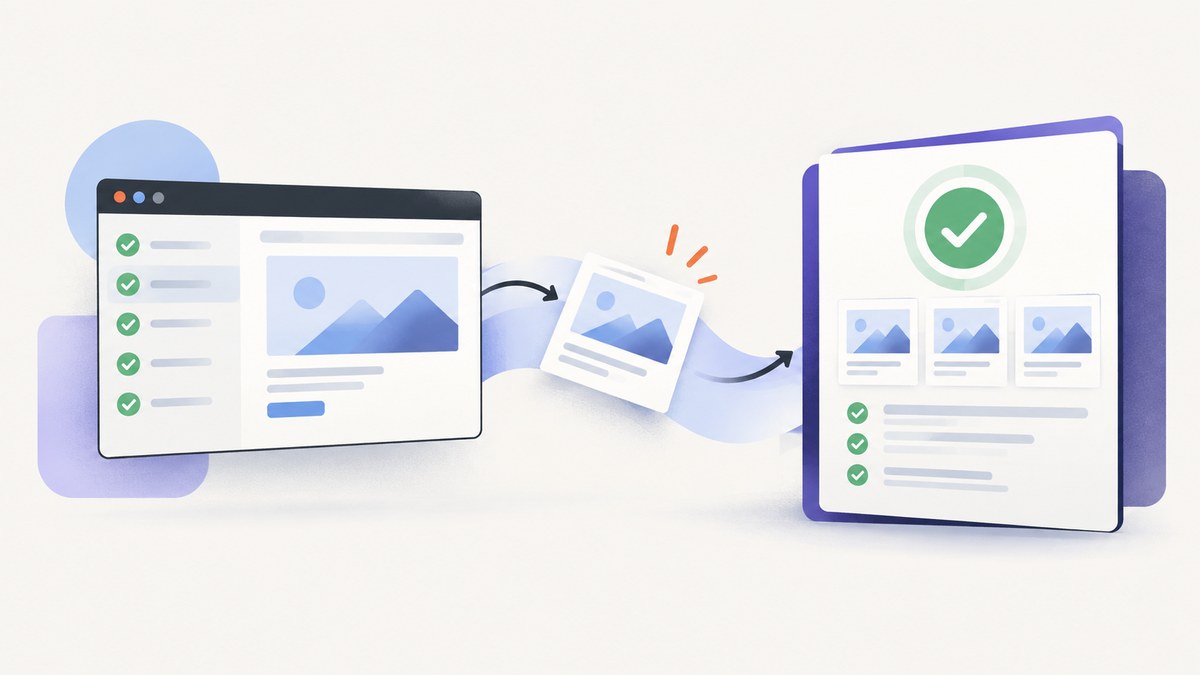
To add screenshots from passing Cypress tests to a Mochawesome HTML report, capture the desired state explicitly with cy.screenshot(), then use a reporter integration that attaches or embeds screenshots. Cypress automatically takes screenshots on failure during cypress run; it does not automatically capture passing tests. Capturing a file and displaying it in the report are two separate steps.
For the most direct setup, use cypress-mochawesome-reporter, configure embeddedScreenshots: true, and set inlineAssets: true when you need one self-contained HTML file. Add cy.screenshot() after the actions and assertions that establish the state you want to document. See the [Cypress screenshot guide](https://docs.cypress.io/app/guides/screenshots-and-videos), the [reporter setup guide](https://github.com/LironEr/cypress-mochawesome-reporter), and [Cypress’s reporter documentation](https://docs.cypress.io/app/tooling/reporters) for current setup and compatibility details.
1. Choose a reporting route
There are two common routes, and they solve slightly different problems:
| Route | Best for | Screenshot handling | Multi-spec reports |
|---|---|---|---|
cypress-mochawesome-reporter |
Including screenshots in the HTML report with a Cypress reporter integration | Documents screenshot support and embedding options | Follow the reporter’s setup and output behavior for your version |
| Standard Mochawesome pipeline | Creating a combined HTML report from JSON results | Capture and attachment are separate; JSON merging alone does not attach passing screenshots | Write a separate JSON file per spec, merge, then render |
If showing screenshots alongside the relevant test in HTML is the requirement, start with the screenshot-oriented reporter. The standard Mochawesome pipeline is useful when JSON-to-HTML generation and merging are the primary goals, but it does not by itself connect a manually captured passing screenshot to its test entry.
2. Install and configure the screenshot reporter
Install cypress-mochawesome-reporter as a development dependency using the package manager already used by the project. Check the reporter’s current README and compatibility table before choosing a release: supported Cypress and Node versions can differ by reporter major version.

For a CommonJS Cypress configuration, the core setup has this shape. Use the support-file path and module style that match your project:
const { defineConfig } = require('cypress');

module.exports = defineConfig({
  reporter: 'cypress-mochawesome-reporter',
  reporterOptions: {
    embeddedScreenshots: true,
    inlineAssets: true,
    saveAllAttempts: false,
  },
  e2e: {
    setupNodeEvents(on, config) {
      require('cypress-mochawesome-reporter/plugin')(on);
      return config;
    },
  },
});
The example uses the reporter’s documented plugin registration and options. The reporter also requires its support-file import. Add the import to the support file configured by your Cypress project, following the current README. A typical CommonJS support file uses:
require('cypress-mochawesome-reporter/register');If your project uses ES modules, translate the imports and configuration to that module style rather than mixing require with an incompatible setup. Keep Cypress’s configured screenshotsFolder consistent with the reporter’s expectations if you have changed the default.
What the embedding options do
embeddedScreenshots: trueasks the reporter to embed screenshots in the report.inlineAssets: truemakes report assets inline, which is useful when sharing a single HTML file without adjacent asset files.saveAllAttemptscontrols screenshot handling across retries. The reporter documents a default oftrue; set it tofalsewhen you want only the last attempt represented.
Embedded screenshots and inline assets can make a report file larger. If reports are stored as CI artifacts or sent to another system, consider whether a single portable file is more useful than a report with separate assets, and check that system’s artifact size limits.
3. Capture the passing state in the test
Call cy.screenshot() at the point where the page displays the state you want to preserve. The command works for a passing test as well as a failing one; Cypress’s automatic failure capture is a separate behavior.
describe('checkout', () => {
  it('shows the completed order', () => {
    cy.visit('/checkout');
    cy.get('[name="email"]').type('developer@example.test');
    cy.get('[data-cy="place-order"]').click();

    cy.contains('Order confirmed').should('be.visible');
    cy.screenshot('completed-order');
  });
});
Put the screenshot after the assertion when the assertion confirms the state you want captured. This keeps the image aligned with the passing result and avoids saving an intermediate screen. Cypress writes screenshots to its screenshots folder, which defaults to cypress/screenshots. The reporter integration then handles associating and embedding them according to its configuration.
Capture before or after assertions?
Usually capture after the assertions that establish the intended successful state. If an assertion fails first, Cypress records a failure screenshot during cypress run, but your explicit passing-state command is never reached. If you need to document a state before an assertion that may fail, capture before it deliberately and use a descriptive name so it is not confused with a success-state image.
Keep names and outputs manageable
Give important screenshots a stable, descriptive name, such as completed-order or profile-saved. Avoid taking many near-identical screenshots in one test: they increase artifact volume and make a report harder to scan. For a large test suite, reserve explicit screenshots for meaningful checkpoints rather than every interaction.
4. Handle retries and multiple spec files
Retries can create more than one attempt for a test. Decide whether the report should show screenshots from every attempt or just the final attempt. The reporter documents saveAllAttempts; its documented default is true. Set it to false when retry history is not useful to report readers. This is especially helpful when an initial flaky failure is followed by a pass and the final report should emphasize the successful attempt.
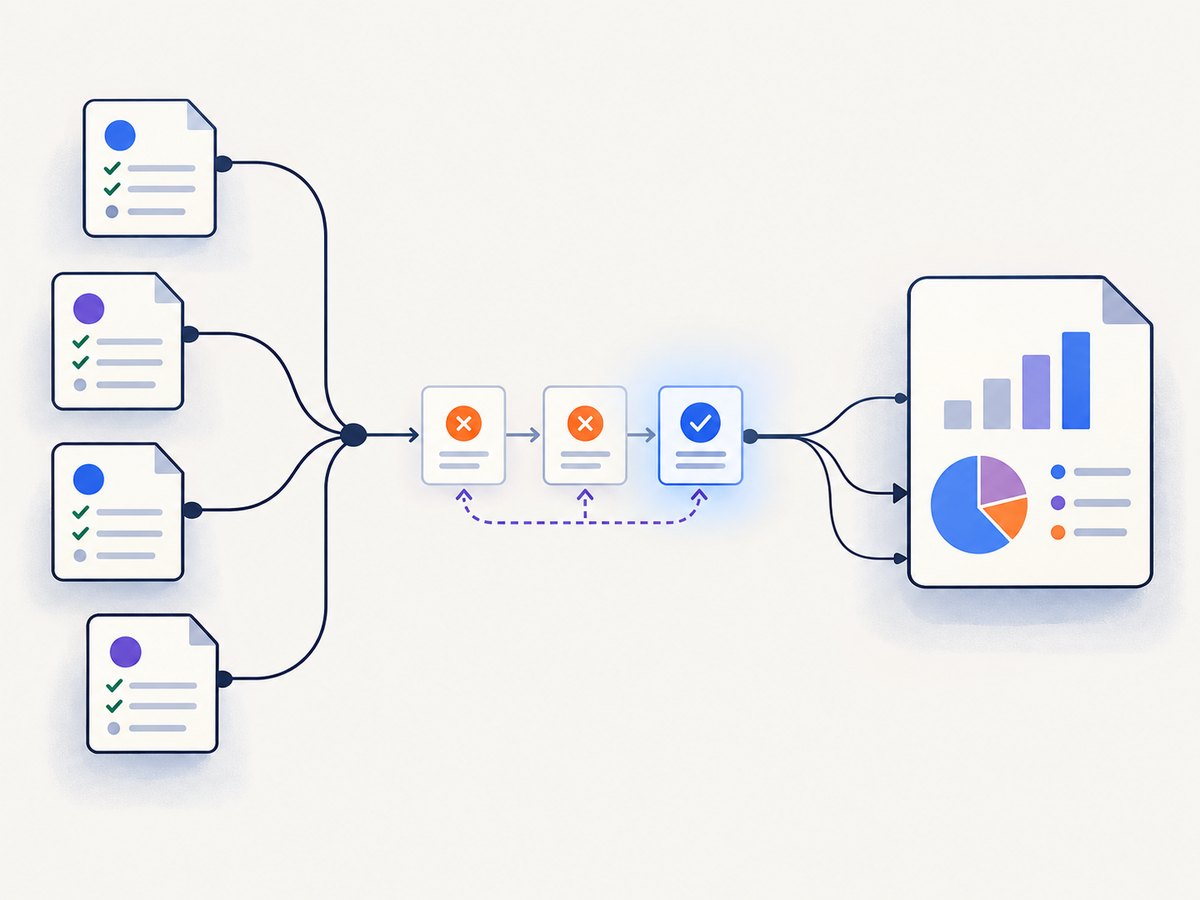
Cypress processes spec files separately. A static report filename can be overwritten by later specs, so the usual standard Mochawesome approach is to create a distinct JSON report for each spec and merge those files afterward. Do not assume that a screenshot reporter’s embedding setting changes multi-spec output behavior; check its current instructions for your installed release.
Cypress’s standard reporter documentation shows this JSON-to-HTML sequence:
npx cypress run \
  --reporter mochawesome \
  --reporter-options reportDir="cypress/results",overwrite=false,html=false,json=true

npx mochawesome-merge cypress/results/*.json -o mochawesome.json
npx marge mochawesome.json
That pipeline merges JSON results and renders an HTML report. It is not a substitute for the screenshot attachment integration: passing screenshots may exist on disk without appearing in that HTML. If you choose this route, add a screenshot attachment mechanism documented for your exact combination of Cypress, Mochawesome, and reporter tooling.
5. Standard Mochawesome pipeline setup
If you need the standard route, Cypress documents installing mochawesome, mochawesome-merge, and mochawesome-report-generator as development dependencies. Configure Cypress to write JSON output with overwrite disabled and HTML output disabled during the test run, then merge the per-spec JSON and render it with marge, as in the commands above.
Mochawesome supports test context, including displaying an image from a URL inline, but the details of attaching a local Cypress screenshot depend on the integration and how the report is published. Verify that the image path remains valid when the report is opened elsewhere. A local relative path that works on the CI machine may not work for someone downloading only the HTML file.
Use the screenshot reporter route when the goal is a documented Cypress integration with embedded screenshots. Use standard Mochawesome JSON merging when report merging is the main goal and you have a separately verified way to associate screenshots with tests.
6. Options and edge cases to check
- Screenshot folder: Cypress defaults to
cypress/screenshots. If you overridescreenshotsFolder, verify that the reporter reads from the configured location. - Cleanup between runs: Cypress clears the screenshots folder before
cypress runby default. SettrashAssetsBeforeRuns: falseonly when preserving prior run assets is intentional; otherwise stale files can be mistaken for current results. - Single-file sharing:
inlineAssets: trueis useful for a portable HTML report. Expect embedded images and assets to increase its size, without assuming a fixed amount. - Retries: Choose whether the report should retain all attempts or the final one. Align this with whether debugging history or a concise result is more useful.
- Video: Video recording is distinct from screenshots and is disabled by default in Cypress. Enabling video does not create a passing-test screenshot.
- Headless versus interactive runs: Cypress automatically captures failure screenshots during
cypress run, notcypress open. Use an explicitcy.screenshot()for the passing checkpoint you need. - Compatibility: Check the reporter’s current Cypress and Node compatibility table before upgrading or copying an older configuration.
7. Troubleshooting
| Symptom | Likely cause | Fix |
|---|---|---|
| No screenshot file for a passing test | The test never calls cy.screenshot(), or it fails before reaching the command |
Place the command after the relevant actions and assertions; confirm the test reaches it |
| Screenshot exists on disk but not in HTML | Capture worked, but report attachment or embedding is not configured | Use the reporter plugin and support-file registration; enable embeddedScreenshots and confirm the reporter version supports the setup |
| Report has no images after changing folders | Cypress and the reporter are looking in different screenshot directories | Check screenshotsFolder and the reporter’s configured paths |
| Only the last spec’s report remains | Each spec wrote to a shared static filename | Write separate JSON outputs with overwrite disabled, then merge the JSON files |
| Images from earlier runs appear or paths seem mismatched | Old artifacts were preserved or mixed into the report | Allow the default run cleanup, or use trashAssetsBeforeRuns: false only with a deliberate artifact naming and retention plan |
| Report is much larger than expected | Images and inline assets are embedded into the HTML | Reduce unnecessary captures or use separate assets if the sharing workflow permits; check artifact limits |
| Plugin setup fails after an upgrade | The reporter release may not support the project’s Cypress or Node version, or the plugin/support registration is missing | Check the current compatibility table and follow the setup instructions for that reporter major version |
8. Performance, reliability, and cost
Each explicit screenshot adds capture work and creates an artifact. The practical cost is more runtime and storage as screenshots accumulate; the reviewed documentation does not establish a universal timing or size overhead, so measure it in your own CI workflow if either is constrained. Capture only states that help review behavior or diagnose regressions.
For reliability, keep the screenshot command next to the assertion that defines the expected state, use the same screenshots directory across Cypress and reporter configuration, and produce unique per-spec report files before merging. When retries are enabled, decide in advance whether the report represents all attempts or only the final result. These choices prevent missing, stale, or confusing images without assuming that a passing test automatically has a screenshot.
The Cypress and Mochawesome packages are development dependencies. The source material does not establish a separate license fee or CI artifact charge for this configuration; any CI storage or execution charges depend on the provider and project settings.
9. Quick checklist
- Confirm the reporter version supports your Cypress and Node versions.
- Install and register
cypress-mochawesome-reporterin the Cypress config and support file. - Enable
embeddedScreenshots; enableinlineAssetsif you need one HTML file. - Add a named
cy.screenshot()after the successful state is asserted. - Check the screenshot file and confirm it appears in the report.
- Choose retry behavior and verify multi-spec outputs are not overwritten.
- Decide whether old screenshots should be cleaned or deliberately retained.
Or skip the browser setup
If you need a page screenshot outside your Cypress test run, [ScreenshotNeo](https://screenshotneo.com) provides a website screenshot API and MCP server. One GET request returns an image or PDF; see the [API documentation](https://screenshotneo.com/docs/) for parameters and response details.
curl -G "https://api.screenshotneo.com/v1/shot" \
  -d access_key=YOUR_API_KEY \
  --data-urlencode url=https://stripe.com \
  -o shot.webp
ScreenshotNeo accepts cookie and consent banners like a visitor and removes more than 60 known consent platforms, newsletter popups, and chat widgets before capture; each step can be turned off. Bot checks, blank pages, failed loads, timeouts, and cache hits are not billed, and response headers say which outcome occurred. Its MCP server gives AI agents tools for screenshots, page information, and PDF capture. The free plan includes 1,000 screenshots a month with no card; paid plans start at $5 for 3,000 shots. These page captures are useful for visual review, but they do not replace Cypress assertions or automatically attach images to a Mochawesome test.
Sign up free for 1,000 screenshots a month with no card.
FAQ
Does Cypress automatically screenshot a passing test?
No. Call cy.screenshot() at the point you want to capture. Cypress’s automatic screenshot behavior covers failures during cypress run.
Why is the image present in the screenshots folder but absent from the report?
File capture and report embedding are separate. Configure a reporter integration that associates and embeds the image.
Does merging Mochawesome JSON also merge the screenshots?
The documented merge-and-render sequence merges report JSON into HTML. It does not by itself prove that manually captured passing screenshots are attached to the test entries.
Should I keep screenshots from every retry?
Keep all attempts when retry history helps investigate flaky behavior; keep only the last when the report should focus on the final result. Set the reporter option deliberately.


