Password Generator: Create Strong Random Passwords
Learn how to generate long, random, unique passwords, store them safely, and add MFA or passkeys for stronger account security.
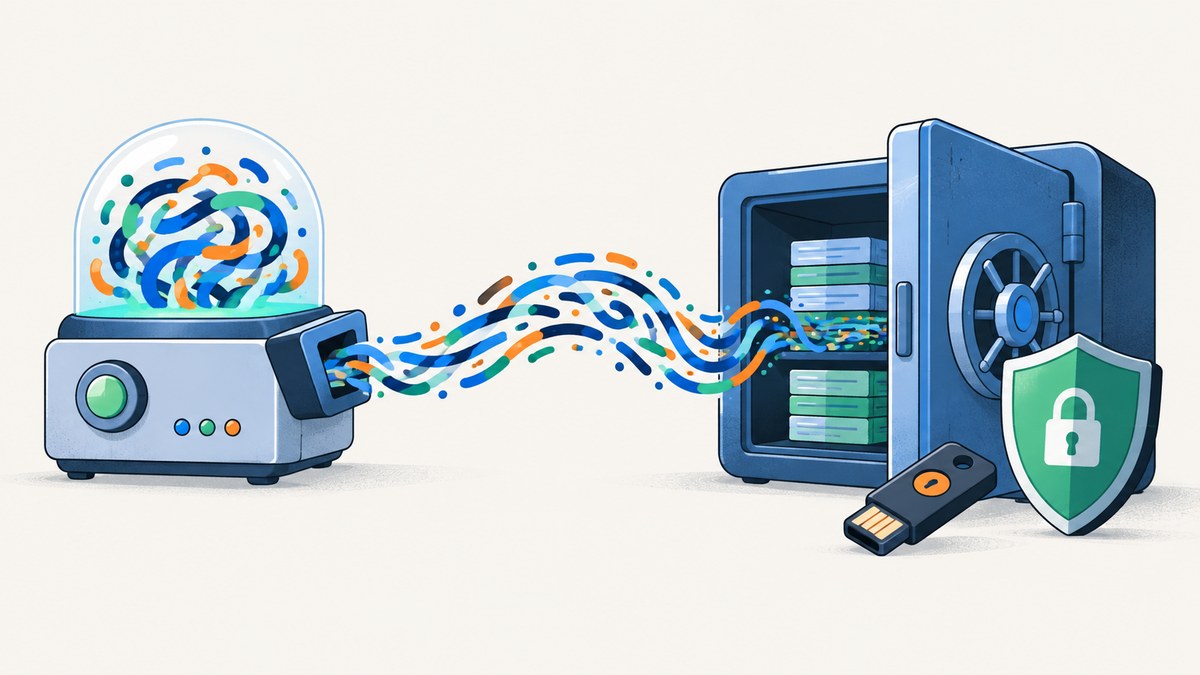
A strong password is long, random, and unique to one account. The safest practical workflow is to let a password manager generate a cryptographically secure password, use at least 15 characters when the service allows it, save it in the manager, and enable multi-factor authentication (MFA) or a passkey.
NIST consumer guidance identifies length as the most important password property and recommends at least 15 characters when a person must create one. NIST’s current digital identity standard says services should allow passwords of at least 64 characters, which supports long passphrases. CISA defines strong passwords as long, random, and unique, and recommends password managers for generating and storing them.
What makes a password strong?
Password strength comes from unpredictability and resistance to guessing. A password should have these properties:
- Random: generated from a cryptographically secure random source, not a human pattern.
- Unique: used for one account only. A breach at one service must not unlock another.
- Long: use at least 15 characters where accepted; use the service’s maximum length when practical.
- Unrelated to you: exclude names, usernames, company names, birthdays, dates, keyboard walks, and previously breached passwords.
Symbols, digits, and mixed case can help compatibility, but they are not a substitute for length. Forced rules often produce predictable substitutions such as replacing “a” with “@”. NIST advises services to allow spaces and passphrases instead of relying on composition rules. If a site requires a symbol or uppercase letter, meet that requirement without shortening the password.
Generate a random password with a password manager
- Open the manager’s built-in generator while creating or changing the account password.
- Select cryptographically secure random generation if the manager offers a choice.
- Set the length to at least 15 characters. Choose the maximum accepted length for a service with a known limit.
- Include the character classes the site requires. Keep spaces enabled only if the site accepts them.
- Generate a new value and save it directly to the matching login entry.
- Turn on MFA or a passkey for the account, especially for email, financial, administrator, and password-manager accounts.
A manager is safer than trying to memorize dozens of random strings. CISA explains that managers solve the difficulty of remembering long, unique passwords while supporting autofill across devices.
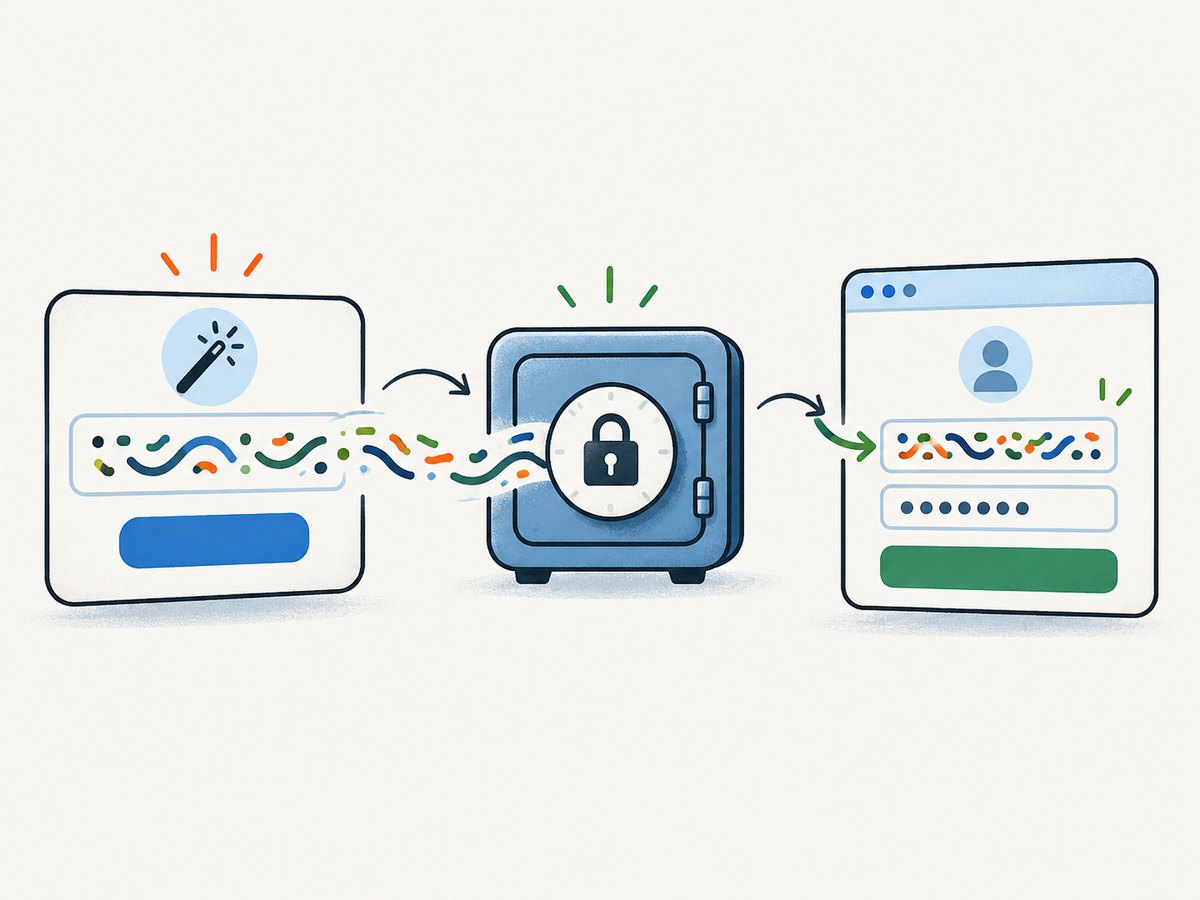
Runnable password-generator examples
Python with the secrets module
Python’s secrets module is designed for security-sensitive random values. This example avoids ambiguous characters and guarantees at least one character from each selected class, then shuffles the result with a secure source.
import secrets
import string

length = 24
classes = [
    string.ascii_lowercase,
    string.ascii_uppercase,
    string.digits,
    "!@#$%^&*()-_=+[]{}:,.?",
]

if length < len(classes):
    raise ValueError("length must be at least 4")

password = [secrets.choice(charset) for charset in classes]
all_chars = "".join(classes)
password.extend(secrets.choice(all_chars) for _ in range(length - len(password)))
secrets.SystemRandom().shuffle(password)
print("".join(password))
Run it with python3 generate_password.py. Do not write generated passwords to shell history, logs, analytics, or source control.
Node.js with crypto.randomInt
import { randomInt } from "node:crypto";

const length = 24;
const classes = [
  "abcdefghijklmnopqrstuvwxyz",
  "ABCDEFGHIJKLMNOPQRSTUVWXYZ",
  "0123456789",
  "!@#$%^&*()-_=+[]{}:,.?"
];
const all = classes.join("");

if (length < classes.length) throw new Error("length must be at least 4");

const output = classes.map(chars => chars[randomInt(chars.length)]);
while (output.length < length) output.push(all[randomInt(all.length)]);

for (let i = output.length - 1; i > 0; i--) {
  const j = randomInt(i + 1);
  [output[i], output[j]] = [output[j], output[i]];
}
console.log(output.join(""));
Use a current Node.js release and keep the output in memory only until it is pasted into the manager.
Browser JavaScript with Web Crypto
const alphabet =
  "abcdefghijklmnopqrstuvwxyzABCDEFGHIJKLMNOPQRSTUVWXYZ0123456789!@#$%^&*()-_=+[]{}:,.?";
const length = 24;
const values = new Uint32Array(length);
crypto.getRandomValues(values);
const password = Array.from(values, n => alphabet[n % alphabet.length]).join("");
console.log(password);
For a production application, avoid modulo bias by using rejection sampling or a well-reviewed library. A password manager remains preferable because it also stores, autofills, and protects the credential.
OpenSSL command line
openssl rand -base64 24Base64 output may contain characters a particular site rejects. Generate a longer value and trim only if the service has a strict limit; never trim below the site’s accepted minimum.
Choosing length, characters, and passphrases
| Use case | Recommended approach | Reason |
|---|---|---|
| Account password | 15 or more random characters; use the service maximum | Length and randomness make guessing harder |
| Service allows 64+ characters | Use a longer generated value | NIST SP 800-63B-4 says services should support at least 64 characters |
| Memorable manager master password | Long passphrase of unrelated words | Easier to type while retaining length |
| Site requires symbols | Add the required class without reducing length | Compatibility rule, not the main strength measure |
For a master password, choose unrelated words generated by a secure diceware-style process or manager. NIST uses “cassette lava baby” as an illustrative 18-character example, but you must never reuse a published example.
Store and use generated passwords safely
- Save each credential under the exact service domain to reduce phishing-related autofill mistakes.
- Protect the password-manager account with MFA or a passkey.
- Review recovery codes and store them offline in a protected location.
- Decide whether cloud synchronization or local storage fits your threat model. Cloud vaults are convenient across devices but reside on infrastructure you do not control; local vaults reduce that exposure but require dependable encrypted backups.
- Keep manager software and operating systems updated.
- Never send passwords through chat, email, issue trackers, or screenshots.
Layer passwords with MFA and passkeys
A generated password does not stop phishing, malware-based keystroke logging, or social engineering. Verify the domain before entering credentials and be cautious of unexpected prompts. Add a second factor wherever available: a USB security key, authenticator app, push approval, or text code. NIST recommends MFA or passkeys in addition to passwords; passkeys can resist many phishing attacks because the credential is bound to the legitimate site.
Handling edge cases
Length limits and rejected characters
Some legacy systems silently truncate passwords or reject spaces and punctuation. Check the documented limit, generate the longest accepted value, and use the manager’s per-site rules. Do not remove characters from a generated password after saving it unless you update the stored value too.

Unicode and normalization
Unicode characters can be normalized differently by browsers and servers. Unless a service explicitly documents Unicode support, use ASCII characters for predictable login behavior.
Copy and paste restrictions
A bank or government portal may disable paste. Prefer an approved manager autofill feature; if manual typing is required, generate a passphrase that meets the length requirement and replace it after the first successful login.
Breached or reused passwords
Change a password immediately if it was reused, exposed in a breach, or entered into a suspicious page. Generate a fresh value rather than modifying the old one. Services should block common and compromised passwords, but users should not rely on that check alone.
Or skip the browser setup
If your application needs screenshots of password-generator documentation, account flows, or security dashboards, ScreenshotNeo returns a PNG, JPEG, WebP, or PDF from one GET request. Its cleanup step accepts cookie and consent banners and removes more than 60 known consent platforms, newsletter popups, and chat widgets before capture; each step can be disabled. Bot checks, blank pages, timeouts, failed loads, and cache hits are not billed, and response headers identify the page verdict and whether it was billed.
See the complete option list in the ScreenshotNeo API documentation. A minimal request is:
curl -G "https://api.screenshotneo.com/v1/shot" -d access_key=YOUR_API_KEY --data-urlencode url=https://stripe.com -o shot.webpimport requests
r = requests.get("https://api.screenshotneo.com/v1/shot", params={"access_key": "YOUR_API_KEY", "url": "https://stripe.com"}, timeout=90)
open("shot.webp", "wb").write(r.content)const q = new URLSearchParams({ access_key: 'YOUR_API_KEY', url: 'https://stripe.com' });
const res = await fetch(`https://api.screenshotneo.com/v1/shot?${q}`);Use options for full-page or selector capture, dark mode, device presets, retina scale, custom CSS and JavaScript, waits, blocked resources, headers, cookies, timezone, geolocation, transparent backgrounds, resizing, caching, signed links, PDF output, asynchronous webhooks, and bulk capture. ScreenshotNeo also provides an MCP server with take_screenshot, get_page_info, and capture_pdf for Claude, Cursor, and other MCP clients. The Free plan includes 1,000 screenshots monthly with no card; paid plans start at $5 for 3,000.
Create a free ScreenshotNeo account and start with 1,000 screenshots a month at no charge.
Troubleshooting
| Problem | Likely cause | Fix |
|---|---|---|
| Generated value is rejected | Unsupported character or length | Use the site’s documented alphabet and maximum length; keep the password long |
| Login fails after changing password | Old value remains in autofill or manager | Update the saved entry and retry in a private window |
| Password appears in logs | Debug logging, shell history, or analytics captured it | Disable logging, rotate the credential, and remove exposed copies |
| Manager does not autofill | Wrong domain or browser extension state | Verify the domain, unlock the manager, and update the matching login URL |
| MFA prompt is unexpected | Phishing or session theft | Deny it, visit the service directly, change the password, and review sessions |
Performance, reliability, and cost considerations
Password generation is computationally cheap; secure storage and recovery are the operational concerns. Generate locally when possible, avoid repeated password changes without a reason, and keep encrypted backups of a local vault. For teams, centralize policy, require MFA, and monitor for compromised credentials. A paid password manager may cost money, but the cost of account takeover, incident response, and recovery is usually higher. Choose a manager based on synchronization, backup and recovery, MFA support, autofill behavior, and its ability to generate long unique values.
FAQ
Is a 20-character password always safe?
No. Length helps, but phishing, malware, reuse, and social engineering can still defeat it. Use a unique password with MFA or a passkey.
Should every password contain symbols?
Only when required or useful for compatibility. Do not shorten a password just to add a symbol.
Can I reuse one strong password for several low-risk sites?
No. Reuse lets one breach unlock multiple accounts. Generate a distinct value for every login.
What should I memorize?
Memorize only the password-manager master passphrase and recovery method. Let the manager generate and fill the rest.
How often should passwords change?
Change them after exposure, suspected phishing, staff changes, or a service breach. Randomly rotating an uncompromised password can encourage weaker patterns.
Are passkeys better than passwords?
Passkeys remove many password-reuse and phishing risks, but availability and recovery vary by service. Use them when offered and retain a protected recovery path.


