How to Paste Screenshots into a Browser with Ctrl+V
Capture an image, copy it to your clipboard, click a paste-enabled browser field, and press Ctrl+V. Fix clipboard and upload problems when it fails.
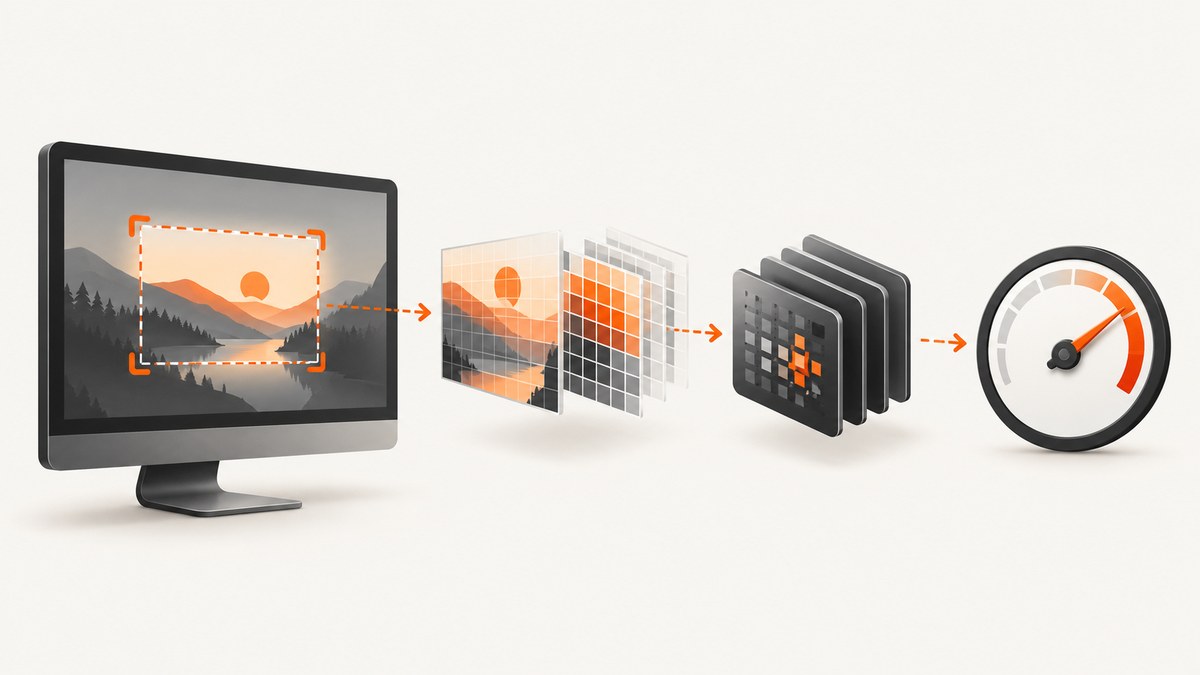
To paste a screenshot into a browser: capture the screen, make sure the capture is copied as image data, click the browser field that accepts images, then press Ctrl+V on Windows or Linux, or Command+V on macOS. If the destination does not accept image clipboard data, save the capture as PNG or JPEG and use its Upload, Attach, or Choose file control.
1. Paste a screenshot in four steps
- Capture the image. Use your operating system’s screenshot shortcut or the browser’s screenshot tool.
- Copy the capture. The clipboard must contain PNG or other image data, not a filename or a text selection.
- Focus the destination. Click inside the chat composer, document editor, comment box, form control, or paste-enabled upload area.
- Paste. Press Ctrl+V on Windows/Linux, or Command+V on macOS.
A regular, non-editable part of a webpage normally has nowhere to insert an image, so pressing the shortcut there may appear to do nothing.
2. Capture and copy on each platform
Windows
Microsoft says a screen capture is automatically copied to the clipboard. After capturing, click the browser field that accepts images and press Ctrl+V. If you captured a region with a tool that shows a preview, use its Copy command before switching to the browser. Microsoft’s screenshot instructions describe the clipboard behavior.
macOS
Use a macOS screenshot shortcut that copies the selected area to the clipboard, then focus the destination and press Command+V. Google documents Command+V as the Mac paste shortcut in browser-based editors.
Firefox
Open Firefox Screenshot and choose a visible area or the full page. Select Copy to place the image on the clipboard, then paste it into the browser destination. Firefox documents Ctrl+C on Windows/Linux and Command+C on macOS for copying the capture. You can also download the image if the destination rejects clipboard data. Firefox Screenshot help
Microsoft Edge
Open Edge Screenshot, capture a selected region or the full webpage, and choose Copy. Edge lists Ctrl+Shift+S for opening Screenshot; availability can vary by device, market, and browser version. Paste the copied image into a supported destination, or save it and attach the file. Microsoft Edge Screenshot documentation
3. What a website must support
Modern browsers commonly expose text, HTML, and PNG image formats through the clipboard. The destination still has to listen for image paste events or provide a paste-enabled upload control; a normal page area can ignore the shortcut. MDN’s Clipboard API documentation describes the available clipboard data types.
Browser security rules also limit clipboard access from menus and scripts. A keyboard shortcut is usually the dependable route in a web app. If a browser menu’s Paste command is disabled, click the editor and use the keyboard shortcut instead. Google’s browser clipboard guidance
4. Choose the right capture workflow
| Workflow | Best for | Trade-off |
|---|---|---|
| Selected region to clipboard | A small part of a page, bug report, or chat message | Fast, but excludes content outside the selection |
| Full-page capture to clipboard | Long documentation or complete webpages | The destination may resize or reject a very tall image |
| Clipboard paste | One-time insertion into an editor or chat | Requires the site to accept image clipboard data |
| Save PNG/JPEG, then upload | Sites that only expose a file picker or when you need a reusable file | Adds a save and select step |
Use PNG when you need sharp text or transparency. Use JPEG when a smaller photographic image is acceptable. The capture tool and destination determine the final dimensions and file-size limits.
5. Troubleshooting Ctrl+V
Nothing appears
- Click inside the actual editor, composer, comment field, or paste-enabled upload area before pressing the shortcut.
- Recopy the screenshot so the clipboard contains image data instead of a filename or text.
- Confirm that the site accepts pasted images; try its Attach or Upload button.
The site pastes text or a file path
The clipboard may contain a copied file name or text selection rather than the bitmap. Reopen the screenshot tool and choose Copy, then paste again.
You used the wrong shortcut
Ctrl+Shift+V (or Command+Shift+V) requests text-only paste in web apps that support it. Use Ctrl+V or Command+V for an image.
The browser menu Paste is unavailable
Permissions and browser security policies can disable menu paste. Focus the destination and use the keyboard shortcut. If that still fails, save the capture and use the site’s file picker.
The image is too large or rejected
Capture a smaller region, resize the saved image, or use the site’s upload control. Some editors impose pixel or file-size limits that are separate from browser clipboard support.
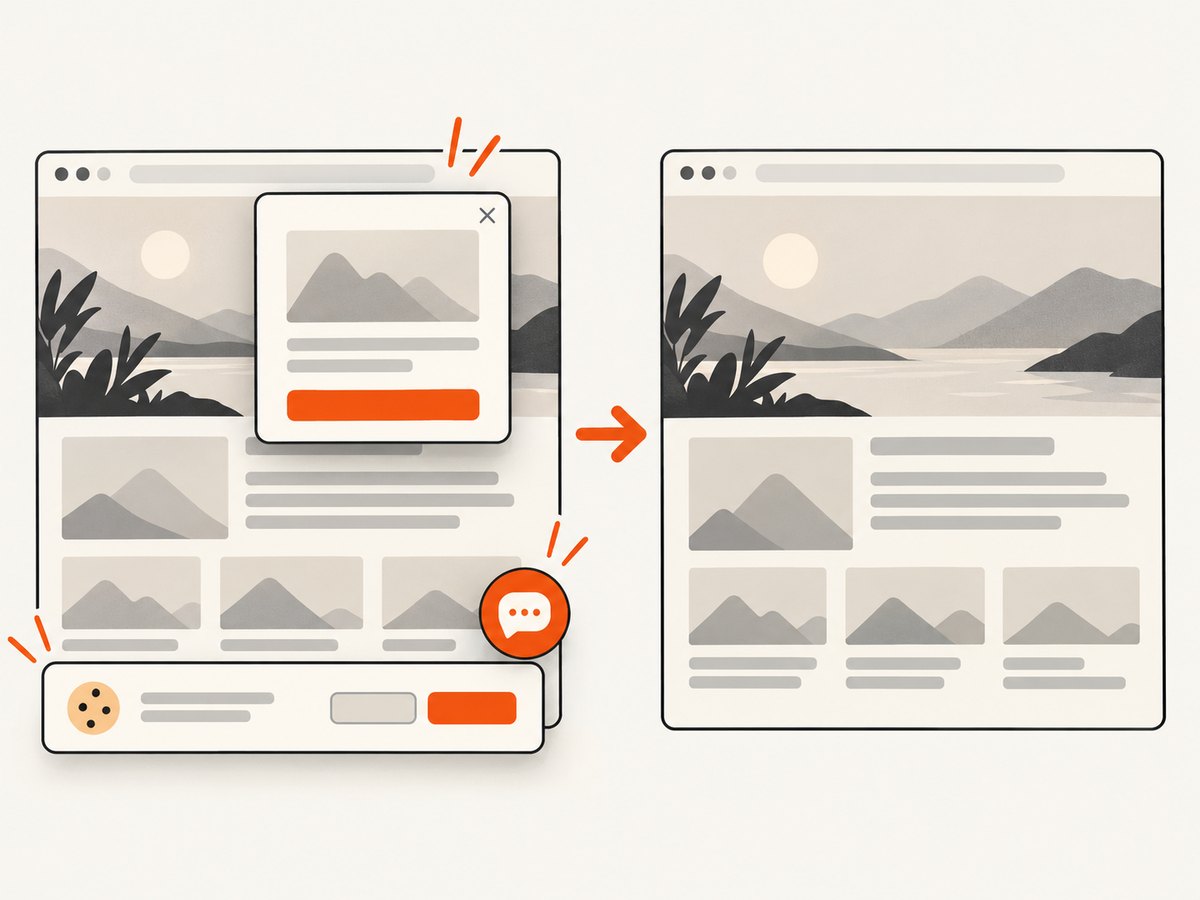
The screenshot includes a consent banner, popup, or chat widget
For a repeatable capture, remove those elements before taking the image or use an API that handles page cleanup before capture.
6. Or skip the browser setup
ScreenshotNeo returns a PNG, JPEG, WebP, or PDF from one GET request. It accepts cookie and consent banners before capture and removes more than 60 known consent platforms, newsletter popups, and chat widgets. Bot checks, blank pages, timeouts, failed loads, and cache hits are not billed, and the response reports the result with X-Page-Verdict and X-Billed headers. It also provides an MCP server with take_screenshot, get_page_info, and capture_pdf tools for Claude, Cursor, and other MCP clients.
See the ScreenshotNeo API documentation for authentication and options.
curl -G "https://api.screenshotneo.com/v1/shot" -d access_key=YOUR_API_KEY --data-urlencode url=https://stripe.com -o shot.webpimport requests
r = requests.get("https://api.screenshotneo.com/v1/shot", params={"access_key": "YOUR_API_KEY", "url": "https://stripe.com"}, timeout=90)
open("shot.webp", "wb").write(r.content)const q = new URLSearchParams({ access_key: 'YOUR_API_KEY', url: 'https://stripe.com' });
const res = await fetch(`https://api.screenshotneo.com/v1/shot?${q}`);Every plan includes features such as full-page and element capture, device presets, custom viewport and retina scale, dark mode, custom CSS and JavaScript, waits, request blocking, headers, cookies, user agents, geolocation, caching, signed links, asynchronous jobs, bulk capture, usage data, and PDF controls. The Free plan includes 1,000 screenshots per month with no card; paid plans start at $5 for 3,000 shots. Create a free ScreenshotNeo account.
7. Reliability, performance, and cost considerations
- Clipboard reliability: It depends on the destination’s editor, browser permissions, and page JavaScript. Keep the saved-image fallback available.
- Repeatability: Manual captures vary with viewport, scroll position, timing, and visible overlays. An API can standardize those settings.
- Large pages: Full-page images take longer to create and may exceed an editor’s limits. Element or region capture keeps payloads smaller.
- Automation cost: ScreenshotNeo bills only clean shots; failed loads, bot checks, blank pages, timeouts, and cache hits cost nothing. Choose a cache TTL when repeated captures are acceptable.
- Plan sizing: ScreenshotNeo offers Free 1,000/month, Starter $5/3,000, Growth $15/15,000, Pro $39/60,000, Scale $99/250,000, and Business $249/1,000,000; yearly billing gives two months free.
8. FAQ
Can I paste a screenshot without saving it?
Yes. Use a capture command that copies directly to the clipboard, then paste into a field that accepts image data.
Why does Ctrl+V work in one website but not another?
Each site decides whether its editor handles image clipboard events. A non-editable page area has no insertion target.
Can I paste into a normal HTML input?
A standard text input accepts text, not necessarily bitmap data. Use an editor with image-paste support or a file input.
What should I do when clipboard paste is blocked?
Save the screenshot as PNG or JPEG and select it through Upload, Attach, or Choose file.
Is an API useful if I only need one screenshot?
For a single manual image, the operating system or browser tool is simplest. An API helps when captures must be repeatable, cleaned of overlays, or generated in code.


