How to Paste Screen Captures into Multiple Kendo UI Editors
Insert one screen capture into several Kendo UI Editors with reliable HTML, cleanup, persistence, troubleshooting, and a browser-free API option.

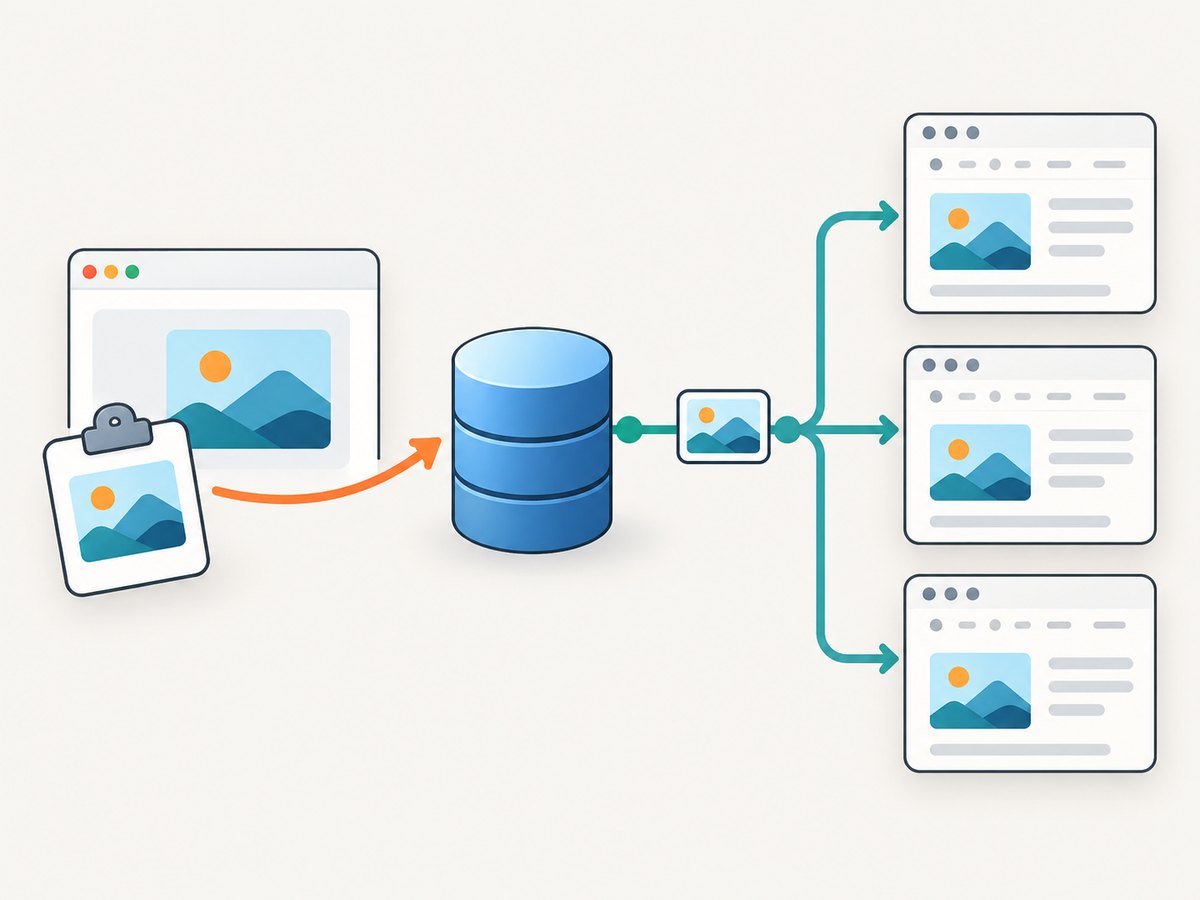
To paste the same screen capture into multiple Kendo UI for jQuery Editors, get each Editor instance and call its paste(html, options) method with HTML that contains a durable image URL. If the content comes from the browser clipboard, handle each Editor’s paste event first so you can inspect or transform e.html. Kendo’s paste API inserts HTML; it does not provide image hosting or permanent storage.
Choose the insertion path
| Content source | Recommended approach | Why |
|---|---|---|
| Your application already has HTML | editor.paste(html, options) |
Explicitly targets one Editor instance at a time. |
| User presses paste or copies from another app | Handle the paste event |
Lets you inspect or modify browser-produced HTML before insertion. |
| Screenshot must survive reloads | Upload/store the image, then paste its URL | Clipboard-local paths and temporary data are not durable. |
Browser clipboard processing occurs before Kendo’s paste cleanup. Telerik’s Word guidance also warns that a pasted image can reference a clipboard-local file. A single Word image may be converted to a base64 source, while multiple images can retain URLs to a physical folder. That warning is specific to Word copy and paste; validate behavior in the browsers and capture tools your application supports.
Prepare a durable screenshot URL
Before inserting into several Editors, make sure the image source is available to every browser that will render the content.
- Capture or receive the screenshot bytes.
- Upload the bytes to your application or object storage.
- Return an HTTPS URL, or deliberately generate a data URL if small inline images are acceptable.
- Store that URL with the document if the image must remain after a reload.
Do not assume that Kendo’s cleanup settings upload image bytes or create storage. The storage and authorization design belongs to your application.
Paste prepared HTML into multiple Editors
Initialize the Editors, retrieve each instance with .data("kendoEditor"), and call paste on each one. The split option controls whether surrounding formatting is split before insertion and defaults to true.
<textarea id="editorA"></textarea>
<textarea id="editorB"></textarea>
<button id="insertCapture" type="button">Insert capture</button>

<script>
$(function () {
  $("#editorA, #editorB").kendoEditor({
    tools: ["bold", "italic", "insertImage", "cleanFormatting"]
  });

  $("#insertCapture").on("click", function () {
    const imageUrl = "/uploads/captures/checkout-flow.webp";
    const html =
      '<p><img src="' + encodeURI(imageUrl) +
      '" alt="Checkout flow screen capture" /></p>';

    ["#editorA", "#editorB"].forEach(function (selector) {
      const editor = $(selector).data("kendoEditor");
      if (!editor) {
        throw new Error("Kendo Editor was not initialized: " + selector);
      }
      editor.paste(html, { split: true });
    });
  });
});
</script>
Use the actual URL returned by your upload endpoint. The selector list can come from a form model instead of being hard-coded.
Paste into a selected set of Editors
When only some Editors should receive the capture, keep references or mark targets with a data attribute.
function pasteCaptureInto(editors, imageUrl, altText) {
const safeAlt = String(altText).replace(/[&<>\"']/g, function (ch) {
return ({ '&': '&', '<': '<', '>': '>', '\"': '"', "'": ''' })[ch];
});
const html = '<p><img src="' + encodeURI(imageUrl) +
'" alt="' + safeAlt + '" /></p>';
editors.forEach(function (editor) {
if (editor && typeof editor.paste === "function") {
editor.paste(html, { split: false });
}
});
}
const targets = $(".review-editor[data-paste-target='true']")
.map(function () { return $(this).data("kendoEditor"); })
.get();
pasteCaptureInto(targets, "/uploads/captures/review.webp", "Review screen");Set split: false when you want to avoid splitting the current block’s formatting. Test both settings with the exact toolbar and inline styles used by your application.
Inspect or modify native clipboard paste
The Editor’s paste event fires before insertion and exposes the HTML as e.html. You can replace it with sanitized markup, add an alt attribute, or reject unsupported content.
function attachPastePolicy(editor) {
  editor.bind("paste", function (e) {
    let html = e.html || "";

    // Example policy: remove clipboard-local file references.
    if (/^file:/i.test(html) || /src=["']file:/i.test(html)) {
      e.html = "<p>The pasted image needs to be uploaded before it can be saved.</p>";
      return;
    }

    // Keep only the image and a paragraph wrapper for this workflow.
    const image = html.match(/<img\b[^>]*>/i);
    if (image) {
      e.html = "<p>" + image[0] + "</p>";
    }
  });
}

["#editorA", "#editorB"].forEach(function (selector) {
  const editor = $(selector).data("kendoEditor");
  attachPastePolicy(editor);
});
If the clipboard contains an image without a portable URL, intercept it in your application, upload the image bytes, then call editor.paste with the returned URL. Do not treat a clipboard-local path as a server-accessible file.
Configure paste cleanup
Kendo UI’s pasteCleanup settings clean or transform HTML. Choose the narrowest option that meets your requirement:
| Setting | Use | Caution |
|---|---|---|
all |
Strip HTML to plain text | Removes image and formatting markup. |
keepNewLines |
Strip tags while retaining line breaks | Images are not preserved as rich content. |
css |
Remove style and class attributes | May remove layout styles your image wrapper needs. |
span |
Remove span elements | Review inline formatting changes. |
| Word cleanup | Clean Word markup and convert Word lists | Word’s image URL behavior still needs separate handling. |
custom |
Run an application callback | Sanitize carefully and preserve approved image attributes. |
$("#editorA").kendoEditor({
  pasteCleanup: {
    css: true,
    span: true,
    msAllFormatting: true,
    custom: function (html) {
      return html.replace(/<script\b[^>]*>[\s\S]*?<\/script>/gi, "");
    }
  }
});
Broad cleanup can remove the very <img> markup you need. Verify the resulting HTML before saving.
Persist screenshots safely
- Use an upload endpoint that validates MIME type, byte size, dimensions, and authorization.
- Generate a stable URL or an application-controlled attachment ID.
- Store ownership and document relationships server-side.
- Sanitize the final Editor HTML before rendering it to other users.
- Decide whether image URLs are public, signed, or protected by an authenticated proxy.
If you use base64 data URLs, account for larger document payloads and database limits. For larger or reused captures, object storage plus a normal URL is usually easier to cache and manage.
Or skip the browser setup
ScreenshotNeo returns a screenshot from one GET request, so your server can fetch the image and pass its URL into the same editor.paste flow. See the ScreenshotNeo API documentation for the full parameter set.
curl -G "https://api.screenshotneo.com/v1/shot" -d access_key=YOUR_API_KEY --data-urlencode url=https://stripe.com -o shot.webpimport requests
r = requests.get(
"https://api.screenshotneo.com/v1/shot",
params={"access_key": "YOUR_API_KEY", "url": "https://stripe.com"},
timeout=90,
)
r.raise_for_status()
open("shot.webp", "wb").write(r.content)const q = new URLSearchParams({ access_key: 'YOUR_API_KEY', url: 'https://stripe.com' });
const res = await fetch(`https://api.screenshotneo.com/v1/shot?${q}`);
if (!res.ok) throw new Error(`Screenshot failed: ${res.status}`);
const bytes = Buffer.from(await res.arrayBuffer());Cookie banners, newsletter popups, and chat widgets are removed before the shot. Bot checks, blank pages, failed loads, timeouts, and cache hits are not billed, and response headers identify the page verdict and billing result. ScreenshotNeo also provides an MCP server with take_screenshot, get_page_info, and capture_pdf for AI agents. The Free plan includes 1,000 screenshots each month without a card; paid plans start at $5 for 3,000 shots.
Create a free ScreenshotNeo account and use the returned image URL in each Kendo Editor.
Troubleshooting
| Symptom | Cause | Fix |
|---|---|---|
editor.paste is not a function |
The variable is a jQuery element, not the Kendo instance. | Call $(selector).data("kendoEditor") after initialization. |
| Image placeholder appears, then disappears | Cleanup removed the img tag or its source is inaccessible. |
Inspect final HTML, narrow cleanup, and use an HTTPS URL reachable by the browser. |
| Word image shows only on the original machine | The HTML references a clipboard-local or physical-folder path. | Upload the image and paste the resulting durable URL. Paste one Word image at a time when testing. |
| Only the last Editor receives content | A shared variable or selector points to one instance. | Retrieve each instance and call paste inside an explicit loop. |
| Formatting around the image changes | split behavior or cleanup settings alter the current block. |
Try split: false and reduce cleanup options. |
| Saved document breaks later | The source was temporary, data URL limits were exceeded, or access expired. | Persist the upload, validate URL lifetime, and test a reload in a separate session. |
Performance and reliability
- Upload once and reuse the same URL for all target Editors instead of encoding duplicate image data.
- For many Editors, batch DOM work in one user action and avoid repeated image transformations.
- Set explicit request timeouts for capture and upload operations; handle retries without creating duplicate attachments.
- Use cache headers for immutable screenshot URLs, or version URLs when an image changes.
- Record the attachment ID and Editor/document ID so cleanup jobs can remove orphaned files.
- When using ScreenshotNeo, caching with a chosen TTL can reduce repeated captures; async jobs, signed webhooks, bulk capture, and usage reporting are available when synchronous requests do not fit the workflow.
FAQ
Can one Kendo Editor instance paste into another automatically?
No. Treat each Editor as a separate instance and call its paste method explicitly.
Does pasteCleanup upload screenshots?
No. It cleans or transforms HTML. Image upload and durable storage require an application flow.
Should I use the paste event or editor.paste?
Use the event for native clipboard content that needs inspection. Use editor.paste when your application already has prepared HTML and an image URL. They can be used together.
Is the Word multiple-image warning universal?
No. Telerik’s warning is scoped to Word copy and paste. Test the browsers and capture tools your product supports.
Can I paste a PDF into an Editor?
The Kendo Editor expects HTML content. Convert or link the PDF separately, or insert a rendered image with a durable source.


