Why PDF Content Does Not Fill the Page Width
Learn why PDF content can look narrow, how viewer zoom and page boxes differ, and how to remove unwanted whitespace safely.
Short answer: choose Fit Width in the PDF viewer first. If the page expands to the width of the document pane but the content still has blank space around it, the whitespace is probably part of the PDF’s page layout or page boundaries. Viewer zoom cannot remove margins authored into the file.
This distinction explains most reports that a PDF “does not fill the page.” A viewer controls how large the page appears on screen. The PDF itself defines a page boundary and places text, images, and graphics inside that boundary. Those are separate layers of behavior.
1. Diagnose the problem in under a minute
- Open the PDF in the viewer where the problem appears.
- Open the zoom menu and select Fit Width (sometimes called Page Width).
- Compare the result with Fit Page and, if available, Fit Visible.
- Look at the page edge, not only the text. If the entire page reaches the pane edges, the viewer is already showing the page at its available width.
Interpret the result:
| What you see | Likely cause | Next action |
|---|---|---|
| The page becomes wider and the apparent margins shrink | Viewer zoom was too small | Keep Fit Width or set a larger zoom |
| The page fills the pane but content remains inset | Margins or page boxes are part of the PDF | Inspect the source layout or crop the page |
| Only a browser viewer ignores your preferred opening zoom | Embedded viewer controls the initial magnification | Use the browser’s controls or a dedicated reader |
| Content is cut off after a crop | The visible page boundary was made too small | Undo or reset the page size and recrop conservatively |
Adobe documents the difference between fitting a page and fitting visible content in its viewer guidance. The practical conclusion is simple: if Fit Width makes the page fill the pane, increasing zoom again will not remove whitespace inside the page.
2. Viewer zoom is not the PDF page width
A PDF viewer renders a page inside a document pane. Fit Width scales the page until its width matches the pane. Fit Page considers both width and height, so a tall page may appear narrower. Fit Visible, where supported, targets the text and graphics area instead of the complete page.
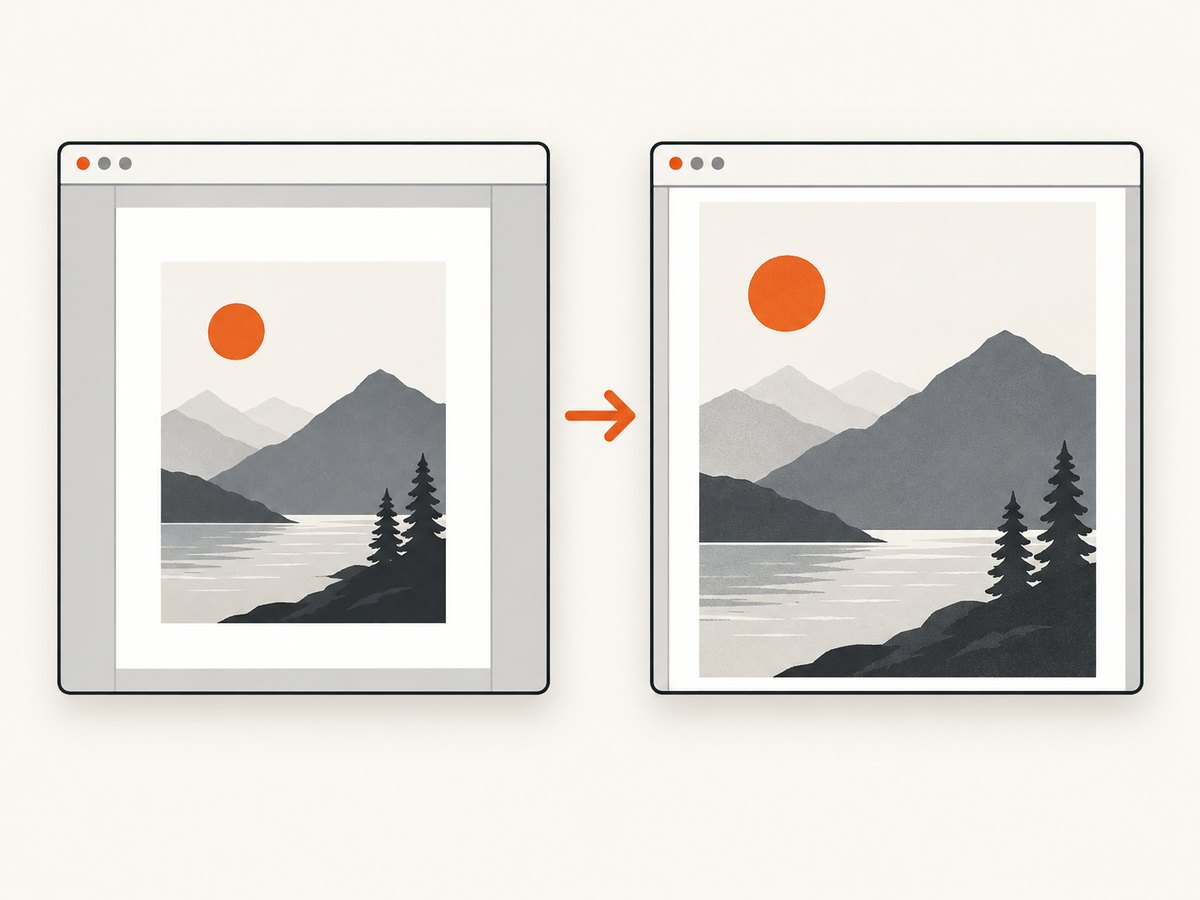
These commands change the display scale only. They do not rewrite the PDF, move objects, or delete margins. A page can therefore fill the viewer while its meaningful content occupies only 80% of the page width. That is expected when the document was designed with generous margins, a centered narrow column, or a page boundary larger than the artwork.
Initial-view settings can also be misleading. Adobe’s settings documentation notes that some saved opening magnification preferences do not control PDFs displayed inside a web browser. Browser and embedded viewers can apply their own zoom behavior. Test the same file in a dedicated reader before changing the document itself.
3. Understand PDF page boxes
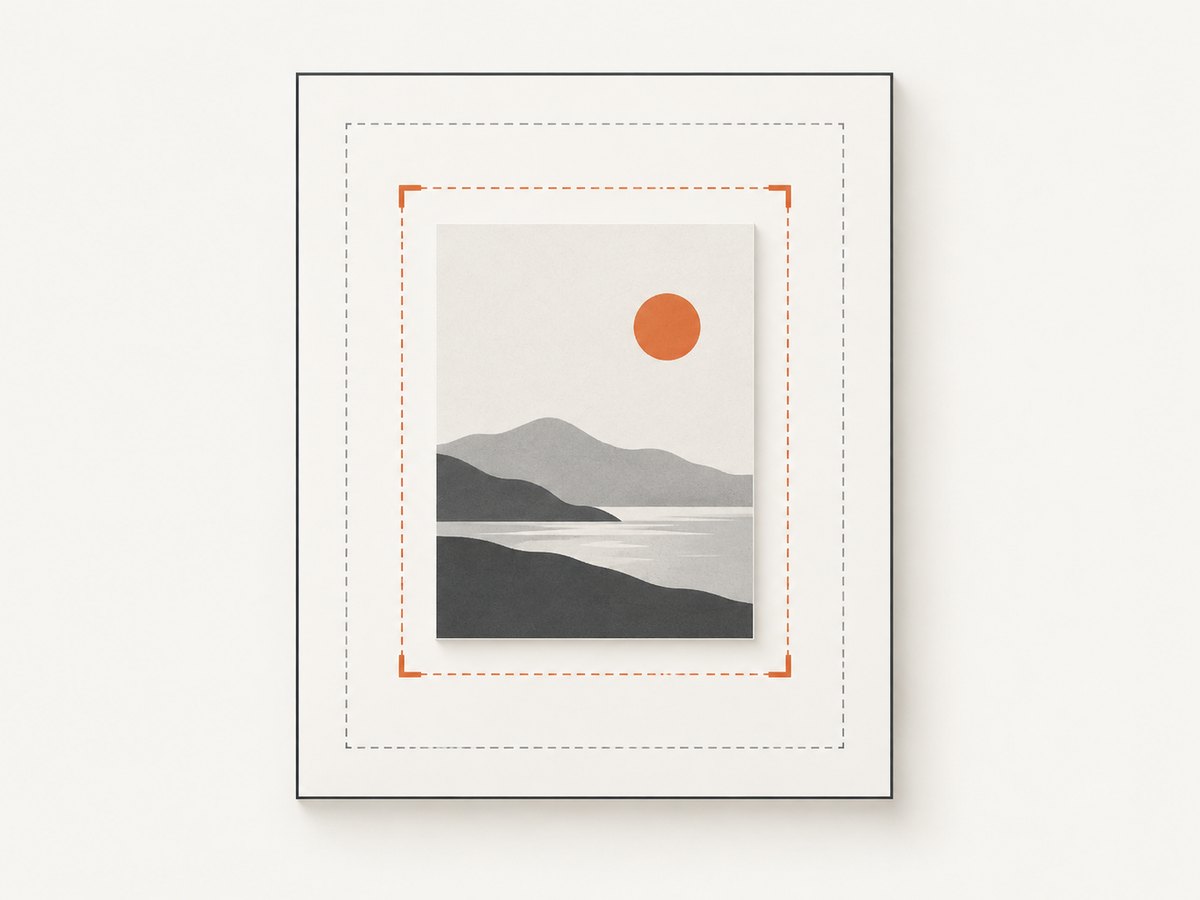
PDF files can contain several page boxes. They describe page boundaries and production intent; none is automatically the same thing as “the width of the content.”
| Box | Plain-language meaning | Why it matters here |
|---|---|---|
| MediaBox | The physical page boundary | Defines the full sheet or canvas available to the page |
| CropBox | The region clipped for display or printing | Controls the visible page; if absent, it defaults to MediaBox |
| BleedBox | Area allowed for production bleed | Relevant to print workflows, not usually viewer whitespace |
| TrimBox | Finished size after trimming | Useful when a PDF was prepared for commercial printing |
| ArtBox | Intended meaningful artwork extent | Can still include whitespace and does not automatically crop content |
The Adobe PDF Reference defines the CropBox as the region to which page contents are clipped when displayed or printed. The MediaBox and CropBox are the first boxes to investigate when the visible page seems wider than its content.
Why a page can be full width while content is narrow
Imagine a letter-size page with a centered 6-inch article column. The page boundary is still 8.5 inches wide. Fit Width scales all 8.5 inches to the viewer pane, including the blank left and right areas. Nothing is wrong with the viewer; the whitespace is part of the page design.
The same effect occurs when a slide, scan, or exported web layout uses a large canvas around a smaller object. If the source application exported the canvas as the MediaBox, the PDF preserves it.
4. Fix margins that belong to the document
Best fix: change the source file
If you control the original document, reduce its page margins or resize the canvas before exporting again. This preserves selectable text, links, reading order, and print intent better than post-processing. Re-exporting is usually the right choice for reports, invoices, and generated documents that will be updated later.
Crop an existing PDF in Acrobat
- Open the file in Adobe Acrobat.
- Choose the page-cropping tool.
- Enable Remove White Margins when available, or drag the crop handles to the desired boundary.
- Apply the crop to the selected page or page range.
- Review every edge at 100% and in a print preview before saving a replacement copy.
Adobe’s crop-PDF guidance explains that cropping changes the visible boundary but does not reduce file size: hidden information remains in the file. Keep the original so you can reset the page size if a logo, footnote, bleed, or annotation was clipped.
When cropping is unsafe
- Print documents: margins may be required by the printer or binding process.
- Forms: fields can sit outside the apparent artwork area.
- Bleed artwork: trimming too tightly can remove bleed needed for production.
- Annotations and signatures: a crop can hide marks that users expect to see.
- Accessibility: visual cropping does not repair reading order or semantic structure.
5. A repeatable troubleshooting workflow
- Test Fit Width. This separates a viewer-scale issue from a document-layout issue.
- Check another viewer. Compare a browser viewer with a dedicated PDF reader. If only one viewer looks wrong, inspect its zoom mode and sidebar layout.
- Inspect page dimensions. Look for an unusually large MediaBox or CropBox compared with the intended paper size.
- Check the source layout. Confirm whether the document intentionally uses wide margins, a centered column, or a large artboard.
- Crop a copy. Use Remove White Margins or a measured crop, then inspect all pages and important objects.
- Reset if needed. If content is clipped, restore the original page size and choose a larger crop boundary.
- Validate the output. Check text selection, links, signatures, forms, page numbering, print preview, and accessibility requirements.
6. Common errors and their fixes
| Symptom | Cause | Fix |
|---|---|---|
| Fit Page looks narrow but Fit Width looks correct | The page is tall relative to the pane | Use Fit Width for reading columns |
| Zooming to 200% still leaves side bands | The bands are inside the page boundary | Inspect margins and page boxes; do not keep increasing zoom |
| Crop removed a footer or page number | The crop rectangle was too tight | Undo, reset page size, and include the complete footer area |
| Browser opens at an unexpected scale | Embedded viewer ignores the PDF’s initial view | Use its zoom menu or open the file in a dedicated reader |
| File size did not shrink after cropping | Cropping hides content instead of deleting it | Use a separate optimization workflow only when safe and required |
| Only some pages have excess whitespace | Mixed page sizes or inconsistent source layouts | Review and crop pages individually or normalize the source template |
7. Generating PDFs and screenshots with predictable dimensions
If you generate a PDF from a web page, define the paper size, margins, orientation, and content width deliberately. A full-page capture can preserve the browser viewport or page canvas, while a PDF export applies print-oriented page boundaries. A narrow CSS container inside a wide page will still produce visible whitespace.
For automated capture, record the target URL, viewport, paper size, margins, and page range alongside the output. When a result looks too narrow, those inputs make it possible to determine whether the issue came from the page CSS, the capture viewport, or the PDF page boundary.
8. Or skip the browser setup
ScreenshotNeo provides a website screenshot API and MCP server. One GET request can return a PNG, JPEG, WebP, or PDF, with PDF controls for paper size, margins, landscape mode, and page ranges. The service can also capture a full page, load lazy images, target one CSS selector, apply custom CSS or JavaScript, wait for a selector, delay, or network idle, and set device, timezone, geolocation, cookies, headers, or authentication options.
For a basic capture, use the documented endpoint and code examples at ScreenshotNeo’s API documentation:
curl -G "https://api.screenshotneo.com/v1/shot" -d access_key=YOUR_API_KEY --data-urlencode url=https://stripe.com -o shot.webpimport requests
r = requests.get("https://api.screenshotneo.com/v1/shot", params={"access_key": "YOUR_API_KEY", "url": "https://stripe.com"}, timeout=90)
open("shot.webp", "wb").write(r.content)const q = new URLSearchParams({ access_key: 'YOUR_API_KEY', url: 'https://stripe.com' });
const res = await fetch(`https://api.screenshotneo.com/v1/shot?${q}`);ScreenshotNeo removes cookie and consent banners, newsletter popups, and chat widgets before capture; each step can be disabled. Bot checks, blank pages, timeouts, failed loads, and cache hits are not billed, and response headers report the page verdict and whether the request was billed. Its MCP server lets Claude, Cursor, and other MCP clients call take_screenshot, get_page_info, and capture_pdf. Free accounts include 1,000 screenshots per month with no card; paid plans start at $5 for 3,000 shots. Create a free ScreenshotNeo account.
9. Performance, reliability, and cost considerations
- Viewer performance: Fit Width is a display operation and does not change the file. Large scans may remain slow because the viewer still decodes the full page.
- Crop safety: Cropping can improve the apparent layout without deleting hidden data, so it may not reduce storage or transfer size.
- Automated capture: Wait for the selector or network idle when fonts and images affect layout. A fixed delay is simpler but can be slower or less reliable across pages.
- Caching: Use a chosen cache TTL when the source is stable. A cache hit can avoid a new capture; ScreenshotNeo identifies cache hits in its response headers.
- Batch work: ScreenshotNeo supports bulk capture of up to 100 URLs per call and asynchronous jobs with signed webhooks for larger workflows.
- Cost control: Clean shots are billed; bot checks, blank pages, timeouts, failed loads, and cache hits are not. Use the usage API to monitor volume.
10. FAQ
Does Fit Width remove PDF margins?
No. It scales the complete page to the pane. Margins authored into the page remain visible.
Which PDF box should I change?
For displayed content, start with the CropBox and compare it with the MediaBox. The correct edit depends on whether the whitespace is intentional and whether the file is for screen or print use.
Will cropping delete the hidden content?
No. Acrobat documents that cropping hides content outside the new boundary. Keep the original and review privacy requirements before distributing the cropped file.
Why does the same PDF look different in Chrome and Acrobat?
Each viewer can choose different initial zoom, sidebar, and page-fitting behavior. Compare both with Fit Width before editing the document.
Can a screenshot API fix a narrow PDF automatically?
It can control capture dimensions, margins, orientation, and page ranges when generating a new PDF. It cannot infer whether whitespace is intentional without the source layout or your chosen settings.


