How to Generate a PDF of Multiple Canvas Elements with Puppeteer
Combine multiple HTML canvases into one Puppeteer PDF. Learn how to wait for drawing, choose print settings, and troubleshoot missing or altered canvas output.
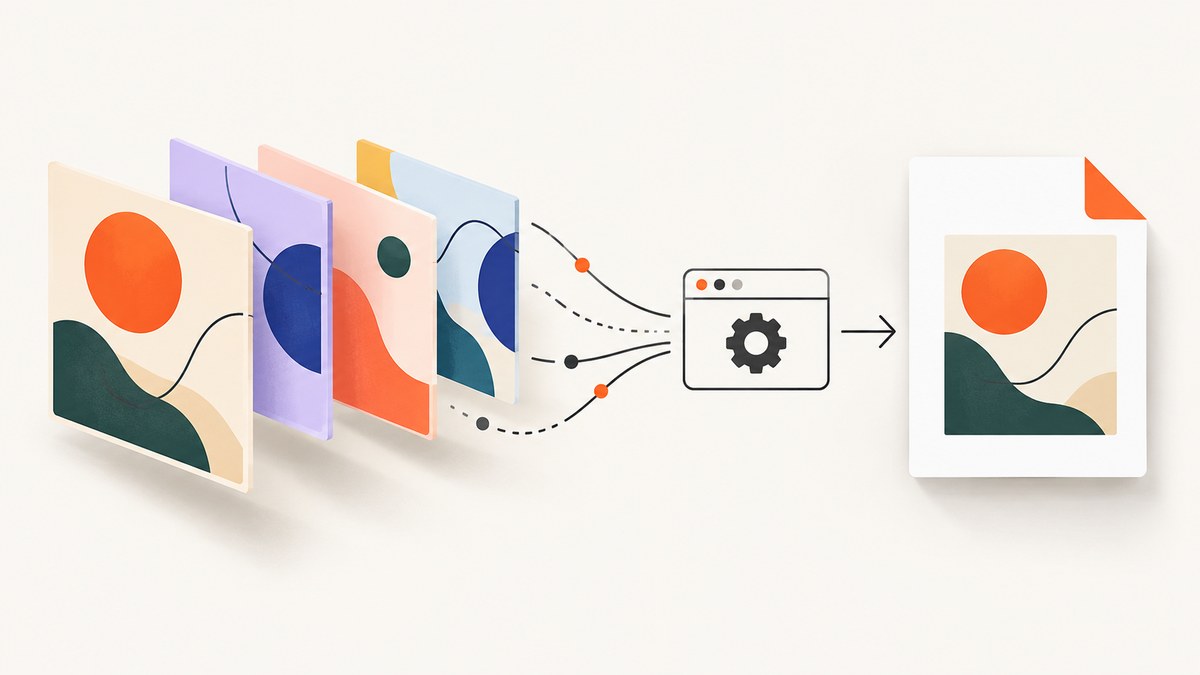
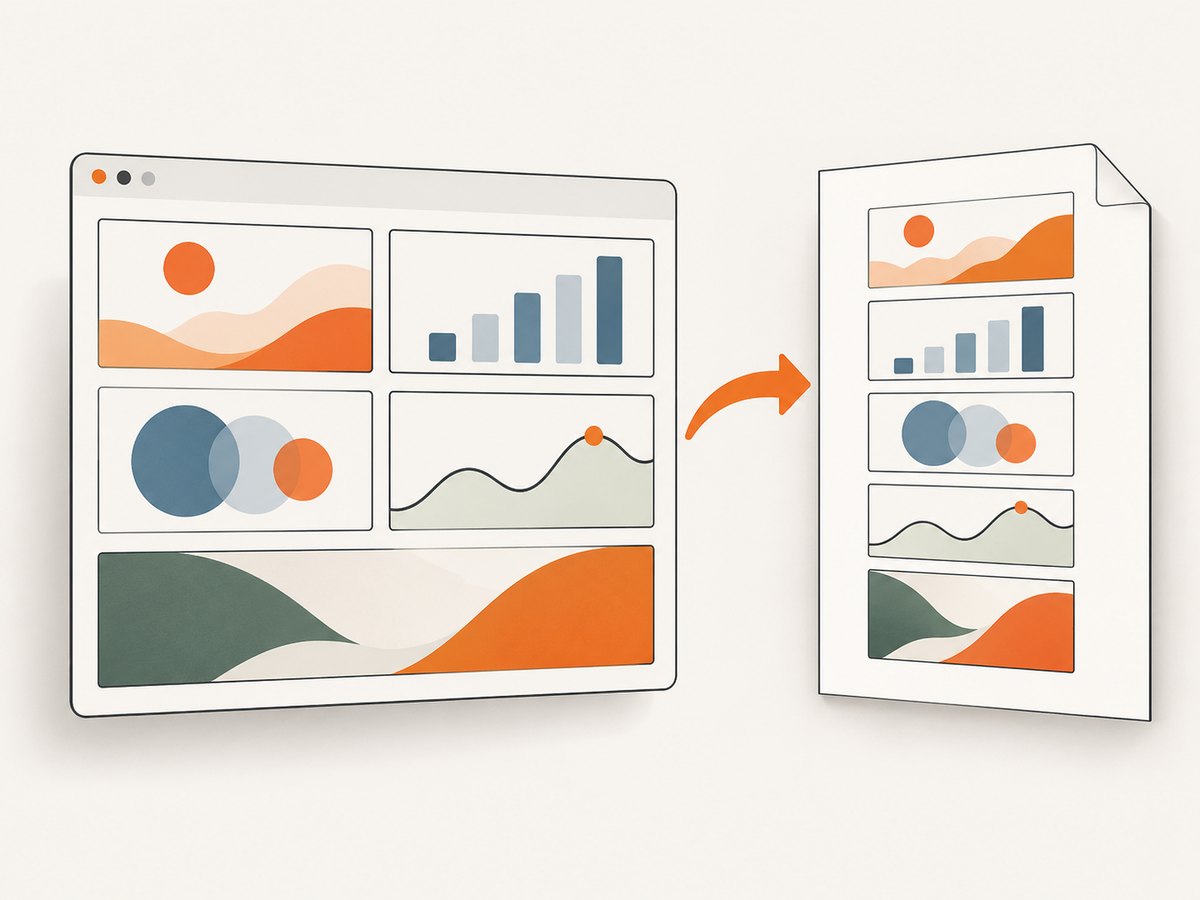
To generate one PDF from multiple canvas elements with Puppeteer, put the canvases on a single page, wait until your application has finished drawing them, set the media and paper options you need, then call page.pdf() once. Puppeteer uses print media by default. If print rendering does not preserve the canvas appearance you need, try screen media or a print-oriented document containing canvas snapshots, and validate the result in your target environment.
This guide covers a complete Node.js example, reliable readiness checks, PDF layout settings, a canvas-image fallback, and common failures. Puppeteer waits for fonts by default, but that does not tell it when your application’s asynchronous canvas drawing is complete. Your page must provide that signal.
1. Install Puppeteer and prepare the page
The example below assumes your application exposes a page containing all canvases to include. Install Puppeteer in your project, then save the script as make-pdf.js and run it with Node.js. The example uses an application-specific readiness flag; replace it with the signal your page actually sets after data loading and drawing are complete.
npm install puppeteerconst puppeteer = require('puppeteer');
async function main() {
const browser = await puppeteer.launch({ headless: true });
try {
const page = await browser.newPage();
await page.setViewport({ width: 1440, height: 1000 });
await page.goto('http://localhost:3000/report', {
waitUntil: 'networkidle2',
timeout: 60_000,
});
// Replace this with the real completion condition from your application.
await page.waitForFunction(
() => window.canvasDrawingComplete === true,
{ timeout: 30_000 },
);
const canvasCount = await page.$$eval('canvas', canvases => canvases.length);
if (canvasCount === 0) {
throw new Error('No canvas elements were found on the page');
}
await page.pdf({
path: 'canvases.pdf',
format: 'A4',
printBackground: true,
margin: { top: '12mm', right: '12mm', bottom: '12mm', left: '12mm' },
});
} finally {
await browser.close();
}
}
main().catch(error => {
console.error(error);
process.exitCode = 1;
});The networkidle2 condition is only an example. It waits for network activity to settle according to Puppeteer’s navigation criteria; it does not prove that a chart library, worker, animation, or application callback has finished drawing. Keep the explicit readiness wait and use a condition tied to your rendering flow. If the page has polling or persistent connections, network-idle navigation may never be a suitable condition.
2. Signal when canvas drawing is complete
Canvas content is drawn into a bitmap by application code. Puppeteer can wait for the page to load and for fonts, but your page needs to expose a separate completion signal if drawing happens asynchronously. Set the flag only after all canvases have their final content.
// In the application page, after data and drawing are complete:
async function renderReport() {
  window.canvasDrawingComplete = false;
  const data = await loadReportData();
  drawSummaryCanvas(data.summary);
  drawDetailCanvas(data.details);
  window.canvasDrawingComplete = true;
}

renderReport();
If you own the code that starts rendering, an explicit promise or state property is usually more reliable than guessing with a fixed sleep. For an existing page you cannot modify, wait for a meaningful visual or DOM condition if one is available, such as a loading indicator disappearing and all expected canvas elements appearing. A delay can be a last resort, but it can be too short on a slow run and waste time on a fast one.
You can inspect the canvases in page context with Puppeteer’s page.$$eval(), which passes all matching elements into a function executed on the page. This is useful for verifying how many canvases exist or collecting dimensions before printing.
const canvases = await page.$$eval('canvas', items =>
  items.map((canvas, index) => ({
    index,
    width: canvas.width,
    height: canvas.height,
    cssWidth: canvas.getBoundingClientRect().width,
    cssHeight: canvas.getBoundingClientRect().height,
  })),
);
console.log(canvases);
3. Choose print or screen media
page.pdf() generates output using print media by default. That means print-specific CSS can change visibility, layout, colors, or dimensions compared with the browser viewport. If you need the screen stylesheet and screen media behavior, call page.emulateMediaType('screen') before generating the PDF.
// Default behavior: print media
await page.pdf({ path: 'print-layout.pdf' });

// Use screen media rules instead
await page.emulateMediaType('screen');
await page.pdf({ path: 'screen-layout.pdf' });
Choose based on the intended document. Print media is often appropriate for reports designed for paper or export; screen media can help when the page’s screen layout is the one that preserves the canvas composition. Inspect both if the output differs from the page you expected. The PDF API does not guarantee that every page’s canvas appearance will match a particular print stylesheet.
If exact colors matter, note that print rendering may adjust colors. Puppeteer’s PDF documentation points to -webkit-print-color-adjust as a way to request exact color adjustment. Apply it in the page’s styles and check the generated file.
@media print {
  html {
    -webkit-print-color-adjust: exact;
    print-color-adjust: exact;
  }
}
4. Set paper size, margins, backgrounds, and page ranges
Puppeteer’s PDF options control the paper geometry and printed content. The default paper format is Letter, printBackground defaults to false, and CSS @page sizing does not take priority unless you set preferCSSPageSize: true. Set options explicitly when the output needs to be repeatable.
| Option | What it controls | Practical use |
|---|---|---|
format |
Named paper size, such as A4 or Letter | Use when the document targets a standard page size. |
width, height |
Explicit paper dimensions | Use instead of a named format for custom page geometry. |
landscape |
Page orientation | Set true when wide canvases need more horizontal room. |
margin |
Top, right, bottom, and left page margins | Use explicit CSS units such as mm or in. |
printBackground |
Whether background graphics are included | Set true when backgrounds or filled areas are part of the design. |
scale |
Scale applied to the page content | Adjust when content does not fit; verify that fine details remain legible. |
preferCSSPageSize |
Whether CSS @page size overrides format or dimensions |
Set true when the page’s print CSS owns paper sizing. |
pageRanges |
Which PDF pages to include | Use for selected ranges after the print layout has established page breaks. |
await page.pdf({
  path: 'wide-report.pdf',
  format: 'A4',
  landscape: true,
  printBackground: true,
  preferCSSPageSize: false,
  scale: 0.95,
  margin: { top: '8mm', right: '8mm', bottom: '8mm', left: '8mm' },
  pageRanges: '1-3',
});
Use either a named format or explicit dimensions according to your layout. If the CSS contains an @page rule and you want it to decide the paper size, set preferCSSPageSize: true. For example:
@page {
  size: A4 landscape;
  margin: 10mm;
}

@media print {
  .screen-only { display: none; }
  .canvas-sheet { break-after: page; }
}
Margins and CSS page rules affect how many pages a composed page produces. A tall page containing several canvases may span multiple PDF pages. If each chart must begin on its own sheet, arrange the canvas containers and page breaks in print CSS. Always inspect the generated PDF when changing paper size, orientation, scaling, or margins.
5. Fallback: snapshot canvases as images
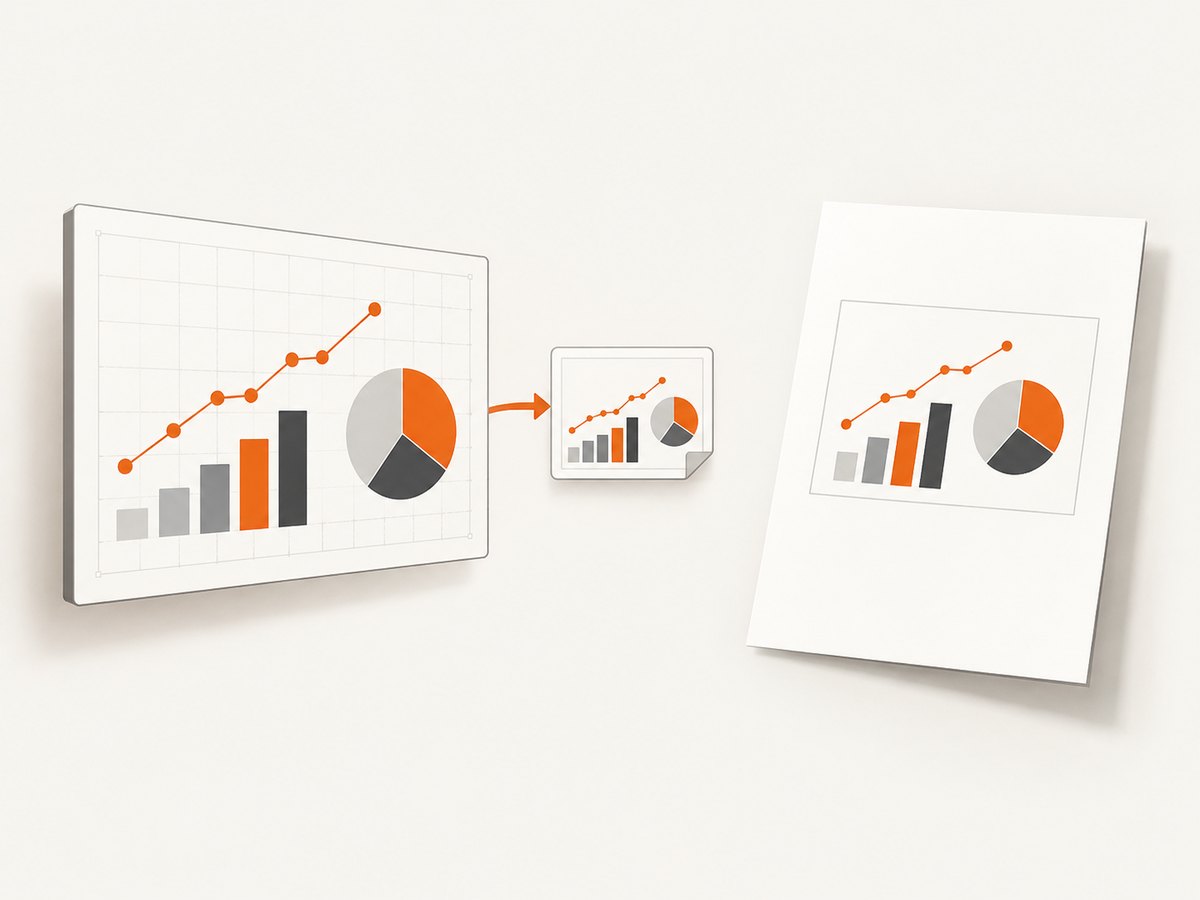
If direct page printing omits or alters the canvas output, one practical fallback is to turn each canvas into an image data URL and place those images into a print-oriented document. This is an implementation pattern to evaluate, not a Puppeteer guarantee. Validate it with the page and browser version you use. It also depends on the canvas being readable by the page script; this guide’s research does not establish behavior for canvases whose pixels cannot be serialized.
const snapshots = await page.$$eval('canvas', canvases =>
  canvases.map((canvas, index) => ({
    index,
    src: canvas.toDataURL('image/png'),
  })),
);

await page.setContent(`
  <!doctype html>
  <html>
    <head>
      <style>
        @page { size: A4; margin: 12mm; }
        body { margin: 0; }
        figure { margin: 0 0 8mm; break-after: page; }
        img { display: block; max-width: 100%; max-height: 260mm; object-fit: contain; }
      </style>
    </head>
    <body>
      ${snapshots.map(({src}, i) =>
        `<figure><img alt="Canvas ${i + 1}" src="${src}"></figure>`
      ).join('')}
    </body>
  </html>
`);
await page.pdf({ path: 'canvas-snapshots.pdf', printBackground: true });
For production code, avoid interpolating arbitrary untrusted strings into HTML. The example’s image source comes from the canvas snapshot and the label is an integer, but a more general document should escape or safely construct content. Also consider image dimensions and PDF size: large canvases encoded as data URLs can consume substantial memory. If the direct print route works and meets your requirements, it avoids the extra document transformation.
6. Complete the PDF in a robust workflow
- Load one composed page. Put every canvas to include in the page before printing. The normal workflow is one PDF generation from this page.
- Wait on application readiness. Make sure data loading and drawing have completed; network quiet alone is not a canvas-ready signal.
- Check expected elements. Count canvases and optionally record their dimensions. Fail clearly if the page has no canvases when it should.
- Select media and print layout. Use print media by default, or explicitly emulate screen media when that rendering is required.
- Generate and validate once. Call
page.pdf(), then check page count, margins, colors, and whether every canvas is visible. - Close the browser in a
finallyblock. This releases the browser process even when navigation, readiness, or PDF generation throws.
page.pdf() returns a promise that resolves to PDF bytes as a Uint8Array. Supplying path saves the file; omit it if your application needs to handle the bytes itself. Keep one browser process available for a batch where appropriate, but isolate page state and close pages when each job is complete. Large, complex pages and image snapshots can raise memory use, so avoid opening more concurrent pages than your runtime can support.
7. Troubleshooting missing or incorrect canvas output
| Symptom | Likely cause | Fix |
|---|---|---|
| PDF is blank or a canvas is empty | PDF generation began before asynchronous drawing finished. | Wait for the application’s own completion flag or promise before calling page.pdf(). |
| Some canvases are missing | The page has not created them yet, or a selector/count assumption is wrong. | Wait for expected canvas elements and inspect them with page.$$eval('canvas', ...). |
| PDF looks different from the browser | Print media is active by default, and print CSS may change layout or visibility. | Try page.emulateMediaType('screen') before PDF generation, or correct the print stylesheet. |
| Backgrounds or filled regions disappear | printBackground is false by default. |
Set printBackground: true and inspect the result. |
| Colors look adjusted | Print rendering can modify colors. | Try -webkit-print-color-adjust: exact in print styles and validate the PDF. |
| Content is clipped or split awkwardly | Paper geometry, margins, scaling, or page breaks do not fit the canvas layout. | Adjust format or dimensions, orientation, margins, scale, and print CSS page breaks. |
| Navigation or readiness wait times out | The page keeps network activity open, or the readiness condition never becomes true. | Use a navigation condition suited to the page and verify that the application sets its completion signal on both success and handled failure paths. |
| Snapshot fallback throws while reading a canvas | The page script could not serialize the canvas content in the current environment. | Confirm the canvas can be read in page context; test direct printing or arrange for the application to provide image output. |
| Process runs out of memory on large reports | Many high-resolution canvases and their encoded snapshots increase memory pressure. | Reduce concurrency, avoid unnecessary snapshots, and process jobs in smaller batches. |
8. Performance, reliability, and cost considerations
PDF creation time depends on page navigation, application data loading, canvas rendering, and document complexity. A fixed delay makes fast jobs wait and slow jobs race; a readiness condition tied to the application makes the sequence clearer. Reuse a browser for a batch if your service architecture supports it, while ensuring each request gets the correct page and state. Set timeouts for navigation and readiness, log which stage failed, and close the browser or page in cleanup code.
Paper options also affect practical output. A canvas much wider than the chosen paper may be scaled down until its details are difficult to read. Use landscape orientation or a custom page size when that better matches the content, and choose a scale only after inspecting the result. Snapshotting to images can add serialization, memory, and document-size costs; use it only when direct printing does not produce acceptable output.
Self-hosting Puppeteer means accounting for the compute and maintenance of the browser process in your application. If the task is simply to capture a web page as an image or PDF and you do not need this custom canvas-print pipeline, ScreenshotNeo provides a screenshot API and MCP server. Its PDF options include paper size, margins, landscape, and page ranges; see the ScreenshotNeo API documentation for the request parameters.
Or skip the browser setup
For a PDF capture of a page, ScreenshotNeo’s API accepts a URL and returns a PDF when configured for PDF output. This is useful when you want a service call instead of running and maintaining your own browser capture setup. It does not replace custom application logic that composes canvas content or signals when its drawing is done; make sure the target page is ready for capture.
curl -G "https://api.screenshotneo.com/v1/shot" \
  -d access_key=YOUR_API_KEY \
  --data-urlencode url=https://stripe.com \
  -d format=pdf \
  -o page.pdf
import requests
r = requests.get(
"https://api.screenshotneo.com/v1/shot",
params={"access_key": "YOUR_API_KEY", "url": "https://stripe.com", "format": "pdf"},
timeout=90,
)
r.raise_for_status()
open("page.pdf", "wb").write(r.content)const q = new URLSearchParams({
access_key: 'YOUR_API_KEY',
url: 'https://stripe.com',
format: 'pdf',
});
const res = await fetch(`https://api.screenshotneo.com/v1/shot?${q}`);
if (!res.ok) throw new Error(`Screenshot request failed: ${res.status}`);
const bytes = new Uint8Array(await res.arrayBuffer());
await import('node:fs/promises').then(fs => fs.writeFile('page.pdf', bytes));ScreenshotNeo removes cookie and consent banners, newsletter popups, and chat widgets before the shot; each cleanup step can be turned off. Bot checks, blank pages, timeouts, failed loads, and cache hits are not billed, and the response identifies the page verdict and billing status in headers. Its MCP server lets AI agents use take_screenshot, get_page_info, and capture_pdf. The free plan includes 1,000 screenshots a month with no card; paid plans start at $5 for 3,000. Every feature is on every plan.
Sign up for ScreenshotNeo’s free plan to get 1,000 screenshots a month with no card.
FAQ
Can Puppeteer combine canvases from separate pages into one PDF?
The workflow described here prints one composed page. Put the canvases you need on that page first, or build a document that contains their outputs before generating the PDF.
Does Puppeteer wait for canvas drawing automatically?
No application-specific drawing completion is implied by its default font wait. Add a condition that reflects when your own page has finished drawing.
Should I use a canvas snapshot fallback for every PDF?
No. Try direct page printing first. Use snapshots as a practical fallback when the direct print output is unsatisfactory, then validate rendering and memory use in your environment.
Can I return PDF bytes instead of saving a file?
Yes. page.pdf() resolves to PDF bytes; omit the path option and pass the returned value to the part of your application that stores or serves it.


