PDF to HTML Template Converter: Complete Guide, Workflows, and API Options
Learn how to convert an existing PDF into HTML, choose one-file or linked output, handle scans and accessibility, and decide when template generation is the right workflow.
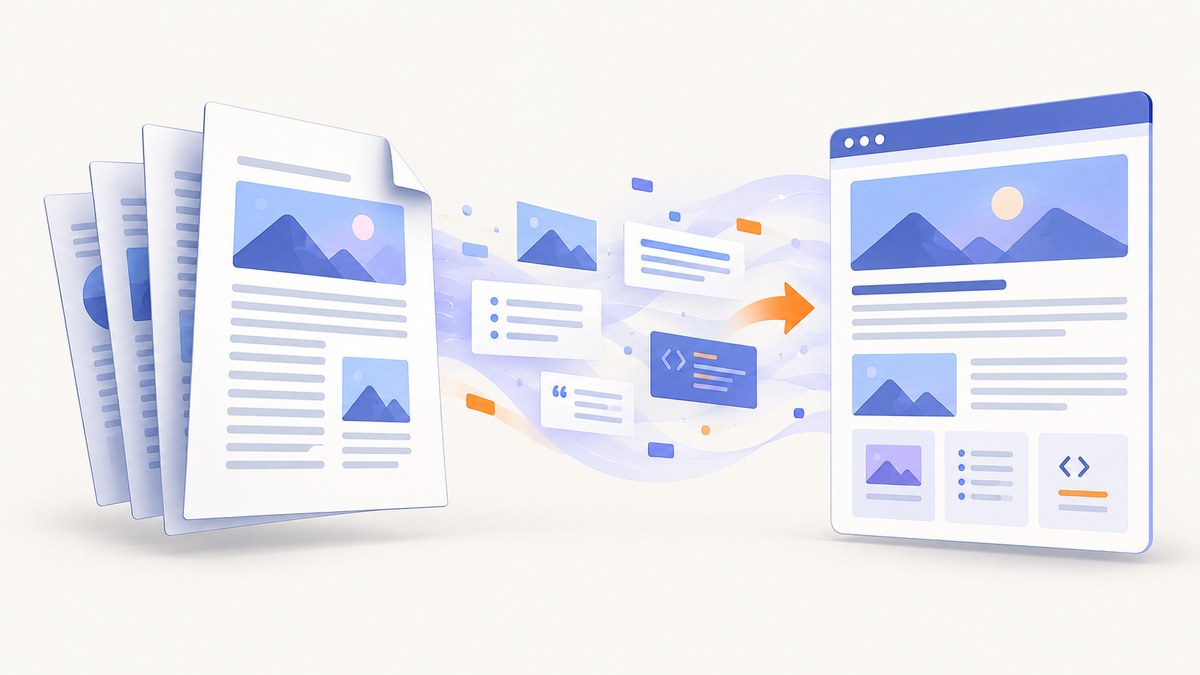
Direct answer: A PDF-to-HTML converter exports an existing PDF as a webpage. It does not automatically create a reusable HTML template. If you need repeatable documents from data, start with an authored template and a document-generation workflow instead.
This guide explains both paths, using Adobe Acrobat’s documented desktop workflow as the concrete PDF-to-HTML example. It also covers output choices, scanned pages, structure and accessibility, automation boundaries, troubleshooting, performance, cost and a hosted screenshot alternative for cases where you only need a visual rendering.
1. Decide which problem you are solving
| Goal | Correct workflow | Input | Output |
|---|---|---|---|
| Publish an existing PDF as a webpage | PDF-to-HTML conversion | Finished PDF | One HTML file or multiple linked files |
| Create invoices, reports or letters repeatedly | Template-driven document generation | Authored template plus data | New PDF or Word documents |
| Show a PDF page visually inside a web app | Image or screenshot rendering | PDF or URL | PNG, JPEG, WebP or PDF preview |
Adobe documents Word templates and data for generating PDF or Word files as a separate workflow; its cited PDF export targets do not establish a PDF-to-HTML API. Keep these workflows separate when selecting a tool.
2. Convert a PDF to HTML in Acrobat
Step 1: Open the source PDF
- Open the finished PDF in Acrobat desktop.
- Check that pages, fonts, images, headers and footers look correct before export.
- If pages are scans, confirm that text recognition is available and choose the document language.
Step 2: Choose HTML export
- Choose Convert.
- Select Other format, then HTML.
- Choose Convert to HTML.
- Select the destination folder and filename.
Step 3: Select an output layout
| Setting | Use it when | Trade-off |
|---|---|---|
| One HTML file | You need a portable page or simple deployment | Assets and long documents can make one file large |
| Multiple linked files | You want separate pages or easier asset management | You must deploy the complete folder and preserve links |
| Navigation from document structure | The PDF has meaningful headings and bookmarks | Weak source structure produces weak navigation |
| Include images | Figures, photos and diagrams are part of the content | Images increase output size and may need responsive styling |
| Remove headers and footers | Repeating page furniture should not appear in webpage content | Review carefully if a header carries important context |
| Recognize text in images | The PDF contains scanned pages | Recognition depends on scan quality, language and layout |
These options are documented in Adobe Acrobat’s PDF-to-HTML instructions. Export is a starting point: inspect the generated HTML before publishing.

3. Prepare the PDF for a better HTML result
- Use real text where possible. A PDF made from selectable text gives conversion software more structure than a page-sized image.
- Use heading hierarchy. Apply consistent heading levels in the source document so navigation has useful landmarks.
- Keep tables simple. Nested cells, merged regions and decorative rules often need manual HTML cleanup.
- Check reading order. Multi-column pages, sidebars and floating callouts can be read in the wrong sequence.
- Provide meaningful image alternatives. Conversion can carry images across, but it does not guarantee useful alternative text.
- Separate repeating furniture. Decide whether headers, footers and page numbers are content or print-only decoration.
A PDF structure can be reused when deriving HTML. The PDF Association’s usage specification describes deriving conforming HTML from tagged PDF and reusing semantic structure. That is guidance for preserving meaning, not a promise of perfect visual parity.
4. Scanned PDFs and text recognition
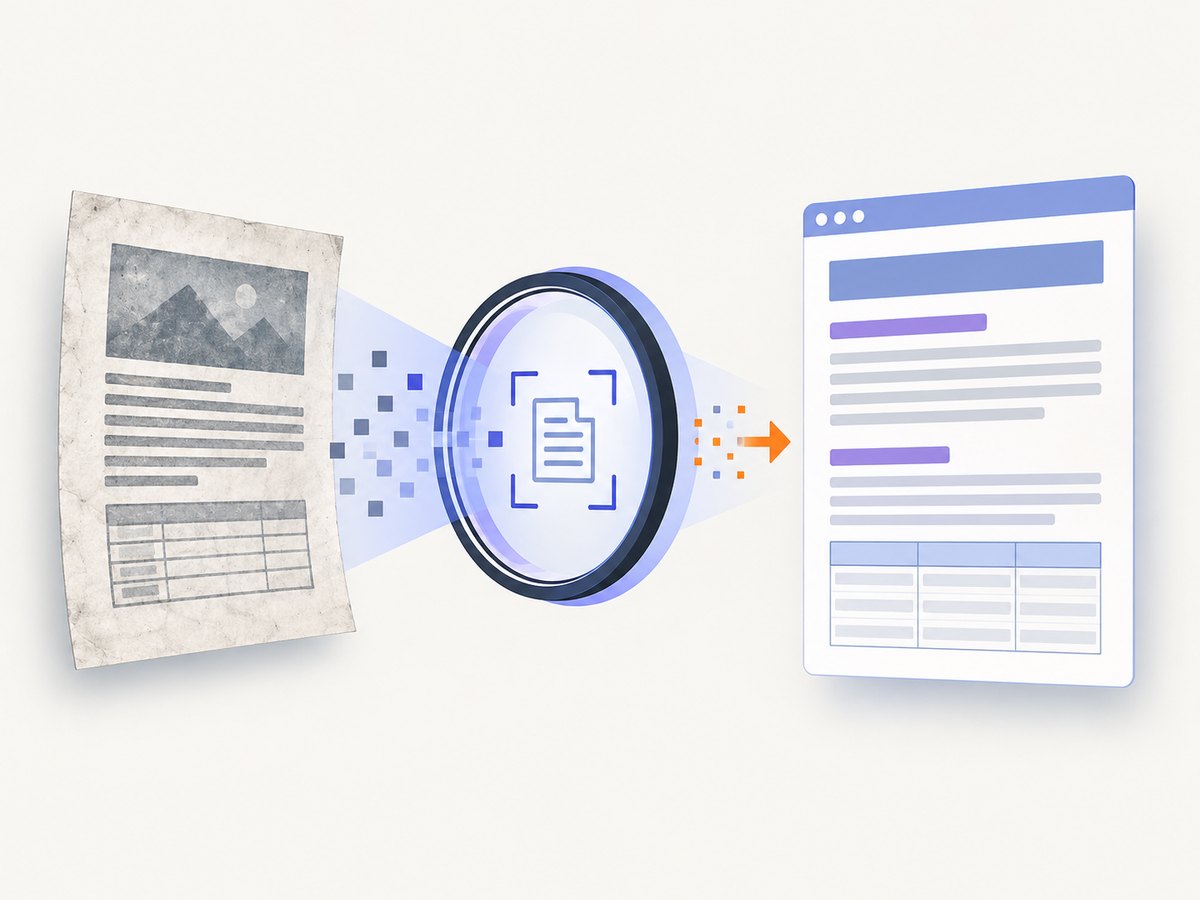
Image-only pages need OCR before their text can be searched, copied or represented as normal HTML text. Acrobat’s export settings include text recognition and a language choice. Treat the result as machine-generated text that requires review.
OCR review checklist
- Search for names, numbers, dates and URLs that are easy to misread.
- Compare headings and list boundaries with the source scan.
- Check table columns and decimal separators.
- Inspect pages with skew, shadows, handwriting or low contrast.
- Run keyboard navigation and screen-reader checks on the resulting page.
5. Treat conversion as a publishing pipeline
- Inventory the PDF. Record page count, scan status, languages, images, tables and sensitive content.
- Export HTML. Choose one file or linked files based on your deployment model.
- Normalize assets. Move images and styles into predictable paths; remove unused files.
- Repair semantics. Fix heading levels, lists, landmarks, links, table headers and alternative text.
- Make it responsive. Add max-width rules, flexible images and overflow handling for narrow screens.
- Validate. Test links, keyboard navigation, zoom, print output, mobile widths and representative browsers.
- Compare against the PDF. Check every page, especially columns, footnotes, tables and captions.
6. Accessibility: what conversion can and cannot prove
Source tagging helps, but an exported page still needs HTML-specific review. Adobe PDF Services can check machine-verifiable PDF/UA and WCAG requirements, categorize results as passed, failed or needing manual checking, and auto-tag headings, paragraphs, lists, tables and figures. Those capabilities support the PDF side of the process; they do not prove that arbitrary converted HTML is fully accessible.
For the HTML, verify:
- Logical heading order and landmark regions
- Keyboard access to every link and control
- Visible focus indicators
- Text alternatives for informative images
- Table headers and relationships
- Contrast, zoom and reflow at 200% and beyond
- Meaningful link names and document language
7. When you actually need a reusable template
If the requirement is “fill this design with customer data every month,” PDF-to-HTML conversion is the wrong starting point. Author a template with explicit fields, validate incoming data, then generate a new PDF or Word document. Adobe’s documented template workflow uses Word templates and data; its PDF Services overview also describes generating PDFs from HTML and other inputs. Do not assume that those APIs provide PDF-to-HTML export.
Template workflow checklist
- Define fields and data types.
- Author the template with stable styles and accessible labels.
- Render representative data, including long names and missing values.
- Generate the target document.
- Run visual, content and accessibility checks.
- Version the template separately from application code.
8. API and automation boundaries
Desktop Acrobat is the documented route for converting an existing PDF to HTML in the sources used here. Adobe PDF Services licensing is measured in Document Transactions. Its licensing page describes one transaction for up to 50 pages for most listed document operations and ten transactions per page for accessibility auto-tagging; these terms can change, so consult the current Adobe licensing and usage documentation before estimating scale.
Do not build an integration around an assumed PDF-to-HTML endpoint unless the provider’s current API documentation explicitly lists it. Confirm input limits, output packaging, retention, privacy and data residency before uploading confidential files.
9. Troubleshooting
| Symptom | Likely cause | Fix |
|---|---|---|
| HTML contains no selectable text | The PDF pages are scans and OCR was not enabled | Enable text recognition, select the correct language and proofread the result |
| Columns appear in the wrong order | Reading order is ambiguous | Repair the source structure or manually reorder the HTML |
| Images are missing | Linked assets were not copied or paths changed | Deploy the complete linked-file output and verify relative URLs |
| Headers repeat as body content | Page furniture was interpreted as content | Use the remove-headers-and-footers option, then review each page |
| Tables are unusable on mobile | Fixed-width layout was carried over | Add responsive overflow or rewrite the table markup |
| Fonts look different | The browser lacks the original font or the export substituted it | Use a licensed web font, define fallbacks and compare glyphs and spacing |
| Links point to wrong locations | Coordinates or relative paths changed during export | Inspect every link and correct URLs after conversion |
| Accessibility checker reports failures | PDF structure did not become valid HTML semantics | Add landmarks, headings, labels, table headers and alt text manually |
10. Performance, reliability and cost
- Performance: Linked files can improve caching and incremental delivery; one-file exports simplify deployment but may be heavy. Resize oversized images and remove unused assets.
- Reliability: Keep the original PDF, exported folder and post-conversion edits under version control or an auditable storage process. Re-exporting can overwrite manual fixes.
- Cost: Desktop licensing and API transaction terms differ. Count pages and accessibility operations using the provider’s current terms instead of assuming one PDF equals one transaction.
- Privacy: For sensitive documents, review upload retention, security controls and data residency before selecting a hosted converter.
11. Or skip the browser setup
If your goal is a visual capture of a webpage or rendered document rather than semantic PDF-to-HTML conversion, ScreenshotNeo returns a clean screenshot or PDF from one GET request. It removes cookie and consent banners, newsletter popups and chat widgets before capture. Bot checks, blank pages, failed loads and cache hits are not billed, and response headers identify the page verdict and billing result.
See the ScreenshotNeo API documentation for all options. A minimal request:
curl -G "https://api.screenshotneo.com/v1/shot" -d access_key=YOUR_API_KEY --data-urlencode url=https://stripe.com -o shot.webpPython:
import requests
r = requests.get("https://api.screenshotneo.com/v1/shot", params={"access_key": "YOUR_API_KEY", "url": "https://stripe.com"}, timeout=90)
open("shot.webp", "wb").write(r.content)
Node.js:
const q = new URLSearchParams({ access_key: 'YOUR_API_KEY', url: 'https://stripe.com' });
const res = await fetch(`https://api.screenshotneo.com/v1/shot?${q}`);
ScreenshotNeo also provides full-page capture, CSS-selector element capture, PDF output, custom CSS and JavaScript, waits, blocking rules, headers, cookies, device presets, caching, signed links, asynchronous jobs, bulk capture and an MCP server for AI agents. The free plan includes 1,000 screenshots per month with no card; paid plans start at $5 for 3,000. Create a free ScreenshotNeo account.
12. FAQ
Does PDF-to-HTML create a reusable template?
No. It converts an existing PDF. Reusable templates require a separate authoring and document-generation workflow.
Should I choose one HTML file or several?
Choose one for portability and several for page-level organization, caching and asset management.
Will the HTML look exactly like the PDF?
No converter should be assumed to preserve every position, font, table and page break. Plan for visual and semantic cleanup.
Can an accessibility report certify the HTML?
No. PDF checks can identify machine-verifiable issues and items needing manual review, but the converted HTML still needs its own accessibility testing.
Is a screenshot a replacement for HTML conversion?
No. A screenshot preserves appearance, while HTML preserves content that browsers and assistive technologies can interpret. Use the workflow that matches your goal.


