PDF vs. HTML: Key Differences and When to Use Each
Choose HTML for online reading and PDF for a fixed, downloadable or archival document. Here’s how accessibility, maintenance, and browser rendering affect the choice.
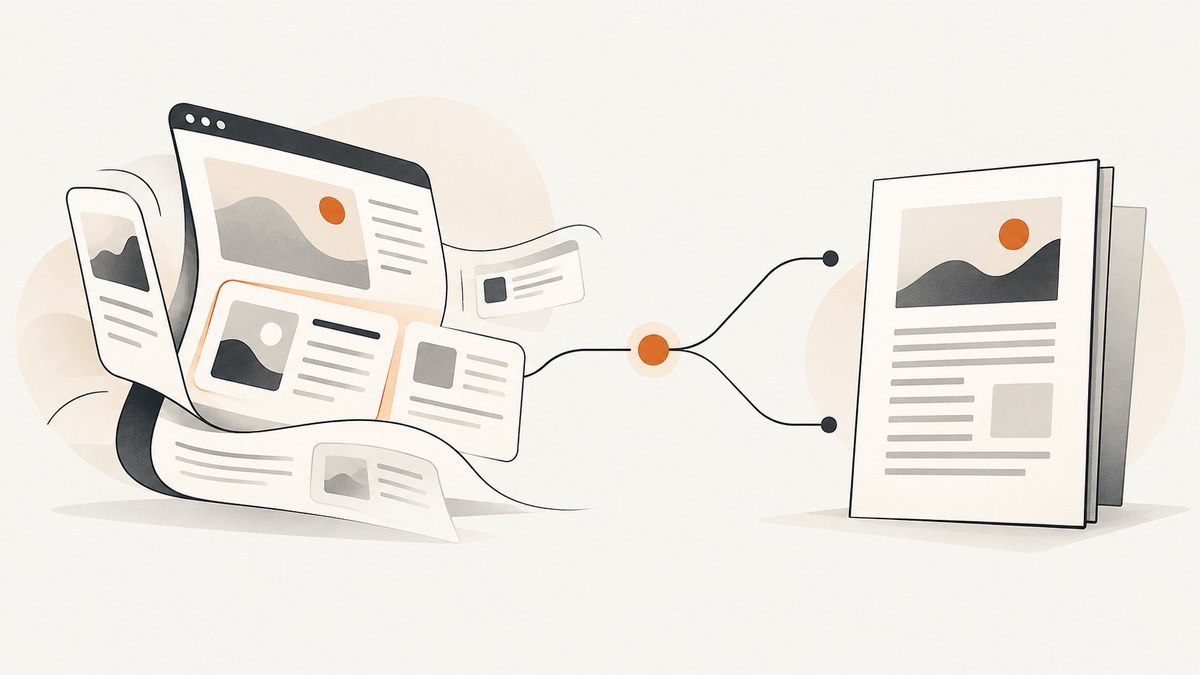
Choose HTML when people will read or use information online. Choose PDF when you need to provide a fixed-layout file for downloading, printing, or archiving. Neither format is automatically accessible: the result depends on how it is created and whether browsers and assistive technologies support the way people need to use it.
A useful rule is to publish essential web information as HTML and add a PDF only when the file itself serves a purpose, such as a printable handout or archival record. If you publish a PDF, make it accessible and provide an HTML route to essential information where possible. The guidance here reflects UK and US sources; legal obligations vary by jurisdiction.
1. What HTML and PDF are designed to do
HTML is the markup used to structure content for the web. A browser interprets that structure and presents it in a page that can respond to the user’s browser settings, device, and display. Web pages can be updated as web content without maintaining a separate downloadable file for every change.
PDF is a document format commonly used to distribute a file whose pages and layout should remain fixed. The reader can download, print, or archive the artifact. The fixed page layout can be useful, but it also means the content may not adapt as naturally to different screens or user preferences.
These formats are not mutually exclusive. A service can publish its current guidance as HTML and also offer an accessible PDF for readers who need a printable or downloadable document.
2. At-a-glance comparison
| Need | Start with | Reason | Check |
|---|---|---|---|
| Read or use information on a website | HTML | It can use readers’ browser settings and is maintained as web content. | Use semantic structure, accessible controls, and sufficient contrast. |
| Downloadable handout or fixed page layout | The document artifact can preserve a page-oriented presentation. | Provide document structure, meaningful reading order, and selectable text. | |
| Static, non-editable attachment for archive or download | PDF/A may be appropriate | GOV.UK’s open-standards profile specifies PDF/A-1 or PDF/A-2 for this use. | PDF/A is an archival profile, not a guarantee of accessibility. |
| Essential information also offered as a file | HTML plus the necessary accessible file | Readers have a web route to the information and a file when the file is useful. | Keep the two versions consistent. |
| Scanned legacy paper document | OCR, then review and provide an HTML alternative where possible | OCR can turn page images into searchable text that screen readers can access. | Correct recognition errors; OCR by itself does not establish accessibility. |

3. When HTML is the better choice
For material whose main purpose is to inform people on a website, HTML is usually the stronger starting point. The UK Government Digital Service advises publishing in HTML wherever possible so documents can use readers’ custom browser settings. GOV.UK also warns that PDFs can be harder to find, use, and maintain, and may work poorly with screen readers.
Prefer HTML when
- The page is part of a service, help center, policy, guide, or frequently updated reference.
- Readers need to find a specific answer through site navigation or search.
- The same content should work across phones, desktops, zoom levels, and browser preferences.
- You want to update one canonical web page rather than remember to regenerate and redistribute a separate file.
- The information is essential and should remain available to people who cannot use a particular document viewer.
HTML still requires accessible implementation. Use headings in a meaningful hierarchy, descriptive links, labels for controls, keyboard-operable interactions, and appropriate alternatives for meaningful images. Do not rely on color alone to communicate meaning. A page that is technically HTML can still be unusable if its structure or behavior is inaccessible.
4. When PDF is the better choice
Use PDF when the reader needs the document as a file or when the page layout is part of the intended artifact. Examples include a print-ready form, a handout designed for distribution, a report with page references, or a static record retained for download or archiving.
GOV.UK’s open-standards profile calls for PDF/A-1 or PDF/A-2 for static, non-editable attachments intended for download or archiving. Treat this as guidance for that profile and use case, not as a universal requirement for every PDF or an accessibility certificate. Confirm the format required by your organization’s archive policy.
Before publishing a PDF, check
- Text is selectable and searchable, rather than just a picture of a page.
- Headings, lists, tables, and links have meaningful structure.
- The reading order makes sense when read linearly and with assistive technology.
- Document language and title are set, and images that carry meaning have text alternatives.
- Forms can be completed with a keyboard and have clear labels and instructions.
- The file has been checked with appropriate accessibility tools and, where needed, manual review.
- An HTML page provides the essential information as well, where possible.
5. Accessibility: neither format wins automatically
It is inaccurate to say “HTML is accessible” or “PDFs are inaccessible” as absolutes. W3C’s WCAG 2.2 conformance guidance says conformance depends on how a technology is used and whether that use is supported by assistive technologies and user agents. WCAG includes both HTML and PDF as examples of web content technologies.
In the United States, Section 508 guidance describes requirements covering web and non-web electronic content, including HTML and PDF. That is a US standards context, not a statement of one global legal rule. Determine the rules that apply to your organization, audience, and jurisdiction, then test the actual content.
HTML can adapt to user settings, but poor semantics, inaccessible interactions, or missing alternatives can prevent people from using it. A well-structured PDF can be usable; an image-only scan usually is not. The accessibility work belongs to the publishing process for either format.
6. Scanned PDFs and OCR
A scan may contain only page images. In that case, searching for a word may find nothing, and a screen reader may have no text to announce. GOV.UK advises converting scanned text with optical character recognition (OCR) so it can become searchable and readable by a screen reader.
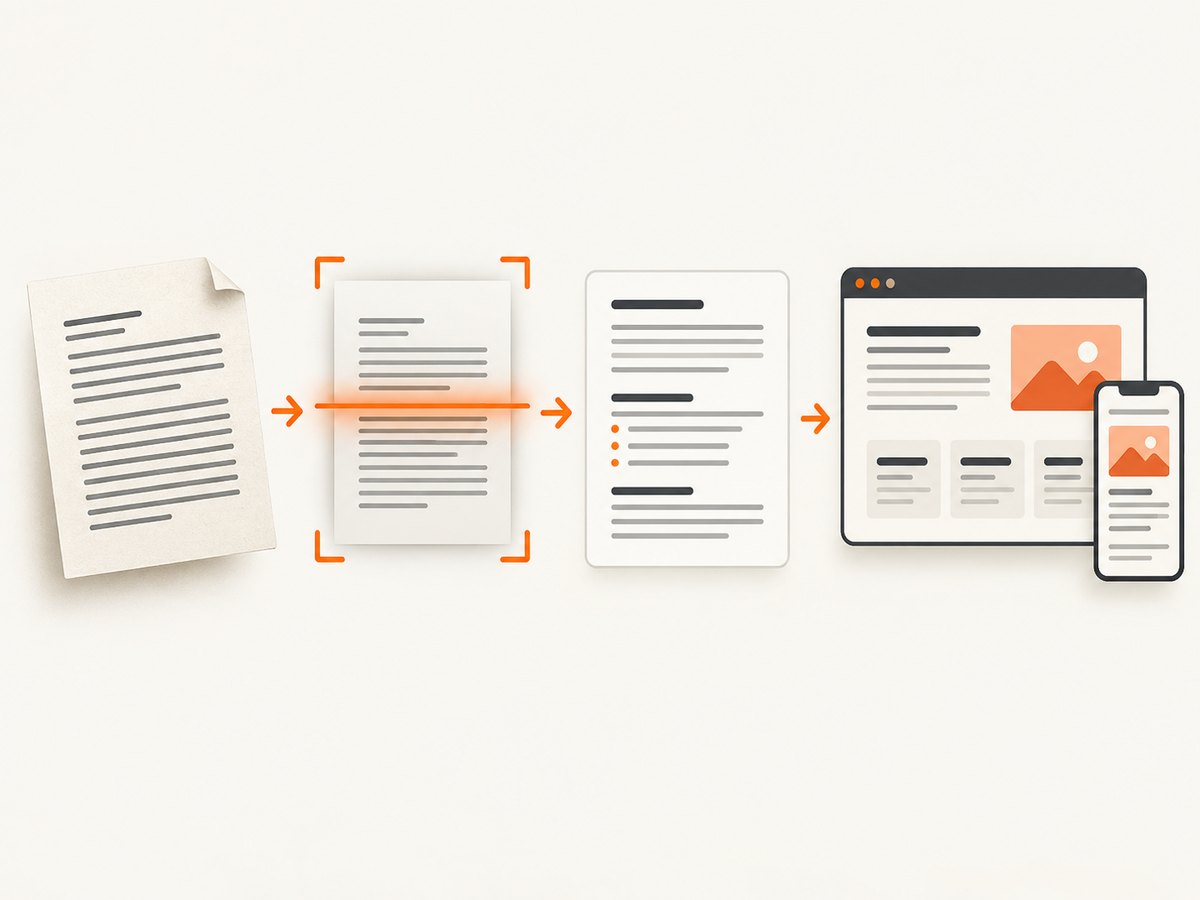
OCR is a starting point, not a complete remediation. Recognition can misread names, numbers, columns, and punctuation. Review the extracted text against the source, add or correct document structure, and check reading order and alternatives. If the information is important to use online, publish it in HTML as well where possible.
Practical scan workflow
- Run OCR with a tool suitable for the source language and document quality.
- Review the extracted text against each page, paying attention to tables, footnotes, and multi-column layouts.
- Add document title, language, headings, lists, and a logical reading order.
- Check links, form fields, and text alternatives for meaningful images.
- Test the resulting PDF with accessibility checks and assistive technology appropriate to your audience.
- Publish essential information in HTML where possible, and identify the PDF clearly as a download.
7. A decision process for publishers
- Start with the reader’s task. Are they reading current information in a service, or do they need a file they can print, retain, or submit?
- Choose HTML for the online route. If the content is meant to be found and used on your site, publish it as an accessible web page wherever possible.
- Add PDF for a concrete file need. Use it when fixed pages, printing, download, or archiving matters to the reader or process.
- Keep essential information available. If you provide a required PDF, offer an HTML route to the essential content where possible.
- Check accessibility in the actual output. Review the page or PDF in its intended browsers, viewers, and assistive technology context.
- Plan for updates. Set an owner and a process to keep the HTML page and downloadable file aligned.
If a website needs a visual record of either format’s rendered page, capture it in a browser at the viewport and state you need to document. A screenshot is useful for visual review, but it does not replace checking selectable text, structure, or screen-reader behavior.
8. Capture a page or PDF preview with code
For a quick visual capture, a browser automation library can open the target and save a screenshot. Install Playwright in a Node.js project with npm install playwright, then install its browser with npx playwright install chromium. Save the following as capture.mjs and run node capture.mjs:
import { chromium } from 'playwright';

const browser = await chromium.launch({ headless: true });
const page = await browser.newPage({
  viewport: { width: 1440, height: 1000 },
  deviceScaleFactor: 1
});

try {
  await page.goto('https://example.com', {
    waitUntil: 'networkidle',
    timeout: 30000
  });
  await page.screenshot({ path: 'page.png', fullPage: true });
} finally {
  await browser.close();
}
Replace the URL with a page you are permitted to capture. Use fullPage: true for the full document; set it to false for the visible viewport. Sites that keep network connections open may never reach networkidle; in that case use waitUntil: 'domcontentloaded' and wait for a specific selector or a short, deliberate delay. A screenshot shows pixels, not whether the underlying document is accessible.
Generate a PDF from HTML locally
When your source is a web page and you need a printable artifact, Chromium can print the page to PDF. With the same Playwright setup, replace the screenshot call with:
await page.pdf({
  path: 'page.pdf',
  format: 'A4',
  printBackground: true,
  margin: { top: '15mm', right: '15mm', bottom: '15mm', left: '15mm' }
});
This makes a PDF rendition of the page; it does not prove that the PDF meets an accessibility or archival standard. Inspect page breaks, links, text selection, and reading order. If you have a PDF URL, open it in a browser PDF viewer and capture the viewer only when a visual preview is what you need.
9. Or skip the browser setup
ScreenshotNeo is a website screenshot API and MCP server for developers. Its one-call API can return PNG, JPEG, WebP, or PDF. See the API documentation for request options.
curl -G "https://api.screenshotneo.com/v1/shot" \
  -d access_key=YOUR_API_KEY \
  --data-urlencode url=https://example.com \
  -o shot.webp
import requests
r = requests.get(
"https://api.screenshotneo.com/v1/shot",
params={"access_key": "YOUR_API_KEY", "url": "https://example.com"},
timeout=90,
)
r.raise_for_status()
open("shot.webp", "wb").write(r.content)const q = new URLSearchParams({
access_key: 'YOUR_API_KEY',
url: 'https://example.com'
});
const res = await fetch(`https://api.screenshotneo.com/v1/shot?${q}`);
if (!res.ok) throw new Error(`Screenshot request failed: ${res.status}`);
await Bun.write('shot.webp', res);ScreenshotNeo removes cookie banners, newsletter popups, and chat widgets before capture; bot checks, blank pages, and failed loads are never billed. Its MCP server lets AI agents take screenshots. The free plan includes 1,000 screenshots a month with no card; paid plans start at $5 for 3,000. Sign up for 1,000 free screenshots a month, no card required.
10. Reliability, performance, and cost considerations
HTML and PDF have different publishing costs. HTML updates can be made on the site and reach readers through the existing page, but changes require careful review so navigation, links, and accessibility remain intact. A PDF may be convenient to distribute as a file, but each revision creates a version that can be saved, printed, or circulated after the source changes. Give downloadable files a clear date or version and link back to the current HTML page when appropriate.
Browser rendering also affects visual captures. Fonts, external images, client-side scripts, cookie prompts, network delays, and responsive breakpoints can change the result. For repeatable capture, set a viewport, wait for the content that matters, and use the same browser configuration. A full-page capture can take longer and produce a larger file than a viewport image. Avoid treating a screenshot or generated PDF as the canonical source unless that is explicitly the publishing goal.
There is no universal cost or speed winner established by the cited guidance. Choose based on the reader’s task and the cost of maintaining accessible, accurate versions. If you publish both, assign responsibility for keeping them synchronized and remove superseded files from prominent distribution paths.
11. Troubleshooting common problems
| Problem | Likely cause | What to do |
|---|---|---|
| Text in a scanned PDF cannot be searched | The pages are images with no text layer. | Run OCR, verify the recognized text, and add document structure. |
| Screen reader announces little or reads in the wrong order | Missing tags, incorrect reading order, or image-only content. | Repair the structure and order; add alternatives; provide HTML for essential information where possible. |
| A PDF is difficult to read on a phone | Fixed page layout requires zooming and panning. | Offer the content as HTML and retain the PDF for readers who need the file. |
| Printed PDF has clipped text or awkward page breaks | Print styles, margins, or page-break behavior do not suit the output. | Adjust print CSS or PDF margins, then inspect the rendered pages at the intended paper size. |
| Screenshot is blank or incomplete | The page was captured before client rendering or lazy content finished. | Wait for a relevant selector or image state; check the URL, network access, and browser errors. |
| Automation times out waiting for network idle | The site maintains analytics, streaming, or long-lived network requests. | Wait for DOM content or a specific selector instead, with a bounded timeout. |
| HTML and PDF disagree | One version was updated without regenerating the other. | Use one canonical source, record versions, and check both outputs during each release. |
| OCR text contains wrong numbers or names | Low scan quality, unusual type, or complex columns confused recognition. | Correct the extracted text manually and compare critical details against the original. |
12. Frequently asked questions
Is HTML always better than PDF?
No. HTML is generally the better route for online information; PDF is useful when the reader needs a fixed document artifact. Accessibility depends on the implementation of either format.
Does saving a web page as PDF make it accessible?
No. Conversion creates a file, but you still need to check its tags, reading order, text, links, and other accessibility features.
Is PDF/A the accessible version of PDF?
No. PDF/A is an archival profile. The cited GOV.UK guidance recommends PDF/A-1 or PDF/A-2 for static, non-editable archive or download attachments; accessibility is a separate concern.
Should I publish both versions?
Publish both when the PDF provides a real benefit such as printing or archiving. Keep essential information available in HTML where possible, and maintain both versions together.
Can a screenshot establish that a page or PDF is accessible?
No. A screenshot records appearance. It cannot establish semantic structure, text availability, keyboard access, or screen-reader behavior.


