How to Use PDFKit in AWS Lambda
Generate PDFs with PDFKit in AWS Lambda, return them through API Gateway, store them in S3, package fonts, and troubleshoot deployment failures.

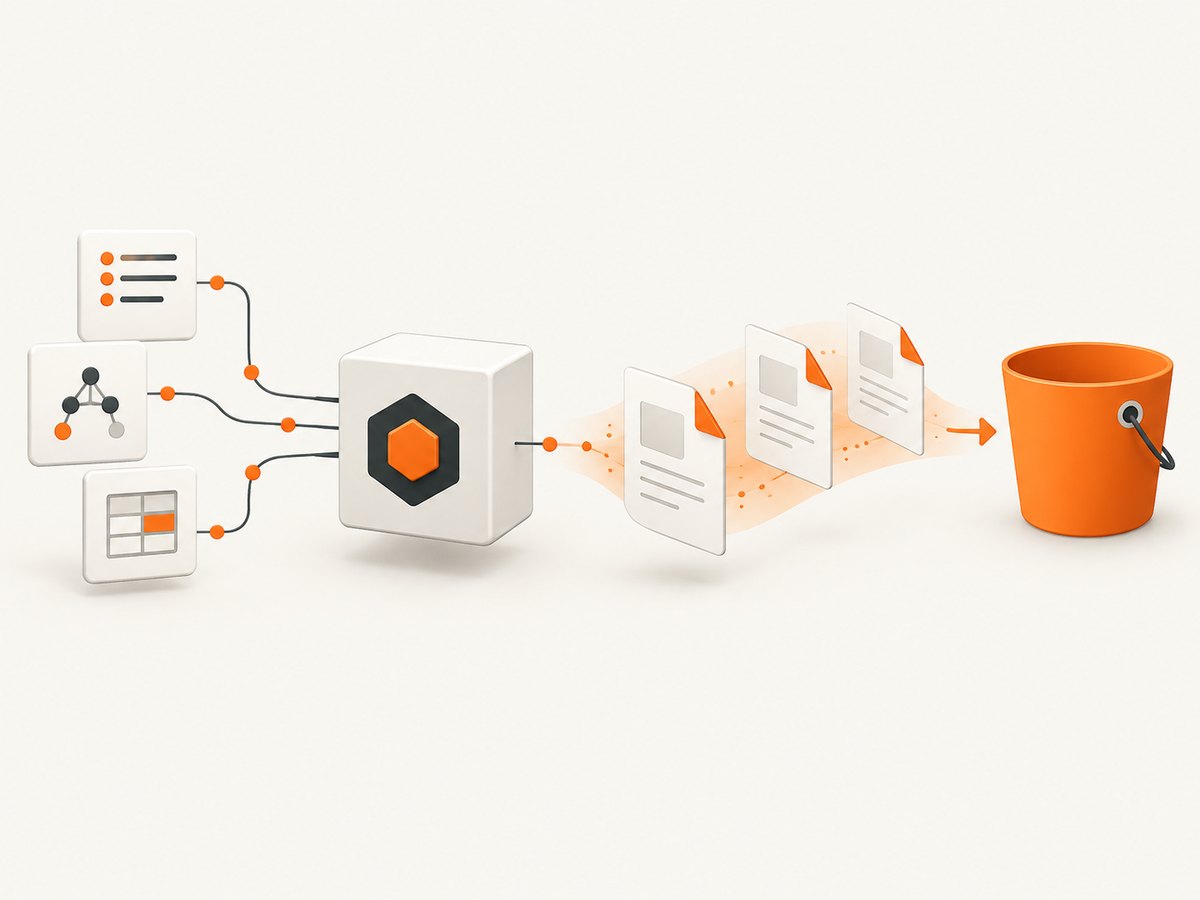
PDFKit works in AWS Lambda when you package it with your Node.js function, collect or stream the document bytes, and return them as base64 when the invocation uses an API Gateway-style response. For durable files or larger documents, write the PDF to Lambda’s writable /tmp directory and upload it to Amazon S3. For branded or multilingual output, package TrueType or OpenType fonts with the function and register them with PDFKit.
PDFKit is a JavaScript PDF-generation library for Node.js and the browser. Its Node build supports document creation and streams, which makes it suitable for short-lived Lambda invocations. See the PDFKit project and its getting-started documentation.
1. Choose the Lambda output pattern
Your integration determines how the handler should finish its work.
| Pattern | Use it when | Result |
|---|---|---|
| Direct response | The PDF is small and the caller needs it immediately | Collect stream chunks, base64-encode the buffer, and return it |
/tmp plus S3 |
The file must persist, be downloaded later, or participate in an asynchronous workflow | Write the PDF to a temporary file, upload it, and return the S3 key or download URL flow |
| Event-driven | An upload or queue event should trigger generation | Process the event, store the result in S3, and acknowledge the event |
Lambda’s /tmp directory is writable during an invocation, but it is temporary. Treat S3 as the durable destination. AWS’s file-processing example follows this download/process/upload model; see AWS’s S3 and Lambda file-processing guidance.
2. Create a minimal PDFKit Lambda function
Start with a Node.js project and install PDFKit as a production dependency:
mkdir pdfkit-lambda
cd pdfkit-lambda
npm init -y
npm install pdfkit
Put the following in index.js. It creates a PDF in memory and returns an API Gateway-compatible response.
const PDFDocument = require('pdfkit');

exports.handler = async () => {
  const doc = new PDFDocument({
    size: 'A4',
    margin: 50,
    info: {
      Title: 'Lambda PDF',
      Author: 'PDFKit'
    }
  });

  const chunks = [];
  const done = new Promise((resolve, reject) => {
    doc.on('data', chunk => chunks.push(chunk));
    doc.on('end', resolve);
    doc.on('error', reject);
  });

  doc.fontSize(20).text('Hello from AWS Lambda');
  doc.moveDown();
  doc.fontSize(11).text(`Generated at ${new Date().toISOString()}`);
  doc.end();

  await done;
  const pdf = Buffer.concat(chunks);

  return {
    statusCode: 200,
    headers: {
      'Content-Type': 'application/pdf',
      'Content-Disposition': 'inline; filename="lambda.pdf"'
    },
    isBase64Encoded: true,
    body: pdf.toString('base64')
  };
};
The data, end, and error listeners are essential. Calling doc.end() finalizes the PDF stream. Waiting for end ensures the buffer is complete before the handler returns.
Invoke the function with the AWS CLI
zip -r function.zip index.js package.json package-lock.json node_modules
aws lambda create-function \
  --function-name pdfkit-example \
  --runtime nodejs22.x \
  --handler index.handler \
  --role arn:aws:iam::123456789012:role/lambda-execution-role \
  --zip-file fileb://function.zip
The exact runtime available in your account can differ. Use the Node.js runtime selected for your function and follow AWS’s Node.js deployment-package documentation. The deployment artifact must contain node_modules/pdfkit; a local installation on your workstation is not available inside Lambda.
3. Return PDFs through API Gateway or a Lambda URL
Binary data needs special handling. The handler above returns a base64 string and sets isBase64Encoded to true. Configure the integration to pass binary responses through. If the client receives base64 text instead of a PDF, the integration is treating the response as ordinary JSON or the flag is missing.
A simple HTTP client can save the response like this:
curl -L "https://api.example.com/pdf" -o result.pdfIf your endpoint expects a JSON request body, validate and constrain user input before putting it into the document. Do not trust arbitrary file paths, HTML, or font paths supplied by a caller.
Calling the endpoint from Python
import requests

response = requests.get("https://api.example.com/pdf", timeout=30)
response.raise_for_status()
with open("result.pdf", "wb") as output:
    output.write(response.content)
Calling the endpoint from Node.js
const res = await fetch('https://api.example.com/pdf');
if (!res.ok) throw new Error(`HTTP ${res.status}`);
const bytes = Buffer.from(await res.arrayBuffer());
require('node:fs').writeFileSync('result.pdf', bytes);
4. Store a generated PDF in Amazon S3
Use S3 when the document must survive the invocation, exceed a practical response size, or be consumed by another process. Install the modular AWS SDK client:
npm install @aws-sdk/client-s3This handler writes a PDF stream to /tmp/report.pdf, uploads it, and returns the object key.
const fs = require('node:fs');
const path = require('node:path');
const PDFDocument = require('pdfkit');
const { S3Client, PutObjectCommand } = require('@aws-sdk/client-s3');

const s3 = new S3Client({});
const bucket = process.env.OUTPUT_BUCKET;

exports.handler = async (event) => {
  if (!bucket) throw new Error('OUTPUT_BUCKET is not configured');

  const filePath = path.join('/tmp', `report-${Date.now()}.pdf`);
  const output = fs.createWriteStream(filePath);
  const doc = new PDFDocument({ size: 'A4', margin: 50 });

  const finished = new Promise((resolve, reject) => {
    output.on('finish', resolve);
    output.on('error', reject);
    doc.on('error', reject);
  });

  doc.pipe(output);
  doc.fontSize(20).text('S3-backed Lambda report');
  doc.moveDown();
  doc.fontSize(11).text(JSON.stringify(event ?? {}, null, 2));
  doc.end();
  await finished;

  const key = `reports/${path.basename(filePath)}`;
  await s3.send(new PutObjectCommand({
    Bucket: bucket,
    Key: key,
    Body: fs.createReadStream(filePath),
    ContentType: 'application/pdf'
  }));

  return { statusCode: 200, body: JSON.stringify({ bucket, key }) };
};
Give the execution role permission to write to the destination bucket, preferably scoped to the required prefix. Delete temporary files when a warm invocation could otherwise accumulate them:
try {
  // generate and upload
} finally {
  fs.rm(filePath, { force: true }, () => {});
}
For large or concurrent workloads, use unique keys and consider reserved concurrency, queue-based invocation, and an idempotency key so retries do not create confusing duplicates.
5. Add fonts correctly
PDFKit includes the 14 standard PDF fonts, such as Helvetica, Courier, Times, Symbol, and ZapfDingbats. They require no font files and keep deployment packages small. Use an embedded font when you need brand typography, characters outside those standard fonts, or a document that must retain its glyphs across viewers.
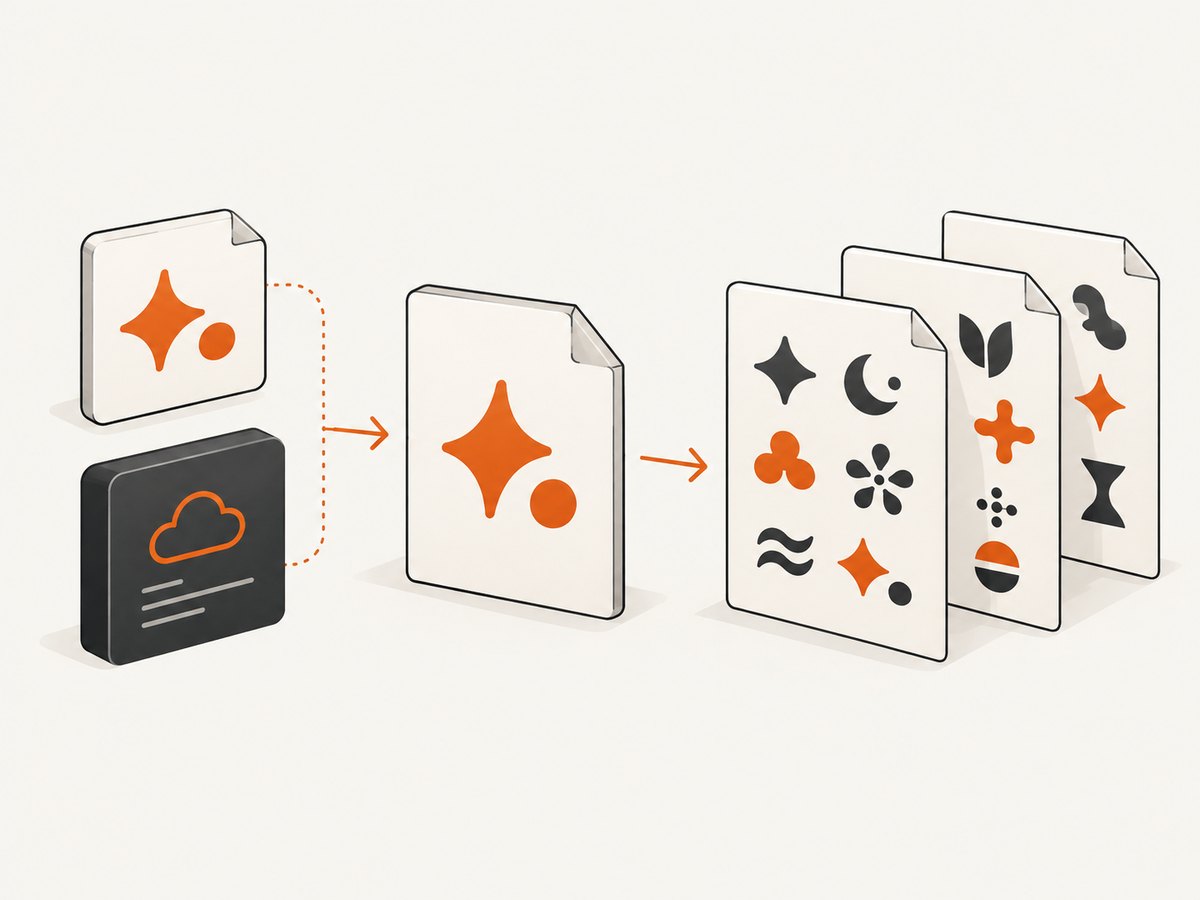
Place a .ttf or .otf file in the deployment package:
fonts/Inter-Regular.ttfResolve the path relative to the deployed source file, then register it:
const path = require('node:path');
const PDFDocument = require('pdfkit');

const fontPath = path.join(__dirname, 'fonts', 'Inter-Regular.ttf');
const doc = new PDFDocument();
doc.registerFont('Inter', fontPath);
doc.font('Inter').fontSize(12).text('Unicode text: café, 日本語, العربية');
Do not use a path that exists only on your laptop. If a font is downloaded at runtime, save it under /tmp and validate the download before registering it. PDFKit’s accessibility guidance recommends embedded TrueType or OpenType fonts when a compliant PDF is required; see PDFKit’s text documentation.
6. Build multi-page documents safely
PDFKit automatically creates pages as content exceeds the available height. You can also control page breaks and headers:
doc.fontSize(16).text('Invoice', { align: 'center' });
doc.moveDown();
for (const item of items) {
  if (doc.y > 720) doc.addPage();
  doc.fontSize(10).text(`${item.name} — ${item.amount}`);
}
doc.addPage({ size: 'Letter', margin: 36 });
doc.fontSize(18).text('Appendix');
Keep repeated layout calculations deterministic. Long unbroken strings, oversized images, and unbounded arrays can consume memory or produce unexpectedly large files. Validate input lengths, paginate tables deliberately, and avoid loading a huge source asset into memory when a file stream is sufficient.
7. Synchronous versus event-driven architecture
A synchronous API is the simplest choice when generation finishes within the caller’s timeout and the resulting PDF is modest in size. Return the bytes directly and let the client download them.
Use an event-driven design when generation can take longer, when users do not need to wait, or when several documents are produced per request. A typical flow is:
- Accept a request and create a job record.
- Send a message to a queue or invoke Lambda asynchronously.
- Generate the PDF under
/tmp. - Upload it to S3 with metadata such as a job ID.
- Update the job record and notify the caller.
An S3 upload can also trigger a second Lambda. Guard against recursive triggers by writing output to a different bucket or prefix from the input event.
8. Troubleshooting common failures
| Symptom | Cause | Fix |
|---|---|---|
| Invocation hangs | doc.end() was never called, or the code never waits for the stream |
Call doc.end() and await the end or writable-stream finish event |
| Downloaded file is corrupt | Binary bytes were returned as ordinary text | Base64-encode the buffer and set isBase64Encoded: true; configure binary media handling |
Cannot find module 'pdfkit' |
The dependency was not included in the zip or image | Run npm install in the project, package node_modules, and deploy the complete artifact |
ENOENT for a font |
The path is local-only or the font was omitted | Bundle the font and resolve it with __dirname; use /tmp only for runtime downloads |
| PDF disappears after the request | /tmp was treated as permanent storage |
Upload the finished file to S3 before returning |
| Out-of-memory or timeout | The document, images, or font set is too large for in-memory generation | Stream to /tmp, increase memory/timeout within limits, paginate input, and reduce asset size |
| Duplicate S3 objects after retries | Lambda retries are normal and the key is not idempotent | Derive the key from a stable job ID and make writes idempotent |
9. Performance, reliability, and cost considerations
Performance
- Keep
PDFDocumentcreation inside the handler when content is request-specific, but initialize reusable AWS SDK clients outside the handler to benefit from warm invocations. - Use standard fonts when embedding is unnecessary.
- Resize source images before inserting them and avoid repeatedly decoding the same asset.
- For many independent documents, queue jobs instead of making one invocation build every file serially.
Reliability
- Handle both PDF stream errors and S3 upload errors.
- Set explicit timeouts on upstream calls and configure a Lambda timeout longer than the expected generation time.
- Log a request or job identifier, the S3 key, and document size, while excluding sensitive document contents.
- Test the exact deployment artifact, including fonts and native dependencies, rather than only running from a developer machine.
Cost
Lambda cost depends on invocation count, duration, and configured memory; S3 adds storage and request charges. Large PDFs held in API responses can also increase transfer costs. Storing once in S3 and serving through an appropriate download path is often simpler for repeat access.
10. Or skip the browser setup
If your goal is a screenshot or PDF of an existing web page rather than a PDF assembled from application data, ScreenshotNeo provides a single HTTP request. The API handles the browser capture workflow for you. See the ScreenshotNeo API documentation.
curl -G "https://api.screenshotneo.com/v1/shot" -d access_key=YOUR_API_KEY --data-urlencode url=https://stripe.com -o shot.webpimport requests
r = requests.get("https://api.screenshotneo.com/v1/shot", params={"access_key": "YOUR_API_KEY", "url": "https://stripe.com"}, timeout=90)
open("shot.webp", "wb").write(r.content)const q = new URLSearchParams({ access_key: 'YOUR_API_KEY', url: 'https://stripe.com' });
const res = await fetch(`https://api.screenshotneo.com/v1/shot?${q}`);Cookie banners, newsletter popups, and chat widgets are removed before the shot. Bot checks, blank pages, failed loads, timeouts, and cache hits are not billed, and response headers identify the page verdict and billing status. An MCP server lets Claude, Cursor, and other MCP clients use take_screenshot, get_page_info, and capture_pdf. The Free plan includes 1,000 screenshots each month with no card; paid plans start at $5 for 3,000 shots. Create a free ScreenshotNeo account.
11. FAQ
Can PDFKit run in Lambda without Chromium?
Yes. PDFKit generates PDF bytes directly and does not require a browser. Chromium is only relevant when rendering HTML or a web page.
Should I use a Lambda layer?
A layer can share dependencies across functions, but a zip deployment is usually simpler for one function. Whichever method you choose, verify that PDFKit and every font are present at runtime.
Can I return a PDF from an S3-triggered function?
An S3-triggered invocation has no direct HTTP response to the uploader. Generate the file, save it to S3, and expose its key through your job status or notification system.
Why does a PDF look different on another machine?
Viewer differences usually come from fonts or missing glyphs. Embed a suitable TTF or OTF font and register it explicitly when consistent rendering matters.


